



NinjaTrader 8 Backup and Restore Troubleshooting: Fixing Compile Errors, Duplicate Files, and Cache Conflicts After Upgrades
Overview #
You upgraded NinjaTrader 8, restored a backup, and now nothing compiles. The NinjaScript Editor spits out CS0101 errors, indicators that worked yesterday refuse to load, and the Output window is a wall of red text. You're dead in the water.
This isn't a platform bug. It's a predictable consequence of how NT8 handles custom code — and once you understand the folder architecture, the fix is mechanical. Every compile error after a restore traces back to one of three root causes: duplicate class definitions from restored system files, stale compiled DLLs that target the wrong NT8 version, or cache conflicts masking the real problem.
This article walks through the complete diagnostic and cleanup workflow. From identifying which files belong to the platform and which belong to you, to purging the compile cache, to building a backup strategy that prevents this from happening again. If you've ever deleted an indicator thinking you were fixing things and ended up with more errors, this is the guide you needed before you started.
Key Concepts #
@ Prefix System Files — Every .cs source file that ships with NinjaTrader 8 is prefixed with @. Files like @EMA.cs, @RSI.cs, @VWAP.cs are platform-owned. They get regenerated on every upgrade. If your backup includes these files and you restore them into an upgraded installation, you now have two definitions of the same indicator class — and NT8 won't compile anything until you resolve the conflict.
Source vs Compiled Output — NT8 stores your NinjaScript source code (.cs files) and your compiled binaries (.dll, .pdb, .cache files) in different locations within the same Documents\NinjaTrader 8\ directory tree. The source files are your code. The compiled files are disposable build artifacts that NT8 regenerates every time you press F5. Treating compiled output as "important data" during a backup is the single most common cause of post-restore failures.
CS0101: Duplicate Class Definition — The C# compiler error CS0101: The namespace 'NinjaTrader.NinjaScript.Indicators' already contains a definition for 'X' means exactly one thing: two files in the compilation scope define the same class name. NT8 compiles every .cs file in each NinjaScript subfolder into a single assembly. Two files, same class name, compiler refuses to guess which one you meant.
Compile Cache — NT8 maintains compiled DLLs and cache files in bin\Custom\. When these artifacts get stale (from a restore, a version mismatch, or a failed compilation), they can silently interfere with subsequent compiles. Clearing this cache is the single highest-ROI troubleshooting step for any NinjaScript problem.
The compile cache is the #1 hidden cause of "it compiled fine but behaves wrong." If an indicator produces unexpected values after a restore, clear the cache before debugging the code.
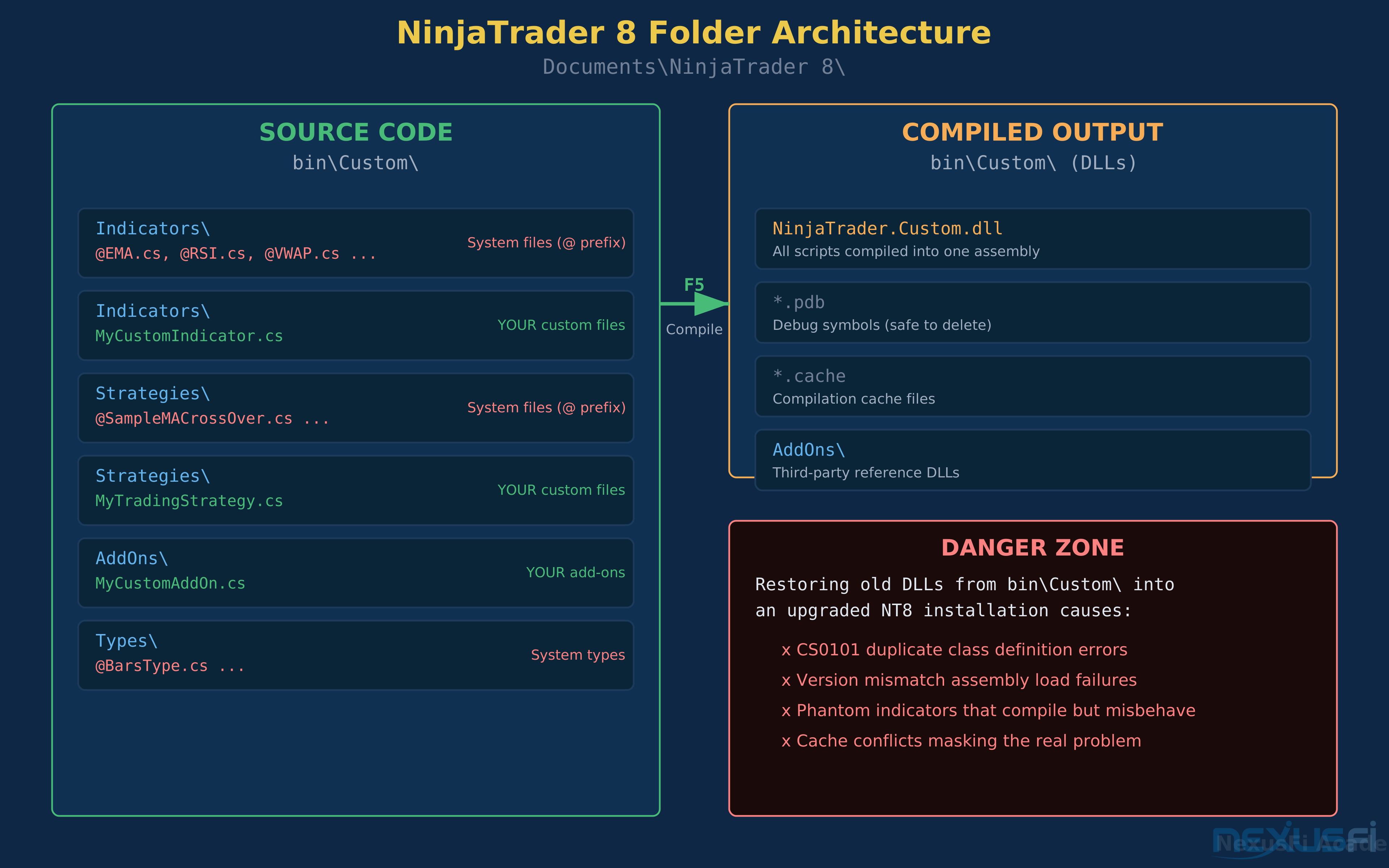
NT8's folder architecture: source code lives in bin\Custom\ as .cs files, compiled output (DLLs, cache) is generated on compile. Treat compiled output as disposable.
The NT8 Folder Architecture: Source vs Build Artifacts #
Everything custom in NinjaTrader 8 lives under Documents\NinjaTrader 8\. As @iantg documented in the NexusFi forums, "Indicators and Strategies are all stored in NinjaTrader > Bin > Custom > Indicators and NinjaTrader > Bin > Custom > Strategies respectively." That's the key directory to understand.
Here's the layout that matters:
Documents\NinjaTrader 8\
├── bin\Custom\              <-- SOURCE + COMPILED
│   ├── Indicators\          <-- .cs source files (system @-prefixed + custom)
│   ├── Strategies\          <-- .cs source files
│   ├── AddOns\              <-- .cs source files + third-party DLLs
│   ├── Types\               <-- BarType, ChartStyle definitions
│   ├── NinjaTrader.Custom.dll  <-- THE compiled assembly (all scripts)
│   ├── *.pdb                <-- Debug symbols (disposable)
│   └── *.cache              <-- Build cache (disposable)
├── templates\               <-- Chart templates, ATM strategies, workspaces
├── config\                  <-- Connection configs, instrument lists
└── log\                     <-- Log files
The critical distinction: NT8 compiles ALL .cs files across ALL subfolders into a single assembly called NinjaTrader.Custom.dll. As @Zondor explained, "When NinjaTrader starts up it compiles ALL of the indicators that exist in the bin\Custom\Indicators file." This means a problem in any single .cs file prevents everything from compiling. One bad file takes down the entire custom script ecosystem.
This is why post-restore errors feel catastrophic. You don't get "indicator X failed." You get "nothing compiles, here are 47 errors." But it's almost always one or two root-cause files cascading into dozens of downstream errors.
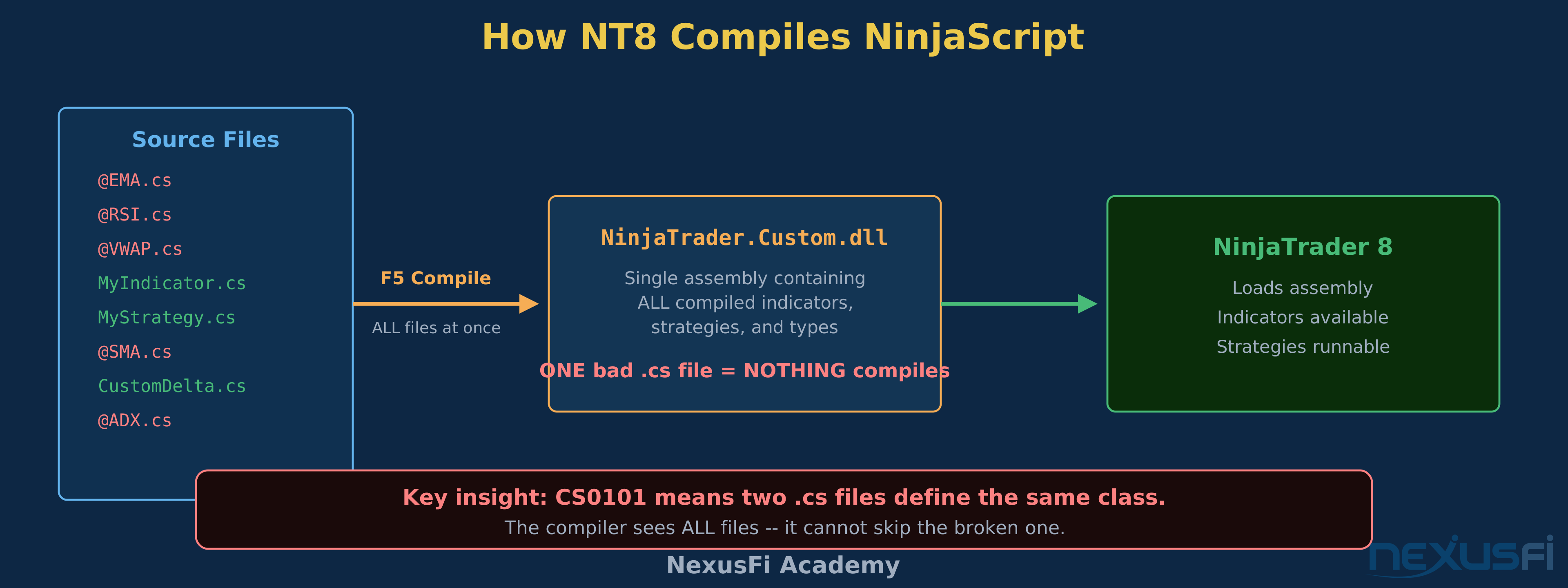
NT8 compiles ALL .cs files into one assembly. A single duplicate class definition prevents everything from compiling.
When you see 47 compile errors, don't panic and start deleting files. Fix the FIRST error in the list, recompile, and watch how many errors disappear. Most cascading errors trace back to one or two root-cause files.
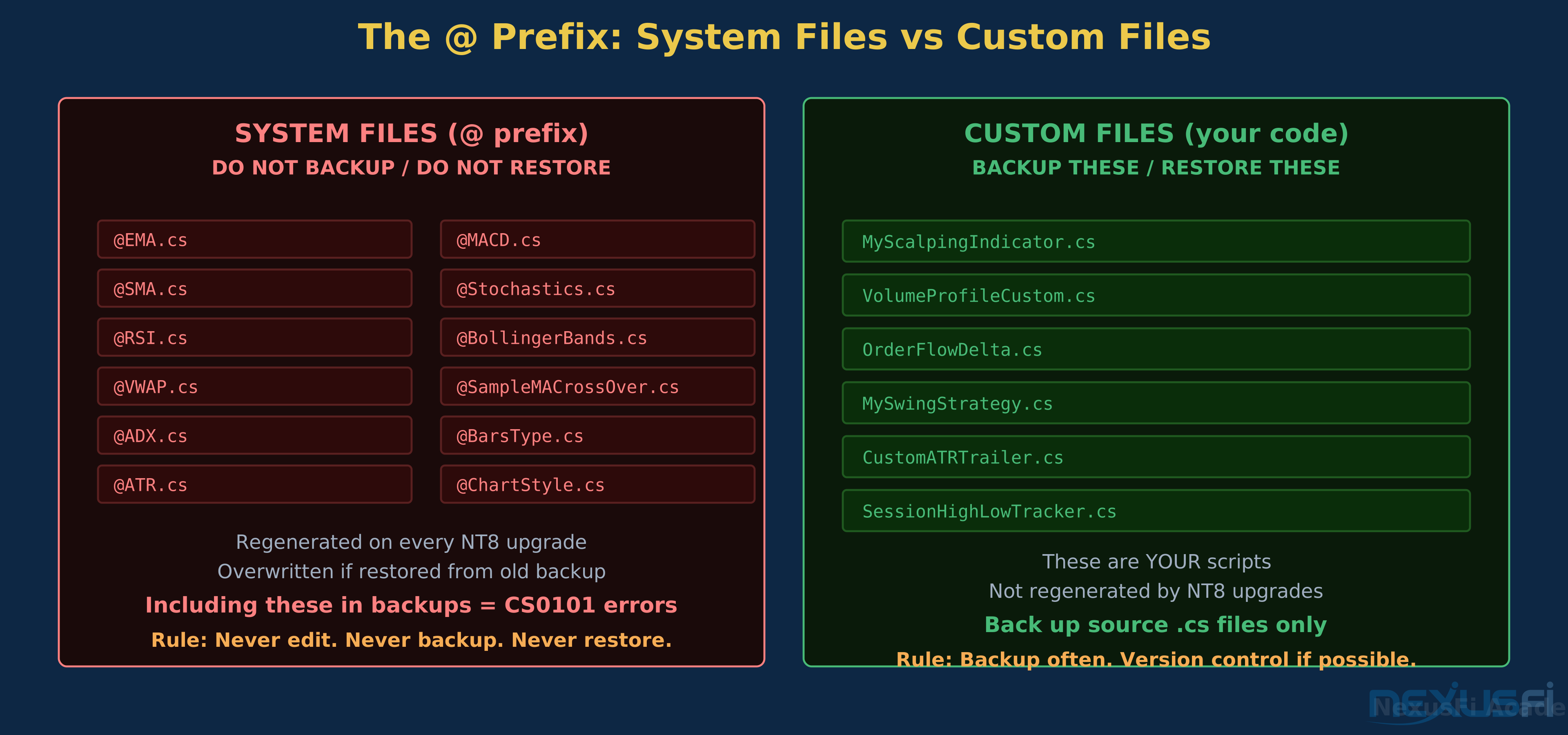
@ Prefix Files: System Indicators You Should Never Touch #
Open your bin\Custom\Indicators\ folder and you'll see files like @EMA.cs, @SMA.cs, @RSI.cs, @VWAP.cs, @ADX.cs. That @ prefix is NinjaTrader's marker for system-owned files — indicators, strategies, and types that ship with the platform.
System files (@-prefixed) are regenerated on every upgrade. Custom files (no prefix) are your code. Only backup the custom ones.
As @hedgeplay noted on NexusFi, "The @ATR.cs included is the default ATR.cs that shipped with your NT8 client, so when prompted to replace the existing click..." — confirming that @-prefixed files are default system indicators that get overwritten during imports and upgrades.
The rules for @-prefixed files are absolute:
- Never edit them. Your changes will be overwritten on the next upgrade.
- Never include them in manual backups. They belong to the platform, not to you.
- Never restore them from an old backup into a new installation. This is the #1 cause of CS0101 errors after upgrades.
If you need to modify a system indicator, copy it to a new file without the @ prefix, rename the class, and work with your copy. The original stays untouched.
The problem scenario looks like this: you take a full backup of bin\Custom\ before upgrading NT8. You upgrade. You restore the backup. Now you have the old @EMA.cs (from your backup) sitting next to the new @EMA.cs (regenerated by the upgrade). Two files, same class name, CS0101.
CS0101: When Two Classes Share a Name #
The error reads: CS0101: The namespace 'NinjaTrader.NinjaScript.Indicators' already contains a definition for 'EMA'
@maryfromcolorado explained this clearly: "NT compiles all indicators and strategies together, hence two with the same class name will cause issues. But I think giving it a real name is the best solution and then when you are sure delete the old ones with the generic name."
That's the fix in one sentence. But let's break down why this happens and the systematic approach to resolving it.
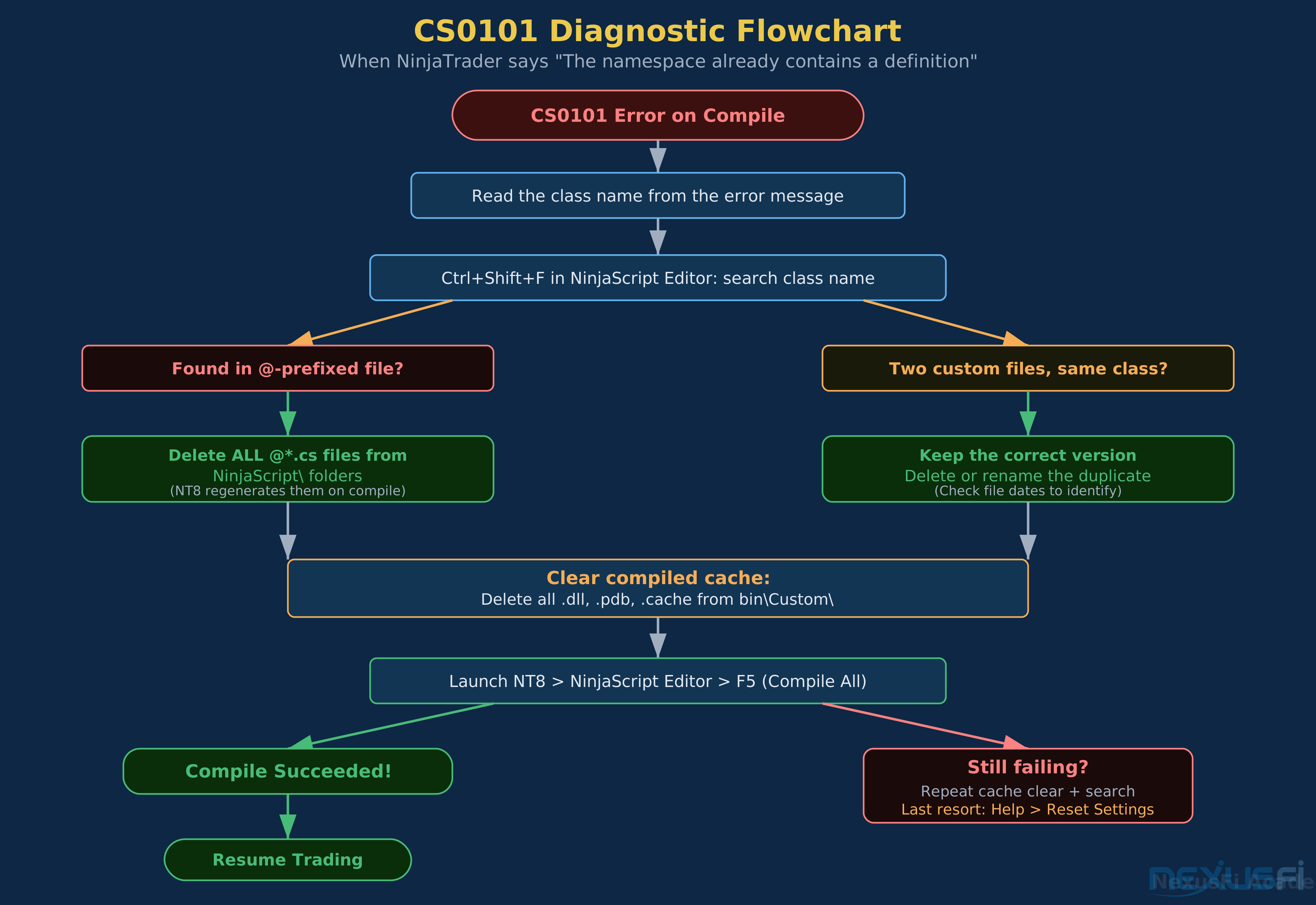
Follow this flowchart when you hit CS0101. Most cases resolve at the first two decision points.
The three scenarios that produce CS0101:
Scenario 1: Restored @-prefixed system files. You backed up the entire bin\Custom\Indicators\ folder, including system files. After the upgrade, NT8 regenerated fresh system files. Your restore put the old versions back. Now there are effectively two definitions — the old @EMA.cs content conflicts with the regenerated version. Fix: delete all @*.cs files and let NT8 regenerate them.
Scenario 2: Duplicate custom files. You saved an indicator as MyCustomIndicator.cs using the NinjaScript Editor's "Save As" feature, but didn't change the class name inside. Now you have two files — the original and the copy — both declaring class MyCustomIndicator. This happens more often than you'd think. Fix: search for the class name, keep one copy, delete the other.
Scenario 3: Name collision with a system indicator. You named your custom class EMA or RSI — the same name as a built-in. NT8 can't distinguish between your class and the system class in the same namespace. Fix: rename your class to something unique like MyCustomEMA.
Finding the duplicate:
- Open the NinjaScript Editor (Control Center > New > NinjaScript Editor)
- Press Ctrl+Shift+F for global search
- Search for the exact class name from the error message
- The results show every file containing that class definition
- Identify which file is the duplicate and remove it
If you're dealing with multiple CS0101 errors, start from the top. Fix the first one, recompile, and often the cascading errors below it disappear. As @Fat Tails noted, "Restoring will not work if some of the indicators are flawed" — you need to resolve the flawed ones before the rest can compile.
The Post-Restore Cleanup Procedure #
Run this procedure once after any backup restore that produces compilation errors. It's systematic, it handles all three root causes, and it works whether you're dealing with one error or fifty.
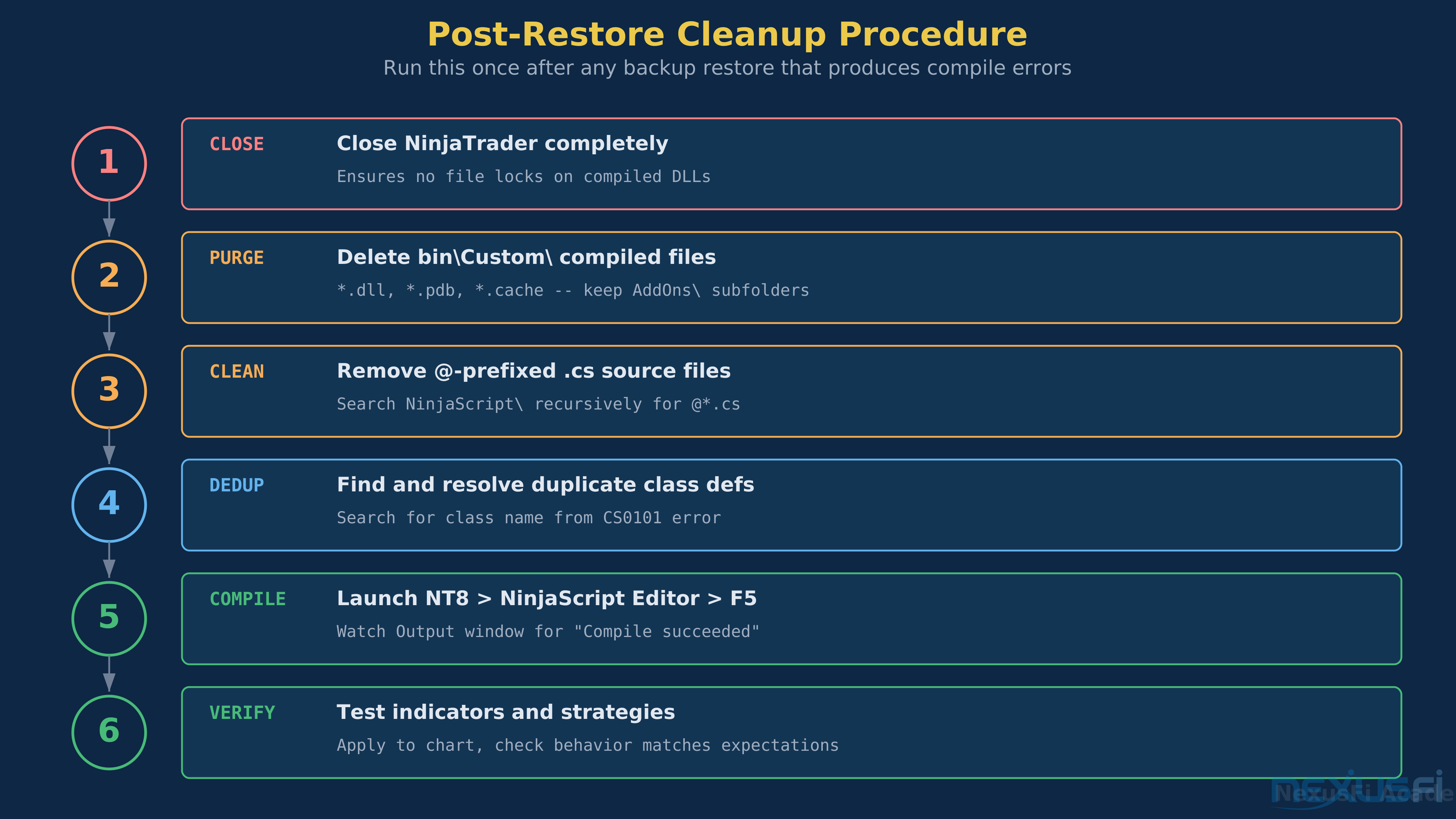
The complete cleanup runs six steps. Most issues resolve after steps 2-3.
Step 1: Close NinjaTrader. Not minimize — close. The platform holds file locks on compiled DLLs while running. You can't delete them with NT8 open.
Step 2: Purge compiled artifacts. Navigate to Documents\NinjaTrader 8\bin\Custom\ and delete:
- All
.dllfiles (includingNinjaTrader.Custom.dll) - All
.pdbfiles - All
.cachefiles - The hidden
~cache subfolder if it exists
Do NOT delete subfolders that contain third-party reference DLLs you intentionally placed there (like AddOns\ with external libraries).
Step 3: Remove @-prefixed source files. Navigate to the .cs source subfolders within bin\Custom\ — Indicators\, Strategies\, Types\, etc. Search for @*.cs. Delete every one. NinjaTrader regenerates these automatically on the next compile. If you're worried about losing something, these are platform files — they contain nothing custom.
Step 4: Find and resolve duplicate class definitions. If you know the class name from a CS0101 error, search for it across all .cs files in bin\Custom\. If two files define the same class, keep the one you authored (check the modified date — your file will predate the upgrade) and delete the other. If both look identical, delete the older one.
Step 5: Launch NT8, open NinjaScript Editor, press F5 (Compile All). Watch the Output window. "Compile succeeded" means you're done. If errors persist, repeat steps 2-4 — sometimes a stale artifact survives the first pass.
Step 6: Verify. Apply your custom indicators to a chart. Confirm they render correctly and produce expected values. A compiled indicator that loads but shows wrong data means an old cached DLL was loaded instead of the fresh compile. Go back to step 2 and make sure the cache is truly clear.
Clearing the Compile Cache #
The compile cache lives in bin\Custom\ alongside your source files. When NT8 compiles your scripts, it generates NinjaTrader.Custom.dll plus associated .pdb and .cache files. These are the build artifacts.
When these artifacts get corrupted or stale, strange things happen. An indicator compiles without errors but shows wrong values. A strategy that worked last week suddenly throws runtime exceptions. The NinjaScript Editor says "Compile succeeded" but the indicator doesn't appear in the list.
The fix is the same every time: delete the compiled artifacts and force a clean rebuild.
Documents\NinjaTrader 8\bin\Custom\
├── NinjaTrader.Custom.dll     <-- DELETE
├── NinjaTrader.Custom.pdb     <-- DELETE
├── *.cache                     <-- DELETE ALL
├── ~\                          <-- DELETE THIS FOLDER
├── Indicators\*.cs             <-- KEEP (your source code!)
├── Strategies\*.cs             <-- KEEP
└── AddOns\*.dll                <-- KEEP (third-party references)
As Fi documented in a NexusFi troubleshooting thread, "Clear NinjaTrader cache: Tools > Options > General > Reset Cache." That's the in-app option. Manual deletion is faster and more thorough when you're dealing with post-restore issues.
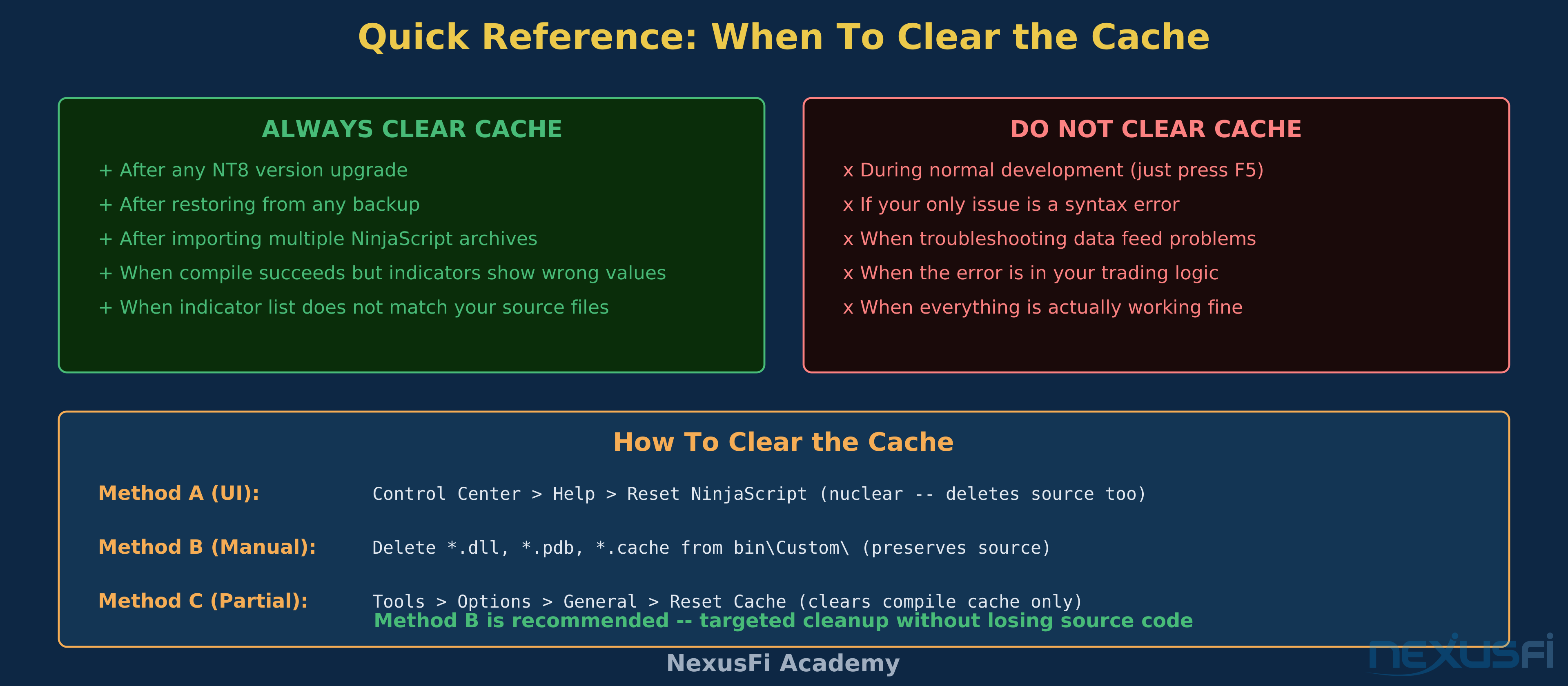
Clear the cache after upgrades and restores. Skip it during normal development. Method B (manual delete) is the safest approach.
When to clear the cache:
- After every NT8 upgrade (always)
- After restoring from any backup (always)
- When compile succeeds but indicators behave wrong
- When the indicator list doesn't match your source files
- When you get "Could not load assembly" errors
When NOT to clear the cache:
- During normal development (just press F5, let NT8 handle incremental builds)
- If your only issue is a syntax error in new code you're writing
The Nuclear Option: Full NinjaScript Reset #
If you've run the cleanup procedure twice and errors persist, there's one more step before reinstalling: Control Center > Help > Reset NinjaScript.
This deletes everything in bin\Custom\ — source files, compiled output, the lot — and restores the default system files. Your custom scripts are gone. This is why we backup source files separately.
Before using the nuclear option:
- Copy your custom
.csfiles (the ones WITHOUT the@prefix) to a safe location outside the NT8 directory - Note any third-party DLLs in
AddOns\and where you got them - Run the reset
- Copy your custom
.csfiles back into the appropriate subfolders - Replace third-party DLLs
- Compile with F5
This resolves every file-level conflict because you're starting from a clean slate and adding back only what's yours.
Prevention: A Backup Strategy That Actually Works #
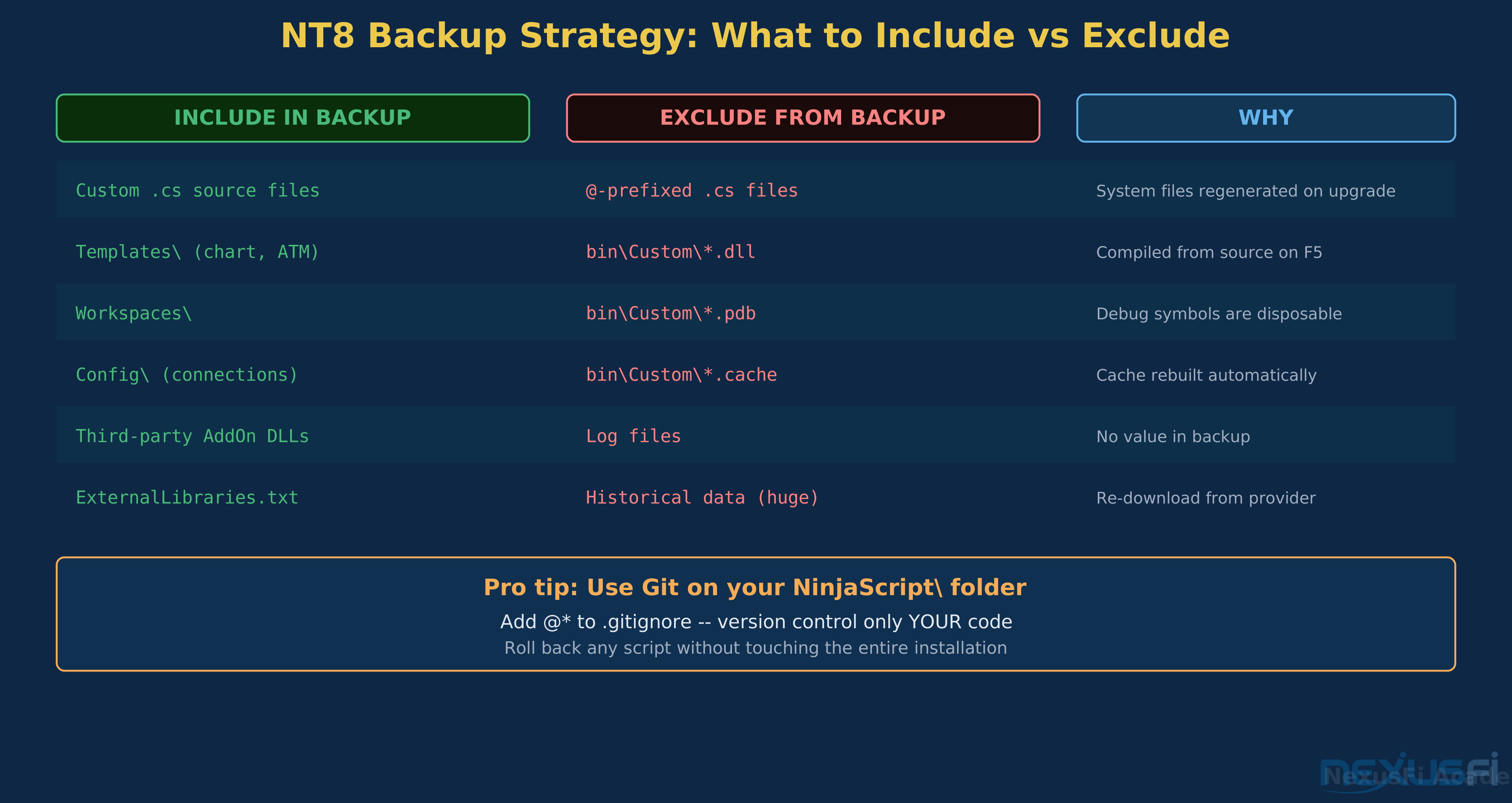
Most post-restore problems come from backing up the wrong things. Here's what to include and what to skip.
Back up source code and config. Skip compiled artifacts and system files.
Back up (always):
- Custom
.csfiles (no@prefix) fromIndicators\,Strategies\,AddOns\,Types\ templates\folder (chart templates, ATM strategy templates, workspace layouts)config\folder (broker connections, instrument definitions)- Third-party reference DLLs from
AddOns\ - A text file listing your external dependencies
Skip (always):
@-prefixed.csfiles (platform regenerates them)NinjaTrader.Custom.dlland all.pdb/.cachefiles (rebuilt on compile)log\folder (no backup value)- Historical tick/bar data (re-download from your data provider — it's huge and easily replaced)
As @ratfink recommended on NexusFi, "I keep a daily backup of the Documents\NinjaTrader folder to cover for just this sort of worst-case scenario." That's solid advice, but refine it: back up the source .cs files daily, skip the compiled output. Your backup will be smaller and faster, and it won't introduce conflicts when restored.
NT8's built-in backup tool (File > Utilities > Backup) creates a .zip of configurable scope. As @Fat Tails explained, "The backup can be created via File > Utilities > Backup. If you include historical chart and trade data in your backup file, it will be huge." Exclude historical data and you'll get a manageable archive. But the built-in tool includes @-prefixed files by default, so be aware you'll need to clean those out if you restore after an upgrade.
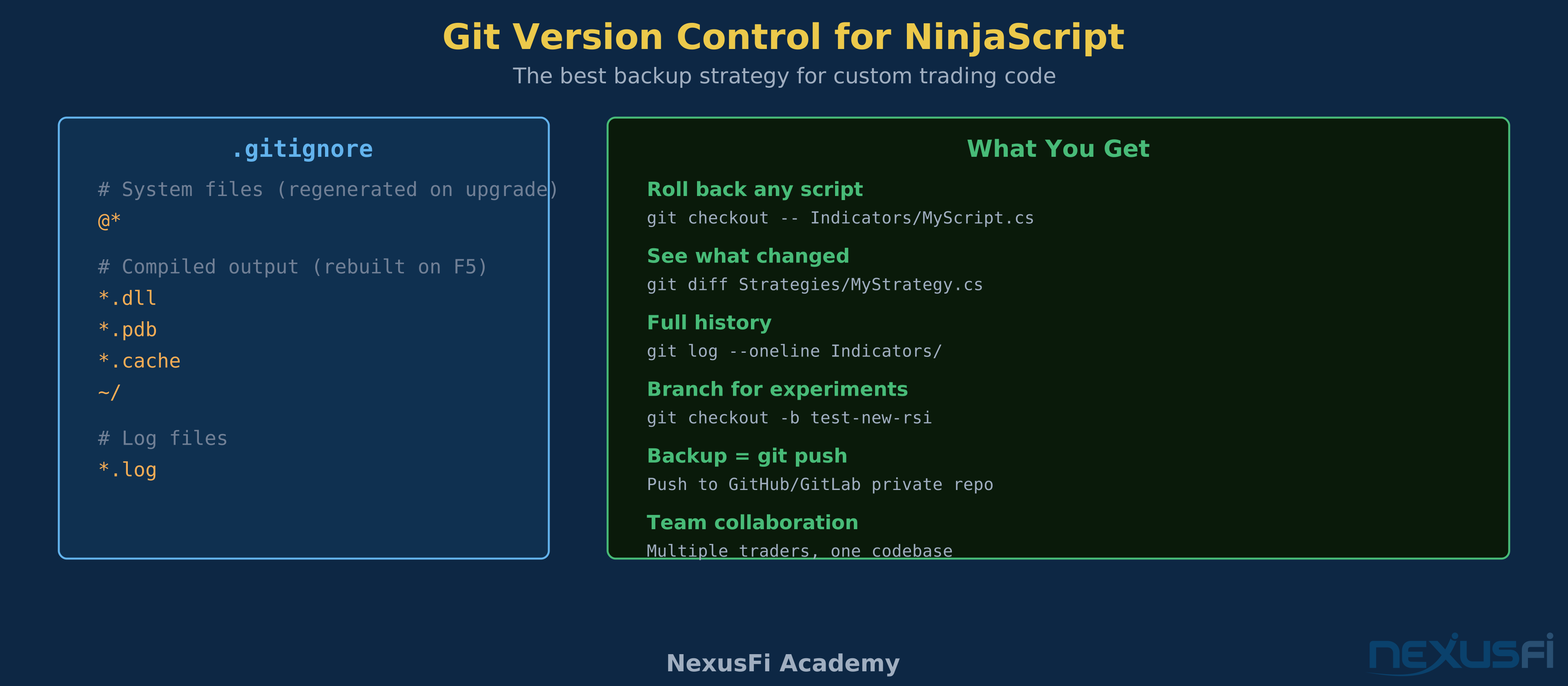
The version control approach: Initialize a Git repository in bin\Custom\. Add @ and .dll and .pdb and .cache to .gitignore. Commit after every meaningful change. Now you have full history of every custom script, can roll back any individual file, and your backup automatically excludes everything that causes post-restore conflicts.
A .gitignore that excludes system files and compiled output. Git gives you rollback, history, and backup in one tool.
Version control isn't just for professional developers. If you have custom indicators worth protecting, Git is the single best insurance policy against restore failures, accidental deletions, and upgrade conflicts.
Automating the Cleanup #
For traders comfortable with PowerShell, this script automates the post-restore cleanup (steps 2-3 from the cleanup procedure):
# Run from an elevated PowerShell prompt
$ntPath = "$env:USERPROFILE\Documents\NinjaTrader 8"

# 1. Delete @-prefixed source files (system indicators)
Get-ChildItem "$ntPath\bin\Custom" -Recurse -Filter "@*.cs" | Remove-Item -Force
Write-Host "Removed @-prefixed system files"

# 2. Purge compiled cache (preserve AddOns subfolder for third-party DLLs)
Get-ChildItem "$ntPath\bin\Custom" -File | Where-Object {
    $_.Extension -in '.dll','.pdb','.cache'
} | Remove-Item -Force
Write-Host "Purged compiled artifacts"

# 3. Clear hidden cache folder
$cachePath = "$ntPath\bin\Custom\~"
if (Test-Path $cachePath) {
    Remove-Item $cachePath -Recurse -Force
    Write-Host "Cleared hidden cache folder"
}

Write-Host "`nCleanup complete. Launch NinjaTrader and press F5 to recompile."
Adjust the script if you keep custom DLLs in locations other than AddOns\. The key principle: delete everything the compiler generates, preserve everything you wrote.
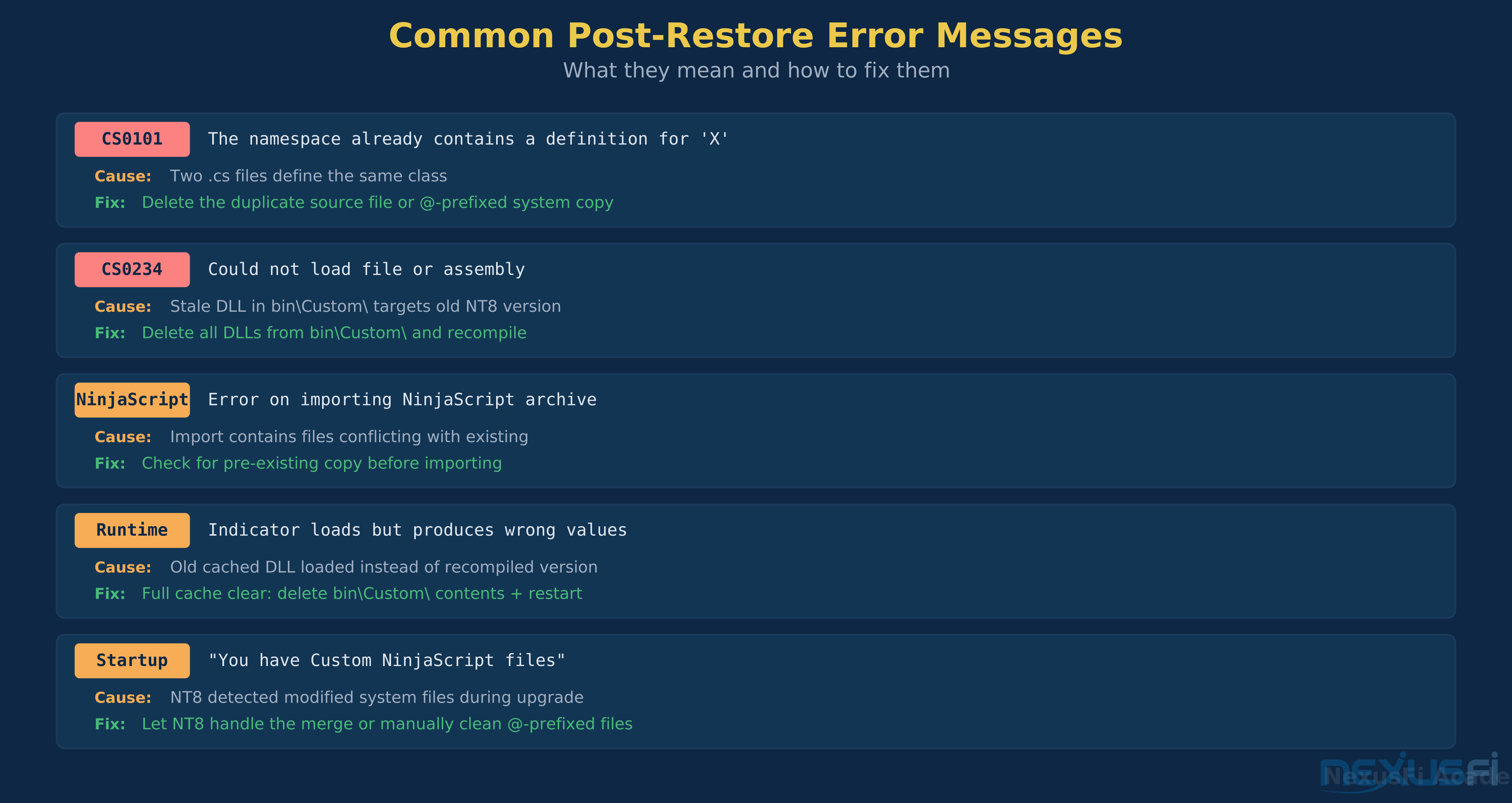
Quick reference for the most common post-restore errors. CS0101 and stale cache issues account for 90%+ of cases.
Real-World Troubleshooting Scenarios #
Scenario: "I deleted a file and got MORE errors"
This happens when you delete a file that other scripts depend on. NT8 compiles everything together — if Script A references a class defined in Script B, deleting Script B doesn't just remove Script B's errors. It creates new "missing reference" errors in Script A and every other script that referenced it.
The fix: don't delete files blind. Use the NinjaScript Editor's global search (Ctrl+Shift+F) to check whether other scripts reference the file you want to remove. If they do, you need to update those references first — or keep the file and fix it instead of deleting it.
Scenario: "Compile succeeded but the indicator shows wrong values"
You have a stale cached DLL being loaded instead of the freshly compiled version. This happens when NT8's cache doesn't get invalidated properly. Full cache clear: close NT8, delete everything in bin\Custom\ except .cs source files and AddOns\, restart NT8, compile with F5. If the indicator still misbehaves after a clean compile, the issue is in the code itself, not the cache.
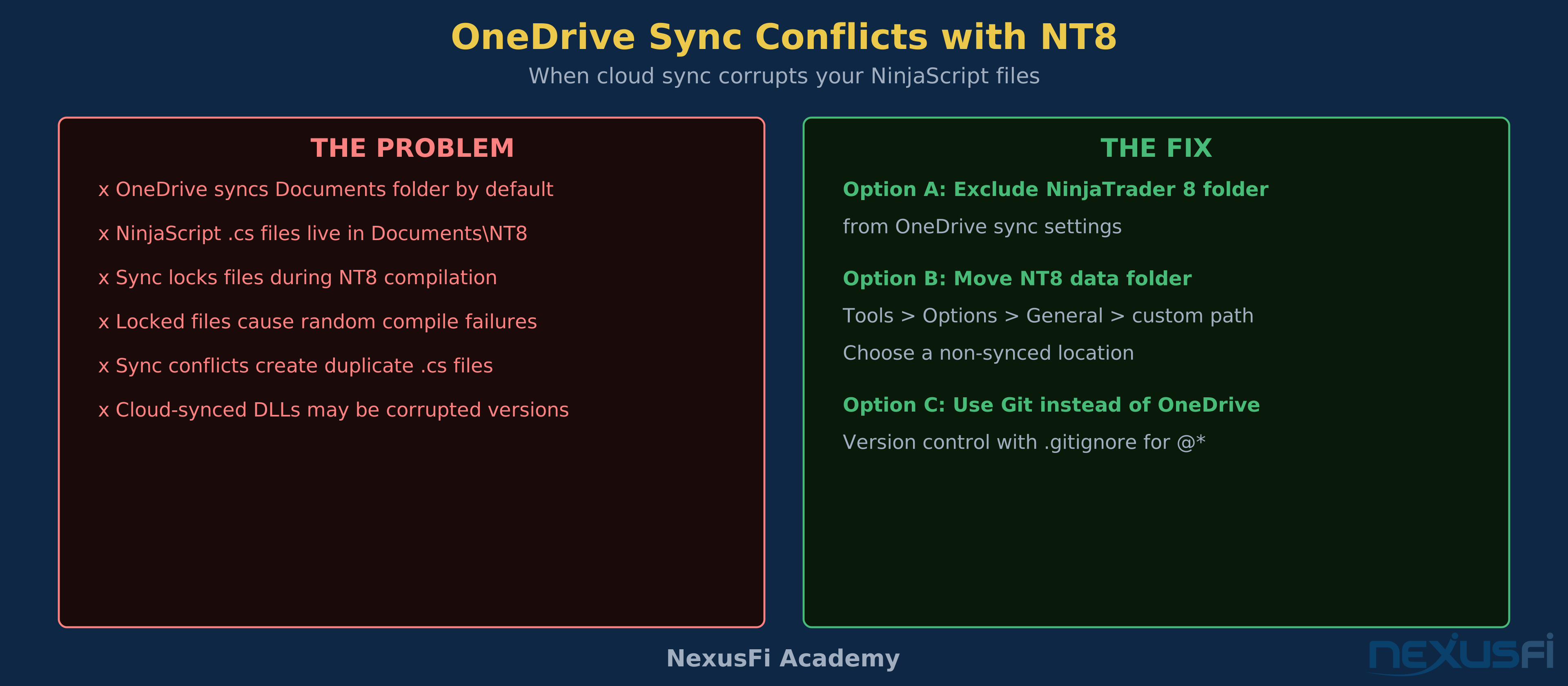
OneDrive sync locks NinjaScript files during compilation. Three solutions, from simple exclusion to full version control.
Scenario: "OneDrive is syncing my NinjaTrader folder and everything breaks"
As documented in a NexusFi troubleshooting thread, "If your Documents folder syncs to OneDrive, that causes problems. NinjaScript files live in C:\Users\[username]\Documents\NinjaTrader 8\bin\Custom — OneDrive sync can corrupt or lock these files." The fix: exclude the entire NinjaTrader 8 folder from OneDrive sync, or move it outside the Documents folder (NinjaTrader allows custom data folder paths via Tools > Options > General).
Scenario: "I can't find which file has the duplicate"
Some CS0101 errors don't tell you the file path — just the class name and namespace. When the NinjaScript Editor's search doesn't help, go to the file system directly. Open bin\Custom\Indicators\ in Windows Explorer, search for *.cs, and look for files with similar names or identical modified dates. The duplicate is usually a file with a generic name like MyCustomIndicator.cs (NT8's default when you create a new indicator) that still contains the original class definition.
Migration Tips: Moving NT8 to a New Computer #
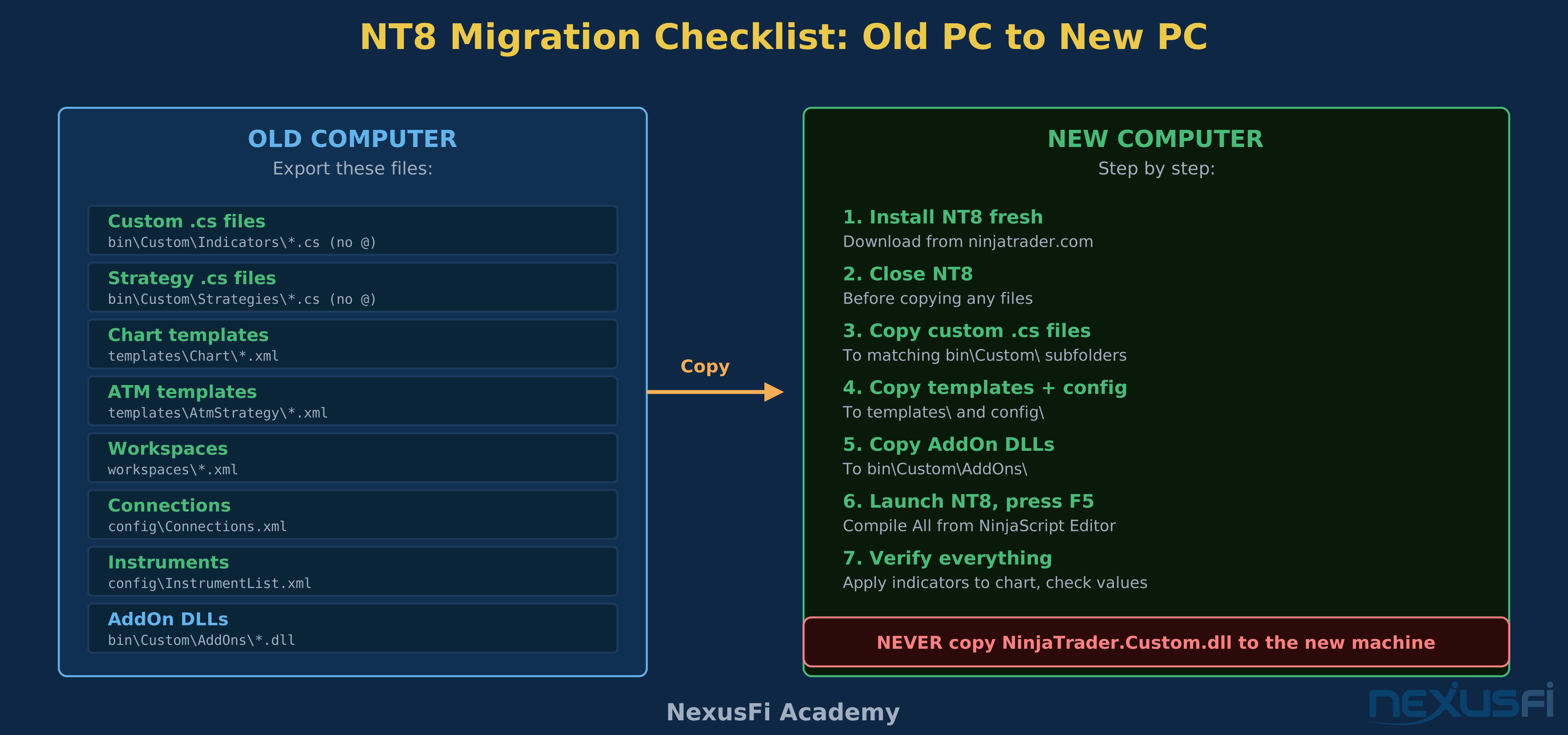
The complete migration checklist. Export source files and config from old PC, install fresh on new PC, copy files, compile.
Moving NinjaTrader 8 to a new machine follows the same principles as a restore, with one addition: you need to handle the installation separately from the data.
- Install NT8 fresh on the new machine. Don't copy the program files.
- Copy only your custom source files (no
@prefix) to the appropriatebin\Custom\subfolders. - Copy
templates\andconfig\for your chart layouts and broker connections. - Copy any third-party DLLs to
AddOns\. - Compile with F5 and verify everything works.
Do NOT copy NinjaTrader.Custom.dll or any cached artifacts. The new installation needs to compile its own versions against its own platform libraries.
Knowledge Map
Prerequisites
Understand these firstGo Deeper
Build on this knowledgeReferences This Article
Articles that build on this topicCitations
- — Ninjatrader 8 not ready for prime time? (2017) 👍 3“Indicators and Strategies are all stored in Ninjatrader > Bin > Custom > Indicators and NinjaTrader > Bin > Custom > Strategies respectively.”
- — Instantiating custom indicator from strategy (2016) 👍 2“NT compiles all indicators and strategies together, hence two with the same class name will cause issues.”
- — Please help! Import ninja script error! (2017) 👍 3“I keep a daily backup of the Documents/Ninjatrader folder to cover for just this sort of worst-case scenario.”
- — Sierra Charts Ninja Trader backup and restore to new computer (2012) 👍 1“Restoring will not work if some of the indicators are flawed.”
- — instrument list template or backup file? (2011) 👍 4“The backup can be created via File > Utilities > Backup. If you include historical chart and trade data it will be huge.”
- — Want your NinjaTrader indicator created, free? (2021) 👍 1“The @ATR.cs included is the default ATR.cs that shipped with your NT8 client.”
- — Volume Ladder Highlight and Metro Addition (2010) 👍 2“When NinjaTrader starts up it compiles ALL of the indicators that exist in the bin Custom Indicators file.”
- — Importing zip files (2025) 👍 2“Clear NinjaTrader cache: Tools Options General Reset Cache.”
- — Error importing Ninja Script (2026) 👍 1“If your Documents folder syncs to OneDrive, that causes problems.”
- — NinjaTrader Support Forum: @EMA.cs Compile Error
- — NinjaTrader Support Forum: Namespace Duplicate Definition