



Trading Computer Cooling and Thermal Management for Futures Traders: Keeping Your Rig Alive When Markets Are Moving
Overview #
Your CPU just thermally throttled at 9:29 AM. The market opens in 60 seconds. NinjaTrader's indicators are recalculating. The DOM is updating. And your processor just dropped 15% of its clock speed because your cooler can't keep up with sustained load.
That's not a hypothetical. That's what happens when you build a trading rig the way most guides tell you to — choose the fastest CPU, load up the charts, and forget that this thing runs 8-10 hours a day, five days a week, 52 weeks a year. Gaming PCs run hot for 2 hours then sit idle. Trading workstations run hot continuously. The thermal math is completely different.
This article covers the actual decisions that matter: cooler selection, case airflow configuration, what throttling really does to your platform's behavior (hint: it's not about microseconds), temperature targets for 24/7 reliability, dust as a maintenance discipline, and the BIOS settings most traders never touch. By the end, you'll know how to validate your thermal setup against your real trading workload — not a 10-minute benchmark.
One thing to clear up before we start: thermal management for a trading workstation isn't about chasing the lowest possible temperatures. It's about guaranteeing that your system never throttles during a market event, never unexpectedly reboots due to heat, and doesn't degrade in performance over months because dust slowly strangled your airflow. Reliability under sustained load is the only metric that matters.
Trading computers are different from gaming rigs in one critical way: duration. A gaming session is 2-3 hours of high load followed by idle. A trading workstation runs at moderate-to-high load continuously from market open to close, often with overnight automation running. Cooling solutions designed around burst performance rather than sustained thermal capacity will fail you during exactly the moments you can't afford it.
The 24/7 Workload Problem #
Before picking a cooler, you need to understand what your CPU is actually doing during a trading day. It's not sitting idle. It's not bursting for 5 minutes then cooling down. It's processing a continuous stream of:
- Market data ticks across every symbol and timeframe you're watching
- Indicator calculations updating in real-time (or on every bar close if you've configured them correctly)
- DOM updates as order book depth changes
- Chart rendering across multiple monitors
- Network I/O for your data feed connection
- Background strategy execution if you're running automated systems
- Windows services, antivirus, disk I/O for logging and tick data storage
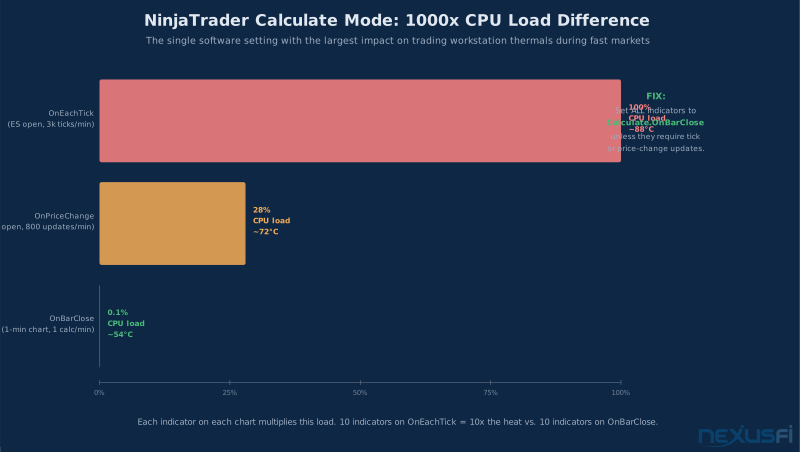
On NinjaTrader with a full workspace, Fat Tails — one of the most technical contributors on NexusFi — explained the CPU load dynamics clearly: "A CPU only has a limited amount of capacity, and it is also the responsibility of the user to make sure that there is no overload." He identified the most common overload causes: badly coded indicators, indicators set to Calculate.OnEachTick unnecessarily, and running too many open charts. These aren't just performance settings — they're thermal settings in disguise. Every unnecessary calculation is heat you're generating for no gain.
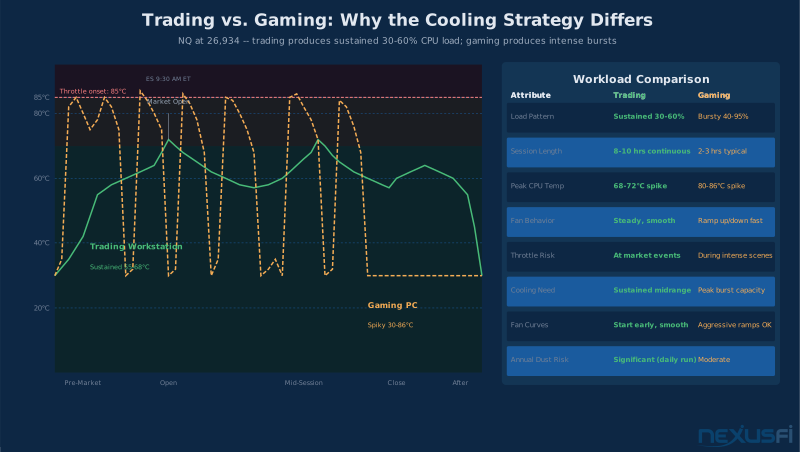
The steady-state load profile creates a at the core different thermal challenge than gaming. Gaming is bursty: the CPU spikes to 95% for a few seconds rendering a complex scene, then drops to 40% during a cutscene. Your fans ramp up, the CPU cools, fans slow down. Thermal cycling with predictable recovery periods.
Trading load is more like a sustained medium-grade fever. You're not peaking at 100% CPU constantly, but you're also never really idle. A typical trading workstation with NinjaTrader or Sierra Chart running, a handful of markets being watched across 10-15 charts, and a live data feed connected will run at 30-60% CPU utilization during quiet periods and spike to 70-85% during fast markets or news events. That sustained medium-to-high load means your cooling solution needs to perform reliably at its midrange, not just at benchmark peaks.
Don't test your thermal setup with a CPU stress benchmark like Prime95. That's 100% load indefinitely — no trading workload looks like that. And it tells you nothing about your real operating temps. Test with your actual chart templates, actual data feeds connected, and let it run for 2-3 hours during a replay session. That's your thermal validation.
CPU Cooler Selection: Air vs. AIO Liquid #
This is where most build guides generate heat of their own (pun intended). The air vs. AIO debate gets complicated by aesthetics, brand loyalty, and marketing. Strip all of that away and the decision for a trading workstation comes down to one question: which has fewer failure modes over 3-5 years of daily continuous operation?
The Case for Air Cooling #
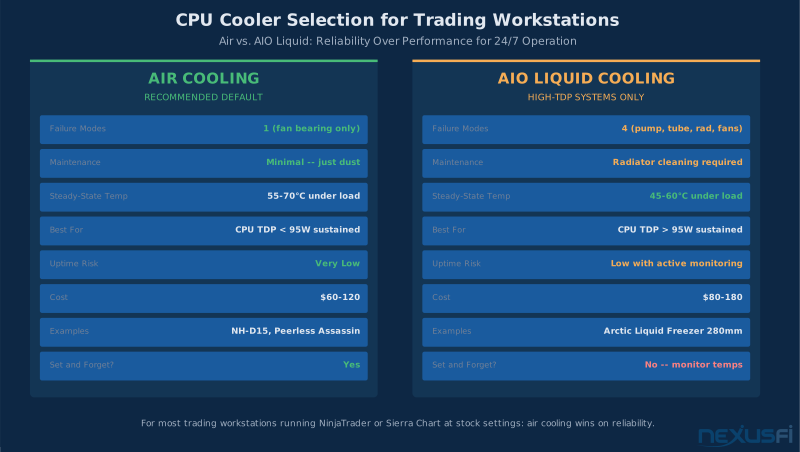
A high-quality tower air cooler has exactly three components: a heatsink, one or two fans, and thermal paste. If a fan fails — which is rare and usually loud before it dies — you know about it and can replace it for $15-30. The heatsink doesn't fail. The thermal paste doesn't evaporate much for years.
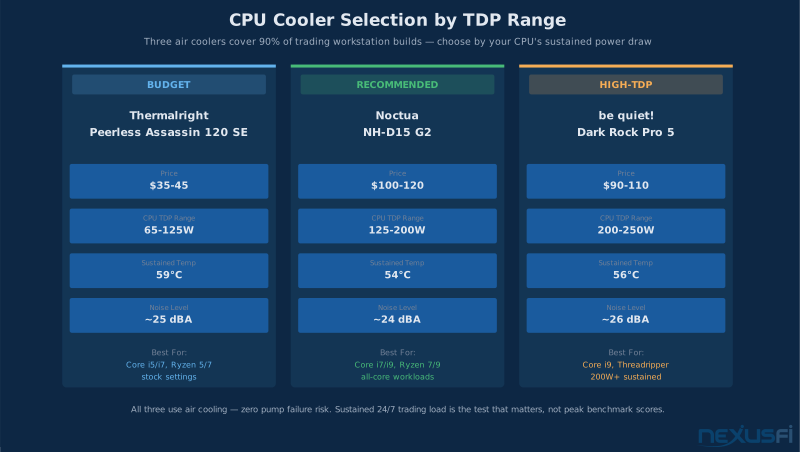
Air coolers like the Noctua NH-D15, be quiet! Dark Rock Pro 4, or Thermalright Peerless Assassin will keep any current-generation trading CPU (Core i7, Core i9, Ryzen 7, Ryzen 9) under 70°C at sustained 100% load, and under 55-65°C under real trading workloads. That's sufficient thermal headroom for 24/7 operation.
As Big Mike noted when discussing his builds: "I always get custom heatsinks/fans. Never use a stock one! So put aside $50 or so for a good cooler." He runs water cooling personally but acknowledged it isn't necessary for normal trading use: "for normal use, even normal 'trading' 'heavy' use, it is not necessary."
Air cooler cons for trading builds:
- Large towers can interfere with RAM clearance on some motherboards — check compatibility before purchasing
- In very compact cases (Micro-ITX), airflow constraints may limit performance
- If you're running a high-TDP CPU (AMD Ryzen 9 7950X, Intel Core i9-14900K) with all cores pinned, you may need a higher-end air cooler to stay comfortably below throttle thresholds
The Noctua NH-D15 is the benchmark standard for trading workstation air cooling. It's bulky, it's beige, and it keeps CPUs comfortably in the 50-65°C range under sustained load. If you need something more compact, the Thermalright Peerless Assassin 120 SE offers similar performance in a narrower profile. Either will outlast your motherboard.
When AIO Liquid Cooling Makes Sense #
All-in-one liquid coolers — a sealed pump, tubing, water block, and radiator system — do run cooler than air at sustained loads. A 240mm or 280mm AIO will typically keep the same CPU 10-15°C cooler than a comparable air cooler under sustained load. For trading, that's headroom.
The tradeoff is complexity and failure modes. An AIO has: a pump (mechanical component with wear), tubing (can develop micro-leaks or stiffness over years), a radiator (can clog with sediment or dust), and fans. Any of those components can fail. The pump is the most concerning for trading: pump failure is usually gradual rather than sudden, meaning your temperatures creep up slowly over weeks before the system becomes unstable. If you're not monitoring temperatures regularly — and most traders aren't — you won't catch it until you have a problem.
dataPulse, a NexusFi member who runs an AMD Threadripper-based workstation, went the AIO route: "My recommendation... make a new build with an AMD threadripper, combined with ECC memory and liquid cooling. You are going to need also a nice case with enough space." That's a legitimate choice for a high-TDP processor — Threadripper chips have sustained power draws that challenge even large air coolers.
AIO is justified when:
- Your CPU's sustained power draw exceeds 95W under real trading load
- You're running a high-core-count workstation CPU with all cores active
- Case dimensions limit the height of an air cooler but accommodate a radiator
- You're committed to monitoring temperatures with logging software
AIO is overkill when:
- You're running a standard gaming/enthusiast CPU (Core i7, Ryzen 7) at stock settings for trading
- You don't plan to monitor temperatures regularly
- You want maximum reliability with minimum maintenance
Cooler selection formula for trading workstations: CPU TDP < 95W sustained → High-quality air cooler (NH-D15 or equivalent) CPU TDP 95-150W sustained → High-end air cooler OR 240mm+ AIO CPU TDP > 150W sustained (Threadripper, i9-13900K all-core) → 360mm AIO or custom loop
The Stock Cooler Problem #
Never run a trading workstation on a stock cooler. Intel's bundled coolers are engineered to keep CPUs within safe temperature limits at stock settings, not to provide comfortable thermal headroom for sustained loads. Under continuous trading workloads, stock Intel coolers will frequently run CPUs at 85-95°C, in constant throttling territory.
AMD's Wraith coolers are better — Ryzen's default bundles range from the Wraith Stealth to the Wraith Prism, and the Prism can handle sustained loads on mid-range Ryzen chips. But even the Wraith Prism isn't designed for continuous duty at 60-80% CPU load. Spend the $60-120 on an aftermarket air cooler. It's the cheapest performance and reliability upgrade you can make to an existing build.
Case Airflow: The Configuration That Multiplies Cooler Effectiveness #
The best CPU cooler in the world can't compensate for a case with inadequate airflow. If hot air from the GPU and other components recirculates back to the CPU, your cooler is fighting the ambient case temperature rather than ambient room temperature. That's a losing battle.
The Positive Pressure Setup #
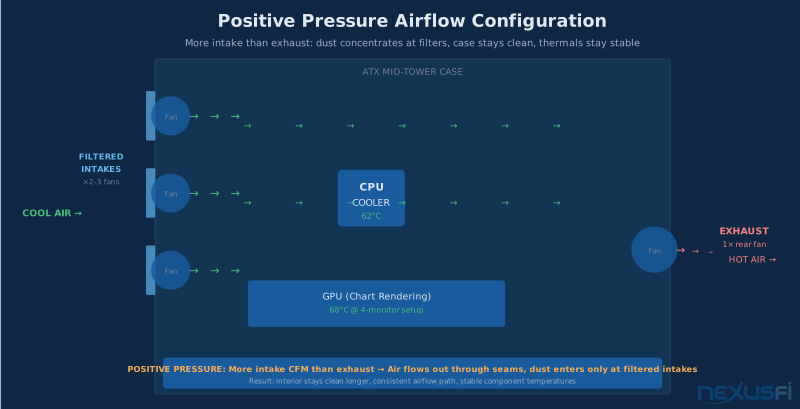
For trading workstations, configure your case for slight positive pressure — more intake airflow than exhaust airflow. This has two benefits:
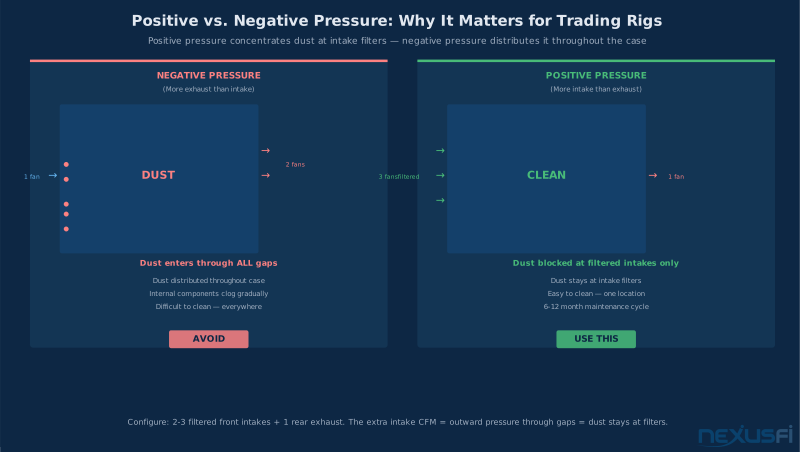
- Dust control: positive pressure means air wants to escape through gaps and seams rather than being drawn in. Dust enters through intake fans with filters rather than through every unfiltered gap in the case. Your interior stays cleaner longer.
- Consistent thermal behavior: positive pressure provides a reliable airflow path through the case rather than uncontrolled recirculation.
The recommended layout for most ATX mid-tower cases:
Intake: 2-3 front or bottom fans (120mm or 140mm) with dust filters. If your case supports a bottom intake, use it for GPU cooling — most GPUs exhaust heat downward, and intake from below provides fresh cool air directly to the GPU's fans.
Exhaust: 1 rear fan (120mm typically), optionally 1 top fan. The Noctua NF-A12x25 — highlighted by josh in his dual-machine trading build — is the benchmark for 120mm fan performance: "Noctua NF-A12x25 PWM fans." Pricey at $35-40 each, but they move serious CFM at low noise levels.
The top exhaust debate: Whether to exhaust out the top or not is actually important for trading rigs. Some builds use a top-mounted radiator (for AIO setups) which pulls air up and out. That works fine with an AIO's radiator fans. But if you're using an air cooler and you add top exhaust fans, you risk pulling cool air away from the CPU cooler before it's had full effect. For air-cooled trading rigs, one rear exhaust is typically sufficient. For AIO builds with a top-mounted radiator, the AIO fans function as your exhaust.
Don't blow money on 6+ fans thinking more is better. Airflow is about directed paths, not raw fan count. A front-to-rear path with filtered intakes, tidy cable management keeping the intake area clear, and a single rear exhaust is more effective than five fans fighting each other in a disorganized layout. choke35 diagnosed exactly this in a member's build: "Radically improving the airflow into and out of the case is probably the best you can do — but certainly no cakewalk if you are really limited to the ITX format."
Fan Curve Tuning for Trading Workloads #
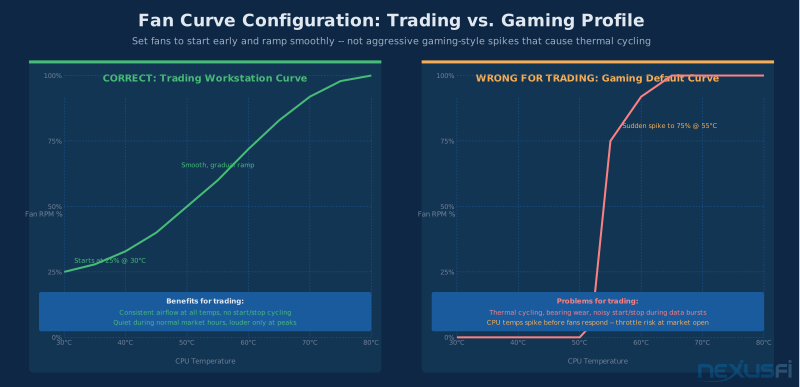
Most motherboard fan software defaults to gaming-style aggressive curves: fans spike up fast, drop down hard. For trading, that oscillation wastes fan bearing life and causes temperature swings that thermal-cycle components.
What you want: a smooth curve that starts early (fans at low-moderate RPM by 40°C rather than silent until 60°C), ramps gradually, and doesn't drop aggressively between data bursts. Disable "Smart Fan Stop" features that turn fans off at low temps — the start-stop cycling is exactly what you're trying to avoid. Set control mode to PWM (not DC). The principle is simple: steady trading load deserves steady fan behavior.
Cable Management and Airflow Obstruction #
This sounds trivial but it matters more than most traders realize. Rrrracer found this out the hard way with his ITX trading build: "I also spent a lot of time cleaning everything and rerouting all of the cables to improve airflow through the ITX box (good call Choke!). Airflow is very much improved, now temps are idling around 35°C, running three instances of Sierrachart over three monitors is around 50°C."
Before cable management, that system was hitting problematic temperatures. After: 35°C idle, 50°C under load with three Sierra Chart instances running. Nothing changed except cable routing. Even a 20-30% obstruction of the front intake area from cables crossing the airflow path noticeably raises CPU temperatures.
If you're building from scratch, buy a case with good cable management routing — channels behind the motherboard tray, tie-down points, and sufficient depth. Spending an extra $20 on a case with proper cable management is worth it.
What Thermal Throttling Actually Does to Your Platform #
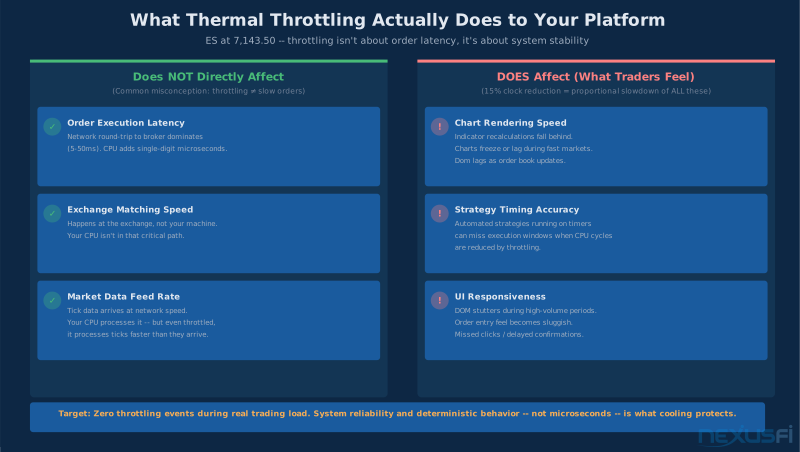
Here's where most articles on trading computer cooling get it wrong: they frame throttling as a latency problem for order execution. "If your CPU throttles, your order might take an extra millisecond to send." That's not the real issue.
For order execution, your latency is dominated by:
- Network round-trip to your broker (5-50ms depending on your connection and broker)
- Exchange matching engine processing (varies)
- Your broker's gateway to the exchange
Your CPU processing an order message adds single-digit microseconds to that chain. Even a severely throttled CPU isn't going to make a material difference to actual order execution latency.
What throttling does affect, and what matters for trading:
Chart rendering and indicator calculations: When the CPU drops 15% clock speed due to thermal throttling, everything that depends on CPU cycles slows down proportionally. Chart updates lag. Indicators that are calculating on every tick fall behind the incoming data stream. The DOM feels sluggish. During fast markets — exactly when you need fast information — your charts are delivering it late.
System stability and deterministic behavior: Automated trading strategies rely on timely execution of their code. A strategy that's supposed to evaluate conditions and submit orders within a certain timing window can miss that window if the CPU is throttling and scheduling pauses increase. This matters most for high-frequency scalpers where timing windows are tight.
Thermal cycling instability: Sustained throttling at high temperatures stresses components. The alternating expansion and contraction of solder joints and semiconductor elements under repeated thermal cycles degrades reliability over time.
Fat Tails framed the performance impact well: "In case charts freeze or in case that the datafeed appears to be lagging on the chart, it may be an issue with the CPU (frequent)." CPU performance issues show up as chart freezes and datafeed lag — exactly the symptoms of a system running too hot.
The right framing for thermal management in trading is "zero throttling events during real trading load" — not "lowest possible temperatures." If your CPU runs at 72°C and never throttles, that's better for trading than a poorly configured AIO that runs at 55°C average but dips to 95°C during data bursts because the pump isn't keeping up. Consistency matters more than the absolute number.
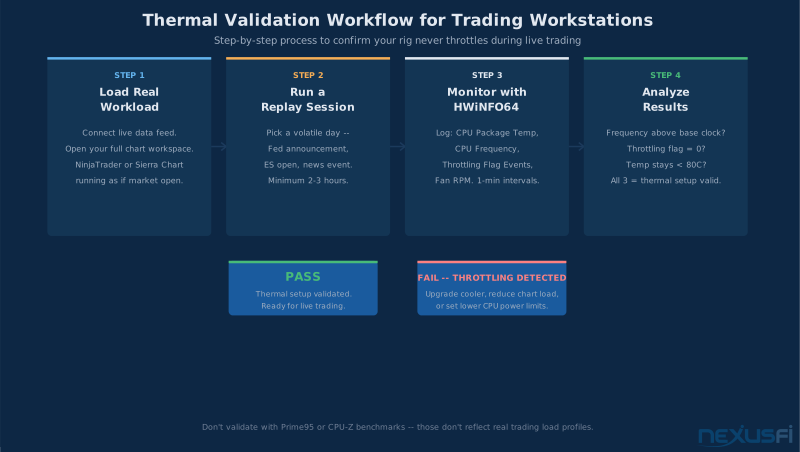
Validating Your System #
Stress testing with CPU-Z for 10 minutes isn't validation. Real validation:
- Load your actual trading workload: data feed connected, your full chart workspace, NinjaTrader or Sierra Chart running as if it's a trading day.
- Run a replay session — a volatile day, a Fed announcement, a busy ES open.
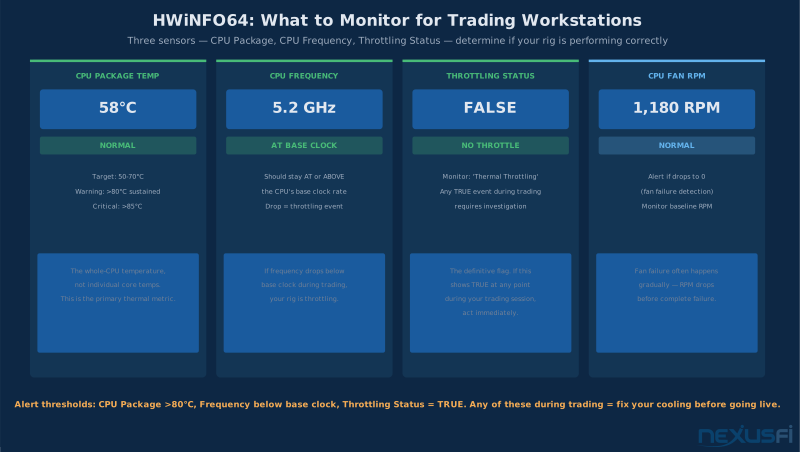
- Monitor continuously with HWiNFO64: CPU package temp, CPU frequency (drops below base clock = throttling), throttling flag events.
- Run for 2-3 hours minimum.
If CPU frequency stays above base clock and temperatures stay below 80°C throughout, you're good. Frequency dips during the most active periods means you need more cooling or less chart/indicator load.
bobwest described the right diagnostic approach: "You first start with a simple case of one workspace, one chart, minimal data and no indicators. That's your benchmark. Now start adding things in, slowly, one at a time." Same methodology for thermal validation — baseline first, then add complexity to find your throttle threshold.
Temperature Targets for 24/7 Reliability #
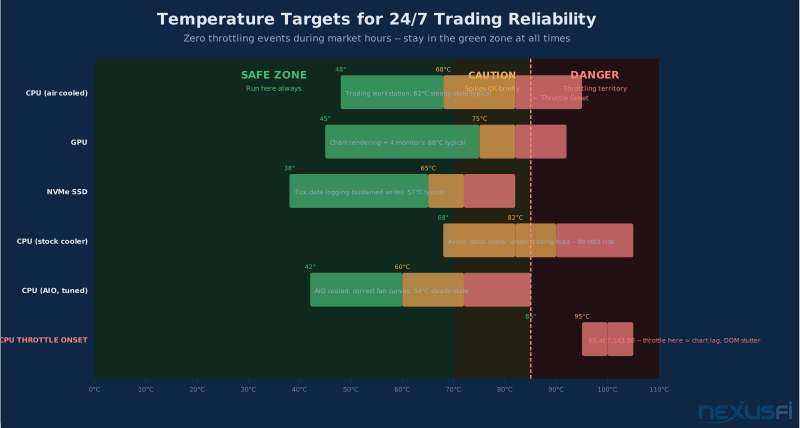
Here are the specific temperature targets to design for. These aren't arbitrary — they're informed by both component manufacturers' guidance and real-world reliability experience with always-on workstations.
CPU #
Target sustained steady-state: 50-70°C under real trading workload Acceptable brief spikes: Up to 80°C during market events Hard limit: Never sustained above 85°C
Modern Intel and AMD CPUs hit throttling a few degrees below their 90-100°C Tjmax ratings. Running at 85-95°C consistently means throttling during every market open. Running at 50-70°C gives you 20-40°C of headroom to absorb spikes without affecting performance.
Spartans, who has traded futures full time for over 20 years, runs his main trading PC with an i7-5930K with Corsair water cooling — sustained thermal management with headroom, not chase-the-benchmark temps.
GPU #
Target: Under 75-80°C under load
Trading workstations use GPUs primarily for display rendering — 2D charts and DOM displays, not ray tracing. GPU thermal management is mostly about dust and adequate case airflow rather than cooling capacity. 90bideven was direct about this: "DON'T BLOW THE BUDGET ON A GRAPHICS CARD. In most trading software you are just rendering simple 2D graphics so you don't need a gaming card."
NVMe SSD #
Target: Under 70°C under sustained write loads
NVMe SSDs heat up quickly during tick data logging and backfill operations. Many M.2 drives throttle writes above 70-75°C. Add a heatsink (most motherboards include one) and verify your case airflow passes across the M.2 slot area.
VRM and Motherboard #
Target: Under 90°C if you can read it
VRM temperatures aren't always visible in consumer monitoring software. The practical fix is the same as everything else: adequate case airflow directed through the front of the case naturally cools the socket and VRM area. On budget boards with high-TDP CPUs, this becomes more important.
For a trading workstation thermal design, hit these targets: CPU steady-state 50-70°C with zero throttling events, GPU under 75°C, NVMe under 70°C. Everything else (VRM, RAM, chipset) tends to stay in range when you have adequate case airflow. Monitor the first three religiously.
Dust Management: The Operational Discipline Most Traders Skip #
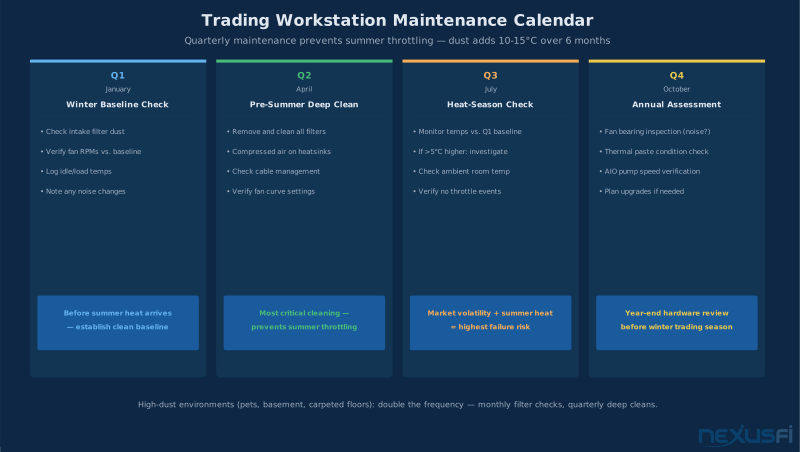
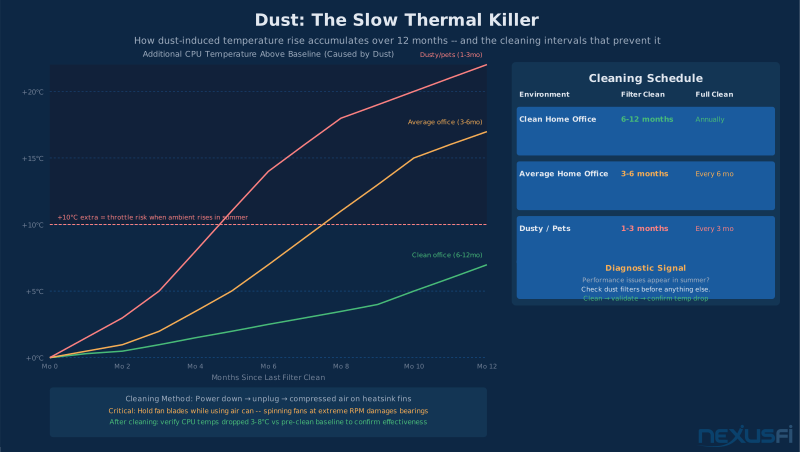
Dust is the slow performance killer. It doesn't cause immediate failure — it degrades gradually over months until a hot August arrives and your system that ran fine in February is throttling at market open.
The mechanism: dust accumulates on heatsink fins and acts as thermal insulation. The CPU runs hotter, fans ramp higher, the system is louder and still running warmer than it should be. On filters and fans, the same: dust blocks intake airflow, raising case ambient temperature across all components.
Maintenance schedule by environment:
| Environment | Filter Cleaning | Internal Clean |
|---|---|---|
| Clean home office | Every 6-12 months | Annually |
| Average home office | Every 3-6 months | Every 6 months |
| Dusty/basement/pets | Every 1-3 months | Every 3 months |
Filter cleaning: pull, tap out or rinse, dry, reinstall. Quick and prevents most internal accumulation.
Internal cleaning: power down, unplug, compressed air on heatsink fins. Hold fan blades while blowing — air cans can spin fans far above their rated speed and damage bearings.
Positive pressure helps here too: more intake than exhaust means dust concentrates at filtered intakes (easy to clean) rather than distributed through unfiltered case gaps (hard to reach, more damaging).
The diagnostic signal: If you're having unexplained performance issues in summer, check dust before anything else. A few degrees of additional ambient temperature pushes a dusty system from "running warm" to "throttling." Clean the filters, validate thermals, see if temperatures return to baseline.
BIOS Thermal Settings That Matter #
Most traders never touch BIOS thermal settings. For stock-configured systems with good cooling, that's fine. But three settings are worth knowing:
Keep Thermal Protections Enabled #
Don't disable thermal throttling or raise Tjmax limits. These are safety nets. If your system is reaching temperatures where throttling engages, the answer is better cooling — not removing the protection.
Fan Control Mode and Curves #
Configure fan control before trading:
- Set mode to PWM (not DC) for precise low-speed control
- Fan curves should start early — fans at 30% RPM by 40°C, not silent until 60°C
- Set a minimum fan speed floor: even 20-30% RPM at idle maintains airflow and prevents start-stop cycling
- Disable "Smart Fan Stop" features that turn fans off at low temps — the start-stop causes thermal cycling and bearing wear
CPU Power Limits #
Modern CPUs have configurable power limits (PL1/PL2 for Intel, PPT/TDC/EDC for AMD). An i9-13900K at stock settings can sustain 253W — far beyond what trading workloads need. Setting PL1 to 125W on high-TDP chips reduces heat much with no perceptible impact on trading performance.
Try reducing your CPU's long-duration power limit by 20-30% and validate with real trading load. Most traders see 5-10°C lower temperatures with no difference in chart rendering or platform responsiveness. HWiNFO64 before and after to confirm.
Mild Undervolting (Advanced) #
Intel's XTU or AMD's Ryzen Master allow reducing CPU voltage at the same clock speed — typically 5-10°C lower temps with no performance loss. Requires stability testing specific to your chip. Never experiment on a live trading system; validate with replay sessions first.
Software Configuration That Affects Your Thermals #
Hardware cooling decisions set the ceiling, but software configuration determines your actual CPU utilization — and so your actual temperatures under load.
NinjaTrader Thermal Optimization #
Fat Tails documented the settings that directly reduce CPU load — and so heat:
Indicator calculation mode: Set to Calculate.OnBarClose instead of Calculate.OnEachTick. During fast markets, this reduces CPU load by a factor of 100-1000. "If you set all your indicators to Calculate.OnBarClose, it is next to impossible to have a freeze during a news release."
Hidden chart management: Verify IsSuspendedWhileInactive is True for indicators on inactive charts. Suspended indicators generate zero CPU load.
Workspace consolidation: Each active workspace contributes sustained CPU load. Don't run workspaces you're not actively using.
Sierra Chart Thermal Efficiency #
Sierra Chart, written in C++, is substantially more CPU-efficient than NinjaTrader for equivalent chart setups. bobwest noted: "NT is actually written in C#...so NT is naturally slower and takes more resources." One NexusFi member reported 52 charts running with custom indicator code without crashes or lag. Sierra Chart generates less heat for equivalent setups because it does the same work with fewer CPU cycles.
Background Process Management #
Scheduled tasks during market hours are thermal surprises. Windows Update, antivirus scans, cloud sync — any can spike CPU load during your trading day. Configure Windows Update active hours to exclude market hours. Disable antivirus scheduled scans during trading. Push backups to overnight. The goal is a predictable CPU load profile where thermal headroom isn't consumed by a Windows Update download at 9:31 AM.
Monitoring: HWiNFO64 and What to Log #
You can't manage what you don't measure. Running a trading workstation without temperature monitoring is like trading without a stop loss.
HWiNFO64 is the tool — free, reads every sensor your motherboard exposes, logs to CSV at configurable intervals. Set it to 1-minute intervals and run it through a full trading day. After market close, look for:
CPU package temperature peaks: When did they occur? Correlate with market events. Temperature spikes during ES opens or Fed announcements are your stress periods.
CPU frequency during peaks: Frequency drops below base clock = throttling. Track how often and when.
Throttling flags: HWiNFO64 can log these directly. Any value above zero is a throttling event.
Fan RPM correlation: If temperatures rise but fan RPM doesn't respond, your fan control configuration needs work.
After a week of logging, you have real data about your system's thermal behavior under actual trading conditions. That's the only thermal validation that matters.
Annual Maintenance Checklist #
Thermal performance degrades over time even with good initial setup. Build these into your annual routine:
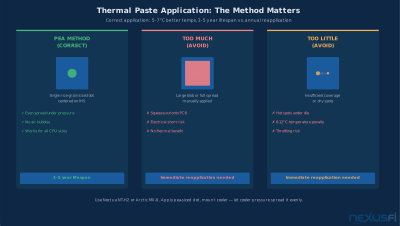
Re-apply thermal paste: After 3-4 years, thermal paste can dry and develop micro-gaps. Re-applying takes 30 minutes and can drop CPU temps 5-10°C on an older system.
Replace worn fans: A fan developing noise or vibration is failing. Replace early.
Deep clean heatsink fins: Compressed air on the fins once a year, even with good filter maintenance.
Re-validate your thermal baseline: Run your validation protocol after maintenance. If temps dropped 5-10°C, maintenance was overdue.
For case selection on new builds: mesh front panels, at least 3 front fan positions, filtered intakes, good cable management routing. The Fractal Design Meshify 2, Lian Li Lancool 216, and Corsair 4000D Airflow are all strong choices for trading workstations.
For existing systems, highest-impact improvements in order: (1) add filtered intake fans, (2) remove cable obstructions from intake path, (3) upgrade CPU cooler, (4) configure proper fan curves in BIOS.
Citations #
Community discussion informing this article:
- Fat Tails, "How bad is NT lag?" — NexusFi, Apr 2022 — CPU load management, indicator configuration impact on performance
- Big Mike, "Hardware lust: trading PC with 6-monitors" — NexusFi, Dec 2013 — aftermarket cooler necessity, PSU recommendations
- Big Mike, "Hardware lust: trading PC with 6-monitors" — NexusFi, Feb 2011 — stability-first philosophy, quiet components
- josh, "New Computer Build" — NexusFi, Jul 2020 — Corsair AIO, Noctua NF-A12x25 fan selection, real-world dual-machine build
- Rrrracer, "PC gaming woes?!" — NexusFi, Aug 2019 — cable management and airflow improvement, thermal validation after changes
- choke35, "PC gaming woes?!" — NexusFi, Aug 2019 — ITX case thermal constraints, AIO considerations, GPU exhaust and case airflow interaction
- dataPulse, "New Computer Build" — NexusFi, Jul 2020 — AMD Threadripper with liquid cooling for high-core-count workstations
- Spartans, "Battlestations: Show us your trading desks!" — NexusFi, Nov 2019 — professional full-time trader water-cooled setup, 20+ years experience
- 90bideven, "Built my own trading PC!" — NexusFi, Mar 2021 — GPU selection for trading, budget-conscious build approach
- bobwest, "NT8 slow platform tech question" — NexusFi, Dec 2020 — systematic performance diagnosis methodology
- bobwest, "Sierra vs. Ninja: why I chose....." — NexusFi, Jan 2021 — Sierra Chart vs NinjaTrader resource efficiency comparison
External references:
- ThermalStats: PC Case Airflow Guide (positive pressure configuration principles)
- HowToGeek: "You're Making a Massive PC Cooling Mistake" (top fan exhaust impact on CPU temps)
Version 1.0 — June 2026. Intel Core and AMD Ryzen platforms. Thermal targets assume standard ATX mid-tower builds at stock CPU settings.
Annual Maintenance Checklist #
A concise reference for keeping your thermal setup performing year-round:
Monthly (or after any observed performance change):
- Visually inspect intake filters — tap clean or rinse if much clogged
Quarterly:
- Remove intake filters, clean thoroughly, let dry before reinstalling
- Light compressed air pass on visible heatsink fins (from outside with case panel removed)
- Compare idle and load temps against your recorded baseline — flag any increase > 5°C
Annually:
- Full internal compressed air cleaning with case open
- Listen for bearing wear in fans (grinding, rattling, inconsistent RPM)
- Verify AIO pump RPM if applicable (compare against manufacturer specs)
- Consider thermal paste refresh if temps have increased despite cleaning
Before summer trading season (most important maintenance window):
- Complete the quarterly clean
- Verify temps under full trading load — test on a replay session with full charts
- Adjust fan curves if ambient room temperatures have increased
- Add box fan near case intake if room gets above 28°C regularly
Keep a simple maintenance log: date, what you cleaned, and your before/after temperature readings. After 2-3 years, you'll have clear data on how quickly your system thermals degrade and whether a component (fan, paste, heatsink) is approaching end of useful life.
Knowledge Map
Go Deeper
Build on this knowledgeReferences This Article
Articles that build on this topicCitations
- — How bad is NT lag? (2022) 👍 16“CPU load management -- setting indicators to Calculate.OnBarClose prevents freezes during news releases”
- — Hardware lust: trading PC with 6-monitors (2013) 👍 3“I always get custom heatsinks/fans. Never use a stock one! I run water cooling personally, but for normal trading use it is not necessary.”
- — Hardware lust: trading PC with 6-monitors (2011) 👍 2“Stability is king. Second to stability is quietness. Speed is down at least third.”
- — New Computer Build (2020) 👍 9“Noctua NF-A12x25 PWM fans in dual trading machine build”
- — PC gaming woes?! (2019) 👍 6“Rerouting cables improved airflow -- temps dropped from problematic to 35°C idle, 50°C under Sierra Chart load”
- — PC gaming woes?! (2019) 👍 3“ITX case heat buildup -- radically improving airflow into and out of the case is the best solution for ITX form factor thermal issues”
- — New Computer Build (2020) 👍 1“AMD Threadripper with ECC memory and liquid cooling for high-core-count trading workstations”
- — Battlestations: Show us your trading desks! (2019) 👍 24“Professional full-time futures trader setup: i7-5930K Corsair water-cooled, 20+ years trading”
- — Built my own trading PC! (2021) 👍 9“DON'T BLOW THE BUDGET ON A GRAPHICS CARD. In most trading software you are just rendering simple 2D graphics.”
- — NT8 slow platform tech question (2020) 👍 3“Systematic thermal diagnosis: start with one workspace, one chart, minimal data -- then add back slowly to find the throttle threshold”
- — Day Trading from an Ogre's Point of View (2018) 👍 5“Water pump crapped out mid-trade: lesson -- never buy a case where the water cooling pump is made into the heat sink on the cpu”
- ThermalStats — Thermalstats.com
- HowToGeek — Howtogeek.com