



Building vs Buying a Trading PC: The Complete Guide for Futures Traders
Overview #
Most traders make this decision wrong — either they spend a weekend watching YouTube build guides and assemble a machine that crashes during the first FOMC announcement, or they pay $3,000 to a "trading PC company" for a system that's basically a Dell workstation with a trading-branded sticker. The decision between building your own trading computer and buying a pre-built system is not about which produces a better machine. Both paths can deliver excellent hardware. The question is about risk management: what happens when something goes wrong at 9:35 AM EST?
This guide covers the complete picture: component decisions that matter for trading versus gaming, three budget tiers with part recommendations, the DIY assembly process, burn-in testing protocol that validates a system before live capital, and the Windows configuration checklist that prevents software from killing an otherwise solid machine. Whether you build or buy, you'll need everything in this guide before you trust the machine with open positions.
One rule before we start: the computer is infrastructure. Every hardware decision asks "what happens when this fails?" before "what's the benchmark score?"
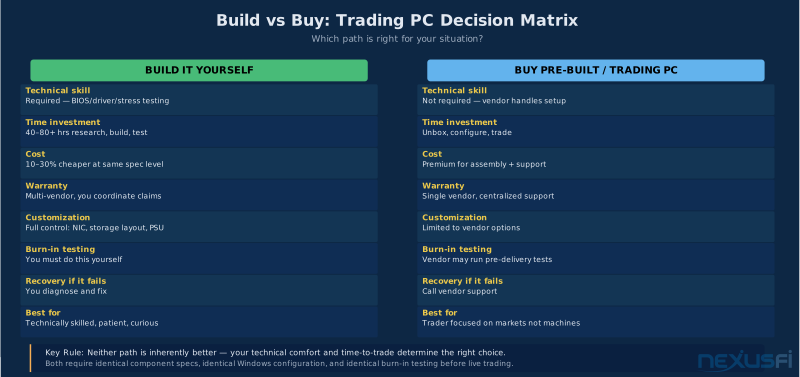
Build vs Buy: The Real Decision #
The build-versus-buy debate is dominated by two camps that are both partially wrong. The DIY camp says you'll save 30% and get exactly what you want. The pre-built camp says you'll waste two weeks troubleshooting when you should be trading. Both camps are right in the cases they're describing, and both ignore the other side's valid point.
Here's the honest breakdown. Building your own trading PC saves 15--30% at equivalent specifications, gives you complete control over component selection (especially NIC and storage layout), and means you know exactly what's inside when something goes wrong. The cost is real: expect 40--80 hours of research, assembly, testing, and Windows configuration before the machine is ready for live trading. That's time not spent trading or developing your edge. If the build has a component issue — a memory stick that passes initial checks but causes intermittent errors under load — you're diagnosing it yourself while watching the market move without you.
Buying pre-built from a reputable vendor costs the premium but compresses time-to-trade and puts warranty responsibility in one place. When the system fails during market hours, you call someone who can overnight a part or escalate immediately. The risk is vendor quality — many "trading PC" companies are standard workstations with a clean Windows image and marketing. A few provide genuine QA: burn-in testing, verified memory stability, trading-optimized BIOS defaults, and support during market hours.
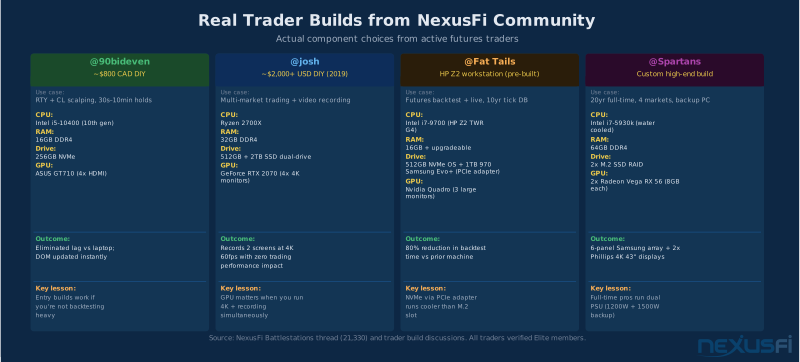
@90bideven, a trader who builds his own machines for RTY and CL scalping, put it cleanly in the NexusFi platforms forum: "By building your own machine you will understand what's in it and most likely have an upgrade path ahead of you." [1] His $800 CAD build eliminated the chart lag he'd been fighting on a Dell laptop — but he also made every configuration decision himself and troubleshot every issue personally. That's the DIY trade.
@Fat Tails, who trades futures professionally and maintains a 10-year tick data database across 2 million files, made the opposite call: bought a Dell/HP workstation pre-built, added a second NVMe SSD via PCIe adapter, and focused on trading instead of building. His rationale: "Keep it simple. I would rather focus on trading and not waste my time to play around with components." [4] Both approaches work. Neither is universally correct.
The decision framework: Build if you're comfortable with BIOS configuration, component compatibility research, and are willing to perform overnight stress testing before going live. Buy if your time has high opportunity cost, you want a single warranty contact, and you're willing to verify the vendor's actual QA process (not just their marketing claims) before purchasing.
Why Trading PCs Are Different from Gaming PCs #
The hardware requirements for futures trading diverge from gaming in ways that are counterintuitive. Gaming optimizes for peak frame rates during burst workloads. Trading optimizes for stable, predictable performance under sustained load, day after day, during events when any hiccup has direct financial consequences.
A gaming PC built in 2024 might have an overclocked CPU running at 5.2 GHz with aggressive XMP RAM, a high-end GPU, Corsair iCUE running for RGB control, GeForce Experience overlay active, and Windows set to the Gaming power profile. That machine will score well on benchmarks. It will also have unpredictable latency spikes from RGB software background services, an XMP profile that might be stable on a cool day but throw memory errors under summer heat, and a power profile that lets the CPU clock drop between bursts.
A trading PC should have none of that.
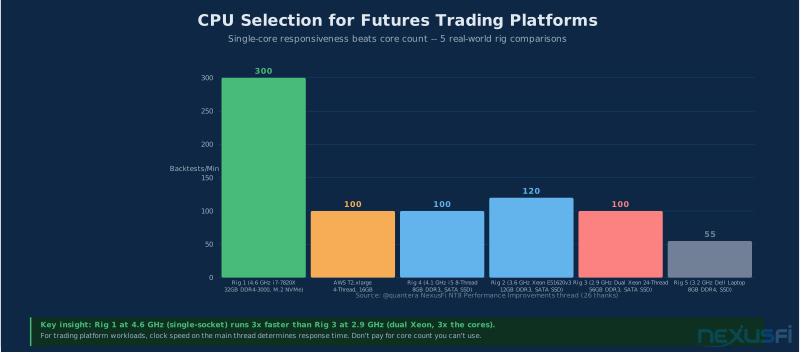
[5] The implication is that trading platforms are primarily single-threaded in their critical paths — order routing, DOM updates, chart rendering — and what matters is consistent clock speed, not core count.
This is the counterintuitive truth most gaming-focused build guides miss: a $280 Intel i5 with 4 cores running consistently at 4.5 GHz processes DOM updates faster than a $600 AMD Threadripper with 24 cores throttling under sustained load. Core count is a marketing metric for trading hardware. Sustained single-core clock is the spec that matters.
The specific differences:
CPU: Mid-tier is correct. You need strong single-core performance and thermal stability, not maximum cores. An 8--12 core CPU sustaining 4.2 GHz all day beats a 24-core CPU that thermal-throttles to 3.1 GHz under sustained load. No overclocking. The marginal clock gain from an OC isn't worth the instability risk during a volatile open.
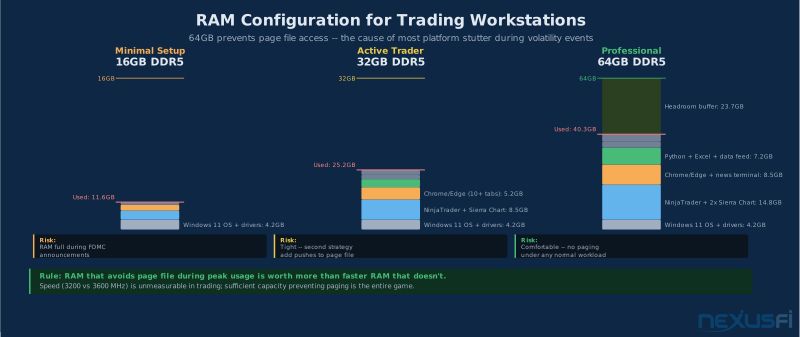
RAM: Capacity over speed. 32GB is the functional minimum for a single-platform discretionary trader. 64GB if you're running multiple platforms, large chart histories, local tick databases, or Python analytics during market hours. RAM speed (3200 vs 3600 MHz) matters little; capacity that keeps you out of page file territory matters enormously. @josh, who runs four 4K monitors plus video recording, called 32GB the absolute minimum: "I would never, ever get less than 32GB of RAM on any computer these days, ever. There's just no reason to." [3]
GPU: Multi-monitor output count, not gaming performance. For 2--3 monitors at 1440p, an entry-level GPU handles everything. For 4--6 monitors, you need to verify actual display output counts on the card you're buying — some GPUs support more outputs than their specs suggest but require specific adapter configurations. @90bideven used an ASUS GT710 with 4 HDMI outputs for a four-monitor trading setup and reported it was "working fantastic with NT8." His advice: "DON'T BLOW THE BUDGET ON A GRAPHICS CARD. In most trading software you are just rendering simple 2D graphics." [1]
Storage: Two NVMe drives. First drive for OS and trading platform. Second drive for tick data, logs, and backups. Separating logs from the OS drive prevents write activity during high-volatility periods from competing with platform operations. @Fat Tails made a hardware note worth recording: install the second NVMe via a PCIe adapter with heatsink rather than the M.2 slot on the motherboard. The PCIe slot provides better cooling, which translates to higher sustained write speeds and longer drive life. [4]
Network: Wired Ethernet only. No exceptions. WiFi introduces variable latency from interference, band-switching, and channel contention that shows up at exactly the wrong moments. A $25 Intel NIC in a PCIe slot is one of the highest-value upgrades possible for a machine with a weak onboard controller.
Component Selection: The Priority Hierarchy #
Not all components carry equal weight for trading reliability. Understanding which failures are catastrophic versus merely inconvenient shapes every purchasing decision.
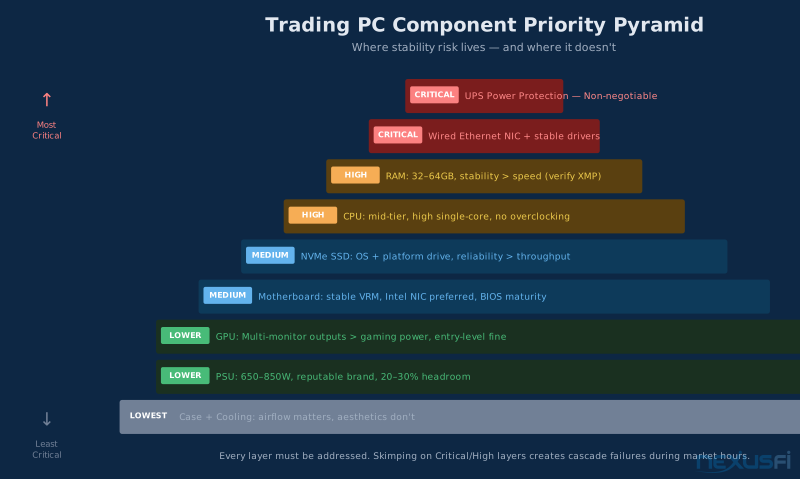
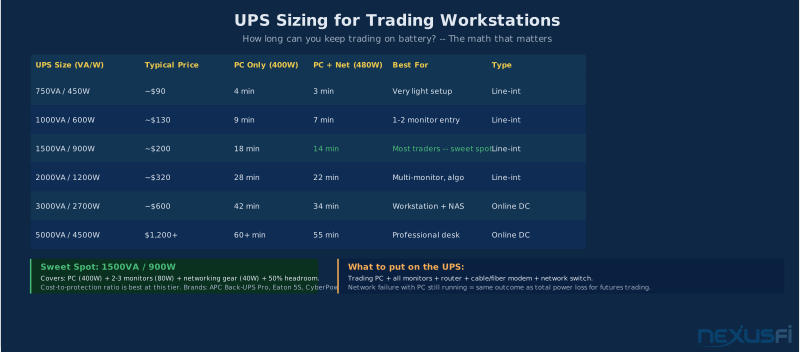
Priority 1 — UPS (Uninterruptible Power Supply): This isn't a computer component, but it belongs first. A power outage with an open position and no UPS is the closest thing to a guaranteed loss in trading infrastructure. A 1500VA UPS — roughly $150--250 — provides 10--20 minutes of runtime on a trading workstation. That's enough to close all positions and shut down cleanly. Also: put your router, modem, and network switch on the UPS. Losing network while the PC is still running is as bad as losing the PC. @Spartans, a full-time futures trader for over 20 years, lists "UPS power back up" as a first-tier component alongside the trading PC itself. [6]
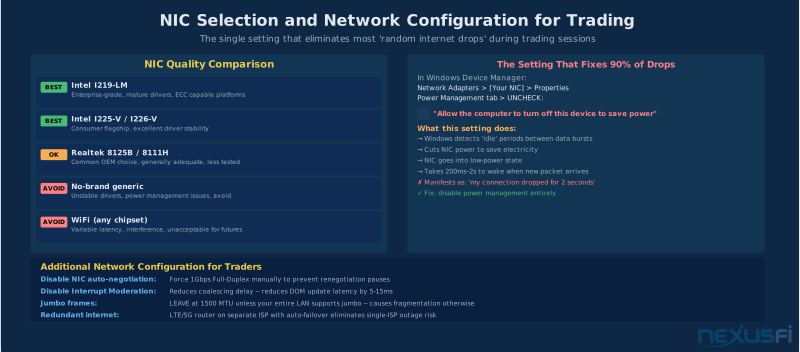
Priority 2 — NIC and Ethernet: Intel NICs (I219-LM, I225-V, I226-V) are the community standard for driver stability. Disable adapter power management in Windows Device Manager — the default setting allows Windows to cut NIC power during "idle" periods, causing momentary link drops. This setting explains the majority of "my internet randomly drops while trading" reports on NexusFi.
The default Windows NIC power management setting lets Windows cut network adapter power during "idle" periods — which can happen mid-session between bursts of activity. This causes 2-3 second link drops that look identical to ISP outages. Disable it in Device Manager before your first live session.
Priority 3 — RAM configuration and stability: Choose 64GB for professional use. More important than capacity is verified stability: run MemTest86 or HCI MemTest at your chosen XMP profile for at least 6 hours before going live. A memory configuration that's technically within spec but marginal under heat will cause intermittent errors that corrupt data, freeze platforms, or produce calculation errors in running strategies. If XMP causes any errors, drop to JEDEC-rated speeds and run again. The speed penalty is minimal; the stability gain is essential.
Run MemTest86 from a bootable USB for 6+ hours at your XMP profile BEFORE installing the OS. Any errors mean drop to JEDEC speeds and retest. This catches the marginal memory configurations that appear stable for weeks then corrupt data under summer heat or during memory-intensive backtests.
Priority 4 — CPU thermal stability: Choose a CPU with strong single-core performance that sustains its boost clocks without throttling under continuous load. Check sustained (not peak) performance benchmarks before purchasing. A processor that runs 4.2 GHz consistently outperforms one that peaks at 5.0 GHz but throttles to 3.4 GHz after 20 minutes under load. Pair it with a cooler rated for the CPU's TDP with 15--20% headroom. Noctua air coolers are community-recommended for reliability; liquid cooling adds complexity without commensurate benefit for trading workloads.
Priority 5 — PSU quality: Choose 650--850W from Seasonic, Corsair (HX/RM series), or be quiet! with 80 Plus Gold or Platinum efficiency. Size at 20--30% above your actual system draw. Cheap PSUs have unstable voltage rails that introduce noise, cause random reboots, and shorten component lifespans.
Priority 6 — Motherboard VRM and BIOS maturity: For 24/7 operation, choose a motherboard from a manufacturer with a track record of stable BIOS updates. Check VRM quality reviews under sustained loads. Under-spec VRMs cause thermal throttling and voltage fluctuations. Prefer boards with Intel onboard NICs, verify PCIe lane bandwidth isn't shared between your NVMe slots and PCIe NIC, and confirm BIOS provides granular control over C-states.
Priority 7 — GPU (multi-monitor focus): Select based on output count, not gaming performance. Verify the exact DisplayPort and HDMI outputs — a card might list four outputs but only support three simultaneously. For 4K or more than four monitors, step to a mid-range GPU. For 2--3 monitors at 1080p/1440p, entry-level handles everything trading platforms require.
Budget Tiers: What Each Level Actually Buys #
Three tiers cover the realistic range for futures traders, from a capable entry build to a professional workstation.
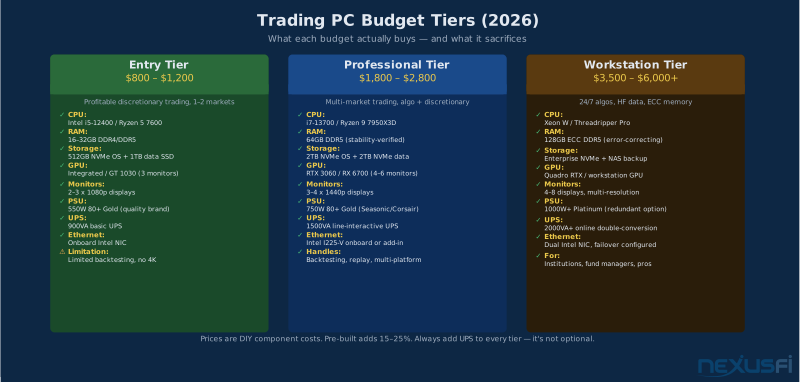
Entry Tier: $800--$1,200 (DIY) / $1,100--$1,600 (pre-built)
The entry tier is adequate for discretionary trading in 1--2 markets, 2--3 monitors, and light backtesting. It handles NinjaTrader, Sierra Chart, or TradeStation with active charts and DOM without lag. What it doesn't do well: parallel backtesting across large datasets, 4K displays, or heavy analytics workloads during market hours.
Core spec: Intel i5-12400 or Ryzen 5 7600 (both have excellent single-core performance), 32GB DDR4/DDR5, 512GB NVMe for OS + 1TB NVMe for data, integrated graphics or GT 1030 (3 monitors), 550W 80+ Gold PSU, and a 900VA UPS. Total component cost: $800--$1,000 depending on sale prices.
@matthew28 built to this tier and confirmed the 30% savings over comparable pre-built: "I reckon doing so saved me 30% or so on something of a similar spec." [2] His key assembly tips: anti-static wristband, correct CPU socket match to motherboard, thermal paste applied as a small pea shape on the cooler baseplate (not spread thin), and power supply sized with an online calculator.
Professional Tier: $1,800--$2,800 (DIY) / $2,400--$3,500 (pre-built)
The professional tier handles multi-market trading with multiple platforms running simultaneously, 3--4 monitors including 1440p displays, moderate backtesting without disrupting live trading, and Python or Excel analytics during market hours.
Core spec: Intel i7-13700 or Ryzen 9 7950X3D, 64GB DDR5 (stability-verified), dual NVMe (2TB OS/platform + 2TB data), RTX 3060 or RX 6700 XT (4--6 monitor support), 750W 80+ Gold PSU from Seasonic or Corsair, 1500VA line-interactive UPS. @bblnt runs a Ryzen 9 5900X with 64GB DDR4-3600 and an RTX 3090 for a single 8K 82-inch monitor that he uses as four virtual 4K displays — an unconventional but effective approach for a trader who prioritizes ergonomics. [8]
Workstation Tier: $3,500--$6,000+ (DIY or workstation vendor)
The workstation tier is for traders running automated strategies 24/7, maintaining local market data databases at depth, or managing multiple portfolios simultaneously. The key differentiator here isn't CPU speed — it's ECC (Error-Correcting Code) RAM and enterprise storage.
ECC memory corrects single-bit errors in real time. Consumer RAM cannot do this. For a machine running automated strategies overnight, a single corrupted memory cell can produce calculation errors that affect position sizing, risk calculations, or stop levels. The probability per session is low; the consequence per occurrence is potentially significant. Platforms like AMD Threadripper Pro and Intel Xeon W support ECC memory. Standard consumer platforms (Intel Core, AMD Ryzen) do not.
Add to the workstation tier: dual Intel NICs with failover configured, online double-conversion UPS (no transfer gap on power loss), enterprise NVMe with power-loss protection, and a NAS or cloud backup for the tick data database.
The DIY Assembly Process #
If you're building, the assembly sequence matters more than most build guides acknowledge.
Before you start: Read the motherboard manual cover to cover. Motherboard manuals contain compatibility warnings, BIOS update requirements, and PCIe slot bandwidth sharing notes that aren't on the box. Open pcpartpicker.com and verify your component list: CPU/motherboard socket match, RAM generation and speed support, PCIe requirements for NVMe and GPU, and power connector requirements.
Physical assembly sequence:
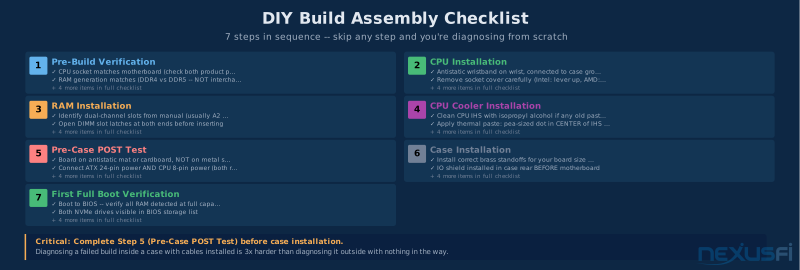
Start outside the case. Install CPU into motherboard (socket alignment notches matched), install RAM in the correct slots for dual-channel (typically A2 and B2 — check the manual), and install the CPU cooler with thermal paste. For paste: a pea-sized dot in the center of the CPU IHS is correct. The mounting pressure spreads it. Do not pre-spread. Apply the CPU cooler at correct mounting pressure — insufficient pressure results in uneven contact and poor thermal transfer.
First boot (outside the case): With the motherboard on its antistatic mat, connect PSU power connectors (ATX 24-pin and CPU 8-pin), attach a monitor to integrated graphics, and power on. This POST test verifies CPU, RAM, and basic motherboard function before case installation. If it doesn't POST, common causes are RAM not fully seated, CPU power not connected, or power button header not attached.
Into the case: Mount motherboard standoffs for your board size. Install PSU, then motherboard. Connect front panel headers from the manual pinout. Install NVMe drives before GPU — the GPU physically blocks M.2 slots on many boards. Install GPU last, ensuring it's fully seated (you'll hear a click). Connect all power cables.
Cable management: Functional, not aesthetic. Cables across fan intakes reduce airflow. Route through the PSU shroud when possible, use velcro ties (not zip ties), and verify nothing presses against GPU fans. Good routing also means better serviceability when replacing components.
Post-assembly verification: Before closing the case, boot to BIOS. Verify all RAM slots detected at full capacity, both NVMe drives visible, CPU idle temp below 45°C, fan RPMs reporting correctly. Set XMP/EXPO profile. Set fan curves to temperature-responsive. Disable deep C-states.
BIOS Configuration for Trading #
Most traders boot into BIOS, verify the system works, and never return. For a trading machine, BIOS configuration directly affects stability and latency.
Memory profile: Enable XMP (Intel) or EXPO (AMD) if your RAM supports it. Run MemTest86 for at least 6 hours at that profile before proceeding. If any errors appear, disable XMP and run at JEDEC-rated speeds. The speed penalty (3200 vs 3600 MHz) is unmeasurable in trading applications; the stability gain from verified memory behavior is significant. @quantera's testing data confirmed: "Ram Speed seems to also make a huge difference. 3000 DDR4 much outperforms 1600 DDR3" — but only if the profile is stable. [5]
Power states: C-states are CPU power-saving modes that reduce voltage and frequency during brief idle periods. For a trading machine processing tick data continuously, aggressive C-states introduce CPU wake-up latency. Disable C3 and deeper states in BIOS. Leave C1/C1E enabled — they're fast enough to not cause measurable latency.
Fan control: Set fan curves to temperature-responsive, not fixed speed. Temperature-responsive curves — fans ramp from ~40% at 50°C to 100% at 80°C — provide adequate cooling at normal load and maximum cooling under stress. Verify that your CPU never exceeds 85°C under full load.
Boot order: Set primary NVMe as boot device. Disable PXE (network boot) — it adds 5--10 seconds to boot time.
Windows Configuration: The 12 Settings That Matter #
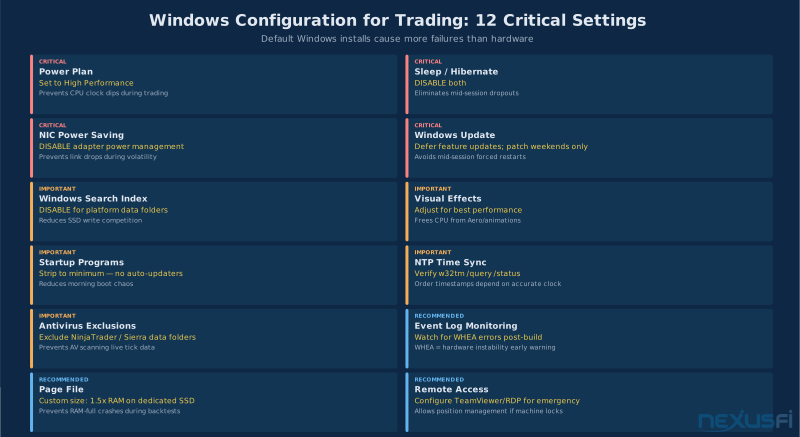
The most expensive trading PC on the market will crash during a volatile session if Windows is configured with defaults. Default Windows is designed for general desktop use — sleep, update, and power-save behaviors that are appropriate for consumers and catastrophic for traders.
Power Plan: Set to High Performance. This prevents CPU clock stepping that introduces latency during bursts of platform activity. Find it in Control Panel > Power Options. Do not use Balanced (allows clock variation).
Sleep and Hibernate: Disable both. A session that pauses mid-trading is worse than a session that never started. Power Options > Change plan settings > Never for sleep; Control Panel > Power Options > Choose what the power buttons do > Turn off fast startup.
NIC Power Management: Device Manager > Network Adapters > your NIC > Properties > Power Management. Uncheck "Allow the computer to turn off this device to save power." This setting is responsible for most "my internet randomly drops for 2--3 seconds" reports from traders on wired connections.
Windows Update: Defer feature updates in Settings > Windows Update > Advanced options. Set active hours to your trading session hours. Apply security updates on weekends.
Windows Search Indexing: Disable for trading platform data folders. The indexer continuously scans new files — which includes every new tick data file NinjaTrader or Sierra Chart writes — creating read/write competition on the platform SSD. Disable via Services.msc > Windows Search > Startup Type: Disabled.
Antivirus exclusions: Add trading platform install and data directories to exclusions. Real-time scanning of tick data files creates latency spikes. This is a known issue with every major trading platform and all antivirus software.
Startup programs: Task Manager > Startup. Disable everything not required for trading. GeForce Experience, Steam, OneDrive, Teams, Slack — all consume resources and introduce background activity during market hours.
NTP time sync: Verify with w32tm /query /status in Command Prompt. Order timestamps are derived from system time. A clock drifted by seconds causes timestamp mismatches in execution logs and affects time-based strategy conditions.
Page file: Set manually. System > Advanced system settings > Performance > Advanced > Virtual Memory. Set to 1.5x RAM on the fastest available drive (ideally a dedicated SSD). @quantera found that moving the Windows page file to a dedicated SSD "noticed a huge improvement" when running memory-intensive backtests. [5]
WHEA event log monitoring: After any BIOS change or hardware addition, check Windows Event Viewer > Windows Logs > System for WHEA events. A single WHEA error indicates hardware instability — typically XMP marginal, CPU voltage instability, or a driver conflict. Do not go live with unresolved WHEA errors.
A single WHEA (Windows Hardware Error Architecture) event in Event Viewer means your system is generating hardware errors — typically from XMP being marginal, CPU voltage instability, or a driver conflict. Trading on a machine with unresolved WHEA errors is the hardware equivalent of running without stops. The error that crashes your platform will happen during a volatile session, not during a burn-in test.
Remote access: Configure TeamViewer or Windows Remote Desktop before going live. If the machine freezes during market hours and you're not at your desk, you need a way in.
HWiNFO64 monitoring: Run continuously, log to file, review weekly. Gradually rising CPU temps indicate dust accumulation. An RPM drop indicates bearing wear before failure. These early warnings prevent catastrophic failures during market hours.
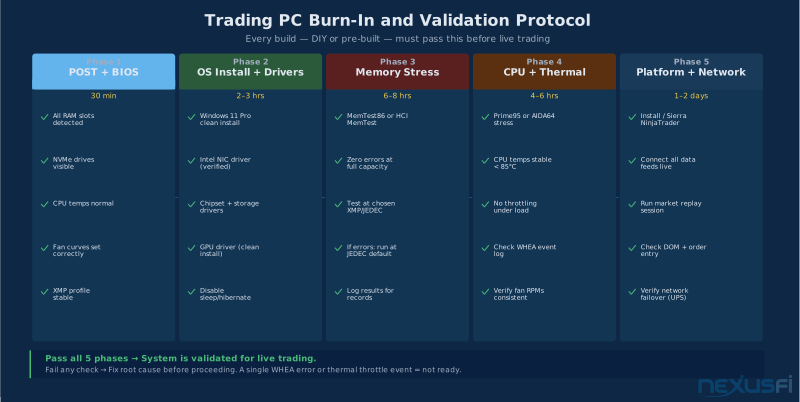
Burn-In Testing: Five Phases Before Live Capital #
"It works" is not validation. A trading PC is validated when it has passed formal stress testing that surfaces the failure modes most likely to appear under sustained real-world load. Skip this and you're discovering failure modes with real positions on the line.
Phase 1 — POST and BIOS verification (30 minutes): Confirm all RAM slots detected at full capacity. Confirm both NVMe drives visible. Set XMP profile. Set fan curves. Disable NIC power management in BIOS. Enable High Performance power plan. Verify CPU idle temperature below 45°C.
Phase 2 — OS installation and driver verification (2--3 hours): Clean Windows 11 Pro install. Install chipset drivers from motherboard manufacturer's site. Install NIC driver from Intel's site (not Windows Update's version). Install GPU driver (DDU clean install recommended). Apply all 12 Windows configuration settings from the section above.
Phase 3 — Memory stability (6--8 hours minimum, overnight preferred): MemTest86 from a bootable USB or HCI MemTest running in Windows. Zero errors required. A single corrected error is a failure — on consumer memory a corrected error means your XMP profile is marginal. Drop to JEDEC and retest. @matthew28's tip: verify temps with HWMonitor from cpuid.com during the stress test. [2]
Phase 4 — CPU and thermal stress (4--6 hours): Prime95 (Small FFTs for maximum heat, or Blend for combined CPU/memory stress) or AIDA64 System Stability Test. Monitor with HWiNFO64. CPU temperature must stay below 85°C throughout. No throttling events. Check Windows Event Viewer for WHEA errors after completion. A single error means the system is not ready.
Phase 5 — Platform and network validation (1--2 days): Install your trading platform, connect your data feed, run a full market replay session. Connect all monitors, verify DOM updates without lag, test order entry in simulation. Run 24 hours with simulated data to surface memory leaks or platform-specific stability issues. Test UPS failover: pull the power plug, verify it stays up, Windows fires the notification, and the system shuts down cleanly at your configured battery threshold.
Five burn-in phases is the minimum before live capital. Most trading PC failures happen in the first 30 days — during memory stress, under summer heat, or when platforms generate sustained disk writes during volatile sessions. The burn-in surfaces these failures on your terms, not the market's.
Evaluating Pre-Built Vendors #
The pre-built market for trading PCs ranges from genuine value to expensive deception. Several companies charge significant premiums for what is basically a stock workstation with a Windows image and a trading-focused website. A small number deliver real value through validated hardware, burn-in testing, and market-hours support.
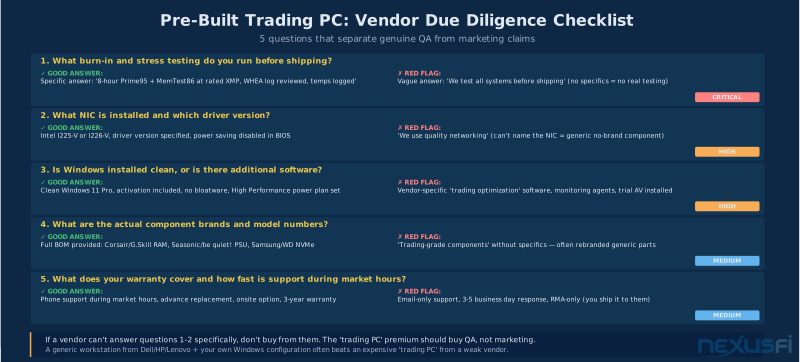
Five questions separate them:
"What burn-in and stress testing do you run before shipping?" A reputable vendor gives specific answers: "8-hour Prime95 blend test, MemTest86 at rated XMP, WHEA log reviewed, temperatures logged and documented." A vendor who says "we test all systems before shipping" without specifics is describing an overnight power-on test, not validation. This question filters out roughly half the market.
"What NIC is installed and which driver version?" Reputable vendors know this immediately: "Intel I225-V, driver version 28.1.x.x, adapter power management disabled in BIOS." Vendors who can't name the NIC are using no-brand generic controllers that may have unstable drivers.
"Is Windows installed clean, or does it include additional software?" You want: clean Windows 11 Pro, OEM activation included, no vendor monitoring agents, no trial antivirus, High Performance power plan configured. Red flags: vendor-specific "optimization" software, persistent agents, or bundled subscriptions.
"What are the complete component brands and model numbers?" Reputable vendors provide a full bill of materials. If they won't name the PSU brand and model, the RAM manufacturer, or the NVMe part number, they're obscuring component choices — typically because those choices are generic parts.
"What does your warranty cover and what's your support response time during market hours?" You want: phone support during US market hours, advance replacement, and ideally an onsite option. Email-only support with 3--5 business day response is unacceptable for trading infrastructure that can fail with live positions.
A reputable pre-built option that comes up repeatedly in NexusFi discussions: dedicated workstation lines from Dell (Precision), HP (Z-series), and Lenovo (ThinkStation). These are not marketed as "trading PCs" but they're built to workstation-class quality standards with better VRMs, more rigorous factory testing, and centralized support. At equivalent specs, they often undercut specialist trading PC companies by 15--20% while offering better build quality. The trade-off: you do your own Windows configuration, which takes 2--3 hours and is documented above.
Ongoing Maintenance: Keeping the Machine Running #
A well-built trading PC requires maintenance to stay reliable. Ignoring maintenance turns a solid machine into an unreliable one over months.
Quarterly: Clean dust filters on case fans and GPU. A dusty GPU runs 10--15°C hotter and throttles under summer load. Check SMART data on both NVMe drives with CrystalDiskInfo. Reallocated sectors or uncorrectable errors are early failure warnings.
Monthly: Review HWiNFO64 logs for temperature trends. A CPU running 5°C hotter than the prior month indicates cooler dust. Verify UPS battery health via the UPS management software. Replace batteries every 3--5 years proactively.
After any Windows update: Verify power plan hasn't reverted to Balanced, NIC power management hasn't been re-enabled, and no conflicting drivers were installed. Check Event Viewer for new errors.
Annually: Pull power on the UPS and verify the system switches cleanly. Update BIOS only for documented stability fixes. Run a full MemTest86 overnight to verify memory stability hasn't degraded over time.
Making the Call: A Decision Framework #
After all of this, the question remains: build or buy?
Build if: you've built at least one PC before, you're comfortable in BIOS, you're willing to spend a weekend on assembly and a week on testing before trading, and you have backup equipment (even a laptop) to trade on if the build needs repair.
Buy pre-built if: your time has real opportunity cost (you could be developing your edge), you've never assembled a PC, you don't want to troubleshoot BIOS issues at 3 PM on a trading day, or you need a centralized warranty and market-hours support. In this case, apply the five vendor diligence questions rigorously and still do the full Windows configuration yourself.
In either case: budget for the UPS first, configure Windows before installing the trading platform, and don't go live until you've completed all five burn-in phases.
The computer is the least interesting part of futures trading. Get it right, then stop thinking about it.
Build or buy — both paths work. What matters is component priority (UPS first, NIC second, RAM stability third), a complete burn-in before live capital, and Windows configured before the trading platform is installed. Skip any of these and you'll learn the lesson with real money at stake.
Knowledge Map
Prerequisites
Understand these firstGo Deeper
Build on this knowledgeReferences This Article
Articles that build on this topicCitations
- — Built my own trading PC! (2021) 👍 9“By building your own machine you will understand what's in it and most likely have an upgrade path ahead of you.”
- — Built my own trading PC! (2021) 👍 4“I built my own PC too, and like you, I reckon doing so saved me 30% or so on something of a similar spec.”
- — New Computer Build (2020) 👍 9“I would never, ever get less than 32GB of RAM on any computer these days, ever. There's just no reason to.”
- — New Computer Build (2020) 👍 7“Keep it simple. I would rather focus on trading and not waste my time to play around with components.”
- — NinjaTrader 8 (NT8) Performance Improvements and Tweaks (2018) 👍 26“CPU/Ram Speed is more important than additional cores: a 4.2ghz 4Core outperforms a 2.9ghz 8Core rig.”
- — Battlestations: Show us your trading desks! (2019) 👍 24“I have been trading futures full time for over 20 years. UPS power back up [is essential].”
- — Battlestations: Show us your trading desks! (2019) 👍 19“Intel Core i9 9900K 5.0GHz, Intel 660p 2000GB (M.2 NVMe) 1800/1800MB/s, Samsung 860 QVO - 1000GB (SSD)”
- — Battlestations: Show us your trading desks! (2021) 👍 8“I used to have 4 monitors, but decided to switch to a single 8K monitor (82" - Samsung Q800T), which has 33M pixels (equals to 4 x 4K monitors).”
- EZ Trading Computers — What I'd Tell You If You Asked Me About DIY Trading PCs (2024)
- Hardware Times — How To Build a High-Performance Trading Computer (2024)