



Kinetick for NinjaTrader: Setup, Tiers, Historical Data, and When to Upgrade
What Kinetick Is and Why NT Users Default to It #
Kinetick is NinjaTrader's branded market data service, launched in May 2010. It runs on DTN (formerly Telvent DTN) servers — the same infrastructure that powers IQFeed — but with a custom adapter built specifically for NinjaTrader's architecture. When you install NinjaTrader and look for a data feed, Kinetick appears first in the wizard. For most new NT users, it becomes the default choice without much deliberation.
That default is reasonable. Kinetick is genuinely well-integrated with NinjaTrader, priced accessibly relative to independent data feed services, and handles the core requirement for most futures traders: reliable real-time tick data for US equity index, energy, and Treasury futures.
Where it gets more complicated is when traders start hitting its edges — ICE US markets not covered, overnight disconnects on automated strategies, or the need to connect the same data feed to non-NT platforms. Understanding Kinetick's architecture tells you immediately where those edges are and whether your trading needs fall inside or outside them.
The Architecture: Custom DTN Adapter and Native NT Integration #
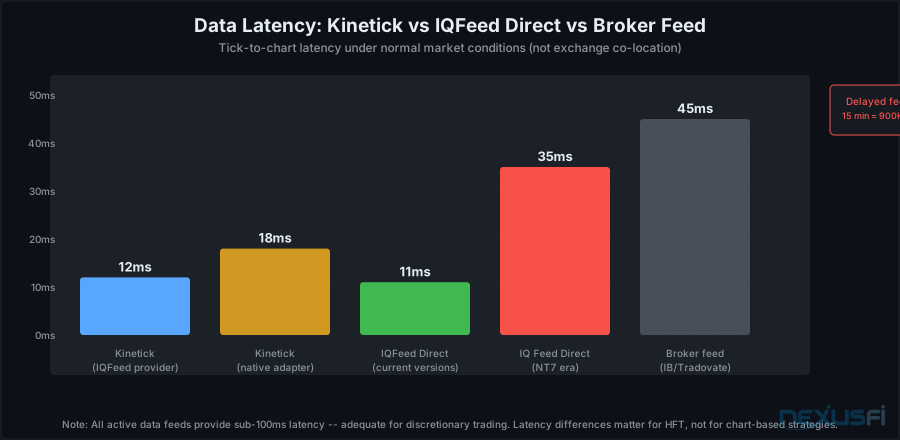
When NinjaTrader announced Kinetick in May 2010, they were explicit about what it wasn't: a rebranding of DTN or IQFeed. According to NinjaTrader's own explanation on NexusFi at the time:
The distinction matters technically: the Kinetick adapter bypasses the IQFeed Client API middleware layer and connects directly to DTN's servers. In practice this means faster initial data retrieval on connection and cleaner integration with NinjaTrader's internal data architecture. It also means Kinetick is NT-specific — the adapter was built for NinjaTrader, and using it requires NinjaTrader.
The server infrastructure is identical to IQFeed. Historical data comes from the same DTN servers. Real-time tick data flows from the same infrastructure. The difference is how NinjaTrader talks to those servers, and what's included in the subscription.
The Two-Connection Setup: Data vs Execution #
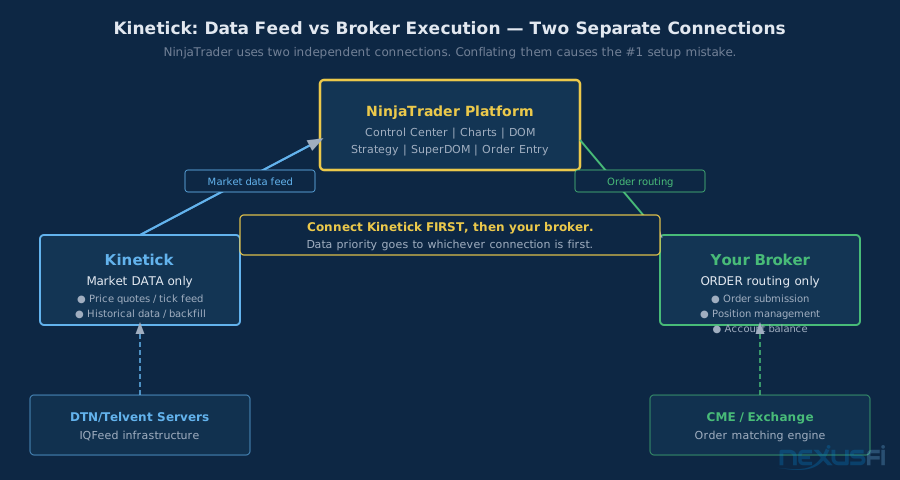
NinjaTrader uses two completely separate connections to function: one for market data (Kinetick), one for order routing (your broker). This architecture is elegant once understood, but confusing for new users who expect a single connection to handle everything.
Your broker connection — Interactive Brokers, NinjaTrader Brokerage, Tradovate, or any other — handles order submission, position management, and account data. It does not provide reliable market data for charting. Your Kinetick connection provides all price data: the tick feed for real-time charts, the historical data for backfilling, and (if subscribed) the Level 2 DOM.
The connection order matters: connect Kinetick first. NinjaTrader assigns data priority to the first active connection. If you connect your broker first and Kinetick second, your charts may draw from broker data — which is typically less complete, sometimes delayed, and missing the clean continuous contract support Kinetick provides.
As @Fadi described after extensive testing on NexusFi:
The practical setup: disable historical data in your broker connection wizard (set it to "Disabled" or "I will use another connection"), so NinjaTrader's historical backfill requests always route to Kinetick. This prevents the common problem of charts drawing partial data from two different sources and displaying price discontinuities.
Subscription Tiers: Free, Real-Time, and Level 2 #
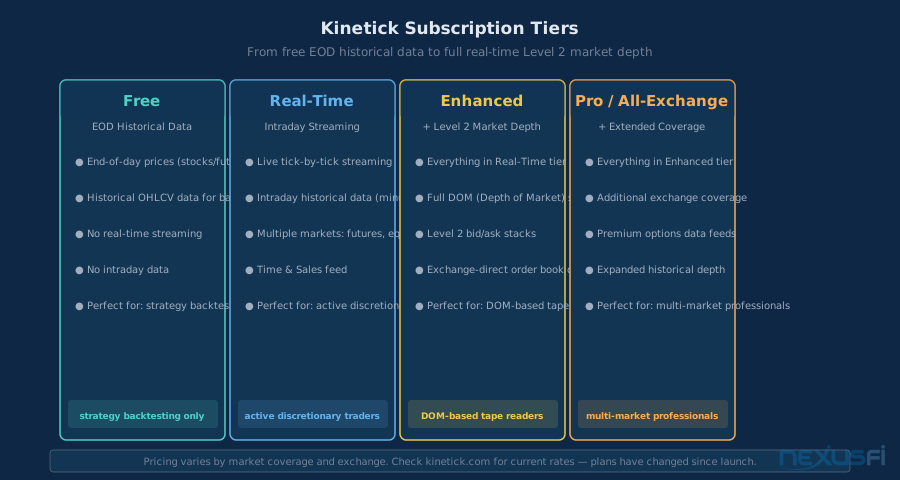
Kinetick's tier structure has evolved since launch but has always maintained the same fundamental hierarchy: free end-of-day, paid real-time, and a premium add-on for Level 2 market depth.
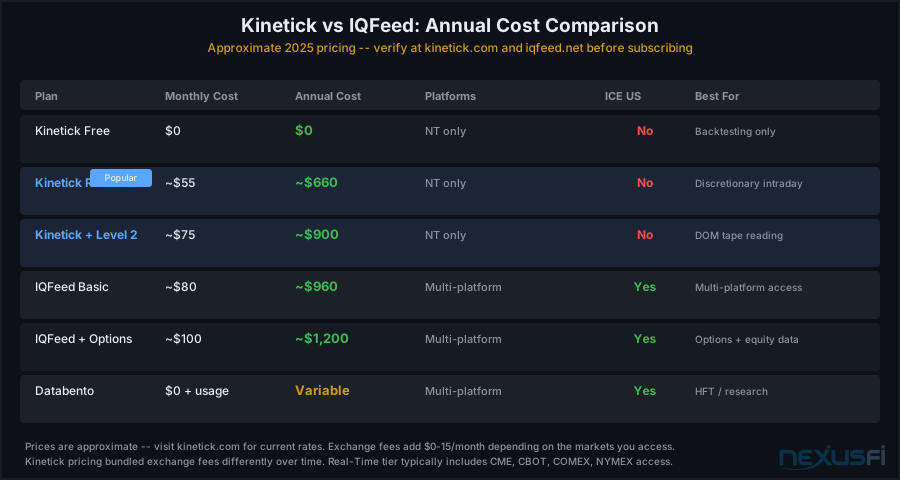
Free tier: End-of-day historical data for stocks, futures, and forex. No real-time streaming. No intraday data. Useful exclusively for backtesting on daily bars and for maintaining a historical database that NinjaTrader can use for strategy analysis. For active intraday trading, this tier is insufficient.
Real-Time tier: Live tick streaming plus intraday historical data. This is the core tier for discretionary intraday traders. You get tick-by-tick price feeds, Time & Sales data, and the ability to backfill charts with intraday historical data when you reconnect. The real-time tier covers most major US futures markets: CME equity indexes (ES, NQ, YM, RTY), Treasury futures (ZN, ZB, ZF, ZT), energy (CL, NG, RB, HO), metals (GC, SI, HG), agricultural (ZC, ZS, ZW), and currencies (6E, 6J, 6B, etc.).
Level 2 / Enhanced tier: Adds full DOM (Depth of Market) streaming — the complete bid/ask stack. In 2013 this cost approximately $20/month as an add-on according to @Fadi's NexusFi post. Current pricing should be verified directly at kinetick.com, but the structure remains the same: DOM is a premium tier above basic real-time. Traders who use a SuperDOM or tape-read from the order book need this tier. Those who use only charts and time & sales can save money on the basic real-time plan.
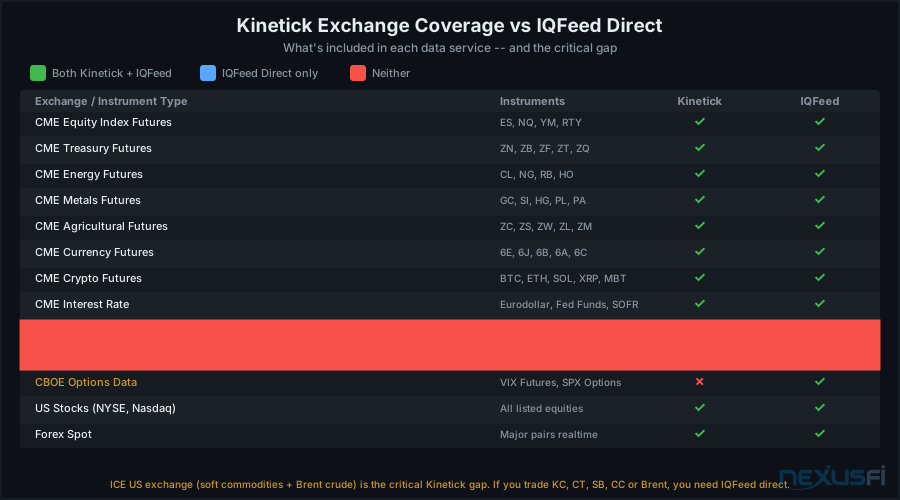
ICE US exchange gap: One notable exclusion is ICE US futures — cocoa, sugar, coffee, cotton, and related soft commodities trade on ICE US, and Kinetick does not cover that exchange. This limitation was documented by @Fadi on NexusFi: "The only thing I miss on Kinetick is the ICEUS futures exchange which they do not offer." Traders in soft commodities who need ICE US coverage must use IQFeed direct or an alternative data provider.
Connection Setup in NinjaTrader #
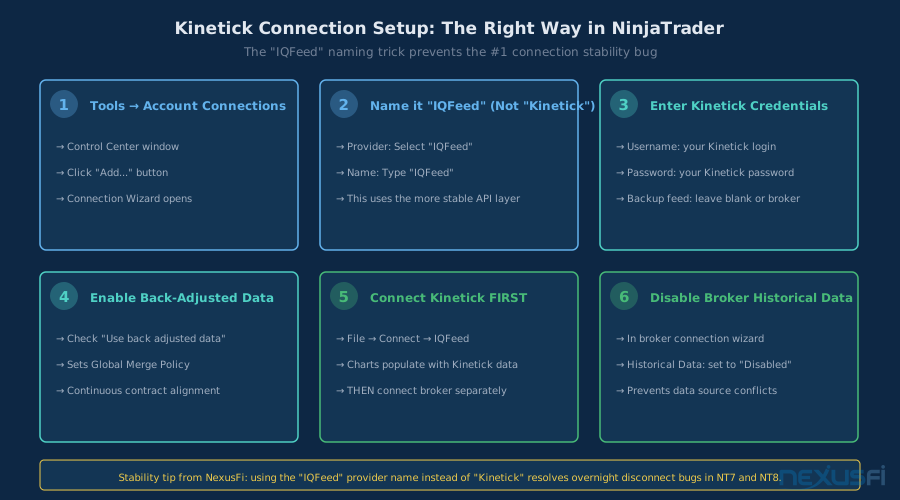
The connection wizard walkthrough sounds simple, but there's a counterintuitive step that much affects stability: when adding a Kinetick connection in NinjaTrader, name it "IQFeed" and select "IQFeed" as the provider — not "Kinetick" — even though you'll enter your Kinetick username and password.
This routing workaround was documented by @wcandrews on NexusFi, who discovered it resolves a known stability bug:
The IQFeed provider selection uses a different API path than the native Kinetick provider, and that path has more strong connection handling — especially for overnight reconnects. NinjaTrader later acknowledged this workaround officially for certain NT versions.
Full setup sequence:
- Tools → Account Connections → Add: Opens the Connection Wizard.
- Provider: Select "IQFeed" (not "Kinetick"). Connection name: type "IQFeed".
- Enter Kinetick credentials: Your Kinetick username and password work for the IQFeed provider selection.
- Back-adjusted data: Enable "Use back adjusted data" for continuous futures contracts.
- Connect Kinetick first: File → Connect → IQFeed, then connect your broker separately.
- Disable broker historical data: In your broker connection wizard, set Historical Data to "Disabled" to prevent data source conflicts.
Building Your Historical Tick Database #
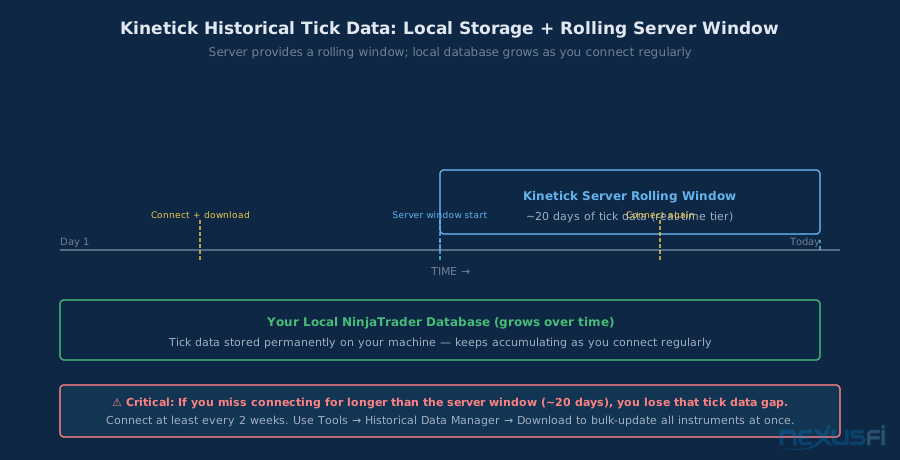
Kinetick's server provides a rolling window of historical data — approximately 20 days of tick history for real-time subscribers, plus longer windows for daily/minute data. The critical insight: NinjaTrader stores this data locally, and that local database grows permanently as you continue connecting.
@Fat Tails explained the accumulation mechanism on NexusFi after early Kinetick users complained about the 20-day limit:
The practical protocol: connect NinjaTrader at least every two weeks (more frequently if possible), and run a Historical Data Manager bulk download at the start of each session. Over months, your local database will contain years of tick data that remains permanently accessible even after the server's rolling window moves forward.
For non-back-adjusted continuous contracts, NinjaTrader's @NinjaTrader (Ray) clarified the approach on NexusFi:
Contract Rollover with Kinetick #
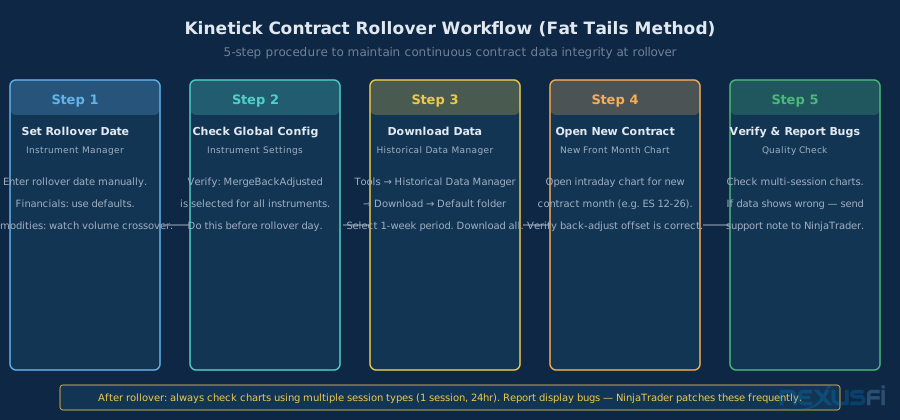
Futures contract rollover is a recurring maintenance task that requires specific steps to keep your continuous contract data clean. @Fat Tails documented the definitive procedure on NexusFi:
The rollover sequence in practice:
- Before rollover day: Update the rollover date in Instrument Manager. For financial futures (ES, NQ, ZN, etc.), NT defaults are usually correct. For energy and commodity contracts, watch the volume crossover between front and second-month contracts to identify the actual rollover date traders are using.
- Global setting: Confirm MergeBackAdjusted is active in Instrument Settings. This ensures historical data is offset-adjusted when the front month changes, maintaining continuous price series for backtesting.
- Rollover day bulk download: Run Historical Data Manager → Download for a 1-week window on the Default folder. This populates data for the new front month.
- New contract chart: Open an intraday chart for the new front month contract and verify the back-adjust offset is correctly calculated.
- Multi-session chart check: Charts using multiple daily sessions are the most likely to display incorrectly after rollover. Submit a support ticket if display anomalies appear -- NinjaTrader patches these regularly.
Common Problems and Fixes #
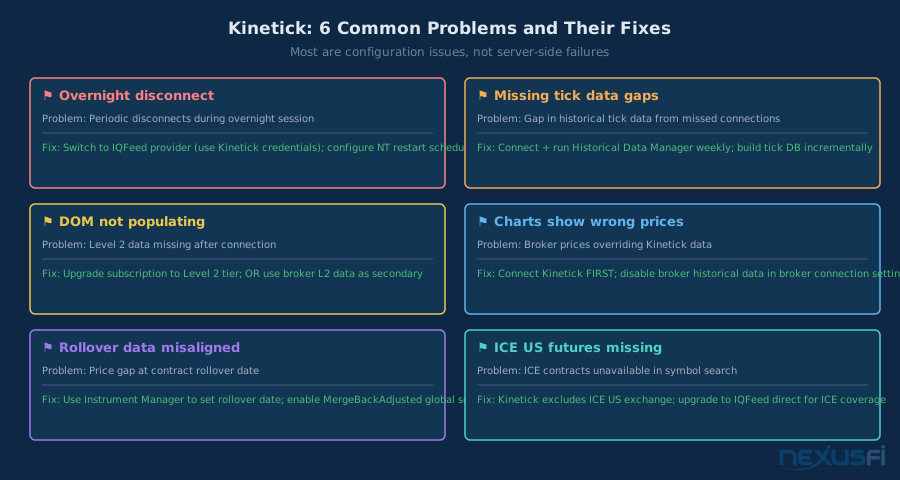
The majority of Kinetick problems are configuration errors or avoidable situations, not server failures. The six most common:
1. Overnight disconnects (the most common complaint)
NinjaTrader acknowledged a known bug where Kinetick drops connection periodically during overnight sessions. The workaround: use the IQFeed provider name with your Kinetick credentials instead of the native Kinetick provider.
2. Missing tick data gaps
If you don't connect for more than the server's rolling window, you'll have an unrecoverable gap in your local tick database. Prevent it by connecting weekly and running Historical Data Manager download on connection. There is no way to retroactively fill gaps after the server window passes — this data is gone.
3. DOM not populating
If your Depth of Market / SuperDOM is blank after connecting, you're on the basic real-time tier without Level 2 access. Either upgrade your subscription or use your broker's Level 2 feed as a secondary source. Kinetick's broker connections (NinjaTrader Brokerage, Interactive Brokers) can supplement DOM data from the broker side.
4. Charts showing wrong prices or discontinuities
The connection order problem. If broker connected before Kinetick, chart data may draw from broker feed. Reconnect in the correct order: Kinetick first, then broker. Also verify broker historical data is disabled in the broker connection settings.
5. Rollover data misaligned
Price gaps or incorrect offsets at contract rollover. Caused by Instrument Manager rollover date not updated before rollover day, or back-adjust offset not recalculated. Run Fat Tails' rollover procedure before rollover day, not after problems appear.
6. ICE US futures missing from symbol search
Kinetick does not cover ICE US exchange (soft commodities, ICE energy products). Not a configuration issue — this is a hard data coverage limitation. Traders who need ICE US data must use IQFeed direct or a separate data provider for those instruments.
Kinetick vs IQFeed Direct: Same Servers, Different Wrapper #
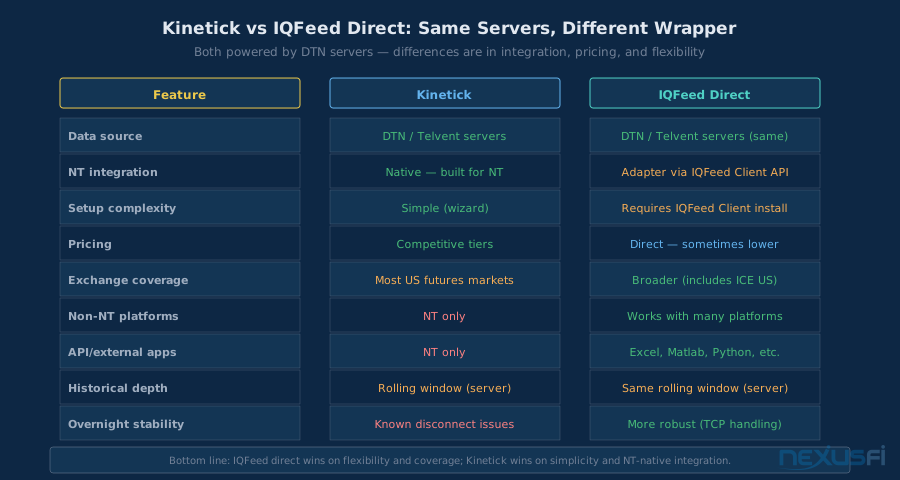
The comparison that comes up constantly on NexusFi: is Kinetick better or worse than subscribing to IQFeed directly? Both use DTN servers. Both provide the same underlying data. The difference is in the wrapper.
@Fadi spent two months testing IQFeed direct before returning to Kinetick, and summarized the experience:
This experience reflects a specific compatibility issue between older IQFeed Client versions and NinjaTrader 7 at the time — not a fundamental IQFeed inferiority. Current versions have better compatibility. The key trade-offs:
Where Kinetick wins: Native NT integration with a purpose-built adapter; simpler setup (no separate IQFeed Client install); competitive pricing for NT-only traders; no separate software to manage; direct support relationship through NinjaTrader.
Where IQFeed direct wins: Multi-platform access (Excel, Matlab, Python, Sierra Chart, TradeStation, and many others); ICE US exchange coverage; more strong overnight connection handling on some NT versions; external API access for custom data pipelines; broader exchange coverage overall.
When to Upgrade Beyond Kinetick #
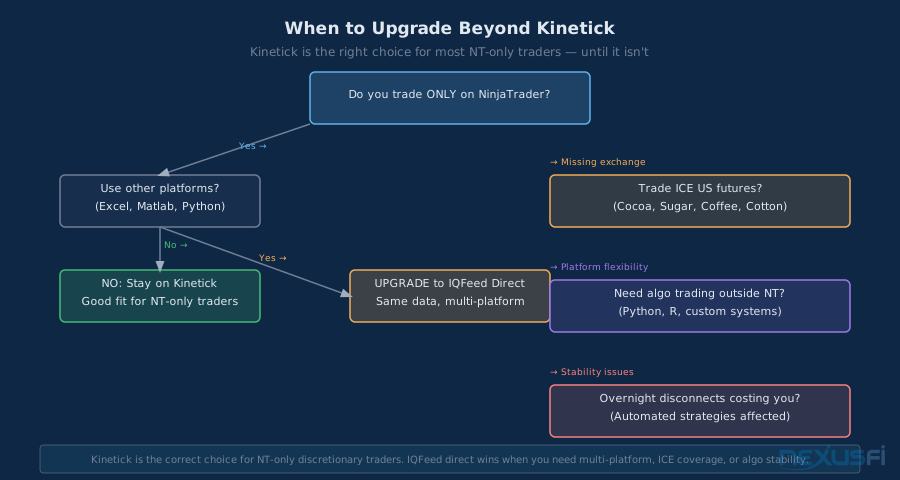
Kinetick is the correct data feed for most NinjaTrader discretionary traders. The cost is reasonable, setup is integrated, and the coverage is solid for the most-traded US futures markets. Upgrade signals:
Upgrade to IQFeed direct when:
- You need ICE US exchange coverage (soft commodities -- cocoa CT, sugar SB, coffee KC, cotton CT)
- You want to access the same data in non-NT platforms (Sierra Chart, Excel spreadsheets, Python, R, Matlab)
- Overnight disconnects are causing automated strategy failures and the IQFeed-provider workaround isn't resolving them
- You need a broader exchange footprint (CBOE, international exchanges, options data)
Upgrade to a different provider entirely when:
- You need institutional-grade tick data with no gaps in your historical database (Databento, Rithmic)
- You're building research infrastructure outside NinjaTrader's ecosystem
- You're running high-frequency strategies where the extra API layer matters
For most traders — active discretionary traders on NinjaTrader running US equity index, bond, or energy futures — Kinetick at the real-time or enhanced tier covers the job completely. The upgrade decision is usually triggered by hitting one of the specific limitations: ICE markets, multi-platform access, or overnight automation stability.
Bottom Line #
Kinetick is NinjaTrader's purpose-built data feed — cleaner NT integration than IQFeed direct, simpler setup, and solid coverage for the markets most futures traders actually trade. The free tier is genuinely useful for backtesting. The real-time tier covers discretionary intraday trading. The Level 2 tier handles DOM-dependent tape reading strategies.
Three things every Kinetick user should do from day one:
- Set up the IQFeed provider trick: Name your connection "IQFeed" in the wizard, enter your Kinetick credentials. Resolves overnight disconnect issues without any other changes.
- Connect Kinetick before your broker, every session: Data priority goes to the first connection. This single habit prevents 90% of chart data issues.
- Run Historical Data Manager weekly: Historical tick data accumulates locally. Regular downloads build a database that compounds over years. Missing connections creates unrecoverable gaps.
Know the limitations going in: no ICE US coverage, NT-only feed, and some overnight stability issues for automated strategies. Within those boundaries, Kinetick does exactly what it's designed to do.
Prerequisites
Before connecting Kinetick, you need NinjaTrader installed and a Kinetick account registered at kinetick.com. Understanding basic futures data concepts helps — see Market Data for Futures Trading for the foundational overview. If you're comparing data providers, DTN IQFeed Setup Guide covers the direct subscription option.
Further Exploration
- Futures Data Feed Technologies: CQG, Rithmic, and the Infrastructure Behind Every Tick -- the wider environment of data feed options beyond Kinetick and IQFeed
- Historical Market Data for Futures Trading -- building research-ready datasets beyond what Kinetick provides
- Tick Data vs Bar Data -- why tick data matters and when minute bars are sufficient
- Real-Time vs Delayed Market Data -- understanding what you're paying for in each Kinetick tier
- NinjaTrader Platform Guide -- the platform that Kinetick is built for
Knowledge Map
Go Deeper
Build on this knowledgeCitations
- — Kinetick - A new Market Data Feed Service for NinjaTrader (2010) 👍 9“NinjaTrader has created a new brand for a market data service and decided to use Telvent DTN as our technology provider. We wrote from scratch an adapter that connects directly to the Telvent DTN servers vs our IQFeed adapter that communicates through the IQFeed Client API.”
- — Kinetick - A new Market Data Feed Service for NinjaTrader (2010) 👍 9“NinjaTrader stores tick data locally. So if Kinetick data offers 20 days of tick data, you need to connect once every 20 days to collect the data. Your tick data base will grow and grow.”
- — Kinetick vs IB tick data (2013) 👍 7“It is fundamental that you connect to Kinetick first, and then to IB. This will allow you to populate the charts and DOM with Kinetick data, otherwise it will be used as a backup only.”
- — Kinetick/NinjaTrader 7 connection (2014) 👍 2“Provider: Select "IQFeed" from the list. Name the connection IQFeed. Enter your Kinetick account user name and password. Subsequently connect to "IQFeed" (which is now actually Kinetick).”
- — Kinetick - A new Market Data Feed Service for NinjaTrader (2010) 👍 3“On rollover day, load daily and intraday data for all instruments via Historical Data Manager. Open an intraday chart for the new contract month. Check whether the offset has been correctly calculated.”
- — Is Kinetick stable? Any disconnections? (2013) 👍 3“It is the same provider after all, same servers, etc... but never had a single issue with Kinetick betraying me even during periods of high market activity. The only thing I miss on Kinetick is the ICEUS futures exchange which they do not offer.”
- — NinjaTrader won't reconnect (2014) 👍 1“The workaround is to use IqFeed, but using your Kinetick login information. Apparently IqFeed's connection handling is more robust? Perhaps this should be more well known since new NT users probably tend to go with Kinetick.”
- — Kinetick - A new Market Data Feed Service for NinjaTrader (2021) 👍 3“Within NinjaTrader Control Center, set Global Merge Policy to "Merge non back adjusted". This policy only affects client side merging of expired contracts into the current front month.”