



DTN IQFeed Setup and Configuration Guide for Futures Traders
Overview #
DTN IQFeed is a third-party market data feed for futures traders. It delivers real-time quotes, market depth, and historical data — but it does not route orders, hold margin, or clear trades. You still need a broker for execution. IQFeed is your data source, nothing else.
That distinction matters because a lot of traders conflate broker infrastructure with data infrastructure. Your broker's platform and your data feed are separate layers, and separating them gives you flexibility — and better data.
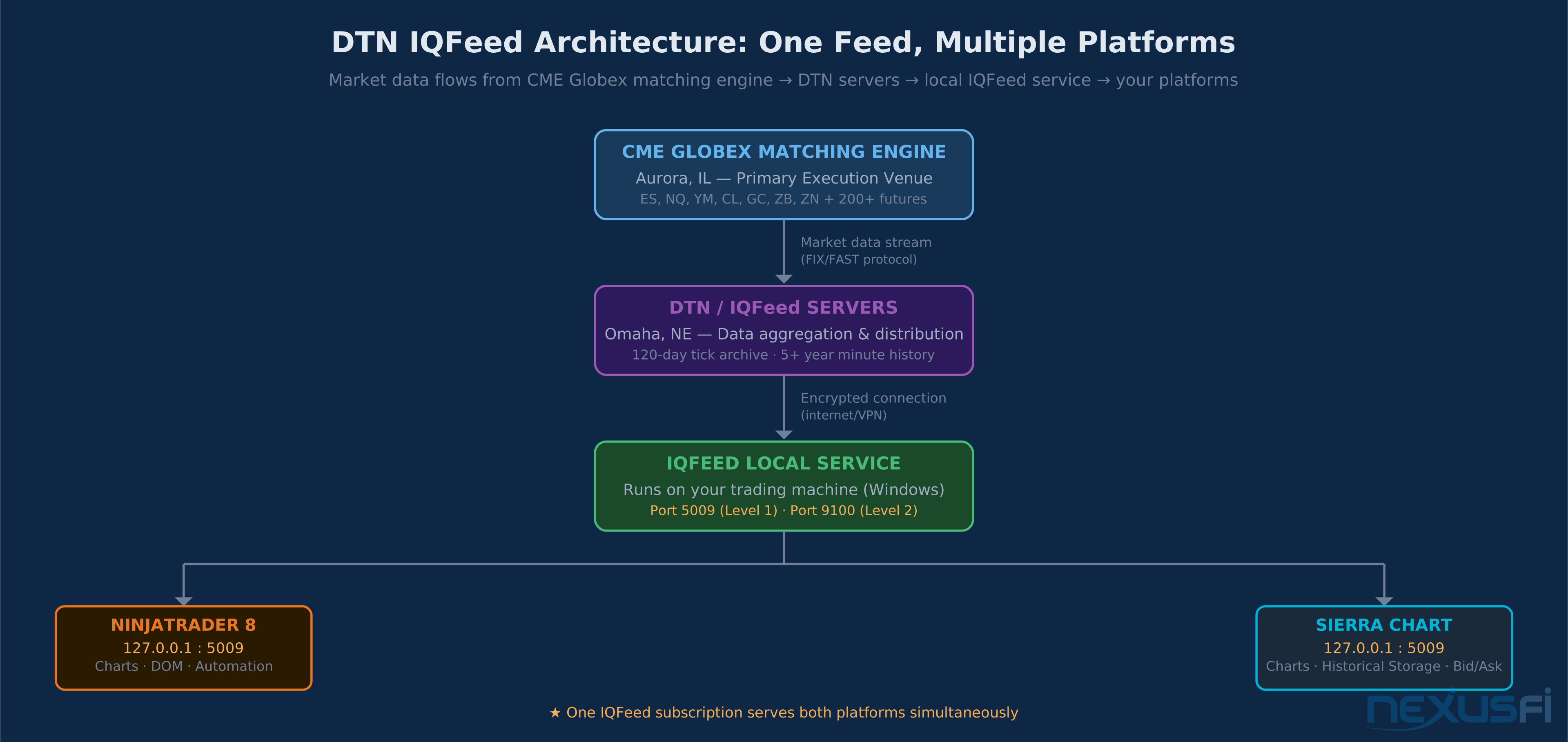
This guide covers everything you need to get IQFeed running with NinjaTrader 8 and Sierra Chart: account setup, exchange subscriptions, installation, platform integration, symbol mapping, historical data, troubleshooting, and a pre-trading validation checklist.
Why Traders Use IQFeed Over Broker Feeds #
Three reasons come up consistently in the NexusFi community:
@Big Mike summarized the core advantages of IQFeed in the NexusFi community:
Reliability that's decoupled from your broker. When your broker platform is slow or down during the open, a standalone data feed stays up. You're not dependent on one vendor for both order routing and market data.
Historical depth. IQFeed provides 120 days of tick data backfill and several years of minute bar data. Most broker feeds don't match that depth. @Big Mike, NexusFi's founder, confirmed this when Kinetick launched:
@timmyb confirmed this improvement when DTN expanded the archive:
Data quality that outperforms broker feeds. @Fat Tails ran a detailed comparison of IQFeed against Interactive Brokers data. For traders using volume-based indicators, footprint charts, or order flow tools, the data source determines chart accuracy on every bar:
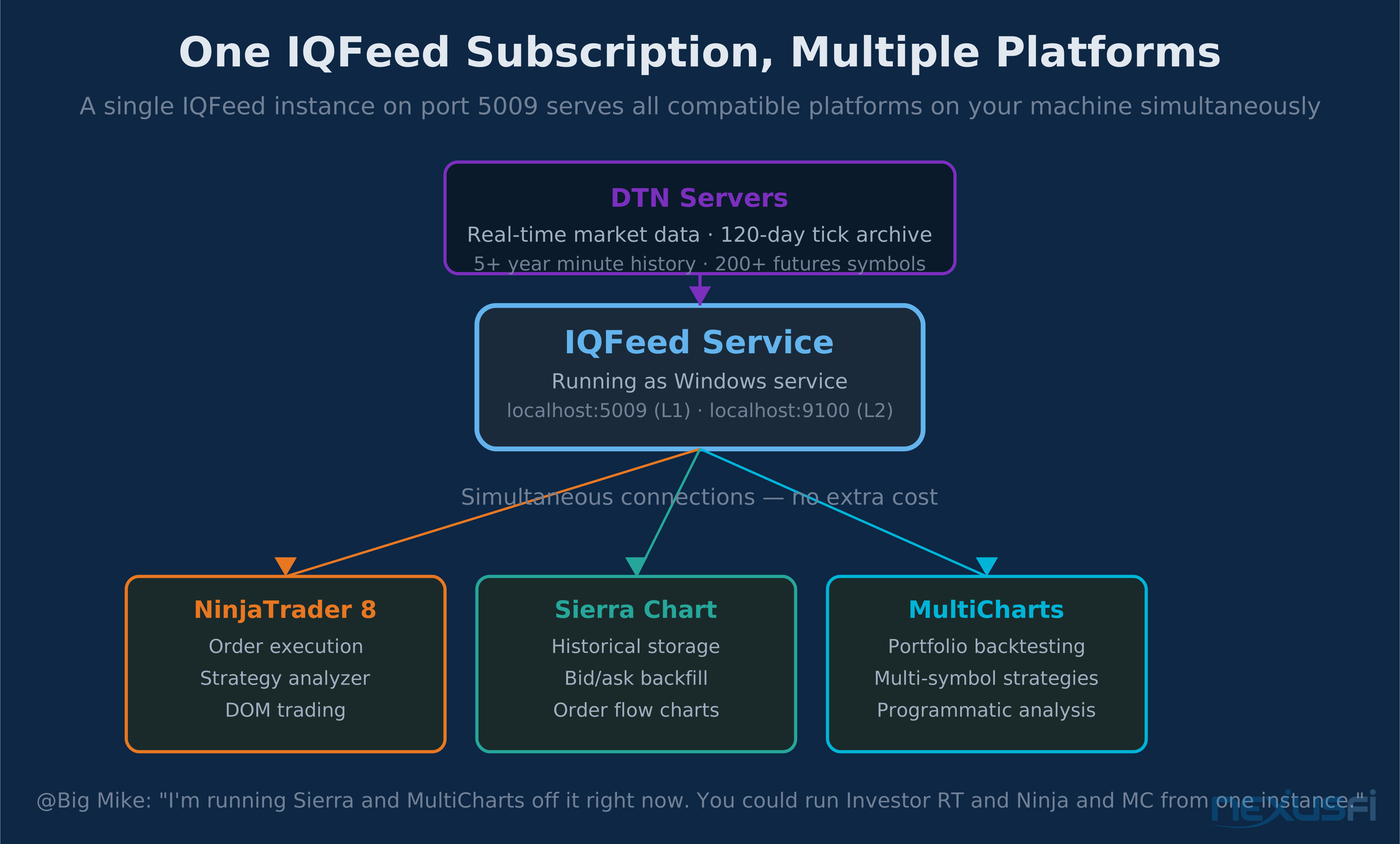
Multi-platform support. One IQFeed subscription can serve NinjaTrader 8 and Sierra Chart simultaneously.
IQFeed vs. Kinetick #
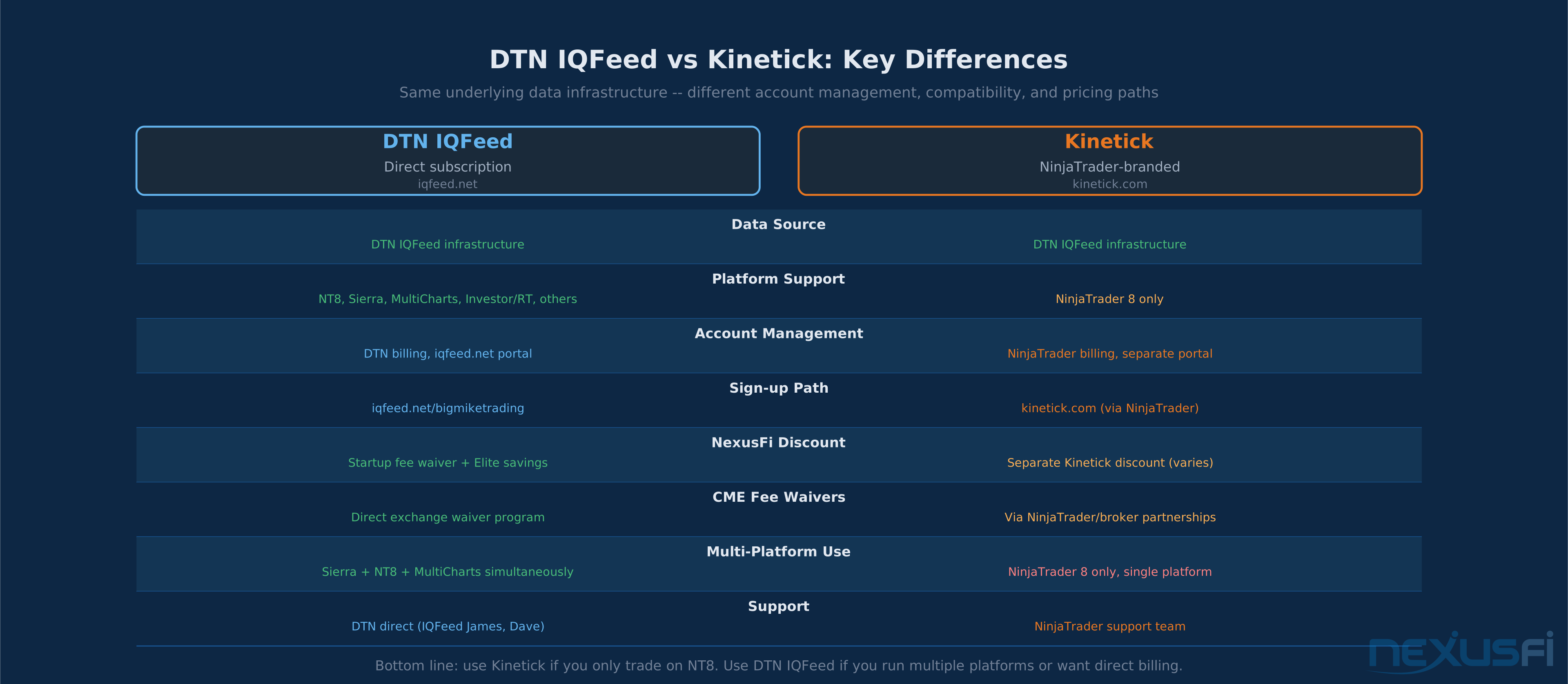
Kinetick is NinjaTrader's branded data service powered by DTN infrastructure. This trips up traders who see "IQFeed" and "Kinetick" used interchangeably — they're not the same product.
- DTN IQFeed: sign up at iqfeed.net, works with any compatible platform
- Kinetick: NinjaTrader-branded feed, separate billing and account management
The underlying market data source has the same roots, but the account setup, pricing, and support path are different. This guide is for the direct IQFeed route.
Account Setup and Exchange Subscriptions #
Creating the Account #
Go to iqfeed.net and create an account. You'll be asked to select a service tier and declare your professional vs. non-professional status before you get to exchange subscriptions.
Don't skip the professional/non-professional question. It affects your pricing substantially.
Non-Professional vs. Professional Status #
Non-professional status qualifies for much lower exchange fees. The CME Group defines a non-professional as someone trading for their own account without being employed or licensed in a capacity that makes them a professional data consumer.
If you're a full-time proprietary trader, registered investment advisor, or trading for an institution, you're likely professional. If you're trading your own capital from home, you almost certainly qualify as non-professional. When in doubt, read the exchange definitions at signup — misclassifying yourself creates billing and data-access problems later.
Pricing Structure #
@IQFeed James (DTN's Business Development Manager and longtime NexusFi member) laid out the pricing structure directly:
Current pricing may differ — verify at the IQFeed pricing and exchange fees page before ordering.
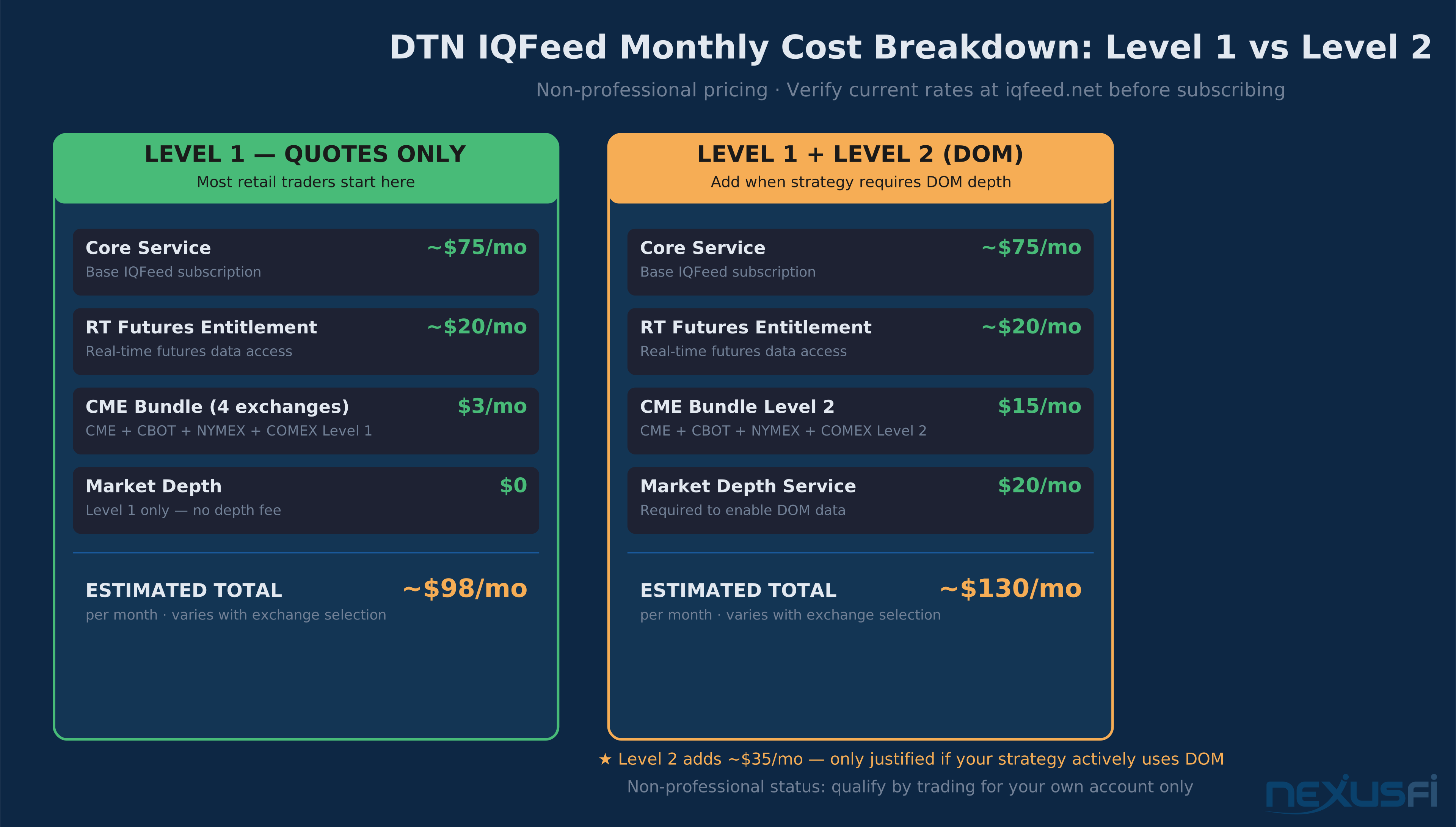
The structure is layered:
- Core service — base data service fee
- RT Futures Entitlement — access to real-time futures data
- Market Depth — required only if you want Level 2 DOM data (~$20/mo)
- Exchange fees — per-exchange charges for the markets you trade
Exchange Fee Structure #
For CME Globex futures (CME, CBOT, NYMEX, COMEX). @Robert Carrillo (DTN Business Development, longtime NexusFi member) posted the exchange fee breakdown in the NexusFi AMA thread. See also Level 1 vs Level 2 Market Data for a full breakdown of what each data tier provides and when Level 2 DOM is worth the cost.
| Data Type | Per Exchange | Bundle (all 4) |
|---|---|---|
| Level 1 (quote/trade) | $1/mo | $3/mo |
| Level 2 (DOM depth) | $5/mo | $15/mo |
| Market Depth (service fee) | -- | $20/mo |
Level 2 requires both the exchange fee and the Market Depth service fee. So adding full DOM for the CME bundle costs $15 + $20 = $35/mo on top of the core service and RT entitlement.
NexusFi Member Discount #
NexusFi members have access to a startup fee waiver when signing up through the NexusFi discount link at iqfeed.net. Elite members may have access to additional savings. Verify current terms at signup.
Trial Period #
IQFeed offers a trial, but trial access is limited. Real-time exchange entitlements and Level 2 data may shut off or be restricted. Use the trial to test your platform connections and verify symbols work — not to assume you have full production-grade futures coverage.
Installation and Service Setup #
Download and Install #
Download the IQFeed client from iqfeed.net. Install on Windows with admin rights.
IQFeed runs as a Windows service with a system tray icon. The service manages the connection between DTN's servers and your local machine. Your trading platforms connect to this local service, not to DTN's servers directly.
The critical rule: IQFeed must be running before your trading platform connects. If you start NinjaTrader or Sierra Chart before IQFeed is up, you'll get connection failures. This causes more "why doesn't it work" forum threads than any other issue.
Port Configuration #
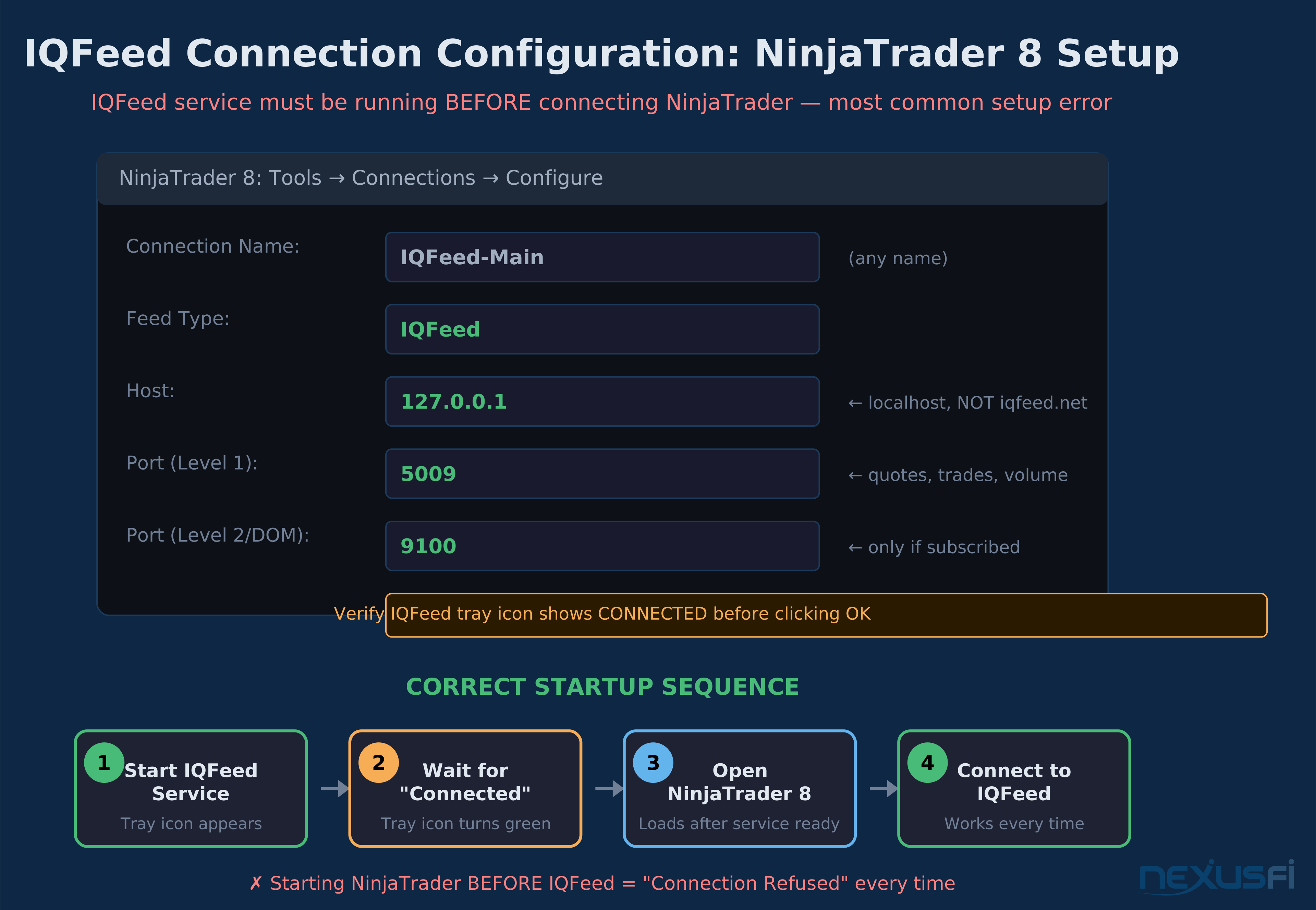
Default ports used by IQFeed:
- Port 5009 — Level 1 (quotes, trades, volume)
- Port 9100 — Level 2 / Market Depth (full order book)
Your trading platforms connect via local loopback to these ports:
- Host: 127.0.0.1 (localhost)
- Port: 5009 for Level 1
If you only have Level 1, you don't need to configure Port 9100. Only configure it if you have the Market Depth subscription active.
Firewall and Antivirus #
You need exceptions for:
- The IQFeed client/service executable
- Local loopback traffic on ports 5009 and 9100
Windows Firewall and most antivirus software can block loopback connections. If you see "connection refused" or "can't connect," firewall/antivirus is the first thing to check — before assuming anything is misconfigured in the feed itself.
Auto-Start Configuration #
Set the IQFeed service to start automatically on Windows login so it's always running before your platforms try to connect.
Two methods:
- Windows service auto-start (more reliable) — set the IQFeed service to Automatic in Windows Services
- Startup shortcut — less reliable, but works for most home setups
After a reboot, confirm the system tray icon shows IQFeed is connected before opening NinjaTrader or Sierra Chart.
NinjaTrader 8 Integration #
NinjaTrader's official support article on Connecting To Your IQFeed Connection covers the latest version-specific steps and requirements. The walkthrough below summarizes the key configuration for futures traders.
Step 1: Open Connection Manager #
In NinjaTrader 8:
- Tools → Connections → Configure
Create a new connection entry.
Step 2: Enter Connection Settings #
For a standard IQFeed Level 1 connection:
- Host:
127.0.0.1 - Port:
5009 - Feed type: IQFeed (the exact option name depends on your NT8 build version)
Step 3: Configure Market Depth (Level 2 Only) #
If you have Level 2/Market Depth subscription:
- Configure the depth connection with Port 9100
- Enable market depth in the NT8 connection settings
Without a Level 2 subscription, leave depth off. Enabling it without entitlements produces empty DOM or intermittent data.
Step 4: Test and Verify #
After saving the connection:
- Connect to IQFeed in NT8
- Watch the status indicator — green means the service handshake completed
- Open a chart on a liquid futures symbol (ES, NQ, CL)
- Confirm bid updates, ask updates, and last trade prints are active
- Confirm the chart loads historical bars
Step 5: Historical Backfill in NT8 #
NT8 requests historical data from IQFeed when you open a chart. It does not store this history persistently by default — when you reopen the chart, it re-requests it.
@Big Mike explained the bid/ask backfill situation directly in a NexusFi thread on the Volume Ladder for NT. This is a critical distinction for traders who want historical order flow data:
Practical implication: if your strategy needs historical bid/ask reconstruction for footprint or order flow work, Sierra Chart is the stronger match. For standard OHLCV bars and tick charts, NT8 works fine.
Common NT8 Issues #
"No data" or blank chart
- Verify symbol format (see Section 6)
- Verify exchange subscription for that contract
- Confirm IQFeed service is running (not just installed)
Market depth not showing
- No Level 2 subscription
- Wrong depth port
- Exchange depth entitlement missing
- NT8 depth not enabled in connection settings
Connects once then drops
- Auto-reconnect not configured
- Windows sleep/hibernate breaking the service session
- Firewall log showing intermittent blocking
Sierra Chart Integration #
Sierra Chart is the preferred platform for IQFeed users who need persistent historical storage, bid/ask backfill, and strong historical data management.
Step 1: Access Data Service Settings #
In Sierra Chart:
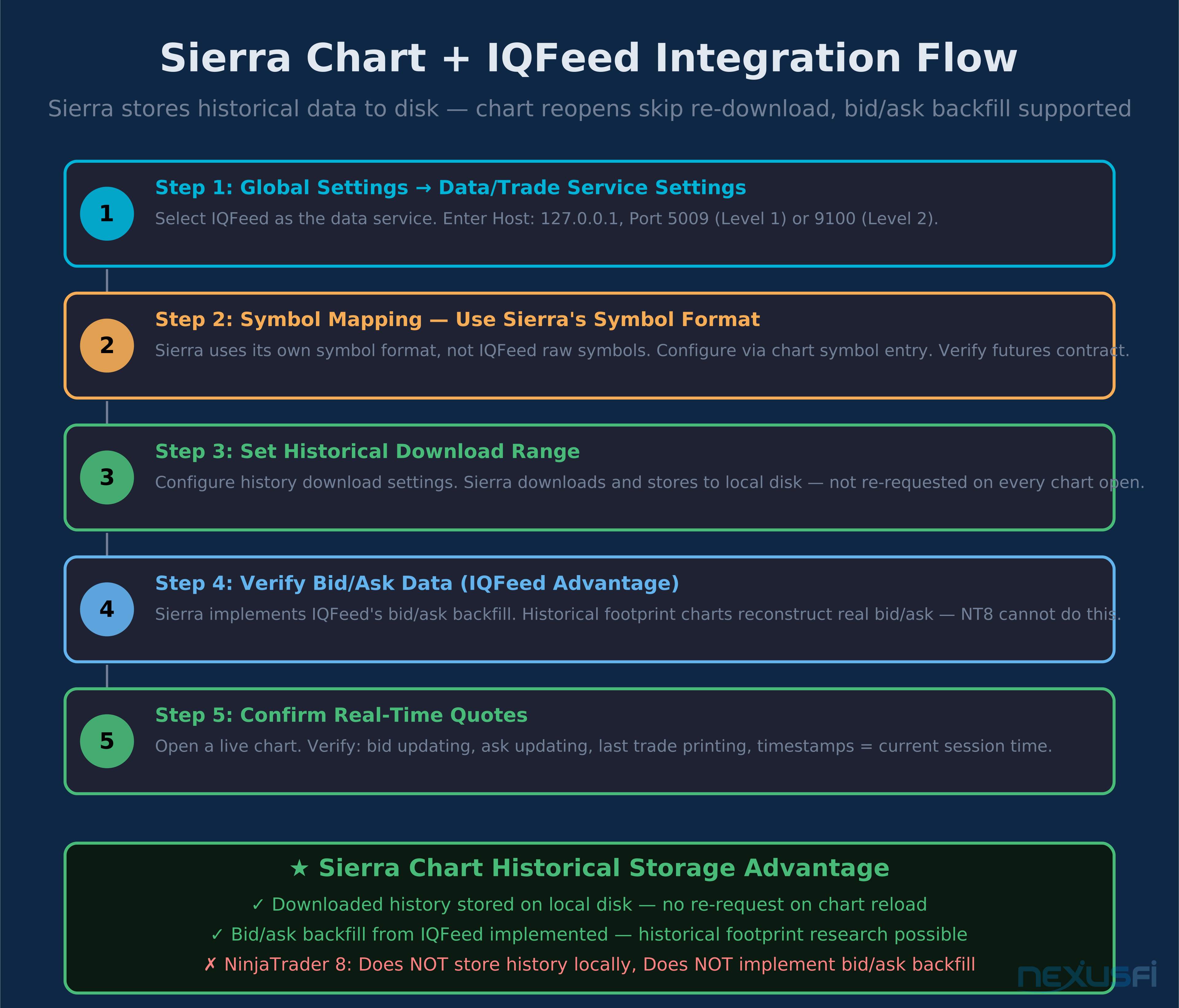
- Global Settings → Data/Trade Service Settings
Select IQFeed as the data source.
Step 2: Configure Connection #
Standard configuration:
- Host:
127.0.0.1 - Port 5009 for Level 1
- Port 9100 for Level 2 (if subscribed)
Step 3: Symbol Mapping #
Sierra Chart uses its own symbol conventions that don't always match IQFeed's raw format. You may need to:
- Create chart symbol entries using Sierra's expected format
- Configure rollover/continuous contract settings in Sierra
- Map the IQFeed feed symbol to Sierra's internal chart symbol
Check Sierra Chart's documentation for the exact IQFeed symbol mapping table for your contracts. For ES futures, Sierra typically maps via the service connection — but the exact symbol entry differs from what you'd type in IQFeed directly.
Step 4: Historical Data Download #
Sierra stores downloaded historical data to disk. This is a significant advantage over NT8:
- Reloading a chart doesn't require a new backfill request
- Local archives build over time
- Long-term chart history becomes more reliable
Configure Sierra's historical download settings to cover the lookback you need.
Step 5: Verify Real-Time Data #
After connecting:
- Bid/ask should update in real time
- Last trade should print with each fill
- Timestamps should match current market activity
If timestamps freeze or lag:
- Check IQFeed service health
- Verify exchange entitlement for the contract
- Check symbol mapping configuration
NT8 vs Sierra Chart: Historical Storage #
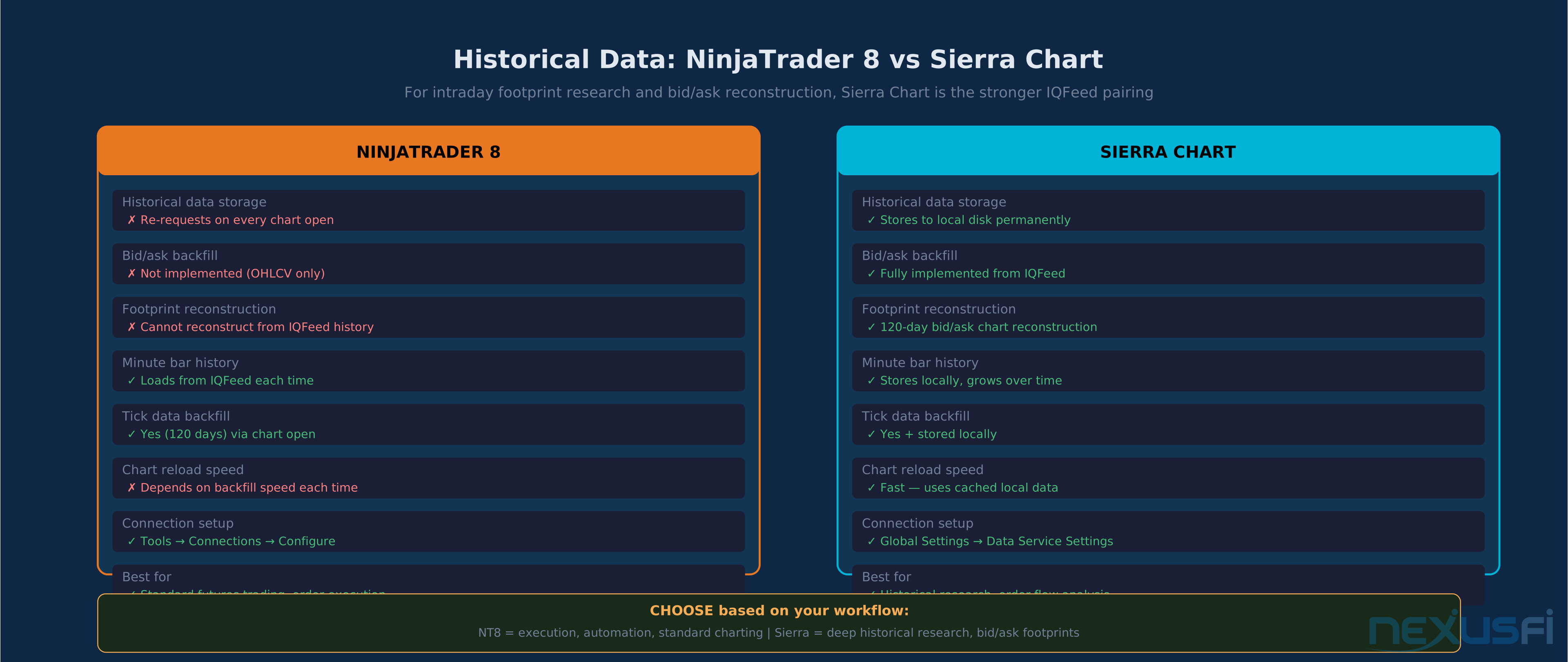
@Big Mike clarified the practical difference for traders choosing between the two platforms. For a broader comparison of futures data feed technologies and how IQFeed stacks up against CQG and Rithmic, that article covers the full environment:
| Feature | NinjaTrader 8 | Sierra Chart |
|---|---|---|
| Historical data storage | Per session (re-requests on open) | Persistent local disk storage |
| Bid/ask backfill | Not implemented | Implemented |
| Tick data reconstruction | Limited | Supported |
| Chart reload speed | Depends on backfill | Faster (uses cached data) |
Symbol and Contract Mapping #
Symbol format is the #1 cause of "no data" errors. Get this right first.
IQFeed Continuous Contract Format #
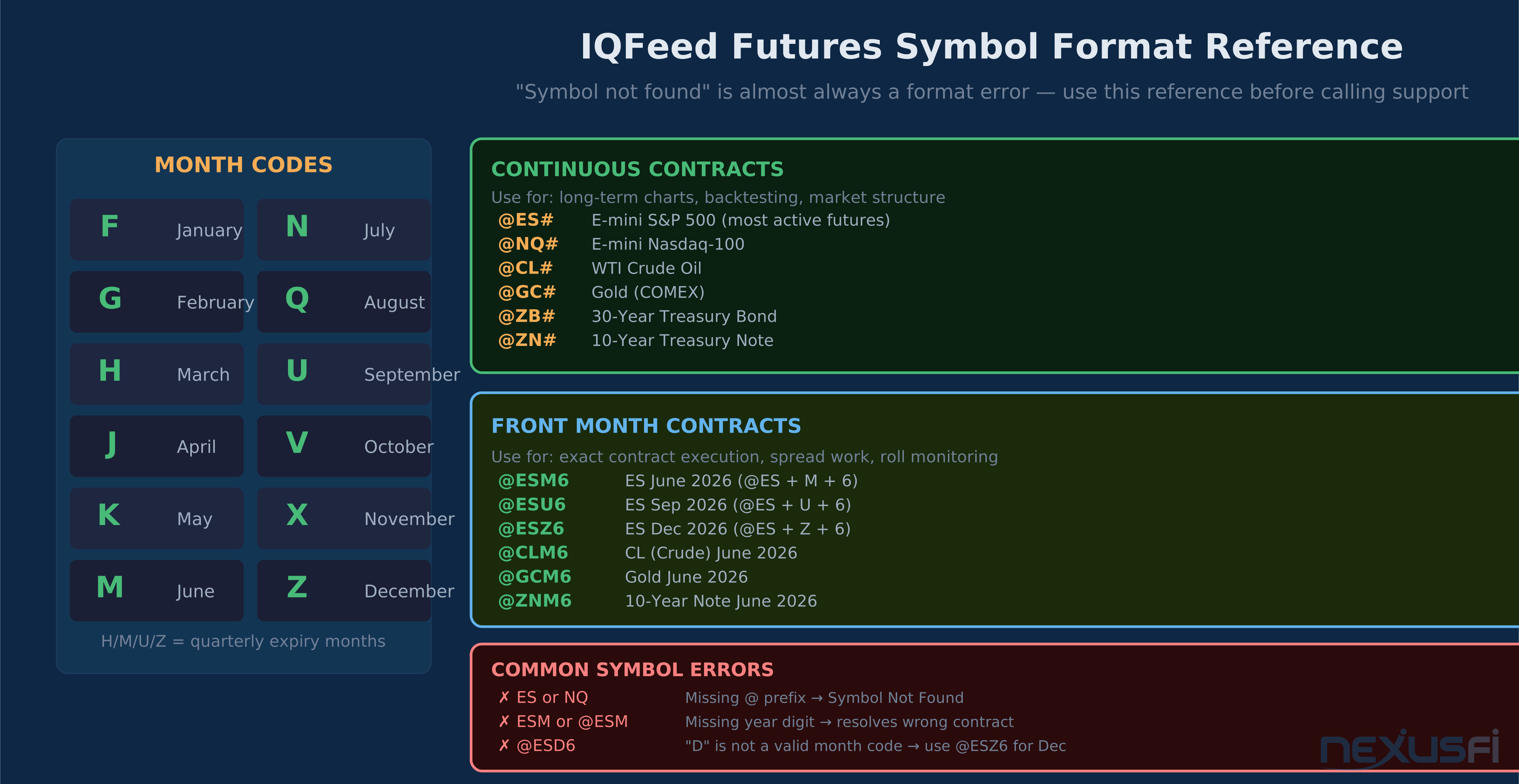
IQFeed uses the @ prefix and # suffix for continuous contracts. @FuturesTrader71, a longtime NexusFi member who worked directly with DTN on continuous contract support, explained the format:
The @ prefix and # suffix are both required. Omitting either one returns "symbol not found" with no other error message — this is the most common setup mistake and the first thing to check when charts show no data.
- @ES# — E-mini S&P 500 (continuous)
- @NQ# — E-mini Nasdaq-100 (continuous)
- @CL# — Crude Oil (continuous)
- @GC# — Gold (continuous)
- @ZB# — 30-Year Treasury Bond (continuous)
- @YM# — E-mini Dow Jones (continuous)
Use continuous symbols for:
- Long-term charts
- Backtesting
- Market structure analysis
Front Month Contracts #
For front month contracts, use the exchange symbol + month code + year:
- @ESM6 — ES June 2026 (M = June, 6 = 2026)
- @ESU6 — ES September 2026
- @ESZ6 — ES December 2026
Use front month symbols for:
- Execution reference
- Spread work
- Contract roll monitoring
Month Codes #
| Code | Month | Code | Month |
|---|---|---|---|
| F | January | N | July |
| G | February | Q | August |
| H | March | U | September |
| J | April | V | October |
| K | May | X | November |
| M | June | Z | December |
Common Symbol Errors #
Error: Using stock-style symbols
- Wrong:
ES,NQ,CL - Right:
@ES#,@NQ#,@CL#(for continuous)
Error: Missing @ prefix
- IQFeed requires the
@prefix for futures - Without it: "Symbol not found"
Error: Wrong month code
- ES December is
@ESZ6, not@ESD6or@ES126 - Use the month code table above
Error: Requesting expired contract
- Stale charts or "no data" after expiry
- Always confirm front month is still active
Historical Data and Backfill #
What IQFeed Provides #
IQFeed's historical data depth is one of its main selling points. For a deeper look at how to build research-ready archives beyond IQFeed's 120-day window, see Historical Market Data for Futures Trading. If you're deciding between tick data and bar data for your backtesting workflow, Tick Data vs Bar Data in Futures Trading covers the resolution tradeoffs in detail.
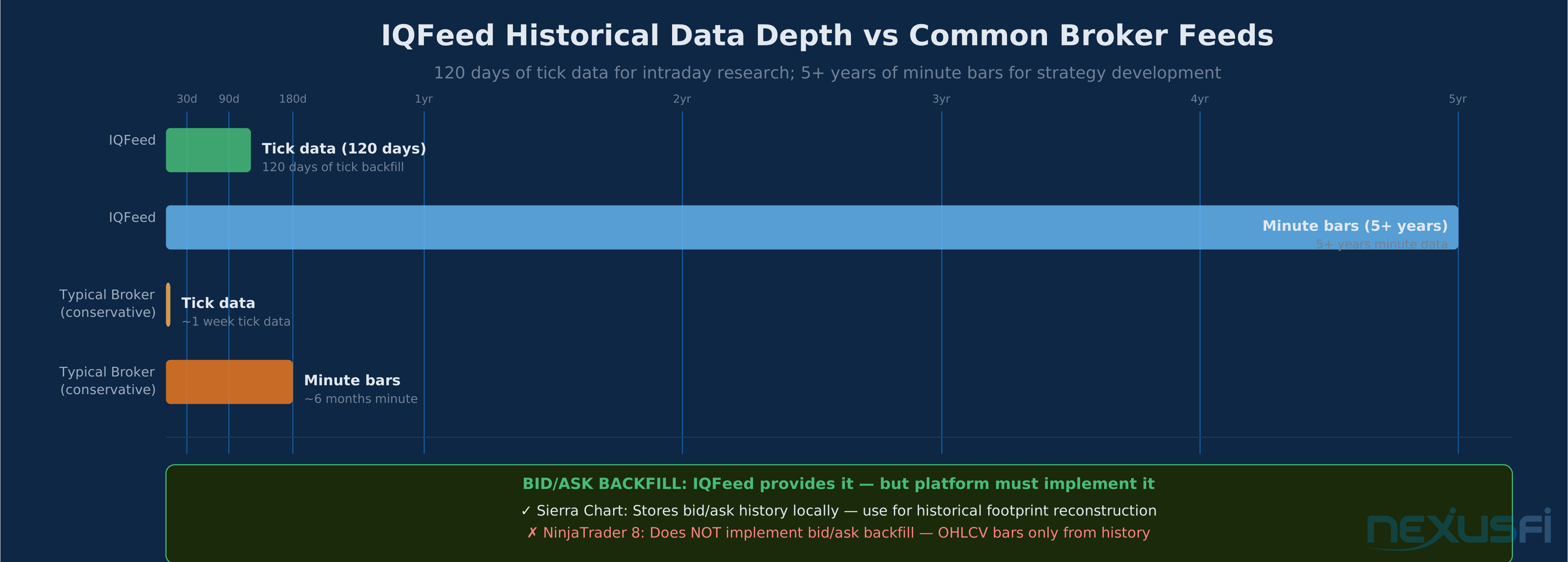
- 120 days of tick data for major futures contracts
- 5+ years of minute bar data for most popular instruments
- Daily data going back even further on many contracts
For intraday strategy development and research, 120 days of tick data is significant. Most broker feeds give you weeks; IQFeed gives you months.
NT8: Historical Data Behavior #
NinjaTrader 8 loads historical data from IQFeed when you open a chart. It does not cache this data persistently the way dedicated charting platforms do.
This means:
- Fresh history load every time you open a chart
- No persistent local tick archive without third-party tools
- Bid/ask history is not stored even though IQFeed provides it
If you're doing serious backtesting from tick data, this is a limitation. Consider Sierra Chart or a dedicated data storage solution.
Sierra Chart: Historical Data Behavior #
Sierra Chart downloads historical data and stores it locally on disk. This changes your workflow:
- Chart reopens use cached data (faster)
- Data accumulates over time
- Bid/ask history is stored and accessible
For traders building historical footprint charts or order flow analysis from historical data, Sierra's storage model is much better.
Bid/Ask Backfill Reality Check #
IQFeed provides historical bid/ask data at the API level. But the platform implementation matters:
- NT8: Does not use IQFeed's bid/ask backfill. Historical charts show last-trade-based OHLCV only.
- Sierra Chart: Uses IQFeed's bid/ask backfill. Historical footprint reconstruction is possible.
- MultiCharts: Uses bid/ask backfill.
- Investor/RT: Uses bid/ask backfill.
If your strategy relies on historical bid/ask data for footprint charts or order flow analysis, choose your platform so. NT8 users who need this typically use a separate tick recorder.
Missing Bars Troubleshooting #
If you see gaps in historical data:
- Confirm symbol — wrong month code = no data
- Confirm exchange entitlement — missing subscription = no history
- Trigger a full backfill — open the chart and wait for complete history load
- Check session template — session gaps can create apparent "missing bars"
- Roll timing — data gaps sometimes appear around contract rolls with wrong continuous settings
Level 1 vs. Level 2 Data #
Level 1: What You Get #
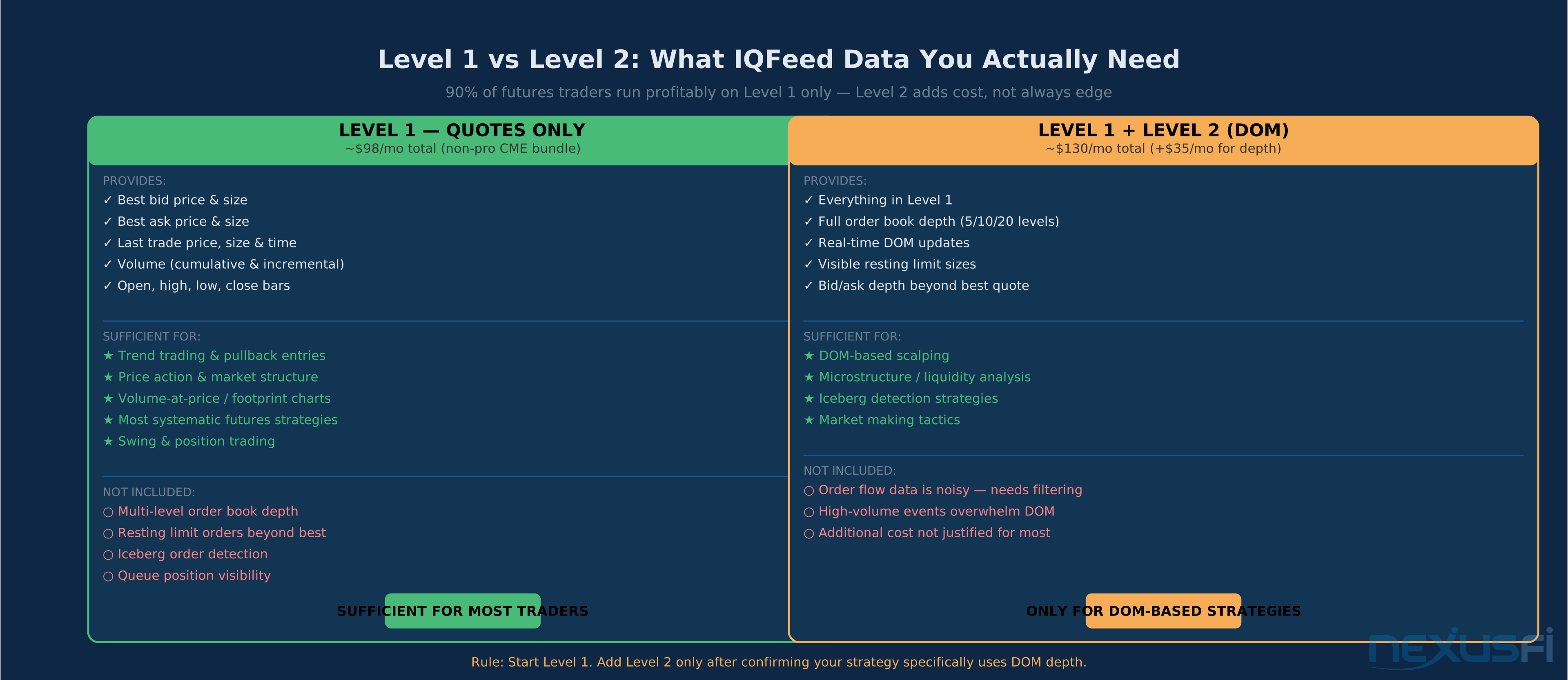
Level 1 data includes:
- Best bid price and size
- Best ask price and size
- Last trade price, size, and timestamp
- Volume
This is the standard feed for most futures traders. It supports trend trading, pullback entries, price action analysis, and footprint charts when combined with NT8's or Sierra's volume tracking at price.
For the vast majority of retail futures strategies, Level 1 is sufficient.
Level 2: What You Get #
Level 2 (Market Depth) extends the order book beyond the best bid/ask:
- 5, 10, or 20 levels of bids and asks
- Visible resting limit order sizes at each price level
- Real-time DOM updates
What it costs to add Level 2:
- Market Depth service fee: ~$20/mo
- Level 2 exchange fees: $5/mo per exchange, or $15/mo for the CME bundle
- Total addition for full CME Globex Level 2: ~$35/mo above Level 1
When Level 2 Actually Matters #
Level 2 is genuinely useful when your strategy depends on:
- Reading liquidity absorption at specific price levels
- DOM-based scalping (watching order flow at each level)
- Bid/ask size imbalances as a directional signal
- Queue position awareness in high-frequency setups
If you're trading breakouts, pullbacks, or trend entries based on price structure, Level 1 is enough. The order book adds noise for these approaches unless you know specifically how to filter it.
Start with Level 1. Add Level 2 only if you have a clear reason and you've verified your strategy uses it.
Troubleshooting #
Most IQFeed issues fall into three categories: sequence problems (platform started before service), subscription mismatches (wrong entitlements), and symbol errors (wrong format). Work through these in that order.
The #1 cause of IQFeed connection failures is starting your trading platform before the IQFeed service has fully connected. Check the system tray icon first — if it's not green, wait before opening NT8 or Sierra Chart. This causes more support threads than every other issue combined.
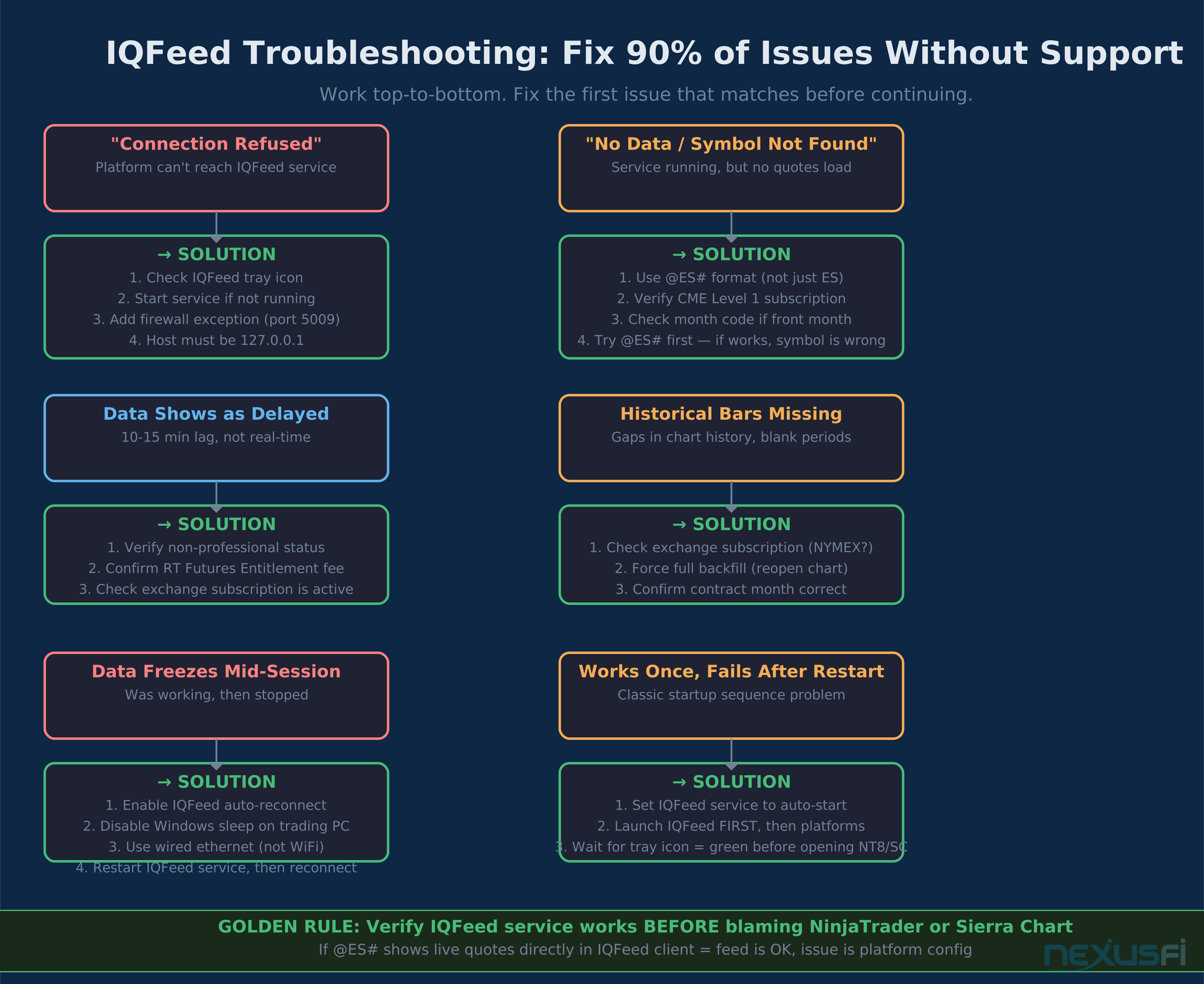
"No Data" or "Symbol Not Found" #
Cause 1: Wrong symbol format
- Check the IQFeed symbol format:
@ES#notES - Confirm the
@prefix and#suffix for continuous contracts - Verify the month code for front-month contracts
Cause 2: Missing exchange subscription
- If you don't have a CME Globex Level 1 entitlement, ES/NQ/CL charts won't populate
- Check your active subscriptions at iqfeed.net
Cause 3: Expired contract
- A month-specific symbol like
@ESH6will show no data after March 2026 expiry - Switch to the current front month or use the continuous symbol
Fix workflow:
- Confirm service is running (system tray)
- Try a well-known continuous symbol:
@ES# - If that works, your issue is symbol-specific
- If that fails, check connection and subscriptions
"Connection Refused" or "Can't Connect" #
Cause 1: IQFeed service not running
- Most common cause
- Start IQFeed from the system tray
- Set auto-start so this doesn't happen after reboots
Cause 2: Wrong port
- Level 1 must connect to port 5009
- Platform shows "connection refused" if it tries a different port
Cause 3: Firewall or antivirus blocking
- Check Windows Firewall logs
- Add IQFeed executable as an exception
- Allow loopback connections on ports 5009 and 9100
Fix workflow:
- Verify service is running in system tray
- Confirm host: 127.0.0.1, port: 5009
- Temporarily disable antivirus to test
- If it works after disabling, add a permanent exception
Delayed Data #
Cause: Non-professional status issue
- If your exchange entitlement is set for delayed data, you'll see 10-15 minute delays
- Verify your subscription includes real-time (RT) access
Cause: Missing exchange entitlement
- Real-time data for a specific exchange (e.g., CME vs. NYMEX) requires that exchange's subscription
- Check which exchanges your Level 1 subscription covers
Cause: Account not fully activated
- After signup, activation can take time
- Check your account status at iqfeed.net
Historical Backfill Gaps #
Cause: Missing exchange entitlement for that contract
- If you have CME Level 1 but not NYMEX Level 1, CL historical data won't load
Cause: Requesting more history than the backfill limit
- 120 days is the tick data limit — beyond that, you'll see gaps
- For minute data, availability varies by instrument
Cause: NT8 chart not requesting enough history
- Increase the "days to load" setting in the chart data series
Cause: Contract month mismatch
- If you're using a continuous symbol but the platform chart is mapped to an expired front month, history will show gaps at roll points
Platform Won't Connect After Restart #
This is the single most reported issue in NexusFi IQFeed threads.
Cause: Platform launched before IQFeed service fully started
Fix:
- Set IQFeed service to auto-start (Windows Services → Automatic)
- Consider adding a short startup delay for trading platforms
- Verify IQFeed system tray icon is green before opening any platform
Data Freezes Mid-Session #
Cause: Network interruption and no auto-reconnect
- IQFeed connection drops, platform doesn't automatically reconnect
Cause: Windows sleep/hibernate
- Network adapter sleeps, service loses connection
Fix:
- Enable auto-reconnect in IQFeed service settings
- Disable Windows sleep mode on your trading machine
- Use a wired ethernet connection (wireless drops are more common)
- If feed freezes, restart IQFeed service first, then reconnect from platform
Pre-Trading Validation Checklist #
Run this before every session. Takes under 60 seconds.
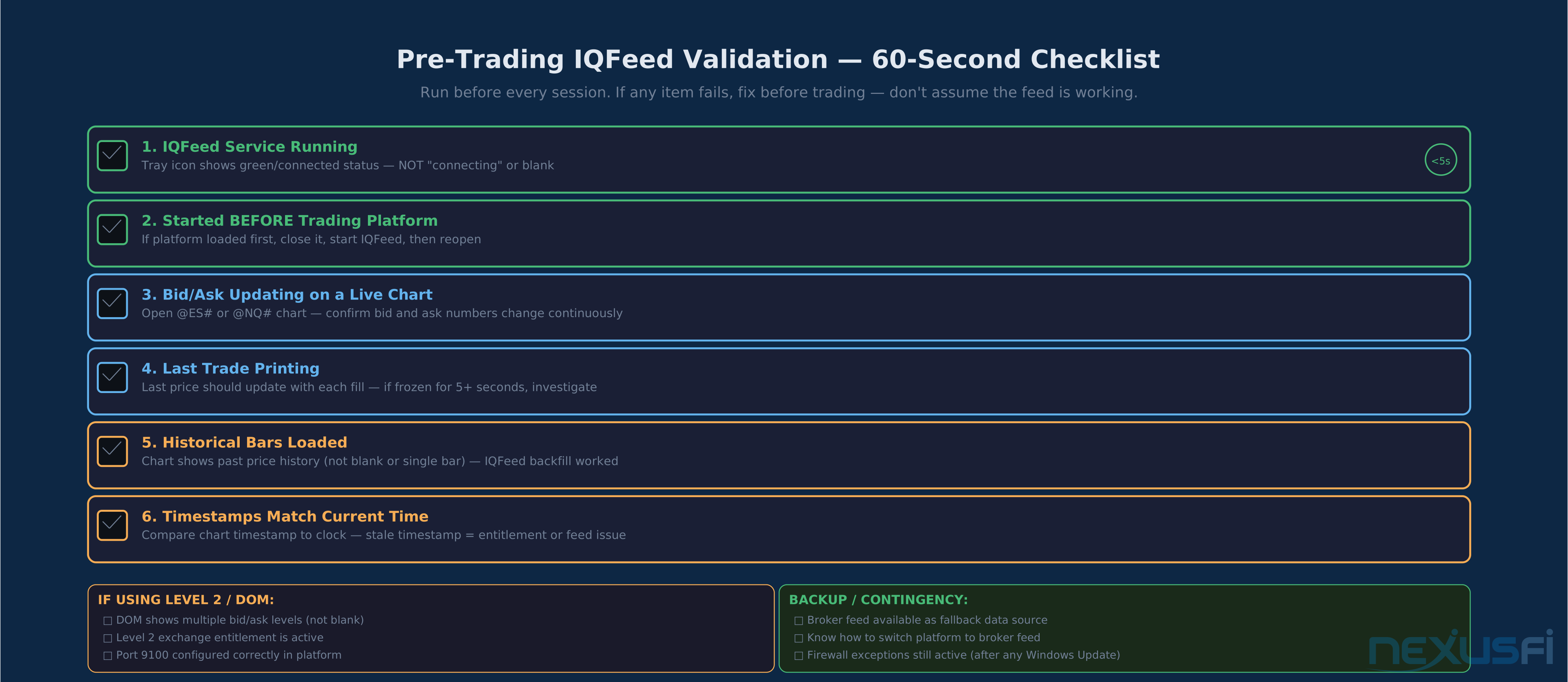
IQFeed Service #
- [ ] System tray shows IQFeed connected (not "connecting")
- [ ] Service started before trading platform was opened
Live Data #
- [ ] Open a liquid futures chart (@ES# or @NQ#)
- [ ] Bid is updating
- [ ] Ask is updating
- [ ] Last trade is printing
- [ ] Timestamps match current time (not stale)
Historical Data #
- [ ] Chart shows historical bars (not just a flat line)
- [ ] Correct contract month is displayed
- [ ] Continuous symbol mapped correctly if using @ES#
Level 2 (If Subscribed) #
- [ ] DOM shows multiple bid/ask levels
- [ ] Port 9100 is configured correctly
- [ ] Level 2 exchange entitlement is active
Backup Plan #
- [ ] Broker feed available as fallback
- [ ] Know how to switch platforms to broker data if IQFeed drops
- [ ] Firewall and antivirus exceptions are still active (after any OS updates)
Before Adding New Instruments #
- [ ] Verify exchange subscription covers that contract's exchange
- [ ] Confirm correct symbol format (@CL# for crude, @GC# for gold, @ZB# for bonds)
- [ ] Test the symbol in a chart before relying on it for trading
Key Takeaways #
IQFeed is a data feed, not a broker. Get that separation right and the rest of the setup is manageable.
The decisions that matter most:
- Non-professional status cuts your exchange fees much — verify before you sign up
- Level 1 is sufficient for most strategies — don't pay for Level 2 unless your process actually uses DOM depth
- Service must run first — this causes more "broken" setups than any configuration error
- Platform choice for historical work — Sierra Chart stores data locally and implements bid/ask backfill; NT8 does not
- Symbol format — use
@ES#notESfor futures in IQFeed
For traders running NinjaTrader 8, IQFeed provides clean Level 1 data with solid backfill depth and is reliable during market hours. For traders doing historical order flow research, Sierra Chart's data storage model makes it the stronger pairing.
If you're comparing IQFeed against other data feeds like CQG or Rithmic for your specific workflow, the Resource Directory listing for DTN IQFeed includes full product and pricing details.
Knowledge Map
Go Deeper
Build on this knowledgeReferences This Article
Articles that build on this topicCitations
- — Analysis and comparison on different data Feeds and Platforms for Bid/Ask Studies (2010) 👍 3
- — IQfeed vs IB data as data provider for Multicharts (2012) 👍 7
- — IQfeed CME futures data (2015)
- — Volume Ladder for NT (Gomi) (2012) 👍 1
- — Unfiltered Data (2015) 👍 3
- — DTN IQFeed's Dave Forss (Business Development Manager) - Ask Me Anything (AMA) (2014) 👍 2
- — Kinetick - A new Market Data Feed Service for NinjaTrader (2011) 👍 2
- — Back-adjusted, Continuous contracts - best for support and resistance? (2012) 👍 7
- — Same data feed, different programs? (2011) 👍 1
- — Help selecting a real-time data feed for equities (2011) 👍 1
- — DTN IQFeed Pricing and Exchange Fees
- — NinjaTrader Support: Connecting To Your IQFeed Connection