



MetroTrader Platform Guide: Charting, Brackets, and Day Trading Workflow for Futures
Overview #
MetroTrader is MetroTrade's proprietary browser-based futures trading platform — zero installation, zero platform fee, accessible from any modern web browser. For day traders running micro futures, it covers the essential toolkit: chart-based order entry, bracket orders, 75+ technical indicators, DOM trading ladder, and a mobile app that syncs layouts and watchlists across devices.
This article covers how to actually use it: chart trading workflow, bracket order configuration, indicator setup, order management, and the daily routine that works for intraday micro futures trading. The goal is execution quality, not feature demonstrations.
Prerequisites: You should understand MetroTrade's commission structure and account setup before working through platform mechanics. Familiarity with micro e-mini contracts helps with understanding position sizing examples. For order type fundamentals, read futures order types first.
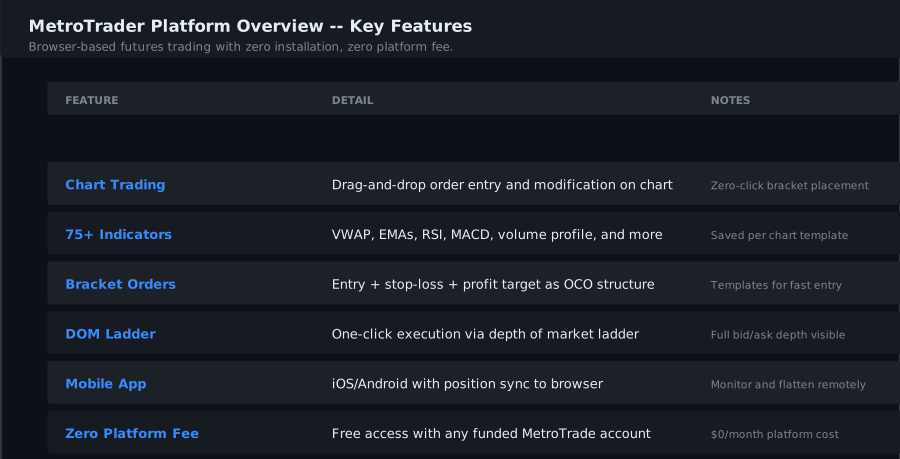
Chart Trading Interface #
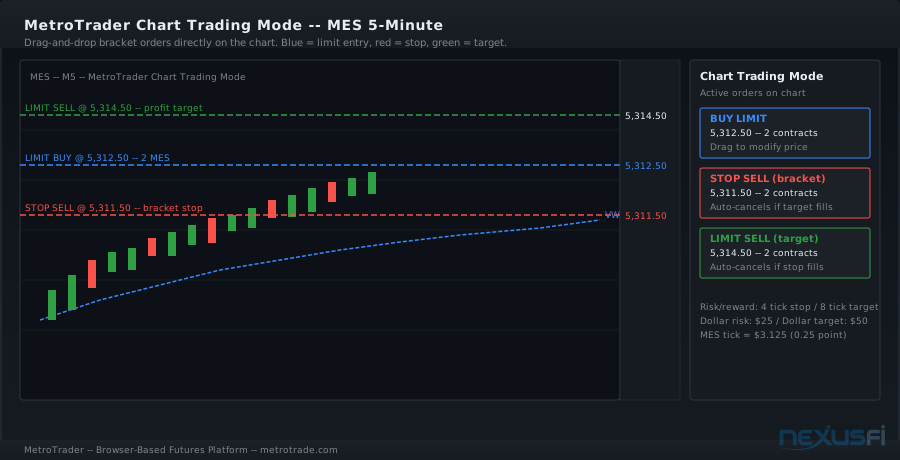
MetroTrader's chart trading mode is the primary execution surface for most retail day traders. Once you enable chart trading on a chart window, you can place, modify, and cancel orders by clicking directly on the price axis or dragging existing order levels.
Enabling chart trading: Open any chart in MetroTrader, locate the chart trading toggle (usually a cursor/pointer icon in the toolbar), and enable it. Order placement icons appear when you hover near price levels. Orders you place appear as colored horizontal lines on the chart — blue for limit orders, red for stops.
Order entry from the chart:
- Limit buy: Click below current price in chart trading mode
- Limit sell: Click above current price
- Stop buy: Place a stop above current price for breakout entries
- Stop sell: Place a stop below current price for breakdown entries
- Market order: Use the buy/sell buttons in the chart header for immediate execution
The drag-and-drop modification is genuinely useful for live trading. Once an order is working, grab the order line and drag to your new price. The platform submits a cancel/replace automatically — you're not manually canceling and re-entering.
Viewing open orders on the chart: Working orders and their corresponding bracket children (stop-loss and profit target) appear as distinct colored lines. You can see at a glance where you're long, where your stop is, and where your target is, all without leaving the chart view.
Chart layout management: Save your current workspace — chart timeframe, indicator configuration, and chart trading settings — as a named template. Before market open, load your template to start the session in a known state rather than rebuilding the workspace from scratch each day.
One of the more practical features of chart-based platforms is that it removes the mental overhead of tracking price levels in your head while also monitoring an order panel. The chart shows you price action and your working orders in the same view. For traders who struggle with order management during fast moves, this visual integration reduces cognitive load meaningfully.
For instrument switching, MetroTrader supports multiple chart windows simultaneously. Many traders run a primary chart on their main contract (MES or MNQ) alongside a second chart showing the full e-mini for context. You can tile these windows or stack them in the workspace.
Tick size and price increments: MetroTrader maps to CME exchange tick sizes natively. MES trades in 0.25-point increments ($3.125/tick), MNQ in 0.25-point increments ($0.50/tick). Orders placed via chart click respect these increments — you cannot accidentally place an order between ticks.
Bracket Order Setup and OCO Logic #
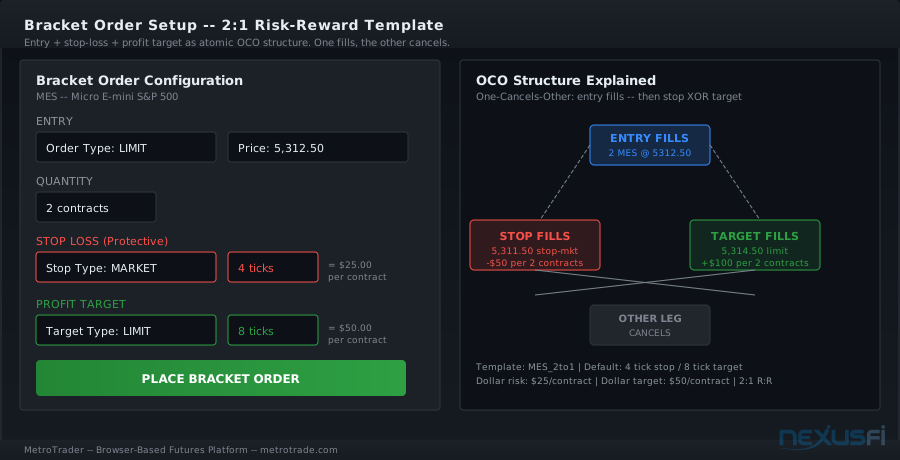
Bracket orders are the core risk management tool for day trading micro futures. A bracket order attaches a stop-loss and profit target to your entry automatically, creating an OCO (one-cancels-other) structure: when one leg fills, the other cancels.
How MetroTrader brackets work:
- Enter a bracket order via the order entry panel or directly from the chart
- Define your entry price/type (market, limit, or stop)
- Set stop-loss distance (in ticks or price)
- Set profit target distance (in ticks or price)
- Submit — all three legs are active simultaneously
When your entry fills, the stop and target become active working orders. When either one fills, the platform cancels the remaining leg automatically.
Bracket configuration panel: Access the bracket order setup through the order ticket. Key fields:
- Quantity: Number of contracts (match your account's position sizing rules)
- Entry type: Limit, Market, or Stop
- Stop distance: Ticks below (long) or above (short) entry
- Target distance: Ticks above (long) or below (short) entry
Saving bracket templates: MetroTrader allows you to save bracket configurations as templates. If you typically trade MES with a 4-tick stop and 8-tick target, save this as a template named "MES 2:1." Before market open, load the template. When your setup triggers, the bracket parameters are pre-configured — execution is one or two clicks, not a manual rebuild.
Partial fill behavior is critical to verify before trading live. If your entry order fills only 2 of 4 contracts, the bracket should attach to the 2 filled contracts, not the original 4. Test this in the MetroTrader demo account explicitly: place a bracket order, then cancel part of the fill in simulation. Confirm the bracket sizes adjust correctly. If they don't, you can end up with mismatched risk.
Stop-market vs. stop-limit for the protective stop: For most micro futures day trading, stop-market is the appropriate choice for the protective leg. Stop-limit orders for protection carry the risk of non-execution in fast moves — if price gaps through your stop-limit level, the order may not fill. Stop-market orders guarantee execution at market price when your stop level is touched, though with possible slippage.
For MES during regular trading hours, slippage on a stop-market order is typically 1-2 ticks at most during normal conditions. In extraordinary conditions (economic data releases, flash events), slippage can be wider. Build this into your stop placement.
The caution about margin applies equally to stop placement — the right stop level is a technical level, not the tightest margin requirement.
Modifying brackets after entry: You can adjust stop-loss and profit-target levels after you're in a position. Drag the order lines on the chart to new prices, or edit them directly in the order management panel. Avoid excessive adjustments during live trading — each modification is a cancel/replace cycle, and in fast markets these can introduce brief execution gaps.
Indicator Configuration for Day Trading #
MetroTrader includes 75+ technical indicators. More indicators is not better. For day trading micro futures, the goal is a compact, execution-relevant setup that produces clear signals without visual noise or browser performance degradation.
Adding indicators: In any chart window, access the indicator library through the toolbar. Search by name or browse by category. Double-click to add with default parameters; access indicator settings to customize periods, colors, and display options.
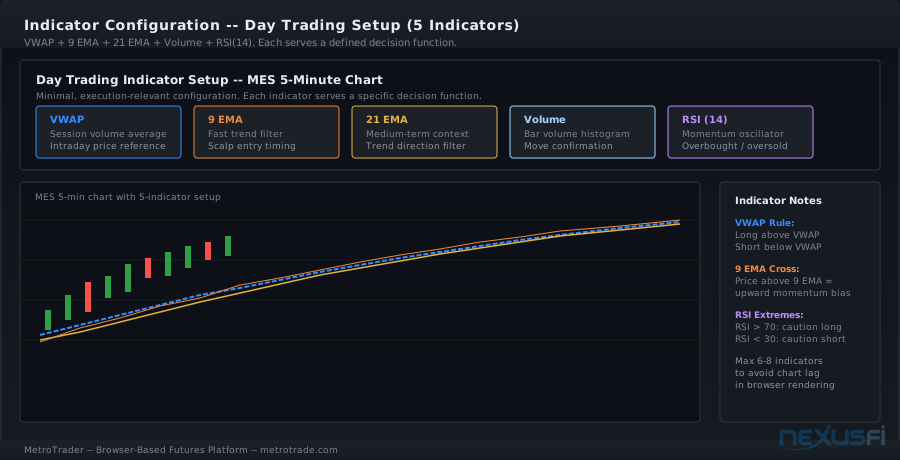
Recommended baseline setup for micro futures day trading:
| Indicator | Default Period | Why It Matters |
|---|---|---|
| VWAP | Session-based | Volume-weighted average price, key intraday reference |
| 9 EMA | 9 periods | Fast trend filter, common for scalping setups |
| 21 EMA | 21 periods | Medium-term context on the same chart |
| Volume | Bars | Confirmation for breakouts and trend shifts |
| RSI | 14 periods | Momentum reading, overbought/oversold context |
This five-indicator setup covers trend context (VWAP, EMAs), momentum confirmation (RSI), and volume validation without overloading the chart renderer.
Session-aware configuration: Volatility and range differ across the trading session. The first 60-90 minutes (9:30-11:00 EST for equity index futures) carry the highest average volatility and the widest true range. Midday (11:00-1:00 EST) often shows narrow range and lower conviction. The final hour (3:00-4:00 EST) picks up again. Configure bracket distances so — a 4-tick stop appropriate for the open might be too tight for midday chop.
VWAP deserves specific mention for MetroTrader users. Because MetroTrader users trade micro contracts through a browser-based interface without access to order flow data (no footprint charts, no tape reading), VWAP provides a clean, objective price reference that doesn't require proprietary data. A trade that starts below VWAP and moves to VWAP has a clear reference exit. This makes it operationally useful in a platform without advanced order flow tools.
Indicator performance management: Browser-based platforms render indicators in JavaScript. More indicators means more computation per tick. For fast micro futures trading with frequent chart updates, limit your active indicator count to 6-8 maximum. If the chart lags visibly between ticks, remove indicators until the lag disappears.
Saving indicator sets: MetroTrader supports saving complete chart templates including your indicator configuration. Build your standard setup once, save it as a named template, and load it at the start of each session. This prevents "template drift" where you add indicators experimentally and forget to remove them.
Order Management Panel #
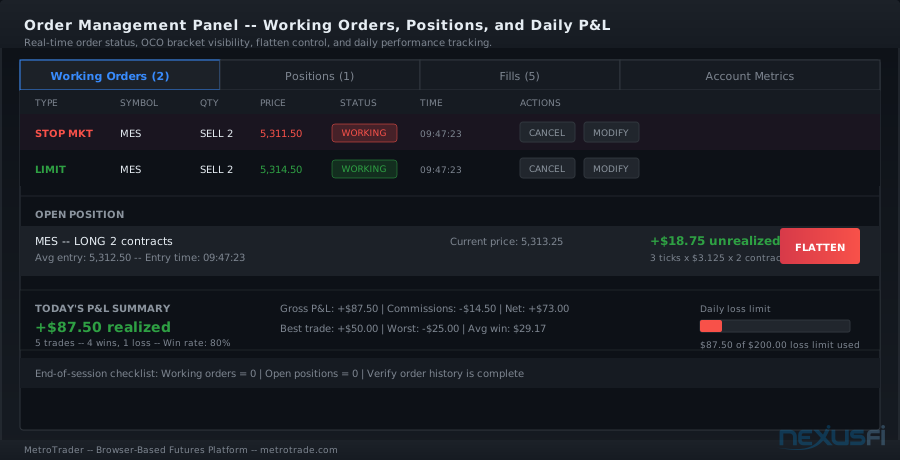
The order management panel is your control surface for all working orders, positions, fills, and P&L. For day trading micro futures, you live in this panel alongside the chart.
What the panel shows:
- Working orders: All active orders with status, price, quantity, type, and time
- Positions: Open contracts with average entry price, unrealized P&L, and current price
- Fills/trade history: Completed transactions in chronological order
- Account metrics: Available margin, realized P&L, and buying power in real time
Cancel operations: In fast markets, cancel latency matters. MetroTrader uses WebSocket connections for live order state updates, which means cancel confirmations should appear within milliseconds. Test your cancel latency in the demo account during active market hours — place a working limit order and cancel it. The order should disappear from the working orders list almost immediately.
Flatten position: The flatten button closes all open positions with market orders and cancels all working orders simultaneously. Know where this button is before your first live trade. In a volatile situation where you need to exit immediately, muscle memory for the flatten operation matters.
Working order verification: After each trade completes, verify that no orphaned bracket orders remain. If your entry filled and your target filled, the stop should have auto-canceled. Confirm it did. If it didn't, you have a working sell stop that could trigger accidentally on the next down move. This is not a theoretical risk — order management bugs happen, and the end-of-day verification habit prevents unexpected overnight positions.
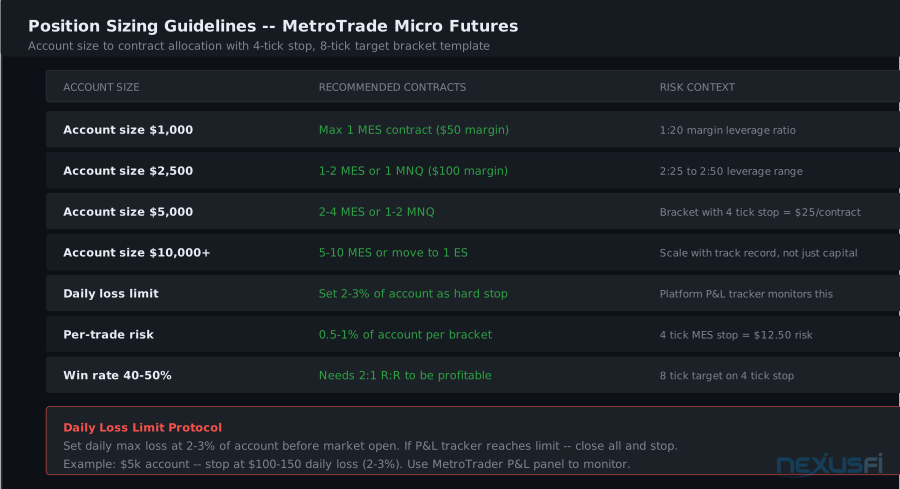
Position sizing discipline and order management rigor are inseparable — knowing exactly what's working in the order management panel at all times is part of how you enforce that discipline.
P&L tracking: MetroTrader shows realized and unrealized P&L in the account metrics view. For day traders who want to track performance against a daily target, the running P&L figure is the key metric. Set a daily loss limit before trading — if unrealized + realized losses reach that number, close positions and stop for the day.
Daily Trading Workflow #
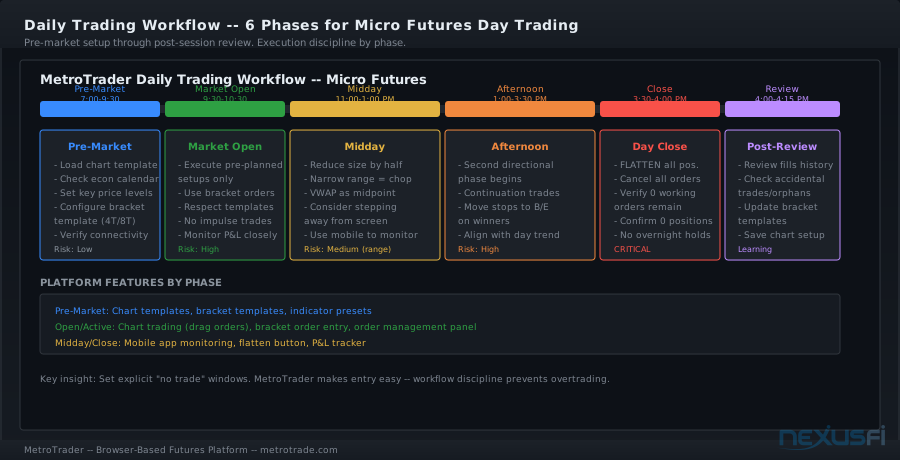
The most effective MetroTrader workflow for micro futures day trading has six phases. Each phase has a defined scope — start sharp, stay disciplined, exit clean.
Phase 1: Pre-market preparation (10-25 minutes before market open)
Load your chart template. Verify indicators are configured correctly. Check the economic calendar for high-impact events (Fed statements, CPI releases, NFP). If a major event releases during your planned trading window, adjust risk so — reduce position size or wait for the initial volatility to resolve.
Identify your levels: prior day high/low, VWAP anchor points, any significant overnight structure. These become your reference points for order placement.
Configure your bracket templates. If you're trading MES with standard 4-tick stops and 8-tick targets, verify the template is loaded correctly. A pre-market setup mistake (wrong stop distance, wrong contract) becomes a live trading mistake.
Phase 2: Market open execution (9:30-10:30 EST)
The opening range produces the highest average volatility and the most reliable directional signals for momentum strategies. Place bracket orders based on the pre-market levels you identified — breakout stops above/below opening range, or limit orders at anticipated pullback levels.
Execution discipline here: execute against pre-planned setups, not impulse reads. If you don't have a clearly defined setup, don't trade. The platform's chart trading interface makes it easy to place orders quickly — use that speed for planned executions, not reactive ones.
Phase 3: Midday assessment (11:00 AM - 1:00 PM EST)
Volatility typically compresses in the midday window. For traders using breakout strategies, the risk of getting chopped in a narrow range is highest here. Reduce position size by half or step away from active trading until directional bias resumes.
For mean-reversion strategies, midday range trading can be productive — the compressed range creates clear boundaries for fading. VWAP becomes a central reference during this period.
Phase 4: Afternoon session management (1:00 PM - 3:30 PM EST)
The afternoon session often produces a second directional phase, especially on trend days. If you're in a position from earlier, manage it with trailing stops or move your stop to break-even once the trade shows profit.
For new entries in the afternoon, confirm that the trade direction aligns with the day's established context. Countertrend trades in the afternoon carry higher failure risk than continuation trades.
Phase 5: End-of-day close (3:30-4:00 PM EST)
Most day traders in micro futures close positions before 4:00 PM EST to avoid overnight exposure. MetroTrader's flatten function handles this cleanly — one action closes all positions and cancels all working orders.
Verify the order management panel shows zero open positions and zero working orders. Do not assume the close happened; confirm it.
Phase 6: Post-session review (5-10 minutes)
Review the fill history for the day. Check that every trade was intentional — no accidental fills, no orphaned bracket orders that executed unexpectedly. Update your bracket templates if you want to adjust parameters for tomorrow.
The routine above assumes you know roughly when you want to be in the market and when you don't. The MetroTrader platform makes it easy to enter orders at any time, which creates a risk for less-experienced traders: overtrading. Setting explicit "no trade" windows (e.g., 12:00-1:00 PM midday reset) and enforcing them creates structure that the platform itself doesn't provide.
Mobile App Integration #
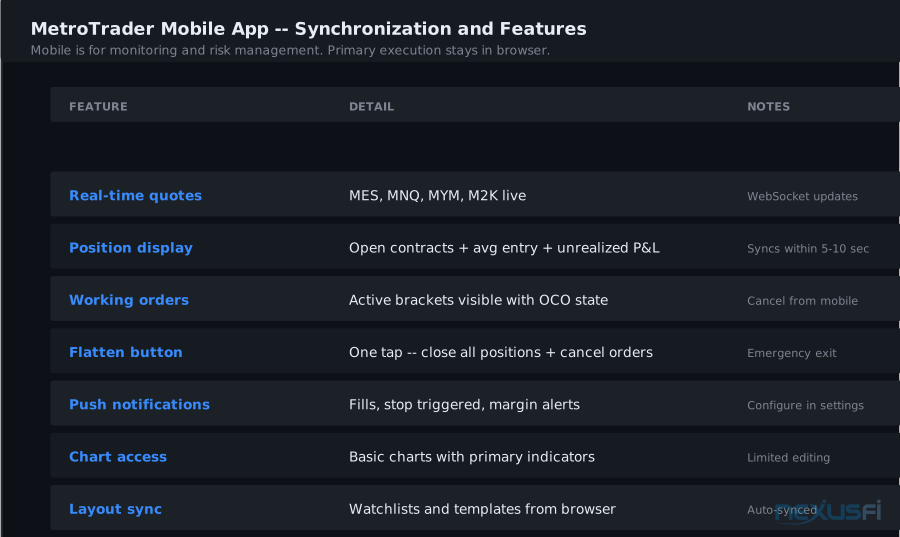
MetroTrader's mobile app syncs layouts, watchlists, and positions with the browser platform. On mobile, you can view real-time quotes, monitor open positions, manage working orders, and close positions if needed.
Primary mobile use cases:
- Monitor a trade from away from desk
- Close positions quickly if you need to step away mid-session
- Review fill confirmations after execution
- Check position status during the lunch break
What mobile is not suited for: Complex bracket order modifications during high-volatility periods, multi-contract position management, or detailed chart analysis with multiple indicators. The mobile interface is designed for monitoring and simple risk management, not full analytical workflow.
Setup for mobile: Download the MetroTrader mobile app (iOS or Android), log in with the same credentials as your web account. Your positions, watchlists, and working orders appear automatically. Any order changes made on mobile update in the browser and vice versa.
Flatten from mobile: If you need to exit a position from mobile and you're in a live trade, use the flatten/close position function rather than trying to work through the order management panel on a small screen. One tap exits and cancels.
Push notifications: Configure the mobile app to send push notifications for order fills, stop triggers, and margin alerts. For day traders who monitor positions away from desk during midday, these alerts provide the safety net — you'll know immediately if a stop triggered unexpectedly.
Pre-Live Evaluation Checklist #
Before committing real capital to MetroTrader, test these platform behaviors in the demo account. Each one is a potential failure mode during live trading:
Bracket order integrity:
- [ ] Place a bracket order. Let the entry fill. Confirm stop and target appear as working orders.
- [ ] If entry partially fills, verify bracket child orders scale to the filled quantity.
- [ ] Let the target fill. Confirm the stop cancels automatically.
- [ ] Let the stop fill on a separate test. Confirm the target cancels automatically.
Cancel reliability:
- [ ] Place a working limit order. Cancel it. Confirm it disappears from working orders within 1-2 seconds.
- [ ] Test cancel during active market hours, not just pre-market.
Flatten behavior:
- [ ] Open a position. Use the flatten function. Confirm position closes and all bracket children cancel.
Tick size accuracy:
- [ ] Place an order at a price between tick increments. Confirm the platform rounds to the nearest valid tick.
- [ ] Verify this for each contract you plan to trade (MES, MNQ, etc.).
Order state updates:
- [ ] Enter an order. Work through to the order management panel. Confirm the order appears immediately.
- [ ] Fill the order. Confirm the position panel updates in real time.
Mobile sync:
- [ ] Open a position in the browser. Open the mobile app. Confirm the position appears within 5-10 seconds.
- [ ] Close the position from mobile. Confirm the browser reflects the close.
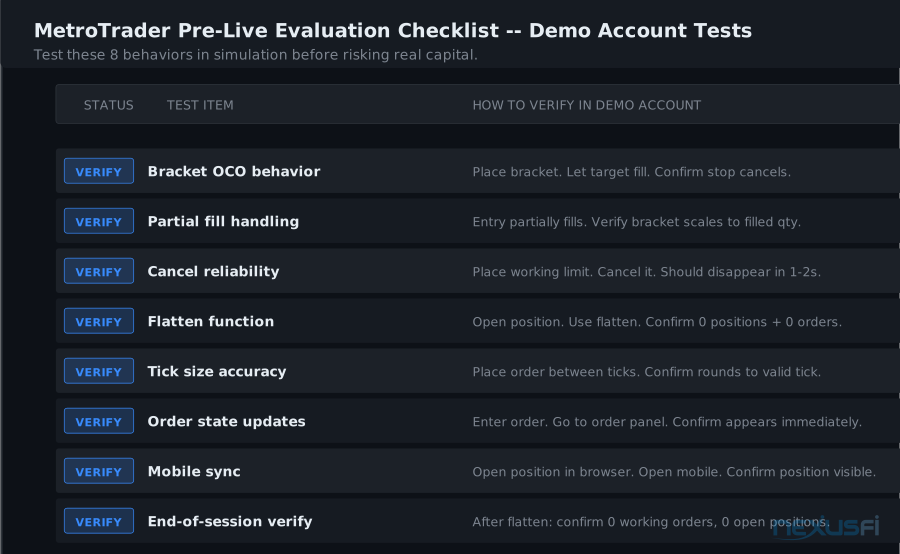
These tests take approximately 30-45 minutes in the demo account. They're not optional — they're how you verify that the platform's advertised behavior matches the actual execution engine you're trusting with your risk.
DOM Trading Ladder #
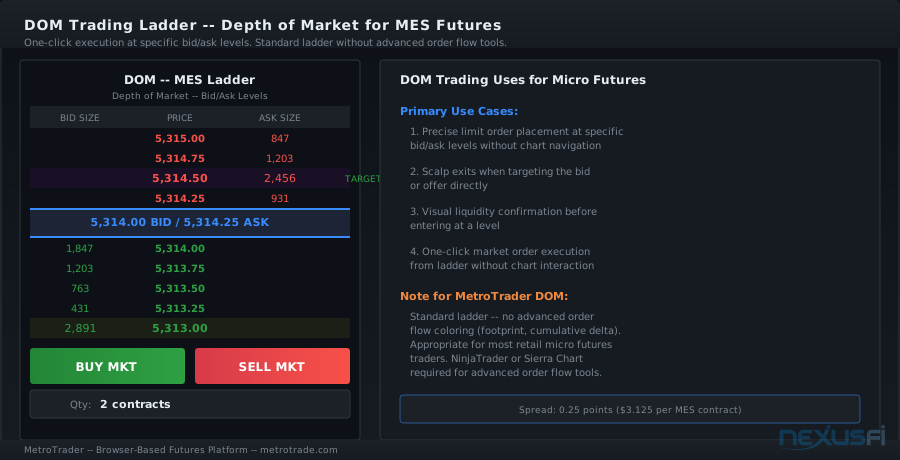
The Depth of Market (DOM) trading ladder in MetroTrader gives you order book context alongside quick execution. Unlike chart trading, the DOM shows price levels in a vertical ladder format with buy and sell quantities at each level, allowing one-click execution at any visible price.
For micro futures traders who don't rely on advanced order flow analysis, the DOM is primarily an execution surface — a faster way to enter and exit at specific prices without dragging a chart order line. It's especially useful for:
- Quick scalp exits when you want to get out at a precise bid or offer
- Ladder-based position additions during trend runs
- Visual confirmation of immediate liquidity at your intended entry level
The DOM ladder helps traders see exactly where they're entering relative to the current bid-ask spread, reducing the risk of accidentally taking the wrong side of a wide spread.
For traders coming from NinjaTrader or Sierra Chart, MetroTrader's DOM is simpler — no custom order types, no advanced order flow coloring. It's a standard ladder with market and limit execution. That simplicity is appropriate for most retail micro futures day traders.
Knowledge Map
Go Deeper
Build on this knowledgeReferences This Article
Articles that build on this topicCitations
- — Best Broker offers the lowest commissions on Micro Futures (2022) 👍 8“As a trader, it can't be about the commission unless it is a crazy amount.”
- — Best deal on futures margin (2021) 👍 4“You won't really need to search for them; just visit the web sites of a number of futures brokers and you will find them. But don't succumb to the temptation.”
- — Making a Living with the Micros (2021) 👍 23“I am currently trading with a maximum of 2 contracts for any one instrument at a time.”
- — Refining the Path (2020) 👍 5“part of the issue could be the extreme amount of risk you're adding when you switch between the micros and the mini.”
- — Trading the new CME E-Micro's (2019) 👍 8“aspiring traders need to get beyond it and risk some real money, however small, in order to experience the stresses of real trading.”
- — MetroTrader: A Free Futures Trading Platform for Traders
- — Free Futures Trading Platform -- MetroTrade