



Remote Access for Futures Traders: RDP, VPN, and Secure Setup to Manage Positions from Anywhere
Overview #
You left a trade open. You stepped away from your desk. Then the market moved.
Every futures trader has been there--that moment when you need to see your positions and you're nowhere near your trading machine. Maybe you're at a doctor's appointment and ES just broke a key level. Maybe you're traveling and your automated strategy is running on a VPS you can't physically touch. Maybe your internet went down and you're tethered to your phone trying to close a trade before it goes against you another 10 handles.
Remote access for futures trading isn't a convenience feature. For a lot of traders, it's the difference between managing a trade properly and having to flatten at the worst possible time because you couldn't see what was happening. But remote access is also one of the most misunderstood parts of a trading infrastructure setup. Traders confuse remote desktop latency with order execution latency. They expose RDP ports directly to the internet without realizing how dangerous that is. They run their entire trading operation off a home machine with a residential ISP that drops out twice a week, when a $30/month VPS would solve the problem permanently.
This article covers the full picture: how remote access actually works for futures traders, which tools are worth using, the security mistakes that will cost you, and how to build a setup that keeps you connected to your positions from anywhere.
How Remote Access Actually Works #
Before picking tools, you need to understand a distinction that most traders miss: remote desktop latency and order execution latency are completely separate things.
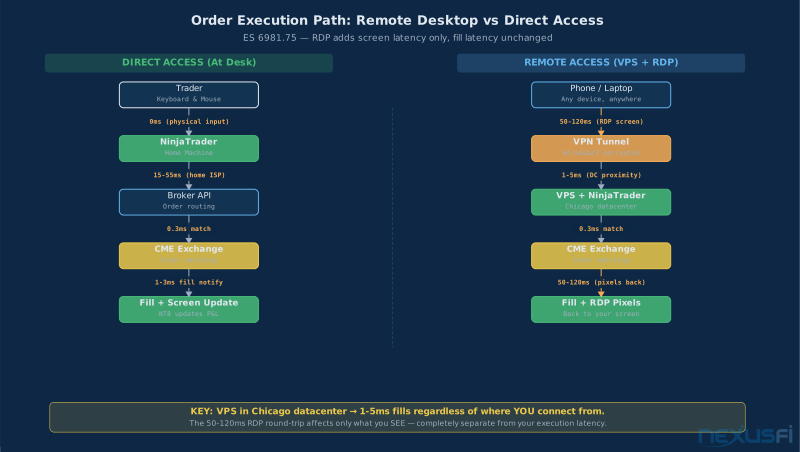
When you're using remote desktop, the path looks like this:
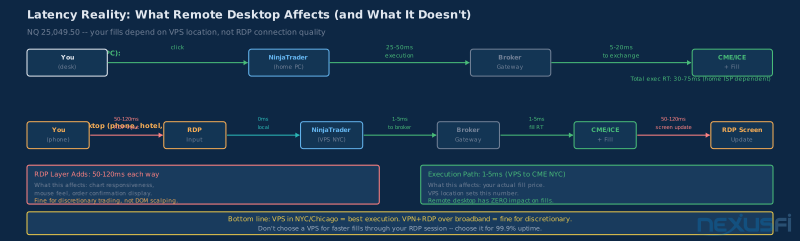
You click on your phone → Remote desktop app sends input → NinjaTrader on remote machine → Broker API → Exchange → Fill → NinjaTrader updates screen → Screen pixels sent back to your phoneThe order routing portion--from NinjaTrader to your broker to the exchange--is identical in both cases. The remote desktop only affects how fast pixels travel to your screen and how fast your keystrokes reach the host machine. For a scalper doing DOM trading with a 2-tick target on ES, that distinction matters. For a discretionary trader managing a position for 30 minutes, it's irrelevant.
This is why the right question isn't "which remote desktop tool is fastest" but rather "where should NinjaTrader be running, and how do I access it from anywhere?"
The Execution Host Matters More Than the Remote Tool
If your trading machine is sitting on a residential connection in Phoenix, your orders travel from your machine through your ISP to the Chicago Mercantile Exchange--typically 35-55ms. If you move NinjaTrader to a VPS in a Chicago data center, that routing becomes 1-5ms. Your fills will be faster whether you're sitting at the VPS monitor or connecting via RDP from your phone in a hotel room. The execution path doesn't change. The remote desktop just determines whether that phone feels snappy or sluggish.
The Three Remote Access Architectures #
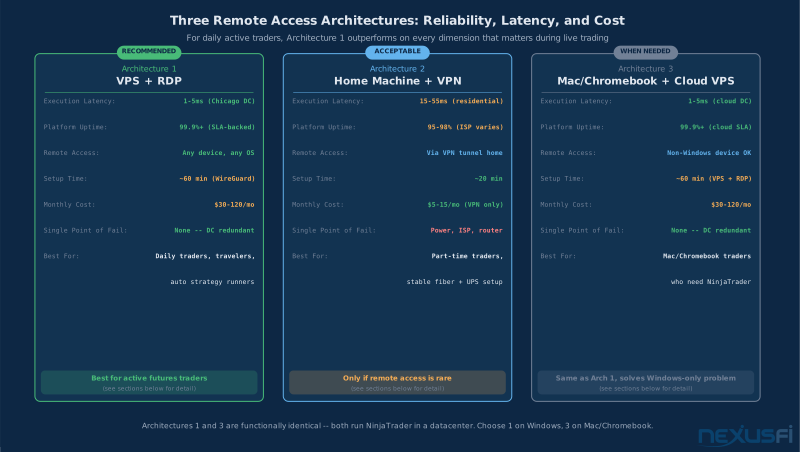
Architecture 1: VPS + RDP (The Professional Setup)
You run NinjaTrader 24/7 on a Windows VPS hosted by a provider with low-latency connectivity to CME, ICE, or your broker's infrastructure. You access that VPS from any device via Remote Desktop Protocol (RDP). The VPS runs Windows Server or Windows 10/11. NinjaTrader runs continuously without depending on your home internet or power. When you connect via RDP from your laptop, tablet, or phone, you're seeing the actual live NinjaTrader session.
Latency profile: VPS to CME (NYC/Chicago hosted): 1-5ms. Your device to VPS via RDP: 30-80ms on a decent connection.
Cost: $30-120/month for a Windows VPS. Speedy Trading Servers, Beeks, ForexVPS, and AWS/Azure are common options.
Architecture 2: Home Machine + VPN + Remote Desktop
Your trading machine stays at home. You access it remotely via a VPN + RDP setup or a third-party tool like AnyDesk or Splashtop. Your home PC is always on. You connect a VPN to create a secure tunnel from wherever you are back to your home network, then use RDP to remote in.
Risks: Power outages, ISP outages, router reboots from automatic firmware updates--any of these can take you offline mid-trade. Residential service drops more than data center connectivity.
Architecture 3: Mac or Chromebook + Cloud Platform
If you're on a Mac or Chromebook, NinjaTrader is Windows-only. Run it on a Windows VPS and access via RDP. @Big Mike noted this approach:
Remote Desktop Tools: What Each One Actually Delivers #
Windows RDP (Remote Desktop Protocol)
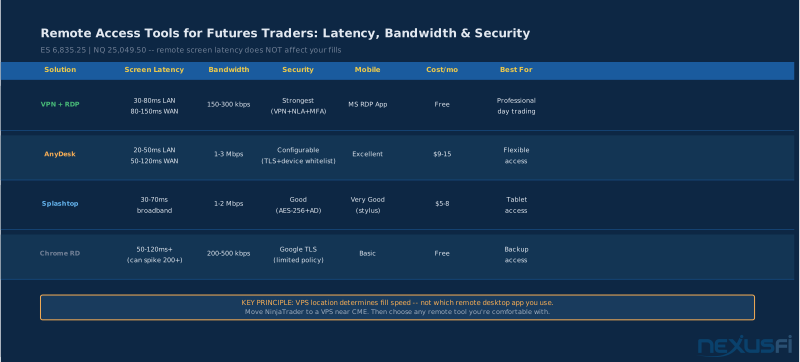
RDP is built into every Windows installation. It's mature, well-tested, and optimized specifically for remote Windows desktop sessions. For trading, it compresses screen data dynamically--a static DOM or chart view uses almost no bandwidth (150-300 kbps typical). Multi-monitor support is native. Disconnect and reconnect and NinjaTrader keeps running in your session.
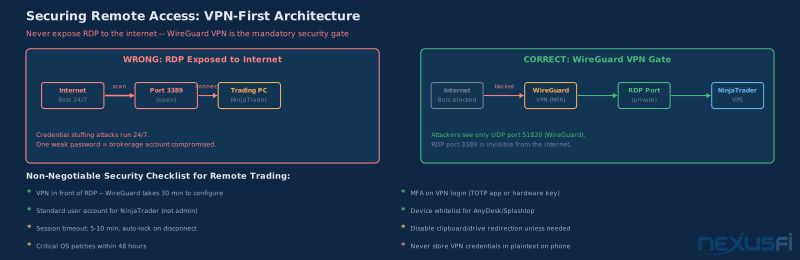
The critical security requirement: Never expose RDP directly to the internet. Port 3389 gets scanned and attacked constantly. Automated botnets run credential stuffing attacks 24/7. The correct approach: put RDP behind a VPN.
AnyDesk
AnyDesk uses a proprietary codec called DeskRT, optimized for desktop content with lots of static UI and periodic updates--exactly what trading applications look like. Screen latency: 20-50ms on LAN, 50-120ms over broadband. Bandwidth: 1-3 Mbps at 1080p/60fps. Full iOS and Android support with multi-touch-to-mouse mapping. Commercial license ($9-15/month) required for professional trading.
Splashtop Business
Splashtop uses H.264 encoding with dedicated business features. Screen latency: 30-70ms over broadband, 50-100ms over 4G/5G. Bandwidth: 1-2 Mbps at 1080p/60fps with adaptive quality. Especially useful for tablet use with its stylus support. Cost: $5-8/user/month on annual billing.
Chrome Remote Desktop (CRD)
Free, simple, works through Chrome or dedicated apps. Screen latency: 50-120ms typically. Best use case: backup access. Not the primary tool, but free and works in a pinch.
Latency Reality Check: What counts #
There are four latency numbers that matter for remote trading setups. Most traders only think about one.
1. Order Routing Latency (What Fills Your Trade)
The round-trip time from NinjaTrader to your broker to the exchange and back. For CME products: Chicago data center VPS: 1-5ms. New York data center: 5-15ms. Home in a major metro: 15-40ms. Home in a rural area: 40-100ms+. Not affected by your remote desktop tool.
2. Screen Render Latency (What You See)
The time from when NinjaTrader updates to when your screen shows the change. Comfortable for chart navigation: under 100ms. Starts to feel sluggish: 150ms. Gets difficult for active DOM trading: over 200ms. Most remote desktop tools hit 50-120ms on decent broadband--acceptable for discretionary trading and position monitoring.
3. Jitter (The Real Performance Killer)
Jitter is variance in latency. Average latency of 80ms with 5ms jitter feels smooth. Average of 50ms with 40ms jitter feels terrible. Keep jitter under 20ms. Over cellular, jitter frequently spikes above this threshold.
4. Packet Loss (The Silent Problem)
Even 1% packet loss causes visible stuttering. Target under 0.1%. Use wired connections on both ends whenever possible. If on WiFi, 5GHz (802.11ac or WiFi 6) is much better than 2.4GHz for jitter and packet loss.
VPS vs Home Machine: The Decision #
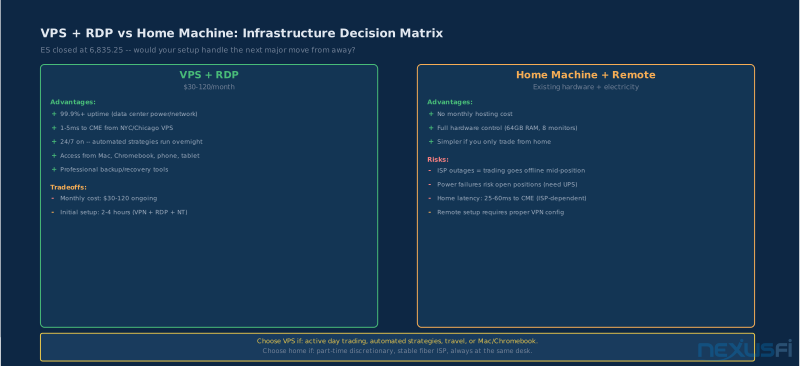
This is the most important infrastructure decision for a futures trader who needs reliable remote access.
When VPS + RDP Wins
You trade every day during market hours. Home machines fail. Power glitches, ISP outages, router reboots from automatic firmware updates--any of these can take you offline mid-trade. A properly configured VPS gives you 99.9%+ uptime with redundant power and multiple internet uplinks.
You travel or trade from multiple locations. If you move between home, office, and the road regularly, a VPS simplifies everything. Your trading environment is always in the same place.
You run automated strategies overnight. If strategies need to run while you sleep, they need a machine that's always on. A home machine left on overnight is a single point of failure.
@LDog: https://nexusfi.com/showthread.php?t=42789&p=651430#post651430 — "Install SC on a VPS, then just pick a tablet that you like with Remote Desktop Protocol (RDP) capability and connect."
@ob1haas: https://nexusfi.com/showthread.php?t=30276&p=383851#post383851 — "I trade via a Macbook Air, connecting to a VPS in Chicago. I can trade from anywhere."
@planetkill: https://nexusfi.com/showthread.php?t=57617&p=853647#post853647 — "I even have a second user account within the same VPS to run a 2nd instance of NinjaTrader at the same time, where I mostly discretionary scalp through the RD client on my phone."
When Home Machine + Remote Wins
You only trade from home and occasionally need to peek at positions remotely. Remote access is a convenience, not a core workflow. You have stable fiber with UPS protection on your router.
VPS Sizing for NinjaTrader
- CPU: 2-4 cores -- NinjaTrader is mostly single-threaded for order execution
- RAM: 4-8 GB for most discretionary setups; 16 GB for multiple instances
- Storage: NVMe SSD strongly preferred -- data loading is the bottleneck
- Network: Provider should offer under 10ms ping to CME or your broker's data center
Security: The Mistakes That Will Cost You #
Remote access adds attack surface. A trading workstation is a high-value target--it has brokerage credentials, API keys, and direct access to your capital.
Mistake 1: Exposing RDP Directly to the Internet
Port 3389 is one of the most-scanned ports on the internet. Automated botnets constantly try credential combinations against exposed RDP ports. A strong password is not sufficient protection. The fix: Put RDP behind a VPN. WireGuard is recommended--lightweight, fast, and simpler to configure than OpenVPN. Setup time: about 30 minutes.
Mistake 2: Using Admin Accounts for Trading
Running NinjaTrader under an administrator account means a compromised session gives full machine control. The fix: Create a standard user account for trading. Keep admin credentials separate.
Mistake 3: Skipping Multi-Factor Authentication
A strong password alone isn't enough if it gets exposed in a data breach. The fix: Enable MFA on your VPN login. AnyDesk and Splashtop both support two-factor authentication--enable it.
Mistake 4: Not Locking Down Device Access
For AnyDesk and Splashtop, device whitelisting restricts access to specific approved devices. Enable device authentication and approve specific devices by their device IDs.
Mistake 5: No Session Timeout
An unattended remote session that stays connected indefinitely is an open door. Set idle timeout to 5-10 minutes. Configure the session to lock automatically on disconnect.
Security checklist before trusting any remote setup with live positions: VPN in front of RDP | MFA on VPN and remote tool | Standard user account for NinjaTrader | Device whitelist | Session timeout 5-10 min | Auto-lock on disconnect | Clipboard/drive redirection disabled | Windows Defender enabled | Critical patches within 48 hours.
@Fadi: https://nexusfi.com/showthread.php?t=28748&p=357181#post357181 — "I configure my laptops, iPads, and client desktops with a remote desktop access (through the VPN) to any of these VMs on the server."
Mobile Access: What You Can Do From a Phone #
Every trader's had the moment: ES gaps through your stop, you're in line at the grocery store, and you need to close the position right now. Here's what mobile remote access actually delivers.
What Works Well on Mobile
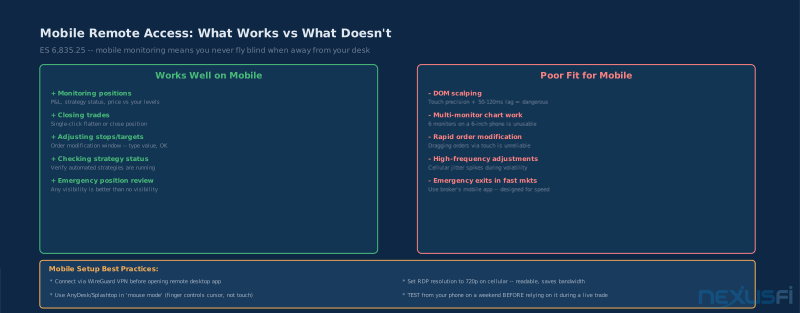
Monitoring positions: Open your remote desktop app, check your P&L, see where price is. Works fine on any tool we've discussed. Closing trades: Clicking Flatten Position is entirely doable from a phone. Adjusting stops and targets: Order Modification window works--type in the new value, hit OK. Checking strategy status: Verify automated strategies are running, review recent trades.
What Doesn't Work Well on Mobile
DOM scalping: Remote desktop latency plus touch input precision issues make this genuinely dangerous. Don't scalp from your phone. Multiple monitor workflows: Navigating across six virtual monitors on a 6-inch screen is clumsy. Emergency closes during extreme volatility: When ES is down 50 handles in 30 seconds, remote desktop from a cellular connection is the wrong tool. Use your broker's mobile app.
Mobile Setup Best Practices
Use Microsoft Remote Desktop app for mobile (handles disconnects/reconnects cleanly). Set resolution to 720p or 600p for cellular--readable for position monitoring at 150-300 kbps. Enable touch-to-mouse mode where your finger controls a mouse pointer. Test before you need it.
@sam028: https://nexusfi.com/showthread.php?t=15519&p=172632#post172632 — "I haven't tried with an iPhone, only with an iPad 2, and it works great. You can't debug a NinjaTrader large strategy, but for trading and monitoring it works nicely."
@RM99: https://nexusfi.com/showthread.php?t=822&p=118671#post118671 — "I now have an option of simply monitoring from my phone instead of exiting the position."
That single capability--monitoring instead of exiting--is what remote access buys you.
Setting Up VPN + RDP: The Practical Guide #
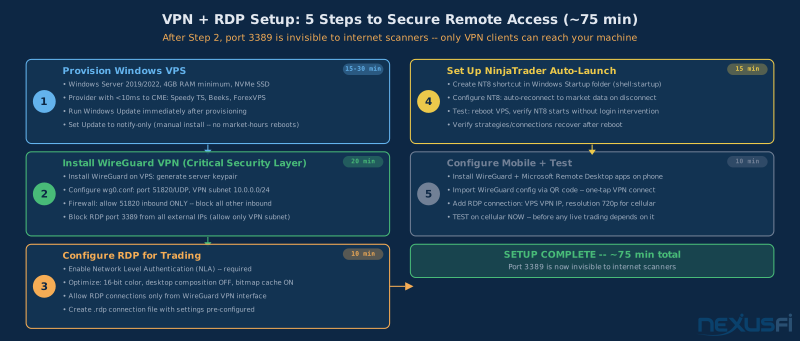
Step 1: Choose and Configure Your VPS
Provider selection: Windows Server 2019/2022, latency to CME under 10ms from NYC/Chicago, NVMe SSD, at least 4GB RAM, KVM or Hyper-V virtualization. After provisioning, update Windows immediately. Set Windows Update to manual install so you control timing--don't let Windows reboot during market hours.
Step 2: Install WireGuard as Your VPN Layer
Install WireGuard on the VPS and generate a server keypair. Configure the interface and peers, enable the service at boot. Install WireGuard client on each device. Firewall: allow WireGuard UDP port 51820 inbound; allow RDP TCP 3389 only from the WireGuard network interface. Block all other inbound. Only someone with a valid WireGuard config can attempt an RDP connection.
Step 3: Configure RDP for Trading
Enable Network Level Authentication. Improve: 16-bit color depth (reduces bandwidth, still readable for prices), desktop composition disabled, persistent bitmap caching enabled. Create a .rdp connection file with settings saved so you don't have to reconfigure every session.
Step 4: NinjaTrader Startup
Configure NinjaTrader to start automatically when Windows boots (startup folder shortcut or scheduled task). Set automatic reconnect to market data after disconnections.
Step 5: Mobile Access
Install Microsoft Remote Desktop and WireGuard apps on your phone. To connect: open WireGuard, connect to VPN; open Remote Desktop, connect to VPS. For cellular: set resolution to 768x1366 and color depth to 16-bit for 150-300 kbps bandwidth draw.
Set up a shortcut on your phone's home screen directly to your remote desktop app with your VPS connection pre-configured. Two taps should get you to your trading session.
Common Problems and Solutions #
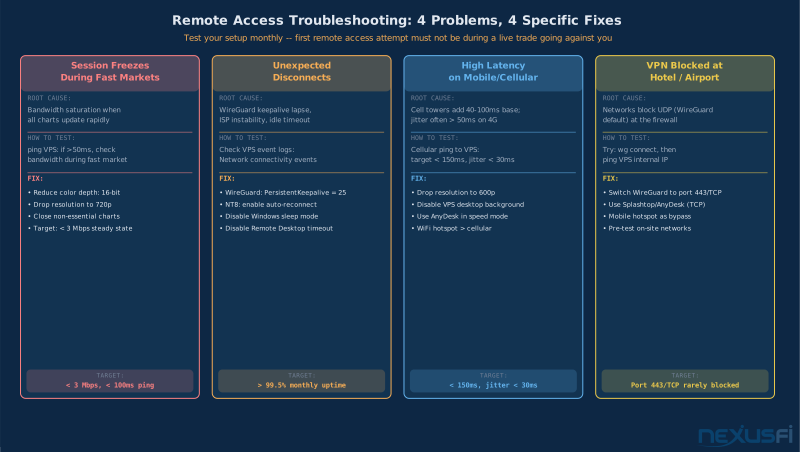
RDP session freezes during fast markets: Bandwidth saturation when charts update rapidly. Fix: reduce color depth to 16-bit, drop resolution to 720p, close non-essential chart windows during high-volatility periods.
RDP disconnects unexpectedly: ISP instability, VPN drops, or idle timeout. Fix: set WireGuard PersistentKeepalive = 25 on clients; configure NinjaTrader to reconnect automatically.
High latency from mobile/cellular: Drop resolution to 720p or lower; disable desktop background on VPS; use AnyDesk or Splashtop in speed mode.
VPN blocked at hotel/airport: Try WireGuard on port 443 (often less restricted). Use Splashtop or AnyDesk as backup (TCP, rarely blocked). Mobile hotspot as fallback.
NinjaTrader uses wrong settings after remote session: Different resolution shifts window positions. Create a dedicated NinjaTrader workspace saved at your remote access resolution.
The Short Version #
- Run NinjaTrader on a VPS near your broker's data center. $30-120/month for better uptime and execution than a home machine.
- Use VPN + RDP as your primary remote access method. Never expose RDP to the internet. WireGuard takes 30 minutes to configure.
- AnyDesk or Splashtop are solid alternatives for simpler setup or better mobile performance. Both require commercial licenses for trading.
- Mobile access is for monitoring and simple order management, not DOM scalping.
- Test everything before you need it. Your first remote access attempt should not be during a live trade going against you.
Remote access doesn't make you a faster trader. It makes you a more resilient one. The trader who can monitor and manage positions from anywhere has a meaningful operational edge over the one who has to choose between leaving a trade unmanaged or staying chained to a desk. That resilience starts with where you host your trading platform and ends with whether your security setup holds.
Knowledge Map
Prerequisites
Understand these firstGo Deeper
Build on this knowledgeReferences This Article
Articles that build on this topicCitations
- — The Scalper's Journey (2016) 👍 1“You should look into a VPS server colocated in Chicago. Ninjatrader is up 24/7 and I just RDP with any computer/tablet/phone.”
- — Doomsday senerio (2019) 👍 3“I have ninjatrader running on a VPS, and Windows Remote Desktop application installed on my phone. Lets me manage my positions.”
- — Ninjatrader on Chromebooks (2014) 👍 2“use a Chromebook or whatever you want, and login to your workstation that runs NinjaTrader from anywhere.”
- — What VPC configuration/specification do you use for TS? (2020) 👍 1“Setup a Virtual Network and add VPN service in Azure; then connect to RDP via that VPN server (~US$20 month).”
- — Ask Me Anything (AMA) with NinjaTrader Client Services (2021) 👍 7“I use Chrome Remote Desktop to remote in to my Trading machine from my iPhone 11 Pro max. I can see all 6 screens at once.”
- — Discussion of a Micro Scalping Day Trading Facility (2021) 👍 2“Remote Desktop, and good network tuning, results in a very good response time at your Remote location.”
- — Phone or Tablet Option (2017) 👍 3“Install SC on a VPS, then just pick a tablet that you like with Remote Desktop Protocol (RDP) capability and connect.”
- — Lap Top Users (2014) 👍 3“I trade via a Macbook Air, connecting to a VPS in Chicago. I can trade from anywhere.”
- — Recommended Windows VPS for NinjaTrader 8 (2021) 👍 4“I even have a second user account within the same VPS to run a 2nd instance of NinjaTrader at the same time, scalping from my phone.”
- — Anyone using a VPN? (2013) 👍 4“I configure my laptops, iPads, and client desktops with a remote desktop access (through the VPN) to any of these VMs on the server.”
- — What apps are recommended for iPhone/iPad for viewing strategies on VPS (2011) 👍 2“I haven't tried with an iPhone, only with an iPad 2, and it works great. For trading and monitoring it works nicely.”
- — Automated trading on VPS (2011) 👍 3“I now have an option of simply monitoring from my phone instead of exiting the position.”
- — Learning to Trade with the Big Money (2022) 👍 2“I have set up a VM in AWS where I will now run NinjaTrader.”
- NYCServers — RDP vs VNC for Forex VPS: Which Is Better in 2026? (2026)
- BearHost — How to Set Up a Forex VPS for MT4 & MT5 Trading in 2026 (2026)