



Mobile Futures Trading: Network, Risk, and Platform Setup for NinjaTrader Mobile
Overview #
Your trading platform runs on a desktop that can't leave the desk. The market runs 23 hours a day. At some point those two facts are going to conflict — and when they do, you need a plan.
Mobile futures trading has gone from a crude "at least I can see quotes" experience to a legitimate execution environment. When NinjaTrader introduced web and mobile trading in 2023, @NinjaTrader described it as "cloud-based trading infrastructure and integrated multi-device trading" — a recognition that the desktop-only model doesn't fit how traders actually live. The gap between mobile and desktop has narrowed much, but it hasn't closed. Understanding exactly where that gap still exists, and building your workflow around it, is the whole game.
This article covers the practical infrastructure of mobile futures trading: which workflows belong on mobile, what network you actually need, how to keep risk under control when you can't see the full order book, and what to do when your connection drops mid-trade. No vague advice. Just the specific mechanics that determine whether trading from your phone is a genuine capability or a recipe for expensive mistakes.
What Mobile Trading Is Actually Good For #
The honest starting point: mobile is not desktop. The traders who use it well treat it as a secondary control surface, not a replacement execution environment. Before building any mobile workflow, classify what you're actually trying to do.
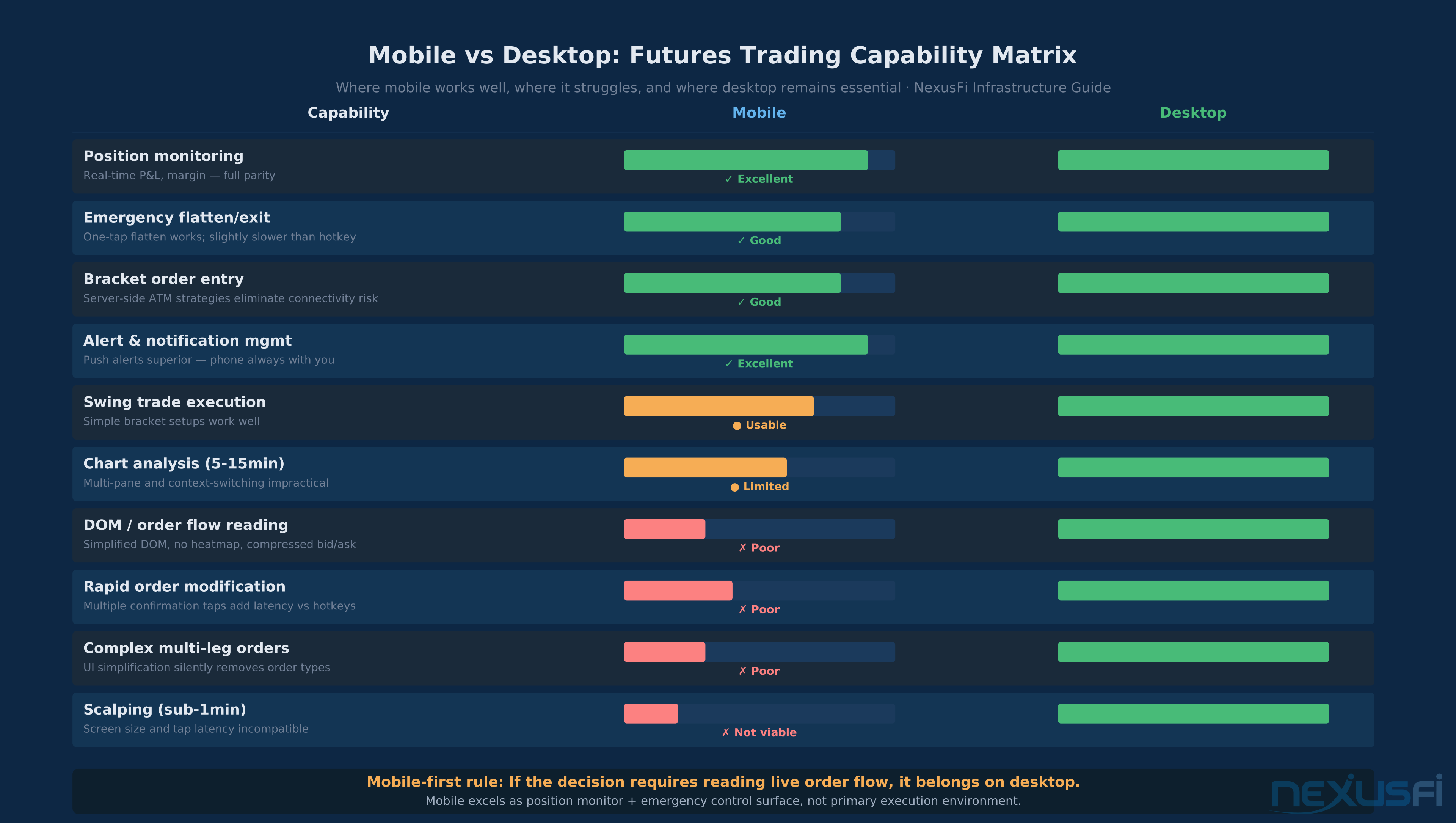
Mobile excels at: Position monitoring, alerts and notifications, emergency order management, simple preplanned execution (bracket entries/exits where the logic is already baked in server-side), news reaction, and monitoring while traveling.
Mobile struggles with: DOM-dependent scalping, rapid iterative order modification, multi-pane charting with order flow context, complex multi-leg order management, and any strategy that requires high-frequency adjustments on a 5-inch screen under stress.
The distinction matters because traders who treat mobile as a full desktop substitute make errors that don't happen on a proper workstation.
The concern wasn't features — it was incentive design that might encourage activity over discipline. The same logic applies to mobile trading in general: smaller screen equals reduced situational awareness, and reduced situational awareness increases the cost of every mistake.
Map your trading to one of these three categories:
- Mobile as primary -- Simple bracket-based swing trades, position monitoring, overnight position management for pre-defined entries/exits. This works well.
- Mobile as companion -- Alert-driven action on setups spotted on desktop, emergency position management when you're temporarily away from the workstation. This is the most common legitimate use case.
- Mobile as fallback -- Emergency execution when desktop connectivity fails. Must be pre-configured and tested. Never improvised.
Server-side stops are non-negotiable for mobile trading. If your stops depend on the client staying connected, you don't have stops on mobile — you have hopes.
Choosing Your Mobile Platform: What counts #
Platform selection for mobile futures trading should be driven by workflow fit, not marketing. The question isn't "which app has the best UI" — it's "which app supports the specific order types, connectivity patterns, and risk controls my trading requires."
The comparison framework that matters:
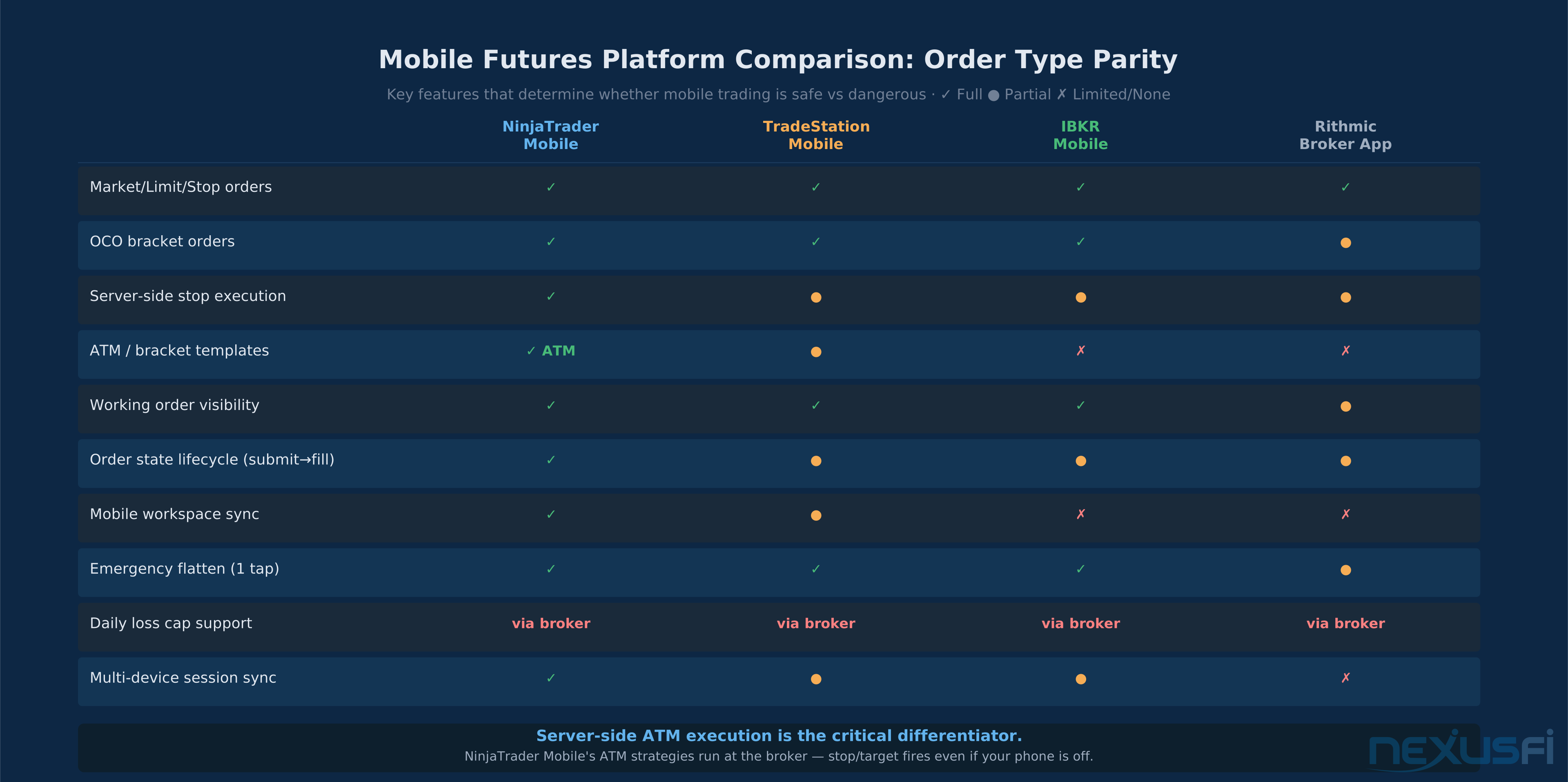
Order type parity: Can you place the same types of orders you use on desktop? Market, limit, stop, stop-limit, bracket/OCO? Many mobile apps simplify the order entry form in ways that silently remove order type options. Test explicitly before trusting.
Order management depth: After an entry, can you modify the stop and target independently? Can you scale out in pieces? Can you see the full parent-child relationship of your bracket? Apps that show a position without showing the associated working orders create false confidence about your actual risk exposure.
Order state visibility: The most underappreciated dimension. After you submit an order, can you see its lifecycle — submitted → accepted → partially filled → filled → exit working → exit filled? If the app only shows "position" without working orders, you're flying blind on exits.
NinjaTrader Mobile offers real-time quotes, charting across multiple timeframes, order entry (market, limit, stop, bracket), position and P&L view, and integrated server-side ATM strategies. The server-side ATM feature — which @horacioofman specifically called out as valuable for mobile safety — means your stop/target logic executes at the broker level regardless of whether your phone stays connected. NinjaTrader's official documentation confirms that server-side ATM allows "the orders and functionality associated with your ATM strategies to reside on NinjaTrader's servers rather than on your local PC," meaning OCO functionality, order activation, and trailing stops continue working even if your platform disconnects. Ninja Mobile Trader extends the NinjaTrader ecosystem to iOS and Android, giving traders who already run NinjaTrader on desktop a natural companion with workspace sync, real-time market data, and position management.
Rithmic-based mobile apps are available through brokers like Optimus Futures. As @mattz noted, Optimus "were able to launch a Rithmic based solution for Mobile Trading for Android and Apple. This could serve as a standalone trading platform or in conjunction with any platform that is Rithmic driven." Rithmic's data infrastructure provides tight latency to CME, which matters for fill quality even on mobile.
TradeStation Mobile offers advanced charting, multi-leg orders, conditional orders, and real-time alerts. Strong for traders already in the TradeStation ecosystem.
Interactive Brokers Mobile covers the broadest range of futures contracts globally (CME, ICE, Eurex) with real-time analytics, but the UI is utilitarian compared to purpose-built trading apps.
The key: whatever platform you use on desktop, start there for mobile. Workflow sync — knowing that the order templates, watchlists, and position views you built on desktop are the same ones you're working with on mobile — reduces cognitive load and execution errors during the moments that matter.
Network Reliability: What You Actually Need #
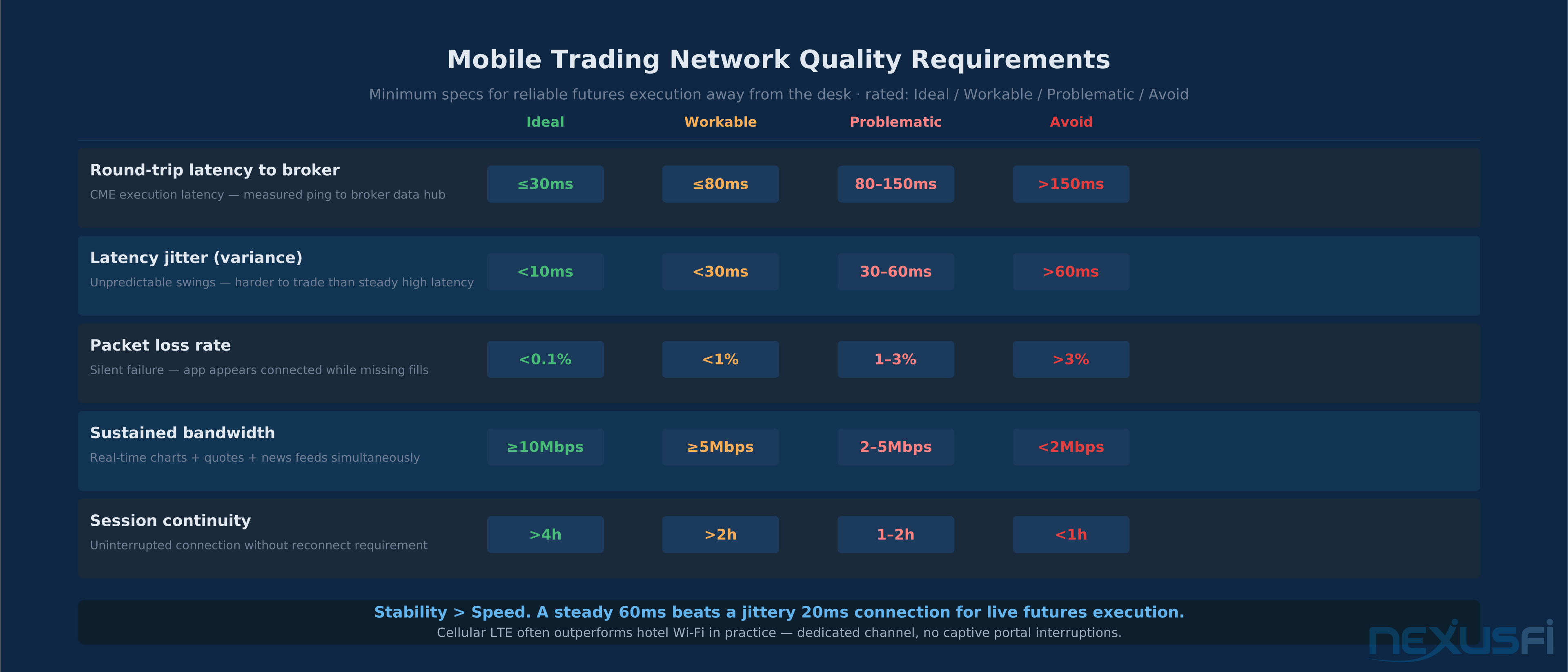
Most mobile trading advice focuses on speed. The more important dimension is stability — specifically jitter, packet loss, and session continuity. A slow but stable connection is usually better than a fast but intermittent one.
For futures execution on mobile, the practical requirements:
Latency: ≤80ms to your broker's data hub is workable for discretionary trading. ≤30ms is ideal. Latency above 150ms creates visible lag in order state updates that makes it difficult to know whether your order was accepted or still working.
Jitter: Less than 30ms variance. High jitter (unpredictable latency swings) is harder to trade through than consistently high latency, because you lose confidence about when your order will execute.
Packet loss: Less than 1% under normal conditions. Packet loss is the silent killer — your app may appear connected while missing fills, order state updates, and price ticks.
Bandwidth: 2Mbps minimum for real-time quotes and basic charting. 5-10Mbps for multi-pane charts and news feeds.
The practical guidance from the NexusFi community is direct.
The point isn't Starlink specifically — it's that serious mobile traders solve the connectivity problem with hardware, not hoping the hotel Wi-Fi is good enough.
The hierarchy applies to mobile trading too — building proper ISP redundancy is just as critical when you're away from the desk. Primary network, backup network, documented failover procedure.
@steve2222 flagged a specific failure mode: "NEVER trade using a wireless connection to your router — you will get CQG disconnections. I have personally observed this numerous times when travelling." The implication for mobile: cellular can be more reliable than hotel or public Wi-Fi in practice, because cellular doesn't depend on a shared network with dozens of concurrent users, isn't subject to captive portal interruptions, and doesn't drop when you move from one access point to another.
Hotel and airport Wi-Fi can appear connected while silently throttling real-time data streams. Test with a ping to your broker's data endpoint before entering live positions, not after.
Pre-travel network checklist:
- Ping your broker's data server from your intended location. Record average latency and jitter.
- Place a simulated trade and verify the full order state lifecycle (submit → accept → fill → exit fill).
- Test your failover: disable Wi-Fi, verify cellular takes over without requiring a full app restart.
- If using a VPN, confirm it doesn't disrupt the broker connection. Some VPNs break WebSocket connections used for real-time data.
- Save your broker's emergency trading desk number as a contact before departure.
Risk Management on Mobile: The Bounded-Risk Architecture #
Mobile risk management must be built around one principle: your risk controls cannot depend on the client staying connected.
A stop-loss that relies on your app running and your network staying up is not a stop-loss. It's a contingent plan that fails exactly when you need it most — during a fast market, when connectivity degrades, when the app crashes, when you're in a subway tunnel. The server-side order architecture exists precisely for this scenario.
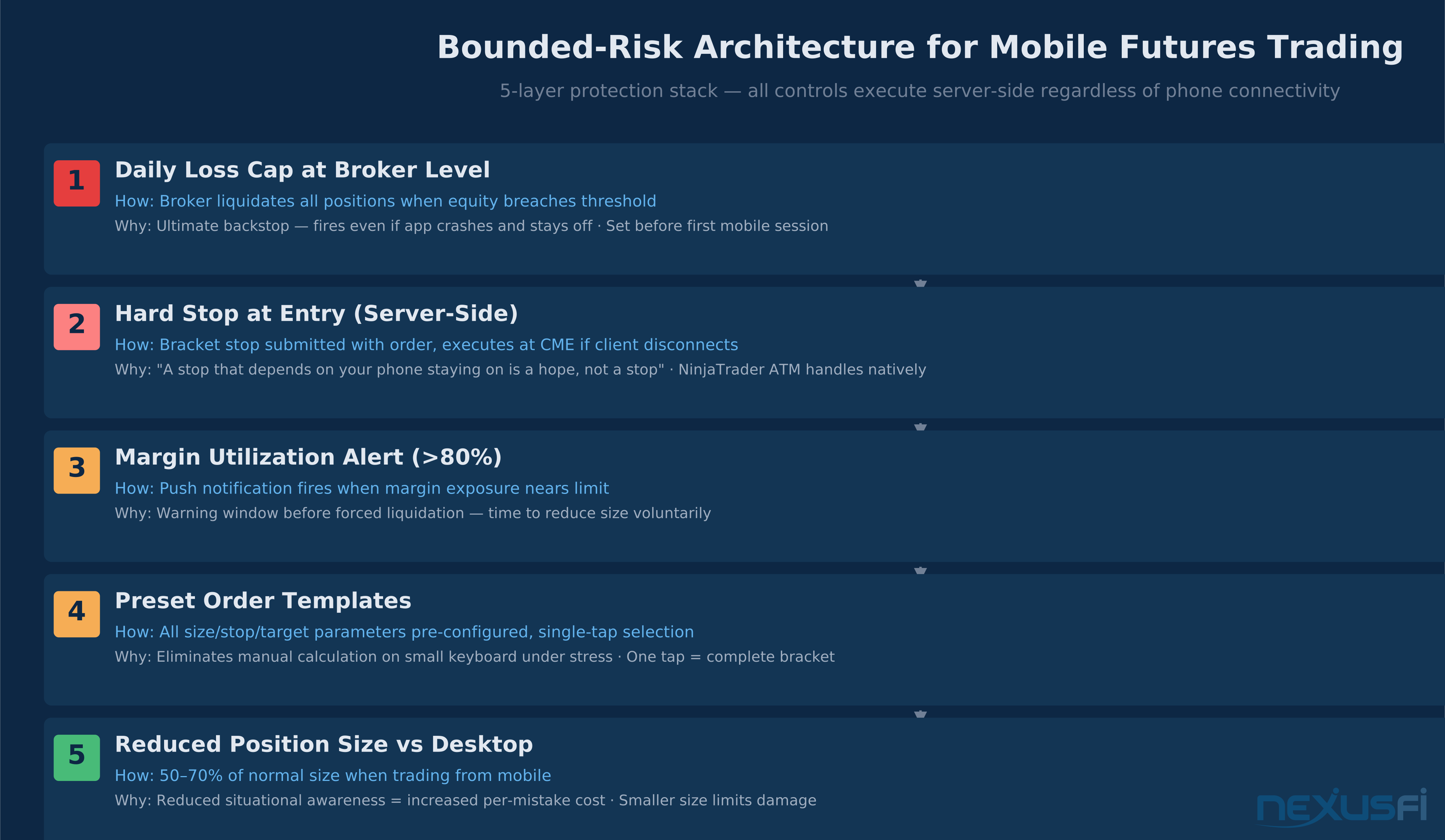
The bounded-risk stack for mobile trading:
1. Hard stops at the broker level. Enter your protective stop at the time of trade entry, not after you monitor the position for a few minutes. Server-side execution means the stop works even if your phone dies. NinjaTrader's ATM strategies do this natively — the entire bracket structure (entry, stop, target) is submitted as a server-executed package.
2. Preset order templates. Configure your standard risk parameters as saved templates before you leave the desk. "1 contract ES, -8 point stop, +12 point target" should be a single-tap selection, not something you calculate manually on a small keyboard. Calculation errors on mobile under stress are frequent. Templates eliminate them.
3. Daily loss cap at the broker level. Most major futures brokers allow a configured daily loss limit that triggers automatic position liquidation if equity breaches a threshold. Set it. This functions as the ultimate failsafe for scenarios where your phone connection drops while a position is moving against you. For funded account traders, this is doubly critical — prop firm drawdown rules make every connectivity-related execution error more expensive, because breaching a daily loss limit on mobile can trigger evaluation failure with no recovery path.
4. Position size reduction. Trade smaller on mobile than on desktop. Not because the market is different, but because your situational awareness is reduced. A DOM-based scalper who trades 10 contracts on desktop should be trading 2-3 on mobile while monitoring existing positions, not running an identical full-size strategy on a 6-inch screen.
5. Margin utilization alerts. Configure a push notification for when margin utilization exceeds 80% of allowance. This warning gives you time to reduce exposure before the broker forces a liquidation.
What mobile risk management looks like in practice: You enter a trade, and the broker-side bracket executes with your predefined stop and target. Your app shows you the position, the working exit orders, and your unrealized P/L. If your connection drops, the bracket keeps working. If you need to exit early, you tap once on the position, select "close at market" from the pre-built order menu, and it's done. If your app crashes, you reconnect on any device and all state is current because it's held server-side.
Position Monitoring and Alert Configuration #
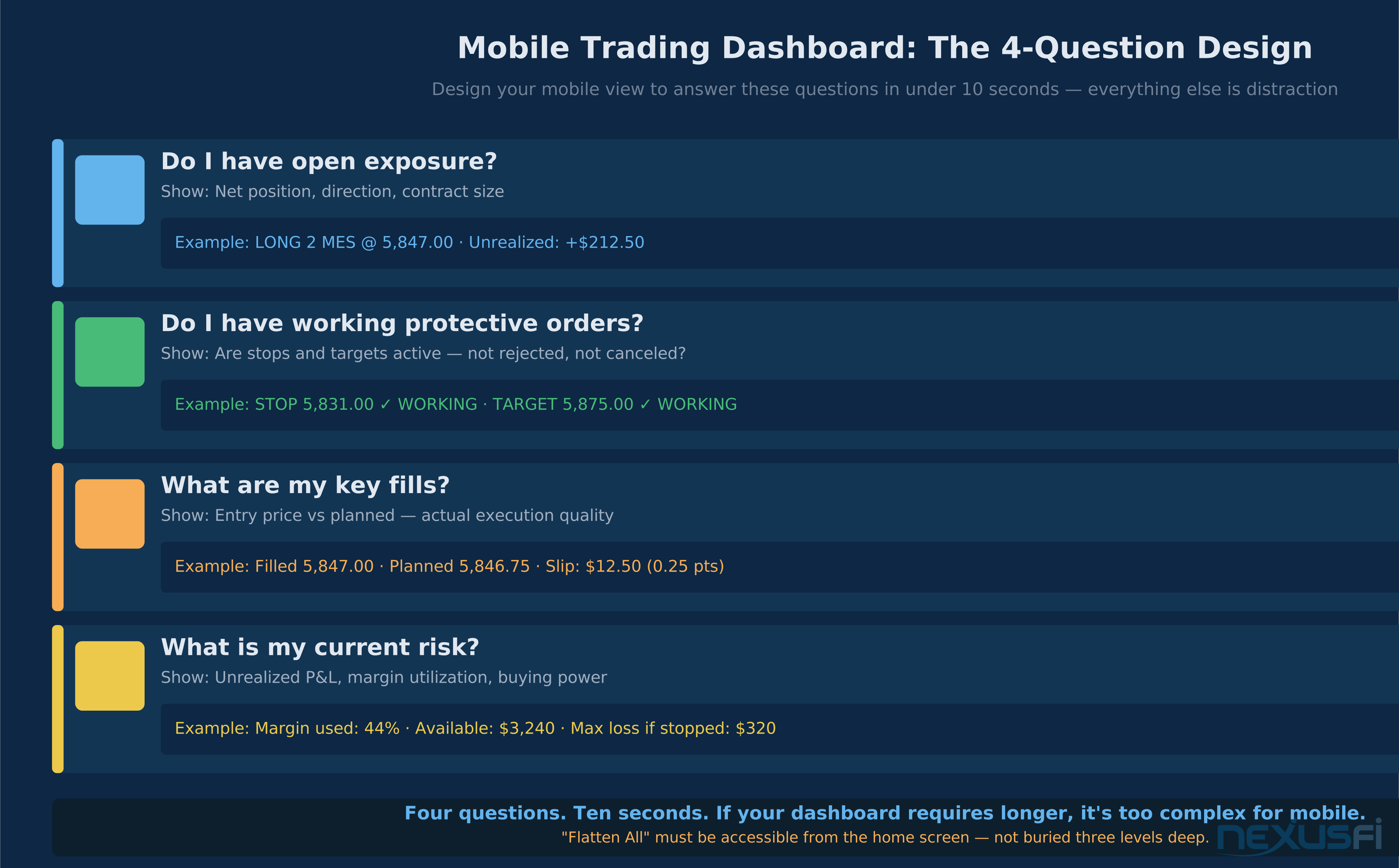
The goal of mobile monitoring isn't to replicate your desktop setup on a small screen. It's to answer four questions in under 10 seconds at any point during the day:
- Do I have open exposure? (Net position, direction, size)
- Do I have working protective orders? (Stops and targets active, not rejected or canceled)
- What are my key fills? (Entry price, actual fill versus planned)
- What is my current risk? (Unrealized P/L, margin utilization)
Design your mobile dashboard around those four questions. Anything that doesn't answer one of them is noise.
Recommended dashboard layout:
- Top bar: Net P/L, margin utilization percentage, available buying power
- Middle section: Real-time chart of primary contract (1-minute or 5-minute depending on your style)
- Bottom section: Position list with entry price, current price, unrealized P/L, stop price, target price
Alert configuration: More alerts is worse, not better. Alert fatigue causes the critical notifications to get missed. The minimum required alert set:
- Price alerts: Key levels you've pre-identified as decision points -- these trigger review, not automatic action
- Order status alerts: Submitted, filled, canceled, rejected. Especially rejected -- a failed stop entry is a silent crisis
- Protective order activation: Alert when your stop triggers or target fills -- this is a position change that requires confirmation
- Risk threshold: Margin utilization alert at your predefined threshold
Before traveling: configure one alert, verify you receive it on your phone with sound and vibration, then add the rest. A notification that fires without sound because your phone is on silent while traveling has failed its purpose.
@LDog's discussion in the Sierra Chart mobile thread covered the right framing: "Install SC on a VPS, then just pick a tablet that you like with Remote Desktop Protocol (RDP) capability and connect." This illustrates a key architectural choice — some traders solve mobile monitoring by running a full desktop platform on a remote machine and streaming it to their phone via RDP, rather than trying to replicate desktop functionality in a native mobile app. For complex strategies with extensive chart configurations, this can be the better approach.
Remote Desktop Access: When to Use It #
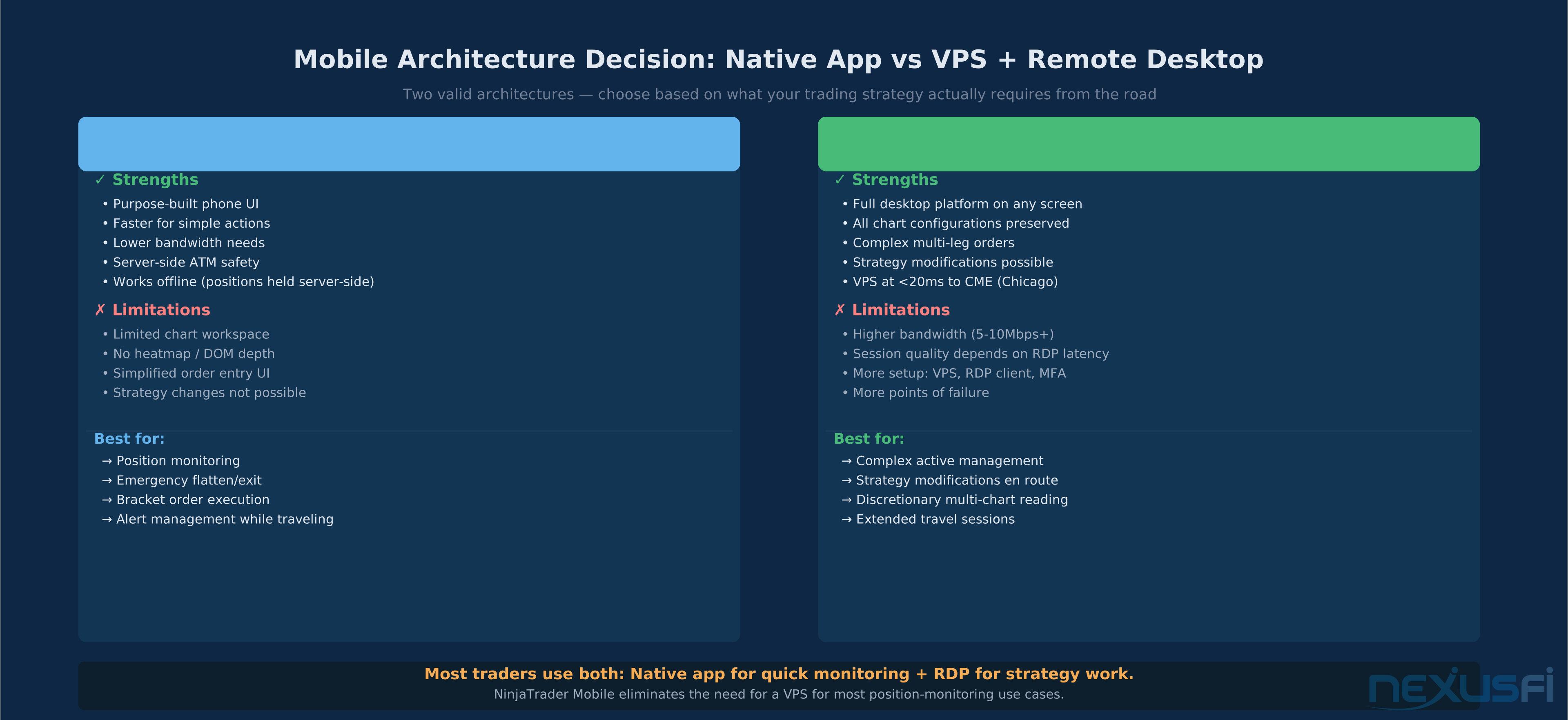
Native mobile apps give you a purpose-built interface optimized for phone-sized screens. Remote desktop gives you your full desktop platform on a smaller screen. The trade-off: native apps are faster and more reliable for simple actions, while remote desktop gives you access to everything you configured on desktop.
Use native mobile app for: Position monitoring, simple order entry with preset templates, alerts, and emergency exit commands.
Use remote desktop for: Strategy modifications, chart configuration, complex multi-leg order setups, anything that requires the full desktop environment.
The remote desktop architecture looks like this: your trading workstation (or VPS) runs your platform. You connect to it from your phone via an RDP or VNC client. The platform executes locally on the machine, and you see and control it from your phone. All orders and positions are held by the broker, not the remote machine, so even if your RDP session disconnects, open positions and working orders remain active.
For NinjaTrader users, Ninja Mobile Trader provides a purpose-built mobile interface that connects directly to NinjaTrader's cloud infrastructure. This means your NinjaTrader workspace, ATM strategies, and market data are accessible from any iOS or Android device without running a separate VPS or remote desktop session — the platform handles the cloud layer for you.
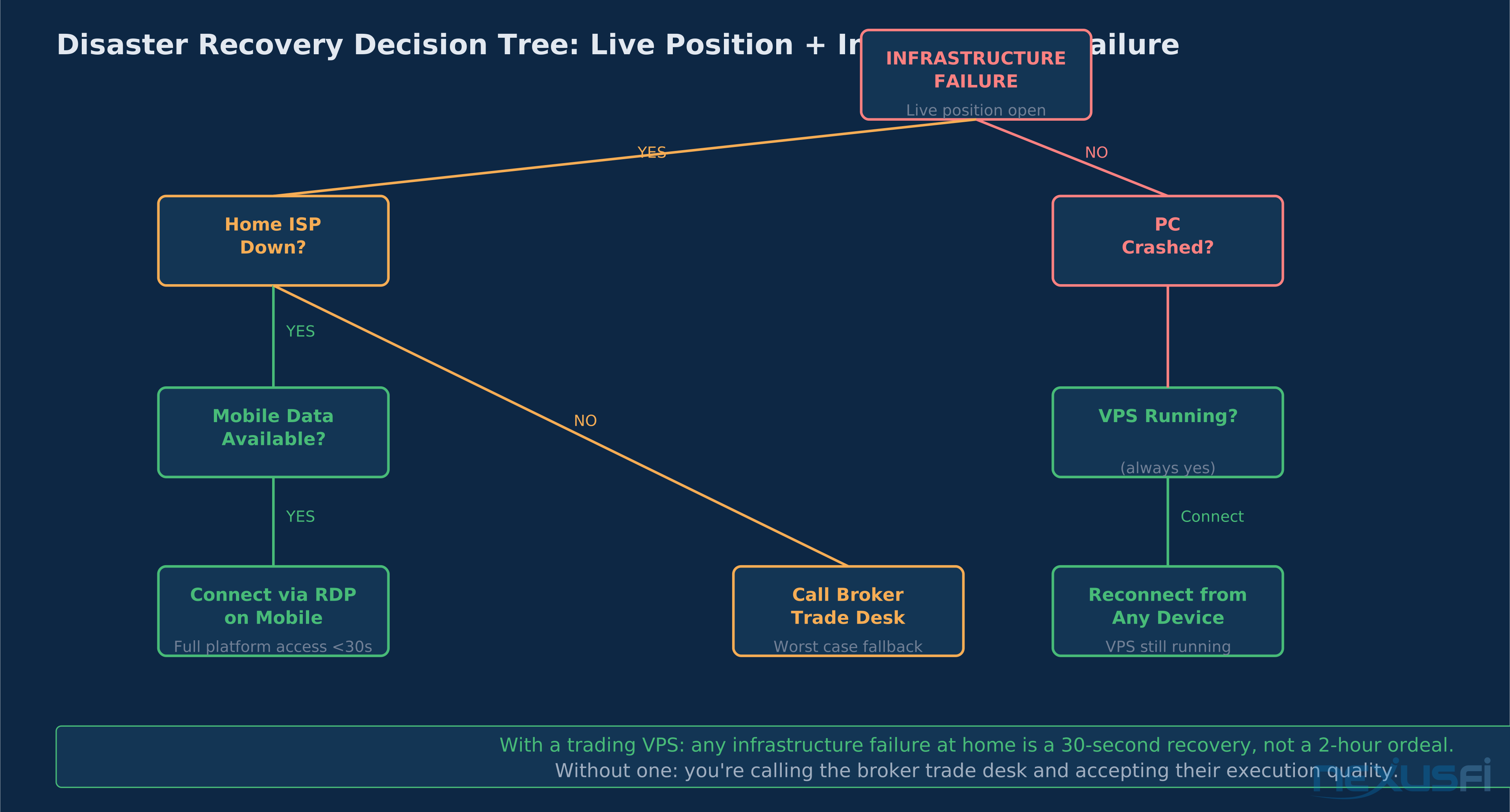
For other platforms, a dedicated VPS near the exchange (Chicago for CME-listed contracts) with remote desktop access is the standard architecture.
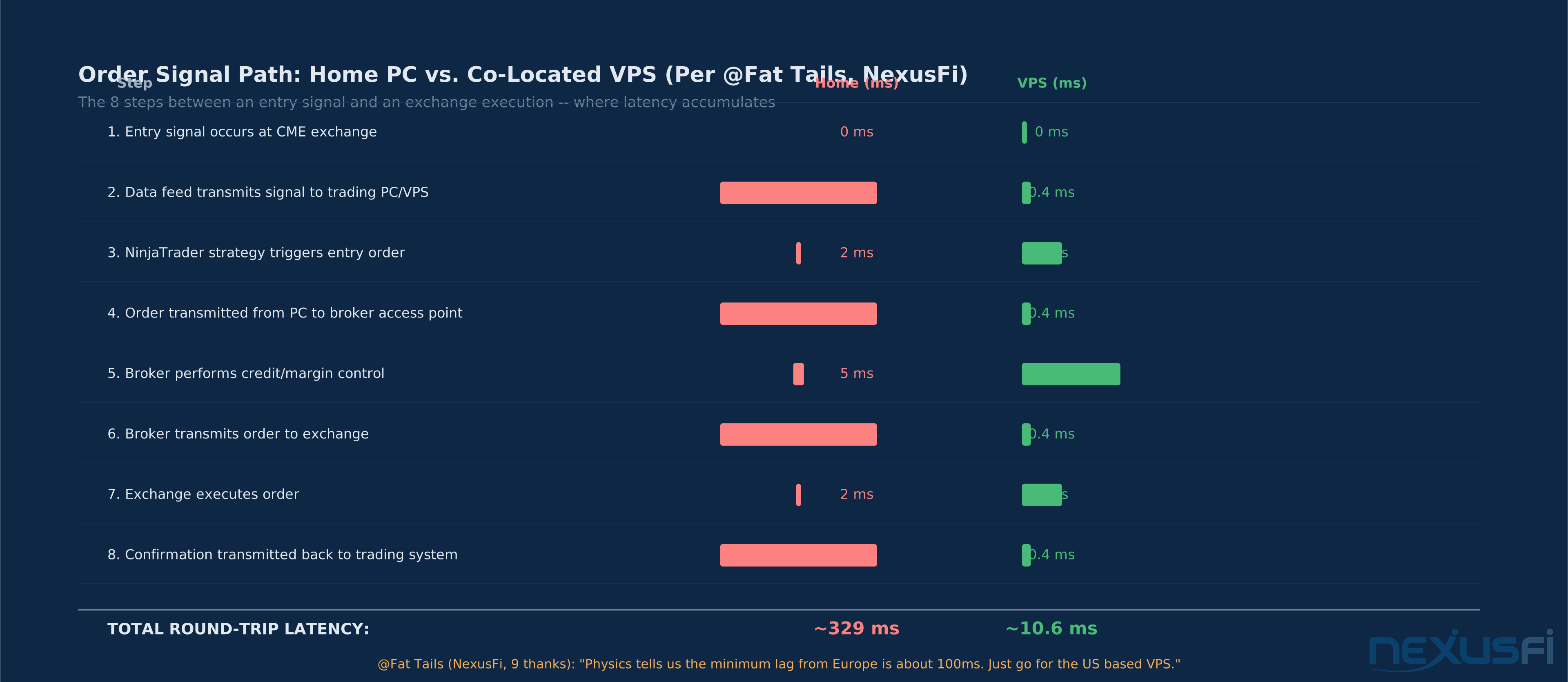
The VPS stays connected regardless of what happens to your local internet — and when you remote in from your phone, you're connecting to a machine with sub-20ms latency to CME rather than routing your orders through your phone's cellular connection.
VPS remote desktop pre-travel checklist:
- Verify the VPS or workstation won't sleep while you're gone (power settings, sleep timers)
- Confirm your MFA for remote desktop login works from a mobile device -- VPN tokens and authenticator apps can behave differently from mobile
- Test the full workflow: connect, work through to your platform, place a simulated order, close the session, reconnect
- Keep a cellular data connection as backup for the remote desktop session -- hotel Wi-Fi failure would cut off both your RDP and any direct mobile app access simultaneously without cellular backup
Emergency Procedures: When Connection Drops Mid-Trade #
This section exists because every mobile trader will eventually lose connectivity while in a position. The traders who handle it well have thought through the procedure before the crisis, not during it.
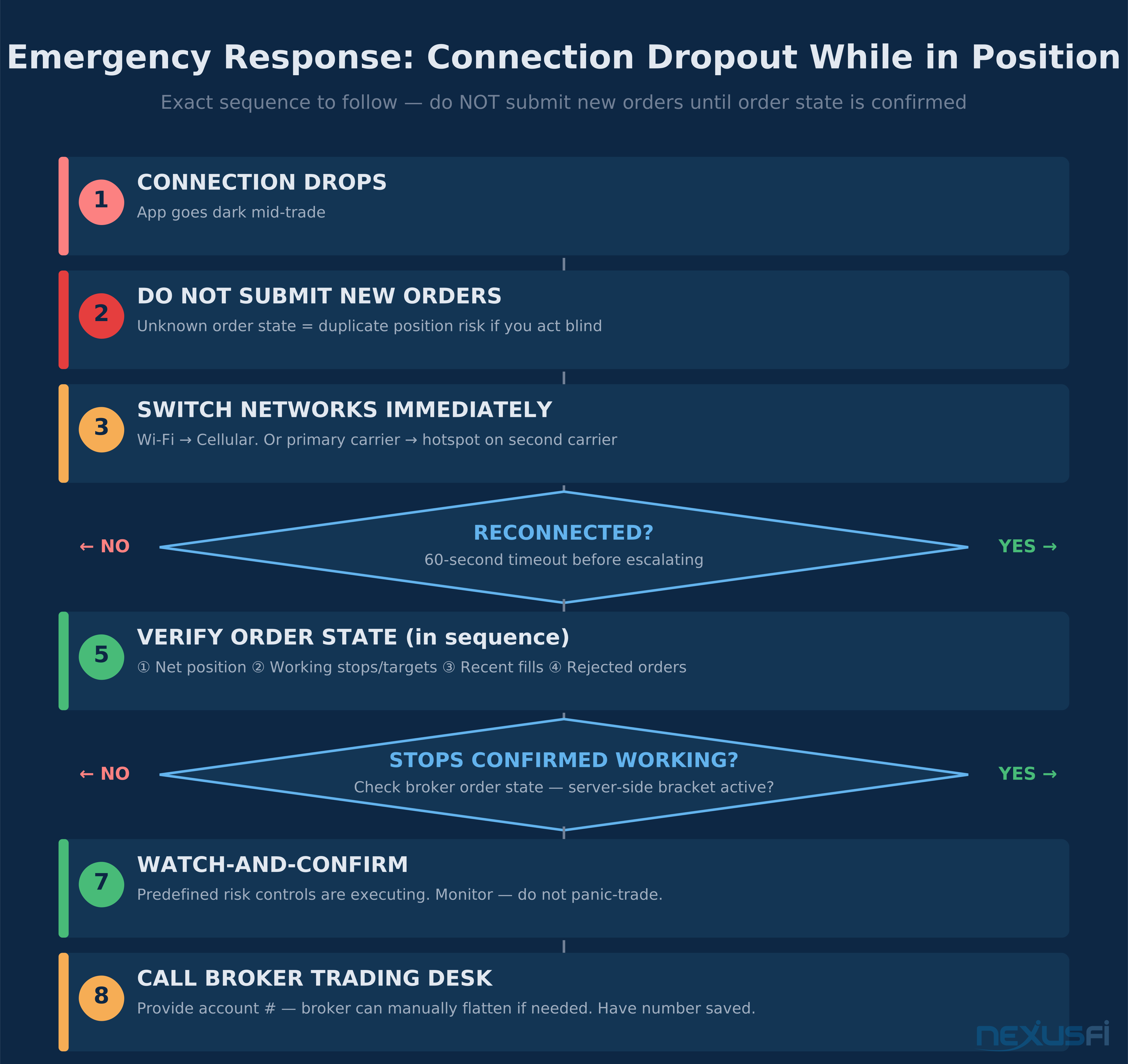
The fundamental principle: Do not assume you are flat when you lose connectivity. Orders placed before the disconnect continue executing server-side at the broker and exchange level. Your app going offline does not cancel your orders.
Immediate action sequence when connectivity drops:
- Do not submit new orders. If you lost connection mid-trade and can't see current order state, submitting new orders risks doubling your position or creating conflicting exits.
- Switch networks immediately. If on Wi-Fi, switch to cellular. If on one cellular carrier, try a mobile hotspot or secondary device on a different carrier. When falling back to public or unfamiliar networks, keep trading cybersecurity basics in mind -- but restoring connectivity to verify order state takes priority over network security in a live position.
- Once reconnected, verify in order:
- Current net position (what am I actually holding?)
- Working orders (are my stops and targets still active? not rejected, not canceled?)
- Recent fills (did any orders execute while I was disconnected?)
- Any rejected or canceled orders (did my protective stop get rejected?)
- Enter watch-confirm mode. Before placing any new orders, verify the full current state. Then decide what to do.
If you cannot reconnect within 60 seconds:
- Use a secondary device (tablet, laptop, another phone) logged into the same broker account to check order state
- If still unable to access order state: call your broker's emergency trading desk. The number should be saved in your phone's contacts before you leave home. Brokers can manually cancel or flatten positions if you provide your account information. Under NFA Compliance Rule 2-38, every FCM is required to maintain a business continuity and disaster recovery plan "reasonably designed to enable the Member to continue operating" during disruptions -- your broker's trade desk exists precisely for this scenario.
- If your protective stops are confirmed working server-side and the position is within your risk parameters: monitor, don't panic-trade. Your predefined risk controls are executing.
The scenario where mobile traders get hurt: You're in a position. Connection drops. You try reconnecting, fail, submit another flatten order on a second device, reconnect on the first device and submit another flatten. Now you're short twice when you meant to be flat. The discipline is to verify before acting — every time.
Pre-trade fail-safe configuration: Before any travel session, verify that your protective stops are entered and showing as "working" status in the order state. One check before you leave the desk prevents every emergency scenario.
Before traveling: confirm working stop status. "I'll put a stop in when I get there" means you don't have a stop. Fast markets don't wait.
The Honest Limitations: What Mobile Still Can't Do #
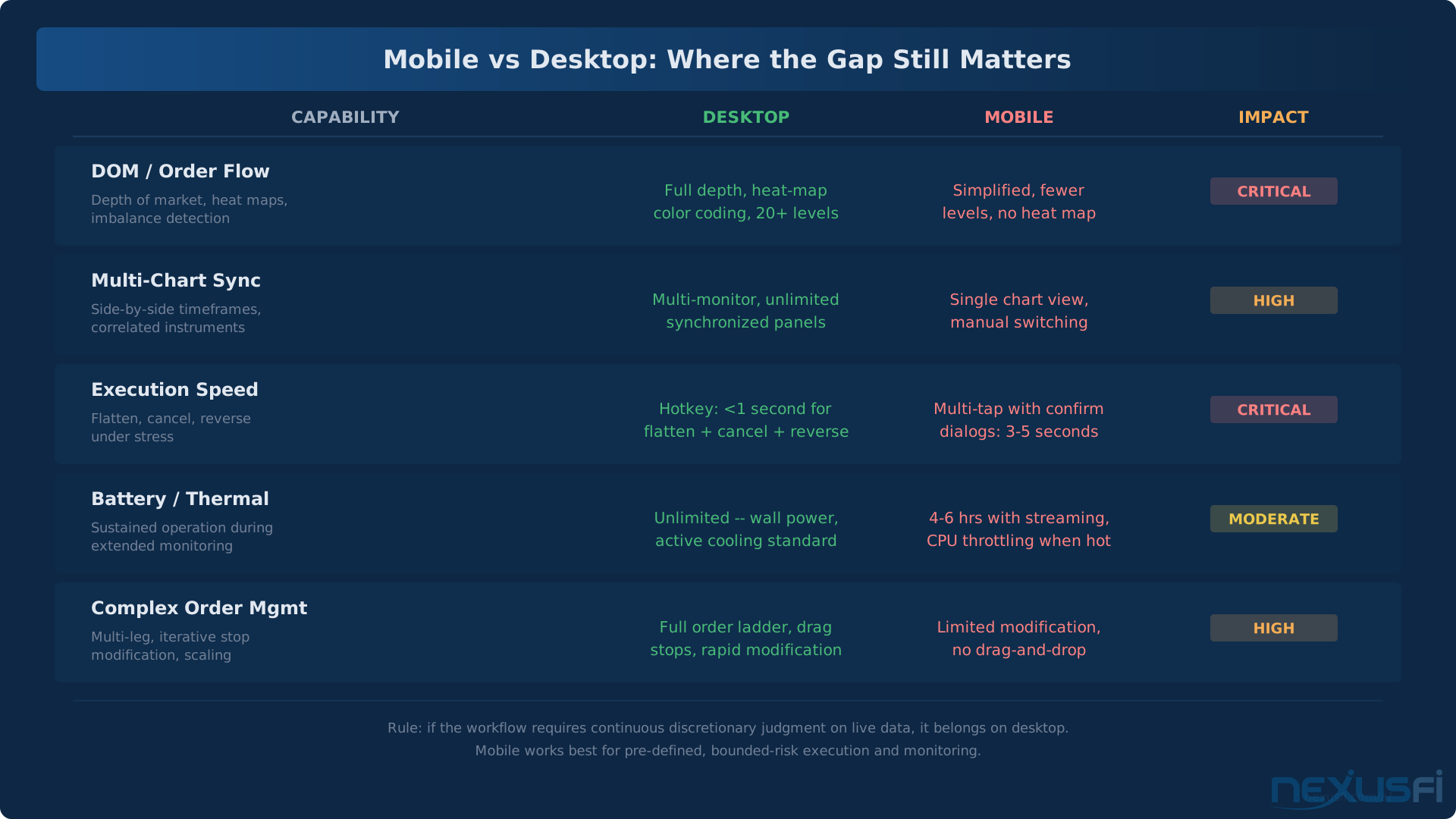
Acknowledging what mobile doesn't do well is the same as knowing when not to use it. This section isn't meant to discourage mobile trading — it's meant to keep you from putting a DOM scalping strategy on a phone screen and being surprised when it doesn't work.
DOM/order flow visibility: Mobile DOM views are simplified — fewer price levels, no heat-map color coding of order flow imbalances, compressed bid/ask visualization. If your strategy depends on reading the tape at a granular level, the mobile DOM won't give you what you need. This doesn't mean mobile can't support order-flow-aware trading, but your decision criteria should be pre-formed on desktop, and mobile is for execution of pre-identified setups, not live order flow reading.
Multi-chart synchronization: Seeing ES and MES side-by-side, or a 5-minute and 15-minute of the same contract simultaneously, is standard on desktop and impractical on phone. Tablet-sized screens partially solve this, but the multi-workspace desktop experience doesn't compress well.
Speed under stress: A desktop trader using hotkeys can flatten a position, cancel all orders, and reverse in under a second. The same sequence on mobile involves multiple taps with visual confirmation dialogs at each step. In a genuinely fast market, those additional seconds matter. Design your mobile workflow so that the most critical action (flatten/emergency exit) requires the fewest taps. The "Flatten All" button should be accessible from the home screen of your app, not buried three layers deep.
Battery and thermal management: Continuous real-time data streaming drains phone batteries faster than most use cases. In a 6-hour travel day with active monitoring, you'll burn through a charge. Bring a portable charger. Some phones also throttle processor performance when hot, which can cause app slowdowns in conditions where you need reliability most.
What this means practically: Mobile trading works best when your strategy has defined, pre-built entry and exit conditions that don't require continuous discretionary judgment. The more your approach depends on "reading" the current market state in detail, the more you'll miss on mobile. The more it depends on "reacting when a pre-identified condition occurs," the better mobile fits.
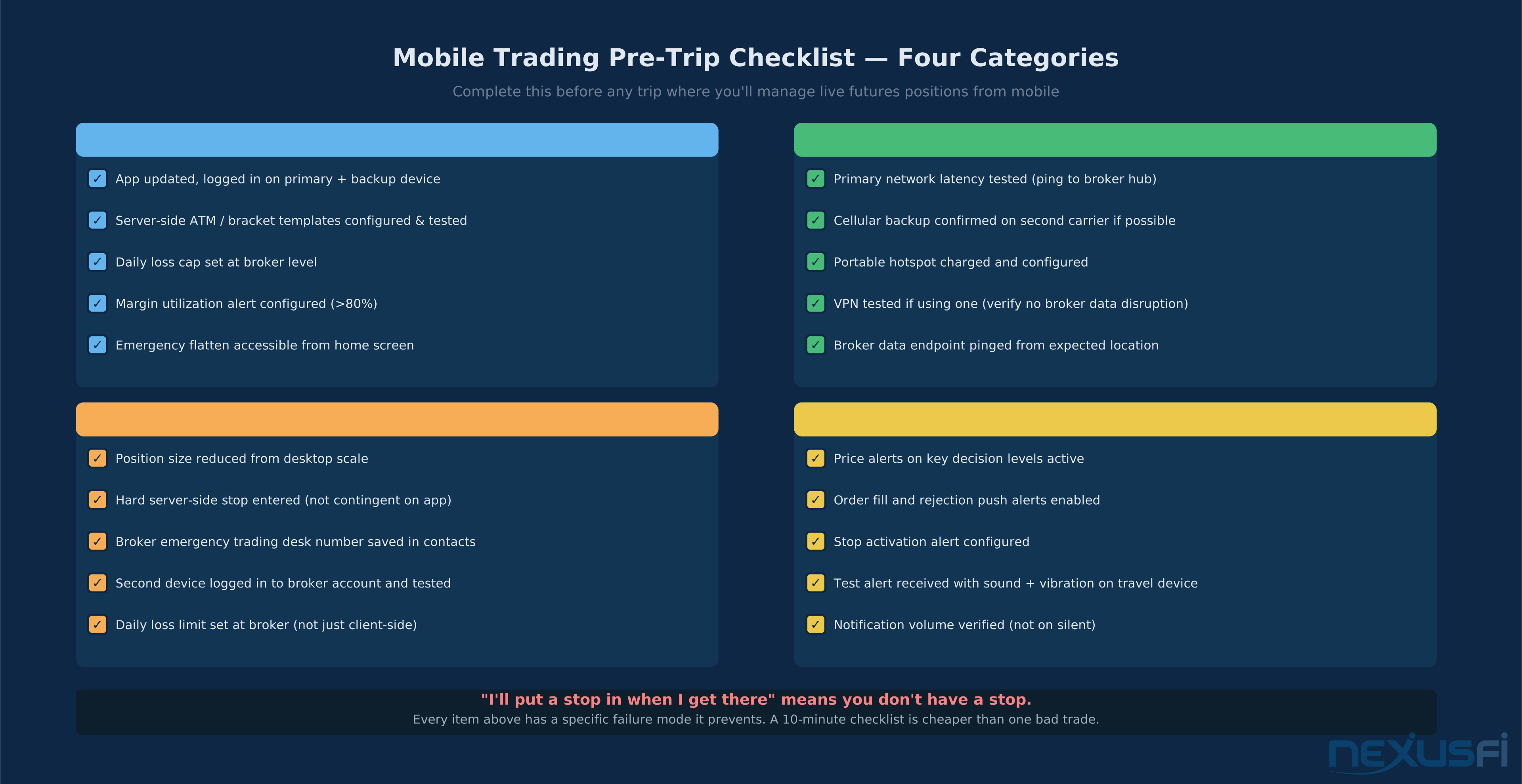
Complete Mobile Trading Setup Checklist #
Work through this before any trip where you'll be managing live futures positions from mobile.
Platform setup:
- Mobile app installed, updated, and logged in on primary and backup devices
- Server-side ATM strategies or bracket order templates configured and tested
- Daily loss cap set at the broker level
- Margin utilization alert configured
- Order state visibility confirmed (positions + working orders visible simultaneously)
- Emergency flatten function accessible from home screen (not buried in menus)
Network setup:
- Tested primary network connection: latency ≤80ms, jitter acceptable
- Cellular backup confirmed on different carrier if possible
- Portable hotspot charged and configured
- VPN tested if using one (verify it doesn't disrupt broker data connection)
- Broker data endpoint pinged from expected location
Risk setup:
- Position size reduced from desktop scale if applicable
- Hard stop entered (not conditional on client connection) before departure
- Broker emergency trading desk number saved in contacts
- Secondary device logged into broker account and tested
Alert setup:
- Price alerts on key decision levels active
- Order fill and rejection alerts enabled
- Stop activation alert enabled
- Test: received one test alert with sound and vibration on the device you're traveling with
Knowledge Map
Go Deeper
Build on this knowledgeReferences This Article
Articles that build on this topicCitations
- — New NinjaTrader (2023) 👍 3“cloud-based trading infrastructure and integrated multi-device trading through NinjaTrader Web and Mobile”
- — New NinjaTrader (2023) 👍 2“The one thing I really dislike and find concerning in the mobile app are the achievements -- sending the wrong signals”
- — New NinjaTrader (2023) 👍 1“ATMs work server side so if any platform is disconnected, the server will handle”
- — Optimus Futures trading broker review (2014) 👍 3“Rithmic-based solution for Mobile Trading for Android and Apple -- standalone or in conjunction with any Rithmic-driven platform”
- — Trading futures over 5G network (2022) 👍 2“There is Starlink over there if you need a fast connection anywhere in the world -- install the Starlink kit on your camper and you are good to go”
- — Tell me about internet speed (2018) 👍 4“Many traders have backup-internet connections, backup-electricity to keep their computer and internet running -- I rather get a similar level of stability from the remote solution”
- — Asian Session Traders (MJNK, N225M, HSI, HHI, MSI, MCH, KOSPI, SPI) (2020) 👍 2“NEVER trade using a wireless connection to your router -- you will get CQG disconnections”
- — Phone or Tablet Option (2017) 👍 3“Install SC on a VPS, then just pick a tablet that you like with Remote Desktop Protocol capability and connect to your VPS”
- — Need imput from long time traders (2013) 👍 4“Sounds like you might be a candidate for a VPS -- if your local internet connection goes down, you can connect using your smartphone to monitor open positions”
- — Support.ninjatrader.com (2025)
- — Nfa.futures.org (2019)