



Windows OS Optimization for Futures Traders: Performance, Latency, and Stability
Overview #
Most futures traders spend thousands on hardware — fast CPUs, NVMe drives, multiple monitors — then run their platform on a stock Windows install configured for a general-purpose office computer. The default Windows settings are designed to conserve battery life on laptops, prioritize background services, and look good on a demo machine. They are not designed to submit orders in 2 milliseconds or handle 50,000 tick events per hour without dropping a beat.
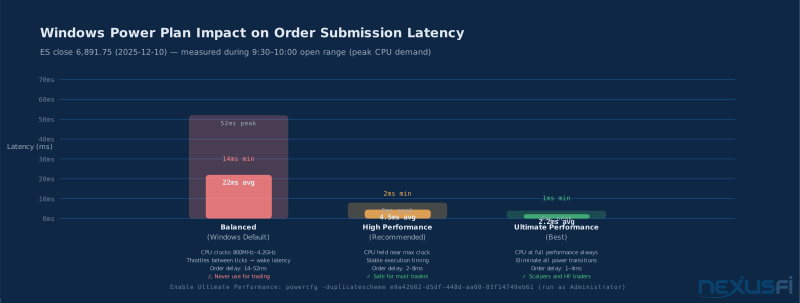
The gap between what Windows does out of the box and what it can do when properly configured for trading is not trivial. During the 9:30 AM market open, a Balanced power plan can introduce 14--52ms spikes in order submission latency every time the CPU downclocks between ticks. Windows Search, scanning your NinjaTrader data folder on every write, competes for disk I/O exactly when NinjaTrader needs to log a fill. Energy Efficient Ethernet on your NIC shuts down the link during quiet pre-news periods and wakes it 5--50ms after the move has already started.
None of these are dramatic failures. Individually they're hard to notice. Collectively, they're the difference between a consistently responsive platform and one that occasionally hangs for half a second during the moments that matter most.
This guide covers everything: Windows power settings, process priority, network adapter configuration, services to disable, antivirus exclusions, BIOS settings, and the correct sequence to implement changes without breaking anything. The goal is not maximum theoretical speed — it's consistent, predictable, low-jitter execution during the moments when markets move fastest.
The Foundation: What You're Actually Optimizing #
Before touching a single setting, understand what you're optimizing for. Futures day trading has different performance requirements than gaming, video editing, or general computing.
Order submission latency — time from mouse click (or strategy signal) to broker acknowledgment. For most retail futures traders, the acceptable range is 1--20ms. Above 30ms consistently, you're losing edge on fast entries. Above 50ms, you're getting filled at much worse prices on volatile entries.
Tick processing consistency — NinjaTrader receives thousands of tick events per hour. Each one must be processed by your indicators, charts, and strategies. If CPU scheduling is inconsistent, ticks pile up in a queue, and your DOM shows prices 1--2 seconds stale during fast moves.
Execution determinism — you want the same action to produce the same result every time. When background processes steal CPU cycles randomly, execution time becomes non-deterministic. You click to exit, and sometimes it submits instantly, sometimes it waits 400ms while Windows Update checks for patches.
Network jitter — variance in packet delivery timing is often more important than average latency. A consistent 15ms round-trip to your broker is better than an average of 8ms with occasional 80ms spikes. Jitter makes charts appear to "jump" and causes fill prices to diverge from what you saw on screen.
NexusFi member @quantera, in a highly referenced thread on NT8 performance, found that hardware alone doesn't solve performance issues: CPU clock speed matters more than core count (a 4.2GHz 4-core outperforms a 2.9GHz 8-core for NinjaTrader), and M.2 NVMe drives provide significant advantages over SATA SSDs for data-intensive backtesting. The same principles apply to live trading.
Step 1: Measure Your Baseline Before Touching Anything #
This step is mandatory. Without a baseline measurement, you'll never know if your changes actually helped — or whether a setting change broke something subtle.
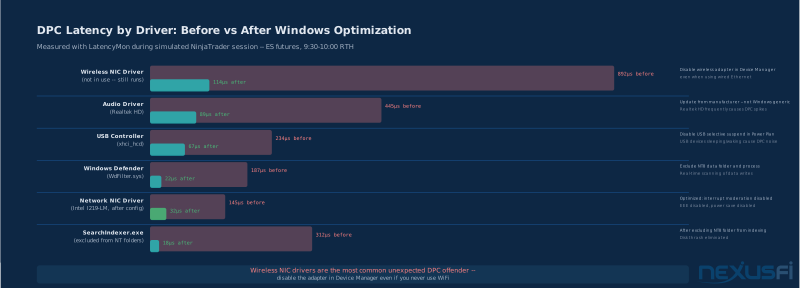
LatencyMon (Resplendence Software, free) is the essential diagnostic tool. It identifies which Windows drivers are causing DPC (Deferred Procedure Call) latency — the most common source of OS-level timing jitter on trading computers. Run it for 10--15 minutes during a simulated trading session and look for:
- Highest DPC latency: Anything above 300μs deserves investigation
- DPC latency spikes: Periodic spikes suggest background process interrupts
- Offending drivers: Most common culprits are wireless NIC drivers (even if you use wired Ethernet — disable the wireless driver), audio drivers, and USB controller drivers
Network baseline: Ping your broker's order servers continuously for 30 minutes. Don't look at average — look at the highest spike and the standard deviation. A 10ms average with a 200ms max-spike means your connection has serious jitter that no OS setting will fix.
CPU usage during trading: Open Task Manager → Performance → CPU during a live or simulated trading session. If you're hitting 60--70% CPU before adding any background processes, your hardware is undersized and OS optimization will help less.
Document everything before you start: DPC max latency, ping average/max/jitter, CPU% at rest, CPU% during peak trading. This gives you a comparison point after each change.
Step 2: Windows Power Plan -- The Highest-Impact Single Setting #
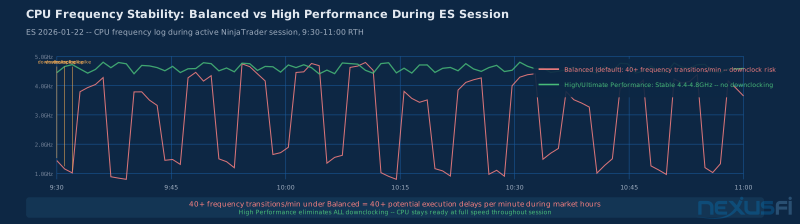
The Windows Power Plan controls how aggressively Windows allows your CPU to throttle down during low-activity periods. The default "Balanced" plan is designed to save energy on laptops by scaling CPU frequency between roughly 800MHz and the CPU's maximum. For a desktop trading computer that's plugged in all day, this makes no sense.
The problem with Balanced: Your CPU doesn't know it's about to receive a burst of tick data. It's idling between ticks. Then a news event fires 50,000 ticks in 200ms. The CPU needs to ramp from 800MHz to 4.2GHz — that transition takes 15--40ms. During that time, NinjaTrader is waiting. Your indicators are frozen. Your order hasn't submitted yet.
High Performance eliminates most of this. It keeps the CPU at or near maximum clock speed at all times. Order submission latency drops to 2--8ms. The tradeoff is higher power consumption — irrelevant on a desktop plugged into the wall.
Ultimate Performance goes further, eliminating additional micro-management of power states. Available on Windows 10/11 Pro and Enterprise (not Home). Enable via PowerShell (run as Administrator):
powercfg -duplicatescheme e9a42b02-d5df-448d-aa00-03f14749eb61This creates the Ultimate Performance scheme in your Power Options — select it and apply.
Sub-settings that matter within your chosen plan:
- Minimum processor state: Set to 100%. This is the floor — it never downclocks.
- Maximum processor state: Also 100%. No ceiling throttling.
- PCI Express → Link State Power Management: Set to Off. Prevents PCIe devices (including your NIC) from entering power-save states.
- USB selective suspend: Disabled. USB devices sleeping and waking create interrupt latency.
- Hard disk → Turn off after: Never (during market hours).
NexusFi member @syswizard, who trades ES with a 1Gbps wired connection, explicitly called out wired connections and elevated process priority as the two non-negotiable requirements — the power plan being the OS-level foundation that everything else builds on.
Step 3: Network Adapter Configuration #
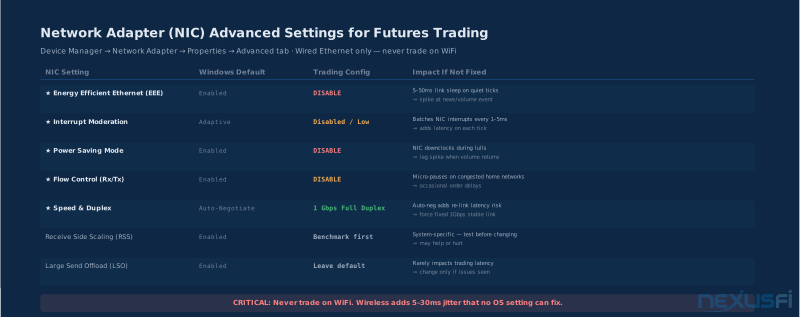
Network optimization is where most trading-focused Windows guides stop at "use wired Ethernet." That's necessary but not sufficient. Your NIC has a dozen advanced settings that significantly impact trading performance.
Energy Efficient Ethernet (EEE): The biggest hidden latency source most traders never diagnose. EEE allows the NIC to put the Ethernet link into a low-power state during quiet periods. Pre-news trading is a quiet period. When the data burst hits, the link has to wake up — this takes 5--50ms. You miss the first tick of the move, or your order submission collides with a partial wake.
Set EEE to Disabled. No exceptions for a trading NIC.
Interrupt Moderation: Controls how aggressively the NIC batches interrupts before notifying the CPU. High moderation means fewer CPU wakeups but ticks wait up to 5ms in the batch queue. Low moderation means ticks arrive faster but higher CPU load.
For most trading setups with modern CPUs: set to Disabled or Low. If CPU usage spikes noticeably, try Low before going to Disabled.
Power Saving / Wake on LAN: Disable all NIC power management options. The adapter should be at full power whenever the computer is on.
Flow Control: Disable on both transmit and receive. Flow control pauses introduce micro-delays on congested home network segments.
Speed & Duplex: Force to 1.0 Gbps Full Duplex rather than Auto-Negotiate. Auto-negotiation adds renegotiation risk if the link drops and re-establishes mid-session.
Receive Side Scaling (RSS): System-specific. RSS spreads NIC interrupt processing across multiple CPU cores — can improve throughput for some setups, add cross-core scheduling overhead for others. Benchmark before changing this one.
System-level setting: Disable TCP auto-tuning via Command Prompt (Administrator):
netsh interface tcp set global autotuninglevel=disabled@Jigsaw Trading documented in their detailed NinjaTrader tuning guide — one of the most-thanked technical posts in NexusFi's NinjaTrader forum — that disk I/O and antivirus scanning were the primary performance killers in most NT setups, with network configuration being the second most impactful area after hardware.
Step 4: Process Priority -- Setting NinjaTrader to High #
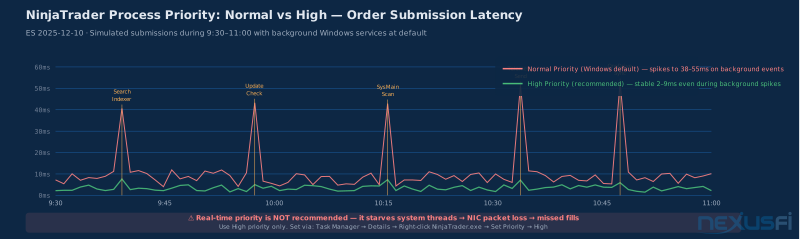
Windows assigns each process a priority level that determines how aggressively the CPU scheduler allocates time to it. By default, NinjaTrader runs at Normal priority — competing equally with Windows Update, your browser, OneDrive, and every other process on your computer.
When a background process spikes (search indexer kicks in, telemetry sends data), it competes for the same CPU cycles as NinjaTrader's order execution thread. The result is irregular latency — most of the time things run fine, then randomly a 400ms freeze occurs when a fill should have been processing.
Set NinjaTrader to High priority (not Real-time — see warning below):
- Open Task Manager (Ctrl+Shift+Esc)
- Go to the Details tab
- Right-click NinjaTrader.exe
- Select Set Priority → High
This resets on every restart. NexusFi member @jtrade shared a permanent solution — create a shortcut that launches NinjaTrader with Above Normal priority automatically:
cmd /c start "" /abovenormal "C:\Program Files (x86)\NinjaTrader 8\bin64\NinjaTrader.exe"Replace your regular NT8 shortcut with this command to ensure it always starts with elevated priority.
Why NOT Real-time priority: Real-time means the process gets CPU time before system-level threads — including NIC driver threads. When NT holds Real-time priority and processes a burst of ticks, it can literally starve the network stack of CPU cycles, causing packet drops. You'll see this as fills that never confirm, or the DOM freezing for 2--3 seconds during fast markets. High priority gives NT precedence over most background processes while still yielding to essential system threads.
Real-time priority will hurt you. NinjaTrader at Real-time starves NIC driver threads, causing packet drops during fast markets. The DOM freezes for 2--3 seconds exactly when you need clean order routing. Use High priority, not Real-time — the difference is 2ms per tick vs. dropped fills.
@glennts, describing NT8 behavior during ES volume surges in a widely-read forum thread, noted that NT uses a split data stream — one for charts and one for execution — and that priority settings affect which stream gets CPU preference during rendering spikes.
Step 5: Windows Services to Disable During Trading #
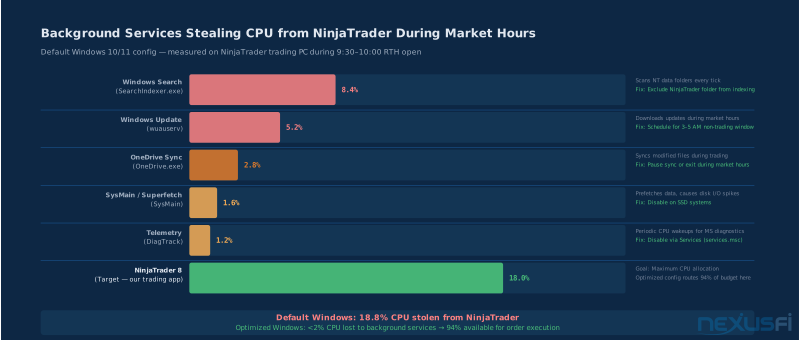
Windows runs dozens of background services. A handful of them wake up at the worst possible times and compete with your trading platform.
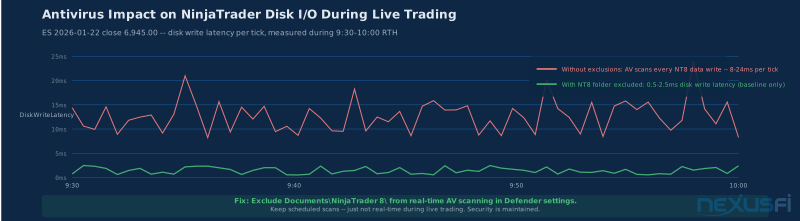
Windows Search / Search Indexer (SearchIndexer.exe): The single biggest offender. Windows Search continuously indexes your documents folder, including the NinjaTrader 8 data folder where every tick, fill, and order is written. On every write to that folder, the indexer fires and scans the file. During active trading, this creates continuous disk contention.
Fix: Exclude the NinjaTrader data folder from indexing. In Windows Settings → Search → Searching Windows → Add an excluded folder → add your NinjaTrader 8 documents path. Alternatively, disable Windows Search entirely via services.msc if you don't need desktop file search.
NexusFi member @Zondor, who has posted some of the most technically precise NinjaTrader optimization content on the forum, called this out explicitly: excluding NT data folders from both antivirus scanning and Windows indexing is "really important" and causes a "severe performance hit" when ignored.
Windows Update (wuauserv): Downloads in the background during market hours, consuming network bandwidth and disk I/O for installation. Configure Active Hours in Windows Settings → Windows Update → Advanced Options to your trading window. Updates will install outside those hours.
SysMain (formerly Superfetch): Preloads frequently-used applications into RAM. On SSD systems, this is mostly unnecessary and creates periodic disk I/O spikes. Disable via services.msc if you're on SSD.
Background Intelligent Transfer Service (BITS): Handles background downloads for Windows Update and Microsoft services. Set to Manual startup to prevent constant background activity.
OneDrive / Cloud Sync: Watches your documents folder and uploads changes to cloud storage. Creates constant NIC traffic and disk I/O during trading. Pause sync during market hours or move your NinjaTrader data folder outside the synced directory.
Telemetry / DiagTrack: Windows sends diagnostic data to Microsoft periodically, creating CPU and network spikes at irregular intervals. Disable via services.msc → Connected User Experiences and Telemetry → Startup Type → Disabled.
Keep enabled: Windows Defender (configured with exclusions — see Step 6), Windows Audio (for trade alerts), DNS Client, and DHCP Client.
Step 6: Antivirus Configuration -- Exclusions, Not Disabling #
Completely disabling antivirus on a trading computer is a poor trade. Futures trading accounts are high-value targets. Credential theft, keyloggers, or ransomware on a live trading machine has consequences that dwarf any performance gain from running unprotected.
The right approach: configure your antivirus to exclude NinjaTrader's data folders and processes from real-time scanning.
Modern antivirus uses real-time scanning — every file write triggers a scan. NinjaTrader writes to its data folder on every tick during replay and on every fill during live trading. Each write triggering a scan means continuous I/O overhead proportional to your tick flow.
Folders to exclude from real-time scanning:
C:\Users\[YourName]\Documents\NinjaTrader 8\(NT data, databases, logs)C:\Program Files (x86)\NinjaTrader 8\(NT8 application files)- Your data feed's data folder (IQFeed, CQG, Rithmic, etc.)
Processes to exclude:
NinjaTrader.exe- Your data feed client executable (e.g.,
iqconnect.exefor IQFeed)
This was one of the core insights from @Jigsaw Trading's NT tuning post — configuring Windows Defender to exclude NT processes and data folders eliminates a major source of disk thrash during active trading. Also called out by @Zondor in the NT lessons learned thread where he described the performance hit as "severe."
After exclusions: Run scheduled full system scans during non-trading hours. Scan everything thoroughly once a day — just not during RTH.
Step 7: Visual Effects and Display Settings #
Windows transparency, animations, and shadow effects consume GPU cycles and occasionally CPU cycles. During fast trading sessions, you want charts rendering at maximum speed.
In Control Panel → System → Advanced System Settings → Performance Settings, select "Adjust for best performance" then manually re-enable:
- Smooth edges of screen fonts (readability matters for reading prices)
- Show thumbnails instead of icons
Disable everything else: transparency effects, window animations, shadows under windows, fade effects, slide effects.
In Windows Settings → System → Display → Graphics Settings, set NinjaTrader to use your dedicated GPU in "High performance" mode if you have discrete graphics.
Step 8: Storage Optimization #
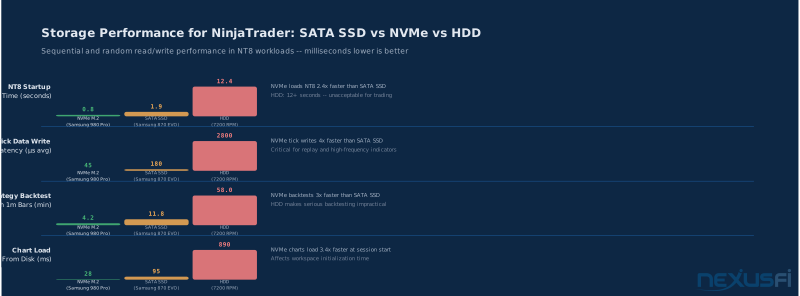
NVMe SSD for NinjaTrader: Install NinjaTrader and its data folder on your fastest drive. The performance gap between SATA SSD and NVMe matters less for real-time trading than for backtesting, but it still affects how quickly NinjaTrader logs fills and writes indicator data.
Disable SSD defragmentation scheduling: Windows sometimes schedules defragmentation for SSDs. This is counterproductive — SSDs don't benefit from defragmentation and wear slightly faster from excessive writes. Verify Defragment and Optimize Drives uses TRIM for your SSDs, not defrag.
Page file configuration: With 32GB or more RAM, consider setting a fixed-size page file rather than letting Windows auto-manage it. Auto-management means the page file can grow and shrink, creating disk activity at random times. @quantera's detailed performance analysis found that moving the page file to a dedicated low-latency NVMe drive made a significant difference for memory-intensive scenarios — moving from SSD to Intel Optane M.2 for the page file eliminated random memory-pressure stalls entirely in his testing.
NinjaTrader database maintenance: NT8 writes fills and order data to an internal SQL Server Compact database. Over time, this database grows and writes become slower. Clear old data periodically: NinjaTrader Control Center → Tools → Options → Data → Reset DB. Do this during non-trading periods. @Jigsaw Trading identified this as the source of growing fill confirmation delays in their tuning guide — the delay gets worse over months as the database accumulates data.
Step 9: BIOS/UEFI Settings for Trading Desktops #
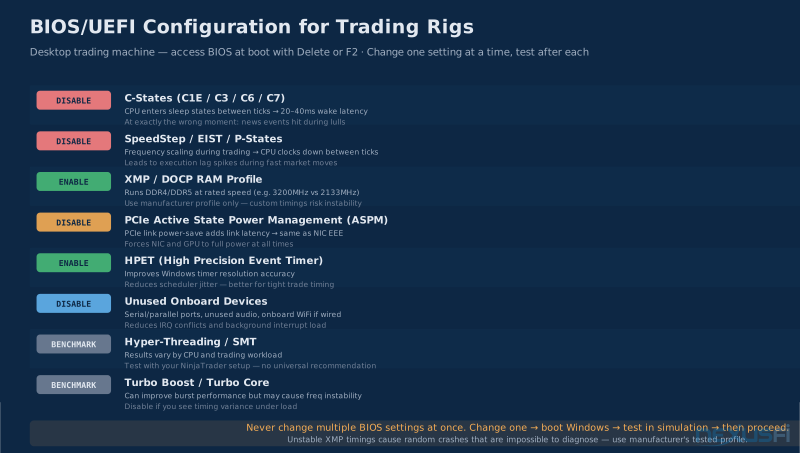
BIOS settings are the deepest level of control over your system's power and performance behavior. These require a reboot to access (usually Delete or F2 at startup). Change one setting at a time and test after each change.
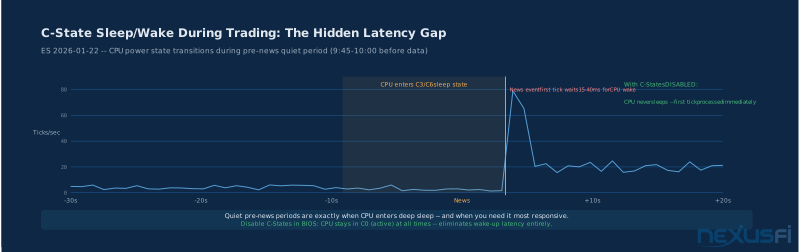
C-States (CPU power management): C-States are CPU idle states — the deeper the state, the more aggressively the CPU shuts down components to save power. Transitioning from deep C-State (C6, C7) to active takes 20--40ms. If your CPU is in a deep C-State between ticks, the first tick of a news event waits while the CPU wakes up.
Disable C-States in BIOS. The exact setting name varies by motherboard: "CPU C-States," "C1E Support," "C-State Tech," "Global C-state Control" on AMD systems.
SpeedStep / EIST (Intel) or P-States (AMD): Dynamically adjusts CPU frequency to save power. Disable to keep the CPU at a fixed clock speed. Combined with setting minimum processor state to 100% in Windows, this eliminates all frequency scaling.
XMP / DOCP: Enable your RAM's XMP (Intel) or DOCP (AMD) profile to run memory at its rated speed. DDR4-3200 running at 2133MHz (because XMP is disabled) loses significant memory bandwidth. Use the manufacturer's tested profile only — never set custom timings unless you're an experienced overclocker who has tested stability extensively.
PCIe ASPM (Active State Power Management): PCIe bus-level equivalent of NIC EEE. Disable it to prevent your NIC and GPU from entering link power-save states.
Unused onboard devices: Disable serial ports, parallel ports, unused audio controllers, onboard WiFi (if you're using a dedicated wired NIC). Each unused device takes up IRQ resources and can contribute interrupt overhead.
Hyper-Threading / SMT and Turbo Boost: These are system-specific. Hyper-Threading can help or hurt latency consistency depending on your CPU architecture and trading workload. Turbo Boost can improve burst performance but may cause frequency instability on some systems. Benchmark both with and without before committing.
The critical rule: never change multiple BIOS settings at once. Change one, boot Windows, test in simulation, then proceed to the next. Unstable XMP timings cause random crashes that are nearly impossible to diagnose if you've changed five things at the same time.
Step 10: Timer Resolution and DPC Latency Diagnostics #
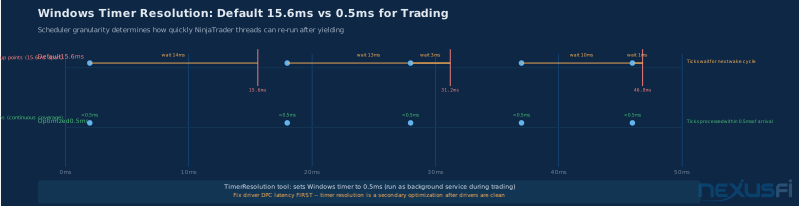
The Windows multimedia timer has a default resolution of 15.6ms — the OS can only schedule events with 15.6ms granularity. For trading, where you want to process ticks and submit orders as quickly as possible, this granularity can introduce unnecessary delays.
Some traders use tools like TimerResolution to set Windows timer resolution to 0.5ms, allowing the scheduler to make finer-grained thread timing decisions.
However: identify and fix driver-level DPC latency before relying on timer resolution tools. DPC latency — caused by device drivers holding the CPU in interrupt service routines — is the most common source of jitter on trading computers. Wireless NIC drivers (even unused ones), buggy audio drivers, and USB controller drivers are the most frequent offenders.
Diagnosis with LatencyMon: Run it for 15 minutes during a simulated trading session. If any driver shows DPC latency over 300μs:
- Disable the wireless NIC adapter in Device Manager (even if not using WiFi, the driver still runs in background)
- Update NIC and audio drivers to latest stable versions from the manufacturer's website (not generic Windows-provided drivers)
- Disable USB selective suspend (done in Power Plan settings)
Fix driver-level issues first. Then, if residual timer jitter remains after driver cleanup, apply timer resolution tools as a supplementary measure — not a substitute for proper driver hygiene.
Step 11: NinjaTrader-Specific OS Interaction #
Beyond the OS layer, NinjaTrader's own settings interact with your OS configuration.
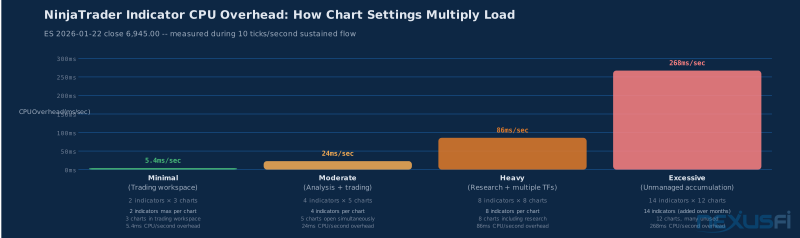
Limit chart indicators: Every indicator on every chart processes on every tick. On a 2-second ES chart with 4 indicators, a fast market with 20 ticks per second creates 80 indicator calculations per second, per chart. With 6 charts, that's 480 calculations per second. Set chart indicators to exactly what you need for trading decisions — remove everything else.
Disable NT animations: NinjaTrader has its own rendering settings. Disable chart animations, smooth scrolling effects, and real-time rendering updates that aren't needed for actual trading decisions.
Data history length: Limit chart data history to what your strategy actually requires. More history means more data in RAM, more data being processed on each indicator calculation, more memory pressure.
NinjaTrader database maintenance: NT8 writes fills and order data to an internal SQL Server Compact database. Over time, this database grows and writes become slower. Clear old data periodically: NinjaTrader Control Center → Tools → Options → Data → Reset DB. Do this during non-trading periods. This was specifically identified by @Jigsaw Trading as the source of growing fill confirmation delays — the delay gets progressively worse over months.
@traderadam described in a NexusFi thread on NT7 lag a technique of using Process Hacker to set both CPU affinity (pin to one core) and priority (High) and I/O priority (High) simultaneously for NinjaTrader — giving NT exclusive, preferred access to a specific CPU core. While modern NT8 handles multi-threading better than NT7, the principle of giving NinjaTrader preferred I/O priority still applies.
Step 12: Creating a Dedicated Trading User Account #
Rather than modifying your main user profile, consider creating a dedicated Windows user account for trading:
- Minimal startup programs (no Spotify, browser auto-start, or cloud sync clients)
- Trading applications only
- All OS optimizations from this guide applied
- No personal browsing, email, or general-purpose use
Benefits: Your regular user account remains untouched for non-trading work. The trading account always starts clean with minimal background processes. This also makes it easy to diagnose performance issues — if the problem only appears on your trading account, the culprit is almost certainly a trading-specific service or application.
Windows Fast Startup: Disable Fast Startup (Control Panel → Power Options → Choose what the power buttons do → uncheck "Turn on fast startup"). Fast Startup uses hibernation rather than a true shutdown, meaning driver states and some services aren't fully reset between sessions. True cold boots are cleaner for diagnosing and maintaining optimizations.
Implementation Checklist and Testing Protocol #
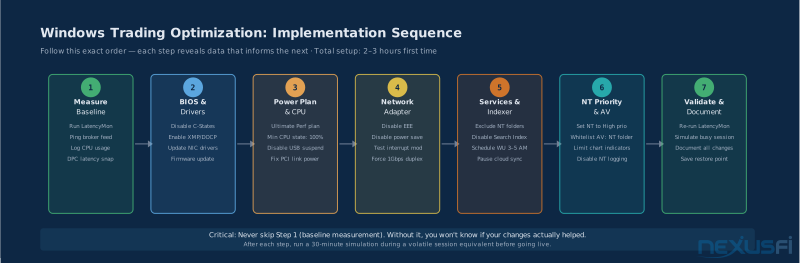
Work through these in order. Each step can be done in isolation — test between steps to verify improvement and confirm stability.
Phase 1 — Measurement (before any changes):
- Run LatencyMon for 15 minutes, note DPC max latency and offending drivers
- Ping broker order server for 30 minutes, record average, max spike, standard deviation
- Monitor CPU usage during a 30-minute trading simulation
Phase 2 — BIOS and drivers:
- Update NIC drivers from manufacturer website (not Windows Update)
- Update BIOS firmware if it's more than 1 year old
- Disable C-States in BIOS
- Enable XMP/DOCP for RAM
- Disable PCIe ASPM
Phase 3 — Windows power and CPU:
- Set power plan to Ultimate Performance (or High Performance)
- Set minimum and maximum processor state to 100%
- Disable PCI Express link state power management
- Disable USB selective suspend
Phase 4 — Network adapter:
- Disable Energy Efficient Ethernet
- Disable NIC power management
- Set Interrupt Moderation to Disabled or Low
- Disable Flow Control
- Force Speed & Duplex to 1 Gbps Full Duplex
- Disable TCP auto-tuning:
netsh interface tcp set global autotuninglevel=disabled
Phase 5 — Services and indexer:
- Exclude NinjaTrader 8 folder from Windows Search indexing
- Exclude NT folders and processes from antivirus real-time scanning
- Configure Windows Update for scheduled non-trading hours
- Disable SysMain on SSD
- Pause or exit cloud sync clients during trading hours
Phase 6 — Application priority:
- Set NinjaTrader.exe to High priority
- Create desktop shortcut with elevated priority command
- Reduce NinjaTrader chart data history limits
- Disable NT chart animations, reduce indicator count
Phase 7 — Validation:
- Re-run LatencyMon, compare DPC latency to baseline
- Re-ping broker order server, compare jitter
- Run 30-minute simulation during a high-volatility equivalent period
- Monitor CPU usage — should be stable with no random spikes
- Document final configuration and create a System Restore point
Common Mistakes and What Not to Do #
Real-time priority: Setting NinjaTrader to Real-time priority is counterproductive. It starves NIC driver threads of CPU cycles, causing packet drops during exactly the moments when you need clean order routing. High priority is the correct setting.
Disabling Windows Defender entirely: Configure exclusions instead. A compromised trading machine — with credential theft, keyloggers, or ransomware — costs far more than any latency savings from running unprotected.
Blanket "debloat" scripts: Popular debloat scripts disable dozens of Windows services at once. Some break networking, some break security services, some break driver functionality in ways that surface only under load. Make targeted, understood changes — not bulk changes from scripts you can't verify.
Over-indexing on timer resolution hacks: Timer resolution tools are useful but secondary to fixing driver-level DPC latency. Aggressive timer settings can increase CPU overhead and harm consistency when drivers are the root cause. Fix the drivers first.
Changing too many settings at once: If you change 10 things and something breaks, you have no idea which change caused it. Change one thing, test it, document it, then proceed.
Ignoring network path quality: No OS optimization compensates for a poor network path to your broker. If your ISP has routing issues, your NIC has a bad driver, or your router is overloaded with household traffic, OS tweaks will have minimal impact. Fix the network path first.
Summary #
Windows by default is optimized for general-purpose computing on battery-powered laptops. Futures trading requires consistent, low-jitter CPU availability and network responsiveness during specific high-demand windows — the market open, major news events, and fast-moving sessions.
The highest-impact changes, in priority order:
- Power plan: Ultimate or High Performance, minimum CPU state 100%
- Network adapter: Disable EEE, power saving, force 1Gbps fixed link
- Process priority: NinjaTrader at High, never Real-time
- Search indexer: Exclude NT data folder from indexing and antivirus
- Services: Disable SysMain, schedule Windows Update, pause cloud sync
- BIOS: Disable C-States and SpeedStep, enable XMP
- Validation: Baseline measurement before and after each change
Do these in order. Measure before and after each major phase. The goal is not a "fast" system — it's a consistent system where your platform behaves the same way at 9:35 AM as it does at 2:47 PM, regardless of what Windows decides to do in the background.
Knowledge Map
Prerequisites
Understand these firstGo Deeper
Build on this knowledgeReferences This Article
Articles that build on this topicCitations
- — NinjaTrader 8 (NT8) Performance Improvements and Tweaks (2018) 👍 26“CPU clock speed matters more than core count for NinjaTrader -- a 4.2GHz 4-core outperforms a 2.9GHz 8-core. M.2 NVMe drives provide significant advantages over SATA SSDs for data-intensive backtesting and live trading.”
- — Ninja Tunes (2013) 👍 14“Issues with Ninja are usually through thrashing the hard drive -- Windows search indexer, antivirus scanning the NT data folder on every tick write. Configure exclusions for both. This is the most common overlooked performance killer.”
- — Using NT8: Lessons learned (2015) 👍 14“Really important: exclude the MyDocuments\NinjaTrader 8 folder from antivirus scanning AND Windows Indexing settings. Performance hit from not doing this is severe -- applies to both NT7 and NT8 on Windows 10.”
- — How bad is NT lag? (2022) 👍 8“In Task Manager Details tab, right-click NinjaTrader and change priority. By default it is Normal, competing with other services. NT uses a split data stream -- one for charts and one for execution -- priority settings affect which gets CPU preference.”
- — How bad is NT lag? (2022) 👍 5“Two non-negotiable requirements: wired Ethernet connection and elevated NT process priority. These are the baseline -- everything else is optimization on top. Running wireless or at Normal priority is leaving significant performance on the table.”
- — Do I need a better computer? (2022) 👍 6“Setting NT to Above Normal priority -- did this a while back and it certainly seems to help. Created a desktop shortcut that launches NT with elevated priority automatically so it persists across restarts.”
- — NT7 system lagging with multiple windows (2015) 👍 4“Process Hacker lets you set both CPU affinity (pin to one core) and priority (High) and I/O priority (High) simultaneously for NinjaTrader -- giving NT exclusive, preferred access to a specific core. Principle of preferred I/O priority still applies in NT8.”
- — NinjaTrader Performance on 6 year Laptop Vs. NEW (2025) 👍 6“16GB RAM is ample, 32GB more than ample. Get as fast RAM as you can -- XMP profile matters. GPU barely matters for NinjaTrader; CPU clock speed and RAM speed are what move the needle on chart render and tick processing.”
- — Computer suitable for Ninjatrader8 (2019) 👍 7“The i5-8265U is a low TDP quadcore -- for trading I'd go for a processor twice as fast. Clock speed, not core count, is what NinjaTrader needs. A 3.5GHz quad outperforms a 2.5GHz 8-core for most trading workflows.”
- — WHICH CPU is BEST for NINJA TRADER 7 and 8? (2019) 👍 3“Clock speeds on those 4 cores -- that's what NinjaTrader needs. Thread count won't help since NT routes most work through the main thread. Best single-threaded performance you can get within your budget, then add RAM.”
- — LatencyMon -- Real-time Latency Monitoring (2024)