



Trading Laptop for Futures Traders
Overview #
Every futures trader eventually faces the laptop question. You're watching a busy ES session, charts are stuttering, the DOM is a second behind price, and you're wondering whether your aging machine just cost you a fill. Or you need to trade from a hotel room, a second location, a prop firm visit. Or your main desktop died mid-session and you're scrambling for a backup. The laptop isn't theoretical — it's how most futures traders start, and how most make their first serious hardware mistake.
Laptops can work for serious futures trading. The margin for error is narrower than with desktops, and the failure modes are specific and predictable. But the specs that matter are not the ones marketing emphasizes. A trader who buys the wrong laptop because of benchmark bragging — buying ultra-thin because the CPU passmark looks strong — is going to have a bad day when that chip thermal throttles twenty minutes into an NFP release.
This article covers the full picture: what CPU performance actually means for NinjaTrader and order flow tools, RAM requirements with real workload numbers, NVMe storage where it actually matters vs where it doesn't, the thermal throttling risk nobody puts in the spec sheet, multi-monitor setup via Thunderbolt docks, how to validate a machine actually handles your trading before it matters, and a complete setup guide that costs roughly what a capable desktop build costs while giving you portability.
A trading laptop sits inside your broader infrastructure — connecting to your internet connection setup, your redundancy and backup systems, and your UPS power protection. The laptop is the compute layer. Understanding how those pieces interact is as important as picking the right processor.
Laptop vs Desktop: The Short Version #
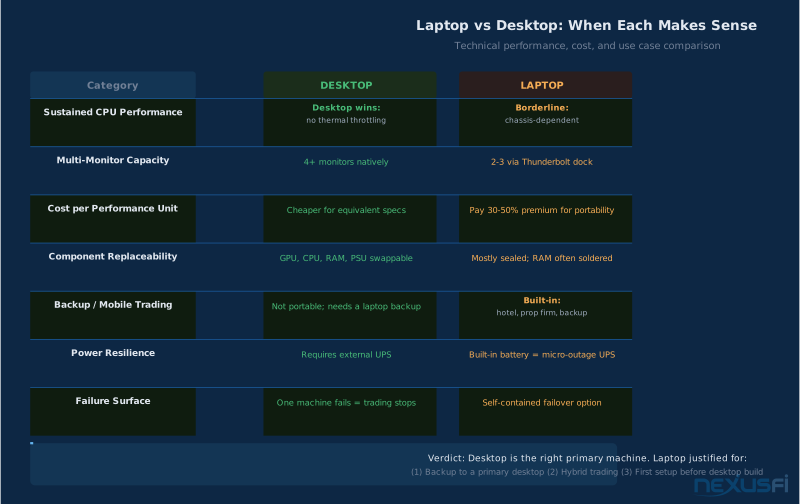
Desktop wins on every technical metric. Better sustained performance, no thermal throttling, easier multi-monitor, cheaper for equivalent horsepower, and when something breaks you can replace a component rather than shipping the whole machine. The dedicated trading workstation article covers desktop builds in full detail. If you have a choice, a desktop is the right primary machine.
Laptops make sense in three scenarios. First, as a backup machine — your primary desktop is down or you're managing a position from somewhere else. A capable laptop with a 4G hotspot on standby is a real safety net. Second, for hybrid trading — you have a home desktop but need to trade from another location two or three days a week. Third, as a first setup — you're getting started and a desktop build isn't practical yet.
The upgrade path exists. But a well-specced laptop bridges you there.
For traders who need genuine portability — trading while traveling, from a second home, or between cities — a capable laptop with a 4G hotspot is a self-contained trading station. @cago trades from the Swiss Alps at 1,900 meters on an ASUS ROG laptop connected via 4G hotspot: "Having a perfect stable 4G internet connection through my phone hotspot." [9] The constraint is real. But for the right use case, it's the only answer.
The laptop is not an equivalent substitute when you're running heavy order flow tools across multiple instruments with multi-day tick data loaded and four external monitors. That workload exposes every laptop weakness. @redbarntrades learned this after trading MNQ intensively: "once I started trading the MNQ, [the old PC] could not handle the fast data." Know your data requirements, then spec to handle them with headroom.
CPU: Where Performance Lives or Dies #
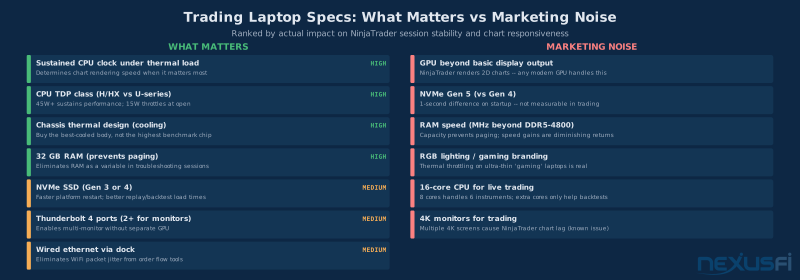
CPU is the single most important hardware decision for a trading laptop. This is where NinjaTrader, Sierra Chart, Bookmap, and every other order flow tool lives or dies — not in RAM, not in GPU, not in NVMe speed.
For discretionary futures traders, the primary CPU workload is chart rendering, indicator recalculation, and order flow tool processing — all of which favor high single-core clock speed under sustained load over raw multi-core throughput.
This means if you trade four instruments simultaneously, you need four fast cores more than sixteen mediocre ones.
That said, the full picture is more complex than just per-instrument allocation. NinjaTrader 8 also spawns threads for UI rendering, data feed handling, workspace management, and background data processing. Heavy indicator stacks — volume profile with 20+ days of tick data, footprint charts, cumulative delta — create significant CPU load that can aggregate across cores. The right framing: improve for single-core clock speed, but validate that your specific workload (not a benchmark) runs smoothly before committing to the machine.
Light discretionary trading (6-8 charts, standard indicators, 2-3 instruments): Intel Core Ultra 7 (H-series) or AMD Ryzen 7 (7745HX or newer). 6-8 cores at 4+ GHz sustained. PassMark single-thread above 3,500.
Active multi-chart trading (12+ charts, footprint/order flow tools, 4-6 instruments): Intel Core Ultra 9 (HX-series) or AMD Ryzen 9 AI MAX or Ryzen 9 HX-class. 8+ cores, 4.5+ GHz sustained, verified thermal performance. @Fat Tails recommends PassMark 15,000+ for multi-indicator heavy setups. Don't buy on benchmark numbers alone — validate sustained performance.
Heavy analytics/replay/automated trading: Backtesting is genuinely multi-threaded and benefits from more cores. A 16-core laptop chip helps here, but if this is your primary workflow, a desktop handles it much better and cheaper.
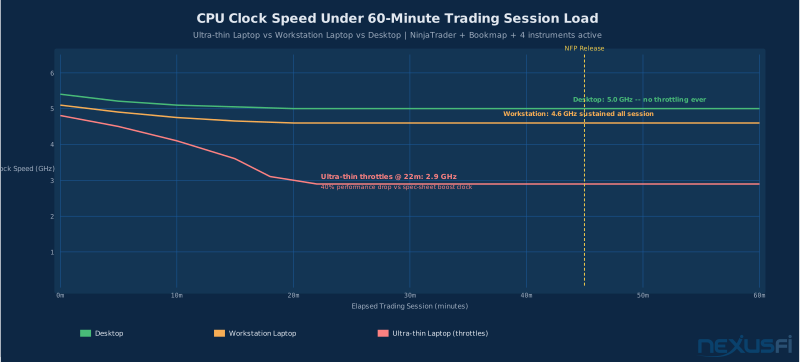
Chips to avoid: Intel U-series (15-28W TDP), AMD Ryzen U-series, anything marketed as "ultra-efficient" or "long-battery-life." These are power-limited chips optimized for thin chassis and battery runtime. They throttle under sustained trading workloads. A chip that boosts to 4.8 GHz for 30 seconds but runs at 2.9 GHz sustained is not a trading chip.
Intel vs AMD in 2026: Neither has a decisive advantage for NinjaTrader-class workloads. Both Intel's Core Ultra H/HX series and AMD's Ryzen AI MAX series are capable. Chassis cooling matters more than brand. A well-cooled AMD Ryzen 9 in a workstation laptop beats a thermally throttled Intel i9 in an ultra-thin machine every session.
Thermal Throttling: The Problem Nobody Puts in the Spec Sheet #
Thermal throttling is what happens when your CPU's junction temperature hits its limit — typically 95-100°C — and the chip automatically reduces clock speed to generate less heat. The laptop that benchmarks at 5.2 GHz is running at 2.9 GHz thirty minutes into a live session. This is the failure mode most responsible for laptops being inadequate for active trading, and it's completely invisible in spec sheets.
The timing is the problem. Throttling doesn't happen during light market conditions. It happens during a Fed announcement, an NFP print, a fast CL move, or a hot open where every indicator is recalculating on each tick, Bookmap is rendering a live DOM heatmap, you've got three workspaces open, and you're reloading a chart. Exactly when performance matters most, thermally constrained laptops deliver their worst performance.
You cannot determine thermal performance from spec sheets. You have to test — full validation protocol in the How to Validate section below. The short version: run your real NinjaTrader workspace through a 60-minute market replay session on a high-volatility day while monitoring CPU clock speeds with HWiNFO64. Clock drops below 3.5 GHz or temperatures pinning at 95°C+ indicate a throttling problem.
Mitigation options for borderline machines: a quality cooling pad (Thermaltake Massive, Cooler Master Notepal) genuinely helps — 5-10°C reduction in practice. Cleaning vents after 6-12 months of use matters. Running at "Best Performance" Windows power plan plugged in is mandatory. But what you cannot fix with a cooling pad is a at the core constrained thin-and-light chassis. Buy workstation-class cooling upfront.
Real failure mode that traders hit repeatedly: opening a large historical footprint chart (20+ days of ES tick data) while simultaneously running a live session. The historical data load spikes CPU for 10-30 seconds. On marginal thermals, this pushes temperatures over threshold, triggers throttling, and live charts lag precisely when the historical chart finishes loading.
Choose a workstation-class or performance gaming chassis. Lenovo ThinkPad P-series, Dell Precision 5000-series, and ASUS ROG Zephyrus M16 all sustain professional workloads. Avoid ultra-thin premium laptops regardless of CPU spec — Dell XPS 15 thin variants, any MacBook (NinjaTrader is Windows-only), and Razer Blade 14/16 are built for burst performance and battery life, not six-hour trading sessions. Test before committing.
RAM: The Right Numbers for Trading Workloads #
RAM requirements for futures trading are simpler than hardware communities suggest. Let's put real workload numbers around it.
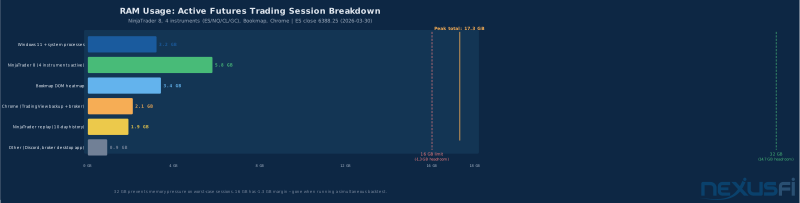
A NinjaTrader 8 session with four instruments and twelve standard charts typically uses 4-8GB of RAM. Add Bookmap running a DOM heatmap and you're adding 2-4GB. Chrome open as a secondary reference (TradingView backup, broker platform), Discord, and normal background processes brings a peak session to 12-16GB.
RAM requirements by trader type:
Light discretionary trading (4-6 charts, standard indicators, one DOM): 16GB works, but leaves minimal headroom. If Windows decides to update in the background, you'll feel it.
Active multi-chart trading (12+ charts, Bookmap or similar order flow tool, market replay for review): 32GB is the right spec. Not because you'll use all of it — @GoldLinx running NT8, Bookmap, Chrome, and Photoshop simultaneously: "it RARELY if ever goes over 44%." The 32GB prevents RAM from ever being a variable in your troubleshooting. When your charts stutter, you want to know it's not memory pressure.
Heavy analytics and backtesting (tick-level backtests on years of data, simultaneous live session, session recording, multiple analytical applications): 64GB is justified. @ThemBones, after extensive testing: "64GB is overkill and a waste of money" — for standard trading. But for the trader who backtests the open while monitoring live, it's appropriate.
RAM speed has diminishing returns compared to capacity for trading workloads. DDR5-5600 is fine. DDR5-4800 is fine. What matters is having enough capacity to prevent the OS from paging to disk. Even NVMe-based paging introduces latency you don't want during a live session.
Soldered RAM Trap Many premium laptops — including flagship models from Dell, Lenovo, and ASUS thin-and-light lines — have soldered RAM with zero upgrade path. A 16GB soldered machine bought today cannot become 32GB later. Check the spec sheet before purchasing: look for "upgradeable SODIMM slots" explicitly. If the spec sheet is silent on this, assume it is soldered.
One critical laptop-specific note: check whether the RAM is soldered before purchasing. Many premium thin-and-light laptops have soldered RAM with no upgrade path. If you buy a 16GB soldered-RAM laptop planning to upgrade to 32GB later, you can't. Workstation-class laptops and performance gaming laptops usually have upgradeable SODIMM slots. Verify this in the spec sheet before committing.
NVMe Storage: Where It Actually Matters #
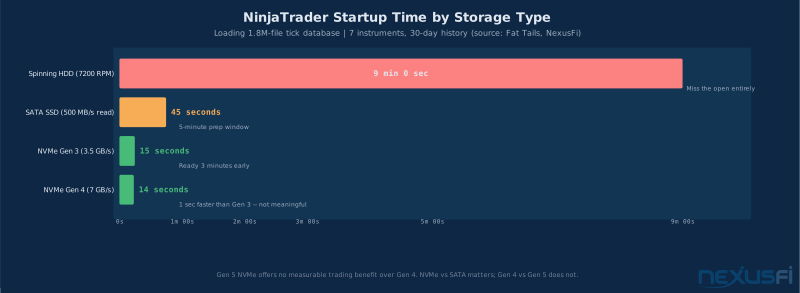
Storage for trading is simpler than hardware communities make it. One firm rule: spinning hard drives are completely unacceptable for a trading machine. This should go without saying in 2026, but budget laptops still ship with them.
Copying that database from SSD to SSD is "about 100 times faster than copying it from 1 SATA hard drive to another."
For SSD vs NVMe: NVMe Gen 3 or Gen 4 is the right choice, for specific trading-relevant reasons:
Where NVMe matters for traders: Platform startup and restart speed (critical if you need to restart NinjaTrader mid-session — NVMe cuts this from 45 seconds to 15 seconds). Loading large tick data for historical footprint charts. Running backtests or market replay. Preventing paging performance impact when RAM gets tight.
Where NVMe doesn't matter: Your fills. Real-time market data latency is dominated by network round-trip time from your ISP to the exchange, not local disk access. A 3GB/s NVMe does not route orders faster than a 500MB/s SATA SSD. Anyone claiming storage speed affects fill quality is selling you something.
NinjaTrader stores most of its working data in the My Documents folder on the C: drive. @ThemBones: "NinjaTrader still does most of its work on the C: drive (since most of it is working out of My Documents unfortunately), so there's little point in getting more than 1 drive." 1TB NVMe primary handles OS, platform, indicators, and a reasonable tick data archive. Secondary storage or external drive for heavy historical archives if needed.
Gen 5 NVMe is marketing for trading workloads. No measurable benefit over Gen 4 in any trading scenario.
GPU: Stop Spending Money Here #
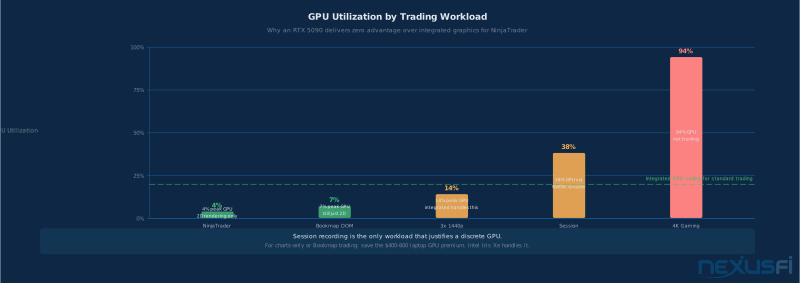
GPU is the hardware spec most aggressively marketed and least relevant for futures trading. NinjaTrader renders 2D charts. Even Bookmap running a full DOM heatmap with historical liquidity visualization is trivial compared to what modern integrated graphics handles without strain.
@Fat Tails on the GPU for NinjaTrader: "NinjaTrader only uses 2D graphics. Video adapter should have 1 GB of VRAM per monitor." @ThemBones ran the same conclusion after testing everything from a GTX 1660 Ti to an RTX 5090: "None of it mattered. The 1660 Ti was already overkill. Your mobile 1060 GTX would still be more than fine today."
Where GPU actually matters for traders:
Driving multiple high-resolution external displays: If you run three 1440p external monitors through a docking station, a capable integrated GPU (Intel Iris Xe, AMD Radeon integrated on Ryzen 7800H or newer) handles this adequately. However, if you try 6x 4K monitors, you'll hit NinjaTrader's rendering engine limits before you hit the GPU.
4K on multiple monitors can cause NinjaTrader chart lag regardless of GPU power. 1440p is the right resolution for trading setups.
Session recording: Recording your trading screen at 1080p or 1440p for review uses hardware video encoding. A discrete GPU with NVENC (Nvidia) much reduces CPU overhead for recording. This is a legitimate reason to have a GPU if you record sessions, not just a nice-to-have.
GPU driver stability: This matters more than GPU power for traders. A discrete GPU with reliable, stable drivers for your specific OS version and dock configuration is more valuable than the highest-tier integrated graphics. Driver issues cause display enumeration problems, monitor flicker mid-session, and wake/sleep failures. If you use a docking station, verify GPU driver compatibility with your specific dock model before committing to the laptop.
The recommendation: a budget discrete GPU ($100-150 range) or capable integrated graphics is sufficient for all but the most display-intensive setups. Don't pay the $400-600 laptop premium for an RTX 4070 unless you have specific GPU-dependent workflows.
Multi-Monitor via Thunderbolt Docks: What Works and What Breaks #
Multiple monitors are non-negotiable for serious futures trading. You need dedicated screen real estate for charts, DOM, order flow tools, and a news or reference feed. The laptop screen alone isn't enough. Here's how to extend it properly — and where docking setups actually break in practice.
Understanding laptop display outputs:
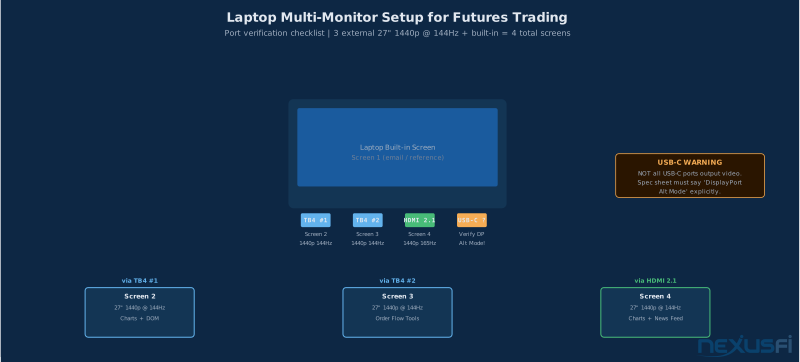
Thunderbolt 4 / USB 4 ports: Each Thunderbolt 4 port can drive one external 4K display at 60Hz or one 1440p display at 144Hz. Two Thunderbolt 4 ports means two external displays plus the built-in screen — a three-screen setup without any dock.
Native HDMI 2.1: Drives one external display at up to 4K 120Hz. Verify the HDMI version — HDMI 2.0 limits you to 4K 60Hz. HDMI 2.0 laptops marketed as "4K-capable" are common and limiting.
DisplayPort Alt Mode via USB-C: Most modern laptops route DisplayPort through USB-C, but not all USB-C ports support video output. The spec sheet must explicitly state "DisplayPort Alt Mode" or "DP over USB-C." A USB-C port that only does data won't drive a display.
Thunderbolt dock: A quality Thunderbolt 4 dock (Caldigit TS4, OWC Thunderbolt 4, Belkin Connect Pro — $200-350) connects via a single cable to your laptop and provides HDMI 2.1, DisplayPort 1.4, USB ports, ethernet, and charges the laptop simultaneously. This is how you turn a two-external-display laptop into a four-display trading setup.
@teamtc247 runs a full laptop-based trading station at two locations: 4 monitors at the home office, 3 monitors at the business office, all via Thunderbolt 3. [11] A Thunderbolt dock genuinely makes this work — the same laptop, the same NinjaTrader workspace, different physical desks.
Real failure modes with docking setups that traders actually hit:
Wake/sleep display enumeration: Windows occasionally reorders monitors after waking from sleep or after the laptop disconnects and reconnects to the dock. Your carefully arranged NinjaTrader workspace layout — which chart goes where — gets scrambled. Fix: disable sleep/hibernate entirely on trading machines. Never let the machine sleep during trading hours.
Dock firmware/driver conflicts: The specific combination of your laptop model, Thunderbolt chipset, dock firmware version, and graphics driver can produce intermittent display flicker, monitor disconnects, or USB device drops. Before buying any dock, search the model name combined with your laptop's chipset for user reports. Hot-plug reliability varies much by combination.
Power delivery under load: Verify the dock's wattage spec against your laptop's charging requirement. Some docks deliver less charging power when simultaneously driving multiple displays at high refresh — a power shortfall means the laptop runs on battery under full load, triggering battery-mode CPU throttling.
Resolution: Three 27-inch 1440p monitors at 100-144Hz. 4K looks great but contributes to NinjaTrader chart lag regardless of GPU power. 1440p at 144Hz is the right target for trading setups.
Power Management: The Specifics Matter #
The laptop's built-in battery is not a substitute for a proper UPS setup. It's a bridge for micro-outages — a momentary brownout, a tripped breaker, someone unplugging the power strip by accident. For those micro-outages, the battery is genuinely valuable. The machine stays on, NinjaTrader doesn't crash, open positions stay visible.
What the battery doesn't cover: when power goes out, your router and modem go down too. The laptop stays on but you have no market access. A UPS on the desk powers both the laptop charger and your network equipment. Add a cellular hotspot on a separate carrier for true internet redundancy. Full setup in the internet connection article.
Specific settings that matter for trading laptops:
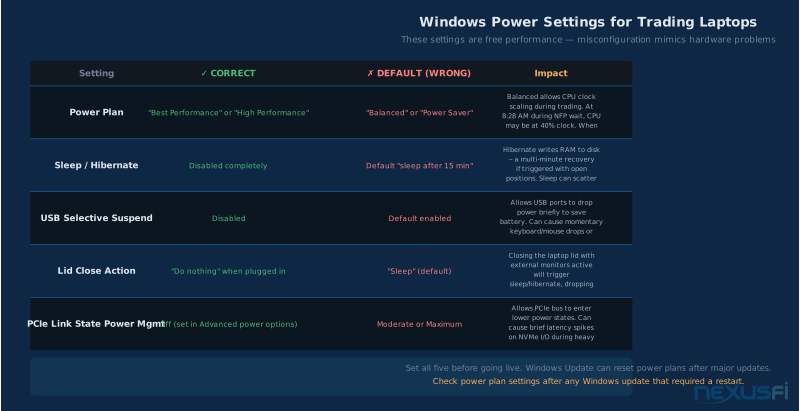
Power plan: Windows "Best Performance" or "High Performance" — not "Balanced" and absolutely not "Power Saver." These settings control CPU base clock speed, PCIe link state power management, and USB power suspension. "Balanced" mode throttles CPU and allows dynamic power state changes that introduce latency spikes. Set once, verify it sticks after OS updates (Windows sometimes resets power plans after updates).
Sleep and hibernate: Disable both completely. Control Panel → Power Options → Change advanced power settings → Sleep settings to "Never." Hibernate writes all RAM to disk on shutdown and means a multi-minute restart if triggered unexpectedly. If running docked with external displays, set lid close to "Do nothing" — many traders inadvertently hibernate by closing the lid while walking away from a live session.
USB selective suspend: Disable this. USB power management can briefly drop USB devices to save power, causing momentary disconnects on keyboards, mice, or USB-connected peripherals during a fast market.
Vendor performance utilities: Dell Command | Power Manager, ASUS Armoury Crate, and similar utilities let you raise CPU power limits (PL1/PL2). Use performance mode during trading hours. The cost is fan noise and faster battery drain — both acceptable during an active session.
Software Optimization: Getting More from the Hardware You Have #
Before upgrading hardware, improve the setup. Many laptops traders describe as "too slow" have inefficient configurations, not insufficient hardware. @Fat Tails, after years of diagnosing NinjaTrader performance issues: "the likely culprit — with a probability of >99% — is not the device, but the strategy."
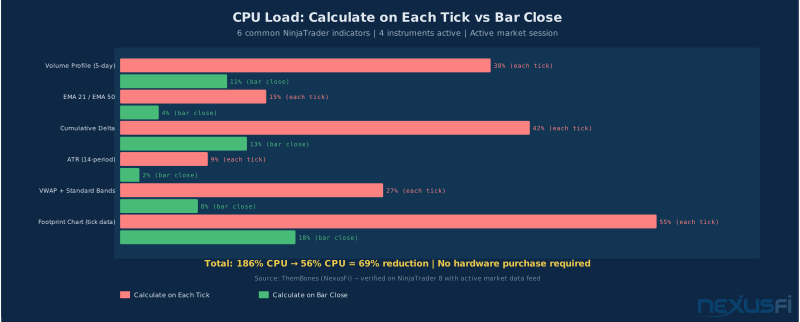
NinjaTrader indicator calculation modes: NinjaTrader gives you three modes per indicator: "Calculate on each tick," "Calculate on price change," and "Calculate on bar close." @ThemBones: "You can cut down NinjaTrader CPU usage considerably by examining all your indicators. If you don't need Calculation on each tick, turn this off. Try to use calculate on bar close wherever you can. Calculate on price change is the next best option." For most trend, momentum, and volume indicators, "On bar close" is accurate enough and dramatically reduces CPU load. Only scalp-specific indicators requiring intra-bar precision need tick calculation.
Historical data depth: NinjaTrader loads all historical data for every chart in every open workspace at session startup. A footprint chart loading 90 days of ES tick data takes much longer and uses substantially more RAM than the same chart with 10 days. @glennts makes the practical point: "consider how much historical data you need to chart to decide what you are going to do in the next 5 minutes." Maintain two workspaces: an analysis workspace (longer lookback, refreshed before market open, closed or minimized during live trading) and a live trading workspace (minimal historical data, fast and lean).
Dedicated machine discipline: @phantomtrader after years of running NinjaTrader: "I think the most important thing is to have a dedicated trading computer with nothing else on it — no emails, surfing the internet, etc." The principle is about reducing the failure surface. @Fat Tails on cloud sync specifically: "Do you run anything like Dropbox or OneDrive in the background synchronizing the NinjaTrader folder with a remote backup? This would also cause havoc and kill any strategies running live." Exclude NinjaTrader data directories from cloud sync entirely. Block Windows Update restarts during market hours via Group Policy settings. Antivirus real-time scanning should exclude your tick data directories.
How to Validate a Laptop Before You Trade Real Money #
Spec sheets don't tell you whether a machine handles your workload. Test it before it matters.
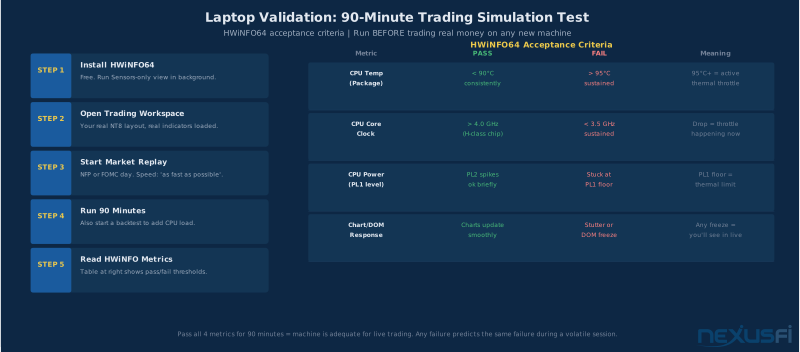
The 90-minute trading simulation test: Install HWiNFO64 (free), open your actual NinjaTrader workspace with real indicators, start a market replay on a high-volatility day (NFP or FOMC) at "as fast as possible" speed, run 90 minutes while monitoring CPU temperature and clock speeds. Acceptable: CPU Package temperature stays below 90°C, core clocks maintain 4+ GHz on an H-class chip. Red flags: sustained operation at the PL1 thermal floor, clocks dropping to 2-3 GHz, any chart stutter or DOM lag. Simultaneously run a backtest to test multi-workload performance. Any issue you see here is what you'll see during a live volatile session.
Also test through your full dock and monitor setup — display issues appear more often over Thunderbolt than native outputs. And test your cellular failover: disconnect primary internet during replay, confirm NinjaTrader reconnects. The first time you test failover should not be during a live session.
Recommended Laptop Specifications by Trader Type #
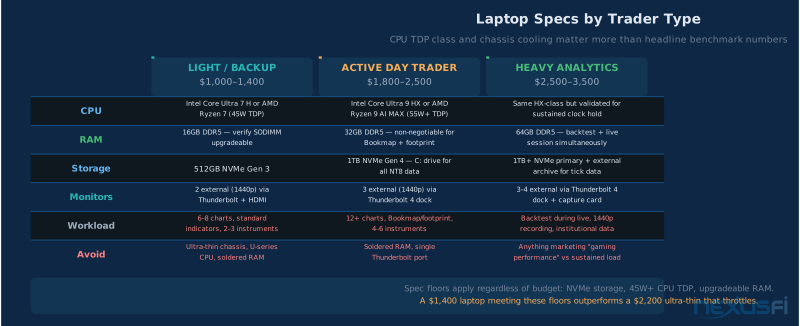
Light discretionary / swing trader / backup machine ($1,000-1,400): Intel Core Ultra 7 H-series or AMD Ryzen 7 (45W TDP), 16GB DDR5 (verify it's upgradeable to 32GB via SODIMM), 512GB NVMe. Handles 6-8 charts with standard indicators across 2-3 instruments without strain. Not suitable for heavy order flow tools or simultaneous backtesting.
Active multi-chart day trader / primary laptop ($1,800-2,500): Intel Core Ultra 9 HX-series or AMD Ryzen 9 AI MAX (55W+ TDP), 32GB DDR5, 1TB NVMe Gen 4. Handles 12+ charts, Bookmap or similar, 4-6 instruments simultaneously. Validate thermal performance with your actual workload before committing.
Heavy analytics, backtesting, recording ($2,500-3,500): Same CPU class as above but verify sustained clocks specifically, 64GB DDR5, 1TB+ NVMe plus secondary storage for historical archives. For traders who backtest during live sessions, record at 1440p, or run institutional-level data workloads.
@Silver Dragon upgraded from a 6-year-old failing laptop — battery at 45 minutes, slow load times, duct tape holding the screen together — directly to an ASUS ROG Strix 18" with an i9-13980HX, 32GB DDR5, and RTX 4070: "This will be my full time dedicated trading laptop." [10] The lesson: when specs finally fail, upgrade fully. The 32GB RAM purchase now prevents the soldered-16GB regret later.
What to avoid regardless of price: U-series or ultra-low-power CPU variants (15-28W TDP) — these throttle under sustained trading load. Ultra-thin chassis under 16mm body thickness. Soldered RAM at 16GB with no upgrade path — buy 32GB upfront or confirm SODIMM slots. SATA SSD instead of NVMe. Laptops with only one Thunderbolt port.
Chassis to evaluate: Lenovo ThinkPad P-series, Dell Precision 5000-series, HP ZBook Fury — workstation-class cooling, built for sustained professional workloads. For performance laptops with adequate cooling: ASUS ProArt Studiobook, ASUS ROG Zephyrus M16, MSI GT-series.
Building a Complete Laptop Trading Setup #
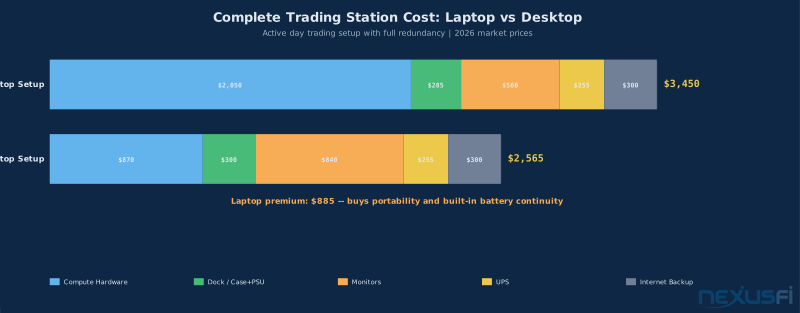
Primary laptop: Workstation-class 15-17", Core Ultra 9 HX or Ryzen 9 AI MAX, 32GB DDR5, 1TB NVMe Gen 4. Validated via 90-minute stress test before live trading. $1,800-2,300.
Thunderbolt 4 dock: Caldigit TS4 or similar ($250-320). Single cable to laptop, provides HDMI 2.1, DisplayPort 1.4, USB ports, ethernet, and laptop charging. Always wired ethernet for trading — never rely on WiFi if you can avoid it. @ThemBones recommends at minimum "Wi-Fi 7" capability for when wired isn't an option.
External monitors: Two 27" 1440p at 100-144Hz ($200-350 each). One via dock's DisplayPort, one via HDMI. Laptop screen becomes third for email and reference. @redbarntrades: Samsung 43" 4K TV for main charts, LG UltraGear 32" for DOM — match display to function.
UPS: APC Back-UPS Pro 1500VA ($220-280) powering dock, monitors, router, and modem. Full setup in the UPS article.
Cellular hotspot: 4G/5G backup on a separate carrier. Test NinjaTrader data connection through it before relying on it live. Details in the internet connection article.
Total: $2,700-3,600 for a complete primary trading station with redundancy. The premium over a desktop is portability and built-in battery continuity.
For a backup to a primary desktop: a $1,200 laptop with 32GB RAM and NVMe running your same NinjaTrader workspace over ethernet handles every scenario where your main machine is unavailable. @90bideven: "If you aren't profitable before you build a nice computer, you won't magically become profitable thereafter." The laptop is infrastructure. The edge is elsewhere.
When the Machine Lags: Diagnosing the Real Problem #
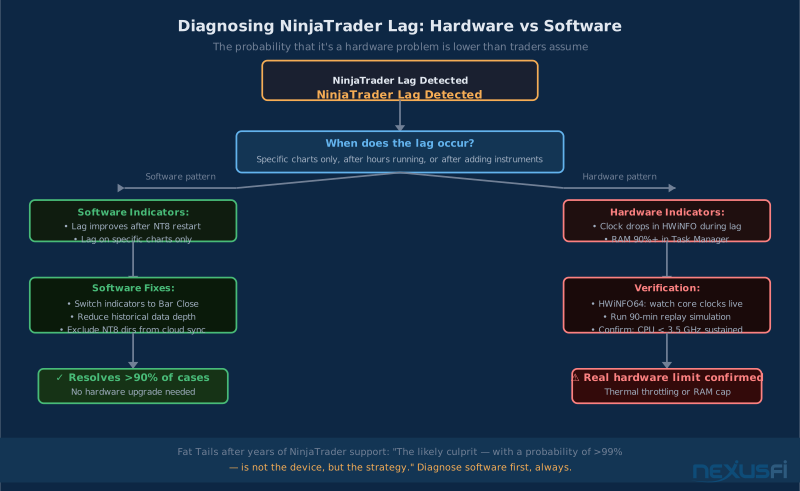
Traders instinctively blame hardware when NinjaTrader lags. More often it's software. @Fat Tails: "the likely culprit — with a probability of >99% — is not the device, but the strategy."
Lag that's almost certainly software: Lag that appears after several hours and improves after restarting NinjaTrader — memory leak in an indicator. Lag only on specific charts — indicator code efficiency problem. Intermittent freezing correlated with disk activity in Task Manager — cloud sync or antivirus scanning tick data directories. Lag that appeared after adding more instruments — CPU saturation from indicator count, not raw clock speed. Switch heavy indicators from Calculate on each tick to Calculate on bar close.
Lag that's the hardware: Clock drops visible in HWiNFO64 during lag episodes confirm thermal throttling. RAM at 90%+ in Task Manager confirms capacity shortage. Any CPU PassMark below 12,000 is a genuine performance floor for active trading. @90bideven: "I read somewhere that you want at least a 12,000 CPU benchmark score to avoid lag / slippage." Hardware-confirmed limits require hardware solutions — thermal testing and spec upgrade.
Knowledge Map
Go Deeper
Build on this knowledgeReferences This Article
Articles that build on this topicCitations
- — Building a Futures Trading PC vs. Laptop (2020) 👍 8“SOOO MUCH FASTER than my laptop, you actually have to change the way you think to use it”
- — NinjaTrader CPU core usage per instrument (2019) 👍 15“NinjaTrader only uses ONE core per instrument”
- — Hardware recommendations for NinjaTrader with large databases (2019) 👍 22“my data base has about 1,800,000 files. Conventional hard disks have to spin around before they find the physical location of the file”
- — NinjaTrader 8 CPU and performance optimization (2022) 👍 11“NinjaTrader still does most of its work on the C: drive (since most of it is working out of My Documents unfortunately)”
- — 4K monitors and NinjaTrader performance (2021) 👍 9“We changed the screen resolution for each monitor from 4K to 1920x1080 and boom NinjaTrader did not lag anymore”
- — Trading machine hardware optimization (2021) 👍 7“NinjaTrader 8's performance in terms of processor is single-threaded”
- — Dedicated trading machine setup and discipline (2021) 👍 6“dedicated machine just for trading”
- — MNQ hardware requirements (2020) 👍 5“once I started trading the MNQ, it could not handle the fast data”
- — Battlestations: Show us your trading desks! (2017) 👍 40“Using a Asus ROG laptop when I'm up here. Having a perfect stable 4G internet connection through my phone hotspot”
- — SD's Options & Futures Journal (2023) 👍 7“upgraded to 32 GB of DDR5 memory... 18 inch screen with 24 core i9... This will be my full time dedicated trading laptop”
- — Battlestations: Show us your trading desks! (2018) 👍 17“Sager laptop with Thunderbolt 3, 4 24-inch monitors at home office, 3 27-inch at business office -- full laptop-based trading station across two locations”