



Chart Drawing Tools for Futures Trading: Trendlines, Fibonacci, Channels, and a Pre-Session Markup Workflow That Actually Works
Chart drawing tools are the most used and least discussed feature of every trading platform. Every futures trader draws trendlines. Most draw horizontal support and resistance levels. Many use Fibonacci retracements. But almost nobody has thought systematically about how to use these tools effectively — what to draw, when to draw it, how to persist it across sessions, and how to keep your chart from becoming an indecipherable mess of lines.
This article covers the full drawing tools ecosystem: what tools exist, how they work across the major platforms (NinjaTrader 8, Sierra Chart, TradeStation, ThinkOrSwim), how to build a pre-session markup workflow, and how to manage the drawings you create so they work for you rather than against you.
Overview #
Chart drawing tools are analytical overlays you place directly on your chart. Unlike indicators (which calculate automatically from price/volume data), drawing tools are manually placed. That manual placement is both their strength and their weakness — they reflect your judgment, not an algorithm's, which means they capture context an indicator can't, but they also require discipline and consistency to be useful.
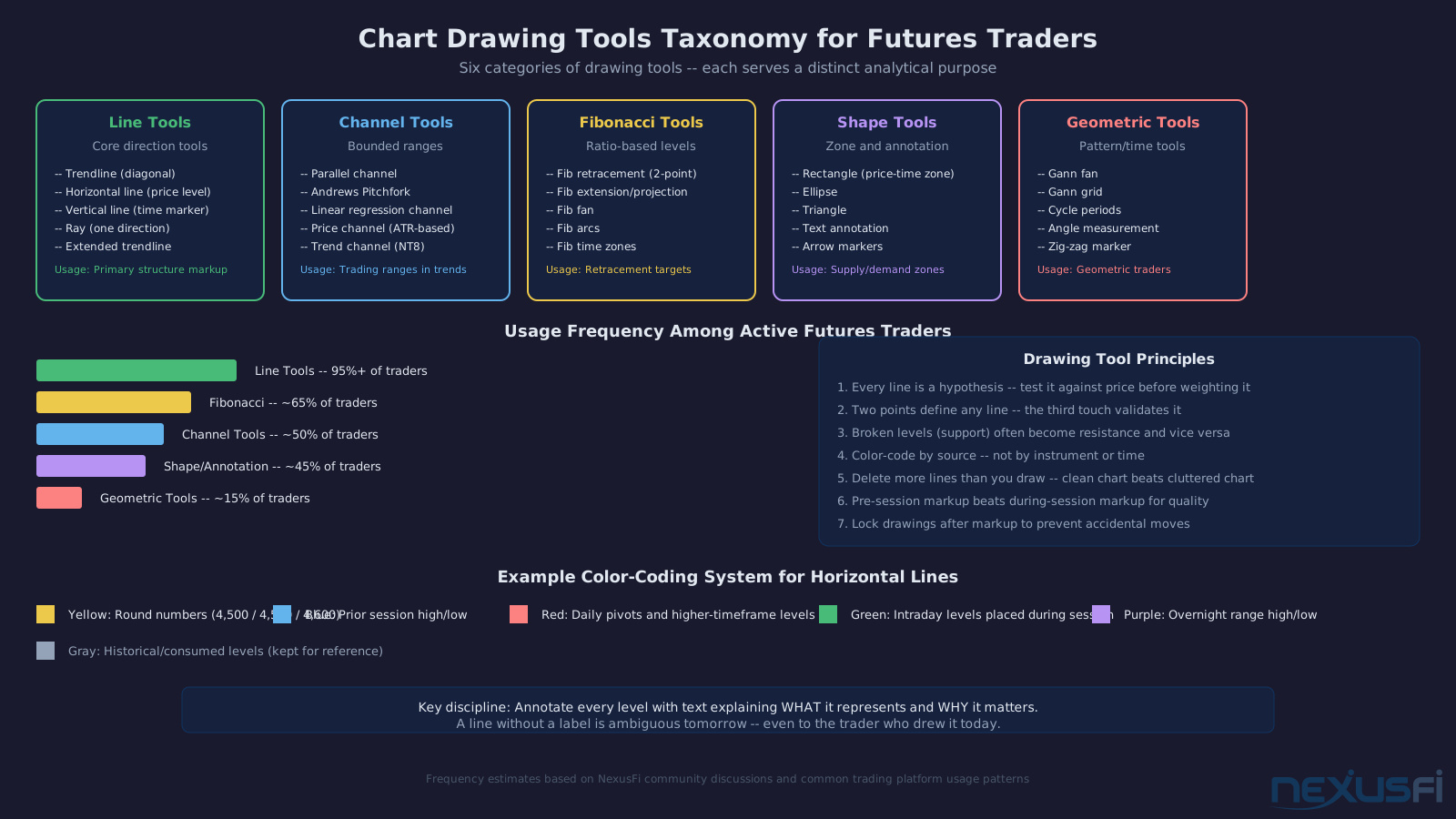
The major drawing tool categories:
- Line tools: Trendlines, horizontal lines, vertical lines, rays, extended lines
- Channel tools: Price channels, regression channels, pitchforks, parallel channels
- Fibonacci tools: Fibonacci retracements, extensions, fans, arcs, time zones
- Shape and highlight tools: Rectangles, ellipses, triangles, text annotations
- Geometric tools: Gann fans, Gann grids, cycles, angle measurements
- Measurement tools: Risk/reward boxes, range measurement, price alerts on levels
Every serious futures trading platform supports all of these. The differences between platforms are in workflow — how fast you can place them, how they persist, how they sync across timeframes, and what customization they allow.
Drawing tools are a window into how a trader thinks about structure. Looking at a trader's marked-up chart tells you more about their method than any description they give. Before worrying about which tools to use, decide what you're trying to capture — then find the right tool for that purpose.
Trendlines: The Foundation #
The trendline is the most basic drawing tool and the most misused. A trendline connects at least two price points and extends to show a direction of potential support or resistance. The controversy around trendlines is real — different traders will draw completely different lines on the same chart, which some use as evidence that they're arbitrary. The more useful framing: trendlines are hypotheses.
bobwest, an Elite Member here on NexusFi who writes extensively about price action, offered this framework for trendline construction:
Practical trendline construction principles:
Use at least two points, validate with a third. Two points define any line. The third touch is the first evidence the line has predictive value rather than being a coincidence.
Match the trendline to your timeframe. An hourly trendline has no inherent meaning on a 1-minute chart. Use trendlines drawn on the timeframe you're analyzing, and be explicit about which timeframe a line belongs to.
Slope guidance from moving averages. If you're struggling to determine the correct slope for a trendline, bobwest suggests a useful workaround:
Broken trendlines become resistance (or support). Once a rising trendline breaks, it often becomes a resistance level on the next retest from below. Keep broken trendlines on your chart as reference.
Draw more trendlines than you think you need, then delete the ones that don't get confirmed by a third touch. The cost of drawing a line is near zero — the cost of missing a valid one is not. Be liberal in drawing, conservative in weighting.
Cross-Timeframe Line Syncing #
One of the most valuable features in NinjaTrader 8 is the ability to sync drawings across multiple charts of the same instrument. If you draw a trendline on your 4-hour ES chart, you can have it appear automatically on your 5-minute chart.
bobwest highlighted this in a trading journal discussion:
This cross-timeframe sync is how multi-timeframe analysis actually works in practice. You draw your structure on the higher timeframe where structure is clearer, and it appears as context on your trading timeframe where you're looking for entries.
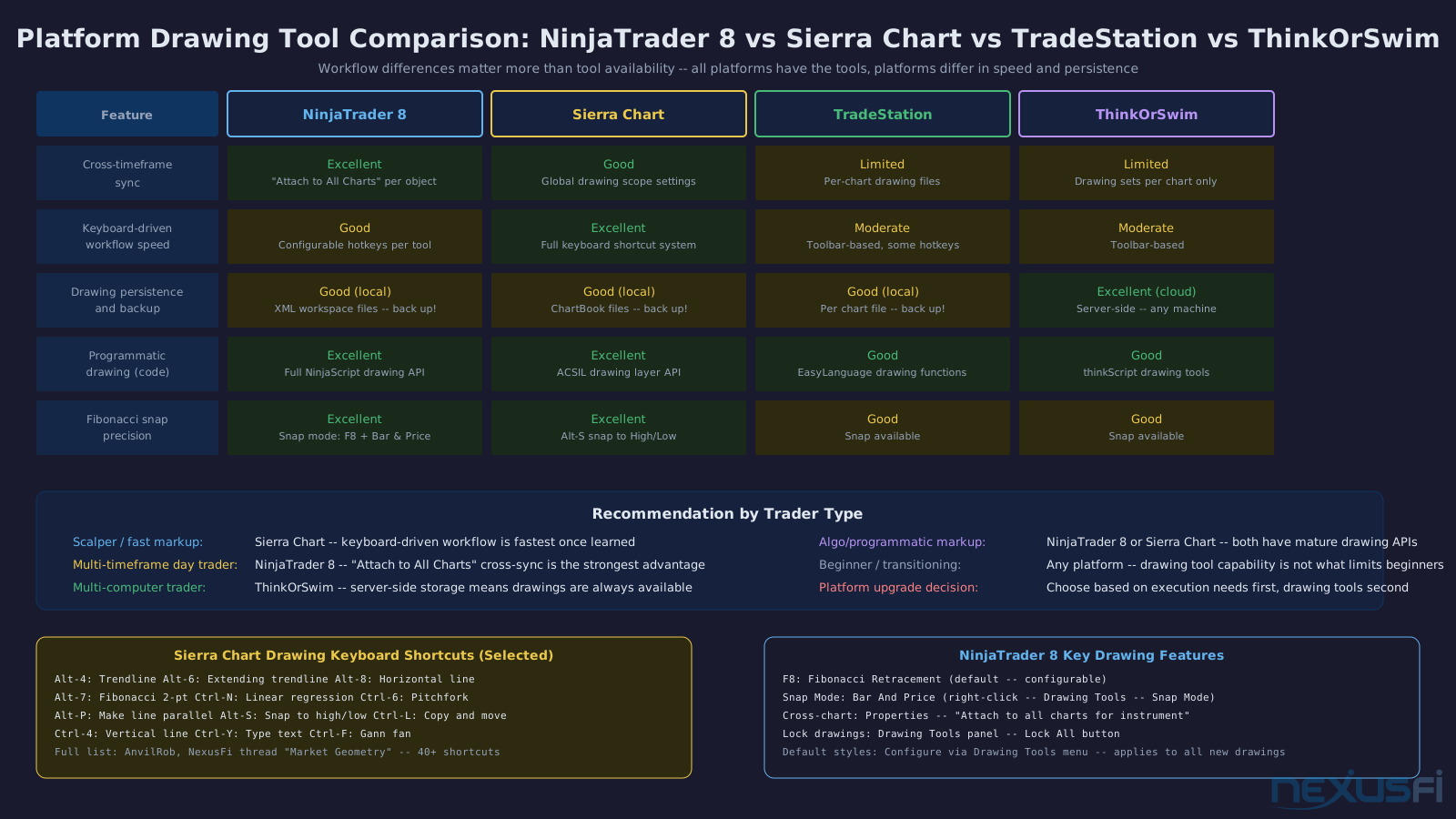
Platform comparison for cross-timeframe sync:
NinjaTrader 8: "Attach to All Charts" property on individual drawing objects. Works seamlessly across all charts for the same instrument.
Sierra Chart: Alt-P to make a line parallel, plus region and drawing persistence settings. Sierra Chart's drawing tools are accessible entirely via keyboard shortcuts, which enables a fast workflow once learned. The full keyboard shortcut list from AnvilRob, an Elite Member who documents Sierra Chart extensively:
TradeStation: Drawings attached to a chart by default, saved in chart workspaces. No native cross-instrument sync — each chart file saves its own drawings separately.
ThinkOrSwim: Drawing sets can be saved and loaded separately from chart grids. Both drawings and full grid configurations (indicators + drawings) can be saved to ThinkOrSwim's servers and reloaded.
rmejia documented the ThinkOrSwim approach for persistent level saving:
Drawing persistence is a workflow-critical feature that many traders overlook until they lose their work. Before building a markup library on any platform, verify exactly where drawings are stored (locally on your machine, in the platform's cloud, or in a workspace file), and what happens when you switch computers or reinstall the platform. Data loss of your key levels after a reinstall is a preventable frustration.
Horizontal Lines and Level Management #
Horizontal lines are the most-used drawing tool in futures trading. Every pivot high and low, round number, overnight high/low, prior session close, VWAP anchor, and supply/demand zone starts as a horizontal line on a chart.
The challenge is managing them. Traders who draw obsessively can quickly accumulate dozens of horizontal lines across different timeframes, turning their chart into an undifferentiated grid of levels.
Level organization strategies:
Color-coding by source is the most common system. Example scheme:
- Yellow: round numbers (4,500, 4,550)
- Blue: prior session high/low
- Red: daily pivot and significant highs/lows from higher timeframes
- Green: intraday levels placed during the session
- Purple: overnight range high/low
Importing levels programmatically. Fripi, a NexusFi member, built a NinjaTrader indicator to load horizontal lines from text files:
This approach — maintaining your levels in external text files and having the platform draw them — solves the persistence problem entirely. Your levels are in a file you control, independent of the platform's workspace system.
Level hygiene protocol:
- Before each session, review all active horizontal lines. Delete levels more than 3 weeks old that haven't been touched.
- After a level is "consumed" (price breaks through and doesn't come back), either delete it or change its color to "historical."
- Create a "key levels" drawing template for each instrument you trade — only include levels that genuinely matter to your analysis.
- Distinguish between "hard" levels (exact prices from market structure) and "soft" zones (areas of interest rather than specific prices).
Horizontal lines accumulate faster than they get deleted. Establish a weekly maintenance habit: go through your charts and delete levels that no longer matter. A clean chart with 5-8 meaningful levels is more useful than a cluttered one with 40 lines from the past month.
Fibonacci Drawing Tools #
Fibonacci tools are the most mathematically precise drawing tools in any platform — and the most debated. Fat Tails, one of the most analytical contributors in the NexusFi Elite Circle, put the pragmatic case for them clearly:
The main Fibonacci tools:
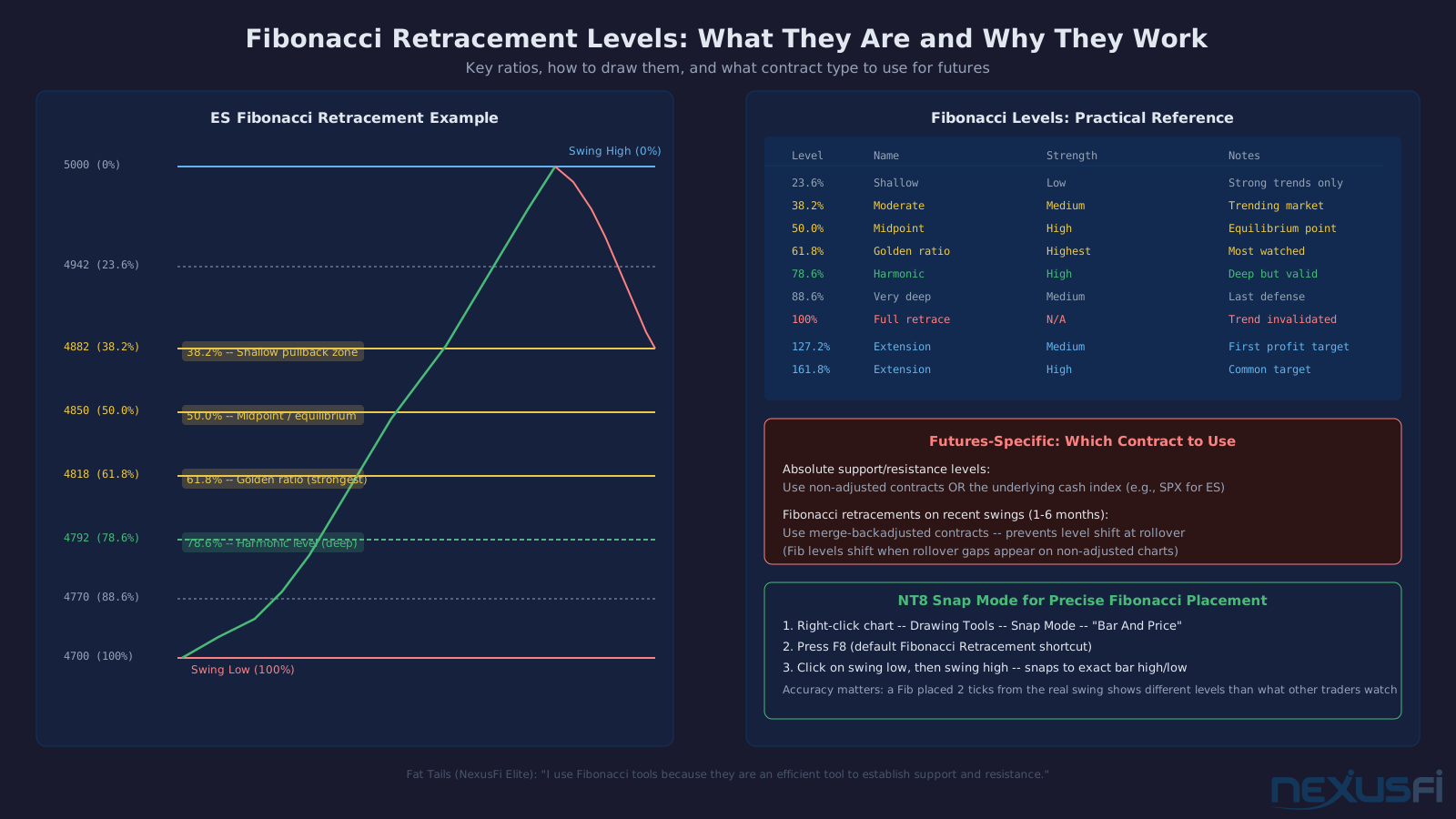
Fibonacci Retracement: Connects a swing low to a swing high (or vice versa) and draws horizontal lines at the key ratios: 23.6%, 38.2%, 50%, 61.8%, 78.6%, 100%. The 38.2%, 50%, and 61.8% are the most watched by institutional traders. The 78.6% is especially powerful — a rally that retraces to 78.6% is testing a specific harmonic level that often holds if the trend is genuinely intact.
Fibonacci Extension: Projects beyond the measured swing to identify potential targets. Extension levels at 127.2%, 161.8%, and 261.8% are commonly used as profit targets for trending moves.
Key practical point on Fibonacci and futures contracts: Fat Tails identified a critical issue specific to futures that few resources address:
This matters because if you draw a Fibonacci retracement on a non-adjusted continuous futures chart, your levels will shift at each contract rollover. The solution: for Fibonacci work on recent swings (3-6 months), use merge-backadjusted contracts. For identifying absolute price levels that institutions watch, use the cash index or non-adjusted contracts.
NinjaTrader 8 Fibonacci workflow. In NT8, Fibonacci tools snap to bar highs and lows when you have snap mode enabled. Right-click on the chart, select Drawing Tools, set Snap Mode to "Bar And Price" before placing Fibonacci tools. This precision matters — a Fibonacci retracement placed 2 ticks from the actual swing low will produce levels that are slightly off from what other traders are watching.
JonnyBoy documented the snap workflow:
Create custom Fibonacci levels in your platform settings. The default levels (23.6, 38.2, 50, 61.8, 100) are a good start, but you'll likely want to add 78.6% (important harmonic level) and possibly 88.6% (a less common but powerful level). Most platforms allow fully custom Fibonacci ratio sets.
Channels and Pitchforks #
Price channels formalize the trendline concept: instead of a single trendline, you draw parallel lines capturing both sides of price movement. The channel becomes a bounded trading range — buy near the lower channel line, sell near the upper line (in an uptrend), or trade the breakout when price exits the channel decisively.
Types of channel tools:
Parallel Channel (Price Channel): Two parallel lines defining upper and lower bounds of a trend move. Drawn by placing a trendline along one side, then creating a parallel line touching the opposite side.
Andrews Pitchfork: Three-point tool that creates a median line (the "handle" of the pitchfork) with two parallel lines equidistant from the median. The median line acts as a magnet for price — traders watch for price to return to it after excursions to either fork. Sierra Chart's keyboard shortcut (Ctrl-6) and the full pitchfork family (including Schiff and Modified Schiff variants) are available on most professional platforms.
Linear Regression Channel: Automatically calculates the best-fit line through price data and creates standard deviation bands above and below. Unlike a manually placed trendline, the regression channel updates based on the data you specify — it's a quantitative tool rather than a discretionary one.
Practical channel discipline:
The channel is only as good as the two anchor points you use. Badly anchored channels give false signals at the lines. When building a channel:
- Draw the primary trendline first, connecting at least two confirmed swing points.
- Place the parallel line at the most significant opposing swing — the one that appears to represent the "true" other side of the channel.
- Test the channel: does price respect it? Does the center of the channel (median line) act as support/resistance?
- If the channel contains only 1-2 touches on the secondary line, it's speculative — treat the levels as hypotheses, not signals.
The center (median) line of a price channel often acts as the strongest level within the channel. Trades at the median line that fail in the expected direction give you early warning that the channel is breaking down. Many experienced traders put as much weight on the median line as on the channel extremes.
Geometric Tools: Gann, Fans, and Angles #
Gann tools are less commonly used by retail futures traders but appear in the workflows of some long-term and geometric traders. The core idea: certain angles (1x1, 2x1, 1x2, etc.) represent specific relationships between price change and time elapsed. A 1x1 Gann line means price moves 1 unit per 1 time period — any price below this line is "bearish," any price above is "bullish."
Sierra Chart's keyboard shortcut list (Ctrl-F for Gann Fan, Ctrl-Shift-F for Fibonacci Fan) shows these tools are well-supported. The practical challenge with Gann tools: scale sensitivity. The visual appearance of Gann angles depends entirely on the chart's price/time scaling. Unless you're using a deliberately constructed chart scale (1 point per bar, for example), Gann lines lose their geometric meaning.
For most futures traders, Gann tools are curiosities rather than core analytical tools. If you find them useful, commit to a consistent chart scale and timeframe for applying them.
Drawing Tool Workflows: Before and During the Session #
The most effective way to use drawing tools is to separate your preparation work from your trading execution. Markup work done during the session — while you're watching every tick — is often lower quality than markup done in a focused pre-session analysis window.
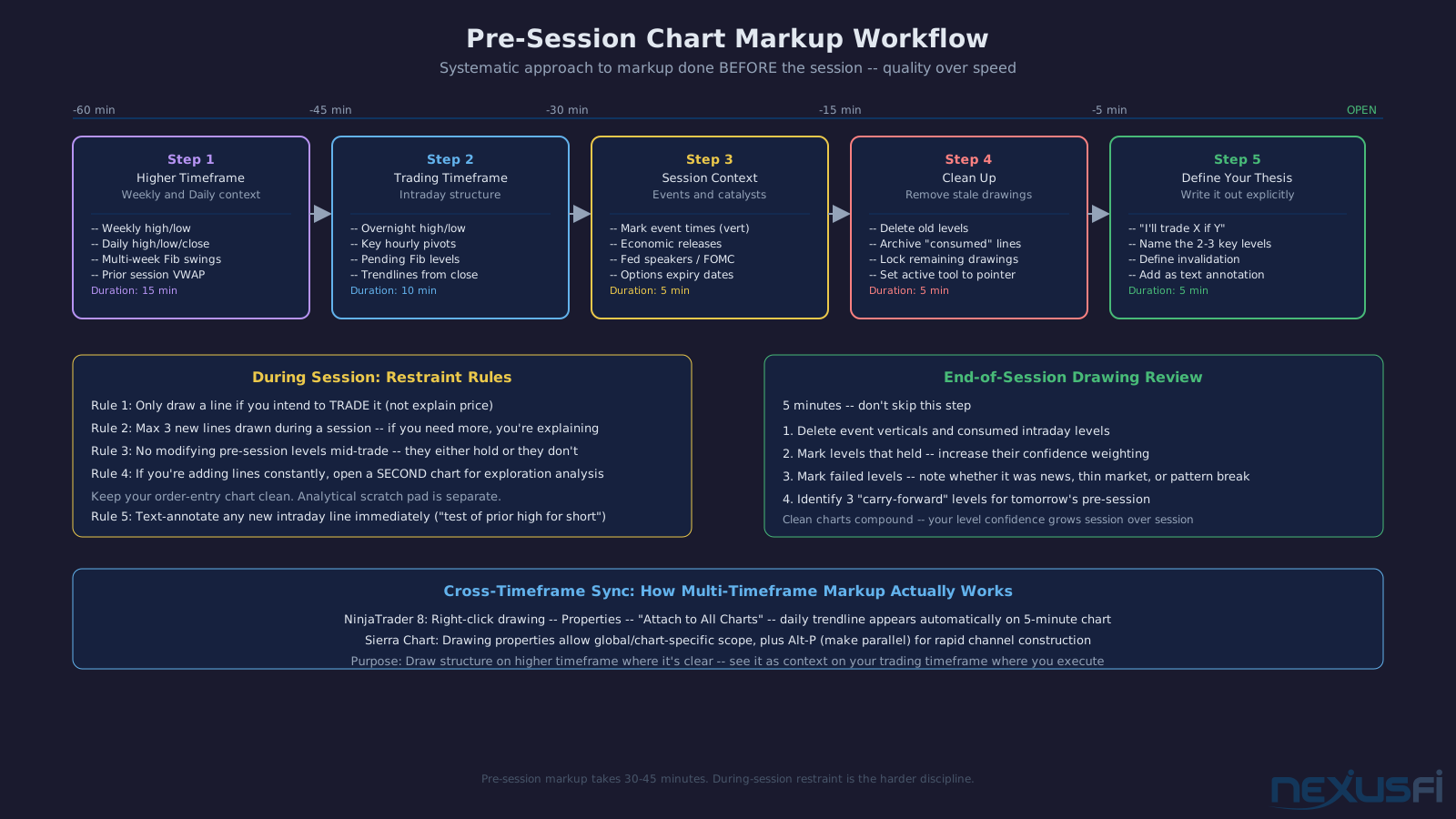
Pre-session markup workflow (30-45 minutes before open):
- Start with the highest timeframe relevant to your trading. Mark the weekly and daily high/low, any significant multi-week structures, and the prior session's high/low, close, and VWAP anchor.
- Move to your primary trading timeframe. Mark all relevant overnight range levels, key hourly structure, and any pending Fibonacci levels from recent swings.
- Add session-specific context: economic events (mark the time with a vertical line), scheduled report times, and any pending patterns you're watching.
- Delete any levels that are no longer relevant. Clean the chart before the session starts.
- Write down (in a journal, note, or text annotation on the chart) what you're watching for. Ambiguous levels drawn without a clear thesis often become distracting.
During-session drawing discipline:
Keep during-session markup to a minimum. The strongest instinct is to keep adding lines as price moves, trying to "explain" everything. This leads to chart paralysis — too much context makes it harder to act decisively.
A useful rule: during the session, only draw a line if you intend to trade it. If you're adding lines purely to "understand" price movement, do it on a separate chart or in a chart template you don't use for order entry.
Use text annotations liberally. A horizontal line at 4,512.50 is ambiguous — what does it represent? A text annotation saying "Prior session high — watch for rejection or breakout" tells you exactly what you thought when you drew it. When you come back to this chart tomorrow, you'll know instantly what the level meant rather than having to reconstruct your reasoning.
Managing Drawing Sets and Templates #
As your trading matures, you'll develop consistent markup patterns — the same types of levels, drawn in the same way, for every session. Systematizing these into saved drawing sets and templates saves time and prevents inconsistency.
Drawing templates (platform-specific features):
NinjaTrader 8: Chart templates (Tools menu) save the full chart configuration including indicators, styles, and drawing object defaults. You can set default properties for each drawing tool type — line color, thickness, extension style, and label settings — so every trendline you draw has the same formatting without manual adjustment.
Sierra Chart: Study collections and chart templates (File menu) capture the full chart setup. Drawing properties are configurable per tool type. The keyboard shortcut workflow in Sierra Chart means experienced users rarely touch the mouse for drawing operations.
ThinkOrSwim: Grid saving captures the complete chart setup, including all drawings. Drawing sets can be shared between charts or loaded fresh each session. The server-side storage means your drawings are available on any computer where you log in.
Drawing persistence and backup:
For NinjaTrader, drawings are stored in workspace files in the NinjaTrader 8/workspaces folder. Back this folder up regularly — especially before platform upgrades. A workspace file is XML-based, which means drawings (including all their properties) are human-readable and recoverable if you know what you're looking for.
SamirOfSalem documented a common frustration: NinjaTrader 8 changed how copied lines behave compared to NT7:
The community fix involved a custom drawing tool (Line JMAL) that overrides the paste offset behavior — copying lines paste directly on top of the original rather than offset. This kind of quality-of-life fix is exactly what the NexusFi NinjaTrader community specializes in.
Platform upgrades can reset drawing tool defaults or change how persistent drawings are stored. Before upgrading any major platform version, export or back up your workspace files, chart templates, and drawing tool settings. The 20 minutes this takes is worth far less than the hours you'd spend recreating your markup library.
Platform-Specific Drawing Tool Reference #
NinjaTrader 8:
- Trendline: Shift+drag, or Drawing Tools panel, or Draw menu
- Horizontal line: H key (configurable), or Drawing Tools panel
- Fibonacci retracement: F8 key (default) with snap mode enabled
- Channel: Drawing Tools panel, Parallel Channel or Trend Channel tools
- Pitchfork: Drawing Tools panel, Andrews Pitchfork
- Text annotation: T key (configurable)
- Attach to all charts: Right-click drawing, Properties, check "Attach to all charts"
- Drawing persistence: Workspace files in NinjaTrader 8/workspaces/
Sierra Chart:
- Full keyboard shortcut system (see AnvilRob's list above)
- Key shortcuts: Alt-4 (trendline), Alt-8 (horizontal line), Alt-7 (Fibonacci 2-point), Ctrl-6 (pitchfork), Alt-P (make parallel), Alt-S (snap to high/low)
- Drawing sync: Global settings in Chart Drawing Properties
- Studies with drawing: Many Sierra Chart studies draw lines programmatically via the drawing layer API
TradeStation:
- Drawing tools in the Chart Analysis toolbar
- Standard trendline, Fibonacci, channel, and annotation tools
- EasyLanguage allows programmatic drawing (DrawTrendLine, DrawRectangle functions)
- Drawings saved per chart file — no native cross-chart sync for drawings placed on one chart
ThinkOrSwim:
- Drawing tools in the Charts panel toolbar
- Save Drawing Set: Right-click, Drawings, Save Drawing Set
- Save entire chart grid: Grid icon, Save Grid As
- Server-side storage — drawings accessible from any login
Platform drawing tool capability is largely equivalent across the major platforms. The real differences are in workflow speed and persistence. Sierra Chart's keyboard-driven drawing workflow is fastest for experienced users. NinjaTrader 8's "attach to all charts" feature for cross-timeframe sync is a genuine advantage for multi-timeframe traders. ThinkOrSwim's server-side storage is the safest for backup.
Advanced Drawing Techniques #
Using rectangles for time-price zones. Instead of a single horizontal line, a rectangle captures both a price zone (the vertical extent of the rectangle) and a time period (the horizontal extent). This is useful for marking demand/supply zones where an exact price isn't the point — the zone is. Draw a rectangle from the origin of a move (or the base of a candle wick cluster) to show where buyers or sellers previously engaged.
Using vertical lines for event markers. Place vertical lines at scheduled event times: FOMC announcements, CPI releases, NFP, weekly inventory reports for crude oil. These markers give context to price action — a move at an event vertical line is structurally different from a move at an arbitrary moment. Some traders also place vertical lines at the open and close of each session to segment their charts.
Copying lines as templates. Once you've drawn a well-proportioned channel or Fibonacci setup, copying it to a new anchor point can help you identify whether similar structures are appearing elsewhere. This is a geometric pattern-recognition technique — you're asking "does this move have the same proportional structure as that earlier move?"
Locking drawings. Both NinjaTrader and Sierra Chart allow you to lock drawings in place so you can't accidentally move them while clicking around the chart. Once your pre-session markup is complete, lock all drawings. This prevents the frustrating experience of discovering you've dragged a key level off its anchor during a fast-moving session.
The most common drawing tool mistake experienced traders identify looking back: drawing lines at prices they wished represented structure rather than prices where structure actually exists. Your markup should capture what the market did, not what you want it to do. If you notice you're drawing lines that seem to anticipate where you want price to go, step back and look at what the chart is actually showing.
Cleanup and Session Review #
At the end of each trading session, a five-minute drawing review is worth the time:
- Delete session-specific lines that are no longer relevant (vertical event markers, intraday levels that got consumed).
- Mark any levels that held beautifully — these deserve more confidence going into the next session.
- Mark any levels that failed and note why (thin overnight market, news override, false break).
- Update your master key levels list — a separate note or text file with the 5-8 most important levels for this instrument.
This end-of-session cleanup compounds over time. Traders who maintain clean, deliberate charts develop pattern recognition for their levels that traders with cluttered charts can't access — there's too much noise to see the signal.
Conclusion #
Chart drawing tools are where technical analysis becomes personal. The market draws no lines — you draw them. This means every line on your chart is a hypothesis about where other traders are likely to act. Your job is to form good hypotheses, test them against price, and update your beliefs when the evidence changes.
The workflow matters as much as the tool selection. Effective drawing tool usage means dedicated pre-session preparation, disciplined during-session restraint, consistent labeling and color-coding, and regular maintenance to keep your charts clean. The traders who get the most from drawing tools treat their chart markup as part of their trading process — not decoration, not explanation after the fact, but active hypothesis generation before price arrives at a level.
The platforms give you every tool you need. The workflow is up to you.
Knowledge Map
Prerequisites
Understand these firstCitations
- — Advice for drawing trendlines and channels intraday (2014) 👍 9“A trend line or channel you draw is not necessarily an absolute thing. You should take it as hypothetical until you see price conforming to it. You'll need to abandon what isn't working.”
- — Trading ES for success -- PA Day after Day (2014) 👍 3“You can make a trendline, or channel, on any timeframe or tick chart appear on all the charts for the same instrument automatically. Select Attach to All Charts in the trendline's Properties.”
- — Market Geometry (2018)“Sierra Chart full drawing keyboard shortcut reference: Alt-4 Trendline, Alt-8 Horizontal Line, Alt-7 Fib 2 Point Retrace, Ctrl-6 Pitchfork, Alt-P Make Line Parallel, Alt-S Snap To High/Low.”
- — How to draw Horizontal Lines with price label at predefined Prices (2015) 👍 1“You can save those levels by saving the drawing set. Right click, Drawings, Save Drawing Set. You can then load it into any other chart. Also if you save the Chart Grid it saves with all indicators and drawings.”
- — import levels from txt file and draw horizontal lines (2023) 👍 2“It displays levels I have saved in txt files and displays horizontal lines at the given prices. So if I restart the platform or for any reason lose my workspace it's saved elsewhere.”
- — Fibonacci Indicators for NinjaTrader (2010) 👍 16“I use Fibonacci tools for trading, not because I believe in black magic, but because they are an efficient tool to establish support and resistance.”
- — Support and Resistance Levels for Futures Prices (2013) 👍 5“Fibonacci retracements and expansions: Use merge-backadjusted charts for up to 3 or 6 months. Absolute levels: Use merged, non-adjusted contracts or the underlying cash index.”
- — Ninja Trader 8 Drawing Tools Wanted (2024) 👍 1“In NT8 I always have to square the lines up after copy. It seems I spend more time correcting lines than studying the market.”
- — Fibonacci Retracement Indicator for NT8 (2020) 👍 1“Right click on the chart, select Drawing Tools, Snap Mode, Bar And Price. Then press F8. Click on the high and low of the bar -- it will snap the Fibonacci levels to exactly those points.”
- — XavPriceActionTrend Discussion (2019) 👍 16“Here is a beta release of V2. It lets you add a different base periods. This is my first stab at a MTF indie, so if any coders out there can look at my code and help me optimize it, I promise to use the THANKS button :becky: I tried to sync the chart drawings using a syncing dataseries, but due”