



Trading Workspace Design: How to Organize Charts, DOM, and Market Data Across Your Screens
Overview #
Every futures trader eventually faces the same problem: you've got charts, a DOM, time and sales, market internals, a news feed, maybe a heatmap — and it all needs to be visible at the right moment without burying the one thing that matters right now.
This isn't about buying more monitors. It's about understanding what information you actually need, when you need it, and how to arrange it so your eyes go to the right place at the right time. Bad workspace design creates hesitation. Good workspace design makes the trade obvious.
The Battlestations thread on NexusFi has over 1,200 replies of traders sharing their setups, and a clear pattern emerges: the traders who consistently perform don't have the most screens — they have the most intentional layouts. As @Inletcap described their three-monitor setup, "Starting from the far left, I have my daily/weekly charts — what's happened and where are we going. The middle monitor is where I execute. The right side is research, news, forums."
That's the core principle. Every screen has a job. Every window earns its real estate. If something is on your screen and you haven't looked at it in the last hour, it's costing you attention.
Key Concepts #
Information Hierarchy #
Your workspace has a hierarchy whether you designed one or not. The question is whether it matches how you actually trade.
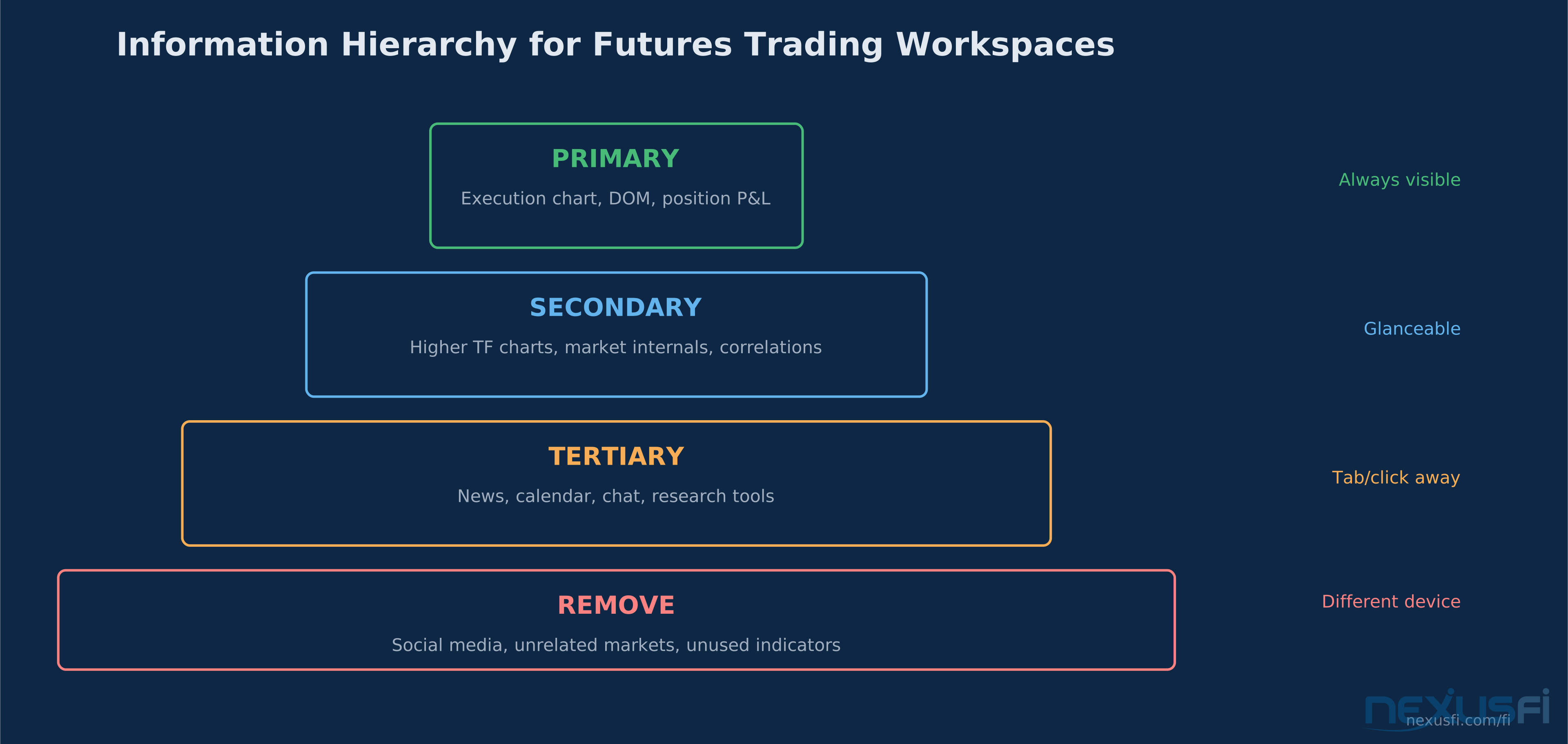
Primary information is what drives your entry and exit decisions right now — your execution chart, your DOM, your position P&L. This goes dead center, directly in front of you, at eye level. You should never have to turn your head to see your primary information.
Secondary information provides context for those decisions — higher timeframe charts, market internals, correlated instruments. This goes on flanking monitors or secondary regions of your main screen. You glance at it, you don't stare at it.
Tertiary information is background awareness — news feeds, economic calendars, social media, chat rooms. This goes furthest from center or on a separate device entirely. If you're actively watching this during market hours, you're probably not trading well.
The Execution Zone #
The execution zone is the 18-24 inches directly in front of your face. Whatever lives here gets the most eye time and triggers the most action. For most futures traders, this is either a chart with entry/exit overlays or a DOM ladder.
This is not the place for your weekly chart. It's not the place for your watchlist of 20 symbols. It's the place for the one instrument you're about to trade, displayed in the timeframe that generates your entries.
@Trader825 on NexusFi runs a focused layout: "Multi time frame up top, DOMs on the left, and volume charts on the right along with the NYSE Tick and ADV/DECL line. Three correlated markets for maximum precision while trading."
Notice the structure — execution tools are clustered, context is peripheral, and everything serves a specific function.
Cognitive Load and Decision Fatigue #
Here's the part most traders ignore: your workspace is a cognitive environment. Every additional chart, indicator, and data window adds processing demand. Research on attention shows that humans can effectively monitor 4-7 distinct information streams before performance degrades. Past that point, you're not gaining information — you're creating noise.
This means a six-monitor setup showing 24 charts isn't six times more effective than a single monitor showing four charts. It might actually be worse if those extra charts create conflicting signals or analysis paralysis.
The right question isn't "how many monitors do I need?" It's "what's the minimum information set required to execute my strategy?"
How It Works #
The Three-Zone Model #
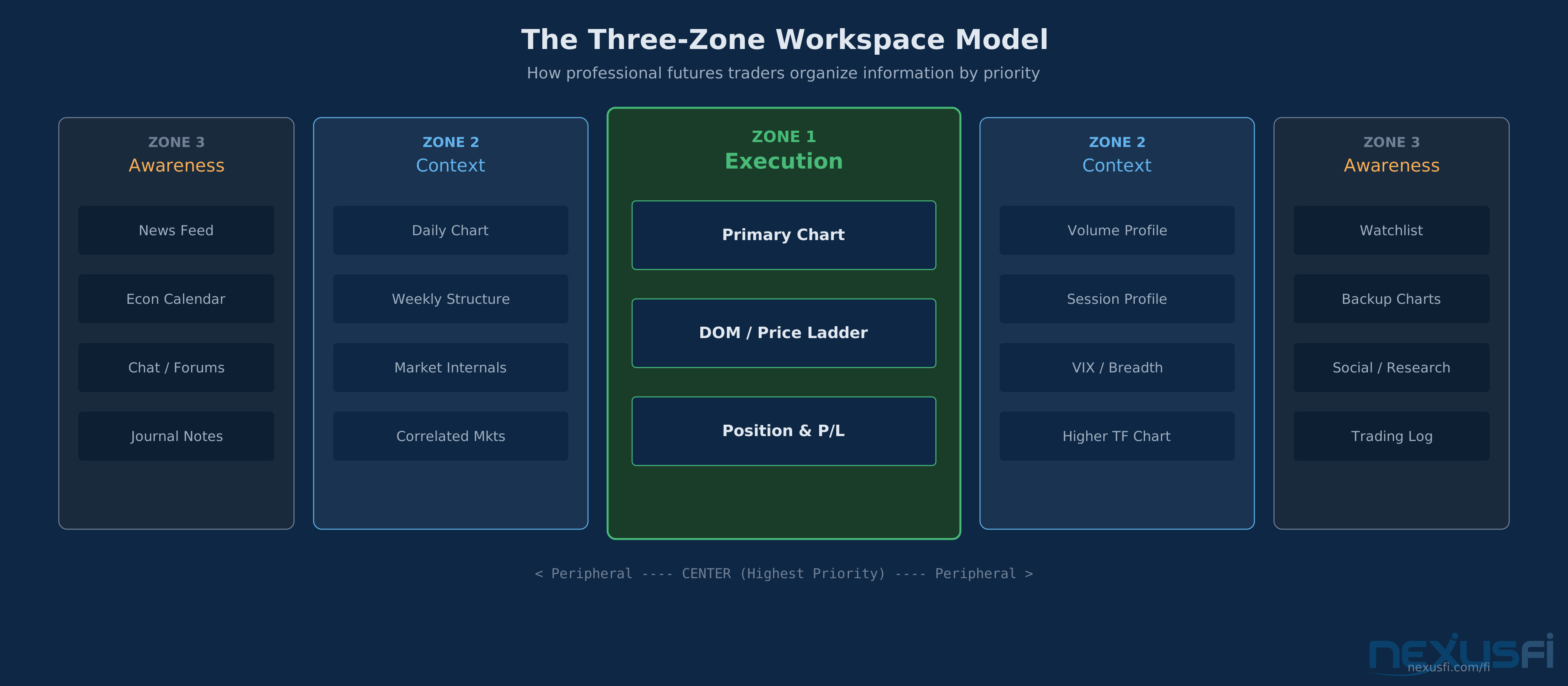
Most successful trading workspaces follow a three-zone architecture, regardless of how many physical monitors are involved.
Zone 1: Execution (Center)
This is where orders happen. Contents depend on your trading style:
- DOM scalpers: Price ladder front and center, with a small intraday chart beside it. The DOM IS the primary interface — chart is confirmation only.
- Chart-based traders: Primary timeframe chart occupying most of the center screen, with one-click order entry overlays. The chart IS the execution interface.
- Hybrid traders: DOM on one side, primary chart on the other, both in the center zone. This is the most common setup on NexusFi.
The execution zone should include your position display, open P&L, and daily P&L. You need to know where you stand without searching for it.
Zone 2: Context (Flanking)
Context information sits on either side of the execution zone. This includes:
- Higher timeframe charts (daily, weekly) showing structure and key levels
- Correlated instruments (if you trade ES, you probably want NQ and the VIX visible)
- Market internals (TICK, ADD/DECL, VOLD for equity index traders)
- Volume profile or market profile from the current session
@dextrade on NexusFi runs "Left — 3 charts with larger timeframes, Center — execution platform with small time frames, Right — Indexes." That's the three-zone model in practice.
The key rule for Zone 2: everything here should be readable at a glance. If you need to squint or lean forward to read a chart, it's either too small or too far away.
Zone 3: Research and Awareness (Peripheral)
Zone 3 is the most abused zone. Traders stuff it with everything that doesn't fit elsewhere and then wonder why they feel overwhelmed.
Zone 3 should contain:
- Economic calendar (especially if trading during news events)
- News feed or headlines
- Platform for journaling or note-taking
- Chat or community windows
Zone 3 should NOT contain anything that triggers trades. If you find yourself executing because of something you saw in Zone 3, that information needs to move to Zone 2 or you need to rethink your process.
Single Monitor Configurations #
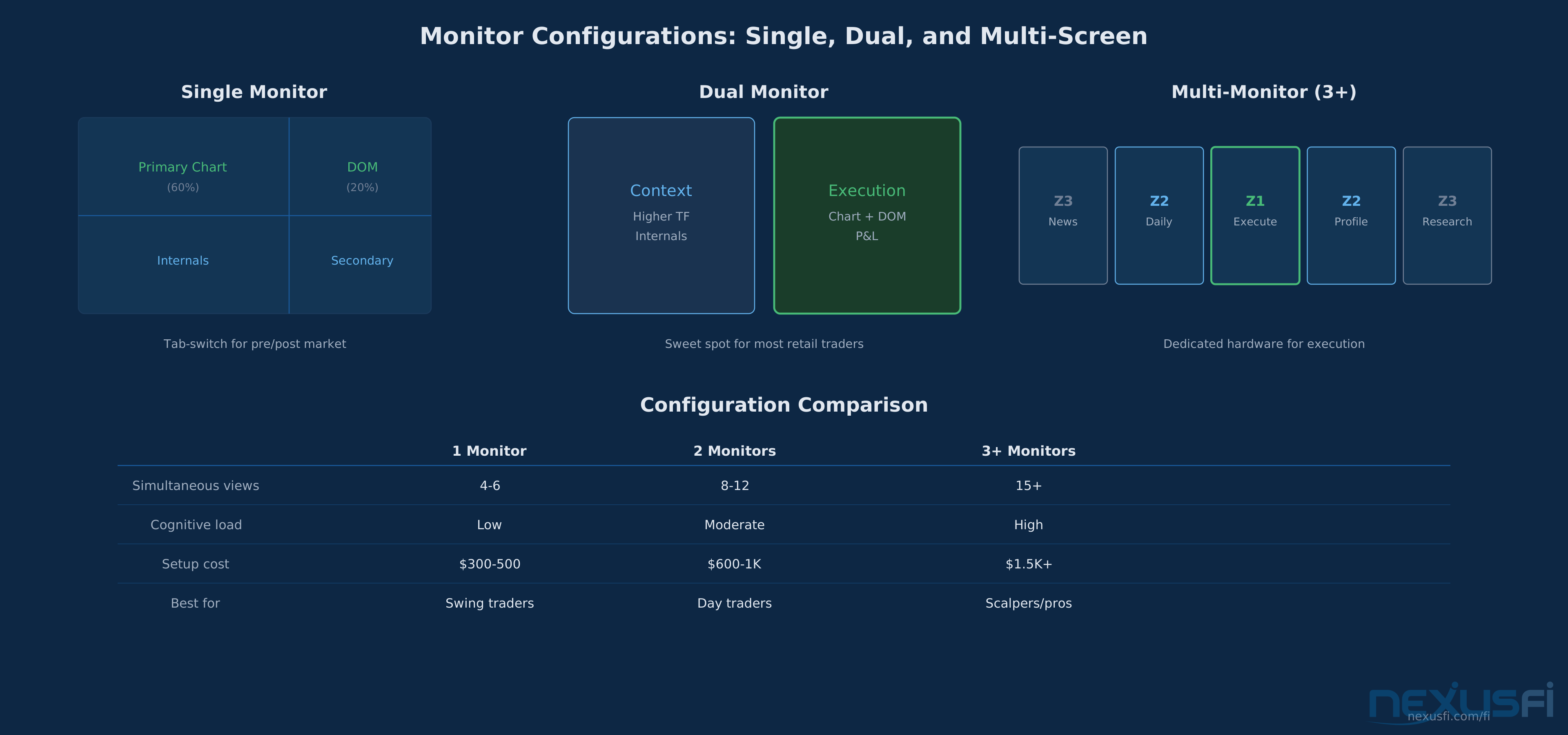
Not everyone has or needs multiple monitors. A single-monitor setup forces discipline that multi-monitor traders sometimes lack — you can't display everything, so you must decide what matters.
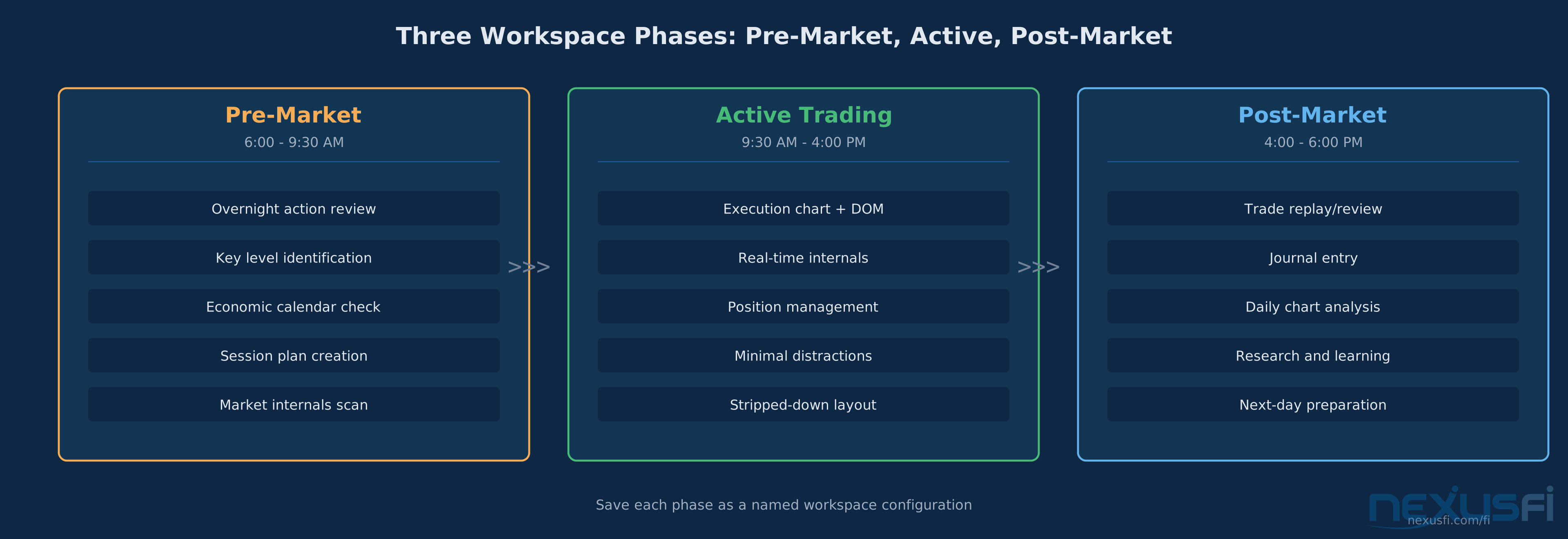
The tab-switching approach: Create multiple workspace layouts (most platforms support saving and loading workspaces) and bind them to keyboard shortcuts. One workspace for pre-market analysis, one for active trading, one for post-market review. You sacrifice simultaneous visibility for focused, single-context work.
The split approach: Divide your single monitor into quadrants. Primary chart dominates 50-60% of screen space. DOM gets 20%. Market internals and a secondary chart share the remaining space. This works surprisingly well on a single 32" 4K display — the pixel density gives you enough room for clean layouts.
What to cut: On a single monitor, cut Zone 3 entirely. Move news and research to your phone or tablet. You simply don't have the real estate, and the attention cost of cramming it in exceeds the information value.
Dual Monitor Configurations #
Two monitors is the sweet spot for most retail futures traders. It provides enough separation between execution and context without the complexity of managing a larger array.
The classic split: Left monitor for context (higher timeframes, internals, correlated markets). Right monitor for execution (primary chart, DOM, position management). Some traders reverse this based on dominant eye preference — worth experimenting with.
The stacked split: Some traders use one monitor environment for charts and one portrait-oriented monitor for the DOM and time & sales. Portrait mode is genuinely excellent for ladder-based execution — a DOM is naturally tall and narrow, and portrait orientation eliminates wasted horizontal space.
@djkiwi on NexusFi made the case that most traders "did not feel in tune with the market or the instruments I was trading using 2-4 monitors," eventually settling on six screens. But the important point is that adding monitors didn't add the connection — it came from understanding what to put on them.
Three-Plus Monitor Configurations #
And added: "I don't have a million indicators on my screen, I only watch order flow and of course the vol. profile is mostly what I focus on."
That's the critical insight. More screens doesn't mean more indicators. It means more room for the SAME information displayed at comfortable sizes with proper spacing. A volume profile chart that's cramped into a 6-inch square isn't giving you the same read as one that's 20 inches tall.
With three or more monitors, the three-zone model expands but the principle stays the same:
- Center monitor(s): execution zone
- Flanking monitors: context zone
- Outermost monitor(s) or secondary row: research/awareness
@Trade4Ticks runs six monitors split between "two i7s with 24GB each. The 4 on the left are from one tower where I run charts and execute while the two on the right are for news, email, forums, more charts." Notice the separation — dedicated hardware for execution vs. everything else. That's not just organization, it's insurance against a browser tab crashing your charting platform.
Practical Application #
Layout Design by Trading Style #
Your workspace should match your strategy, not someone else's Instagram post.
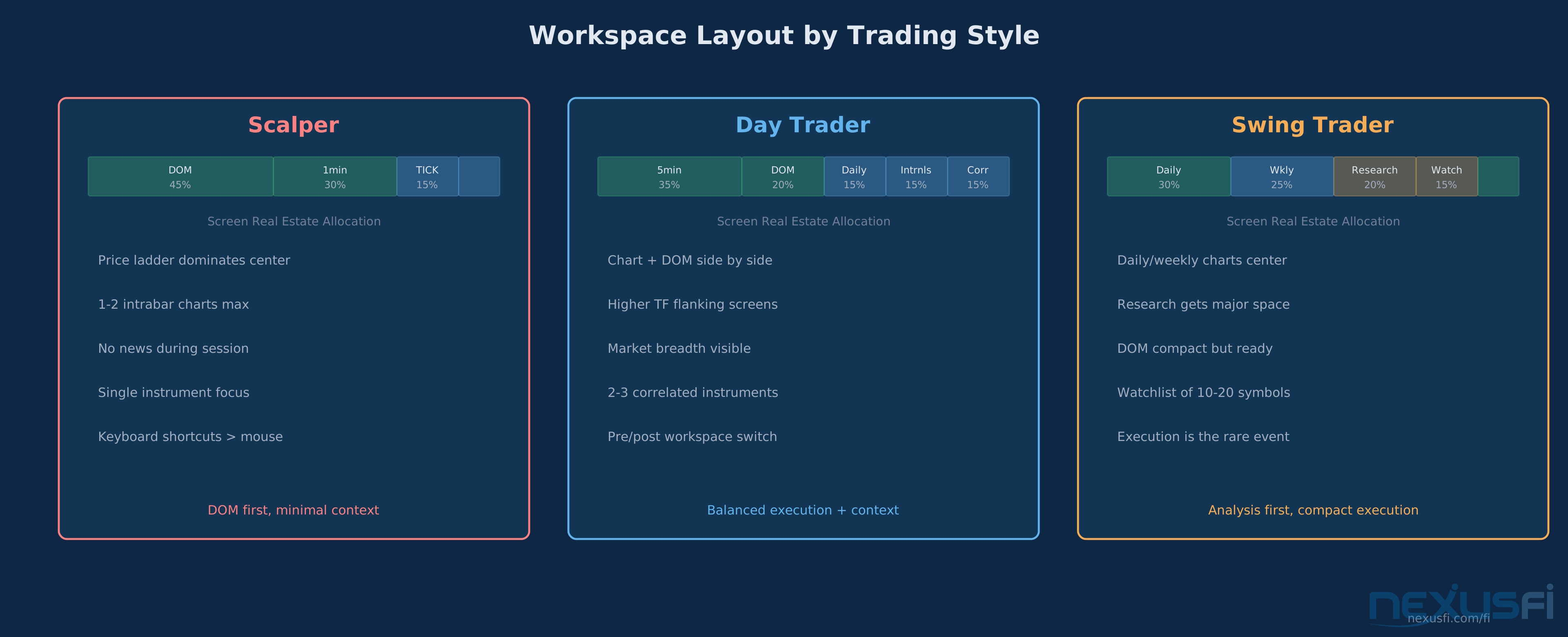
Scalpers and short-timeframe traders need minimal context and maximum execution focus. The DOM dominates the center zone. One or two intrabar charts provide directional context. Market internals (TICK, cumulative delta) sit nearby. Everything else is noise during active trading. Strip it down ruthlessly.
Day traders working 5-15 minute timeframes need more context. Higher timeframe structure matters because you're holding through pullbacks. Correlated markets matter because you're reading relative strength. The center zone expands to include both execution charts and context charts. DOM might move to the edge of the execution zone or shrink to a smaller footprint.
Swing traders and position traders spend more time analyzing and less time executing. The workspace flips — analysis and research dominate, while execution tools are compact and ready but not primary. A single DOM in one corner, a large multi-timeframe chart layout in the center, and research/news getting significant real estate makes sense.
The Pre-Market and Post-Market Problem #
Most traders design their workspace for live trading and forget that the pre-market prep and post-market review are different workflows entirely.
Pre-market workspace should emphasize overnight action, key levels from the prior session, economic calendar, and market internals positioning. You're in analysis mode, not execution mode. Your DOM doesn't need to be front and center yet.
Active trading workspace is what you've been designing above — execution-focused, stripped down, fast.
Post-market workspace should emphasize your trades (replay or journal), daily charts for context, and research tools. This is where Zone 3 actually earns its keep — you have time to read, process, and plan.
Most platforms support saving workspace configurations. Create three named workspaces and switch between them as the market session changes. This single habit eliminates the "I was looking at the wrong thing at the wrong time" problem.
Hardware That Actually Matters #
After reading hundreds of workspace posts on NexusFi, the hardware considerations that actually impact trading performance are:
Monitor size and resolution: 27-inch 1440p is the current sweet spot for trading monitors. 24-inch 1080p works but gets cramped for multi-chart layouts. 32-inch 4K gives excellent density but text can be small without scaling. @Dellboy designed a custom curved desk that's "900mm deep so the distance to the monitors is ergonomic" — viewing distance matters as much as screen size.
Refresh rate: 60Hz is fine for trading. You don't need 144Hz gaming monitors. Price data updates at most a few hundred times per second, and your eyes can't process chart movements faster than about 30 frames per second anyway. Save the money.
GPU: The GPU needs to handle multiple displays at their native resolution without stuttering. For 2-3 monitors, any modern integrated or entry-level discrete GPU works. For 4-6 monitors, a dedicated GPU with enough display outputs (or DisplayPort daisy-chaining support) becomes necessary. Don't overthink this — trading platforms are not graphically demanding.
Multiple PCs: @BKOp noted that "assigning monitors to video cards makes a difference" in multi-monitor setups. Some traders run two separate PCs — one dedicated to charting/execution, one for everything else. This provides fault isolation: if your browser crashes or Windows decides to update, your trading platform stays up.
Internet: Two separate internet connections (primary + cellular backup) matter more than any hardware upgrade. A six-monitor workspace is useless when your ISP goes down during a volatile session.
Common Mistakes #
The information maximizer: Loading every available indicator, market, and data stream because "more data is better." It isn't. Every additional data point competes for attention with the ones that actually drive your decisions.
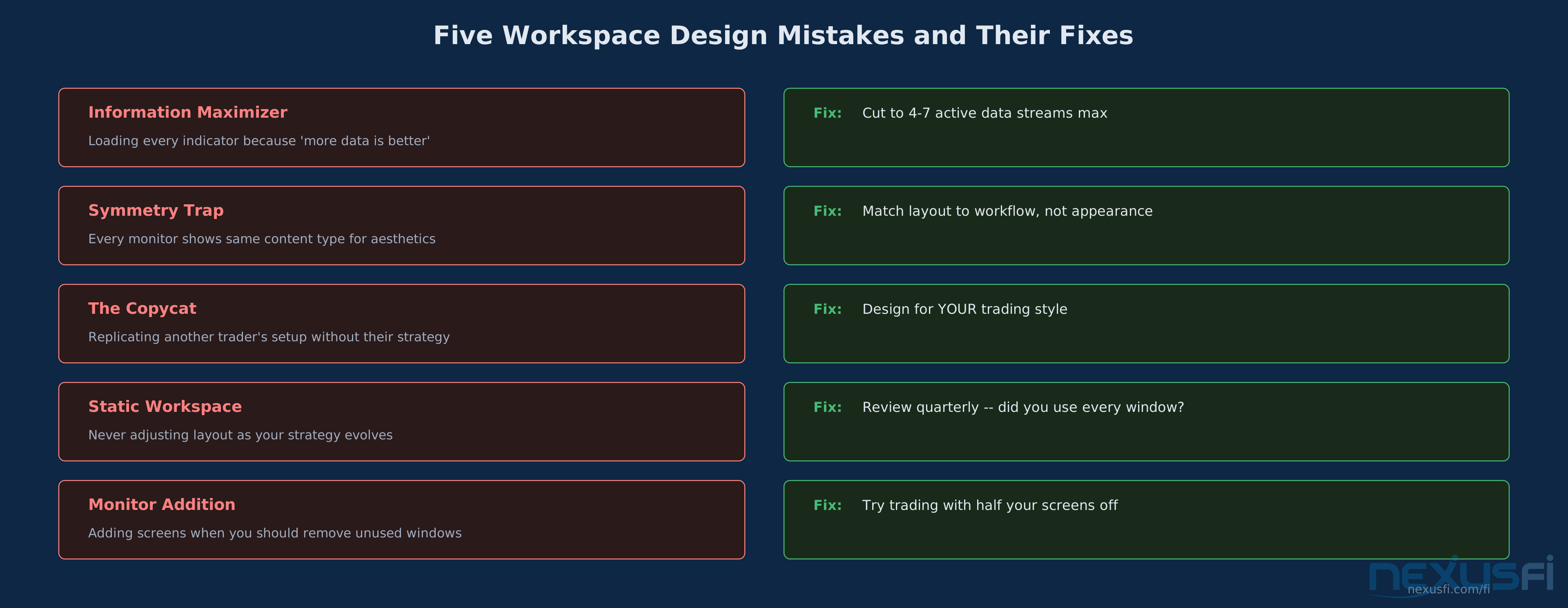
The symmetry trap: Making every monitor show the same type of content because it "looks clean." Your workspace serves a function, not an aesthetic. A clean layout that doesn't match your workflow is worse than a messy one that does.
The copycat: Replicating a profitable trader's exact workspace setup. Their layout reflects their strategy, their market, their cognitive style, and their screen size. Unless all of those match yours, you're copying form without function.
The static workspace: Never adjusting the layout after the initial setup. Markets change, your strategy evolves, and your workspace should evolve with them. Review your layout quarterly. Ask: "Did I use every window on my screen this week? Was there information I needed that wasn't visible?"
The "I'll add one more monitor" solution: When your workspace feels cluttered, the fix is usually subtraction, not addition. Remove the three least-used windows before adding another monitor.
Workspace Ergonomics for Long Sessions #
Futures markets are open for extended hours. If you're trading the ES, that's potentially 23 hours per day. Your workspace needs to be physically sustainable.
Monitor height: The top of your primary monitor should be at or slightly below eye level. Looking up causes neck strain over long sessions. Looking slightly down is the natural resting position for your eyes.
Distance: Arm's length to your primary monitor is the general guideline. If you're leaning forward to read text, increase the font size in your platform rather than moving closer.
Lighting: Reduce overhead lighting and use bias lighting behind your monitors. This reduces the contrast between bright screens and dark surroundings that causes eye fatigue. Some traders use blue light filters during evening sessions — the science is mixed on whether they help, but they don't hurt.
@bblnt created a "trading couch" setup instead of a desk, reasoning that "since we traders are sitting countless hours in front of the screen, I realized" that comfort was worth optimizing for. That's an extreme approach but the principle is sound: your body is part of your trading system.
Getting Started #
Step 1: Inventory Your Information Needs #
Before touching a single monitor setting, write down every piece of information you look at during a trading session. Then rank them:
- Must see at all times during active trading (execution chart, DOM, position)
- Must see with a glance — no clicking or switching required (context charts, internals)
- Must be accessible but can require a click or tab switch (news, calendar, journal)
- Nice to have but not required for decision-making (social media, forums, extra markets)
Be honest about category 4. Most traders have too much in category 2 and not enough discipline about category 4.
Step 2: Map to Physical Space #
Take your information inventory and map it to your available screens:
- Category 1 goes to the execution zone (center, at eye level)
- Category 2 goes to the context zone (flanking monitors or secondary areas)
- Category 3 goes to the awareness zone (peripheral monitors or tabbed windows)
- Category 4 goes to a different device or doesn't go anywhere
Step 3: Build and Test #
Set up your workspace and trade with it for a full week without changes. Keep a small note about friction points — moments where you couldn't find information fast enough, or where you were distracted by something irrelevant.
After one week, make one adjustment based on the most common friction point. Then trade another week. Iterate slowly. Rapid workspace changes create their own cognitive overhead as you learn new positions for familiar information.
Step 4: Save Multiple Configurations #
Create named workspace configurations for each phase of your trading day:
- Pre-market: Analysis-heavy, wide view
- Active: Execution-focused, stripped down
- Post-market: Review-focused, research-heavy
Most professional platforms support this natively. If yours doesn't, take screenshots of your preferred layouts so you can rebuild them quickly.
The Minimalist Test #
Here's the exercise that reveals whether your workspace is working for you or against you: trade for one session with half your monitors turned off. Just the center screen or screens — nothing else.
If your performance doesn't change, those extra screens weren't adding value. If it drops, you've identified which peripheral information actually matters.
@Botts runs "6 monitors" but notes: "I don't make a lot of changes to my basic Workspace so most of my setups are consistent." Consistency beats complexity. The best workspace is the one you stop thinking about because everything is exactly where you expect it to be, every single session.
Your workspace is the interface between your strategy and the market. Design it like the cockpit of a machine you'll operate under pressure, not like a dashboard you'll admire. Function over form. Clarity over completeness. The trade you don't hesitate on because the information was right there — that's the workspace doing its job.
Knowledge Map
Go Deeper
Build on this knowledgeReferences This Article
Articles that build on this topicCitations
- — InletCap's Random Collections (2016) 👍 46“I have three 27" monitors side by side on my desk. It's about 6 feet wide and I love it- lots of room to see a lot of stuff.”
- — Battlestations: Show us your trading desks! (2019) 👍 13“A simple but very effective setup. Multi time frame up top, DOMs on the left, and volume charts on the right along with the NYSE Tick and ADV/DECL line (split). Three correlated markets for maximum precision while trading. https://nexusfi.”
- — Battlestations: Show us your trading desks! (2019) 👍 14“Hello, 3 monitors center is 40 inHD. Trading software: SierraCharts, Tradestation, bookmap, RTrader Pro, Rithmic for data feed. Left- 3 charts with larger timeframes, Center execution platform with small time frames, Right Indexes and TTW of course.”
- — Battlestations: Show us your trading desks! (2018) 👍 29“https://nexusfi.com/attachment.php?attachmentid=256419 https://nexusfi.com/attachment.php?attachmentid=256418 https://nexusfi.com/attachment.php?attachmentid=256442 https://nexusfi.com/attachment.”
- — Hardware lust: trading PC with 6-monitors (2012) 👍 8“Hi, I believe multiple monitors are able to better provide the trader with a holistic view of the market than using one or two monitors. Personally I did not feel "in tune" with the market or the instruments I was trading using 2-4 monitors.”
- — Battlestations: Show us your trading desks! (2018) 👍 22“6 X 32" monitors between 2 i7's with 24GB each. The 4 on the left are from one tower where I run charts & execute while the two on the right are for news, email, forums, more charts, etc.https://nexusfi.com/attachment.php?attachmentid=252958”
- — Battlestations: Show us your trading desks! (2024) 👍 6“Assigning monitors to video cards makes a difference Josh, regarding the number of screens, I have found that how they are assigned to a GPU made a huge difference in reducing data lag.”
- — Crossing the Abyss: An Adventure Guide by Snax (2020) 👍 4“6 monitors helps me keep an eye on what I pay attention to. And, I don't make a lot of changes to my basic "Workspace" so most of my "mark-ups" are there from the prior day when I load my charts up on my return.”
- — Battlestations: Show us your trading desks! (2021) 👍 8“Instead of a trading desk, I created a "trading couch" setup. Since we traders are sitting countless hours in front of the screen, I realized that setting up my system next to a couch is a way more comfortable solution.”
- — Battlestations: Show us your trading desks! (2017) 👍 12“240654 Here is my trading setup. Key features include: 1) I had a curved trading desk that I designed built for me that is 900mm deep so the distance to the monitors is ergonomic, it is easy to view all screens and there is plenty of real estate for...”
- — Battlestations: Show us your trading desks! (2019) 👍 28“Having fun here :) Every morning I grab a cup of coffee, rub Buddha's belly for luck, put on my battle helmet and enter the combat zone. I'm running 3 computers and 9 monitors. This setup has grown organically over the years.”