



Trading Platform Hotkeys and Keyboard Shortcuts: Execution Speed, Risk Control, and Platform-Specific Configuration
Overview #
This article covers hotkey design principles, platform-specific mechanics (NinjaTrader, Sierra Chart, Bookmap, TT), and the failure modes that cost real money in leveraged futures trading.
The most important hotkey you will ever configure is not buy or sell
What Hotkeys Are (and What They Are Not) #
Press a key. An order fires. That's a hotkey
Order entry actions
Order management actions
Navigation and workspace actions
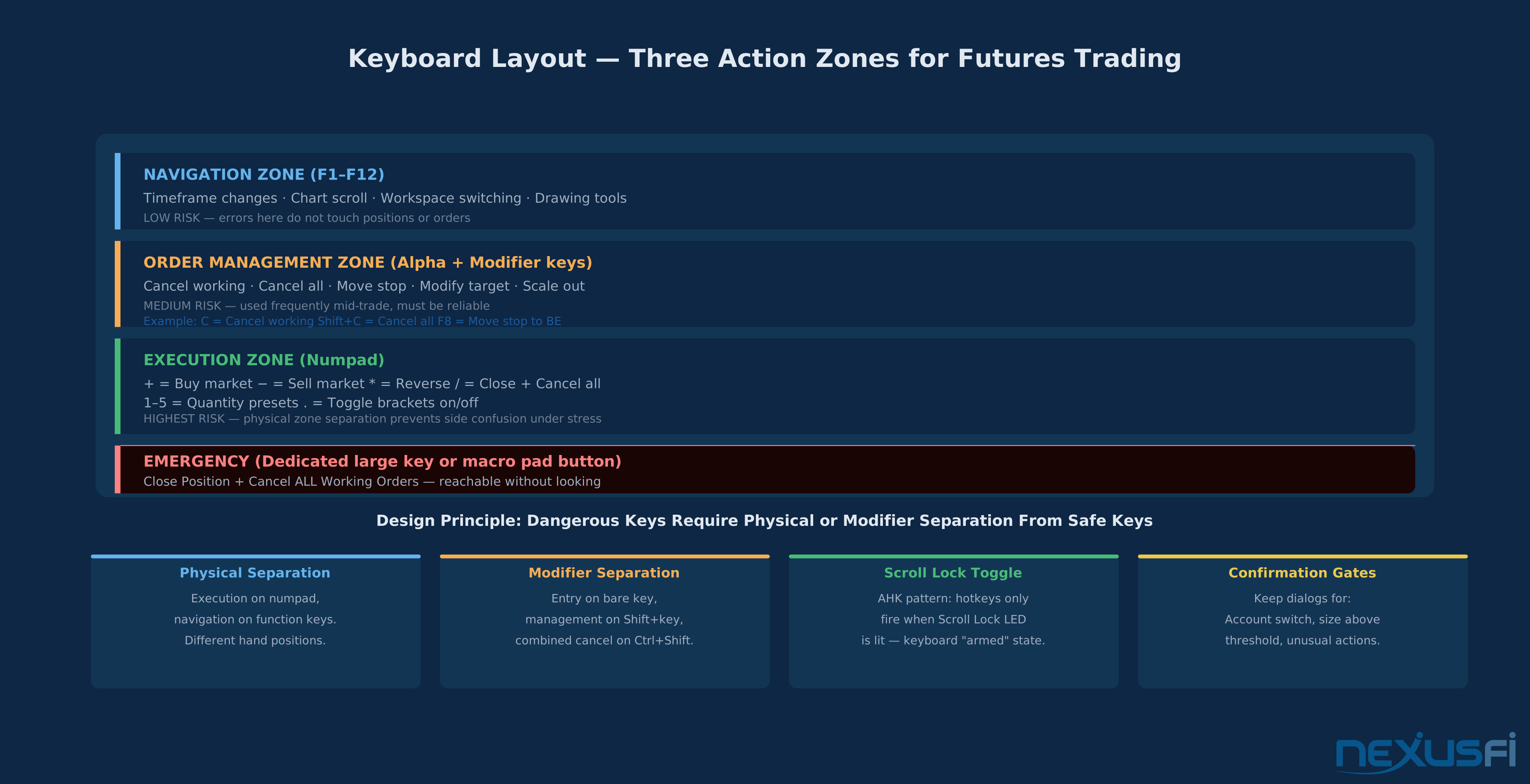
Here's why this matters for your key layout. Order entry hotkeys and order management hotkeys belong on different physical keyboard zones
Why Futures Amplifies Everything #
An equities trader who hits the wrong key might buy 100 shares of the wrong stock. An ES futures trader who hits the wrong key with a default quantity of 5 contracts has just committed $335,000 in notional. A CL (crude oil) trader with 3-contract default is controlling $90,000+ per second during a volatility spike.
Every hotkey principle discussed in this article is designed with this leverage reality as the baseline assumption. Hotkeys for equities are a convenience. Hotkeys for futures are infrastructure.
Before You Remap Anything: Five Rules #
Skip these and you will regret it. These are the reason hotkey setups go wrong
Rule 1: Keyboard Focus Determines Which Action Fires #
Nobody gets this right the first time. Every platform applies hotkeys contextually
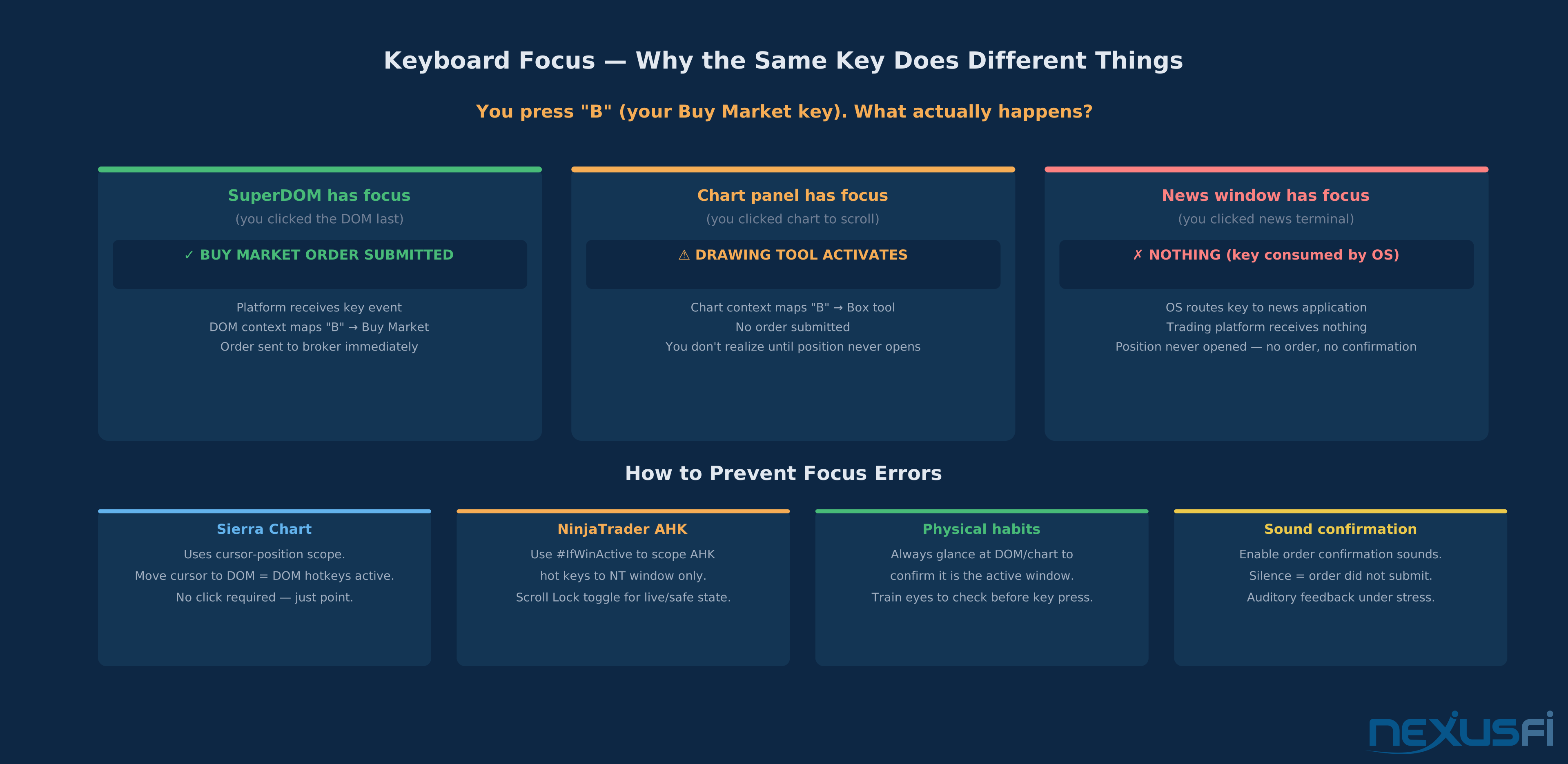
In NinjaTrader, pressing F when the SuperDOM has focus might flatten the current instrument. Pressing F when a chart panel has focus might execute an entirely different binding
The practical consequence: before trusting any hotkey in live trading, verify exactly which window has focus in every scenario you encounter. Scalpers moving fast between chart, DOM, and news terminal press hotkeys while focus sits in unexpected windows all the time.
Test protocol: Assign a harmless navigation hotkey, then press it while clicking different platform windows. Document where it works and where it fails
Rule 2: Global vs. Scoped Hotkeys Behave Differently #
Platforms implement three hotkey scope models:
- Global hotkeys fire regardless of which window has focus, sometimes capturing keystrokes even from other applications. NinjaTrader supports this via NinjaScript
HotKey.Add(). - Application-scoped hotkeys only fire when the trading platform has focus. Standard for most platform-native keybindings.
- Window-scoped hotkeys fire only when a specific chart, DOM, or panel has focus. Sierra Chart's custom key actions default to this model.
When using AutoHotkey (AHK) alongside a trading platform, both systems listen for the same keystroke
Rule 3: Context/Modal State Changes Hotkey Behavior #
Order entry widgets, quantity fields, and price entry boxes hijack your keyboard. The platform switches to "input mode"
This hits you hardest in exactly the moments when you need hotkeys most: you're watching a setup form, you click the price field to adjust an entry price, and now your execution keys are dead until you click away from the input.
The fix: Design your workflow so execution hotkeys are pressed from the DOM or chart, not from order entry dialogs. If you use a price-ladder entry workflow, know exactly where your cursor sits before pressing execution keys.
Rule 4: Cancel and Flatten Semantics Are Not Universal #
"Cancel" means different things on different platforms
- Cancel working orders (the most common): Cancels all resting limit and stop orders for the current instrument on the current account. Does not affect filled orders or positions.
- Cancel all orders (broader scope): Cancels orders on all instruments, all accounts, or all pending orders including those you forgot existed.
- Cancel bid side / Cancel ask side: Cancels only buy-side or sell-side working orders. Useful for adjusting one side of a two-sided position without affecting the other.
- Cancel last order: Cancels the most recently submitted order. Useful for immediately reversing an accidental entry.
"Flatten" has its own scope nuances:
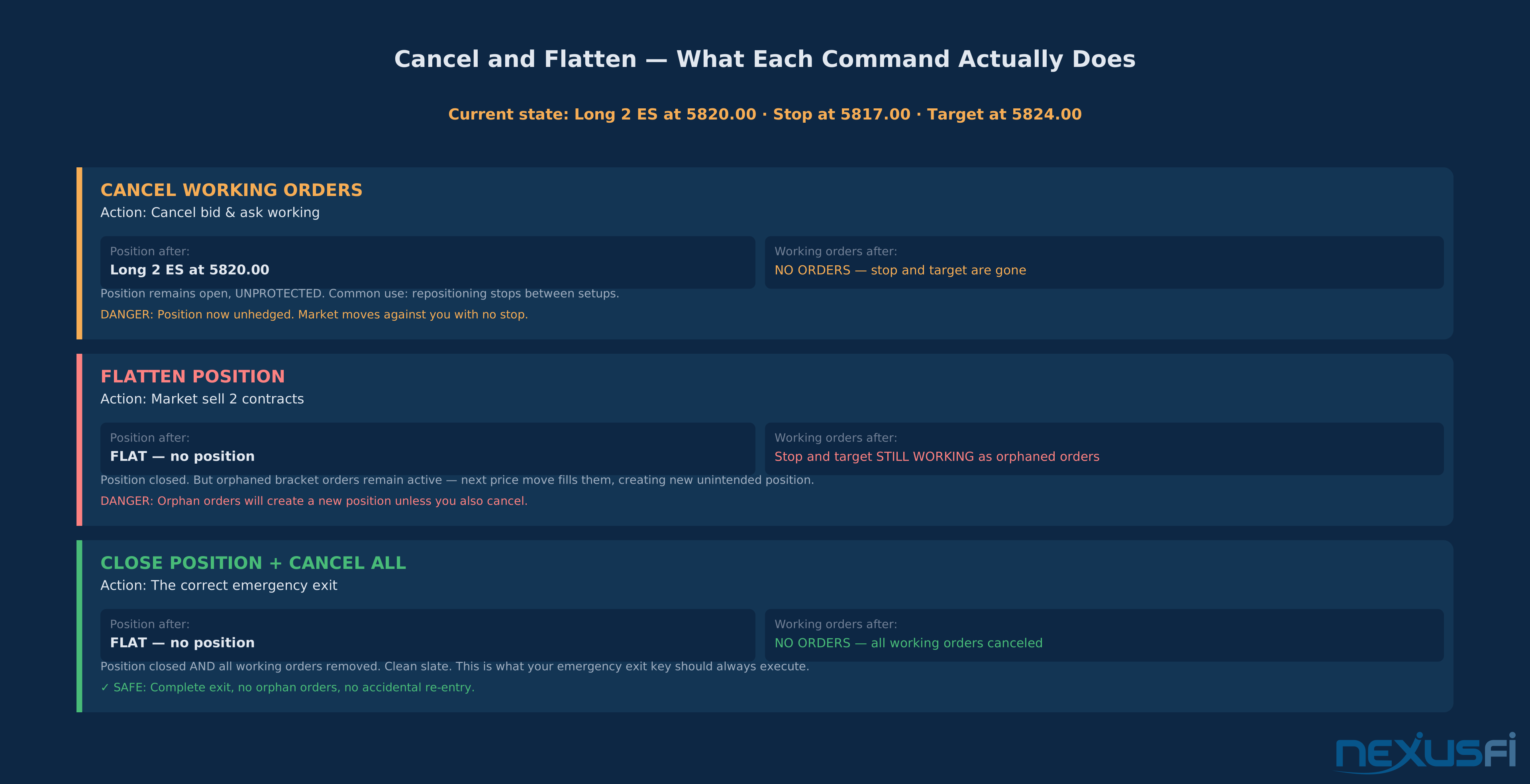
- Flatten position (platform-native): Submits a market order for the exact quantity required to reduce net position to zero. Does not cancel working orders unless you configure it to.
- Close position and cancel (combined): The gold standard for emergency exits
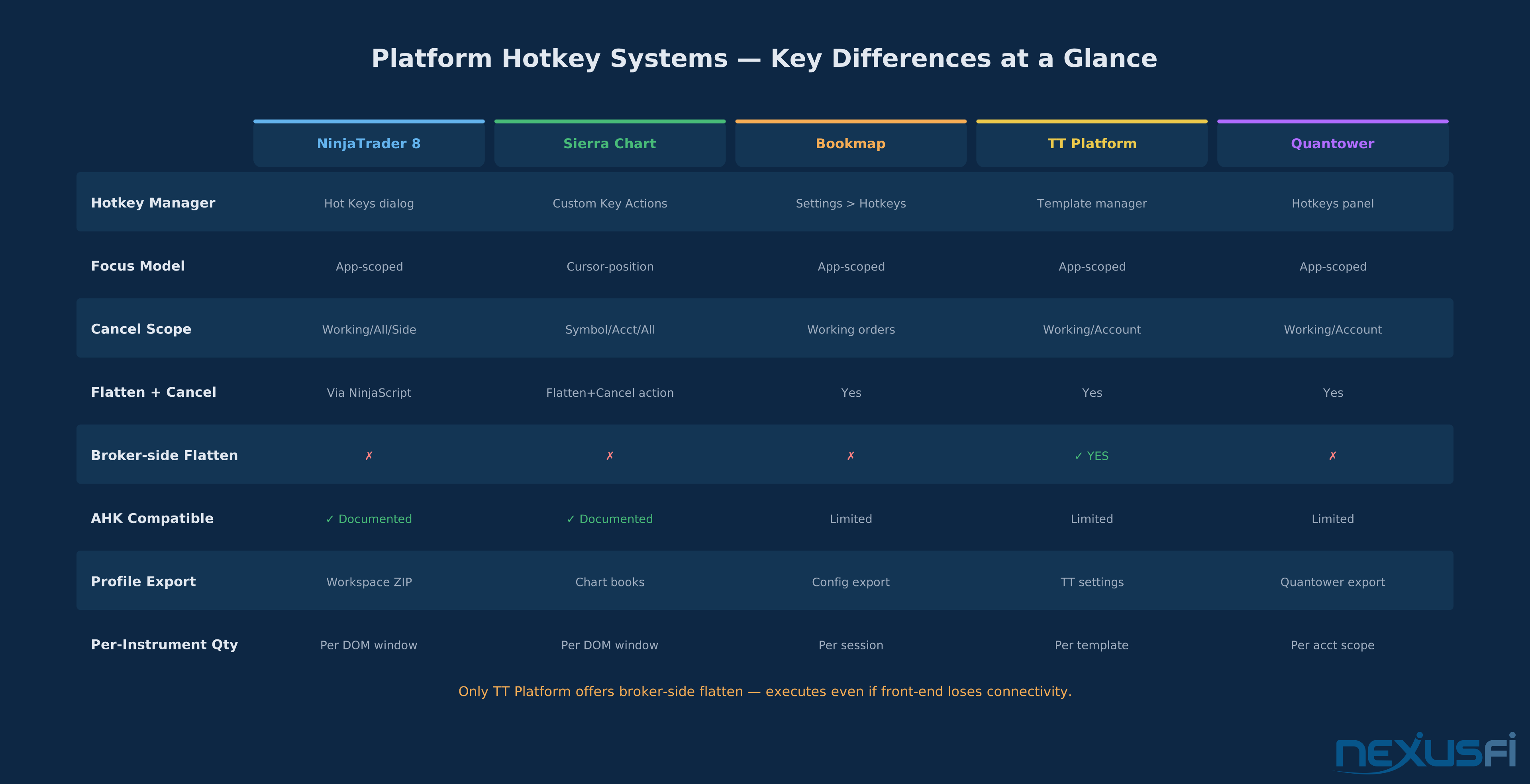
- Broker-side flatten: Sent directly to the clearing firm and executes even if the platform disconnects. Not all platforms offer this, but Trading Technologies (TT) includes it as a distinct action.
The difference between "flatten position" and "close and cancel" matters when you have a bracket attached: if you flatten without canceling, your stop and target orders keep working as orphaned orders after your position is gone
Setup rule: Your emergency exit hotkey should always be "close position and cancel working orders"
Rule 5: Default Quantity Is the Most Dangerous Platform Setting You Own #
Every order entry hotkey inherits a default quantity from somewhere
In NinjaTrader SuperDOM: the quantity shown in the DOM quantity selector is what executes. If you navigated to the MES (Micro E-mini) and didn't update your 5-contract default to reflect the micro size ratio, you're trading ES-equivalent exposure in micro clothing.
In Sierra Chart: each Trade DOM window has its own quantity setting, and these don't synchronize unless you explicitly configure them to.
Setup rule: Before each session, verify default quantity on each instrument you plan to trade. Build a pre-market checklist that includes this step. No exceptions.
Core Order Actions: The Minimum Viable Hotkey Set #
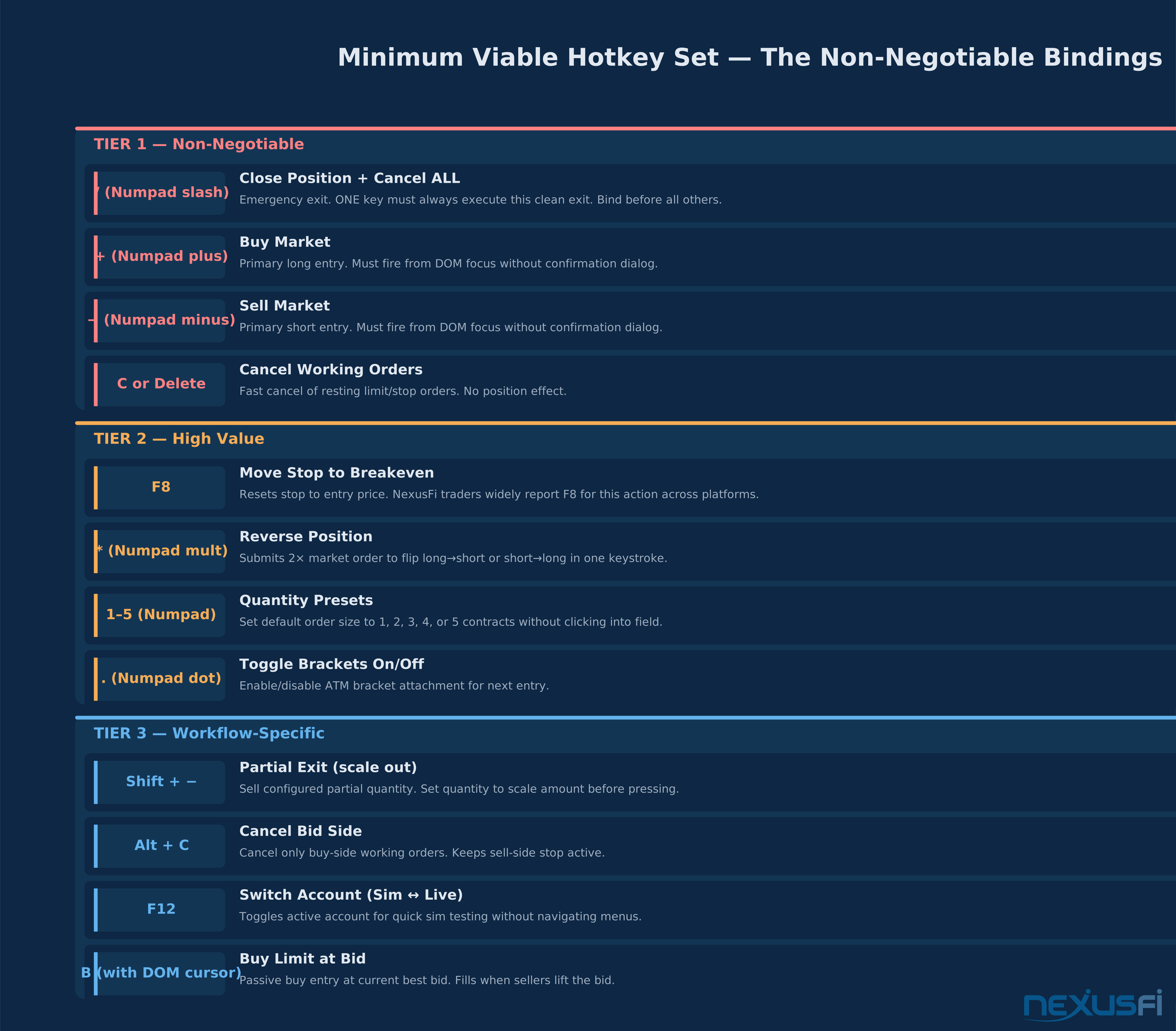
Every active futures trader needs bindings for the following, in order of necessity:
Tier 1: Non-Negotiable (Must Be Hotkeys) #
Close Position and Cancel Working Orders
Buy Market / Sell Market
Buy Limit (At Bid) / Sell Limit (At Ask)
Cancel Working Orders
Tier 2: High-Value Additions #
Reverse Position
Add to Position
Quantity Increment / Decrement
Move Stop to Breakeven
Scale Out (Partial Exit)
Activate / Deactivate Brackets
Tier 3: Workflow-Specific #
Switch Account
Switch Instrument
Quantity Presets
Platform Comparison: How Each System Works #
NinjaTrader 8 #
NinjaTrader implements hotkeys through two distinct systems, and understanding which one you're configuring determines the behavior you get.
NinjaTrader Hot Key Manager (Tools > Hot Keys): The built-in system for global keybindings. Covers chart actions, workspace navigation, and some trading commands. These fire application-wide when NinjaTrader has Windows focus. Limited to built-in platform actions
SuperDOM Hotkeys: The SuperDOM (Super Depth of Market) has its own hotkey layer, accessible within the SuperDOM context. Quantity presets, order entry, cancel, and flatten bind here and fire when the SuperDOM window has focus. NinjaTrader's default SuperDOM bindings include F5 for buy market, F6 for sell market, though many traders remap these immediately.
ChartTrader Hotkeys: The chart-embedded order entry interface (right-click > Chart Trader) has a separate but overlapping hotkey scope. Binding conflicts between ChartTrader and SuperDOM are common when a trader uses both.
NinjaScript Hotkeys: For advanced automation, HotKey.Add() in NinjaScript allows binding arbitrary code execution to keyboard shortcuts. This is how traders implement complex actions like "flatten all instruments, cancel all orders, disable all automated strategies" on a single panic key. Requires strategy development knowledge.
AutoHotkey integration: Many NinjaTrader traders layer AutoHotkey scripts over the platform for actions NinjaTrader's native system can't handle. A well-known NexusFi pattern uses Scroll Lock as a safety toggle: "I re-mapped the Scroll Lock key to be set for any hot key to be executed. This prevents accidental executions. When I see the Scroll Lock LED is turned On, on my keyboard, I know my keyboard is live."^[3] When Scroll Lock is off, all trading hotkeys are disabled
Profile export: NinjaTrader stores hotkey configurations in workspace files. Back up your workspace regularly. After platform updates, verify hotkeys haven't reverted to defaults.
Sierra Chart #
Sierra Chart uses Custom Key Actions (Sierra Chart > Global Settings > Custom Key Actions) for most order entry and trading hotkeys. The system is highly configurable and the most granular of the major futures platforms.
Key action scope options:
- "Chart or DOM with cursor"
- "All charts and DOMs"
- "Active chart or DOM"
The cursor-based scope model is Sierra Chart's distinctive behavior. It enables a workflow where you never click a window to give it focus
Sierra Chart-specific recommended bindings (using the Custom Key Actions dialog):
Trade > Buy Market/Trade > Sell MarketTrade > Cancel All Orders for SymbolTrade > Flatten PositionwithTrade > Cancel All Ordersas a follow-up, or useTrade > Flatten and Cancelif availableTrade > Bid Ask Order
AHK integration: Multiple NexusFi traders document extensive AutoHotkey use with Sierra Chart. @SilverFut built a dedicated hardware setup: "I setup a custom Trading keyboard from Trading Keyboards" using AHK to prevent accidental hotkey fires during normal keyboard use by re-mapping the Shift key activation.^[4]
Bookmap #
Bookmap's hotkey system is simpler and more focused on its primary use case: reading order flow and executing against liquidity visualizations.
Default Bookmap hotkeys include chart navigation (zoom, pan, time compression) and basic order entry. The platform's strength is the visual heatmap, and hotkeys support the visual-first workflow rather than replace it.
Bookmap + DOM combination workflow: Many Bookmap traders use Bookmap for visualization and a secondary DOM (NinjaTrader SuperDOM, Sierra Chart DOM, or a standalone DOM) for order execution
Key actions in Bookmap: Buy/Sell market orders, limit placement relative to current market price, cancel orders, flatten. Bookmap also supports custom scripts (the API layer) for programmatic hotkey actions in Java.
Trading Technologies (TT) #
Trading Technologies is the institutional standard. Its hotkey implementation is the most sophisticated, with the most complete separation between action types.
Order template hotkeys: TT allows binding keyboard shortcuts to pre-configured order templates
Broker-side flatten: TT's platform includes a direct broker-side flatten command that executes even if the front-end disconnects. This is the institutional equivalent of the nuclear cancel button. Retail platforms don't offer this
Risk controls: TT's pre-trade risk system allows administrators to disable specific hotkeys at the firm level regardless of trader configuration
Quantower #
Quantower has a Hotkeys panel (Settings > Hotkeys) that covers account-level actions (flatten, cancel, reverse), chart actions, and DOM actions. The platform's strength is multi-broker connectivity
Multi-account consideration: Verify that your "cancel all" hotkey scope is configured per-broker. A misconfigured flatten can cancel orders at both brokers when you intended only one.
Safety Principles and Risk Controls #
Testing in Simulation Is Not Optional #
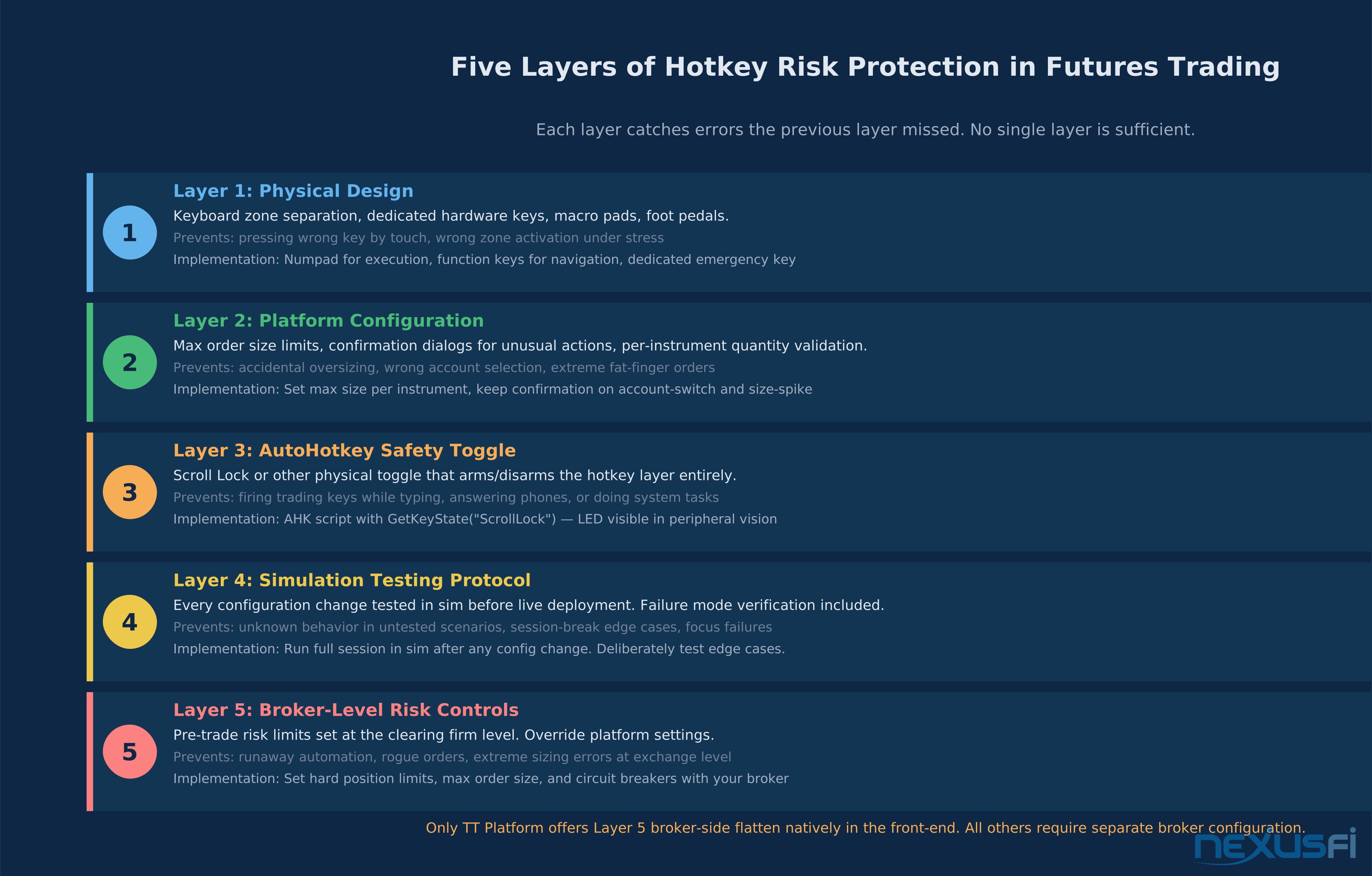
Test every hotkey configuration in simulation before live deployment. Full stop. Testing in sim reveals:
- Whether bindings execute as expected under the actual focus conditions you use
- Whether default quantities are set correctly for each instrument
- Whether "flatten and cancel" actually cancels working orders
- Whether modifier key combinations conflict with OS shortcuts (common: Windows key combos, Alt+F4, etc.)
Run a complete trading day in simulation with your hotkey setup before trusting it with live capital. Include a session where you deliberately make "mistakes"
Confirmation Dialogs: Use Them or Consciously Remove Them #
Confirmation dialogs exist on most platforms for market orders and high-quantity entries. The tradeoff is simple
- With confirmations: You can't accidentally execute. But during a volatility spike, the confirmation dialog adds 1-3 seconds and costs you the fill entirely.
- Without confirmations: One-keystroke execution. Any wrong press becomes an immediate position.
Most active scalpers remove confirmations for regular-size entries and keep them for unusual actions (account switch, size above threshold). The decision to remove confirmations must be deliberate and documented
Maximum Order Size Limits #
NinjaTrader and Sierra Chart both allow administrators or users to set maximum order size limits that override hotkey submissions. Set these. A hard limit that rejects orders above 10 contracts prevents the 50-lot fat-finger that would otherwise go to market.
Configure maximum order size for each instrument you trade:
- ES: maximum equal to your largest normal position size plus one scaling increment
- CL: tighter limit given the per-contract dollar exposure
- Micro contracts: separate limits given that traders often run larger micro contract counts
Profile and Configuration Versioning #
Export your platform configuration after every meaningful change, stored in a dated archive folder (e.g., ninjatrader-workspace-2026-02-03.zip, sierra-chart-chartbook-2026-02-03.cht). Maintain a plain-text hotkey-reference.txt listing every binding and its function. This lets you verify bindings during setup and recreate your configuration after platform reinstalls.
Practical Futures Workflows #
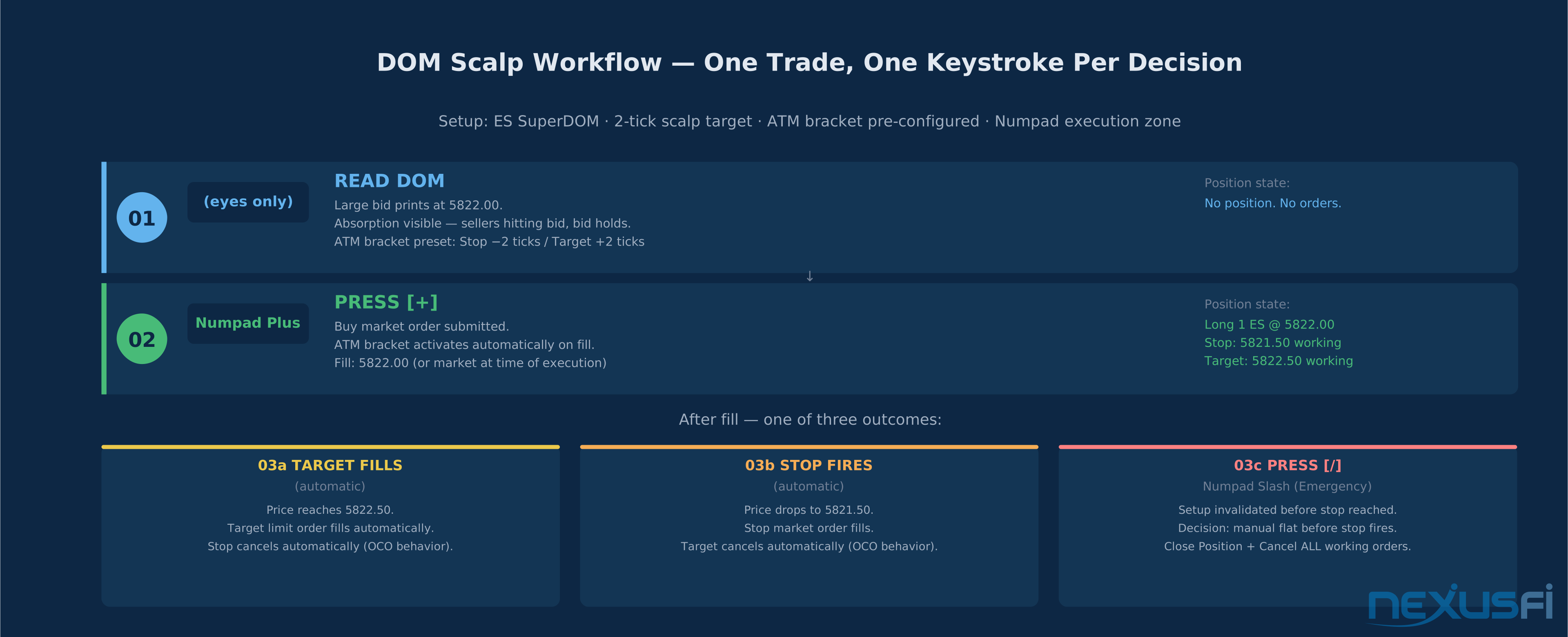
Workflow 1: DOM Scalp Entry with Bracket #
Setup: NinjaTrader SuperDOM, 1-tick scalp in ES, target 2 ticks, stop 2 ticks.
Hotkey configuration:
+(numpad plus): Buy market + ATM bracket activates-(numpad minus): Sell market + ATM bracket activates0(numpad zero): Close position and cancel working ordersDelete: Cancel all working orders (without closing position)
Execution flow: The SuperDOM shows a 2-tick spread in ES. A large bid prints at 5822.25. You press +
Why it works: The ATM template handles bracket arithmetic
Workflow 2: Cancel and Reverse During News Volatility #
Setup: ES position, long 2 contracts, CPI release in 30 seconds. Decision: flip short on bad print.
Hotkey configuration:
R: Reverse position (submits 4-contract sell market to close long and establish short)Escape: Cancel working orders only
Execution flow: CPI prints hot. Before your chart updates, you press R. NinjaTrader submits a 4-lot sell market (2 to close, 2 to open short). During the volatility spike, the 4 lots fill across multiple price levels at an average of 5790.50 versus your original long entry at 5818.00. The resulting short is immediately profitable as the market drops.
Risk: The reverse hotkey submits a 4-lot market order into a volatility spike. Slippage on news in ES can be 3-5 points even for 2 contracts. Know this cost before deploying this workflow.
Alternative: Press 0 (flatten) first, wait for fill confirmation, then enter short. Slower but reduces slippage risk on the reverse leg during extreme volatility.
Workflow 3: AutoHotkey Safety Toggle #
For NinjaTrader traders using extensive AHK automation, the Scroll Lock safety pattern prevents accidental firing during non-trading activities. When Scroll Lock is OFF, the numpad functions normally for typing and system tasks. When the LED lights up, trading hotkeys are live. The physical LED state is visible in peripheral vision
This pattern is especially valuable when you share a workstation for non-trading tasks, when you take phone calls during the session, or when you use the same keyboard for research and execution.
Common Mistakes and How They Happen #
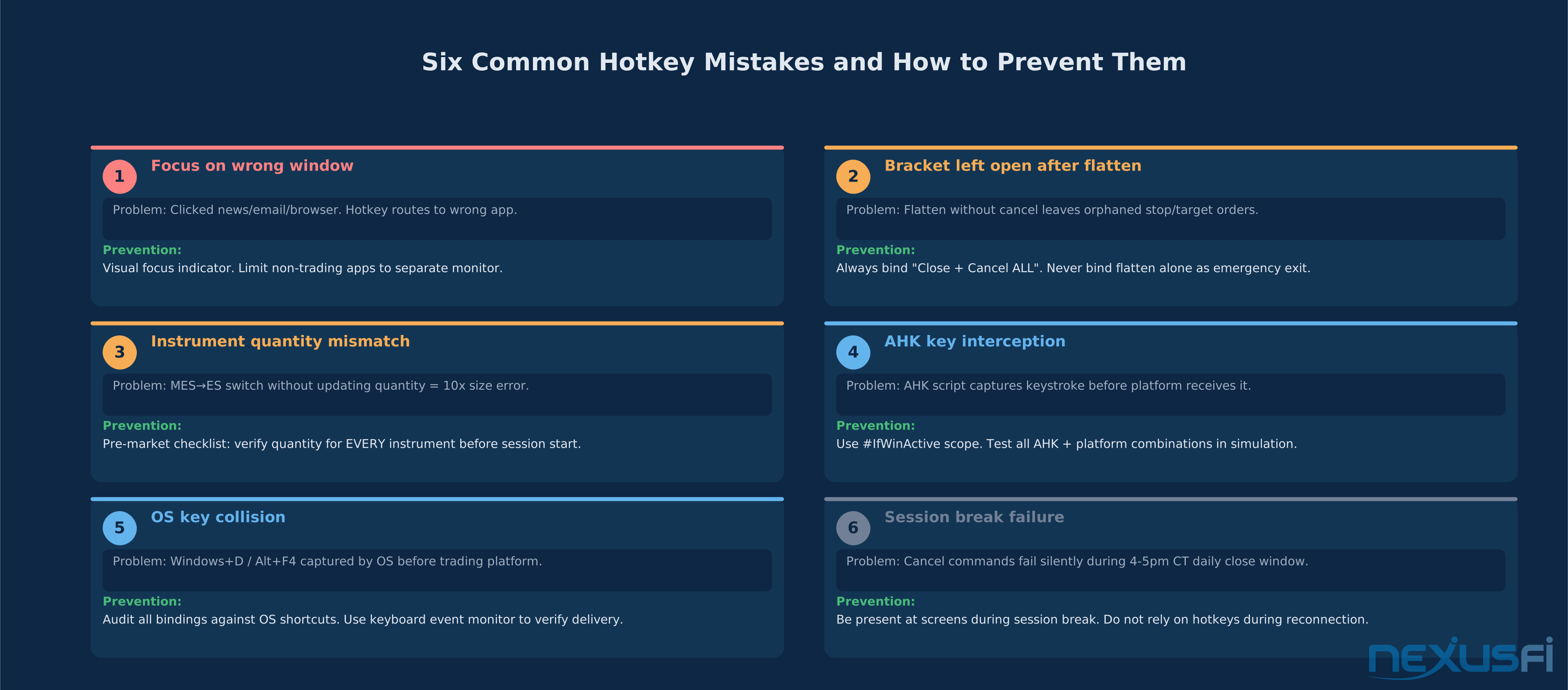
Mistake 1: Trading with Focus on the Wrong Window #
The most frequent hotkey error. You clicked a news terminal, email, or browser tab, and now your trading hotkeys route to that application or fail silently. The trade you thought you entered never went to market.
Prevention: Keep non-trading applications on a separate physical monitor or on a separate workspace. Use a taskbar indicator or colored border to show which application has focus. Some traders configure their AutoHotkey scripts to only activate when the NinjaTrader or Sierra Chart window has focus.
Mistake 2: Bracket Left Open After Position Closes #
You flatten your position manually (or via hotkey), but the bracket stop and target remain working as orphaned orders. On the next price move, the stop or target fills
Prevention: Always use "flatten and cancel" rather than "flatten only." Verify that your platform's flatten action includes order cancellation. In NinjaTrader, the "Close Position and Cancel Working Orders" button (the red X in the account performance box) combines both actions
Mistake 3: Wrong Instrument Default Quantity #
Switching from ES to NQ, or from MES (micro) to ES, without updating default quantity produces dramatically different notional exposure from the same keystroke. MES to ES undetected is a 10x size error. Make instrument-quantity verification part of your pre-market ritual. Keep separate DOM profiles for each instrument with quantity pre-configured at the correct risk level.
Mistake 4: AutoHotkey Intercepting Platform Keys #
An AHK script binding to common keys intercepts keystrokes before the trading platform receives them
Mistake 5: OS Key Conflicts #
Windows and macOS capture certain combinations at the OS level before applications receive them. Dangerous collisions: Alt+F4 closes the active window; Windows+D minimizes all windows (catastrophic mid-trade); Ctrl+W closes tabs in many applications. Some remote desktop software also captures Scroll Lock. Test your full hotkey set at the OS level and verify keystrokes actually reach the trading platform using a keyboard event monitor.
Mistake 6: Session Break Hotkey Behavior #
Futures markets close and reopen daily (CME products typically 4:00-5:00 PM CT). During this window, cancel commands fail silently, DOM hotkeys go unresponsive during reconnection, and bracket strategies don't re-enable automatically. Verify your platform's behavior with working orders at session close, and be physically present at screens during this window
Best Practices Checklist #
Design Principles #
- Mnemonic consistency: Use the same spatial or conceptual pattern for related keys. Buy on the left, sell on the right. Entry keys in the upper zone, management keys in the lower zone.
- Safety first: The "dangerous" keys (reverse, close and cancel, large-quantity entries) should require a modifier key or be physically separated from the most-used keys.
- One action per key: Avoid complex multi-step sequences triggered by a single key. Each hotkey should do exactly one well-defined thing. Sequences introduce timing dependencies that fail under platform latency.
- Symmetry for sides: Buy and sell keys should have identical cognitive distance from rest position. If buy requires left-hand
B, sell should require the same-handS, notCtrl+Alt+R.
Pre-Market Checklist #
Before each trading session:
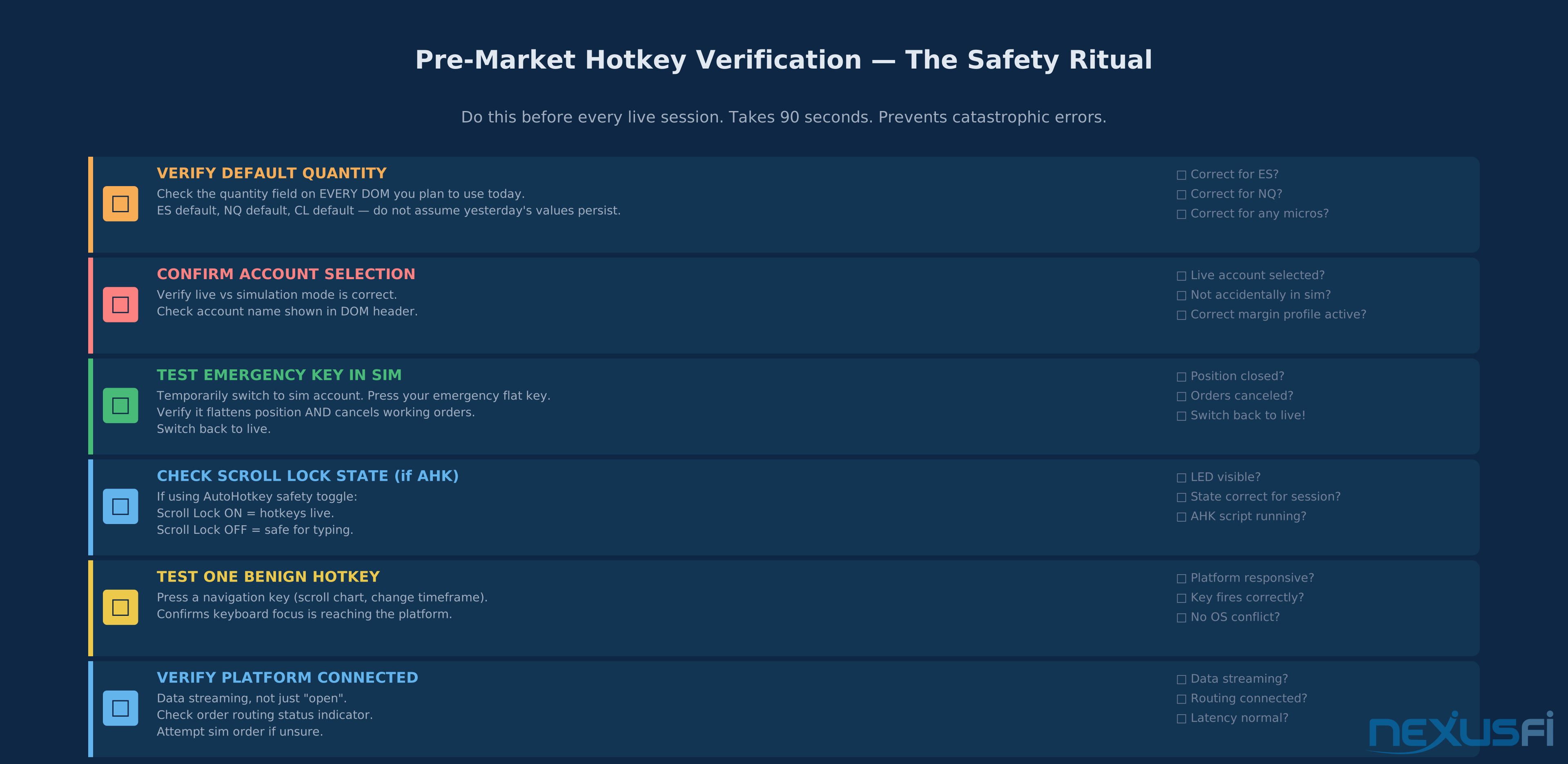
- Verify default quantity for each instrument you plan to trade
- Confirm simulation vs. live account selection
- Press "close and cancel" in simulation
- Check Scroll Lock state if using AHK safety toggle
- Verify platform has connected (not just open
- Test one benign hotkey (chart navigation) to confirm keyboard focus is active
Configuration Management #
- Export platform configuration to a dated archive after every meaningful change
- Keep a plain-text hotkey reference on a second monitor during initial deployment
- After platform reinstalls or computer switches, test all hotkeys in simulation before live use
- Version-control AHK scripts alongside platform exports
What Hotkeys Do Not Replace #
Hotkeys remove mechanical friction. Period. They don't replace a trading plan, position sizing, or stop placement logic
Prerequisites and Further Exploration #
What you should understand before configuring hotkeys:
- Depth of Market (DOM): Order book reading and DOM interaction
- Order Types and Advanced Order Management: How market, limit, stop, and bracket orders behave
- Risk Controls and Safety Features: Platform-level risk management settings
What to explore next after mastering hotkeys:
- Custom Indicators and Strategy Scripting: NinjaScript and ACSIL for programmatic hotkey automation
- DOM Trading Platforms: The complete DOM workflow that hotkeys are designed to support
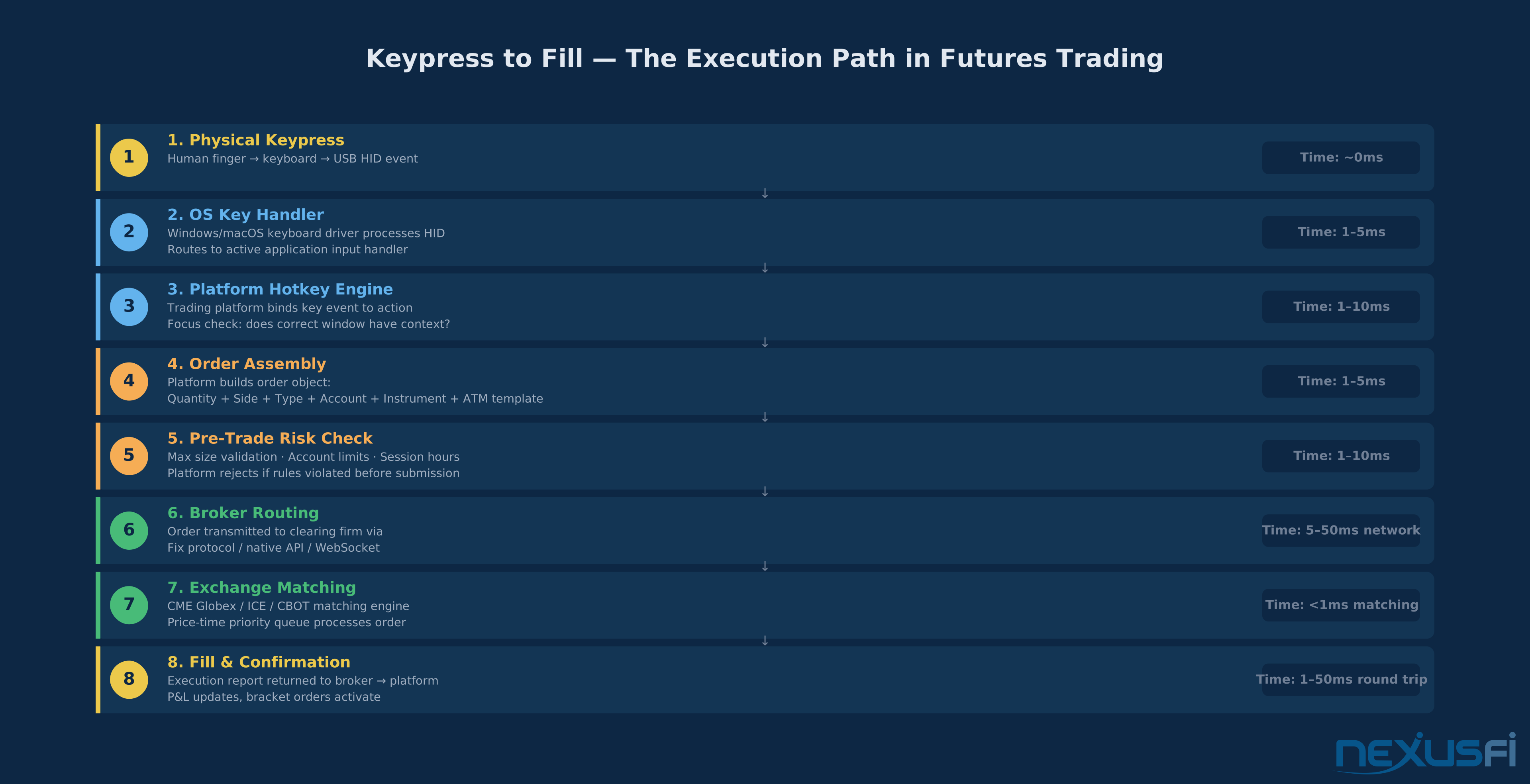
- Platform Latency and Execution Speed: The full execution path from keypress to fill confirmation
- Trading Workspace Design: How to arrange charts, DOM, and tools to support keyboard-driven workflows
Knowledge Map
Go Deeper
Build on this knowledgeReferences This Article
Articles that build on this topicCitations
- — The Beast Slayer, Lance's NQ Trading Journal (2021) 👍 5“I do use hotkeys sometimes. For example, I have the F8 button on my keyboard set to allow me to move my stop to breakeven -- which is much faster than dragging my stop loss bar on my chart trader to the entry price.”
- — Finally Turning the Corner, the "its 80% Psychology" thing... (2020) 👍 4“Upgraded Order Entry - Fast & intuitive. I set it up like this: 0 = Flatten and Cancel, 1-5 = Lot Size, . = brackets on/off, + = buy, - = sell, = = move to breakeven.”
- — AutoHotkey Scripts (2012) 👍 19“In my scripts I generally require the Scroll Lock key to be set for any hot key to be executed. This prevents accidental executions.”
- — Hotkey's for Trading Keyboard - completed AHK code (2016) 👍 3“I setup a custom Trading keyboard from Trading Keyboards with AHK.”
- — Efficient order execution - Assign Hot Key... (2014) 👍 2“Return key - cancels any open orders and exits any open market positions. Minus key - cancels any pending orders, closes any open positions and sets a sell order at the Low of the previous bar.”
- — ninja & AutoHotKey for order entrys (2011) 👍 2“This script uses key-combination ctrl + < for Selling orders, alt + b for buying orders -- pressing ctrl + < sends a right mouseclick plus S plus ENTER to Ninja, placing a sell order at the cursor price.”
- — FlipCharts - fast chart group layering (2016) 👍 12“rfkFlipCharts provides fast mouse click or keyboard access to arbitrary named groups of one or more charts, resulting in a highly flexible chart layering facility.”
- — cancel last order (2011) 👍 3“To cancel the last order I use a shortcut from the hotkey manager. Cancel Last Order action can be bound to any key combination -- one of the fastest ways to undo an accidental entry.”
- — AutoHotkey Scripts (2012) 👍 9“AutoHotkey scripts designed to run in the background as stay-resident programs -- you run the script once, it stays in memory, and you can repeatedly use the programmed hot key sequence.”
- — Battle of the Bots - NinjaTrader Algorithmic Strategy Development (2015) 👍 8“Having a dedicated key per chart group allows rapid switching between instruments and timeframes without mouse navigation.”
- — NinjaTrader 8 Hot Keys Documentation (2024)
- — AutoHotkey Documentation (2024)