



Trading PC BIOS and UEFI Optimization for Futures Traders: Settings That Reduce Latency, Improve Stability, and Keep Your Platform Running When It Matters
Overview #
Most futures traders treat BIOS as a one-time configuration you forget about after building your rig. Set it and leave it alone. And for casual users, that's fine advice. For active traders running NinjaTrader, Sierra Chart, or custom execution systems — it's leaving significant performance on the table.
BIOS and UEFI settings directly control how your hardware behaves at the firmware level. Every power-saving feature that was designed to make laptops run cooler adds latency when your CPU wakes up to process an order. Every PCIe link state transition that your motherboard makes to reduce energy consumption can drop a market data packet during an FOMC spike. The hardware is doing exactly what it was designed to do — just not what a trader needs it to do.
The point of tuning BIOS for a trading machine is consistency, not raw speed. You want deterministic performance — a system where latency is predictable and stable, not one that averages lower but throws 10ms spikes at you right when the ES opens. That distinction matters.
A system that's consistently 2ms slower than theoretically possible is worth far more than a system that's usually fast but occasionally stalls for 500ms when a CPU core wakes from deep sleep. You're not competing with co-located HFT algorithms — those are 5 microseconds from the exchange and you're 30ms away on a good broadband connection. The latency you need to eliminate is the variable, unpredictable kind: the jitter that turns a precise stop order into a sloppy fill, or worse, a momentary freeze during a volatility spike that takes your platform offline for two seconds.
This guide covers the specific BIOS/UEFI settings that matter for futures trading workstations, what to set them to, why they matter, and how to validate that the changes actually helped.
The latency argument is concrete: as @liquidcci documented in their dedicated server comparison, the difference between 50ms home latency and sub-1ms co-located latency changed their fill rate entirely — "after switching to a server in Chicago in 3 months I have not missed one entry." That is infrastructure doing what infrastructure should do: eliminating variable, unpredictable delays. BIOS optimization solves the same problem at the hardware layer — not the milliseconds-to-exchange problem, but the microseconds-of-jitter problem inside your own machine.
What this article covers: firmware-level settings in BIOS/UEFI menus. Power states, PCIe link behavior, memory configuration, boot reliability, timing controls.
What this article doesn't cover: OS power plans, NIC driver settings, Windows scheduler configuration, application-level tuning. Those are real optimizations — they're just covered in linked articles because they operate at a different layer of the stack.
Key Concepts #
BIOS / UEFI: The firmware that initializes hardware during startup and provides the interface for hardware configuration. UEFI (Unified Extensible Firmware Interface) is the modern replacement for legacy BIOS — faster boot, support for drives larger than 2TB, graphical interface. UEFI is what every modern trading workstation uses. Legacy BIOS shouldn't appear on any machine built after 2013.
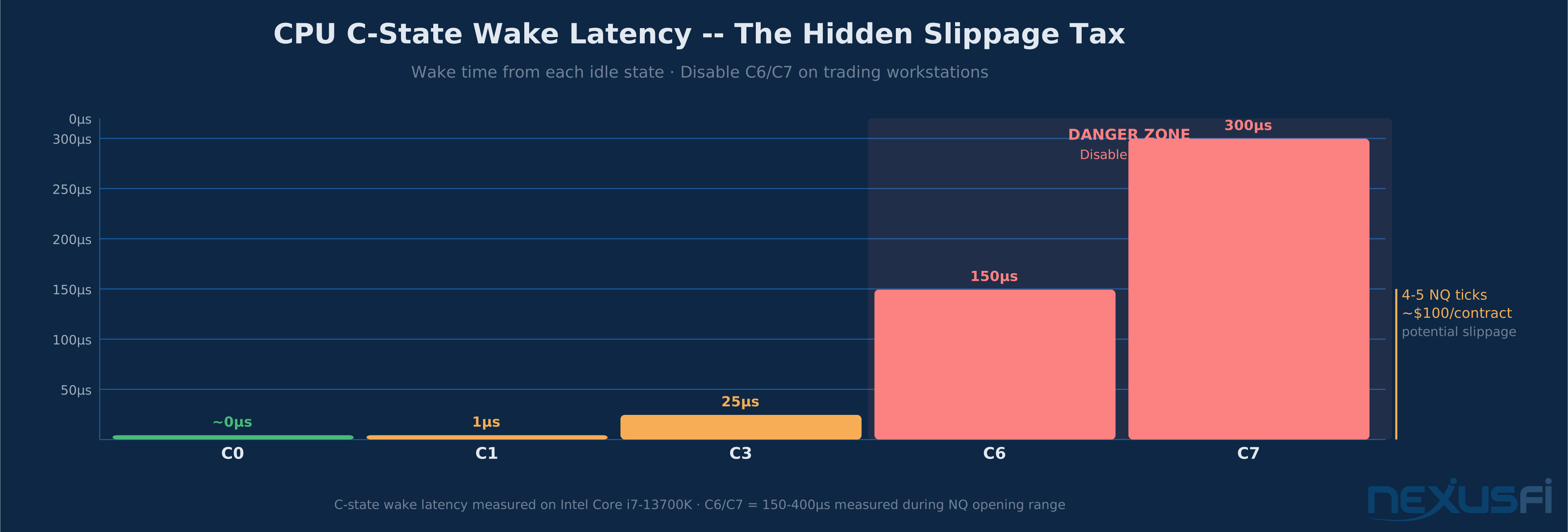
C-States: CPU idle states. When a CPU core isn't actively processing, the firmware can put it to sleep at varying depths to save power. C0 is fully active. C1 is a light halt. C3, C6, and C7 are progressively deeper sleep states with progressively longer wake-up times. On trading workstations, deep C-states are the enemy — they add wake latency that shows up as processing delay when a market event triggers your execution logic.
P-States: CPU performance states. Different operating frequencies and voltages the CPU can operate at. Intel SpeedStep and AMD Cool'n'Quiet are P-state management technologies — they reduce clock speed to save power during light load. A trading workstation should operate at constant performance frequency, not fluctuate based on activity level.
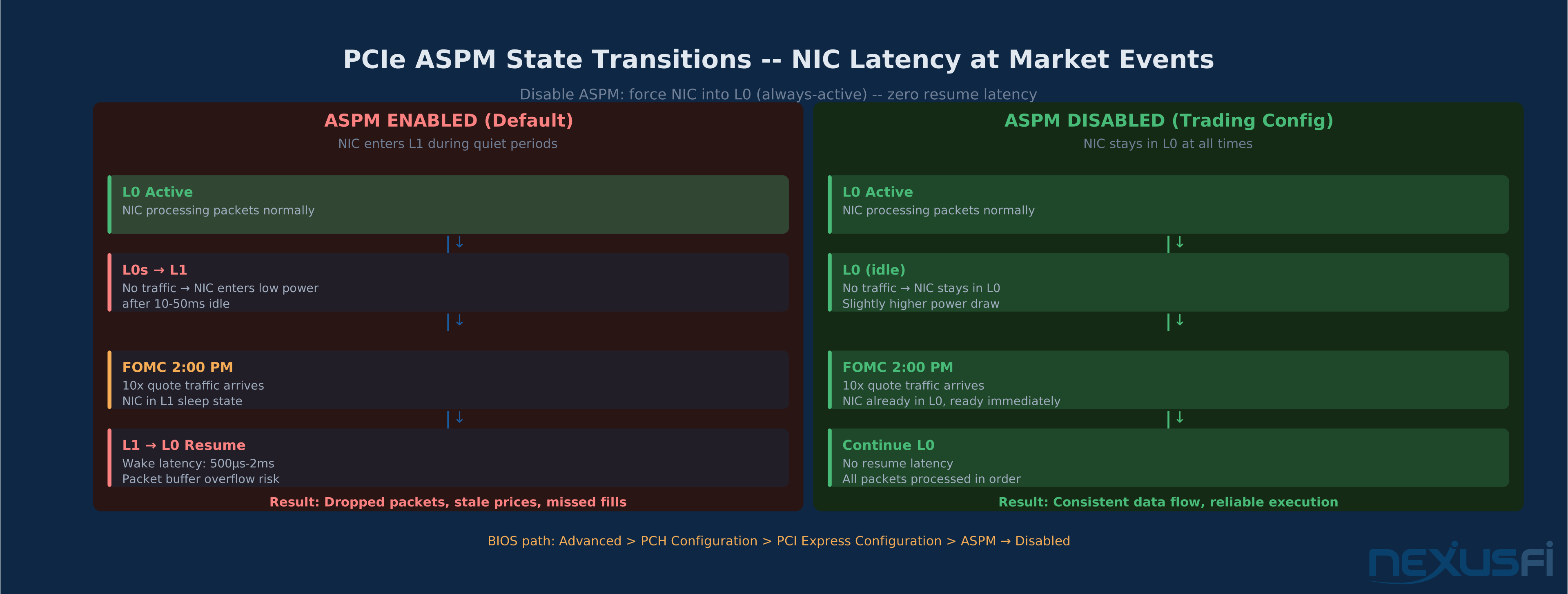
PCIe ASPM (Active State Power Management): A PCIe link-level power management feature that allows PCIe devices (including your network card) to enter low-power states when the link is idle. When a packet arrives and the link needs to wake up, there's a measurable latency penalty. For market data feeds and order routing, this is precisely the wrong behavior.
DPC/ISR Latency: Deferred Procedure Call and Interrupt Service Routine latency. When Windows handles hardware interrupts, DPCs are how lower-priority interrupt-related work gets processed. High DPC latency is the primary cause of audio glitches in music production — it's also the signature of a system that will occasionally stall when processing time-sensitive market events. LatencyMon is the standard diagnostic tool.
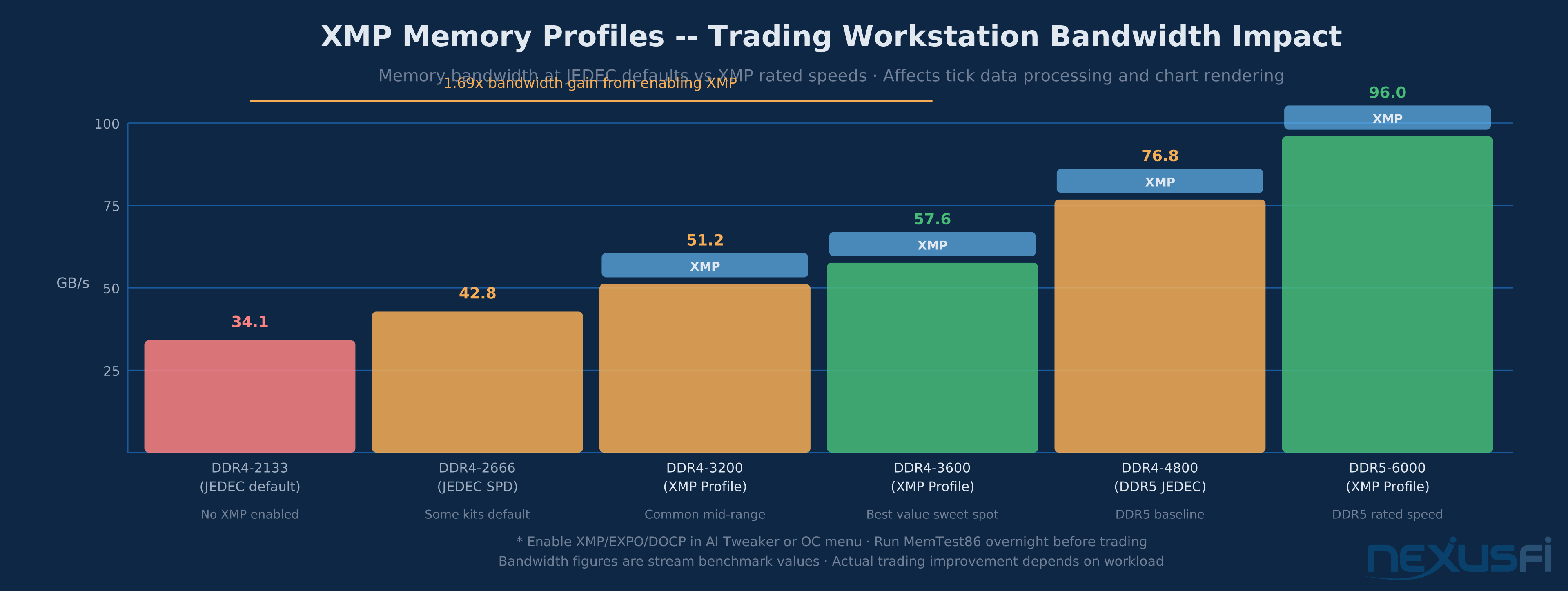
XMP/EXPO/DOCP: Memory overclock profiles saved to the RAM modules. XMP (Intel), EXPO (AMD), and DOCP (ASUS-specific) all enable your RAM to run at its rated speed rather than the JEDEC default. DDR5-6000 doesn't automatically run at 6000 MHz — it runs at 4800 MHz until you enable the XMP profile.
WHEA (Windows Hardware Error Architecture): Windows' hardware error reporting framework. WHEA-Logger entries in Event Viewer indicate hardware errors that were corrected or detected. WHEA errors during trading are a warning sign — they often precede crashes and indicate marginal hardware configurations.
CPU Determinism: Disabling the Sleep Cycle #
This is the most impactful BIOS section for trading workstations. Every setting that allows CPU cores to sleep between processing tasks adds wake-up latency that shows up directly in your execution timing.
C-States: Disable Aggressive Power Saving #
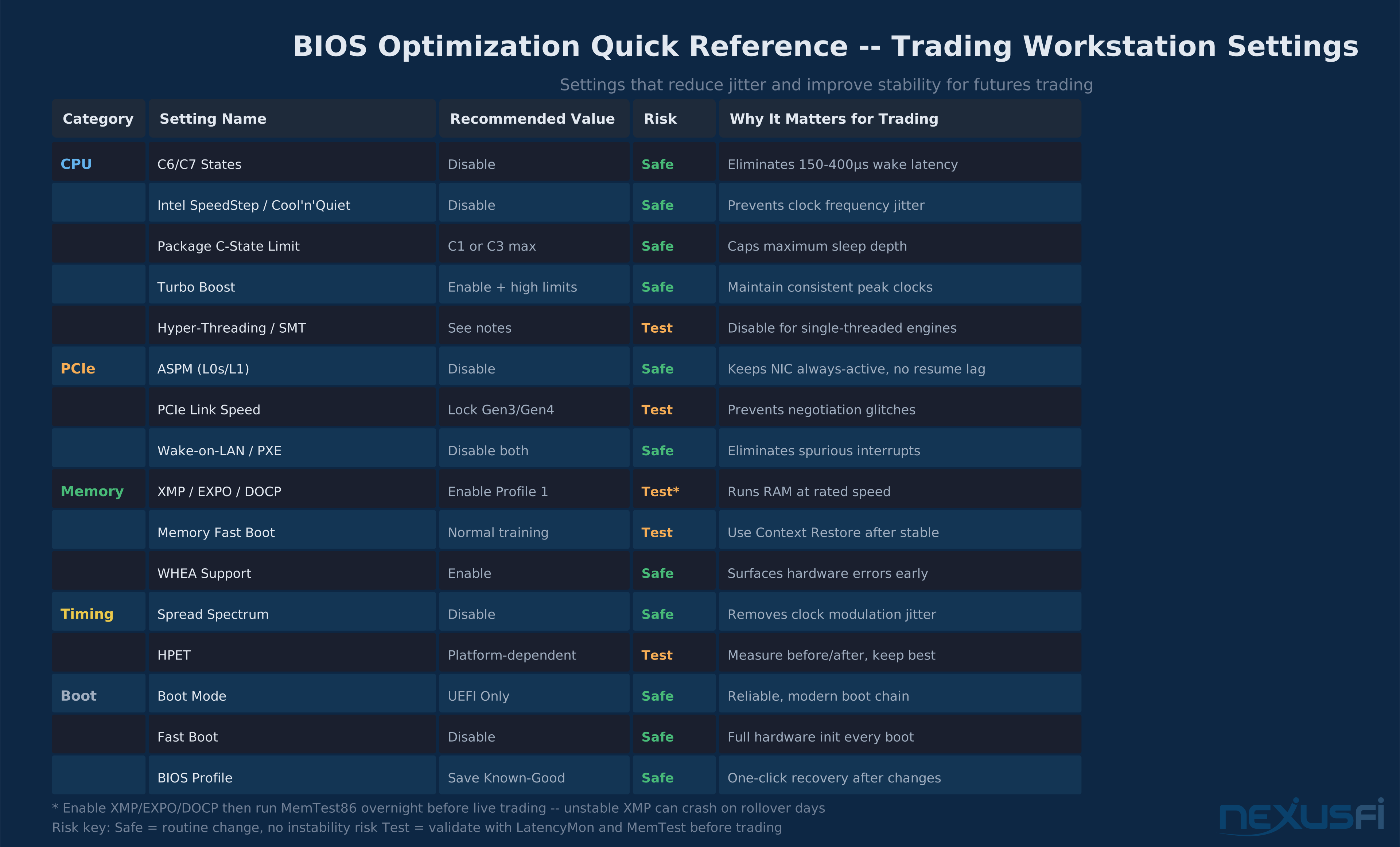
The setting to find: Look for CPU C-States, Package C State Control, Package C State Limit, or CPU Power Management in your BIOS Advanced section.
- ASUS: Advanced > CPU Configuration > CPU Power Management
- MSI: Overclocking > Advanced CPU Configuration > CPU C-States
- Gigabyte: MIT > Advanced CPU Core Settings > CPU C-States
- ASRock: Advanced > CPU Configuration > CPU C State
Recommended setting: Set Package C State Limit to C1 or C3 maximum. Disable C6 and C7 entirely. Some boards let you toggle each state individually — C1 is safe to leave enabled, but C6 and C7 are the problematic states with wake latency measured in hundreds of microseconds.
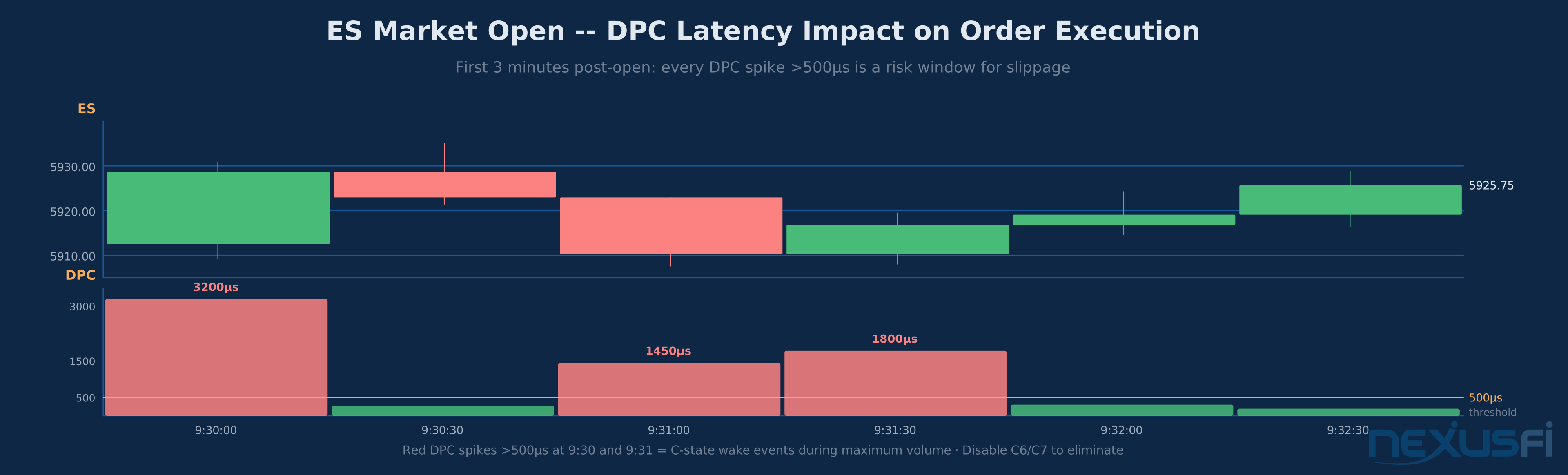
A CPU core in C6 state can take 150-400 microseconds to wake up and process an interrupt. In NQ, 400 microseconds is meaningful — that's the difference between submitting a stop at the bid or two ticks through it during a fast market. On the ES open, the first 30 seconds see concentrated volume and rapid price movement. Parked cores are getting woken up on every tick. The jitter this introduces is exactly what you don't want.
Intel SpeedStep / AMD Cool'n'Quiet: Off #
Intel SpeedStep (or on newer platforms, Intel Speed Shift Technology or Intel Turbo Boost): Located in CPU Power Management or AI Tweaker sections.
AMD Cool'n'Quiet (or Core Performance Boost): Under AMD CBS or OC Tweaker sections.
Recommended setting: Disable these on dedicated trading workstations. These features drop CPU frequency under light load and ramp it back up under load. The ramp-up isn't instantaneous — frequency transitions add jitter to your execution path.
The counterargument is thermal management. If your cooling solution is adequate, this isn't a real concern — disable them and let the CPU run at constant frequency. If you're thermally constrained, address the cooling problem rather than living with frequency instability.
Turbo Boost: Enable with Constraints #
Don't disable Turbo Boost — it's not the same problem as C-states or SpeedStep. Turbo Boost increases frequency above the base clock under sustained single-core load. The issue with Turbo isn't the boost itself, it's the transitional behavior when the CPU approaches power limits and starts throttling back.
Recommended setting: Enable Turbo Boost, but set aggressive power limits (Long Duration Power Limit and Short Duration Power Limit) high enough that the CPU doesn't throttle during heavy charting + order processing loads. If you can set a fixed multiplier in your BIOS (manual CPU ratio), that's even better — it eliminates the uncertainty entirely.
Hyper-Threading / SMT: Depends on Your Setup #
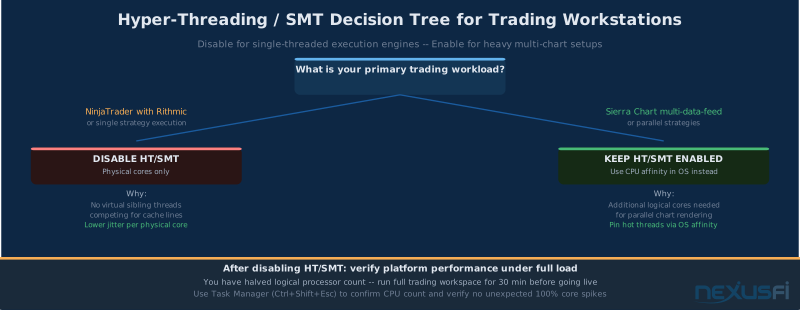
Hyper-Threading (Intel) and SMT (AMD) are genuinely conditional — the right answer depends on your trading stack.
For single-threaded execution engines (NinjaTrader with Rithmic, simple order flow setups): Consider disabling HT/SMT. Physical cores with no virtual siblings contend for resources less. Cache line conflicts and execution port competition disappear. For a latency-sensitive single thread, the cleaner core is the better core.
For multi-threaded workloads (Sierra Chart with multiple data feeds and heavy charting, running multiple strategies simultaneously, parallel backtesting alongside live trading): Keep HT/SMT enabled. The additional logical cores matter, and you can handle isolation at the OS level with CPU affinity pinning rather than removing the feature entirely.
If you disable HT/SMT, verify your platform still performs correctly under full load — you've halved the logical processor count and some applications will notice.
PCIe and NIC Stability: Keeping the Data Pipeline Hot #
Your network card processes every tick and every order acknowledgment. When BIOS power management allows PCIe devices to enter sleep states between bursts of traffic, you add resume latency on each wake-up. On a quiet market that's irrelevant. During the FOMC spike at 2:00 PM ET when quote traffic increases 10x in 100 milliseconds, it's not.
Disable PCIe ASPM #
The setting to find: ASPM Support, PCIe ASPM, PCI Express L0s/L1, Native ASPM, or Active State Power Management.
- ASUS: Advanced > PCH Configuration > PCI Express Configuration > ASPM
- MSI: Advanced > PCI Subsystem Settings > ASPM
- Gigabyte: Settings > IO Ports > PCI Express Settings
- ASRock: Advanced > Chipset Configuration
Recommended setting: Disabled. All PCIe devices stay in L0 (fully active) state. No link retraining, no resume latency.
The power cost is real but modest. Your NIC uses very little power even in active mode. The stability gain far exceeds the efficiency loss.
Lock PCIe Link Speed #
Some motherboards will auto-negotiate PCIe link speed, which can lead to occasional link retraining under specific conditions. Explicit lock to Gen3 or Gen4 eliminates this.
Find per-slot link speed configuration — labeled as PCIe Speed, Slot Configuration, or similar. Set your NIC slot to Gen3 (if your NIC is Gen3) or Gen4 (if Gen4). Stability matters more than maximum theoretical bandwidth here.
Disable Wake-on-LAN, PXE Boot, and Energy-Efficient Features #
Wake-on-LAN (Power On by PCI-E, WoL, LAN Power On): Disable. WoL can cause spurious interrupts during normal operation, not just on system startup.
PXE Boot (Network Boot, LAN Boot ROM): Disable. If you're not booting from the network — and a trading workstation never should be — there's no reason for the NIC to be advertising boot services.
ErP (Energy Related Products) or similar energy-saving standards: Disable on dedicated trading machines. These can put devices into low-power states that affect initialization timing.
While you're handling NIC stability: in Windows Device Manager, locate your NIC's Advanced Properties tab and disable Energy Efficient Ethernet, Green Ethernet, ARP Offload, and NS Offload. These are OS/driver-level settings, not BIOS, but they're part of the same stability picture and worth noting here.
MSI/MSI-X Interrupt Behavior #
MSI (Message Signaled Interrupts) and MSI-X are primarily OS and driver territory, but some BIOS menus expose related options. Where available, prefer MSI-X over legacy line-based interrupts — they're more scalable and produce less contention at the CPU. In practice, Windows handles this automatically for modern hardware, but confirm in Device Manager that your NIC is using MSI or MSI-X rather than legacy interrupts.
Memory Configuration: Stability Before Speed #
Memory errors and instability manifest differently from CPU issues — instead of jitter, you get crashes, data corruption, and blue screens. A memory error during a live trading session is worse than a latency spike.
Enable XMP/EXPO/DOCP — But Validate It #
Setting: Enable Profile 1 in AI Tweaker, A-XMP, EXPO, or DOCP sections. This tells the memory controller to run your RAM at its rated speed and timings rather than JEDEC defaults.
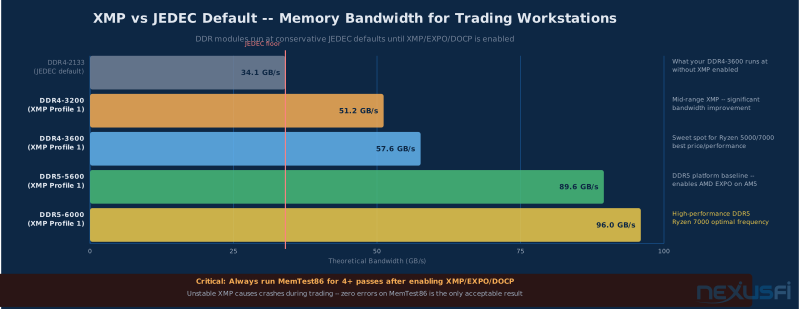
DDR4-3600 kits running at the JEDEC default of 2133 MHz are leaving significant memory bandwidth on the table. Memory bandwidth matters for data-intensive workloads — tick data processing, multiple chart windows, strategy calculations. Enable the profile.
The critical qualifier: validate stability after enabling. Run MemTest86 for at least 4 passes (overnight is better) before running any live capital on the system. A system that passes a 30-minute test but crashes 8 hours into a trading session after heat soak is not a stable system.
If MemTest86 shows errors: either drop the XMP profile to a lower speed tier, loosen the timings slightly (CL18 instead of CL16, for example), or address the underlying issue (RAM not properly seated, marginal kit on a specific board). An error count of zero is the only acceptable result.
Run MemTest86 before trading live on a new XMP configuration. A system that passes 30 minutes of MemTest but crashes after 8 hours of trading has marginal memory — this shows up on rollover days and volatile sessions, not during stable markets. Four full passes minimum. Overnight is better.
One note on Memory Context Restore or Fast Boot Memory Training: these settings let the system skip full memory retraining on most boots by using the results from the last training pass. Generally safe to enable after you've confirmed stability — it reduces boot time variability without compromising the integrity of the configuration.
ECC Memory: Worth It If Your Platform Supports It #
ECC (Error-Correcting Code) memory detects and corrects single-bit errors in real time. For a trading workstation running continuously for 8-12 hours processing millions of calculations, ECC provides a meaningful reliability floor.
The practical constraint: most consumer motherboards don't support ECC. It typically requires workstation-class or server-class hardware — AMD EPYC, Intel Xeon, AMD Threadripper Pro. If you're building or upgrading a trading workstation and performance requirements allow it, the ECC-capable platform is worth considering for dedicated, high-uptime trading setups.
If your current system doesn't support ECC, the mitigation is rigorous XMP stability validation and WHEA monitoring (covered in the Validation section below).
WHEA Support: Keep It Enabled #
Windows Hardware Error Architecture support should be enabled in BIOS where the option exists. It lets Windows collect and report hardware errors to Event Viewer. This is diagnostic intelligence, not a performance feature — but WHEA-Logger entries showing corrected errors are early warning signs that warrant investigation before they escalate into uncorrected errors and crashes.
Timing and Clock Stability #
These settings affect how your system's clock behaves. For most traders, clock instability is a source of subtle jitter in interrupt timing and timestamp accuracy.
Disable Spread Spectrum #
Setting: CPU Spread Spectrum, BCLK Spread Spectrum, or EMI Spread Spectrum in Advanced Frequency Settings.
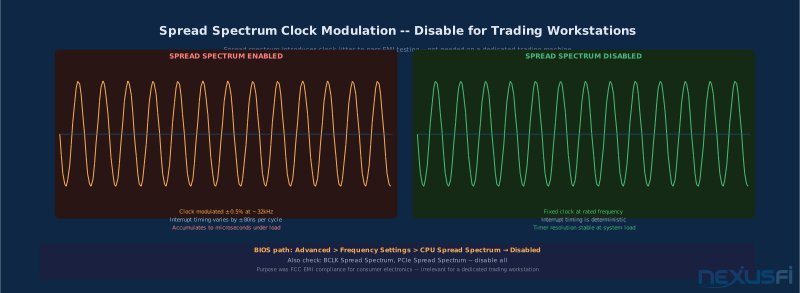
Spread Spectrum slightly modulates clock frequencies to distribute EMI emissions across a frequency range rather than concentrating them at a single frequency. The technique was designed to pass FCC emissions testing for consumer electronics. For a trading workstation with adequate shielding, it's solving a problem you don't have.
The cost: tiny, variable clock frequency modulation that introduces jitter into timing-sensitive operations. Disable it. The EMI reduction isn't worth the timing variability.
HPET (High Precision Event Timer) #
Setting: High Precision Event Timer in PCH Configuration or Advanced settings.
HPET is a hardware timer that Windows can use for high-resolution timing. The recommendation here is conditional because it's platform-dependent: on some setups, HPET enabled in BIOS with HPET disabled in Windows via bcdedit /set useplatformclock false produces the best results. On other setups, enabling HPET end-to-end improves timer resolution.
The practical approach: validate before and after any HPET change using LatencyMon and ClockRes. Don't change HPET settings on intuition — measure the actual effect on your specific hardware configuration.
Invariant TSC (Time Stamp Counter) #
The TSC is a CPU counter that increments at a constant rate regardless of CPU power state. Invariant TSC means the counter doesn't stop or slow down when the CPU enters a power-saving state — it's always monotonically increasing. Modern CPUs support this by default, and the BIOS typically doesn't need any intervention here.
Verify invariant TSC is active via CPU-Z (look for "TSC" in the Instructions section) or HWiNFO64. If it shows as invariant, no BIOS action needed.
Boot Reliability and Recovery #
A trading workstation that can't reliably start up before market open is worse than a slow one. Boot configuration determines whether your system starts deterministically or occasionally fails to initialize hardware correctly.
UEFI Boot Mode: On, Legacy Off #
Setting: Boot Mode Select — UEFI Only. Disable CSM (Compatibility Support Module). Disable Legacy Boot.
There's no reason to run a trading workstation in legacy boot mode. UEFI boot is faster, more reliable, and supported by every modern OS and hardware component. CSM adds boot-time complexity that can occasionally cause hardware initialization issues. Disable it.
If you currently boot in legacy mode and want to switch to UEFI, be aware that this typically requires converting your OS installation's partition table from MBR to GPT. This is a non-trivial change — plan it during a scheduled maintenance window, not 15 minutes before market open.
Fast Boot: Off or Validated #
Setting: Fast Boot, Ultra Fast Boot, or similar in the Boot menu.
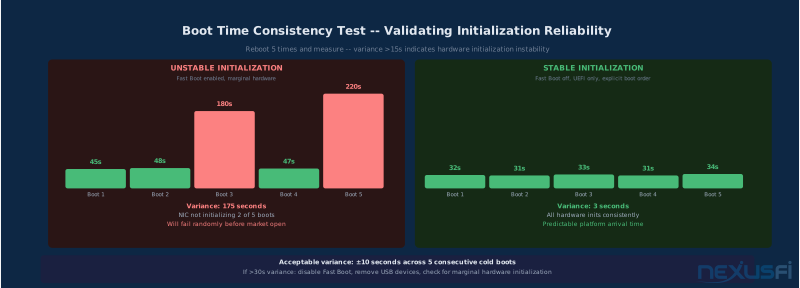
Fast Boot can reduce boot time by skipping some hardware initialization steps. The problem: occasionally, those "skipped" steps are things like full NIC initialization or memory controller training that your system needs to come up correctly. The result is a system that boots faster 95% of the time and fails to initialize the network adapter on that one morning when you need to be up before the FOMC.
Set Fast Boot to Disabled on dedicated trading workstations. If you want faster boots, prioritize a faster NVMe drive — NVMe reduces Windows boot time far more than firmware tricks that carry reliability risk.
Exception: if you've enabled Fast Boot, tested it extensively, and confirmed it doesn't cause initialization issues on your specific hardware combination, there's no need to disable it. The concern is untested Fast Boot on hardware where it's an unknown.
Boot Order: Make It Explicit #
Set your trading NVMe as Boot Option #1 explicitly. Remove any USB drives, network boot options, or secondary storage from the boot priority list. The system should have exactly one valid boot target, and it should know which one without guessing.
This matters on the days when something is plugged in that shouldn't be — a USB drive left from a firmware update, a secondary data drive that occasionally looks bootable. Explicit boot order means no surprises.
Known-Good BIOS Profile: Your Recovery Infrastructure #
This is the most underused feature on modern motherboards. Every major ASUS, MSI, Gigabyte, and ASRock board supports saving BIOS configuration profiles:
- ASUS: Profile section in the BIOS — save to internal storage or USB
- MSI: Save/Load Overclocking Profile or OC Profile
- Gigabyte: Save & Exit > Save Profiles
- ASRock: OC Tweaker > Save User Default
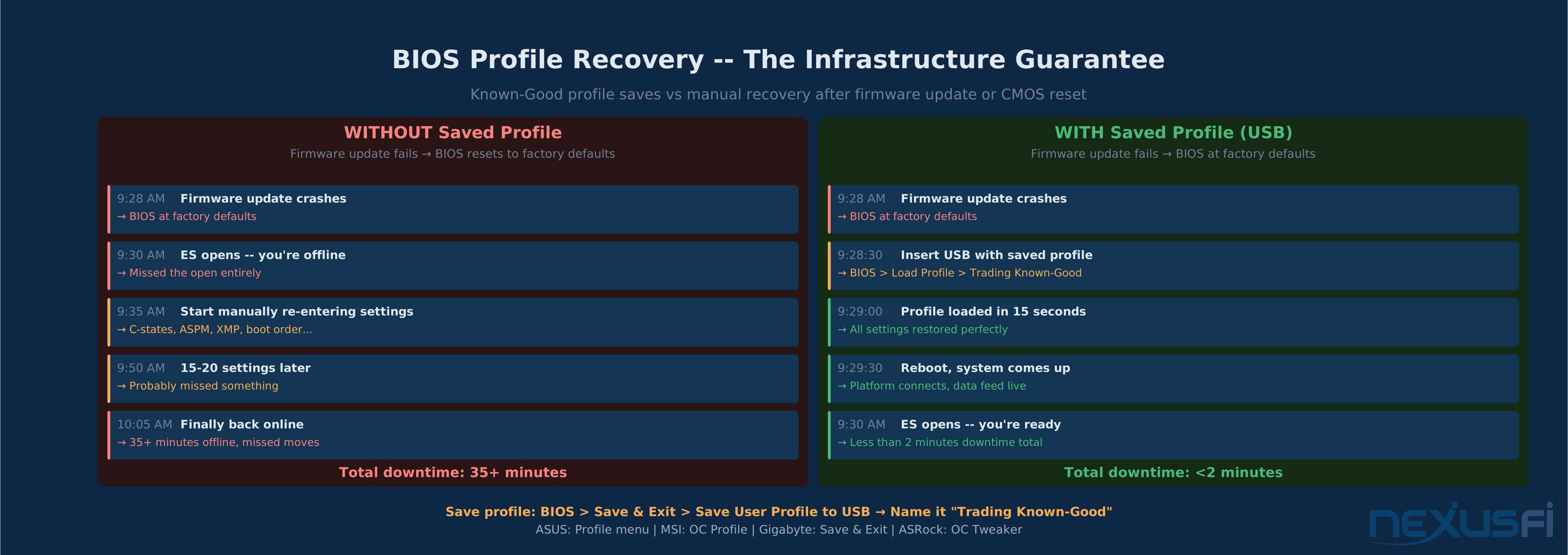
After you've configured your system, validated stability, and are satisfied with the configuration: save a named profile called "Trading Known-Good". Then export it to a USB drive and store it somewhere you'll find it.
The scenario you're preparing for: you decide to update firmware, something goes wrong, BIOS resets to defaults. With a saved profile, you're one load operation away from your validated trading configuration. Without it, you're manually re-entering every setting from memory while the market is opening.
The CMOS reset procedure is also worth knowing. Find your motherboard's Clear CMOS jumper location in the manual and note it. You should never need it, but the first time a BIOS update corrupts your settings is the worst time to discover you don't know where the jumper is.
Validation Framework: Measuring What You Changed #
Every BIOS change should be validated. "It feels faster" is not a measurement. This section gives you the actual tools and workflow.
LatencyMon: The Primary Tool #
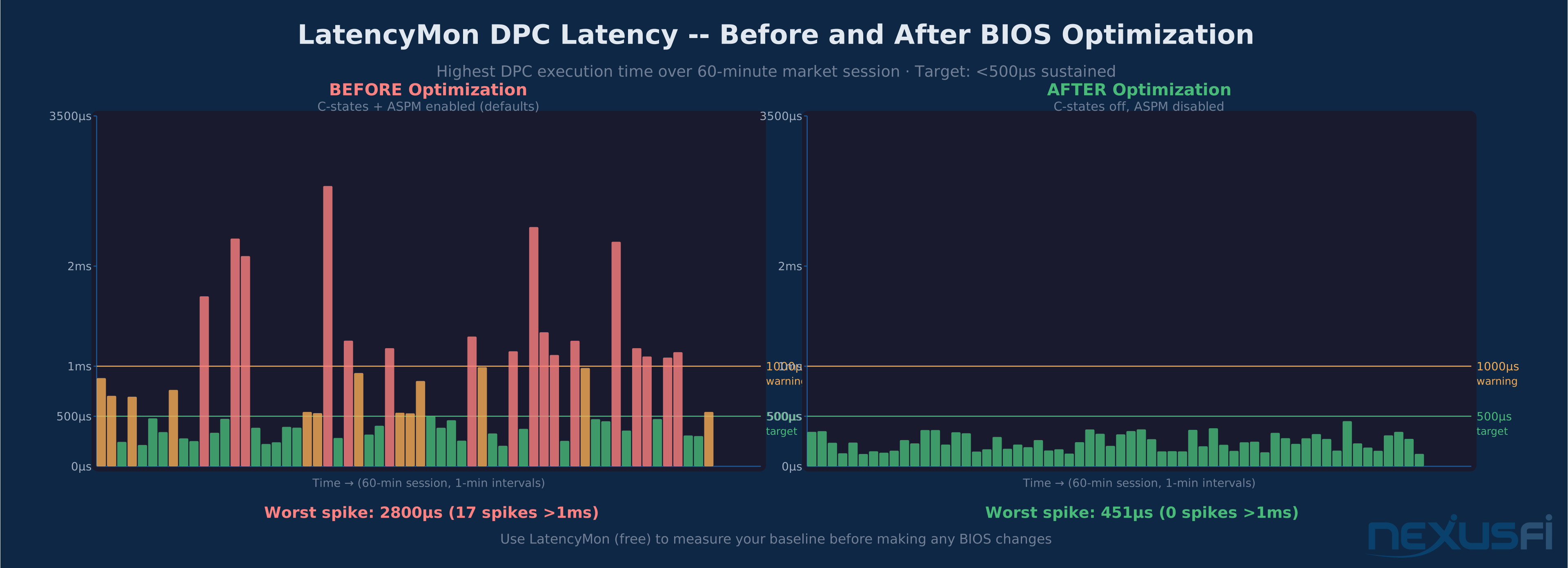
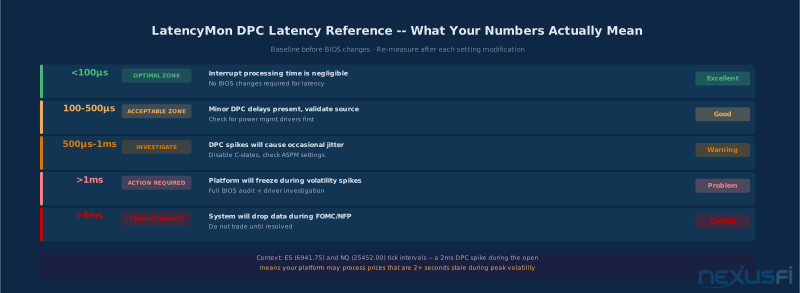
LatencyMon (free, from Resplendence Software) is the standard tool for measuring DPC and ISR latency on Windows systems. It shows you the highest measured DPC latency, which drivers are consuming the most interrupt processing time, and whether any latency spikes occur during normal operation.
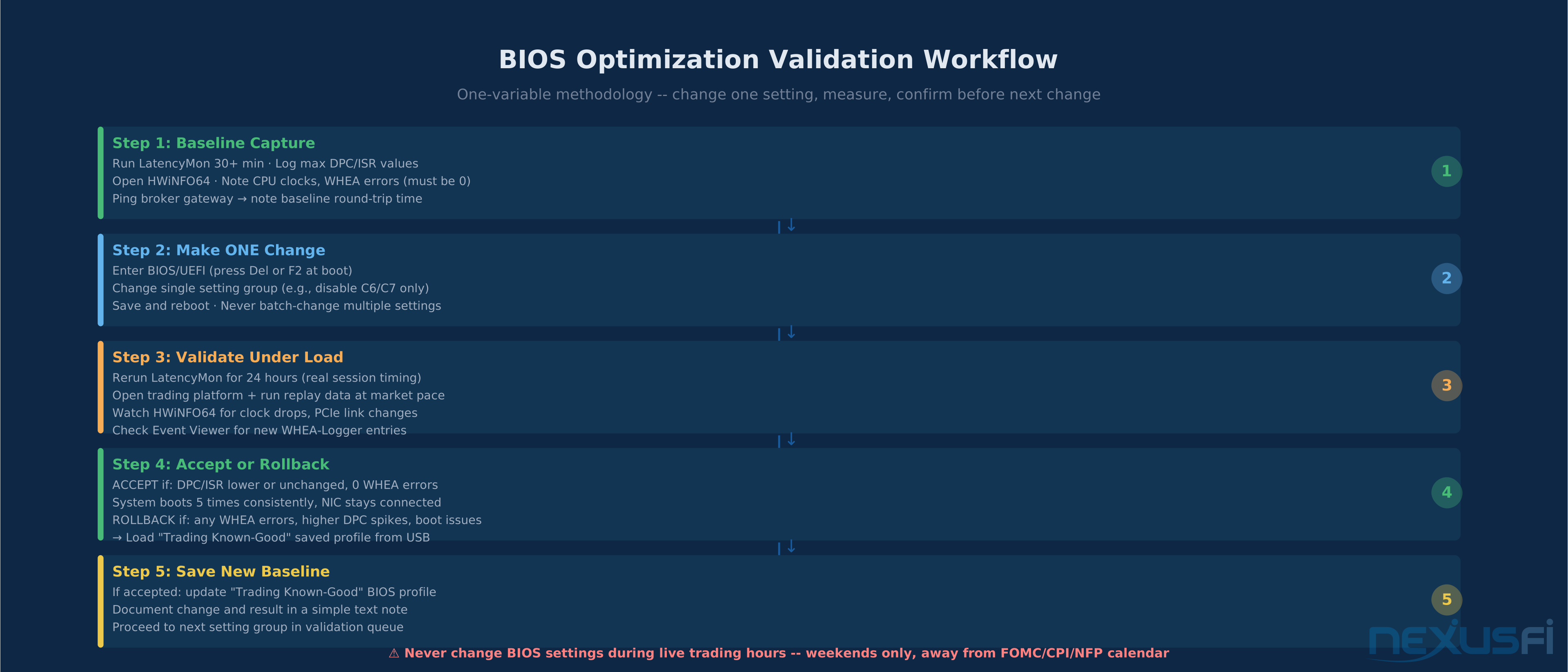
Measure before you change anything. You cannot know if a BIOS change helped unless you have a documented baseline to compare against. Run LatencyMon for at least 30 minutes under normal workstation load — platform open, charts active, data feed connected — and save the results before touching any BIOS settings.
Baseline first: Run LatencyMon for 30+ minutes before making any BIOS changes. Screenshot or log the results. What's your baseline highest ISR execution time? Your baseline DPC latency maximum? That's your benchmark.
Acceptable ranges for a trading workstation:
- Highest ISR execution: < 500 microseconds
- Highest DPC execution: < 1,000 microseconds
- No sustained DPC latency above these thresholds during normal operation
If your baseline is already below these numbers, BIOS changes may not produce measurable improvement. If you're seeing spikes of 2,000-5,000 microseconds, that's the system you're fixing.
After each BIOS change: run LatencyMon for 24 hours during normal workstation activity (feed running, charts open, your standard workspace). If the highest DPC execution increased, something about your change introduced a problem. If it decreased, you've made a measurable improvement.
HWiNFO64: Monitoring Under Load #
HWiNFO64 monitors CPU frequencies, power states, and hardware counters in real time. Use it to verify:
- CPU clocks are stable and not dropping during high-load periods (market open, chart updates)
- PCIe link speed isn't downshifting under load (check "PCIe Link Speed" for your NIC slot)
- WHEA corrected/uncorrected error counters remain at zero
- No unexpected thermal throttling
Run HWiNFO64 during simulated market open conditions — replay data in your platform, open all the charts and DOM windows you typically run simultaneously, run your normal workspace for 30 minutes. This stress test surfaces problems that only appear under real trading load, not idle.
WHEA-Logger: Event Viewer Monitoring #
Open Windows Event Viewer (eventvwr.msc) > Windows Logs > System. Filter for Source: WHEA-Logger. Zero correctable hardware errors after enabling XMP is the goal. Occasional corrected errors might be acceptable — uncorrected errors are not.
If you see WHEA errors after enabling XMP/EXPO/DOCP, back off the memory frequency, loosen timings, or run your memory at JEDEC defaults. A system crashing due to marginal memory is worse than a system running slower memory.
Real-World Trading Validation #
After tool validation, the final check is behavioral:
Reboot 5 times and time it. Each boot should take approximately the same time (within a few seconds). If some boots take 45 seconds and others take 4 minutes, you have an initialization stability issue.
Run your platform during a non-critical session (Sunday evening, pre-market) with replay data. Watch for any disconnects from your data feed, chart rendering pauses, or order submission delays. These show up in live conditions that synthetic benchmarks miss.
@Jigsaw Trading's Ninja Tunes post documented how disk thrashing from antivirus scanning tick files can cause NT to bog down even when CPU utilization looks fine — "each time a tick/bar comes in the antivirus and searchindexer start working and the hard disk can't keep up." That's a storage and OS optimization problem, not a BIOS problem. But the diagnostic principle transfers: measure the right layer. LatencyMon identifies DPC latency at the hardware interrupt layer; Windows Resource Monitor identifies CPU and disk contention at the OS layer. Use both, and attribute problems correctly before adjusting BIOS settings that may not be the cause.
Continuous ping to your broker's gateway during normal trading. Something like ping -t gateway.broker.com running in a command window gives you real-time visibility into any network-level disruptions. Spikes above 1ms during normal market hours that weren't there before a BIOS change suggest the change affected your NIC behavior.
The scenario-specific tests worth running:
- Simulate the ES 9:30 AM open by running replay data during market open conditions — watch for DPC spikes in LatencyMon during the first 10 minutes
- Run a full trading session end-to-end on replay and verify platform stability for 4+ hours (surfaces memory instability that short tests miss)
- Deliberately reboot after 8 hours of uptime and confirm the system comes back cleanly (tests that memory training results remain valid across long sessions)
Firmware Update Discipline: When and How #
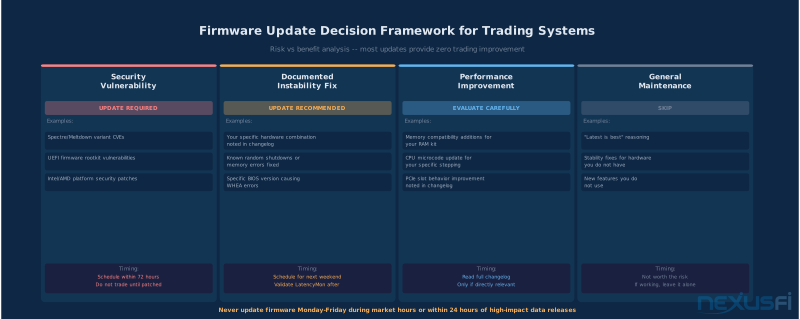
Never update firmware during an active trading week — especially within two days of high-impact events: FOMC announcements, CPI/NFP data, major rollover days, or any period where you have open positions that need monitoring.
Firmware updates are weekend work. The process:
- Download the update from your board manufacturer's support page
- Read the release notes — know whether the update addresses anything relevant to your configuration
- Back up your current BIOS settings to a profile before starting
- Update, then reload your Trading Known-Good profile
- Run LatencyMon and HWiNFO64 to confirm the update didn't regress your configuration
- Run MemTest86 if the firmware notes include any memory controller changes
When is a firmware update worth doing?
- Security vulnerabilities (Spectre/Meltdown variants, CVEs affecting your platform)
- Documented instability issues with your specific hardware combination
- New platform features you actually need
Not worth doing:
- "Latest is best" updates with no documented benefit for your configuration
- Stability updates for hardware you don't have
- Curiosity-driven updates during active trading periods
The risk of a problematic firmware update on a trading day is categorically not worth whatever improvement is hypothetically available.
The Settings You Don't Touch #
For completeness — things that get mentioned in BIOS optimization discussions that you should leave alone on a trading workstation:
CPU voltage modifications: Don't undervolt or overvolt your CPU on a trading machine. The instability risk is real and the trading benefit is near zero. Voltage changes are for enthusiast overclockers who can afford crashes — not live trading systems.
Aggressive RAM overclocking beyond XMP: The rated XMP profile is what the manufacturer tested and validated. Manually tuning tighter timings or higher frequencies introduces instability that's hard to detect until it manifests as a crash at the wrong moment.
RAID configuration changes: If you're not currently running RAID, don't start. If you are, changes to the RAID controller configuration during an active trading setup require careful planning and full backup first.
IOMMU/VT-d changes: Unless you're running a specific virtualization setup that requires these, leave them at defaults.
Secure Boot: Keep Secure Boot enabled unless you have a specific reason to disable it. It doesn't affect runtime latency and adds a meaningful layer of boot-chain integrity.
Knowledge Map
Go Deeper
Build on this knowledgeReferences This Article
Articles that build on this topicCitations
- — NinjaTrader 8 (NT8) Performance Improvements and Tweaks (2018) 👍 26“CPU/RAM speed is more important than additional cores -- RAM speed makes a huge difference; 3000 DDR4 significantly outperforms 1600 DDR3”
- — New Computer Build (2020) 👍 9“A fast CPU and the fastest SSD that you can find are the most important components”
- — Do I need a better computer? (2022) 👍 5“CPU most important for running backtests, needs a passmark of 15000+ for serious work”
- — NinjaTrader Performance on 6 year Laptop Vs. NEW (2025) 👍 6“Get as fast of RAM as you can get, and as fast of CPU as money can buy”
- — How bad is NT lag? (2022) 👍 16“Charts freezing during news releases caused by too many indicators -- a CPU only has a limited amount of capacity; poorly coded indicators can consume 100x normal CPU capacity”
- — Do I need a better computer? (2022) 👍 10“You really should have one computer dedicated to trading and nothing else -- no emails, surfing the internet. The most important thing is to have a dedicated trading computer.”
- — New Computer Build (2020) 👍 9“Would never get less than 32GB of RAM -- bang for the buck on CPU, good quality SSDs, a good mobo, and quality fans is hard to compromise on”
- — Ninja Tunes (2013) 👍 22“Issues with Ninja are usually either through thrashing the processor or the disk -- antivirus scanning every tick write causes disk to become the bottleneck, not the processor”
- — Setup Dedicated Machine Chicago - My experience (2011) 👍 26“My main two reasons were latency and reliability -- going from 50ms to single digit ms to the exchange is quite a difference and worth the cost even without the reliability advantages”
- Intel Developer Zone — CPU C-State Power Management on Intel Platforms (2023)
- Resplendence Software — LatencyMon: Kernel Timer Resolution and DPC/ISR Latency Monitor (2024)