



Home Network Setup for Futures Traders: Ethernet, Router, QoS, and LAN Configuration
Overview #
Your trading computer, broker, and data feed are only as good as the network connecting them. A slow fill, a missed exit, a platform disconnect during a news event — these often trace back to network problems that have nothing to do with the platform itself and everything to do with how your router, cables, and ISP are configured.
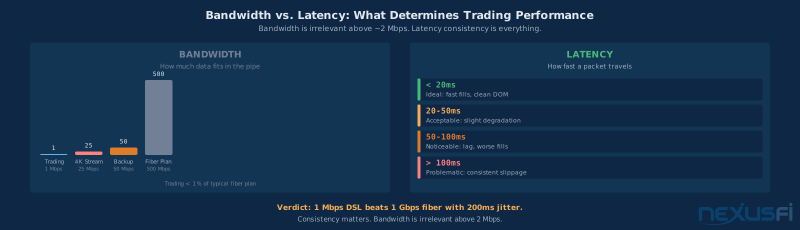
Most traders get this wrong because they improve for the wrong thing. They buy the fastest internet plan and assume they're covered. They're not. The metrics that matter for trading are latency, jitter, and connection reliability — not download speed. A 1 Mbps DSL line with consistent 20ms latency outperforms a 500 Mbps cable connection with 200ms jitter by an enormous margin when you're routing orders.
This article covers every layer of the trading network stack: physical cabling, router hardware and configuration, QoS and bufferbloat control, switch architecture, NIC settings, ISP selection, and failover. By the end you'll know how to build a network that behaves predictably under load and keeps platform disconnects at zero.
Related: Internet Connection for Day Traders — ISP selection and the basics. Trading Redundancy and Backup Systems — complete failover design. Windows OS Optimization — OS-level tuning. Trading Cybersecurity — network security and firewalls.
The Bandwidth Myth: Latency Is What Matters #
The most common mistake in trading infrastructure is confusing bandwidth with connection quality. Bandwidth — how much data fits through the pipe — is basically irrelevant for futures trading above 1-2 Mbps. A full session of streaming market data, charting, DOM updates, and order routing consumes well under 1 Mbps. A 500 Mbps fiber plan and a 10 Mbps DSL plan carry trading traffic identically if their latency is comparable.
SMCJB put it in terms that finally make this click:
What you actually care about:
- Latency — Round-trip time from your PC to your broker's execution server. For US futures traders, this is your ping to Chicago (CME/CBOT). Under 50ms is acceptable; under 30ms is good; under 20ms is excellent.
- Jitter — Variation in latency over time. A connection averaging 18ms but spiking to 150ms during a file upload has terrible jitter. Those spikes hit your orders at exactly the worst moments.
- Packet loss — Any packet loss above 0.0% causes TCP retransmission delays. Even 0.1% over a 30-minute session creates random fill delays.
- Reliability — How often the connection drops. One disconnect per month costs far more than any latency optimization.
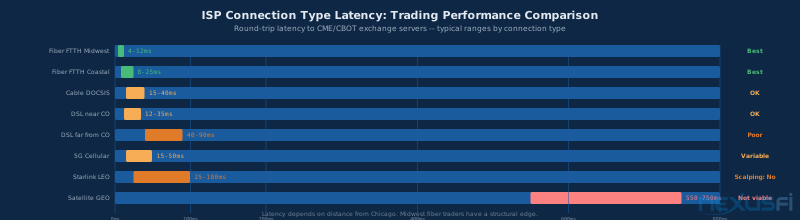
Big Mike clarified what you can and can't control: "What matters more in trading is latency. There is little you can do as an end user. In terms of DSL, Cable Modem, Satellite, and FiOS, I would rank: FiOS, DSL, Cable, Satellite. Satellite is not a viable option for a trader, the latency is just too huge." (Data Feed and Internet Connection Quality)
Fat Tails quantified the physics ceiling for international traders: fiber signals travel at ~60% of the speed of light, so a European-to-Chicago round trip takes at minimum 90ms of propagation delay before any routing overhead. A trader 100 miles from Chicago sees roughly 1-2ms of propagation delay. Nothing in your home network configuration beats physics — but you can absolutely avoid adding avoidable latency on top of that floor. (How to measure data feed latencies between continents)
hyperscalper described the practical implication for US traders: "From within the US typically 100 milliseconds or less is your distance from the Exchange. You can do a ping of sites known to be in Chicago to check this. For Micro Scalping, the speed of communication is a big factor." (Discussion of a Micro Scalping Day Trading Facility)
Wired Ethernet: The Non-Negotiable Foundation #
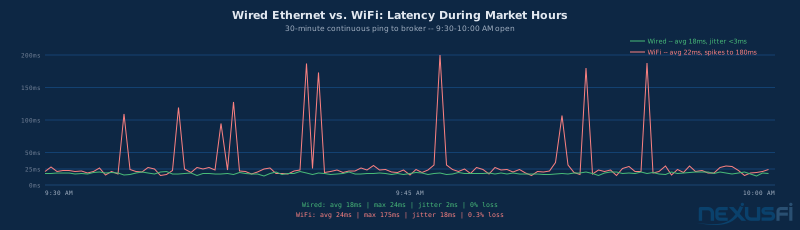
Wire every trading machine with Ethernet. No exceptions. WiFi introduces jitter by design — interference, channel contention, retransmission, power-save intervals — and that jitter is unpredictable. You can't QoS your way around it. You can't firmware-update your way around it. The only fix is a cable.
This isn't a suggestion — it's the foundational assumption behind any serious trading infrastructure.
During a typical 30-minute market open session, wired Ethernet averages 18ms latency with under 3ms jitter. WiFi on the same network averages 22ms but spikes to 150-180ms during high-volatility moments — exactly when you need your network most. Those spikes often coincide with nearby devices contending for airtime, a neighboring access point switching channels, or your NIC's power-save interval activating.
If you have a desktop trading machine and your router is 30 feet away with a wall between them, run the cable. It's a one-time 2-hour job that permanently eliminates one of the most common sources of unexplained platform behavior. Use a stud finder, a fish tape, and a keystone jack at each end — or hire someone. The $200 cost is nothing compared to one bad fill during a volatile open.
If WiFi is unavoidable — rental, temporary setup — use 5 GHz or 6 GHz band, disable power-save mode on the NIC, and minimize interference nearby. Still treat it as a situation to fix, not accept.
Ethernet Cable Selection and Installation #
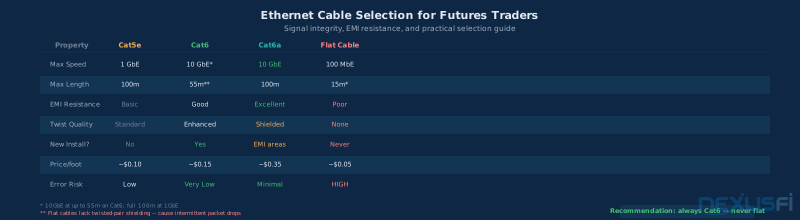
Not all Ethernet cable is equal. The wrong cable is worse than no upgrade — flat cables in particular cause intermittent packet drops that look like platform bugs until you finally run a managed switch and see the CRC error count climbing.
What to buy: Cat6 is the minimum for any new installation. It handles 10GbE up to 55 meters and provides the EMI shielding a typical trading environment needs. Cat6a extends this to 100 meters with better shielding — worth it for long runs near electrical conduit. Cat5e works if already in place and showing clean stats on your managed switch, but don't install it new.
Flat Ethernet cables are unsuitable for any application requiring reliability. They lack the twisted-pair geometry that gives standard cables their noise rejection. They cause intermittent packet drops that produce unexplained latency spikes and platform timeouts. If you have flat cables anywhere in your trading setup, replace them now.
Installation basics:
- Keep cable runs away from power lines, fluorescent light ballasts, and unshielded adapters. EMI from these causes errors even on properly twisted cable.
- Use quality RJ45 connectors and crimp them correctly. A bad crimp that partially connects a wire pair causes intermittent errors nearly impossible to diagnose without a managed switch.
- Don't kink, stretch, or staple cables tightly. Tight staples pinch insulation and cause issues under temperature cycling.
- Use punch-down keystone jacks at wall outlets rather than hanging cable runs — more reliable and creates a permanent, clean cable path.
Router Configuration for Trading #
Your router is where WAN congestion happens, and fixing it is the highest-leverage intervention available to most traders. The default configuration of virtually every consumer router — including those provided by ISPs — is optimized for throughput, not latency. The result is bufferbloat: queuing delay that spikes whenever bandwidth is saturated.
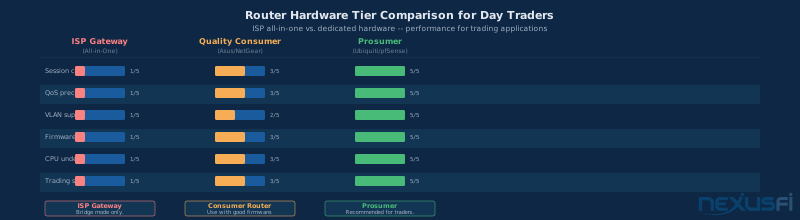
ISP-provided gateway: bridge it. All-in-one combo modems from ISPs have minimal or nonexistent QoS, no VLAN support, and create double-NAT when combined with your own router. Double-NAT causes trading platform disconnects and connection registration failures with some brokers. Put the ISP modem in bridge mode and let a dedicated router handle everything.
Router hardware tiers for traders:
- ISP gateway (avoid for routing): No real QoS, no VLAN support, limited firmware. Use only as a bridge/modem.
- Quality consumer router ($100-200): Asus, NetGear with DD-WRT/OpenWRT. Adequate for simple setups with 1-2 trading PCs. Works if configured properly for QoS.
- Prosumer/enterprise ($200-500+): Ubiquiti UDM-Pro, pfSense/OPNsense on dedicated hardware. Full DSCP support, proper queue discipline, VLAN flexibility, dual-WAN intelligent failover.
Big Mike's production setup for context:
Key router settings:
- Disable DPI/IDS/IPS at the WAN edge if it adds latency variability. Deep packet inspection adds CPU overhead that creates jitter under load.
- Set static DNS (1.1.1.1 or 8.8.8.8). DNS lookups at the start of a broker connection can add 50-100ms if using a slow resolver.
- Dual WAN with automatic failover: The router monitors both connections and switches to the secondary when the primary fails. Your platform briefly disconnects and reconnects — 20-40 seconds — but you stay in business.
QoS and Bufferbloat: Eliminating the Hidden Kill #
Bufferbloat is the single largest preventable source of latency spikes in home trading networks. Most traders have never heard of it and have been blaming their broker for problems that live entirely inside their own router.
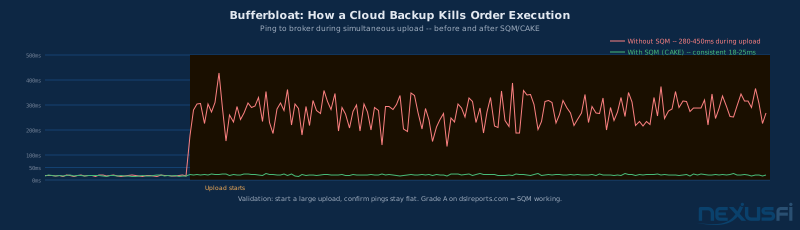
Here's how it works: every router has an outbound queue for packets waiting to exit the WAN port. When bandwidth is saturated — say, a cloud backup is uploading — packets stack up in this queue and get processed in order. TCP is designed to fill all available bandwidth, so without intervention, a file upload fills the queue. Every order packet you send during that period sits behind megabytes of backup data. Each packet adds 200-500ms of queuing delay. Your order reaches the broker 300ms late. The fill is worse. The DOM you see is stale.
The fix is SQM (Smart Queue Management), implemented via the CAKE or FQ-CoDel algorithm. These keep the outbound queue small and serve traffic in a fair, prioritized order. With CAKE enabled, a simultaneous file upload causes under 2ms of additional latency on trading traffic. Without it, the same upload causes 200-450ms spikes — invisible to you but destroying your execution quality.
How to configure SQM/CAKE:
- Measure your actual ISP bandwidth at off-peak hours. Write down the upload and download numbers.
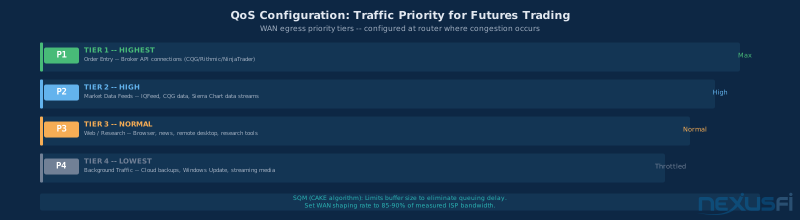
- Set your SQM shaping rate to 85-90% of measured bandwidth. This is counterintuitive — you intentionally limit the queue below ISP capacity, which hands congestion control to your router. Setting to 100% means the ISP's buffer fills, which you can't control.
- Enable CAKE or FQ-CoDel on the WAN egress interface. OpenWRT, DD-WRT, and pfSense all support this natively.
- Test it: start a large file upload and run a continuous ping to your broker's IP. With proper SQM, pings stay flat. Validate your setup with the DSLReports bufferbloat test — target Grade A or B.
NinjaTrader and Sierra Chart don't natively tag their packets with DSCP priority markers, so you must identify traffic yourself. Open Windows Resource Monitor (resmon.exe) while connected to your data feed and broker, expand the "Network" section, and note all remote addresses. Those are your QoS rule targets.
Traffic priority tiers:
- Tier 1 (Maximum): Order entry — broker API connections, execution platform connections
- Tier 2 (High): Market data feeds — IQFeed, CQG, Rithmic data connections
- Tier 3 (Normal): Web browsing, research, remote desktop
- Tier 4 (Throttled): Cloud backups, Windows Update, media streaming
Managed Switches and VLAN Architecture #
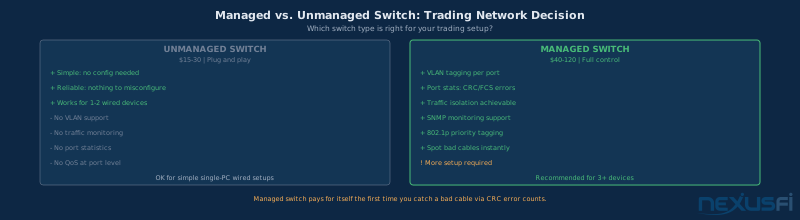
If you're running a single trading PC connected directly to a router, an unmanaged switch is fine. Once you have multiple devices — a second PC, a NAS, a research machine — a managed switch pays for itself the first time you catch a bad cable via CRC error counts alone.
What a managed switch gives you:
- CRC/FCS error statistics per port: The single most valuable diagnostic capability for trading infrastructure. Bad cables cause CRC errors. With a managed switch, you see exactly which port is producing errors. Without one, you spend days troubleshooting mysterious disconnects.
- VLAN support: Dedicate a network segment to trading machines. Smart TVs, phones, and IoT devices can't reach your trading PC.
- 802.1p port prioritization: Traffic from trading PC ports gets tagged for priority handling at Layer 2, working alongside router QoS at Layer 3.
- Port monitoring: Error counters, link speed verification, traffic analysis.
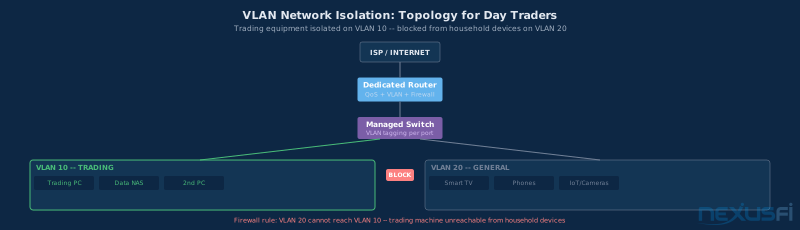
VLAN architecture for a trading desk:
- VLAN 10 (Trading): Trading PC, backup trading PC, dedicated data appliances. Unrestricted WAN access, high-priority QoS.
- VLAN 20 (General): Smart TV, personal devices, phones, IoT, security cameras. Standard WAN access, no access to VLAN 10.
- Firewall rule: Block all traffic from VLAN 20 to VLAN 10. Your trading machine should be unreachable from household devices. A compromised phone has zero path to your trading infrastructure.
For small setups, a managed switch from Netgear's or TP-Link's smart switch line runs $40-120 and covers everything above. You don't need rack-mount enterprise hardware — you need VLAN support, port statistics, and 802.1p. One switch, one router, star topology. Avoid daisy-chaining switches unless you control QoS across every uplink.
NIC Tuning: Windows Settings for Minimum Latency #
Your trading PC's network adapter has power-saving and optimization features that introduce latency regardless of how well the rest of your network is configured. Windows enables many of these by default.
Changes to make immediately:
- Disable Energy Efficient Ethernet (EEE): EEE allows the link to idle in reduced power state during low traffic. The link takes 10-30ms to wake when traffic resumes. During that wake period, your order goes nowhere. Disable in Device Manager -> Network Adapter -> Properties -> Advanced tab -> Energy Efficient Ethernet -> Disabled.
- Disable NIC power management: Device Manager -> Network Adapter -> Properties -> Power Management tab -> uncheck "Allow the computer to turn off this device to save power."
- Verify link speed and duplex: Confirm the adapter runs at Gigabit, full-duplex. Auto-negotiate can silently drop to 100Mbps or half-duplex on marginal cables. Set this explicitly.
- Disable wireless NIC in Device Manager: Even unused, a wireless adapter driver causes 300-900 microsecond DPC latency from background network scanning. Disable it in Device Manager if you're on Ethernet.
Windows TCP settings worth testing:
- Disable Windows TCP Auto-Tuning: Run as Administrator:
netsh interface tcp set global autotuninglevel=disabled. This prevents dynamic TCP window scaling that can cause variable connection behavior. Revert if you experience throughput problems on large file transfers. - TcpNoDelay for Sierra Chart: Nagle's algorithm batches small TCP packets, introducing up to 200ms of artificial delay. For Sierra Chart, add Registry DWORD
TcpNoDelay = 1atHKEY_LOCAL_MACHINE\SYSTEM\CurrentControlSet\Services\Tcpip\Parameters\Interfaces\[NIC GUID]. Only apply if Sierra Chart documentation confirms it's needed for your connection type.
Run LatencyMon after making NIC changes to confirm DPC latency is below 300 microseconds. Above that threshold indicates a driver issue — most commonly the wireless NIC driver, audio driver, or a USB hub controller.
Backup Internet and Automatic Failover #
Internet outages are a matter of when, not if. The question is how much each outage costs you and whether it costs you anything at all.
Pa Dax extended this to full trading infrastructure redundancy: "Trading is risk management, so I want to be fully redundant on my trading equipment and account. I have standby accounts fully funded to either hedge a position when a broker fails or quickly resume trading." (PA Dax CL, ES and Bund Price Action Trading Log)
Backup connection options:
- Secondary wired ISP (different technology): Most redundant option. Cable + DSL uses completely different infrastructure and rarely fails simultaneously. Cable + fiber from a different provider is even better. Big Mike runs DSL + cable as baseline plus LTE backup.
- 5G/LTE cellular hotspot: Works as emergency backup with 15-50ms latency. Keep a mobile router with an active data plan on your desk. Automatic failover via dual-WAN router switches to cellular within seconds.
- Dual-WAN router: Essential for automatic failover. Monitors both WAN connections and switches traffic when the primary fails.
ThatManFromTexas added an important caveat about failover behavior:
Most trading platforms don't transparently handle IP address changes during failover. Plan for a 20-40 second reconnection gap even with automatic failover — that's still far better than sitting out the rest of the session.
Fat Tails made the critical point about total failure preparation:
Your broker has a phone desk. Have the number in your phone. Know which orders are live and at what prices. The alternative is being stuck in a position with no exit.
bobwest on UPS for networking equipment: "Have UPS protection (battery backup) on all components of your local setup, including your cable modem or whatever device connects you to the internet." A 3-second power flicker kills an unprotected router and takes 2 minutes to fully restart — your platform disconnects during that window. Router, modem, and managed switch should all be on UPS. (Doomsday scenario)
Network Monitoring and Troubleshooting #
The only way to know your network is performing is to measure it. Many bufferbloat issues, jitter problems, and cable faults produce symptoms that look like broker API bugs or platform crashes. Proper tools make the diagnosis immediate.
Tools for every trading setup:
- PingPlotter (Windows, free tier): Continuously pings your broker's server and graphs latency and packet loss over time. Run it for a week. Spikes that correlate with Windows Update, cloud backup startup, or specific times of day tell you exactly what to fix. Available at pingplotter.com.
- LatencyMon (Windows, free): Measures DPC latency — how long Windows takes to service hardware interrupts. Above 300 microseconds affects network packet timing. Wireless NIC drivers, audio drivers, and USB hubs are common culprits.
- WinMTR (Windows, free): Combines ping and traceroute. Shows latency and packet loss at each network hop. Packet loss at Hop 3 but not at Hops 1-2 means that specific router in your ISP's network is the problem. Bring this output to broker support calls.
- DSLReports Bufferbloat Test (web-based, free): Grades your router's queue management A through F. Target Grade A or B. Grade C or worse means SQM isn't configured or isn't working.
- Managed switch port statistics: Check weekly. CRC error counts should be zero. Any non-zero count on a port means that cable needs to be replaced.
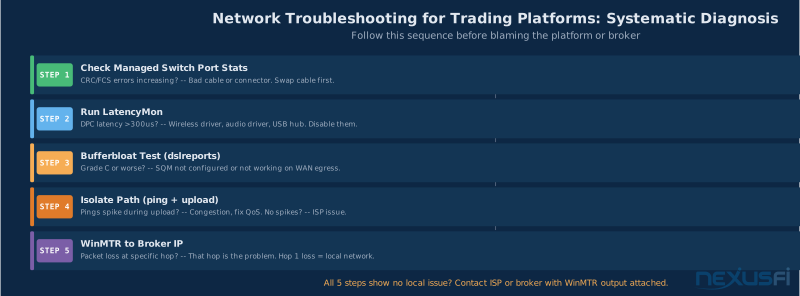
Systematic troubleshooting sequence for platform disconnects:
- Check managed switch port stats for CRC errors — bad cable is the most common hardware fault and easiest fix.
- Run LatencyMon — DPC latency above 300 microseconds means a driver problem, not a network problem.
- Run DSLReports bufferbloat test — confirms or rules out QoS misconfiguration.
- Start a large file upload while watching your broker ping in PingPlotter — latency spikes during upload = bufferbloat. Latency spikes regardless = ISP or beyond.
- Run WinMTR to your broker's server IP — packet loss at a specific hop identifies the location. Hop 1 loss means your local network. Hop 5+ loss means ISP or upstream.
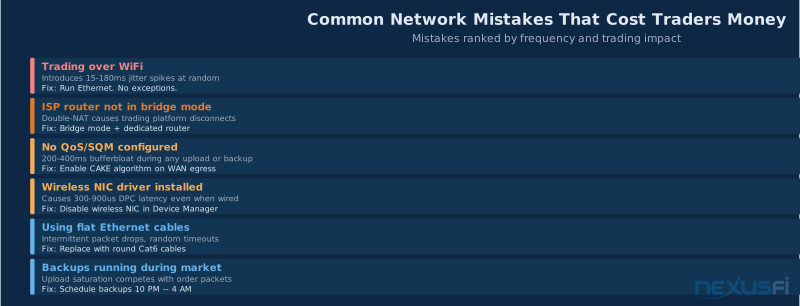
Common Network Mistakes and How to Fix Them #
Six mistakes account for the vast majority of trading-related network problems. Most are invisible until you know what to look for.
Trading over WiFi: Jitter spikes of 15-180ms that hit hardest during high-volatility moments when the air is congested. Fix: run Ethernet to every trading machine. If cables through walls aren't possible, use powerline adapters (MoCA preferred) or cable raceways along baseboards as an intermediate step.
ISP gateway doing double NAT: When the ISP's modem-router provides DHCP and your dedicated router also provides DHCP, some trading platforms see connection failures and unexplained disconnects. Fix: bridge mode on the ISP device — one DHCP server, no double-NAT.
No QoS or SQM configured: Default router behavior queues all traffic in order. A 50MB cloud backup upload causes 200-450ms queuing delay on every order packet during that period. Fix: enable CAKE algorithm on WAN egress at 85-90% of measured ISP speed.
Wireless NIC driver installed while running wired: Having a wireless adapter driver installed causes 300-900 microsecond DPC latency even when the adapter is not in use. The driver scans for networks and processes beacon frames from nearby access points in background operations that interrupt Windows packet scheduling. Fix: disable the wireless adapter in Device Manager.
Using flat Ethernet cables: Flat cables lack twisted-pair geometry and cause intermittent packet drops that look exactly like broker API problems or platform bugs. Fix: replace every flat cable with round Cat6. Check managed switch port stats after replacement — CRC errors should drop to zero within minutes.
Running backups during market hours: Even with QoS configured, large background transfers compete with platform traffic. Fix: schedule cloud backups and large data transfers to overnight windows (10 PM to 4 AM). Confirm your backup software isn't silently running at market open with a scheduled task that slipped.
Implementation Roadmap and Performance Targets #
Don't implement everything simultaneously. Start with the highest-impact, lowest-effort changes and measure after each step.
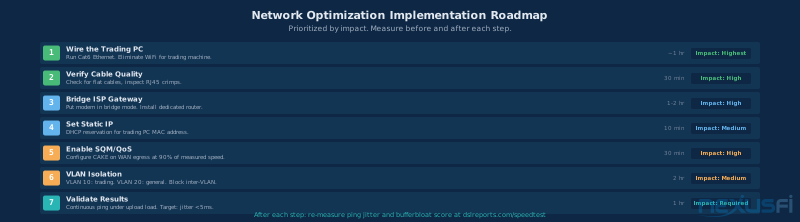
Step 1 — Wire the trading PC: Run Cat6 Ethernet from router or switch to every trading machine. Eliminate WiFi for trading. This single change reduces jitter more than any other intervention. Verify with 30-minute continuous ping to your broker — jitter should be under 5ms.
Step 2 — Audit cable quality: Check all patch cables for flat construction. Check managed switch port stats for CRC errors. Replace suspicious cables. 30 minutes that finds hidden problems.
Step 3 — Bridge ISP gateway and install dedicated router: Eliminates double NAT and gives you real traffic control. Install router with QoS support (at minimum consumer grade; pfSense if you're comfortable).
Step 4 — Enable SQM/CAKE on WAN egress: Configure at 85-90% of measured ISP bandwidth. Validate with DSLReports bufferbloat test — target Grade A. Run a simultaneous large upload while watching broker ping in PingPlotter — latency should stay flat.
Step 5 — Configure VLAN isolation: Trading machines on VLAN 10, household devices on VLAN 20, inter-VLAN traffic blocked. Security and performance in one step.
Step 6 — Add backup internet with automatic failover: Secondary ISP or 5G/LTE hotspot configured as automatic failover on dual-WAN router. Test by unplugging the primary and confirming the secondary takes over within 30 seconds.
Step 7 — NIC tuning: Disable EEE, disable NIC power management, verify Gigabit full-duplex. Run LatencyMon to confirm DPC latency under 300 microseconds. Disable wireless NIC driver if present.
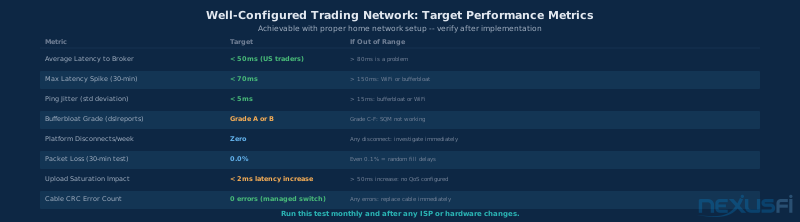
Target performance metrics for a properly configured trading network:
| Metric | Target | If Out of Range |
|---|---|---|
| Average latency to broker | < 50ms (US) | > 80ms: investigate ISP routing |
| Max latency spike (30 min) | < 70ms | > 150ms: WiFi or bufferbloat |
| Jitter (std deviation) | < 5ms | > 15ms: bufferbloat or WiFi |
| Bufferbloat grade | A or B | C-F: SQM not working |
| Platform disconnects/week | Zero | Any: investigate immediately |
| Packet loss (30 min) | 0.0% | Even 0.1%: fix immediately |
| Upload saturation impact | < 2ms increase | > 50ms: no QoS configured |
| Cable CRC errors | Zero | Any: replace that cable |
Big Mike's honest take on where this ends up for extreme cases:
That's good advice for the extreme optimization end. For the practical majority — a home trader running NinjaTrader or Sierra Chart with a direct broker connection — the steps above take a weekend to implement and eliminate the infrastructure problems that cause missed exits, unexplained fills, and platform disconnects. After that, you're limited by physics: the distance between you and the exchange. If that's where you end up, see Exchange Co-Location for Futures Traders.
Further exploration: Trading Redundancy and Backup Systems — complete power failover and disaster recovery. Trading VPS for NinjaTrader — running your platform near the exchange. Trading Cybersecurity — firewalls and network security in depth. Windows OS Optimization for Futures Traders — OS-level performance tuning.
Knowledge Map
Go Deeper
Build on this knowledgeReferences This Article
Articles that build on this topicCitations
- — upload, download, ping best to trade (2012) 👍 3“Generally speaking, the slowest broadband connection will be plenty fast for trading. Latency matters much more than throughput.”
- — Data Feed and Internet Connection Quality with ADSL 2+ (2011) 👍 7“What matters more in trading is latency. In terms of DSL, Cable Modem, Satellite, and FiOS, I would rank: FiOS, DSL, Cable, Satellite. Satellite is not a viable option for a trader.”
- — Day Trading (Scalping) with Starlink satellite internet? (2024) 👍 4“What you care about is latency and not bandwidth/capacity. Having a small very fast pipe (ie low latency connection) is more important than having a massive but slower pipe.”
- — How to measure data feed latencies between continents? (2014) 👍 9“The minimum lag is 100 to 120 milliseconds for European traders. Physics tells us that the minimum lag you will be exposed to is about 100 milliseconds.”
- — Ron's trading journal (2013) 👍 5“Trading is a serious business and the last thing you want to have happening is your internet connection going down. One interruption in the middle of a trade would pay for the complete infrastructure.”
- — PA Dax CL, ES and Bund Price Action Trading Log (2018) 👍 6“Trading is risk management, so I want to be fully redundant on my trading equipment and account. I have standby accounts fully funded to either hedge a position when a broker fails or quickly resume trading.”
- — Doomsday scenario (2019) 👍 12“Have UPS protection (battery backup) on all components of your local setup, including your cable modem or whatever device connects you to the internet.”
- — risk trading internet outage liability LLC (2010) 👍 5“If both internet connections fail, I have prepared a list of different phone numbers to join my broker to close all positions immediately.”
- — reliable connection (2012) 👍 5“If one of the internet services failed, the router would automatically rollover to the other connection and I wouldn't lose internet connection. However, NinjaTrader would lose connection.”
- — Multiple Accounts as Hedge for technology failure (2011) 👍 3“Personally, I have a redundant internet connection (DSL+Cable with a load balancing/auto-failover router) simply because my internet provider here sucks ass, so it is a requirement for me to operate successfully.”
- — Monitor Internet Connection for Overnight Hold (2021) 👍 1“I have multiple Gigabit fiber optic uplinks via different ISPs that use different backbones. On top of that, I have 4G LTE backup in the event both fibers are down. Everything is handled by my own pfSense router.”
- — LB or HA internet connection (2011) 👍 2“The worst to happen is a trader to have an entry and the internet goes down. Almost like driving blindfolded.”
- — Disaster planning & redundancy (2011) 👍 1“In the case of say trading -- you will see a disconnect followed immediately by a reconnect, as it switches from one wan port/provider/uplink to the other for your failover during a problem.”
- — Discussion of a Micro Scalping Day Trading Facility (2021) 👍 2“From within the US typically 100 milliseconds or less is your distance from the Exchange. For Micro Scalping, the speed of communication is a big factor.”
- DSLReports — Internet Speed Test with Bufferbloat Grade (2026)
- PingPlotter — Network Performance Monitoring and Path Analysis (2026)