



RAM Selection for Futures Trading Workstations: How Much Memory You Actually Need
Trading software doesn't work like other applications. Your browser can swap tabs to disk without you noticing. Your word processor doesn't care if the OS evicts it to pagefile for thirty seconds. But when you're in a position during RTH and your DOM freezes because Windows decided to reclaim RAM — that's a different problem entirely.
RAM selection for a trading workstation comes down to one question: do you have enough headroom that your platform never touches the pagefile during market hours? Everything else — speed, latency, DDR generation — is secondary to that answer.
This guide gives you the numbers to make that decision correctly, drawn from real testing data by experienced futures traders in the NexusFi community.
Overview: RAM Behaves Differently on Trading Machines #
Consumer RAM advice usually says "16 GB is plenty." For most applications, that's true. Trading software breaks that assumption in specific ways:
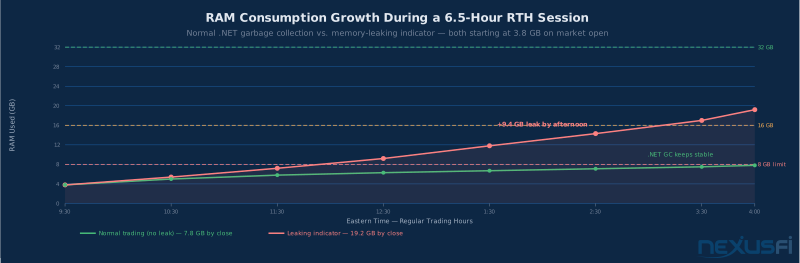
Continuous operation pressure: A trading rig runs for 6--8 hours without restart during live sessions. RAM usage accumulates gradually through indicator calculations, tick data buffering, and — critically — from indicators that fail to release memory properly. Software that starts at 3 GB at 9:30 can sit at 14 GB by 3:00 PM if something's leaking.
Variable data intensity: A simple daily chart uses almost no memory. A 65-day tick chart for ES with a dozen orderflow indicators can consume hundreds of megabytes per chart window. Load ten of those charts and you're in gigabytes from charting alone — before you count the OS, browser, Excel, and DOM windows.
Spike behavior on market events: When a major trigger hits — a surprise Fed announcement, a geopolitical event — every chart simultaneously loads additional tick data, indicators recalculate, and scanners fire across dozens of symbols. RAM usage that was comfortable at 70% suddenly spikes to 95%. On an 8 GB machine, that triggers pagefile. On a 16 GB machine with a leaking indicator, it might.
Backtesting vs live trading: These have completely different memory profiles. Running a strategy optimization can consume 32+ GB iterating through months of historical data — work that's impossible on a machine sized only for live trading.
Understanding these patterns tells you exactly how to spec your machine.
How Much RAM Do You Actually Need? #
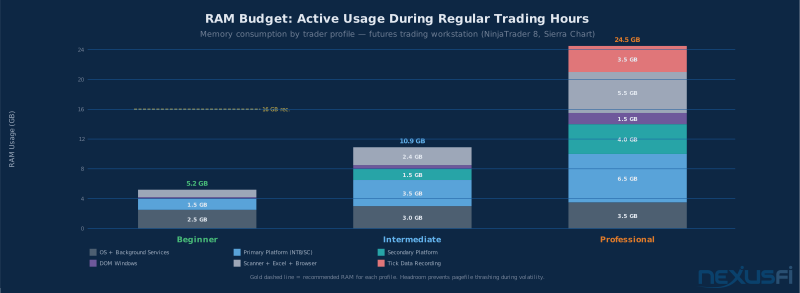
The NexusFi community has spent years measuring this. Here's what the data shows for three realistic trader profiles.
Beginner Trader: 16 GB Minimum #
A single platform, 2--4 charts, one DOM window, browser open for news. This is someone learning futures trading or early in their career with a focused setup.
Memory budget at rest:
- Windows 11 + background services: ~2.5 GB
- NinjaTrader 8 with basic workspace: ~1.5 GB
- Browser (4--6 tabs): ~1.0 GB
- Total active: 5--6 GB
At 16 GB, you have 10 GB of headroom. That's comfortable for intraday accumulation, any leaking indicators you might not know about yet, and the spike load on market open.
Why not 8 GB? Fat Tails, a longtime NexusFi Elite member with verified expertise in NinjaTrader performance, documented that a single 65-day ES minute chart with a few indicators adds only about 23 MB on top of the ~190 MB NT8 base footprint. But that math breaks down quickly with high-resolution tick charts:
"If you use high resolution charts built from ticks and add a few more indicators, one chart can easily require 100 MByte or more. It all depends on your chart."
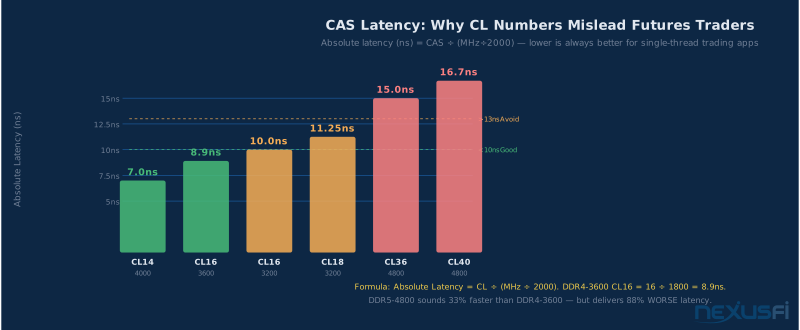
On an 8 GB machine with a heavy tick chart setup and browser open, you're at 6--7 GB before market open. The first volatility spike of the morning hits RAM at 90%, Windows starts using pagefile, and your charts freeze for 2--5 seconds at the exact moment execution speed matters most.
Recommendation: 2×8 GB DDR4-3200 (~$35--55). The cost difference between 1×16 GB and 2×8 GB is negligible. Always buy in matched pairs for dual-channel operation.
Intermediate Trader: 32 GB #
Multiple platforms, 6--8 charts with orderflow indicators, 2--3 DOM windows, market scanner, Excel position tracker. This is a trader who's been at it for a few years with a refined multi-window setup.
Memory budget during RTH:
- OS + services: ~3.0 GB
- NinjaTrader 8 (6 tick charts, orderflow): 3--5 GB
- Sierra Chart (secondary, 4 charts): 1--2 GB
- DOM windows (3): ~300 MB
- Market scanner (50 symbols): ~400 MB
- Excel + browser: ~2.5 GB
- Total active: 10--13 GB
At 16 GB, this setup has 3--6 GB of headroom. That's fine until a leaking indicator adds 500 MB per hour throughout a trading day. Six hours in, headroom is gone. At 32 GB, you have 19--22 GB of headroom — enough to absorb leaks, spikes, and overnight backtesting without intervention.
sam028, operator of SpeedyTradingServers.com and NexusFi Elite member, breaks it down this way:
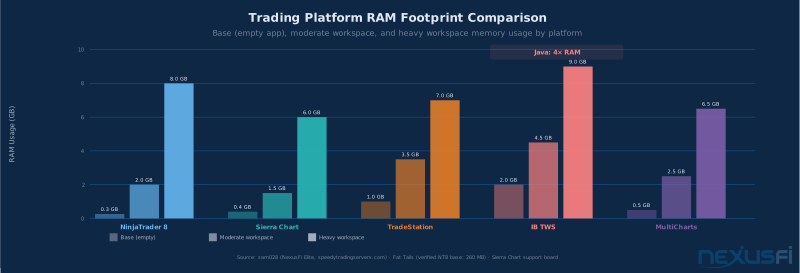
"The base memory footprint (the RAM used by an 'empty' application) is quite low with NinjaTrader (7 and 8) and for SierraChart (below 0.5 GB). IB TWS and IB Gateway, like all Java based apps, are very RAM consuming: TWS can quickly ask for 2 GB with a relatively light workspace."
He also notes that NT8 with 50 charts full of tick-based indicators with 365 days of historical data can be "very busy with 8 cores/32 GB" — meaning 32 GB can be pushed to its limits by extreme configurations.
Recommendation: 2×16 GB DDR4-3200 or DDR4-3600 (~$70--100).
Professional Trader: 64 GB #
Multiple platforms simultaneously, 20+ charts with complex indicators across multiple monitors, tick data recording for 50+ symbols, intensive overnight backtesting. This is a prop trader or serious systematic trader where the rig is infrastructure, not just a workstation.
Memory budget during heavy operation:
- NinjaTrader 8 (20+ charts, heavy indicators): 8--15 GB
- Sierra Chart (secondary charting): 4--8 GB
- Bookmap or Jigsaw (order flow): 2--4 GB
- Tick data recording (50 symbols): 2--5 GB
- Excel with live feeds + macros: ~800 MB
- Browser (multiple tabs): 2--4 GB
- OS + services: ~3 GB
- Total active: 22--40 GB
64 GB provides 24--42 GB of headroom. This matters at professional scale because memory leaks are cumulative — if three of your custom indicators each leak 1 GB over a 7-hour session, you want the headroom to absorb that without a forced platform restart at a bad time.
quantera, a NexusFi Elite member with 26 thanks on his hardware benchmark thread, pushed his 32 GB machine to its limit on intensive NT8 backtesting:
"I was constantly maxing out 32gb of ram on Rig1 (during backtests the CPU and the backtest would idle for 8-10 seconds every 40 seconds while I presume cached data was moved to virtual memory)."
His solution — dedicating an Intel Optane NVMe drive entirely to the Windows pagefile — helped much, but 64 GB eliminates the problem entirely.
ThemBones (NexusFi Elite, Jun 2025), who tested extensively across multiple GPU and CPU generations, summarizes the consensus:
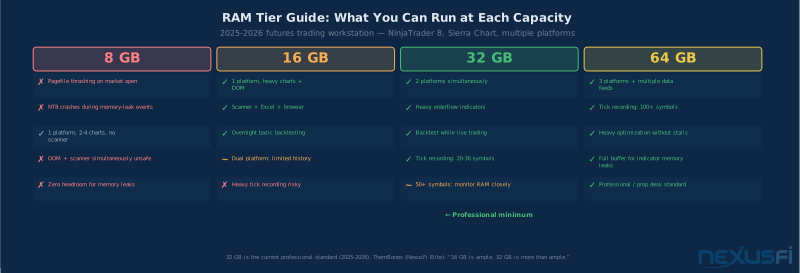
"16GB of RAM is ample. 32GB is more than ample. 64GB is overkill and a waste of money."
His comment is correct for single-platform retail trading. For professional multi-platform setups with intensive backtesting, 64 GB is the right call.
Understanding How Trading Software Uses RAM #
The Per-Chart Memory Formula #
Fat Tails worked out the math for exactly how NinjaTrader allocates memory per chart. The formula is:
RAM per chart = (bars × (OHLCV series + indicator plots)) × 8 bytesExample calculation:
- ES 1-minute chart, 65-day lookback (48 working days × 1,380 min/day)
- Two indicators: anaPivotsDailyV41 (27 plots) + anaCurrentOHLV41 (12 plots)
- Calculation: 48 × 1,380 × (5 + 27 + 12) × 8 = 23.3 MB
- NinjaTrader base: 190 MB
- Total for this chart: ~213 MB
That's a lightweight chart. Now apply it to tick-based charts:
A tick chart for ES loading 3 days of data at 1-tick resolution contains millions of individual records. Add 10 orderflow-related indicators, each with multiple plot series, and a single chart can easily consume 300--500 MB. Load ten such charts and you're at 3--5 GB from charts alone — before counting anything else running on the system.
This is why "I only have a few charts" doesn't necessarily translate to low RAM usage. The critical variables are:
- Bar type: Tick charts >> minute charts >> daily charts in memory consumption
- Lookback period: More historical data = more bars = more memory
- Indicator count and complexity: Each active indicator adds plot series × bars × 8 bytes
How Tick Data Feeds Load RAM #
Your data feed — Rithmic, CQG, IQFeed, Kinetick — streams ticks continuously during market hours. ES and NQ during RTH generate 5,000--15,000+ ticks per minute. Each tick that populates a chart's historical buffer stays in RAM for the session.
DOM windows maintain order book snapshots that update every millisecond. A single DOM window has a relatively modest footprint (~50--100 MB), but it creates constant CPU↔RAM activity as the book updates. Eight DOM windows simultaneously can add 400--800 MB.
Market scanners iterate across multiple symbols maintaining price and volume buffers for each. A 50-symbol scanner adds several hundred megabytes over the course of a session as it accumulates data.
Multiple Platforms Running Simultaneously #
Many traders run two platforms: NinjaTrader as their primary execution platform and Sierra Chart for advanced charting, or NT8 combined with Bookmap for order flow visualization. The combined footprint becomes:
| Component | RAM Usage |
|---|---|
| NinjaTrader 8 (active workspace) | 2--5 GB |
| Sierra Chart (4--6 charts) | 1--3 GB |
| IB TWS (if used for execution) | 2--4 GB |
| Excel with DDE data link | 300--600 MB |
| Browser (news, research) | 1--3 GB |
| Windows OS + services | 2--3 GB |
| Realistic concurrent total | 8--18 GB |
16 GB handles the lower end of this range. 32 GB handles the upper end with headroom.
Trading Platform RAM Footprints: The Numbers #
Different platforms have very different memory architectures. Understanding this helps you size your system correctly for your specific toolchain.
NinjaTrader 8 #
NinjaTrader 8 is a native .NET application. Fat Tails measured the base footprint directly:
"On my machine (workspace open + connected) NinjaTrader uses about 260 MByte of RAM. When editing an indicator via File -> Utilities -> Edit NinjaScript, then the RAM requirement rises."
Per-component breakdown for NT8 at scale:
- Base instance: 190--260 MB
- Per connected account (connection overhead): 50--150 MB each
- Per chart (standard indicators): 100--300 MB each
- Per tick chart with complex orderflow indicators: 200--500 MB each
- Historical data buffers: 200--500 MB depending on settings
- Heavy backtesting: 16--32+ GB during optimization
For a moderate retail setup (one connection, 6--8 charts, DOM, scanner), NT8 typically runs 2--4 GB during live trading. For professional setups with 20+ charts and orderflow, 8--15 GB is realistic.
Sierra Chart #
Sierra Chart has a notably different behavior: memory usage is entirely dependent on the depth of historical data loaded.
From the Sierra Chart official support board (Jan 2026): "At least 32 GB of memory" is recommended for setups with 12+ charts, multiple tick-based execution charts, and 6 symbols with real-time data.
The community has documented extreme cases: a single Sierra Chart instance with one chart loaded consumed 4.4 GB when tick data depth was unconstrained. Reducing the lookback period to 10 intraday days + 3 tick chart days brought usage from 4.4 GB down to 1.5 GB.
Key Sierra Chart memory rule: Limit tick chart history to what you actually use. 30 days of tick data is rarely necessary for most trading approaches; it just consumes RAM.
IB TWS (Interactive Brokers) #
Java-based applications have a structurally different memory model than native .NET apps. The JVM allocates a heap and manages garbage collection differently from .NET's runtime. In practice, this means:
- IB TWS base footprint: quickly reaches 2 GB with a relatively light workspace (sam028's measurement)
- IB Gateway (bare API connection): 500 MB--1 GB
- Java's garbage collector is less aggressive than .NET's — memory tends to accumulate and take longer to release
Traders who combine NT8 (or Sierra Chart) with IB TWS for execution need to account for the additional 2--4 GB from TWS. This is one reason the 16 GB minimum exists: a single platform at 2--3 GB plus IB TWS at 2--4 GB plus OS at 2--3 GB is already at 6--10 GB before any charting happens.
TradeStation and MultiCharts #
TradeStation officially recommends 4 cores/8 GB as the minimum setup. Community experience suggests it runs reasonably well with 4 GB on conservative workspaces, but their own recommendation signals that 8 GB is where it runs comfortably.
MultiCharts runs as multiple sub-processes (making RAM measurement more complex than a single process), and typically uses 2--6 GB for active workspaces.
DDR4 vs DDR5: Does the Generation Matter for Trading? #
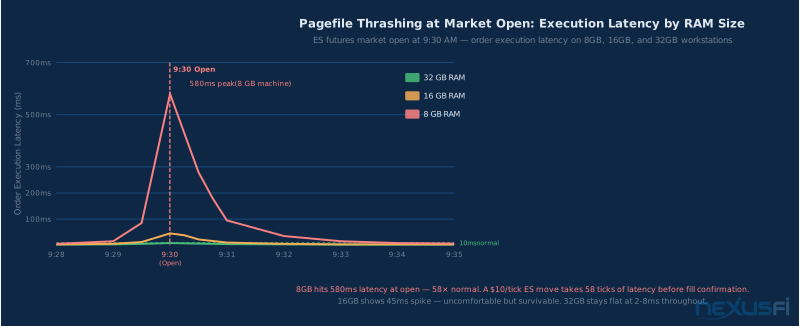
The honest answer: less than you'd think for live trading, more than you'd think for backtesting.
Raw bandwidth comparison (AIDA64 real-world measurements):
| Configuration | Real-World Read Bandwidth |
|---|---|
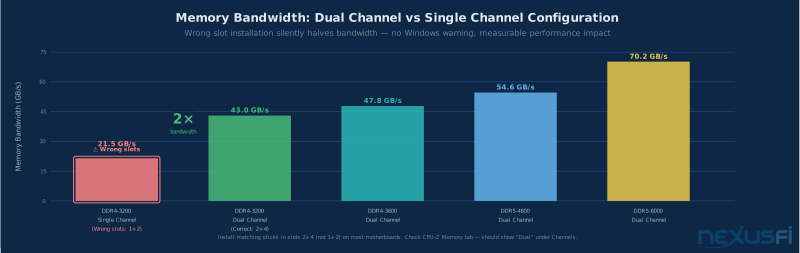
| DDR4-3200 dual channel | ~43 GB/s |
| DDR4-3600 dual channel | ~47 GB/s |
| DDR5-4800 dual channel | ~55 GB/s |
| DDR5-6000 dual channel | ~70 GB/s |
That's 63% more bandwidth from DDR5-6000 vs DDR4-3200. For most live trading workloads — which are primarily event-driven and largely single-threaded in NT8's execution path — this bandwidth advantage translates to roughly 3--7% application performance improvement in practice.
Where DDR5 makes a measurable difference:
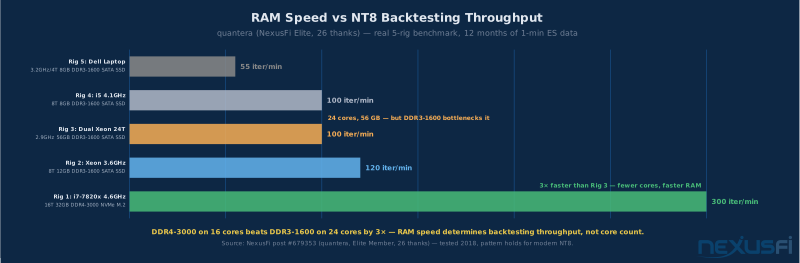
- Backtesting strategy optimization: Iterating through large historical datasets benefits from higher bandwidth. quantera's data shows faster RAM produces dramatically better throughput.
- Loading heavy workspaces at session start: Multiple charts loading simultaneously is a burst memory access pattern that benefits from higher bandwidth.
- Running memory-intensive indicators: Orderflow indicators that maintain large arrays benefit from faster access.
For a new build in 2025--2026, DDR5 is the correct choice — the cost premium over DDR4 has largely closed, the platform support is universal, and you'll be running the rig for years. Buy DDR5-6000 CL30 if your platform supports it (Intel 12th gen+, AMD Ryzen 7000+).
For an existing DDR4 system: Upgrading RAM to get DDR5 bandwidth improvement is not worth the cost. Adding more DDR4 (going from 16 to 32 GB) will have a far larger practical impact than switching generations.
The key technical advantage of DDR5: On-die ECC (ODECC) is standard in DDR5. This provides basic single-bit error correction at the die level — a minor but real reliability benefit for machines running critical financial applications.
Dual Channel: The Slot Placement Mistake That Quietly Halves Performance #
This is one of the most common mistakes on trading machine builds: installing two RAM sticks in the wrong slots.
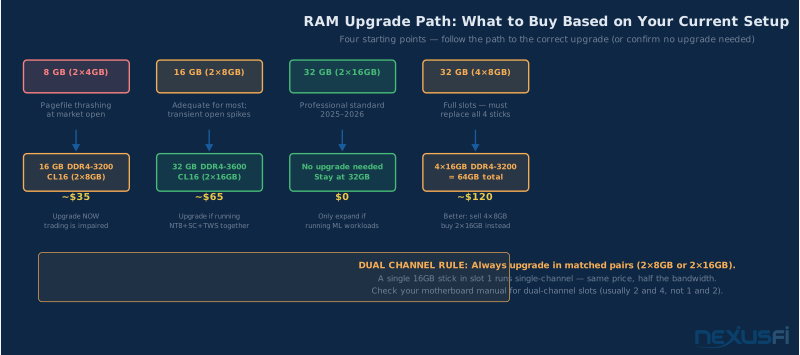
Most motherboards require sticks in slots 2 and 4 (not 1 and 2) to achieve dual-channel operation. Install them in adjacent slots and you're running single-channel — half the memory bandwidth — with no OS warning or error message.
The performance impact:
- Single-channel DDR4-3200: ~21.5 GB/s real-world read bandwidth
- Dual-channel DDR4-3200: ~43.0 GB/s real-world read bandwidth
That's a 2× bandwidth difference from the same hardware, same RAM kit, just different slot positions.
For trading workloads, the impact is most visible in:
- Backtest throughput: Memory-bandwidth-sensitive, directly affected
- Indicator calculation: Complex indicators iterating over large bar arrays see meaningful differences
- Workspace load time: Loading a heavy chart workspace at session open benefits from full dual-channel bandwidth
How to verify your current configuration: Open CPU-Z → Memory tab → check the Channels field. It should show "Dual." If it shows "Single," your sticks are in the wrong slots.
The fix: Consult your motherboard manual for dual-channel slot layout. On most ATX boards, this is slots 2 and 4 (second and fourth from the CPU socket). Installing matching sticks in positions 1+3 or 2+4 activates dual-channel.
Never mix unmatched sticks: Adding a new stick to an existing mismatched kit causes both sticks to downclock to the slower speed. Always upgrade in matched pairs — if you need more capacity, replace your full kit rather than adding to it.
RAM Speed and Latency: What Matters for Futures Trading #
Speed (MHz/MT/s) #
RAM speed matters significantly more for backtesting than for live trading. quantera's benchmark data makes this concrete:
The fastest rig tested — 32 GB DDR4-3000 on a 4.6 GHz i7-7820x — produced 300 backtesting iterations per minute. A rig with 56 GB of DDR3-1600 on a dual Xeon 24-thread machine produced only ~100 iterations per minute. More RAM, more cores, but 3× slower throughput because the memory was slower.
For live trading, the difference between DDR4-3200 and DDR4-3600 is largely imperceptible — the bottleneck in real-time charting and DOM updates is usually the data feed or network connection, not memory bandwidth.
Practical speed recommendations:
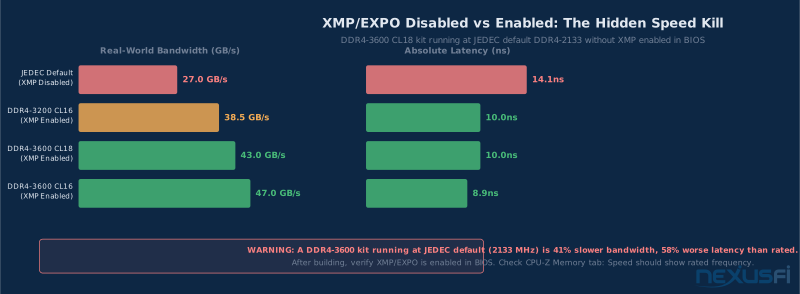
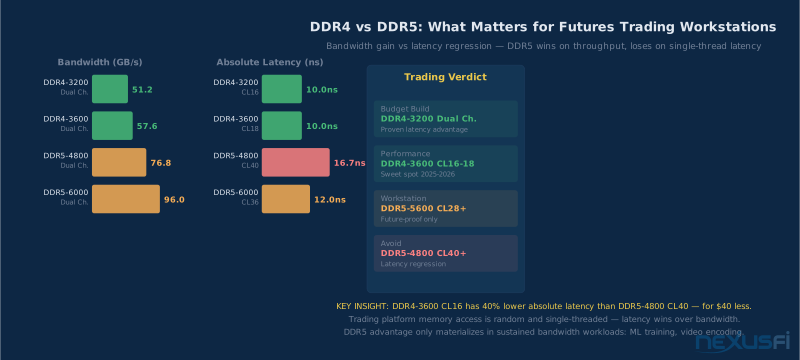
- DDR4 builds: Target DDR4-3200 CL16 or DDR4-3600 CL18 (same absolute latency, slightly higher bandwidth). Going above DDR4-3600 yields diminishing returns and introduces stability risk.
- DDR5 builds: DDR5-6000 CL30 is the current sweet spot for Intel 13th/14th gen and AMD Ryzen 7000. The additional bandwidth at this speed is accessible without aggressive overclocking.
Latency (CL Timings) #
CAS Latency numbers are meaningless in isolation. What matters is the absolute latency in nanoseconds:
Absolute Latency = (CL / Clock Speed) × 2000 nsExamples:
- DDR4-3200 CL16: (16 / 3200) × 2000 = 10.0 ns
- DDR4-3600 CL18: (18 / 3600) × 2000 = 10.0 ns (same absolute latency)
- DDR5-6000 CL30: (30 / 6000) × 2000 = 10.0 ns (same)
- DDR4-3200 CL22: (22 / 3200) × 2000 = 13.75 ns (much worse)
When comparing RAM kits, calculate this number. Don't compare CL ratings between different clock speeds — a DDR4-3600 CL18 kit has the same absolute latency as DDR4-3200 CL16, despite the higher CL number.
Recommendation: Avoid any kit where CL/speed ratio yields latency above 12--13 ns. For DDR4, CL16 at 3200 MHz or CL18 at 3600 MHz. For DDR5, CL30 at 6000 MHz.
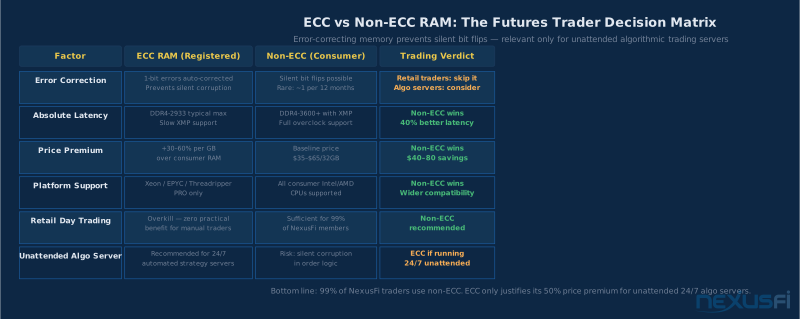
ECC RAM: Only If You're Running Unattended 24/7 #
ECC (Error-Correcting Code) RAM detects and corrects single-bit memory errors. These occur naturally due to cosmic ray interference at a rate of roughly one per GB of RAM per year (based on Google's 2009 large-scale study).
For retail futures trading: Non-ECC is the right choice.
The reasons:
- ECC requires server-grade CPUs (Intel Xeon, AMD Ryzen Pro or Threadripper) and compatible ECC-supporting motherboards — significant cost and compatibility constraints
- ECC RAM has slightly lower raw performance due to error-checking overhead
- The probability of a soft memory error causing a catastrophic trading event during a session is extremely low
- Quality non-ECC RAM from reputable manufacturers (Corsair, G.Skill, Kingston) is highly stable on home workstations
When ECC makes sense: Running an unattended algorithmic trading server 24/7 with no supervision, especially at higher altitudes where cosmic ray flux is elevated. For institutional or prop firm infrastructure where unexplained crashes carry severe financial consequences, ECC provides meaningful protection.
RAM Configuration Details That Determine Real-World Performance #
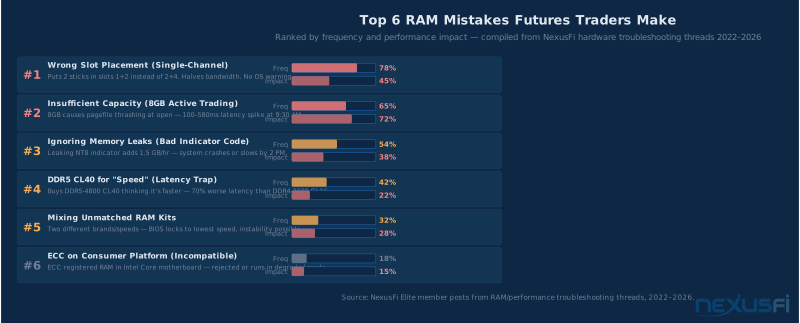
1. Running 8 GB and Attributing Chart Lag to Everything Else #
The symptom: charts freeze for 2--5 seconds during market open, slow indicator response during volatile periods, platform "feels stuck" on news events.
What's actually happening: 8 GB is 75--80% utilized at rest with Windows + one platform + browser. The first volatility event triggers simultaneous chart data loads across all windows, disk writes to pagefile, and scanner updates — pushing usage to 90--100%. Windows starts swapping, and even NVMe pagefile access is 10--100× slower than RAM.
The fix is straightforward: upgrade to 16 GB minimum. This is a $40 problem masquerading as a software problem.
2. Installing Both Sticks in Adjacent Slots #
Already covered, but worth repeating: wrong slot placement silently runs single-channel. Check CPU-Z Memory tab immediately after any new build. "Dual" should appear under Channels.
3. Adding One New Stick to an Existing Kit #
Upgrading from 16 GB to 32 GB by buying one additional stick — unless it's an identical match to your existing stick — creates problems. Different speed or timing sticks cause both to run at the lower specification, potentially reverting to JEDEC baseline speeds (DDR4-2133) and negating any speed advantage.
Always replace your full kit when upgrading capacity.
4. Running Legacy 32-Bit Trading Software Components #
32-bit processes are limited to approximately 4 GB of addressable memory regardless of how much physical RAM is installed. NinjaTrader 8 is 64-bit and uses all available RAM. However, older third-party add-ons, custom DLL indicators, and some legacy platforms can still run as 32-bit processes.
Detection: Task Manager → Details tab → Platform column. "32-bit" on a trading process means that process cannot use more than ~3.2--3.5 GB no matter how much RAM is installed.
If you're using NT7 or older legacy components, verify their architecture. Upgrading to NT8 equivalents is usually the right solution.
5. Disabling the Pagefile Entirely #
Some traders disable the Windows pagefile in an attempt to force everything into RAM. This is dangerous for trading workstations.
Without a pagefile, when RAM fills completely (typically from a memory-leaking indicator), applications crash rather than slowing down gracefully. A platform crash during an open position is much worse than a temporary freeze.
Best practice (from quantera's experience): Set a fixed-size pagefile, not system-managed. Place it on a dedicated secondary SSD or NVMe drive separate from the OS drive. 8--16 GB pagefile for live-trading-only setups; larger for intensive backtesting machines.
The dedicated Optane NVMe pagefile that quantera described — dedicating an entire 32 GB Optane drive to the pagefile — dramatically improved his backtesting performance and eliminated the RAM ceiling crashes. A dedicated SATA SSD works nearly as well at lower cost.
6. Keeping the Strategy Analyzer Open Between Runs #
This one is specific to NinjaTrader backtesters. quantera documented it:
"Backtest caches seem to be retained for as long as the respective Strategy analyzer window is open. So if you're having memory issues, be sure to Shutdown and reopen the strategy analyzer window in-between memory-intensive tests."
With the Strategy Analyzer open and running successive optimizations, NT8 retains cache from each run. On a 32 GB machine running intensive optimizations, this can push RAM to its ceiling between runs, causing the 8--10 second stalls he described.
The fix: close and reopen the Strategy Analyzer window between large optimization runs to force cache release.
Memory Leaks in Trading Software #
Memory leaks are a persistent issue in NinjaTrader's ecosystem — not in NT8's core, but in third-party and custom indicators that fail to release memory correctly.
peter1 (NexusFi Elite member) documented a severe case:
"It causes a resource exhaustion error with Committed and Working memory maxing out past the RAM in my case past 32 GB. This condition kills NinjaTrader. One then has to restart."
He traced this to the Strategy Analyzer optimizer's memory leak — a confirmed issue in NT8's platform code that had been reported without resolution since 2015.
NinjaTrader responded directly (in their official AMA thread):
"This tells me that .NET garbage collection is working and there is not a memory leak. Something else to consider with optimization backtests: By default NinjaTrader will create new instances of the strategy..."
Their explanation: .NET garbage collection handles memory that isn't immediately released — it gets collected eventually. The problem is that for trading workstations running intensive operations, "eventually" can mean the RAM ceiling is hit before GC runs.
Diagnosing a memory leak in your setup:
- Open Task Manager before connecting NT8 to your data feed
- Record NT8's memory usage at connection time
- Record memory usage every 30 minutes throughout the trading day
- If memory grows by more than 200--300 MB/hour with a stable workspace, a leak is present
Isolating the leaking indicator:
- Save a backup of your workspace
- Disable indicators one at a time
- After disabling each indicator, restart NT8 and monitor memory growth rate
- The leak narrows when growth rate drops much after disabling a specific indicator
Third-party indicators from developers who haven't maintained their code for NT8's memory model are the most common culprits. Indicators that use DataSeries objects without calling Dispose() leak until the session ends or the platform crashes.
Prevention: Restart NT8 before each trading session to start with clean memory. This takes 30 seconds and eliminates any accumulated leaks from the previous session.
Building Your RAM Configuration #
Matching Pairs Are Non-Negotiable #
Buy RAM in matched pairs from the same kit. Motherboard QVL (Qualified Vendor List) lists tested combinations. Using a QVL-tested kit eliminates potential XMP/EXPO profile conflicts.
Two-stick builds (most retail traders):
- Install in slots 2 and 4 (check your specific board's manual)
- Verify dual-channel in CPU-Z after installation
Four-stick builds (64 GB setups):
- Fill all four slots: slots 1+2+3+4 with two matched pairs
- Some boards have stricter timing requirements with 4 sticks populated; you may need to manually set XMP/EXPO profile in BIOS
- Four sticks also run dual-channel — you need to populate matched pairs, not four individual sticks
XMP/EXPO Profile Activation #
After installing RAM, enter BIOS and enable XMP (Intel) or EXPO (AMD) to run at the rated speed. Without this, DDR4-3600 runs at DDR4-2133 by default — a significant performance reduction that many traders run at unknowingly.
Some boards have stability issues with higher XMP profiles and 4 sticks. If you encounter boot loops, drop the XMP speed one step (e.g., from 3600 to 3200).
Brand and Reliability #
For trading workstations, stick to established manufacturers:
- Corsair (Vengeance series)
- G.Skill (Ripjaws for DDR4, Trident for enthusiast DDR5)
- Kingston (Fury series)
- Key (Ballistix DDR4 or DDR5 Pro)
Generic or off-brand RAM is a false economy on a machine running financial software 30+ hours per week.
RAM Upgrade Path by Current Setup #
"I Have 8 GB and My Charts Lag" #
Upgrade to 16 GB immediately. This is the most cost-effective hardware upgrade possible. Buy a matched 2×8 GB DDR4-3200 kit for your specific motherboard. Expect immediate elimination of the pagefile-triggered freezes during market open.
"I Have 16 GB and Run Two Platforms" #
Consider 32 GB if you experience any of these symptoms:
- Platform slowdowns appearing mid-afternoon that resolve after restart
- RAM consistently above 80% during RTH (check Task Manager)
- Backtesting feels sluggish or takes much longer than it should
- Second platform (Sierra Chart, Bookmap) slows noticeably after hours of running
"I Have 32 GB and Do Intensive Backtesting" #
64 GB is justified if backtesting hits the ceiling. quantera's experience is the clearest case: 32 GB was insufficient for his optimization workloads, causing 8--10 second stalls every 40 seconds. 64 GB (or a dedicated Optane pagefile drive) resolves this completely.
Already at 32--64 GB and Still Seeing Issues? #
At this point, RAM quantity is almost certainly not the problem. Investigate:
- Memory-leaking indicators (track NT8 memory growth hourly)
- Pagefile configuration (dedicated secondary SSD or NVMe, fixed size)
- 32-bit processes limiting to ~4 GB (check Task Manager → Details)
- Windows memory management settings (consider disabling Superfetch/SysMain for the NT8 process)
The Bottom Line #
RAM selection for a futures trading workstation follows a simple hierarchy:
- Quantity first — Have enough that you never touch pagefile during RTH
- Dual channel always — Install in matched pairs, correct slots, verify in CPU-Z
- Speed matters for backtesting — DDR4-3600 or DDR5-6000 for new builds
- ECC is for servers — Not worth the cost or compatibility constraints for retail trading
For 2025--2026:
- Beginner: 16 GB DDR4-3200 (2×8 GB) — ~$40
- Intermediate: 32 GB DDR4-3600 (2×16 GB) — ~$80
- Professional: 64 GB DDR4-3600 or DDR5-5600 (2×32 GB) — ~$150--200
The most expensive mistake is under-speccing RAM to save $40 and spending months troubleshooting "chart lag" that's actually pagefile thrashing. The second most expensive mistake is installing both sticks in the wrong slots and running single-channel without knowing it.
For the workstation hardware foundation that RAM sits within, the trading workstation hardware guide covers the full build specification. For CPU selection — the component that pairs most directly with your RAM speed for backtesting performance — see the CPU selection guide. And if you're running on a VPS instead of a local machine, the NinjaTrader VPS guide covers sizing memory for cloud-based trading infrastructure.
Knowledge Map
Prerequisites
Understand these firstGo Deeper
Build on this knowledgeReferences This Article
Articles that build on this topicCitations
- — memory (2013) 👍 3
- — The Truth: NinjaTrader (2012) 👍 16
- — NinjaTrader 8 (NT8) Performance Improvements and Tweaks (2018) 👍 26
- — speedytradingservers.com review (2022) 👍 3
- — NinjaTrader Performance on 6 year Laptop Vs. NEW (2025) 👍 6
- — Which features are your favorite in NinjaTrader? (2020) 👍 9
- — Ask Me Anything (AMA) with NinjaTrader Client Services (2020) 👍 5
- — Ninjatrader 8 not ready for prime time? (2017) 👍 10
- — Speeding up NinjaTrader with a RAM drive (ramdisk) (2012) 👍 17
- — Battlestations: Show us your trading desks! (2019) 👍 23