



MultiCharts PowerLanguage Strategy Development: Automated Futures Trading Beyond NinjaTrader
MultiCharts doesn't have the name recognition of NinjaTrader in retail algo circles, but the traders who've used both often don't go back. The platform runs on PowerLanguage — EasyLanguage-compatible syntax that carries over from TradeStation with minimal modification — and includes tools that most algo developers don't discover until they've outgrown their first platform.
This article covers PowerLanguage strategy development from the ground up: the language mechanics, the backtesting environment, Portfolio Maestro for multi-strategy analysis, walk-forward optimization, live broker connections, and the specific bugs that kill strategies between backtest and live. If you're already running NinjaScript strategies and wondering whether the grass is greener, this is the honest comparison you need.
Overview #
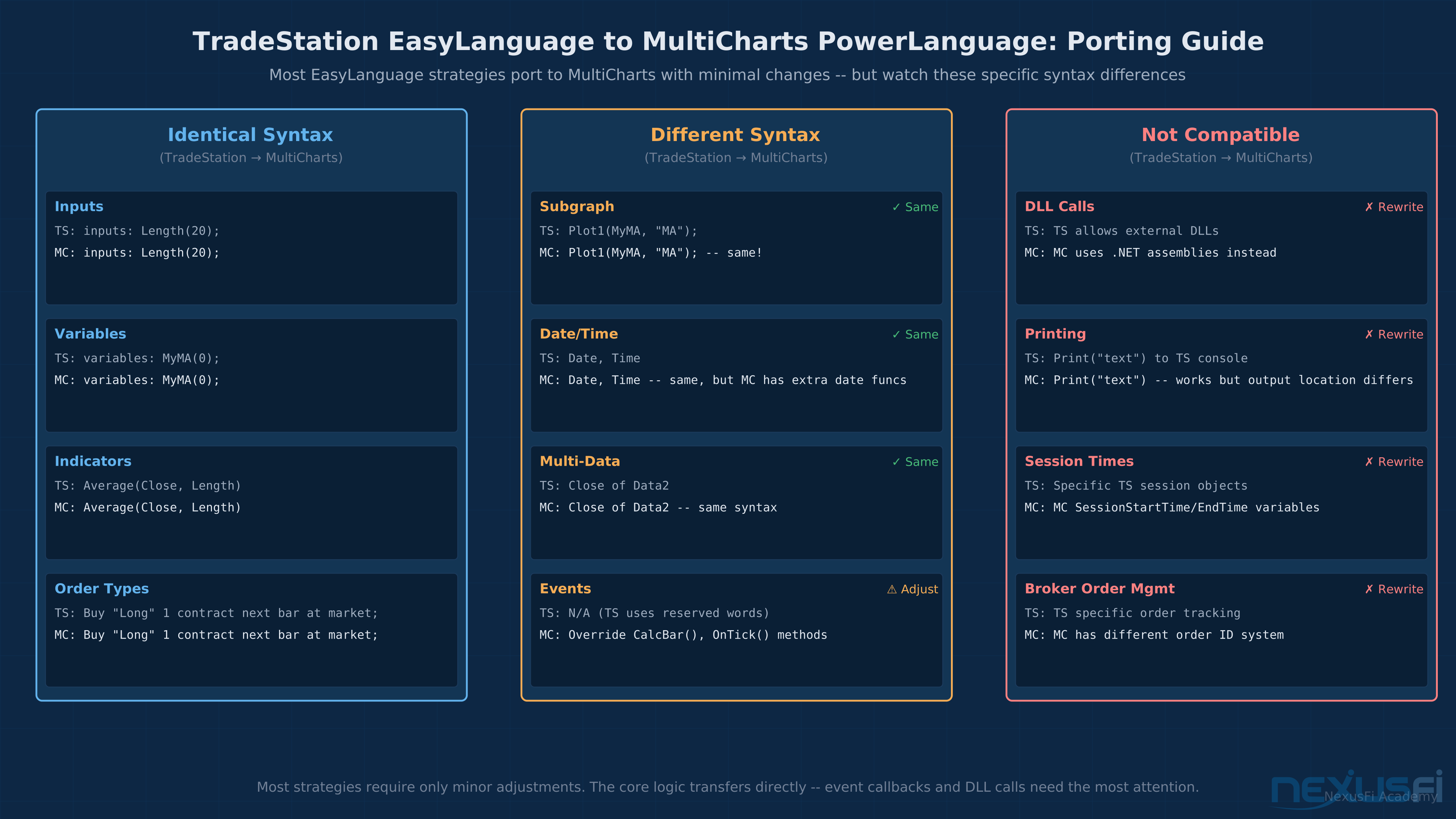
MultiCharts is a professional charting and automated trading platform with deep roots in the TradeStation ecosystem. The scripting language, PowerLanguage, is a superset of TradeStation's EasyLanguage — meaning virtually any EasyLanguage strategy you've written or purchased can run on MultiCharts with minimal porting effort.
The platform runs on Windows, connects to a wide range of data feeds (CQG, Rithmic, Interactive Brokers, DTN IQFeed, and others), and supports direct order routing to most major futures brokers. The backtesting engine handles tick data, the portfolio-level analysis tool (Portfolio Maestro) lets you test strategies across multiple symbols simultaneously, and the walk-forward optimization implementation is one of the cleaner ones available in this price range.
Pricing is subscription-based — roughly $79-100/month depending on the plan — which puts it above many NinjaTrader entry points but below institutional platforms. A lifetime license option exists at a higher one-time cost.
Why Traders Switch to MultiCharts #
MultiCharts isn't the obvious starting point. Most traders come from NinjaTrader (NinjaScript, C#-based) or TradeStation (EasyLanguage). The switch usually happens for one of three reasons.
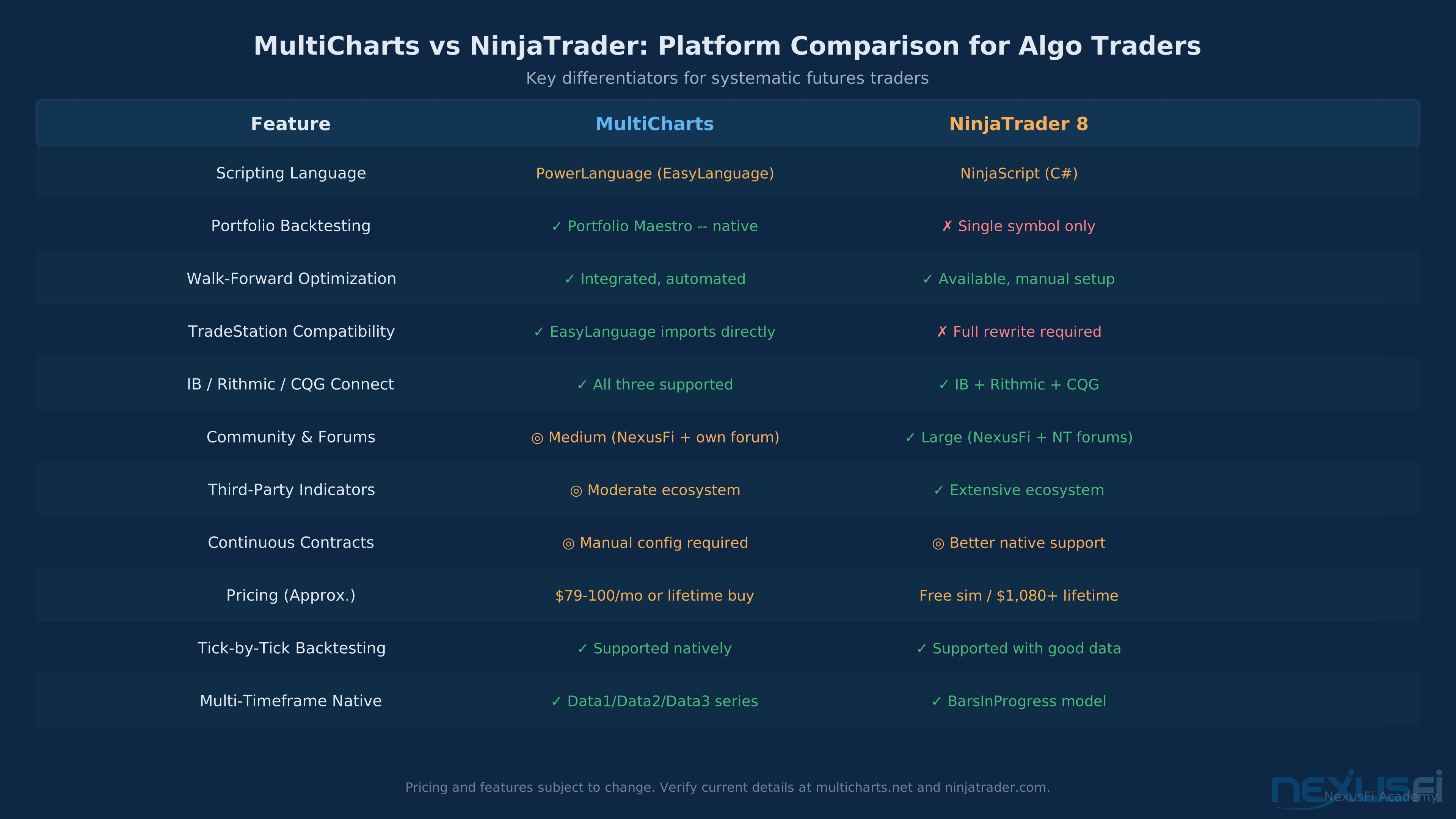
Portfolio-level backtesting. NinjaTrader's Strategy Analyzer backtests one symbol at a time. If you want to test a 10-instrument portfolio simultaneously, you're doing it manually across multiple runs. Portfolio Maestro handles this natively — you define a portfolio, MultiCharts runs the strategy across all symbols simultaneously, and you get aggregate portfolio metrics including correlation, drawdown overlap, and combined Sharpe. This is the feature that pulls systematic portfolio traders from NinjaTrader.
EasyLanguage compatibility. If you've been running TradeStation strategies for years and want a platform with more direct broker connections and better live execution monitoring, MultiCharts imports the code almost directly. You don't have to rewrite in C# or learn a new paradigm.
Walk-forward automation. MultiCharts has walk-forward optimization built into the backtesting environment, with configurable in-sample/out-of-sample windows and automatic parameter anchoring. It's not plug-and-play (no walk-forward implementation is), but the tooling is integrated rather than bolted on as an afterthought.
That's a real operational issue covered in detail below.
PowerLanguage Fundamentals #
PowerLanguage is procedural, event-driven, and bar-by-bar in its execution model. Each time a new bar completes (or on each tick in real-time mode), PowerLanguage executes your strategy's code from top to bottom.
The Basic Structure #
A PowerLanguage strategy consists of three main sections: declarations, calculations, and order submission.
// Declarations
inputs: FastLength(9), SlowLength(21), StopTicks(8);
variables: FastMA(0), SlowMA(0), ATRValue(0);

// Calculations
FastMA = Average(Close, FastLength);
SlowMA = Average(Close, SlowLength);
ATRValue = AvgTrueRange(14);

// Order Submission
if FastMA crosses above SlowMA then
  Buy("MA Cross Long") 1 contract next bar at market;

if FastMA crosses below SlowMA then
  Sell("MA Cross Exit") all contracts next bar at market;

SetStopLoss("Stop", Dollar, StopTicks * BigPointValue, false);
This structure will look immediately familiar to TradeStation users. The inputs declaration creates parameters you can optimize. variables are calculation containers. The condition-action format maps directly to if-then entry and exit logic.
Bar Processing vs. Tick Processing #
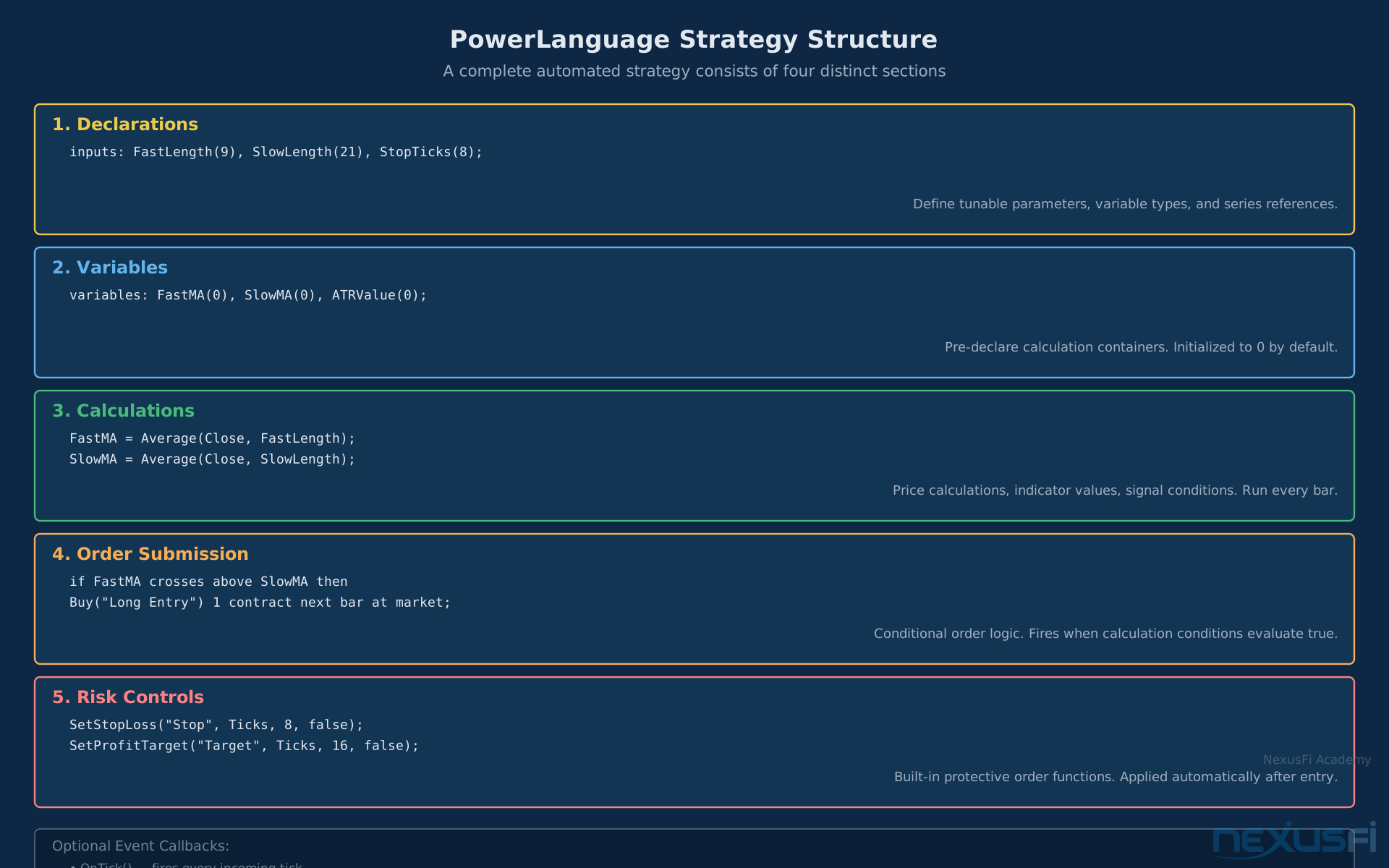
PowerLanguage strategies can run in two modes: BarMagnified (processes completed bars) and tick-by-tick. Bar processing is appropriate for end-of-bar entry strategies — you get a clean execution environment where each bar is processed once. Tick processing fires on every incoming tick, which matters for DOM-based strategies, time-sensitive entries, and anything where intrabar price movement affects logic.
The distinction matters for backtesting accuracy. Bar-based backtests use OHLC data for each bar. Tick-based backtests use actual tick data if available, which is more accurate for strategies that enter and exit within a single bar. If your strategy uses limit orders that might or might not get filled depending on intrabar movement, tick-based backtesting is mandatory. @kevinkdog's thread on backtest vs historical performance breaks down exactly how this distinction breaks strategies in backtesting: "Chances are pretty high your strategy is somehow tricking the strategy test engine into giving good results. For example, if you use limit orders and..."
The fix in MultiCharts: set the strategy to "Tick by Tick" backtesting mode when the strategy uses intrabar limit orders or any logic that depends on price reaching a specific level within a bar.
Bar Mode vs Tick Mode: Default to Bar Mode First Start every new PowerLanguage strategy in bar mode. It's faster, cleaner, and easier to debug. Switch to tick mode only when your strategy logic requires intrabar fills (limit orders at specific prices, time-based exits, or DOM-based signals). Tick-based backtesting on 5+ years of data can run 10-20x slower than bar-based backtesting — that matters when you're iterating across hundreds of parameter combinations.
Events and the CalcBar Function #
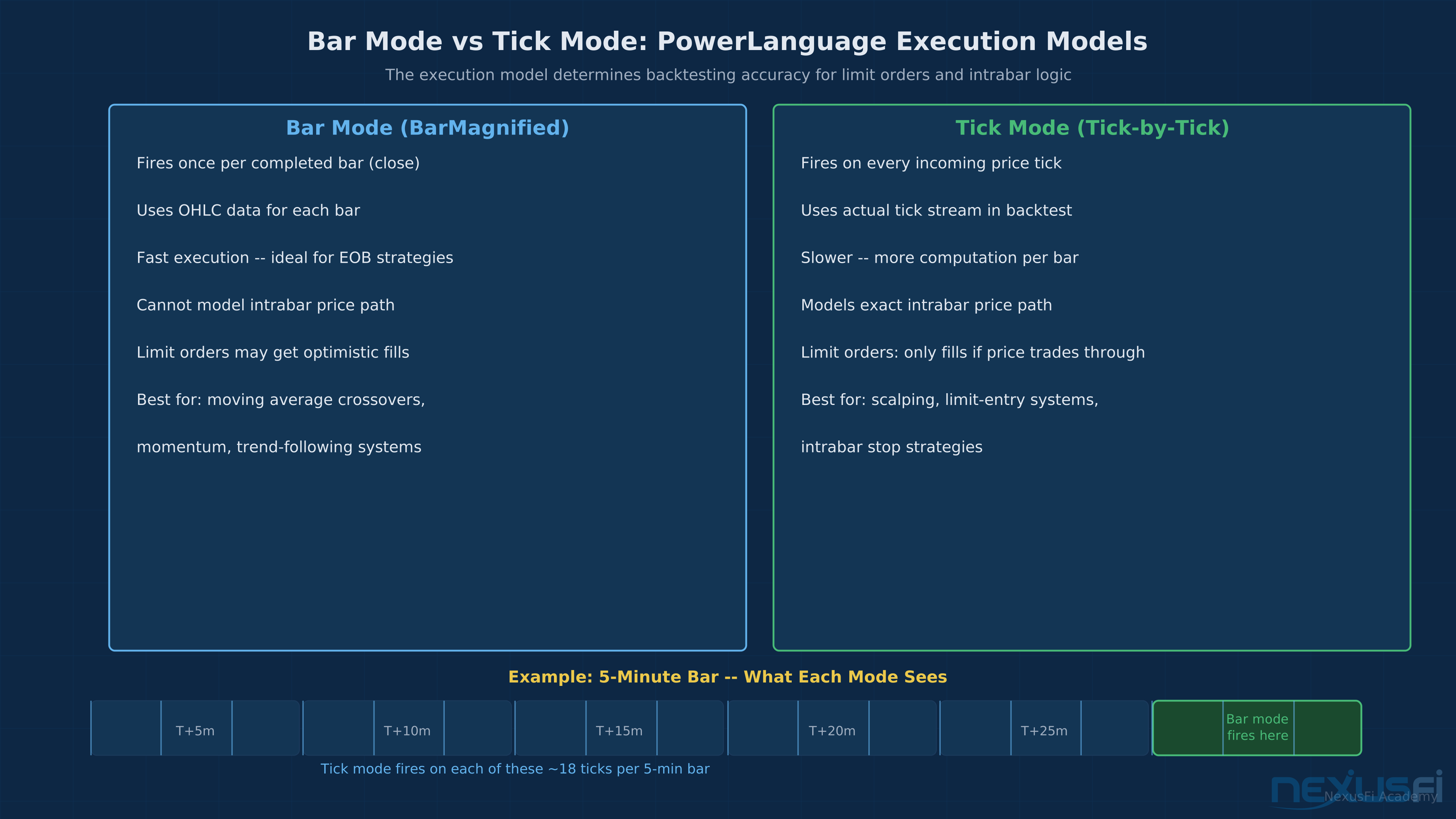
The core execution hook in PowerLanguage is the CalcBar function, which fires on every bar calculation. For real-time trading, you also have access to OnTick (fires on every incoming tick) and OnOrderFilled (fires when an order is confirmed filled). A complete strategy framework looks like:
method void CalcBar()
begin
  // Main strategy logic executes here
  FastMA = Average(Close, FastLength);
  SlowMA = Average(Close, SlowLength);

  if FastMA crosses above SlowMA then
    Buy("Long Entry") 1 contract next bar at market;
end

method void OnTick()
begin
  // Real-time tick handling
  // Use for DOM monitoring, time-based exits
end

method void OnOrderFilled(Order OurOrder, int ThisFillQty, double ThisAvgFillPrice)
begin
  // Execute logic after confirmed fill
  // Useful for bracket order submission on fill
end
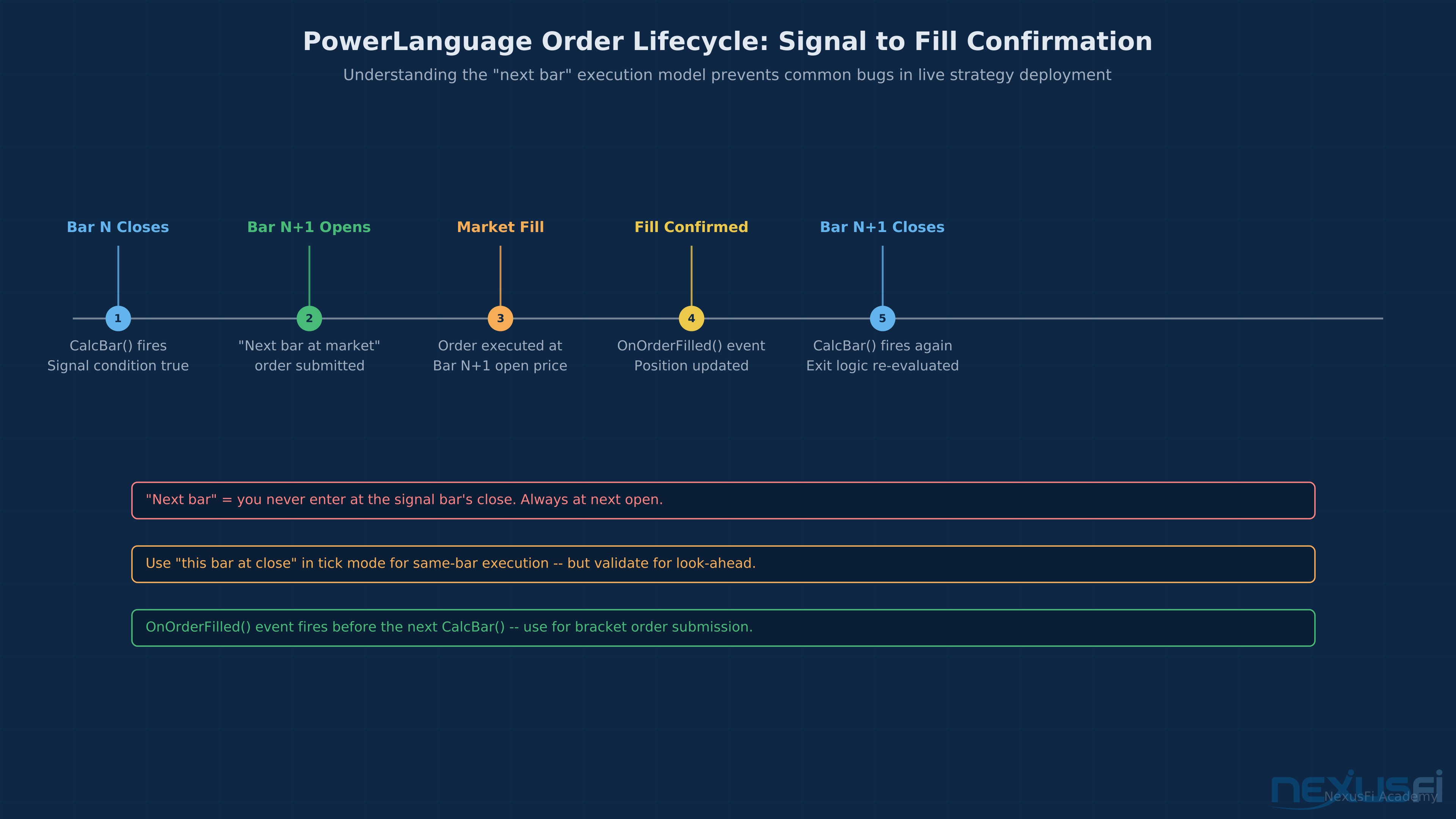
The OnOrderFilled event is particularly useful for systems where you want to submit protective orders only after confirming the entry fill — rather than submitting bracketing orders speculatively before fill confirmation.
Entry and Exit Logic #
PowerLanguage's order syntax is more English-readable than NinjaScript, which makes strategies easier to review at a glance. But the underlying execution model has some gotchas.
Order Types #
MultiCharts supports market, limit, stop, stop-limit, and market-on-close orders. The basic forms:
// Market orders
Buy("Long Market") 1 contracts next bar at market;
Sell("Exit Market") all contracts next bar at market;

// Limit orders (next bar at or better than price)
Buy("Long Limit") 1 contracts next bar limit LimitPrice;

// Stop orders
BuyStop("Long Stop") 1 contracts next bar at StopPrice stop;

// This bar on close (requires Tick mode)
Buy("MOC Entry") 1 contracts this bar on close;
The "next bar" qualifier is important. Unlike some platforms where orders fire immediately, PowerLanguage's default execution model submits the order for execution on the NEXT bar's open. If you want same-bar execution in tick mode, use "this bar" qualifiers — but validate that this doesn't create look-ahead bias in your backtests.
SetStopLoss and SetProfitTarget #
Built-in protective order functions handle bracket exits without manual order management:
// Dollar-based stops and targets
SetStopLoss("Stop", Dollar, 500, false);    // $500 stop
SetProfitTarget("Target", Dollar, 1000, false);  // $1000 target

// Tick-based
SetStopLoss("Stop", Ticks, 8, false);
SetProfitTarget("Target", Ticks, 16, false);

// Trailing stop
SetStopLoss("Trail", Ticks, 8, true);  // true = trailing
These functions are clean for simple fixed-stop strategies. For dynamic stops based on ATR or price levels, you need to manage orders manually using the order objects — more complex but necessary for any adaptive risk management.
Backtesting in MultiCharts #
The backtesting engine in MultiCharts handles both historical and walk-forward analysis. Setting it up correctly is where most traders go wrong, and wrong setup produces results that don't replicate in live.
Data Configuration #
MultiCharts uses a Data Manager for historical data. You can connect to:
- IQFeed (most common for US futures retail traders)
- CQG, Rithmic (for professional-grade data with full depth)
- Interactive Brokers historical data (limited, not suitable for serious backtesting)
- QCollector (third-party local data storage for tick data)
The data resolution matters. If your strategy operates on 5-minute bars, ensure your historical data source provides complete, clean 5-minute bars going back to at least 2010 for US equity index futures. Gaps in historical data produce phantom edges — the strategy avoids trading during periods that don't exist in your dataset, making the backtest look better than it is.
For tick-data backtesting, you need actual tick files. IQFeed provides tick data back several years. Beyond that, third-party tick data providers (TickData LLC, Kinetick historical archives) are the standard approach.
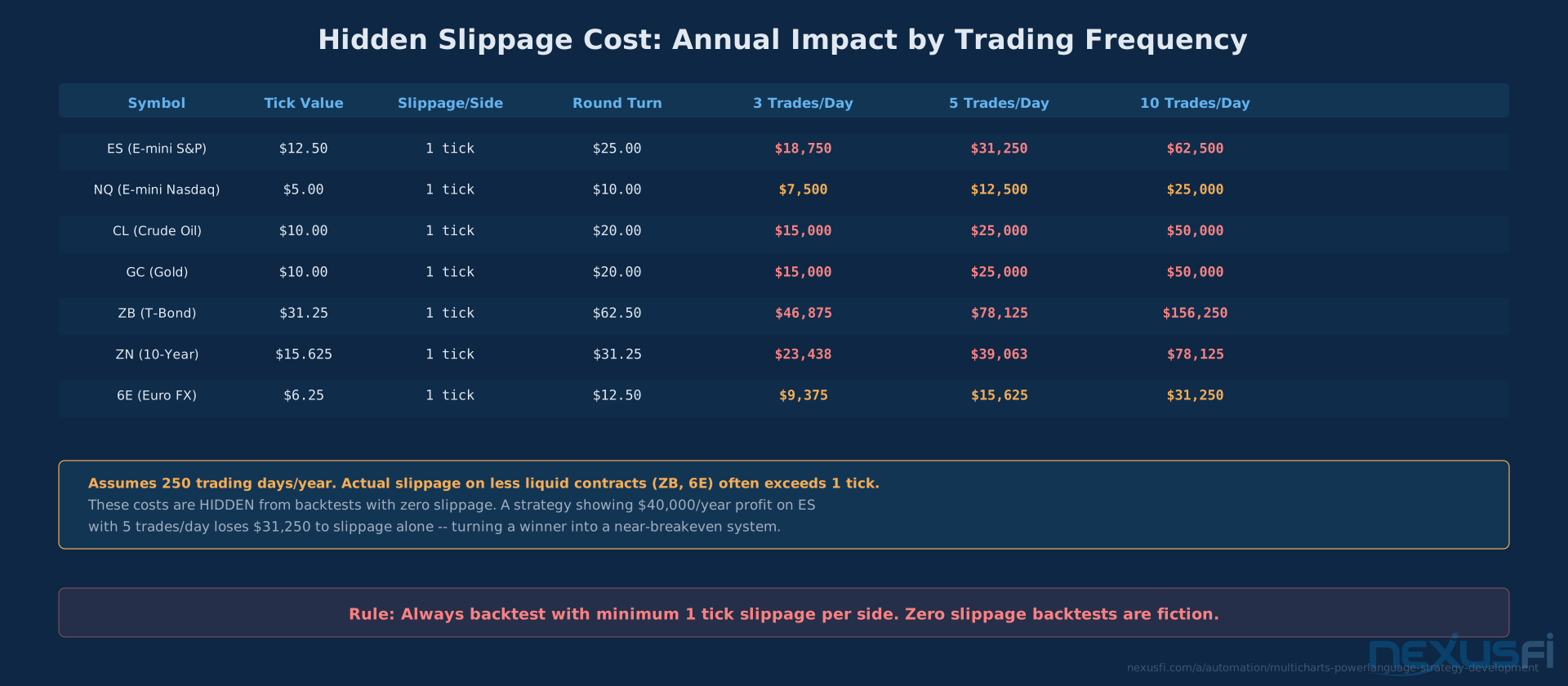
Slippage: The Most Common Backtesting Lie Zero slippage in backtests is a fantasy. On ES, 1 tick of slippage = $12.50 per side = $25 round turn. A strategy that trades 5 times per day accumulates $125/day in slippage costs alone — that's $31,250/year you're hiding from your backtest. On thinner markets like ZB or GC, 2-3 ticks of realistic slippage can turn a "profitable" system into a guaranteed loser. Always add minimum 1 tick per side for liquid markets, 2-3 ticks for everything else.
The Backtesting Parameter Checklist #
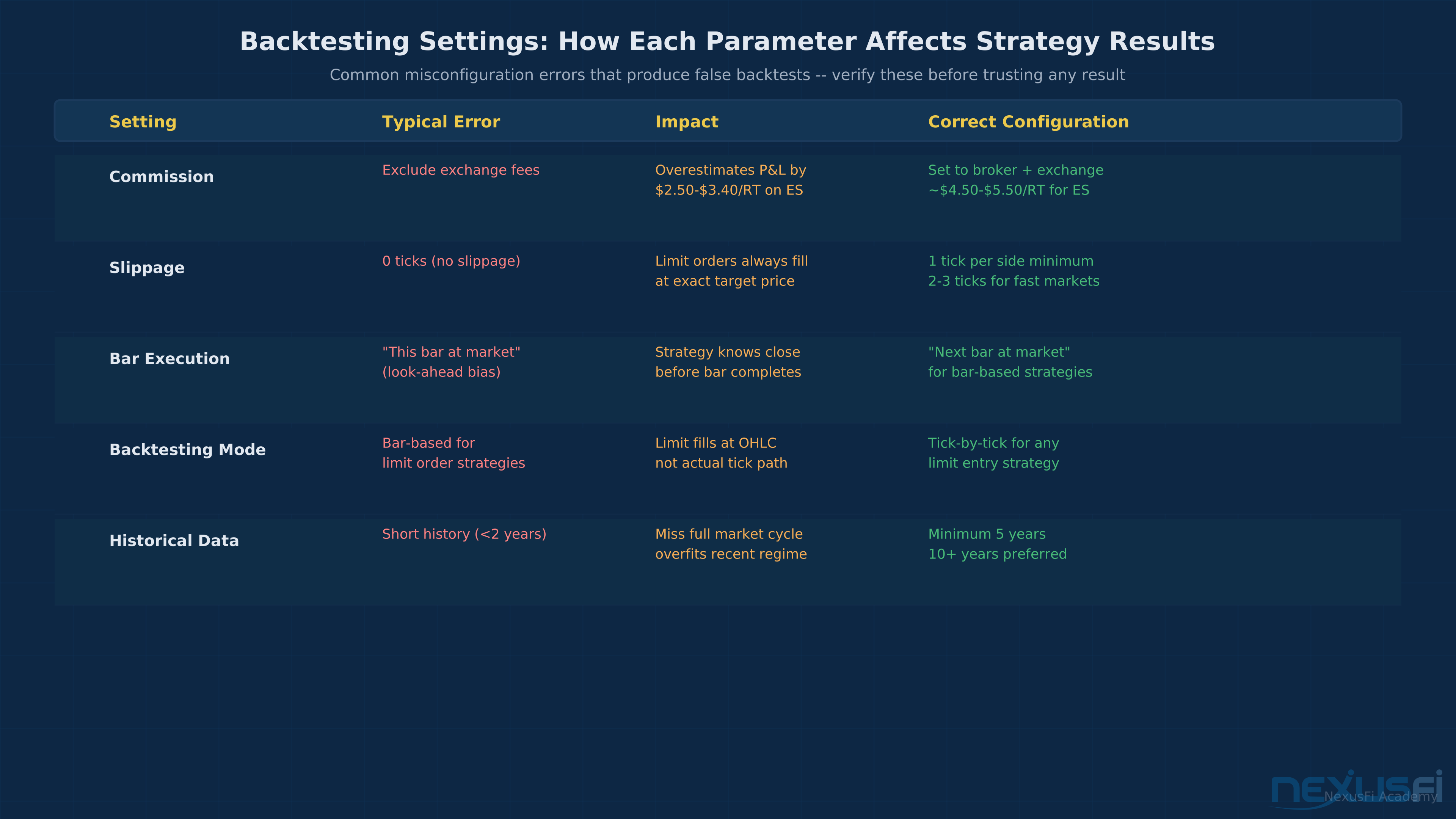
Before trusting any backtest result, verify these settings in MultiCharts:
- [ ] Commission: Set to actual cost including exchange fees. Failure to include exchange fees (which run $1.14-$1.70 per side for ES) produces backtests that look profitable but aren't. A $15/round-turn edge evaporates when you add $2.50-$3.40 in exchange fees.
- [ ] Slippage: At minimum, 1 tick per side for liquid markets like ES and NQ. For less liquid contracts or strategies that enter on fast markets, use 2-3 ticks. No slippage assumption is the most common backtesting error for new algo developers.
- [ ] Bar execution timing: Should your strategy execute on the close of the signal bar or the open of the next bar? "Next bar at market" means the open of the following bar. This is conservative and realistic. "This bar at market" means the close of the signal bar — fine in live tick mode but problematic in historical backtests where you know the bar's close before the bar is complete (look-ahead bias).
- [ ] Backtesting mode: Bar-based for strategy performance overview, tick-based for accurate limit order fills. @kbellare's walk-forward testing post notes that even across 100+ strategies, the in-sample results rarely survive the out-of-sample period without significant degradation: "I've used WFO for several months across over 100 strategies and it's been a frustrating experience. Even strategies with few parameters that perform well..."
Portfolio Maestro: Multi-Strategy and Multi-Market Analysis #
Portfolio Maestro is MultiCharts's differentiating feature for systematic traders. It lets you backtest a strategy across multiple symbols simultaneously and view portfolio-level metrics.
Setting Up a Portfolio #
Portfolio Maestro runs as a separate analysis module. You define:
- A list of symbols (e.g., ES, NQ, CL, GC, ZN, ZB)
- A strategy to apply across all or selected symbols
- Individual parameter sets per symbol (or shared parameters)
- Position sizing rules per symbol
The engine runs the strategy across all symbols, tracks position overlap and correlation, and produces aggregated metrics: portfolio drawdown, combined P&L, per-symbol contribution, and cross-symbol correlation.
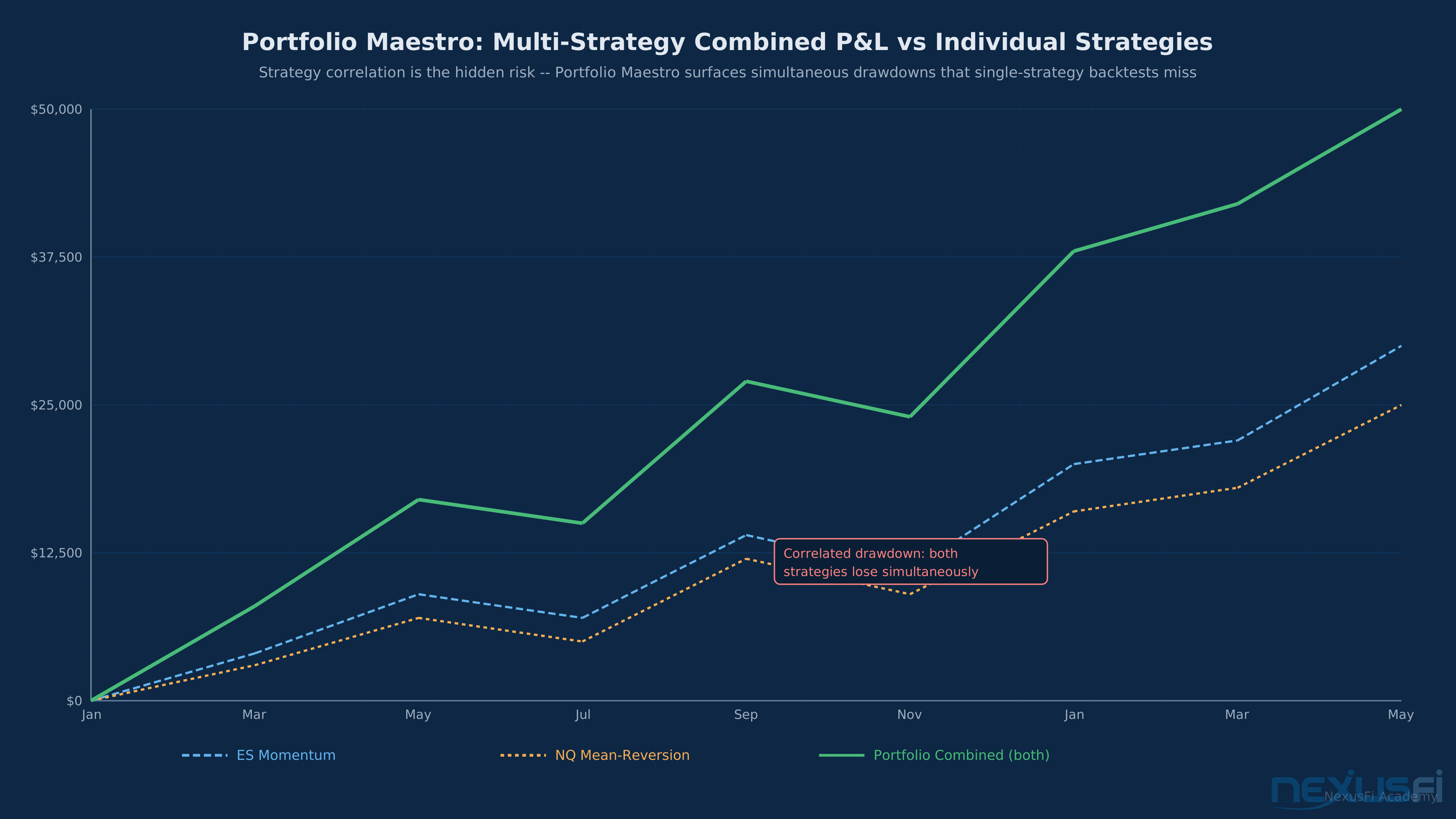
Why this matters: two strategies that look good individually can have highly correlated drawdowns. Both might lose when equity markets sell off aggressively. Portfolio Maestro surfaces this at backtest time rather than in live trading when both strategies are simultaneously down 15%.
Reading the Portfolio Report #
The portfolio backtest report shows:
- Combined Net Profit: Total across all symbols
- Max Portfolio Drawdown: Peak-to-trough drawdown of the combined portfolio P&L
- Average Correlation: How often strategies are simultaneously in a trade
- Per-Symbol Breakdown: Identifies which markets are carrying the portfolio and which are dragging it
A common pattern: a strategy works excellently on ES but poorly on NQ. The combined portfolio view makes this obvious immediately. Without Portfolio Maestro, you'd backtest each separately and miss the correlation between the two — both are equity index futures and will tend to lose simultaneously during equity market events.
Walk-Forward Optimization Without Curve-Fitting #
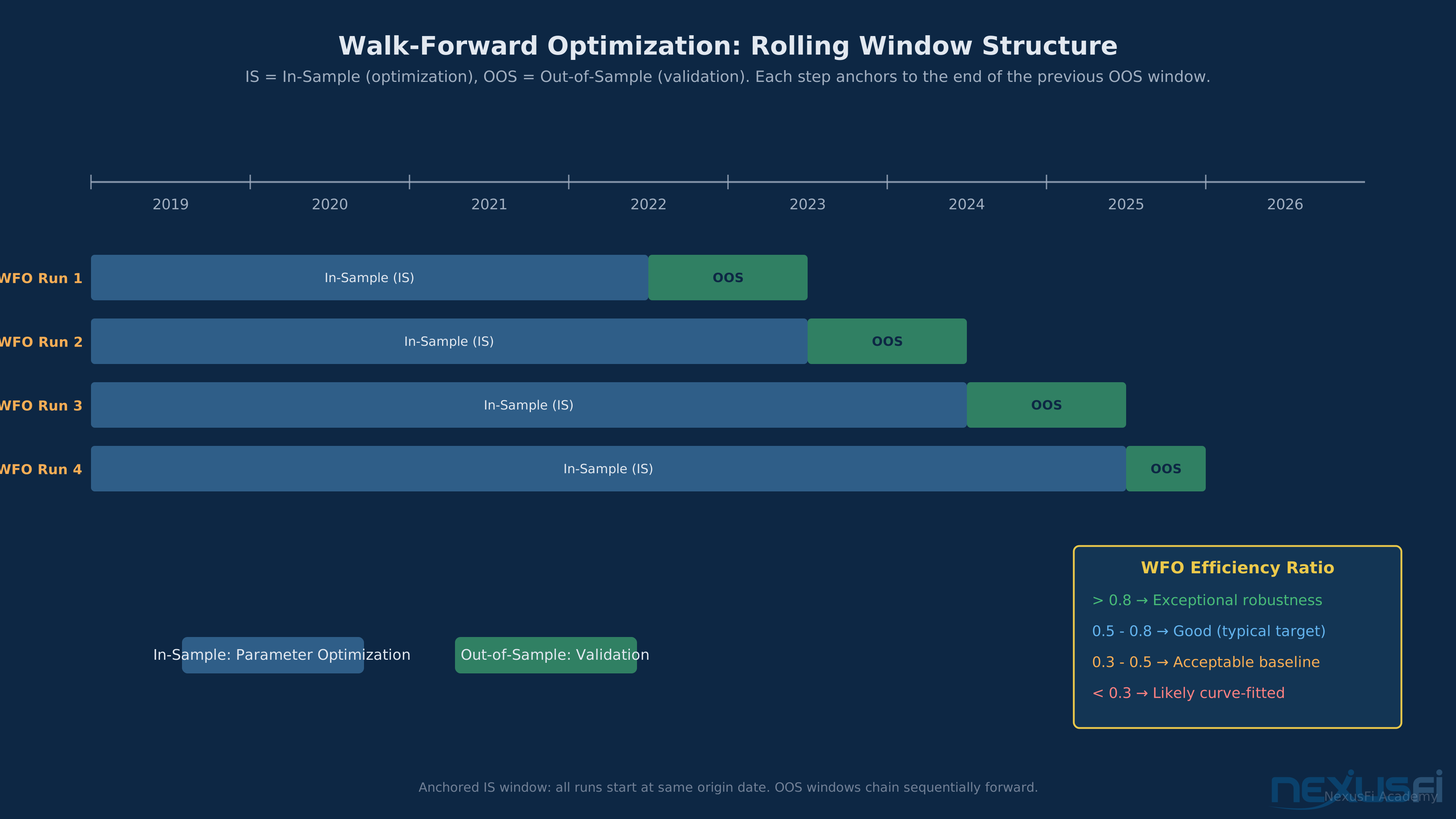
Walk-forward optimization (WFO) in MultiCharts divides your historical data into in-sample (IS) and out-of-sample (OOS) windows, optimizes parameters on the IS window, applies the best parameters to the OOS window, then steps forward and repeats.
The Setup #
MultiCharts WFO configuration requires:
- Anchored vs. rolling windows: Anchored IS windows start at the same beginning date and expand as you step forward. Rolling windows move entirely — you lose older data as you add newer data. Anchored is more common for markets where long-term structure matters. Rolling is better for adaptive strategies where recent data should dominate. @vmodus demonstrated this distinction in his matrix optimization experiments at NexusFi, comparing results across anchored and rolling WFO windows — the choice fundamentally changes which parameter sets survive the optimization process.
- IS/OOS ratio: Common starting point is 75% IS to 25% OOS. This means for a 2-year dataset, you're optimizing on 18 months and testing on 6.
- Step size: How far to advance the window with each iteration. Typical: 1-3 months.
- Parameter ranges: The broader the range, the more combinations to test and the higher the curve-fitting risk.
What WFO Actually Tells You #
WFO efficiency ratio measures how well your strategy performs in OOS periods relative to IS periods. A ratio of 0.5 means OOS performance is half of IS performance — typical for reasonably robust strategies. A ratio of 0.8 or higher is exceptional and suggests either genuine robustness or an unusually favorable OOS period. A ratio below 0.3 indicates significant curve-fitting in the IS periods.
WFO Efficiency Ratio Benchmarks
- Below 0.3: Heavy curve-fitting. Your in-sample parameters are chasing noise, not signal. Reduce parameter count or widen optimization ranges.
- 0.3-0.5: Typical degradation. Most strategies land here. Acceptable if the OOS equity curve doesn't show a terminal decline.
- 0.5-0.8: Reasonably robust. The strategy retains meaningful edge out-of-sample. This is the target range.
- Above 0.8: Exceptional — or suspicious. Verify the OOS period wasn't unusually favorable (trending market for a trend strategy, etc.). Genuine 0.8+ is rare.
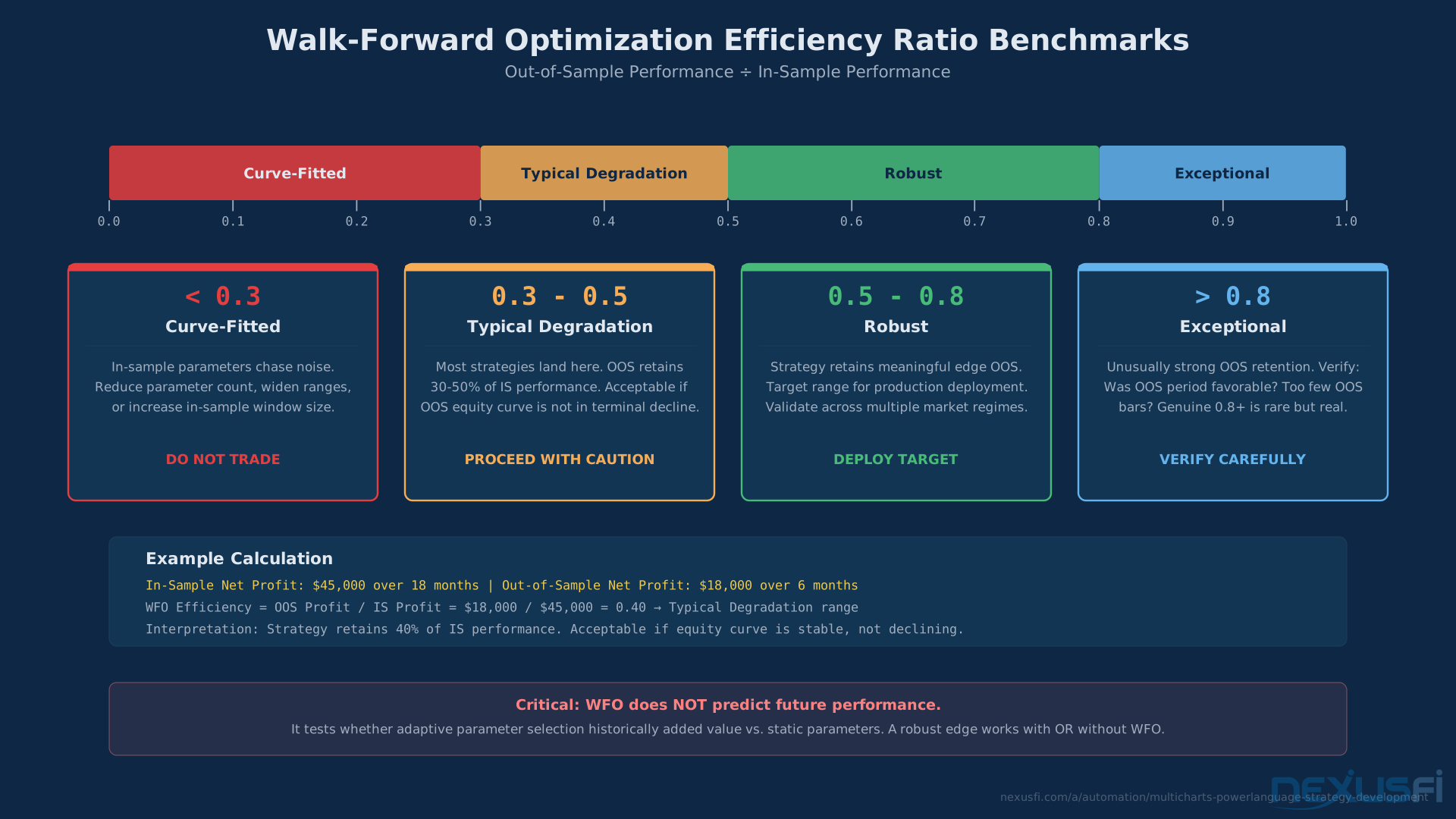
The mistake traders make is treating WFO as a magic filter. It's not. Walk-forward tests whether parameter changes over time improve or hurt performance. It doesn't guarantee a strategy will work in the future — it tells you whether adaptive parameter selection has historically added value. A robust edge is robust even with static parameters. If your strategy only works with WFO-selected parameters, it might be fitting to historical data patterns rather than capturing a genuine structural edge.
Connecting to Live Brokers #
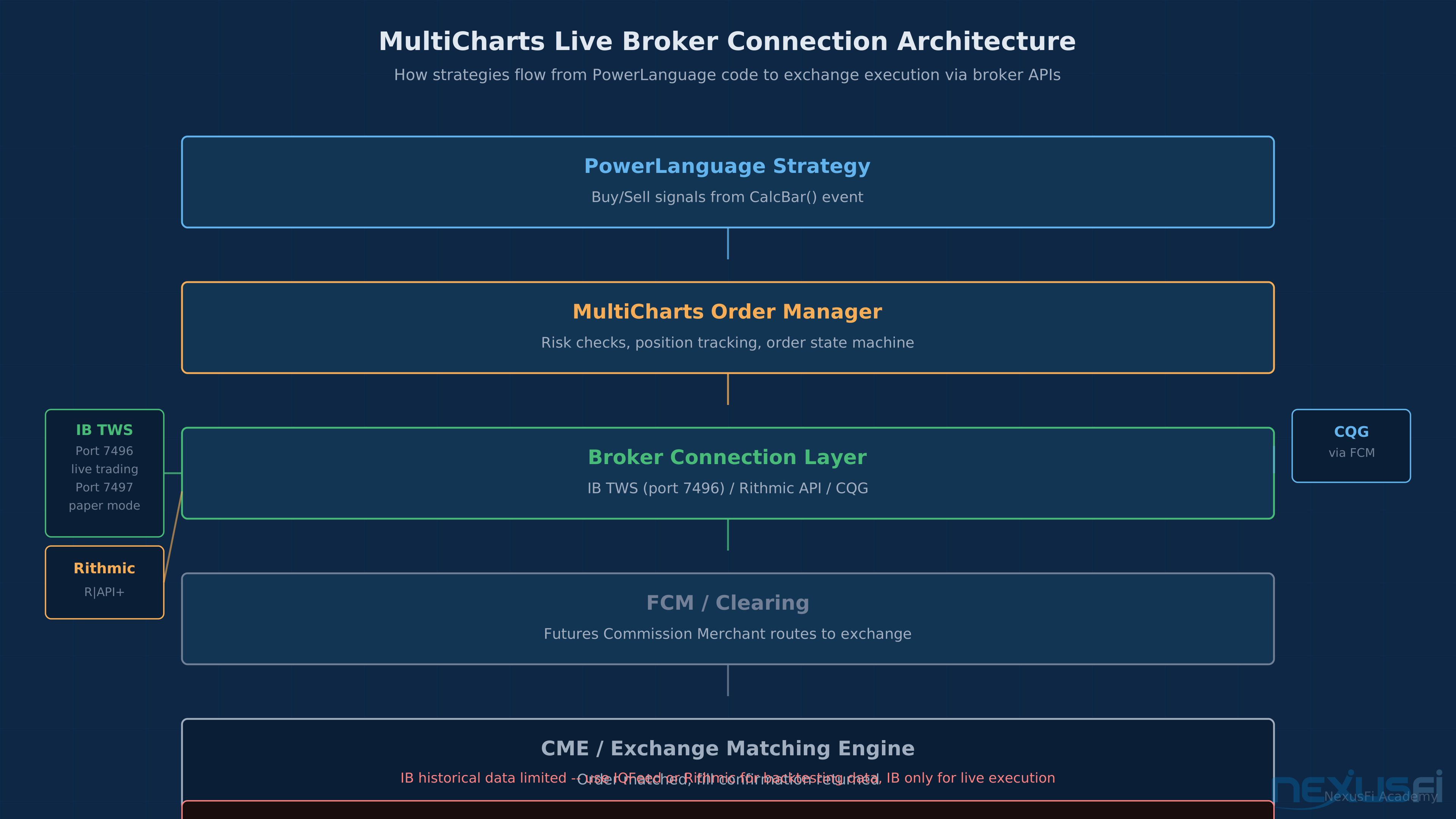
MultiCharts supports direct connections to Interactive Brokers (TWS), CQG, Rithmic, AMP Futures, and others. The connection setup happens in the MultiCharts Connection Manager.
Interactive Brokers Integration #
IB TWS is the most common connection for retail traders. The setup: run TWS with API access enabled (port 7496 for live, 7497 for paper), configure the MultiCharts IB connection to point at that port, and ensure "Enable ActiveX and Socket Clients" is checked in TWS Global Configuration.
The connection works. The data quality for backtesting is limited — IB only provides a few months of historical data via API, which isn't enough for serious backtesting. Use IQFeed or Rithmic for historical data and IB for live execution.
IB Historical Data Is Not Enough for Backtesting Interactive Brokers provides only a few months of intraday historical data through their API — far too little for statistically meaningful backtests. Use IQFeed (best coverage for US futures retail) or Rithmic (tick-level depth) as your backtesting data source. Reserve the IB connection strictly for live order execution. Mixing IB historical data into backtests produces artificially favorable results because the limited data window misses regime changes, volatility clusters, and structural market shifts.
The continuous contract problem
The correct workflow is to use a third-party data provider (IQFeed continuous contracts work well) for all backtesting data, reserving the IB connection purely for live execution.
CQG and Rithmic Connections #
CQG and Rithmic provide better-quality data for both live trading and backtesting. Rithmic in particular has deep historical tick data available through their API, which gives MultiCharts access to multi-year tick histories without third-party data purchases.
The tradeoff: CQG and Rithmic connections typically come through a futures broker (CQG through many FCMs, Rithmic through AMP, Gain Capital, and others). You're not connecting directly to the exchange — you're connecting through your FCM's infrastructure. This adds a hop versus DMA, which matters if you're doing latency-sensitive execution.
Automated Risk Controls in PowerLanguage #
Risk controls in automated strategies prevent catastrophic loss from runaway execution, missed exits, or data feed issues. MultiCharts has both platform-level and code-level controls.
Platform-Level Controls #
In MultiCharts's Strategy Properties, set:
- Maximum number of contracts: Hard cap on position size regardless of what the strategy requests
- Maximum loss per day: Strategy stops trading after crossing a daily loss threshold
- Maximum number of bars between orders: Detects stale strategies that aren't generating signals
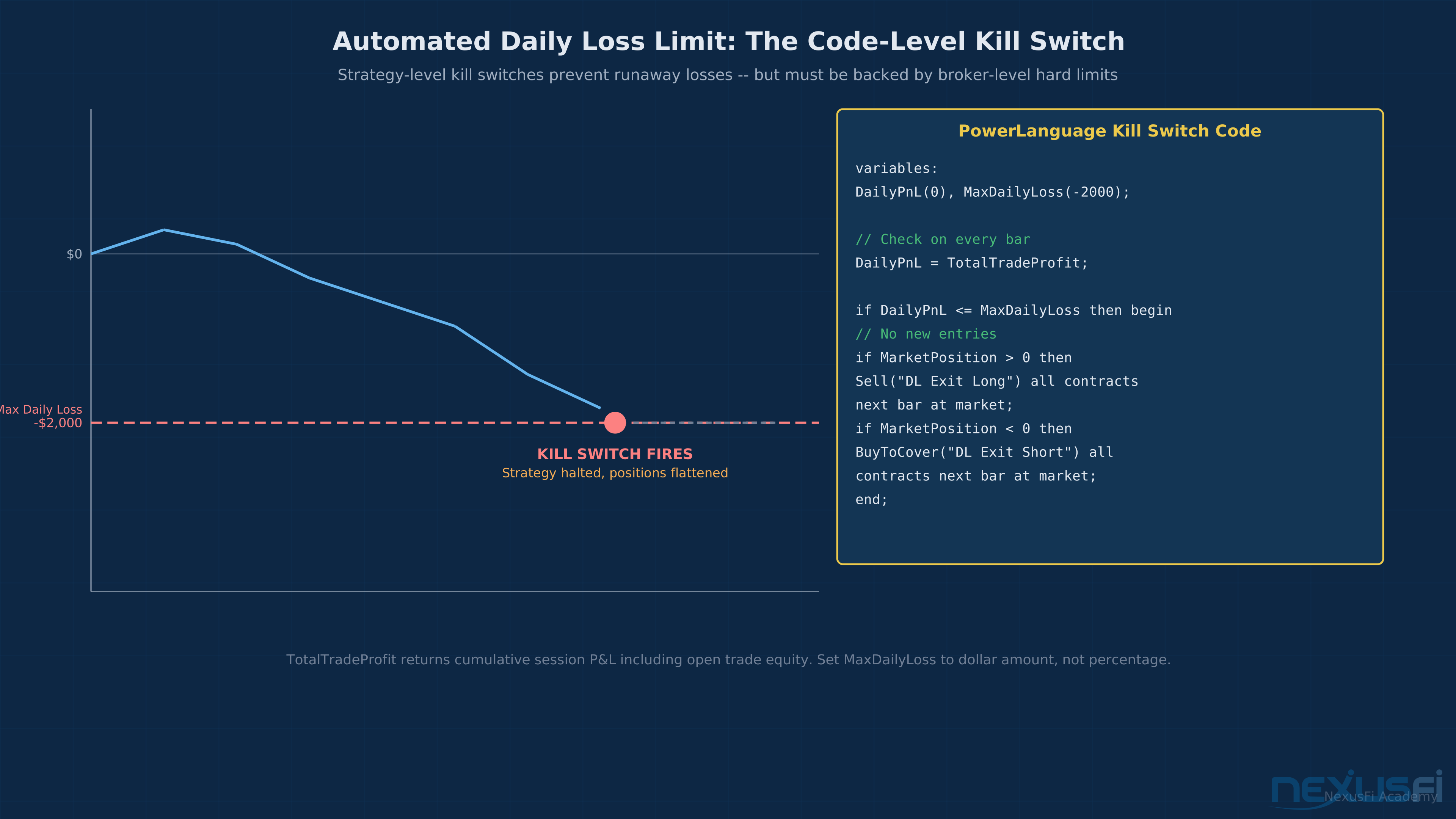
These are kill switches. They don't prevent bad strategies from losing, but they prevent a bug from wiping an account.
Code-Level Controls #
// Daily loss limit in PowerLanguage
variables: DailyPnL(0), MaxDailyLoss(-2000);

DailyPnL = TotalTradeProfit;  // Updated intraday

if DailyPnL <= MaxDailyLoss then begin
  // No new trades today
  // Flat any existing position
  if MarketPosition <> 0 then
    Sell("Risk Exit") all contracts next bar at market;
end;
The TotalTradeProfit function returns current session P&L including open trade equity. Using it as a daily loss check gives you a dynamic kill switch that triggers from actual account movement, not just closed trade P&L.
Error Handling for Order Events #
Order rejection handling matters for live robustness. The OnError event fires when an order is rejected:
method void OnError(int ErrCode, int ErrSubCode, string ErrDescription)
begin
  Print("Order error: ", ErrCode, " - ", ErrDescription);
  // Log, alert, and potentially halt strategy
end
Log every order error. NinjaTrader users who've hit the live trading bugs documented by @zacharydw00 in "Live Trading Bugs that NT Blames on Custom Indicators" know how critical this is: undocumented platform behavior during live trading can produce fills, partial fills, or rejections that don't match what the strategy expected. The same vigilance applies on MultiCharts — assume edge cases exist in the broker integration and build error recovery into your strategy logic.
Multi-Timeframe Analysis in PowerLanguage #
Multi-timeframe (MTF) strategies use higher-timeframe signals to filter lower-timeframe entries. A common example: only take long entries on the 5-minute chart when the 30-minute trend is up.
Data Series in MultiCharts #
MultiCharts handles multiple data series by assigning each to a numbered series. Data1 is the primary chart. You add Data2, Data3, etc. in the chart's data settings.
// Reference Data2 (higher timeframe) in strategy
variables: HigherClose(0), HigherTrend(0);

HigherClose = Close of Data2;
HigherTrend = Average(Close of Data2, 20);

// Only go long if higher timeframe is trending up
if Close of Data2 > HigherTrend and
   FastMA crosses above SlowMA then
  Buy("MTF Long") 1 contract next bar at market;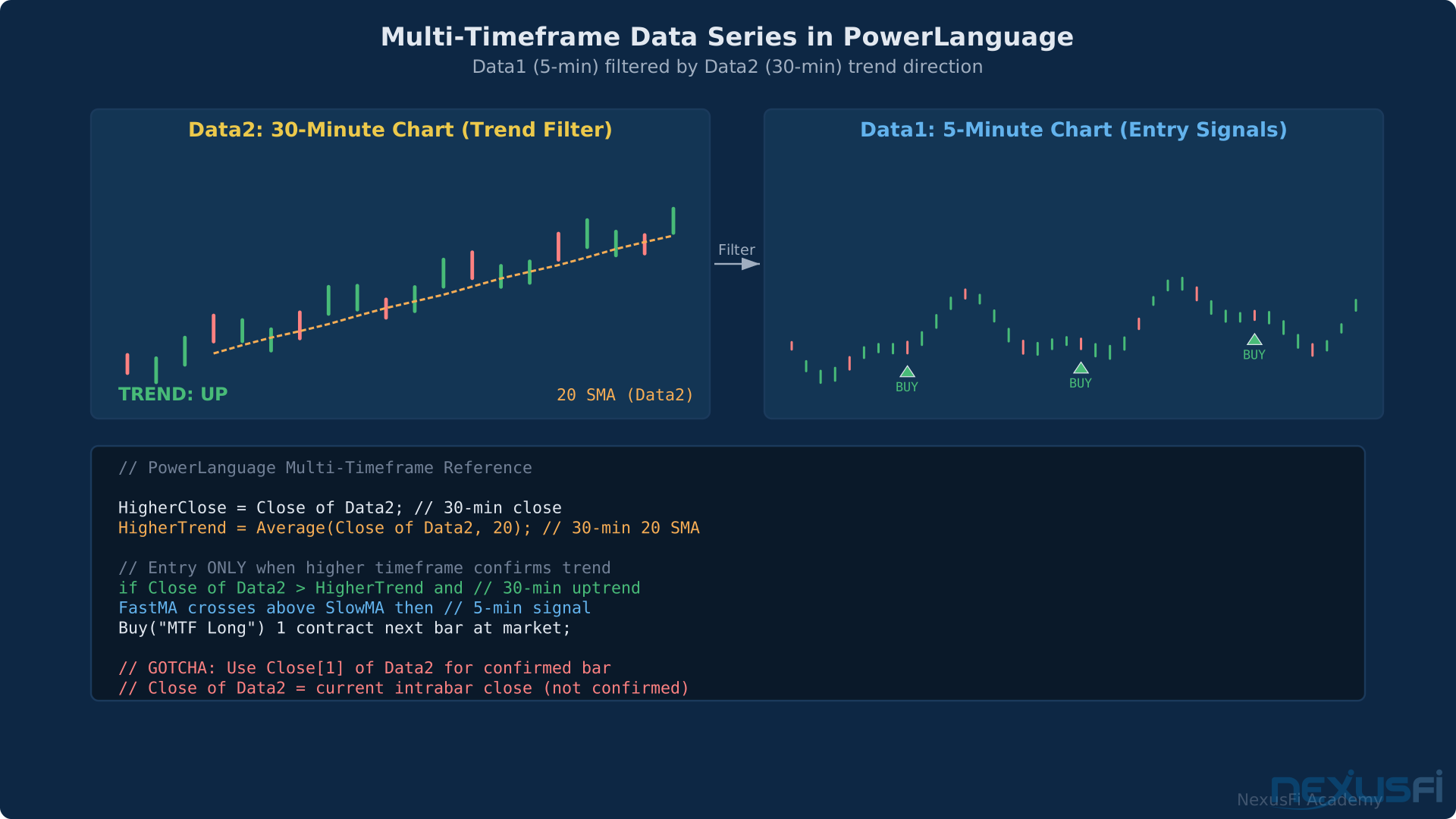
@Big Mike's video tutorial on MultiCharts EasyLanguage strategies shows exactly this structure — data series referencing for multi-timeframe logic — and remains one of the cleaner introductions to the concept. The key gotcha: the higher-timeframe series updates less frequently. If your 30-minute bar hasn't closed yet, Close of Data2 is the current intrabar close, not the confirmed close. Use Close[1] of Data2 to reference the last confirmed bar. As @Big Mike demonstrated in his MultiCharts MTF strategy example, combining daily closing prices as Data3 with intraday Data1 and Data2 enables strategies that filter entries against the daily trend while executing on intrabar signals.
The Continuous Contract Problem #
This is the gotcha that burns algo traders who haven't dealt with futures rollovers programmatically. Futures contracts expire. ES June expires, ES September becomes the front month. Your strategy chart needs to handle this transition without generating phantom signals.
MultiCharts provides several continuous contract construction methods:
- Back-adjusted continuous: Price-adjusts historical data at each rollover so there's no price gap at expiration. The most common method for trend-following strategies.
- Non-adjusted continuous: Chains contracts together without price adjustment. Produces gaps at rollover but preserves actual historical prices. Better for volume-sensitive strategies.
- Unadjusted daily settlement: Uses the front-month contract only, rolls on a defined date.
The choice matters for backtesting accuracy. Back-adjusted data is appropriate for strategies that trade price levels — moving average crossovers, breakouts, momentum. Non-adjusted data is appropriate for strategies that trade relative to recent price history where the actual price matters, not the adjusted value.
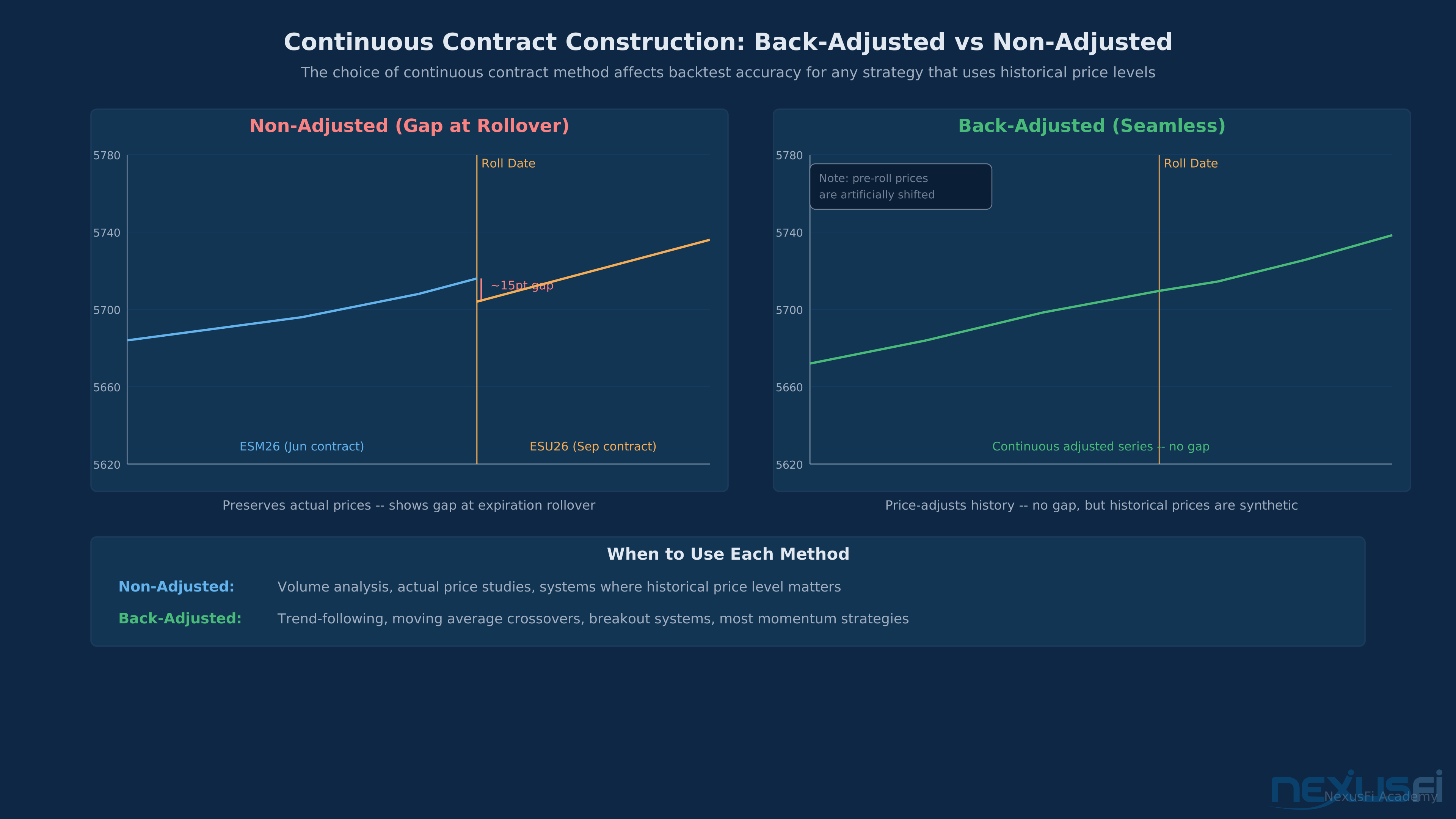
When you're live and connected to IB (as @vmodus discovered), you'll need to manage rollover manually or build rollover logic into your strategy. MultiCharts doesn't automatically switch from ESM26 to ESU26 unless you configure it. This is a live trading operational issue that portfolio managers have to address before every expiration cycle.
The Deployment Checklist #
Moving a MultiCharts strategy from backtesting to live is where most algo traders discover bugs they didn't know existed. Run through this checklist before committing capital.
1. Validate in paper mode for at least 20 trading days. Paper mode in MultiCharts submits orders to the broker's simulation environment using live market data. Sim fills aren't perfect (they don't account for your actual market impact), but they expose order management bugs, data connection issues, and platform behavior discrepancies.
2. Compare live fill prices to backtest assumptions. Track every live fill versus the expected price from your strategy logic. If you're getting 1.5 ticks of slippage on market orders when you assumed 1 tick, adjust your backtesting assumptions and verify profitability holds.
3. Verify position reconciliation. MultiCharts needs to know the current open position to manage exits correctly. If you restart MultiCharts while in a position, the strategy might lose track of its current position. Test position reconciliation explicitly — start the strategy while holding a live position and confirm it handles the existing position correctly.
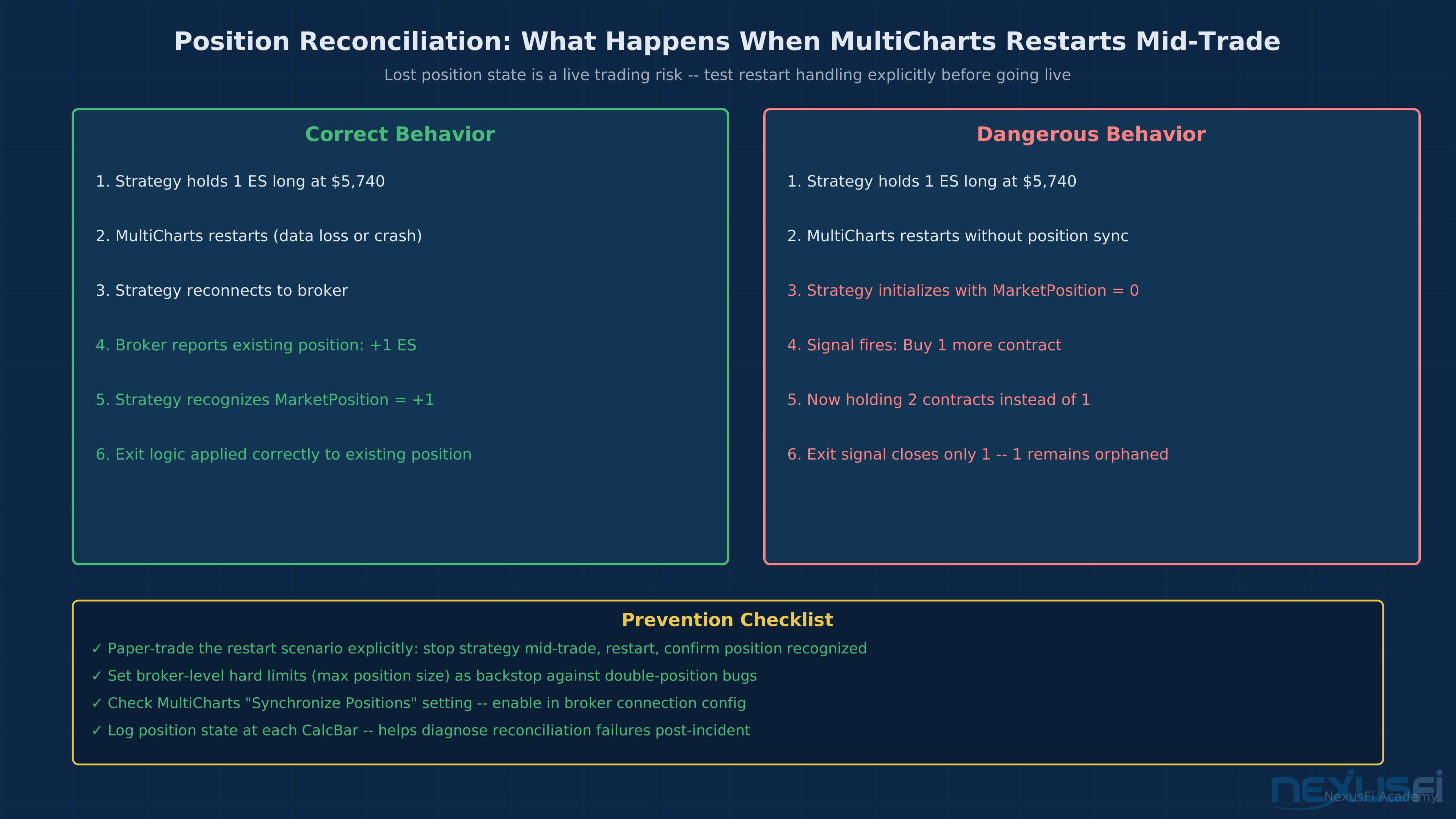
4. Set broker-level risk limits separately. Don't rely only on strategy-level risk controls. Set hard limits at the broker level (max daily loss, max position size) as a backstop. This protects against strategy bugs that bypass your code-level checks.
5. Monitor fill events actively for the first week. Watch the order log during the first 5 trading days of live operation. Look for rejected orders, partial fills, and timing discrepancies between signal generation and order submission. These surface early and are easier to debug with fresh backtest data to compare against.
Common PowerLanguage Bugs in Live Trading #
Bar counting off by one. Close[0] is the current bar. Close[1] is the prior bar. This is opposite to some other platforms. Getting it backwards means your "prior bar close" is actually the current intrabar close — produces look-ahead bias in backtesting and timing errors in live.
Order doubling at market open. If a strategy runs from prior-day close and generates a signal that should execute at market open, be careful about whether the strategy resubmits the order on each tick until filled. In tick mode, the order-submission code might fire dozens of times before the fill confirmation arrives, potentially submitting duplicate orders. Guard with a MarketPosition <> 0 check or explicit order tracking.
Overnight position management. Strategies that hold overnight need explicit logic for session boundaries. If your strategy has a "close at end of session" rule, verify that the session end time is correctly configured in MultiCharts and that the close order executes before the CME's maintenance window closes the market.
Strategy disable doesn't cancel open orders. If you disable a strategy mid-trade, MultiCharts may not automatically cancel pending orders. If you have a stop order working and disable the strategy, that stop order may remain active. Always confirm all working orders in your broker's platform after disabling a strategy.
MultiCharts vs. NinjaTrader: The Honest Assessment #
NinjaTrader wins on:
- Community and forum support (NexusFi's NT forums are enormous)
- Third-party indicator/strategy ecosystem
- Free lifetime license for backtesting and sim
- C# for developers who prefer a typed language with IDE support
MultiCharts wins on:
- Portfolio-level backtesting (Portfolio Maestro vs. none)
- EasyLanguage portability from TradeStation
- Walk-forward optimization integration
- Broker connections that include some not supported in NinjaTrader
- More straightforward multi-timeframe data handling
The community difference is real. @aknip's HugoHurley strategy thread on NexusFi is one of many MultiCharts-specific threads, but the volume is smaller than the NinjaTrader sections. If you expect to spend significant time asking questions in forums or looking up existing solutions to common problems, NinjaTrader's larger community matters. If your primary use case is portfolio-level systematic backtesting with EasyLanguage, MultiCharts is the better technical fit.
The Bottom Line #
MultiCharts is a platform for traders who've outgrown single-symbol backtesting and want portfolio-level systematic analysis without moving to institutional software. If you're running more than 3-4 strategies across different markets and trying to understand how they interact, Portfolio Maestro makes that analysis much easier than doing it manually in NinjaTrader.
The EasyLanguage compatibility is a genuine advantage for anyone with existing TradeStation strategies. The porting effort is minimal compared to rewriting in NinjaScript.
The weaknesses are real: smaller community support, the continuous contract issue with IB requires workarounds, and the documentation quality is uneven. Plan for the learning curve and build in time for the live validation checklist before committing capital.
For multi-symbol systematic traders with TradeStation backgrounds, MultiCharts is worth the evaluation. For single-strategy NinjaTrader users who are happy with the platform, the switching cost is probably not justified.
Knowledge Map
Go Deeper
Build on this knowledgeCitations
- — Attack of the Robots - An Algo Journal (2021) 👍 6
- — HugoHurley (automated strategy for MultiCharts) (2010) 👍 4
- — VIDEO TUTORIAL: How to create an advanced MultiCharts EasyLanguage Strategy (2011) 👍 42
- — Walk Forward Testing & Optimization Experiences and Best Practices (2013) 👍 6
- — Backtest vs historical strategy performance issue (2021) 👍 5
- — Live Trading Bugs that NT Blames on Custom Indicators (so they don't have to fix them (2025) 👍 3
- — Attack of the Robots - An Algo Journal (2019) 👍 5
- — Multicharts.com
- — Multicharts.com
- — Attack of the Robots - An Algo Journal (2022) 👍 5
- — Trouble Debugging EL Position Sizing Code (2022) 👍 1