



Managing Futures Positions On the Go with Ninja Mobile Trader
Overview #
Your phone buzzes at 1:47 PM. ES just hit the level you've been watching since morning. You're three blocks from the office, waiting for coffee. The question isn't whether you can trade — it's whether your workflow is tight enough that you can execute without second-guessing yourself on a 6-inch screen.
NinjaTrader Mobile has evolved well past the basic quote screen. It gives you real-time charts, order entry, ATM strategy control, position management, and a genuine emergency flatten capability. Ninja Mobile Trader connects directly to NinjaTrader's cloud infrastructure, which means your ATM strategy templates, workspace configurations, and active orders are available from any iOS or Android device — not as a degraded version, but as the same server-side logic that runs your desktop bracket.
This article is about workflows, not setup. The network configuration, platform selection, and connectivity redundancy for mobile trading are covered in Mobile Futures Trading: Network, Risk, and Platform Setup. What we're covering here is what you do after you're connected: how to monitor positions effectively when your situational awareness is compressed, how to execute the alert-to-action workflow with minimum friction, how to manage ATM strategies remotely, and how to flatten a position in a genuine emergency without second-guessing the sequence.
The traders who use mobile well have a precise mental model of when to use it and for what. The ones who get hurt treat their phone like a desktop and discover the difference when it costs them.
What NinjaTrader Mobile Actually Gives You #
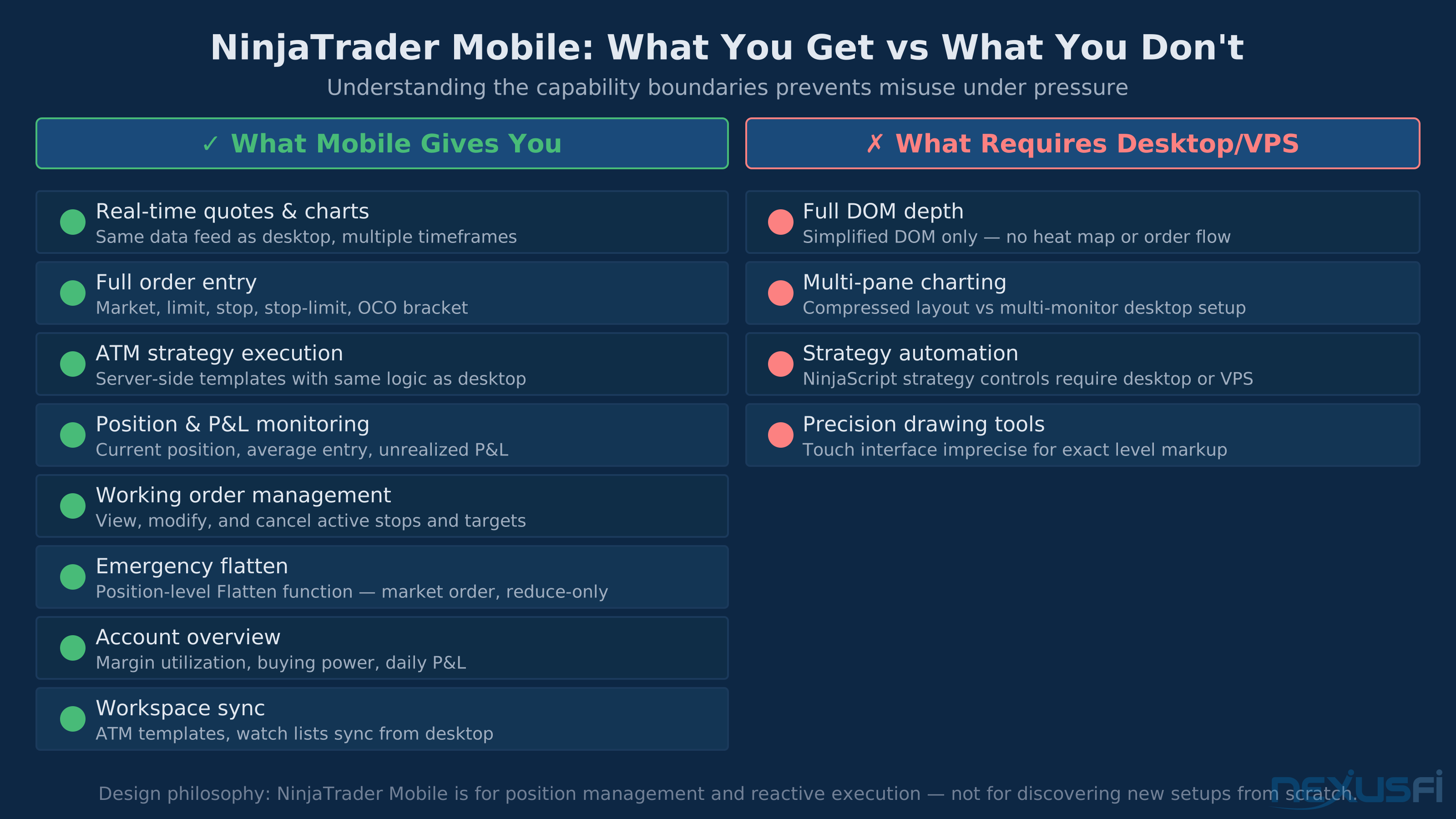
Before building any workflow, understand exactly what you're working with. NinjaTrader Mobile isn't a stripped-down viewer — it's a genuine execution environment with specific capabilities and specific gaps.
What you can do:
- Real-time quotes and charts -- Multiple timeframes, standard indicators, the same data feed as desktop
- Full order entry -- Market, limit, stop, stop-limit, bracket orders with OCO exit management
- ATM strategy execution -- Access your server-side ATM templates and execute them from mobile with the same behavior as desktop
- Position and P&L monitoring -- Current position, average entry price, unrealized P&L, daily realized P&L
- Working order management -- View, modify, and cancel active stops and targets
- Account overview -- Margin utilization, buying power, account equity
- Workspace sync -- Instrument lists, chart templates, and order configurations sync from desktop
What it doesn't give you (the honest version):
- DOM trading with the same granularity as desktop -- the mobile DOM is simplified, fewer price levels, no heat map order flow visualization
- Multi-pane charting with the density you run on a triple monitor setup
- Strategy automation control -- running NinjaScript strategies requires desktop or a VPS, mobile gives you the result, not the controls
- Drawing tools with the same precision as a mouse-driven interface
The design philosophy: NinjaTrader Mobile is built for position management and reactive execution, not for discovering new trades from scratch. Alert-driven action on setups identified at the desktop, managing active positions when away, and executing emergency exits when the environment breaks down.
As @StoxFox noted in a NexusFi discussion on NinjaTrader's capabilities: "Make sure you have the NinjaTrader app installed and logged in on your cell phone. This way, if an emergency is on your end, like a power failure or internet connection, you can quickly manage your position." That's the core use case. The mobile app is insurance you hope you don't need and essential infrastructure you absolutely do.
NinjaTrader Mobile connects to NinjaTrader's cloud infrastructure — not directly to your desktop. This means your orders and positions are managed server-side, and the app will reflect current state even if you disconnect and reconnect. Your positions don't depend on your phone staying connected.
The Alert-to-Action Workflow #
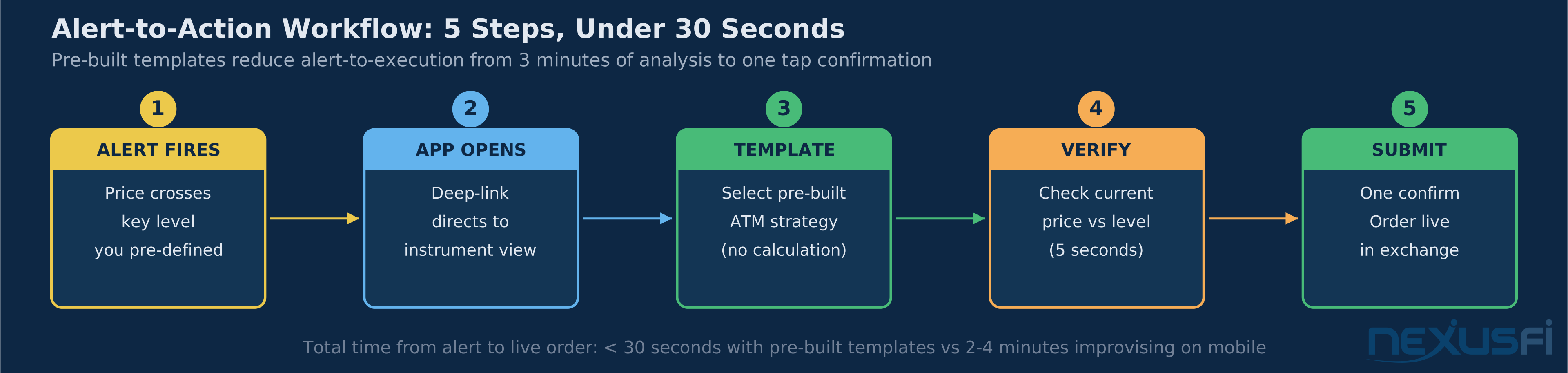
Alert fatigue kills mobile execution. The problem isn't receiving too many alerts — it's that most mobile traders haven't built a clean path from "alert fires" to "order submitted." Without that path pre-built, every alert becomes a mini decision-making session that adds 30-60 seconds of latency and introduces second-guessing.
The correct architecture: each alert maps to exactly one pre-defined action. When you configure the alert, you simultaneously configure the intended response. Not "price hits 4512 — I might want to consider entering" but "price hits 4512 — trigger the 1-contract ES bracket template, 8 ticks stop, 12 ticks target, confirm and submit."
Building your alert-action library before leaving the desk:
1. Identify your key levels for the session. Key resistance, support, VWAP, prior session high/low, whatever your methodology uses. These go into your watch list on desktop, then sync to mobile.
2. Assign each level to an action type. Price alert at resistance — evaluate for short entry using template X. Price alert at VWAP reclaim — evaluate for long entry using template Y. Protective stop alert — position at risk, review immediately.
3. Pre-configure order templates for each action type. Your ATM strategies do this automatically if you've built them for specific setups. A "momentum breakout long" ATM might be 2 contracts, 8-tick stop, 16-tick initial target with trailing stop on. A "fade the extension" ATM might be 1 contract, 6-tick stop, 12-tick target. The point is that when you receive the alert, you're selecting a template, not building an order from scratch.
4. Reduce confirmation steps to one. Alert fires — opens instrument. You see current price relative to your level, your predefined template is selected, you verify the parameters, you confirm. One screen, one confirmation, done. Any workflow that requires more than 3 taps between alert and order submission is too complex for time-sensitive execution.
What you're building is situational awareness compression. On desktop, you have multiple charts, the DOM, multiple order entry windows. On mobile, you have one chart and one order ticket. The discipline is to make decisions at the complexity level the interface supports — don't try to run a 12-indicator confluence analysis from a 6-inch screen under time pressure.
The most common alert-to-action failure mode: receiving an alert, opening the app, and then spending 3 minutes trying to decide whether the setup is still valid because you're reassessing from scratch on mobile. That reassessment should happen at the desktop level when you set the alert. When the alert fires, your job is execution, not analysis.
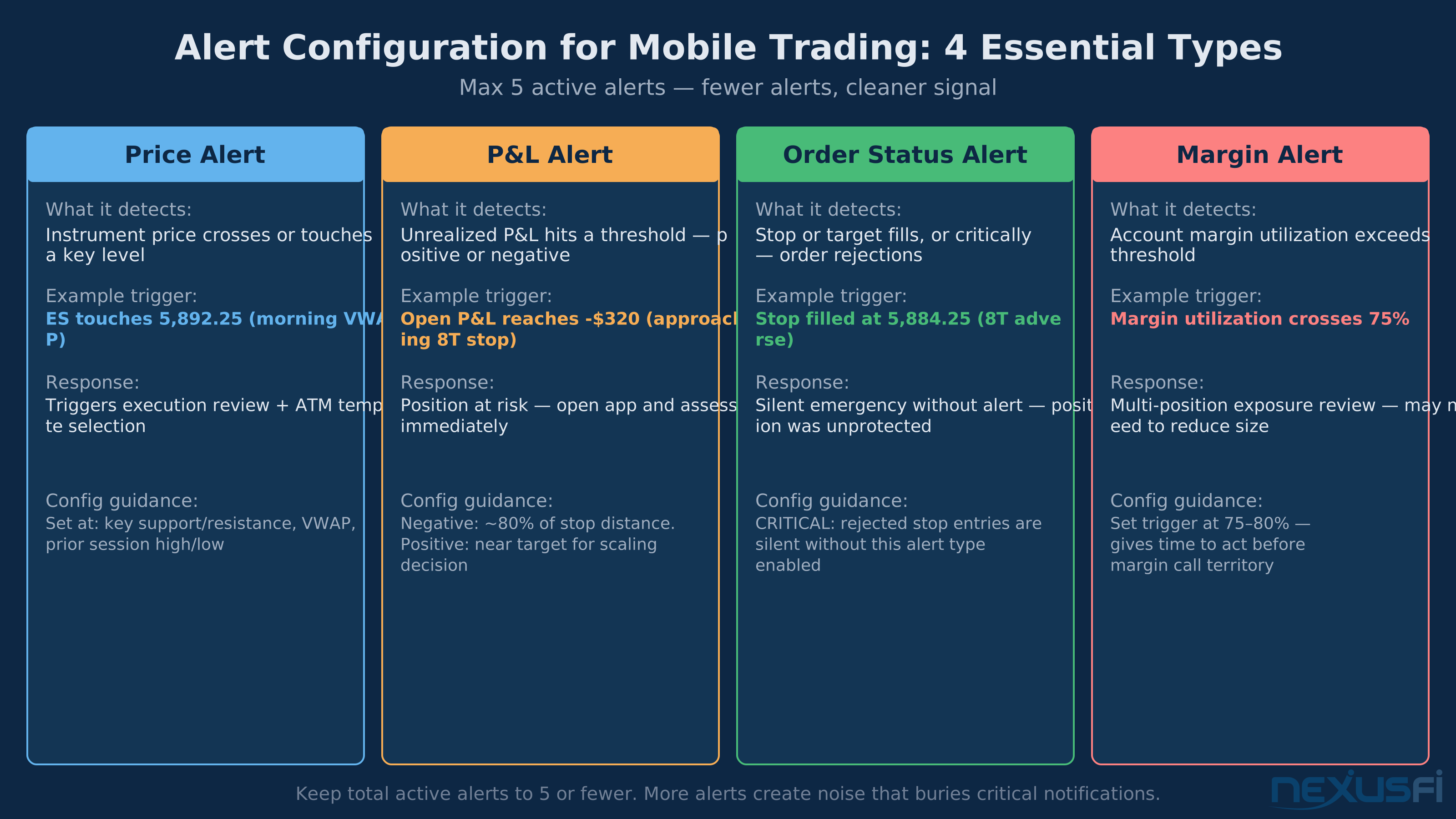
Alert types to configure in NinjaTrader Mobile:
- Price alerts -- Instrument price crosses or touches a specific level. Sets the stage for execution review.
- P&L alerts -- Unrealized P&L hits a threshold (positive or negative). Signals a position that needs attention.
- Order status alerts -- Confirmation when stops or targets fill, or critically, when orders are rejected. A rejected stop entry is a silent emergency without an alert.
- Margin utilization alerts -- Margin utilization exceeds a threshold (75-80% is a reasonable trigger for review).
Keep the alert list to 3--5 active alerts. More than that buries critical notifications in noise.
ATM Strategy Management from Mobile #
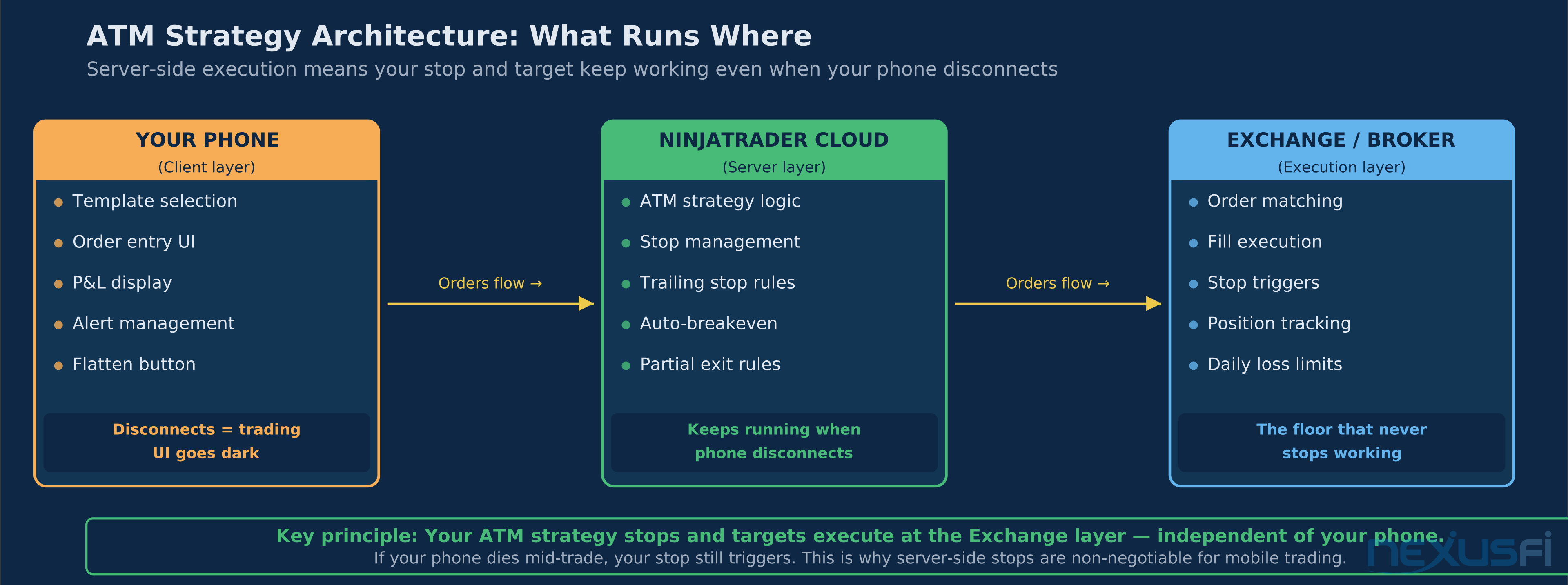
NinjaTrader's ATM strategies are the core of what makes mobile management practical. An ATM strategy defines the complete bracket structure — entry, stop, target, and any auto-management rules like trailing stops or partial exits — and executes that structure server-side. Once triggered, it runs at the broker level independent of whether your phone or even your desktop stays connected.
The mobile interface gives you access to your saved ATM templates and the ability to trigger them on new entries. It also gives you the ability to modify an active ATM strategy's parameters — adjusting the stop or target level, modifying the trailing stop offset, or canceling working exit orders.
Pre-building your ATM library:
This work happens on desktop. Mobile is where you select and execute. Every strategy you plan to use while away from the desk should be built and tested on desktop before you leave. The mobile interface for ATM selection is a dropdown or list — you're choosing, not building.
Structure your ATM library around setups, not instruments. "ES breakout 2C 8T stop 16T target" is more useful than "ES 2 contracts." Select the right strategy in under 5 seconds.
Modifying active ATM strategies from mobile:
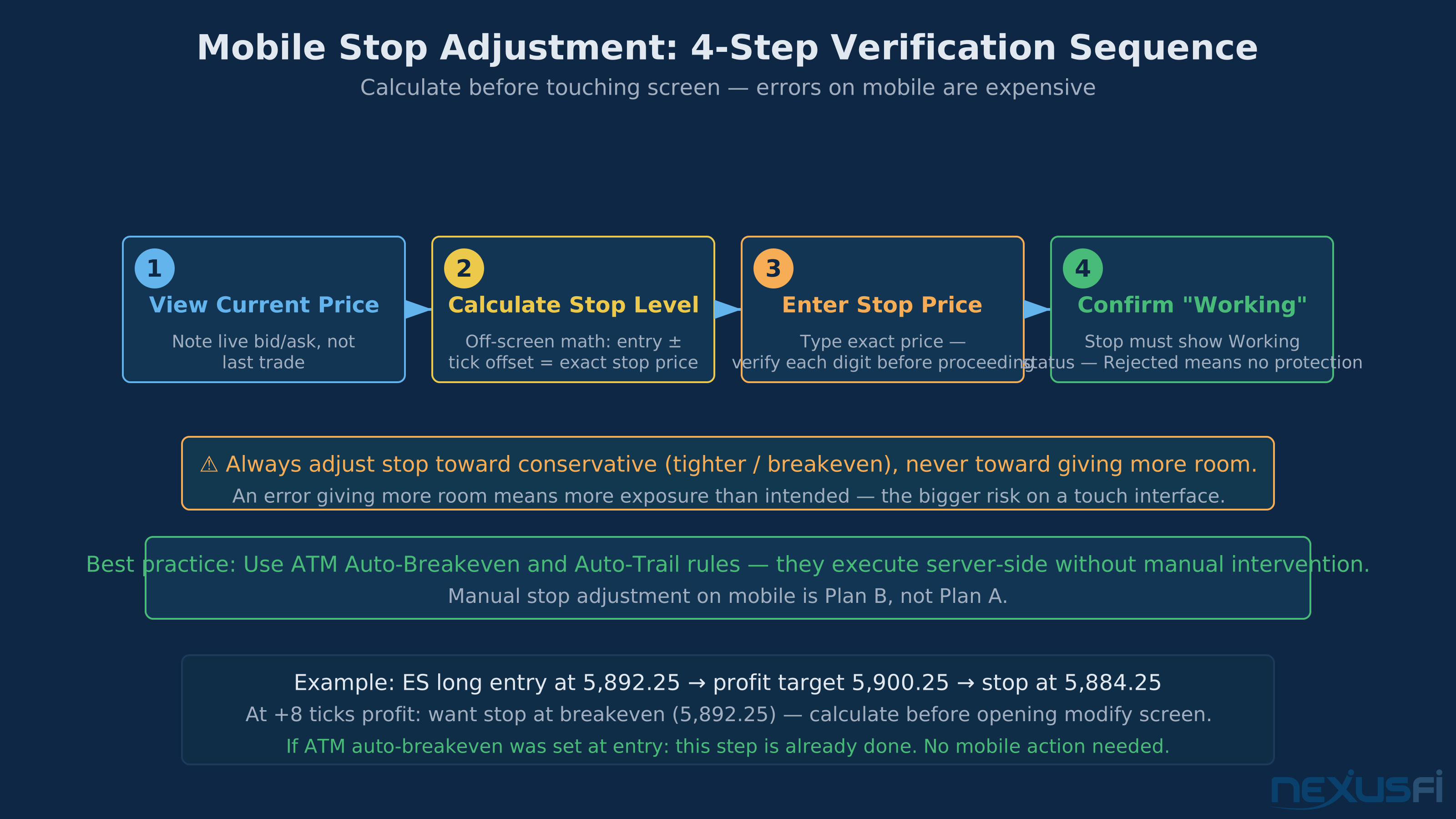
The most common in-trade mobile action is stop adjustment. Your position is working, you want to move the stop to breakeven or lock in partial profit. NinjaTrader Mobile lets you do this, but with caveats.
Stop modification on mobile has more potential for fat-finger errors than desktop. You're editing a number field on a touch interface, often with a glare on the screen, potentially on a moving train. The discipline:
- Use the "Auto Breakeven" feature in your ATM strategy rather than manually adjusting stops. Configure the trigger -- "move stop to entry price at +X ticks profit" -- and let the strategy handle it server-side.
- If you must manually adjust, verify the current price and the new stop level before submitting. The sequence: view current price -- calculate target stop -- enter the stop price -- double-check the number before confirming.
- Use partial adjustments rather than full rewrites. Moving a stop from -8 ticks to -4 ticks is a small correction with limited downside. Completely reconfiguring the entire bracket from mobile under time pressure is where mistakes happen.
Trailing stop management from mobile:
Active trailing stops are the most hands-off mobile management tool. Configure them properly on desktop — trailing offset in ticks, step size, minimum profit trigger — and they execute server-side without requiring any mobile action. Your job on mobile is monitoring: is the trail still active? Has it moved? Is the current trail position reasonable given where price is?
The failure mode: manually "helping" the trailing stop by adjusting it faster than the auto-trail logic would. This converts a disciplined systematic exit into discretionary tinkering, and the tinkering usually happens in the direction of giving the trade too much room. Leave the trail alone unless there's a structural reason to override it.
Monitoring Positions Effectively from a Small Screen #
Desktop monitoring is wide — multiple charts, time-and-sales, DOM, P&L tracker, all on screen simultaneously. Mobile monitoring is narrow — you see one or two pieces of information at a time. The discipline is choosing which pieces matter most in real time and ignoring the rest.
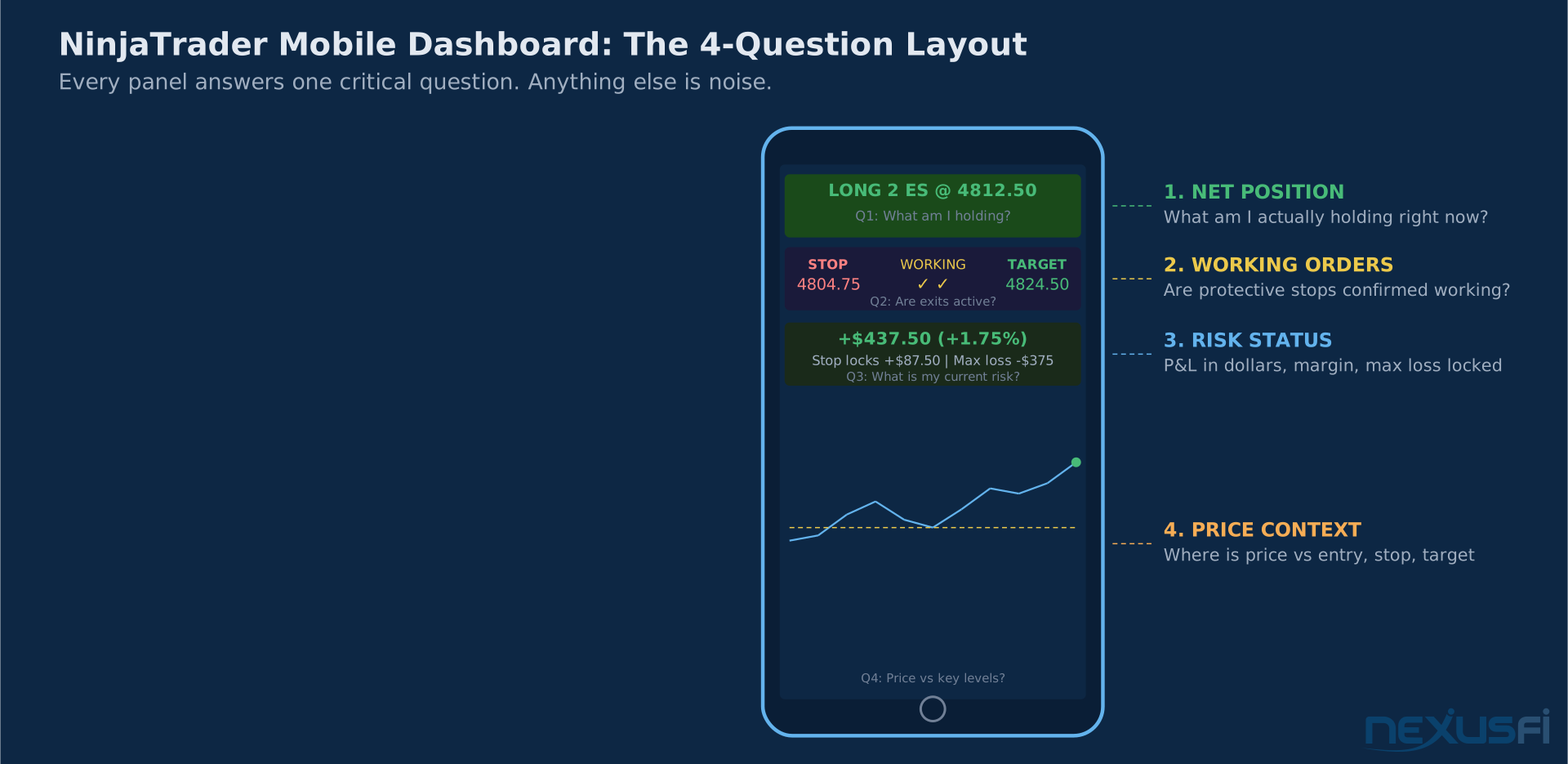
The four questions your mobile dashboard needs to answer in under 10 seconds:
- What am I holding? Net position, instrument, direction, size. Not "what did I enter" -- "what is the current state of the account."
- Are my exits active? Stop working, target working, neither rejected or canceled. This is the question that keeps you out of the worst outcomes. A stop that isn't working means your floor just disappeared.
- What's my current risk? Unrealized P&L in dollar terms and as a percentage of account. Not tick-level precision -- you want to know "this trade is up $480 with a stop at +$120" at a glance.
- Where is price relative to my key levels? Current price relative to your stop, target, and any key reference levels you identified pre-trade. This tells you whether you need to act or just monitor.
Build your mobile workspace around those four questions. NinjaTrader Mobile's position screen shows position size, average price, and unrealized P&L by default. Add working order visibility — the list of active stops and targets — to the same screen. If you're scrolling between screens to answer any of the four questions, reconfigure the layout.
The common mistake: setting up the mobile workspace to mirror your desktop as closely as possible. Multiple chart timeframes, indicators, news feed. All of it adds latency to finding the critical information. The desktop is for building context. The mobile is for maintaining awareness of a position that already has context built in.
As @Big Mike described his own mobile trading workflow on NexusFi: "The simple watch list of open positions is what I really use, along with the alerts. The charting in the app is good enough for my needs. App is: Then if I need to take action I just RDP to my trading server." That's the right mental model — mobile for awareness and alerts, desktop (via remote access) for anything that requires the full picture.
P&L monitoring calibration:
P&L monitoring from mobile has a psychological dimension that desktop monitoring doesn't. On a desktop with a full chart context, you can see that a -$200 drawdown on an ES trade is price testing a key support level that you anticipated. On mobile with a stripped-down view, that same -$200 looks more alarming because you're seeing the number without the visual context.
Counter this by pre-defining acceptable drawdown ranges before the session, not while watching P&L move. "This trade has an 8-tick stop, which means the maximum adverse excursion I'm accepting is -$400 on 2 contracts. Anything above -$300 is within plan." That pre-definition converts "is this drawdown okay?" from a real-time judgment call into a comparison against a fixed threshold.
Emergency Position Flattening: The Kill Switch Workflow #
Emergency flattening is the most critical mobile skill and the one with the highest cost of error. Getting it wrong — accidentally doubling the position, sending to the wrong account, failing to cancel existing stops — is more damaging than the original scenario you were trying to escape.
The goal is a single defined workflow that you've rehearsed in simulation, that produces the correct result in under 5 steps, every time.
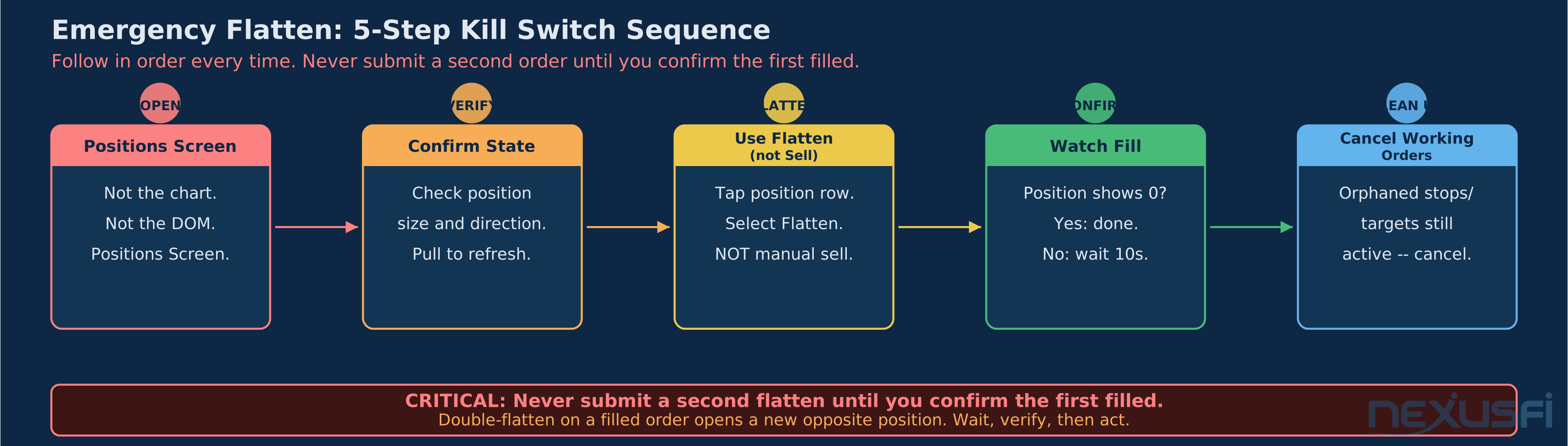
The NinjaTrader Mobile emergency flatten sequence:
- Open the Positions screen. Not the chart. Not the DOM. The Positions screen, which shows all open positions with current P&L.
- Verify current state before acting. Current position size and direction -- make sure the app is showing current data, not stale state from a delayed refresh. If you're not confident the data is current, pull down to refresh first.
- Use "Flatten" from the position row, not "Sell" or "Buy." The Flatten function sends a market order sized to your current position with reduce-only semantics. Using a manual sell order when you're already short, or the wrong quantity, can worsen the situation. Flatten is the right tool.
- Confirm the order submission and watch for fill notification. After flattening, verify the position shows as 0 before doing anything else.
- Check working orders after flattening. Stops and targets that were protecting the position may still be working after the position flattens, depending on your ATM configuration. Cancel any orphaned working orders after confirming the flat position.
The order of steps matters. Multiple traders on NexusFi have described the "double position" problem: they submitted a flatten order, didn't see an immediate fill confirmation, submitted another flatten, and then discovered the first had already filled — leaving them short when they meant to be flat. @bobwest's doomsday scenario thread covers this exact failure mode in detail, with the lesson being to wait for fill confirmation before reacting to apparent failure.
@Fonz, describing their backup plan in a NexusFi thread on trading failures: "Hardware, Software failure = I would open the phone app to close all intra day positions and monitor my swing trades that way." The key word: "intraday positions." The mobile flatten workflow is for intraday management. Swing positions with wide stops can tolerate more deliberate action. Intraday scalp positions in fast markets need the fastest and clearest exit path.
Pre-configuring the flatten workflow:
Before any session where you might need it, test the flatten sequence in simulation. Not as a production test — as a rehearsal. Open a simulated position, work through to the Positions screen, execute the flatten, verify the fill. This takes two minutes and builds the muscle memory so that in a real emergency, you're not reading the UI for the first time.
Also: the Flatten button should be reachable from the first screen you see when you open the app. If it requires navigation, change your default launch view. Emergency procedures fail when they require navigation under stress.
Never submit a second flatten order until you've confirmed the first didn't fill. In a fast market, the first flatten may have filled during the few seconds you were watching for confirmation. A second flatten order in the same direction opens a new opposite position.
Managing Multiple Positions from Mobile #
Multiple simultaneous positions add complexity that mobile interfaces handle imperfectly. The NinjaTrader Mobile positions screen lists all open positions, but the interaction between positions — correlated instruments, combined account exposure, offsetting Greeks if you trade options alongside futures — requires context that a list view doesn't provide.
The working principle: one primary active management task at a time on mobile. If you have three open positions and you're away from the desk, your mobile job is monitoring all three and managing whichever one becomes active. Trying to simultaneously enter a new position on one instrument, adjust a stop on a second, and monitor a target approach on a third is a recipe for fat-finger errors on a touch interface.
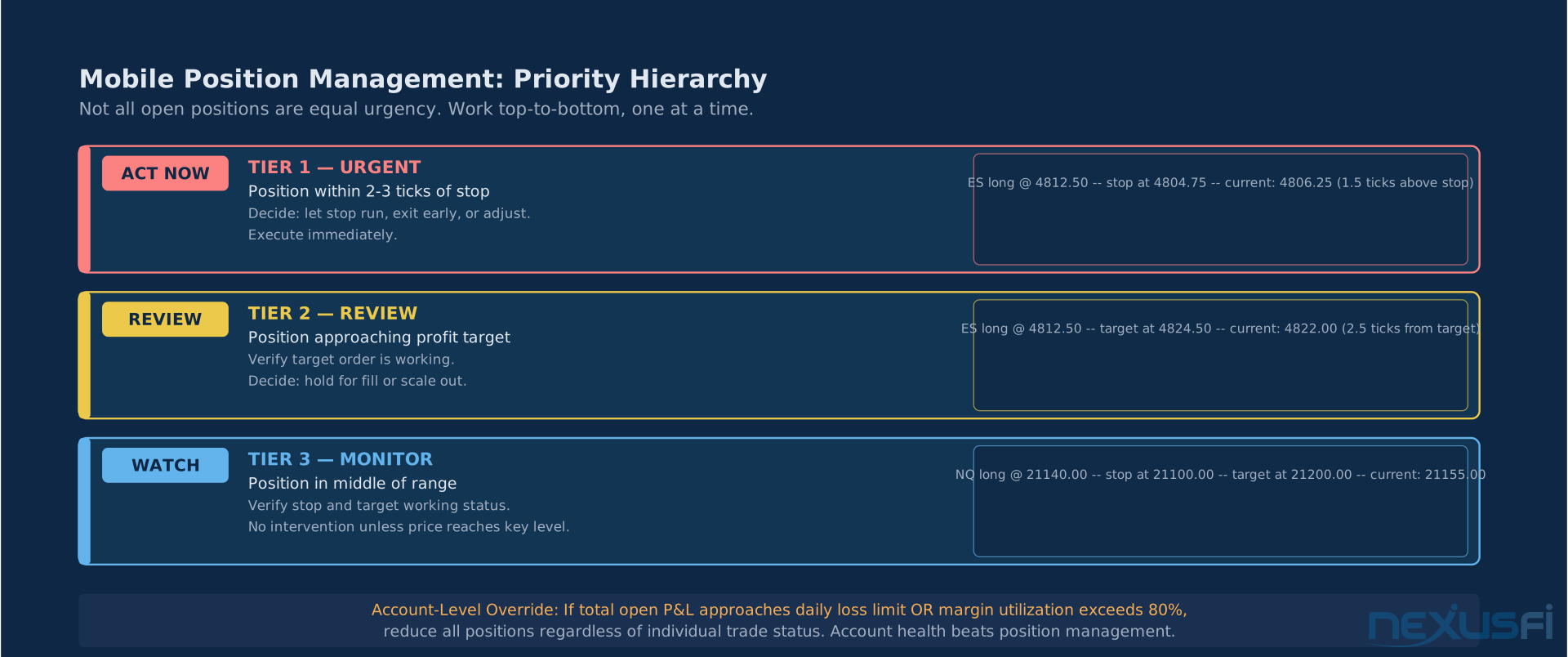
Priority hierarchy for multi-position management:
- Positions at risk (approaching stop) -- These get your attention first. If a position is within 2-3 ticks of your stop, you need to decide whether to wait for the stop, exit early, or adjust. Make that decision, execute it, then move to the next position.
- Positions at target (approaching profit objective) -- If target is near, verify working target order is active. Decide whether to hold for the fill or scale out early. Execute the decision.
- Positions in the middle of their range -- These don't need active management unless price is moving toward a key level. Monitor at low frequency.
The common failure: treating all open positions as equally demanding of attention simultaneously. Position management has an urgency hierarchy, and mobile workflows should respect it.
Account exposure monitoring:
When you're managing multiple positions from mobile, account-level metrics matter more than individual position P&L. The question isn't just "is this trade working" — it's "what is my total account exposure and how does that compare to my session risk limit?"
NinjaTrader Mobile's account overview shows total open P&L and margin utilization. These are the two numbers that matter for multi-position management from mobile. If total open P&L approaches your daily loss limit, or margin utilization exceeds 80%, that's the trigger to review all positions and potentially reduce exposure — regardless of how individual trades look.
What to Do When Mobile Connectivity Fails Mid-Trade #
Every mobile trader will lose connectivity while in a position at some point. The traders who handle it correctly have a defined protocol. The ones who don't make expensive decisions under pressure.
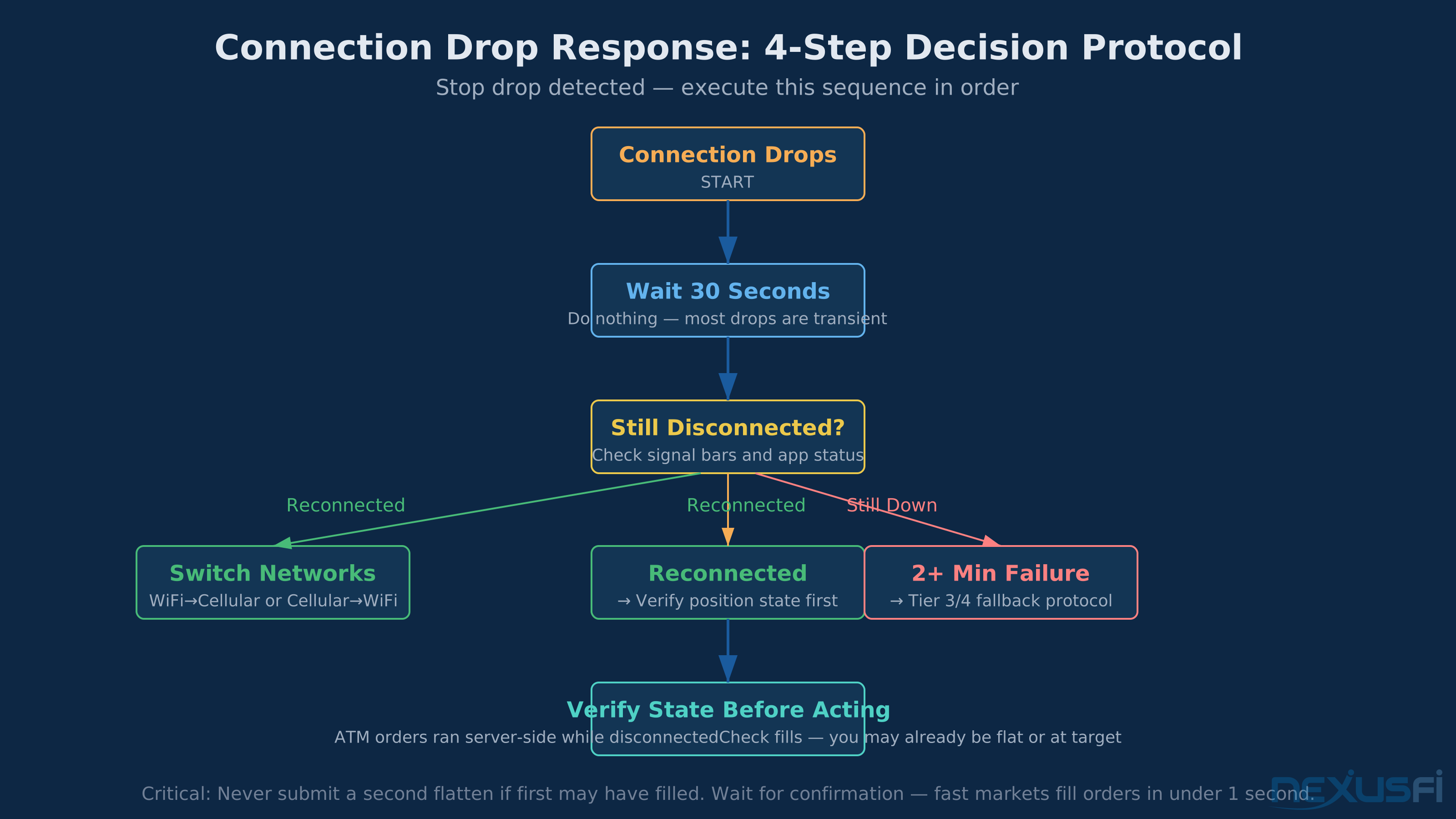
Immediate protocol when connection drops:
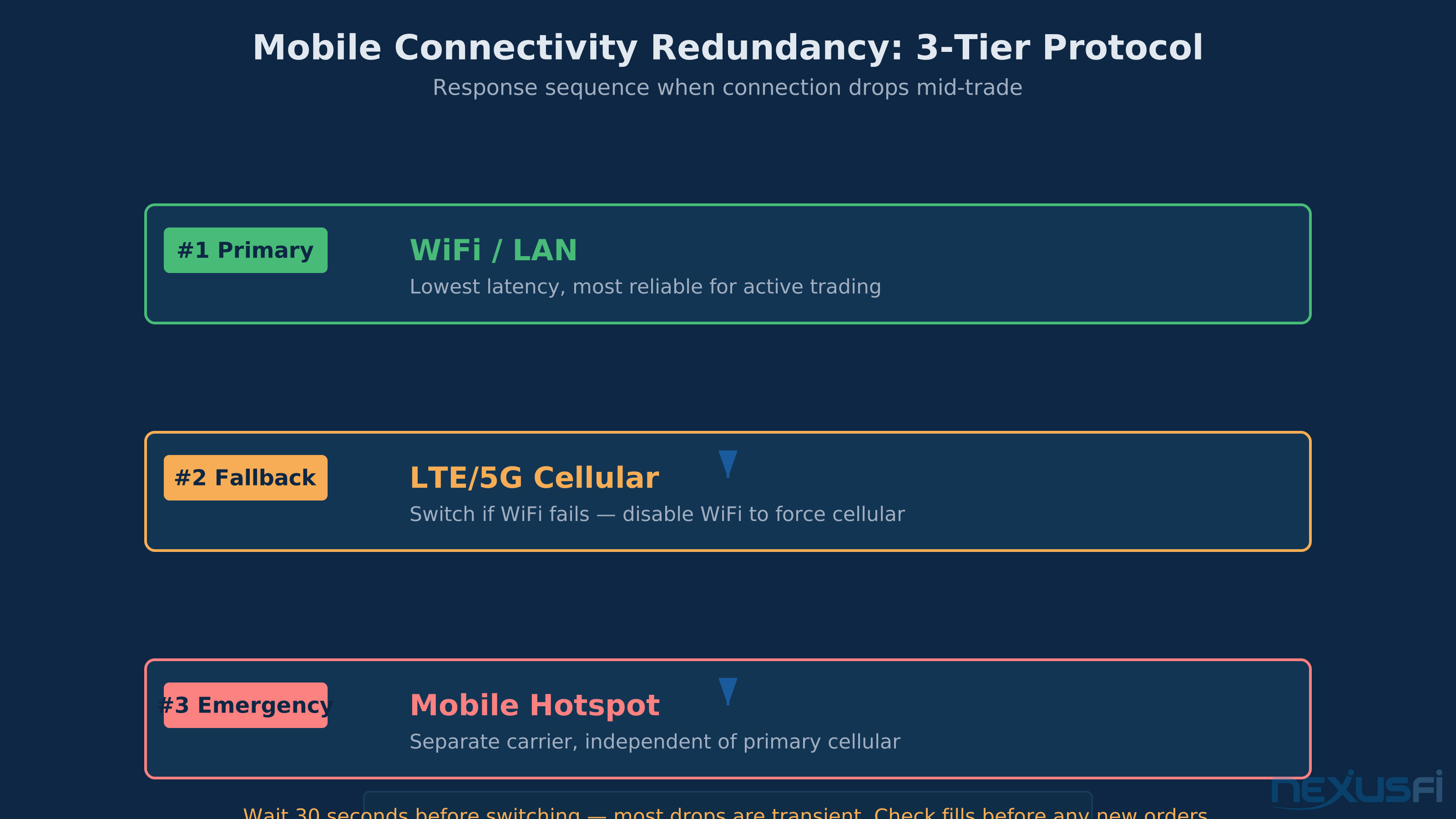
- Do nothing for 30 seconds. Most connectivity drops are brief -- cell signal handoff, momentary carrier issue. Give the app time to reconnect on its own before submitting any orders.
- Switch networks after 30 seconds if still disconnected. Disable Wi-Fi and force cellular if you were on Wi-Fi. Enable Wi-Fi and disable cellular if you were on cellular. Try a mobile hotspot if you have one.
- Once reconnected, verify position state before taking any action. Your stop and target orders were executing server-side during your disconnect. You may have filled at your target. Your stop may have triggered. Don't submit any new orders until you've confirmed the current state of the account.
- If reconnection fails after 2-3 minutes: Switch to secondary device, log in to broker web portal, or call broker's trade desk. Know these alternatives before you need them.
@Big Mike documented exactly this scenario in a NexusFi site changelog post: "with my primary and backup internet were both down, I was using 4G internet on my phone to close some of my positions at the close with IB's TWS mobile app." The preparation makes the emergency manageable.
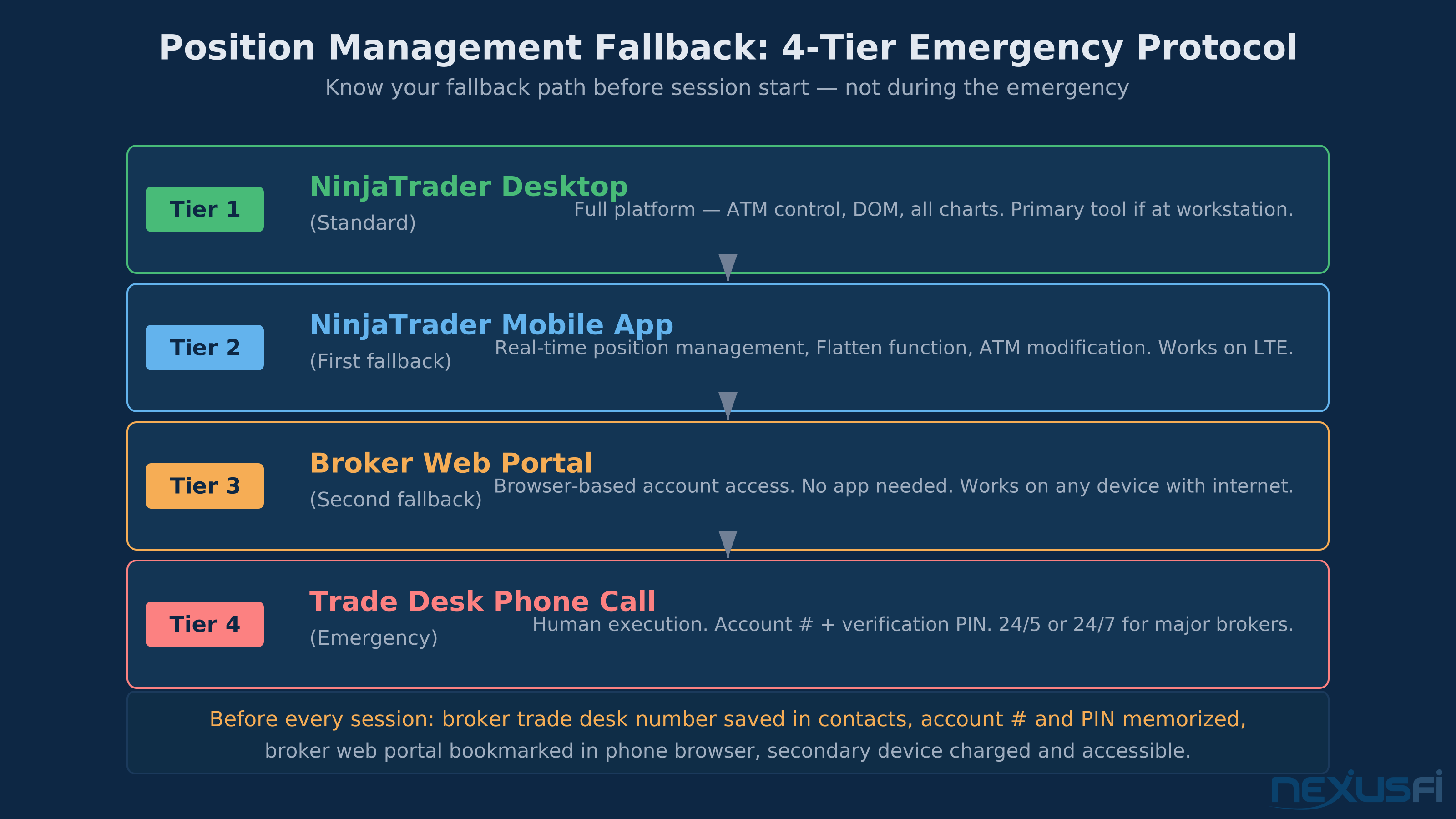
As @Fat Tails outlined in a NexusFi thread on trading disasters: having a layered fallback is the standard. "In case of a PC failure, I have a notebook to connect to my broker. The notebook also works during a power failure. (3) If nothing works, I have the phone number of the trade desk." Mobile app fails — broker web portal — trade desk phone call. Know this sequence before you need it.
Server-side orders are your safety net:
The most important thing to understand about NinjaTrader's architecture: your ATM strategy runs at the broker level, not the app level. If your phone disconnects completely, your stop and target orders continue executing at the exchange. The app going offline does not cancel your orders.
This is why pre-entering your protective stop at the time of entry — not after you "check the trade for a few minutes" — is non-negotiable for mobile trading. @steve2222 made the same point in a NexusFi trading journal discussion: the flat option on mobile is only useful if you know what you need to flatten. If your position has a well-defined stop already working server-side, a connectivity drop is a nuisance, not a crisis.
Broker Fallback and Emergency Phone Access #
There is a scenario where NinjaTrader Mobile fails entirely — app crash, account authentication issue, data connectivity that can't be restored quickly. Your fallback in that scenario is the broker trade desk, which can manually flatten positions and cancel working orders given your account number and verification information.
Pre-departure preparation for broker fallback:
- Save your broker's emergency trade desk number as a phone contact. Not "in notes somewhere." As a contact. In an emergency, you should be able to call it in 5 seconds.
- Know your account number and verification PIN. The trade desk will ask for account verification before executing any orders. Know these by memory, not from a document you have to find.
- Understand your broker's trade desk hours. Most major futures brokers have 24/5 or 24/7 trade desks for precisely this scenario. Verify your broker's hours and have the number for after-hours if different.
- Know what you'll say. "Account [number], verification [PIN], I need you to flatten all positions in my futures account immediately." That's the call. Keep it short and specific.
The broker fallback isn't a failure of the mobile workflow. It's a tier in a layered risk management system. @bobwest's doomsday scenario thread on NexusFi covered the full hierarchy: "Have at least two ways to call out. More is better." Multiple paths to position management is the professional standard. One path — even a good one — is fragile.
As documented in an AMP Futures review thread on NexusFi, users have experienced varying response quality from trade desks during high-stress moments. Test your broker's trade desk during a non-emergency — call with a minor question, assess the wait time and quality of service. You want to know how your broker's trade desk performs before you need it for an emergency.
Pre-Departure Position Checklist #
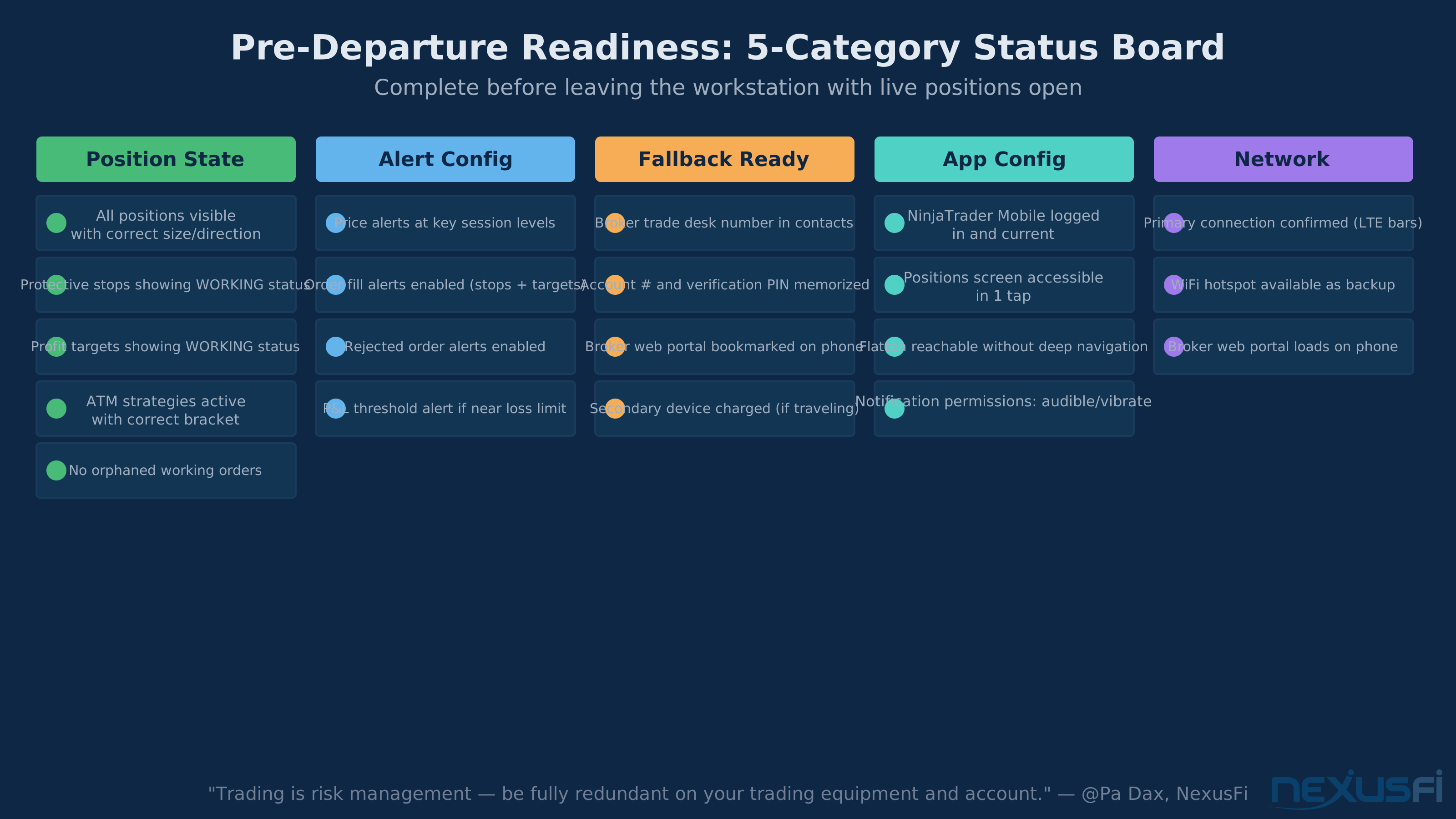
Every session where you'll be managing live positions from mobile — commute, travel, away from desk during open market — work through this before leaving the workstation.
Position state verification:
- All open positions visible with correct size and direction
- All protective stops showing "Working" status (not pending, not rejected)
- All profit targets showing "Working" status
- ATM strategies active and showing the bracket structure you configured
- No orphaned working orders from previous trades
Alert configuration:
- Price alerts set at key levels for current session
- Order fill alerts enabled (especially stop and target fills)
- Rejected order alerts enabled (silent failures are the worst kind)
- P&L threshold alert if holding a position that could approach your session loss limit
Fallback readiness:
- Broker trade desk number saved in phone contacts
- Account number and verification PIN memorized
- Broker web portal URL bookmarked in phone browser
- Secondary device (tablet, laptop) charged and accessible if traveling
App configuration:
- NinjaTrader Mobile logged in and showing current account
- Positions screen accessible in one tap from home screen
- Flatten function reachable without navigation through multiple menus
- Notification permissions enabled for order alerts and P&L alerts
- Phone on audible/vibrate (not silent) if you'll be in a meeting
As @Pa Dax noted in a NexusFi trading journal discussion: "trading is risk management, so I want to be fully redundant on my trading equipment and account." Pre-departure verification is the process that makes that redundancy real rather than theoretical.
When Not to Trade Mobile #
The flip side of knowing what mobile is good for is knowing when to stay out entirely. Mobile trading adds latency — both technical latency in order submission and cognitive latency from the compressed interface. Some scenarios compound those disadvantages to where the mobile advantage disappears.
Skip mobile execution when:
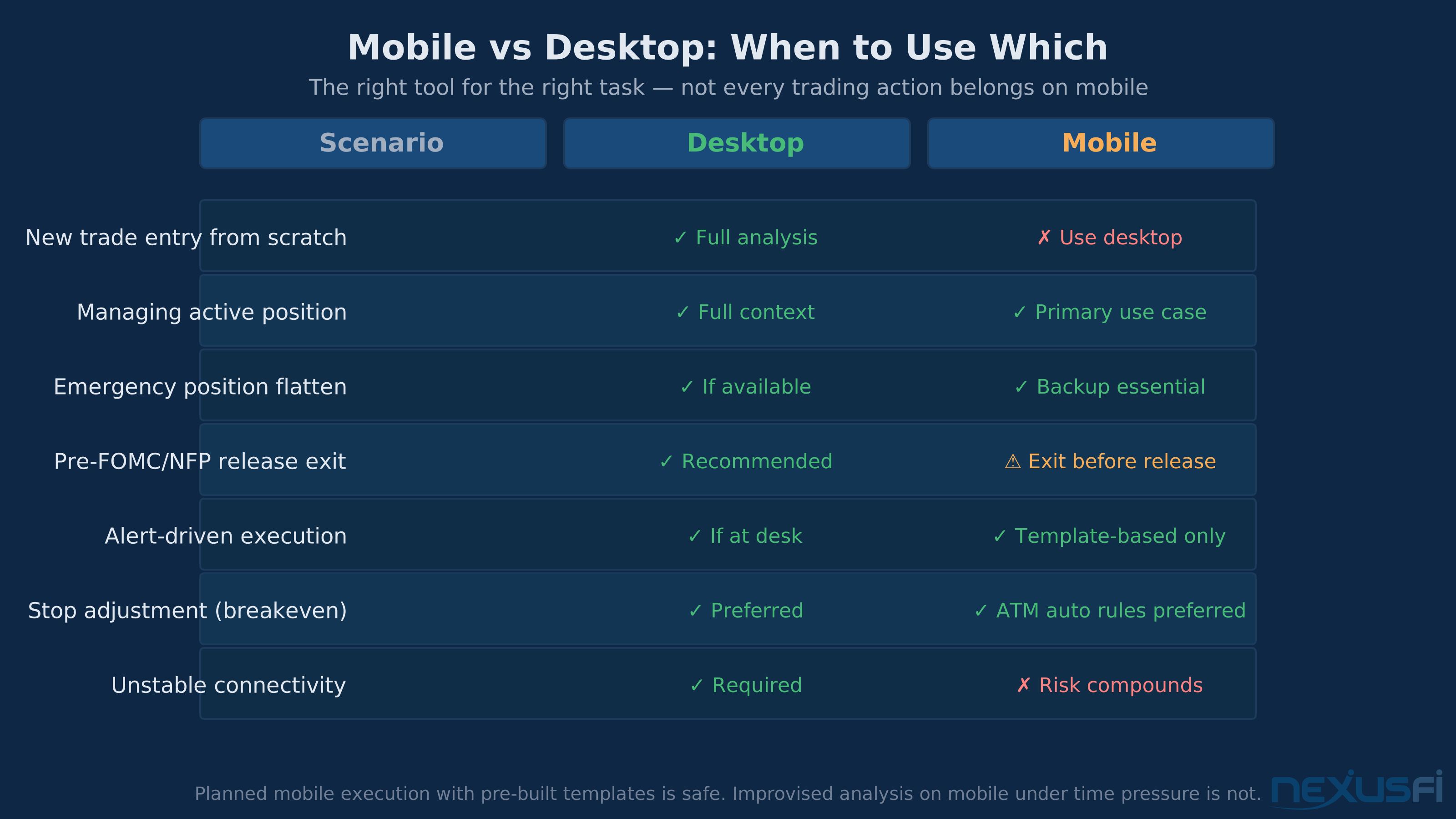
- You're in a meeting or limited-attention context. Mobile trading while you're supposed to be paying attention elsewhere produces errors in both activities. If you need to monitor, set a tight alert threshold. If the threshold fires, excuse yourself or accept that you're going to miss the move.
- You're entering a new trade from scratch, not managing an existing position. New trade entry from mobile is possible, but it requires full attention. If you can't give the trade your full attention for the entry sequence -- proper template selection, correct order parameters, confirmation that fills went through correctly -- wait for desktop access.
- High-impact economic data is dropping in the next 30 minutes. FOMC, NFP, CPI announcements produce moves fast enough that mobile latency matters. If you're in a position heading into a major release and you're away from desktop, the right move is to exit to flat before the release, not try to manage through it on mobile.
- Your connection is marginal or unstable. Trading on an unstable connection compounds every mobile risk. A stop that you submitted might be accepted, might be rejected, might time out. Without certainty about order state, you're creating problems faster than you're solving them.
The hard rule: mobile trading works when it's planned. If you're improvising a mobile trade because you didn't intend to be away from the desk and an opportunity appeared, that's the scenario with the highest error rate. Planned mobile execution with pre-built templates and defined alerts is safe. Improvised mobile trading under time pressure is not.
Knowledge Map
Go Deeper
Build on this knowledgeReferences This Article
Articles that build on this topicCitations
- — Can anyone tell me what is so good about Ninja Trader? (2025) 👍 2“Make sure you have the NinjaTrader app installed and logged in on your cell phone. This way, if an emergency is on your end, like a power failure or internet connection, you can quickly manage your position.”
- — The importance of web/mobile trading (2014) 👍 1“The simple watch list of open positions is what I really utilize, along with the alerts. The charting in the app is good enough for my needs. Then if I need to take action I just RDP to my trading server.”
- — NexusFi site changelog and issues/problem reporting (2015) 👍 2“with my primary and backup internet were both down, I was using 4G internet on my phone to close some of my positions at the close with IB's TWS mobile app.”
- — Fail to Plan - Plan to Fail: What can go wrong? (2021) 👍 2“Hardware, Software failure = I would open the phone app to close all intra day positions and monitor my swing trades that way.”
- — Outage with a live position on Ninja (yikes) what to do? (2012) 👍 3“In case of a PC failure, I have a notebook to connect to my broker. The notebook also works during a power failure. If nothing works, I have the phone number of the trade desk of the broker.”
- — Doomsday senerio (2019) 👍 12“Have at least two ways to call out. More is better. Have UPS protection on all components of your local setup.”
- — The HSI Index Futures Scalping Experiment (2020) 👍 5“I have the CQG Mobile app on my phone. I don't use it for placing trades, but I would use it if my trading station went down to flatten my positions.”
- — PA Dax CL, ES and Bund Price Action Trading Log (2018) 👍 6“trading is risk management, so I want to be fully redundant on my trading equipment and account.”
- — AMP Futures / AMP Global Review (2020) 👍 7“AMP Futures review thread discussing trade desk response quality during high-stress moments.”