



GPU Selection for Trading Workstations: Multi-Monitor Setup, VRAM, and DisplayPort Explained
Overview #
Pick any forum thread about trading computer builds and the GPU question comes up fast. Which card? How many monitors can it drive? Do you need a pro Quadro or is a gaming card fine? The answers you'll get vary wildly — and most of them miss the actual point.
Here's what matters for a trading workstation: your GPU is a display driver and window compositor, not a compute engine. NinjaTrader, Sierra Chart, TradeStation — none of them care about your CUDA cores or ray-tracing performance. They care about smooth 2D rendering across multiple screens during a volatile morning session when every chart is repainting simultaneously. That's a completely different problem than gaming benchmarks measure.
Get this right and you'll have a setup that stays solid through 8-hour sessions with 6 monitors, fast DOM updates, and footprint charts running without a hint of stutter. Get it wrong and you'll spend months chasing phantom "platform lag" that's actually a $15 DisplayPort cable causing signal drops twice a day at the worst possible moment.
This guide covers GPU selection specifically for trading — what specs actually matter, how many monitors you can run from one card, AMD vs NVIDIA, the DisplayPort bandwidth math for 4K setups, VRAM sizing, and the mistakes that cause the most grief. The recommendations are grounded in real setups from traders who've worked through these problems on NexusFi over the past decade.
What GPUs Actually Do in a Trading Context #
Before picking a card, it helps to understand exactly what the GPU is handling — and what it isn't.
Trading platforms are CPU-bound. Indicator calculations, tick data processing, order book management, real-time P&L updates — all of that runs on your CPU and RAM. The GPU's job is to take the output of those calculations and draw it on screen. Window compositing, chart redraws when price moves, DOM updates, cursor rendering, the smooth scroll when you pan a chart — that's GPU territory.
This distinction matters because it changes where you should spend money. @quantera documented it clearly in NexusFi's NinjaTrader performance thread: CPU clock speed dominates backtest and real-time indicator performance, with NVMe storage coming in as the second biggest factor. GPU is downstream of both. The GPU's contribution is "paper cut" reduction — eliminating the micro-stutters and rendering delays that accumulate into fatigue over a full trading day — not raw throughput.
The practical implication: an RTX 4090 won't make your fills any faster or your indicators calculate sooner. But a well-chosen mid-range card with the right port configuration will keep your charts smooth through a high-volatility NY open that's repainting 6 footprint charts simultaneously. That's the actual goal.
Display Output: The Real Bottleneck #
For most traders, the limiting factor isn't GPU compute power — it's how many monitors the card can drive simultaneously and whether the port configuration matches your resolution and refresh rate requirements.
Every GPU has a maximum simultaneous display count. Most modern cards support 4 monitors. Some high-end cards support more. The physical ports on the back of the card — DisplayPort 1.4, HDMI 2.1, and sometimes older standards — each carry a finite bandwidth budget that limits what resolutions and refresh rates they can deliver.
DisplayPort 1.4: The Standard for Trading
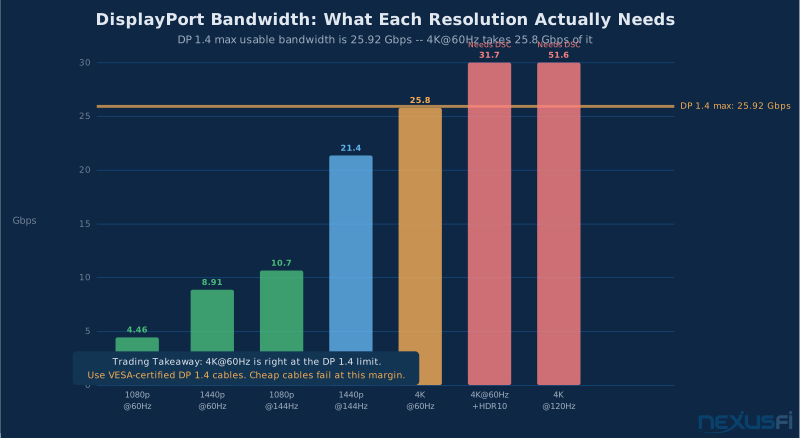
DisplayPort 1.4 is the connection you want for a modern trading setup. It supports 4K at 60Hz without compression, which covers the majority of trading use cases. Each DisplayPort 1.4 output delivers up to 32.4 Gbps of bandwidth — enough for one 4K@60Hz monitor, or one 1440p@144Hz monitor, or one 1080p@240Hz monitor, comfortably without compression.
Where it gets tighter is at higher refresh rates. 4K@120Hz requires Display Stream Compression (DSC) on DP 1.4. DSC is a visually lossless compression standard, and for trading charts it makes no practical difference to what you see — but both the GPU and the monitor must support it, and the cable must be rated for the bandwidth. Most traders running 4K for charting are at 60Hz, so this is a non-issue. If you're running 4K@120Hz+, verify DSC support on both ends before purchasing.
HDMI 2.1 is capable for trading but is rarely the preferred choice for multi-monitor setups — most trading-grade monitors have better DisplayPort support, and HDMI adapters introduce another potential failure point. Use native DisplayPort connections wherever possible.
The 4K and NinjaTrader Resolution Problem
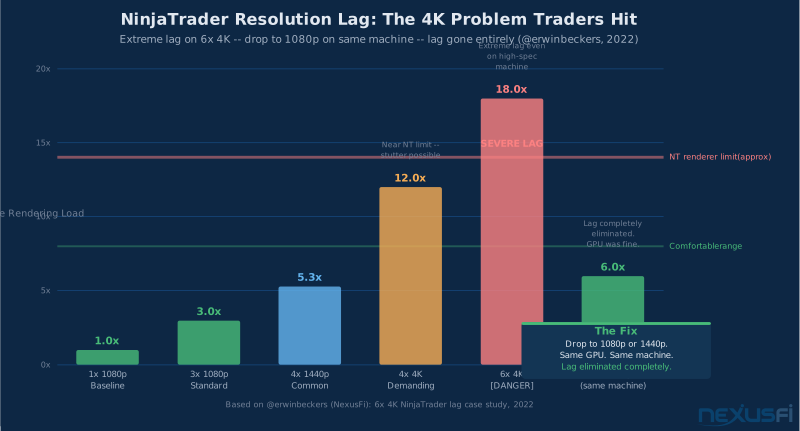
NinjaTrader users: Test at native 4K resolution before committing to multiple 4K monitors. @erwinbeckers documented a case where 6x 4K monitors at native resolution caused severe platform lag on high-spec hardware. Dropping each monitor to 1080p on the same machine eliminated the lag entirely. No GPU upgrade can fix this — it is a platform rendering limit.
One of the most important real-world findings from NexusFi: NinjaTrader struggles with 4K native resolution on multiple monitors. @erwinbeckers documented a case where a trader with a high-end machine experienced extreme lag with 6x 4K monitors. The solution was dropping each monitor from 4K to 1920x1080 resolution — and the lag vanished completely, even with 3rd party indicators reinstalled. The machine's CPU, RAM, and GPU were all capable. The bottleneck was NinjaTrader's rendering engine choking on 4K pixel density across 6 screens.
This has direct implications for GPU selection. Running 6 monitors at 1920x1080 is dramatically less demanding than 6 monitors at 3840x2160. If you're running NinjaTrader specifically, consider whether you actually need 4K — or whether 1440p or 1080p gives you enough real estate without taxing the platform's renderer. Your GPU budget can go toward reliability and port count rather than raw 4K bandwidth.
Single GPU vs Multiple GPUs #
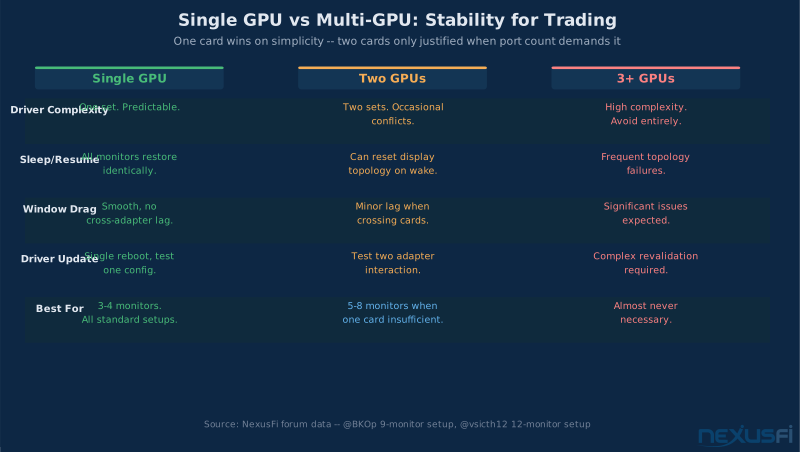
This is one of the most debated questions in trader hardware discussions, and the forum data is pretty clear: use one GPU whenever it can handle your monitor count. Multiple GPUs work but introduce complexity that creates more failure modes than it solves.
The Case for One Card
A single GPU means one driver, one display topology, one set of potential issues. When you restart after a driver update or the system wakes from sleep, all your monitors come back in exactly the same configuration. Windows display management with one adapter is predictable. Power draw is contained. There's no cross-adapter drag behavior when you move chart windows between monitors.
Modern high-end consumer cards — the RTX 4070 Ti, 4080, and higher — support 4 simultaneous displays from native ports. Pair two of these cards and you can run 8 independent monitors without MST hubs or adapters. But before going the two-card route, check whether one card with the right port count can handle your setup.
When Two GPUs Make Sense
Two GPUs make sense when:
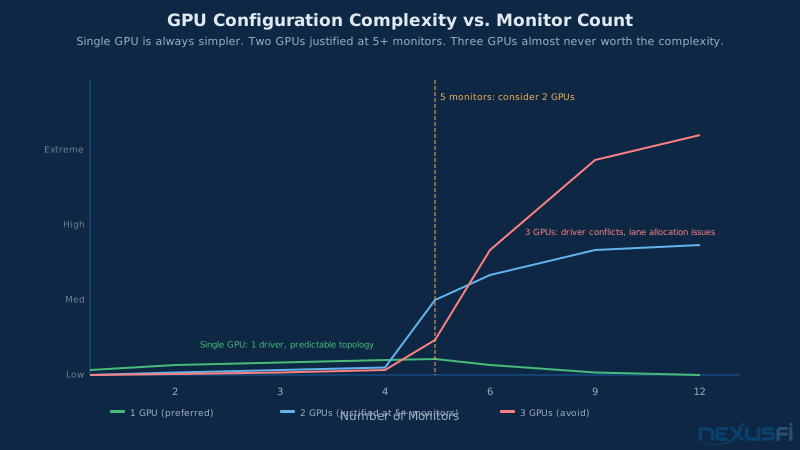
- You need 5-6+ monitors and one card's native port count isn't sufficient
- You want to separate instrument workspaces across adapters for layout management
- You've verified the specific dual-GPU configuration is stable in your Windows version
@BKOp shared a practical insight from a 9-monitor NinjaTrader setup: assigning chart windows by instrument to specific GPUs reduced data lag much. Running NQ charts on one AMD Radeon and ES/CL charts on a second card, with a third monitor on motherboard graphics (for non-chart content only), eliminated the 3-5 minute data lag he was experiencing during NY open on high-volume days.
The critical lesson from that post: motherboard/integrated graphics cannot reliably handle NinjaTrader charts. Use dedicated GPU outputs for all chart monitors. Motherboard video ports are acceptable for secondary content like news feeds or account data that don't require fast rendering.
Three or More GPUs: Avoid
Beyond two GPUs, complexity increases faster than capability. Driver interaction issues, PCIe lane allocation problems, and Windows display topology quirks multiply. Traders who run 9-12 monitors typically use two dedicated GPUs plus USB display adapters (like Wavlink docks) for the overflow monitors. @vsicth12 documented a 12-monitor setup on a single desktop using one RTX 4090 plus two Wavlink external boxes — that's a cleaner solution than three internal GPU cards for most cases. @jkincap ran three dedicated consumer GPUs and found it took weeks of scripting to achieve stable monitor arrangement on boot. [11]
Consumer vs Professional Cards #
The "should I get a Quadro?" question comes up regularly from traders who've read that professional cards offer better stability. The answer has evolved over the past decade.
The Old Argument for Pro Cards
Professional/workstation cards (NVIDIA Quadro, then RTX A-series; AMD Radeon Pro) historically offered:
- Enterprise driver lifecycle -- longer support windows with less frequent forced updates
- ECC memory -- error-correcting code that catches VRAM bit errors
- ISV certification -- validated for specific professional applications
- Conservative clock behavior -- stable frequency under sustained workloads
For traders, the driver stability argument had some merit years ago. @Hulk's setup evolution on NexusFi traces exactly this path: started with AMD Radeon consumer cards for 4K trading, switched to a Quadro K1200 for multi-monitor reliability with 4 native mini-DisplayPort outputs, and found "rarely do things go from inception to implementation perfectly — this was one of those things." The Quadro replaced two bulky AMD cards with one compact passive-cooled card, simplified cabling, and just worked.
Why Consumer Cards Win Now
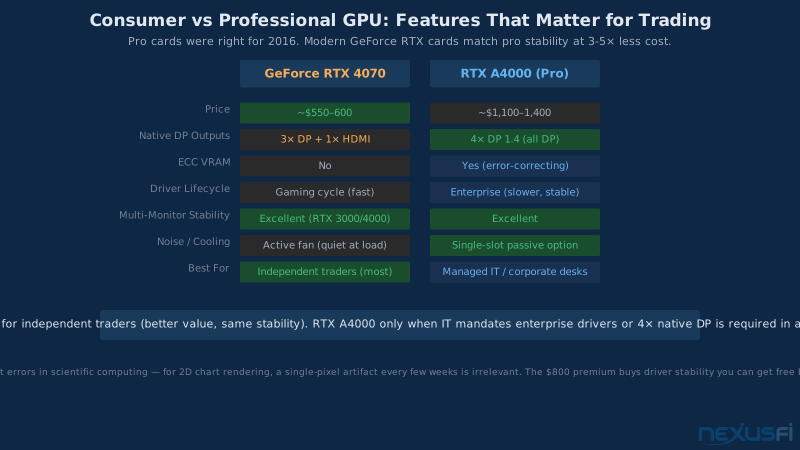
Modern GeForce cards are a different proposition than they were in 2016. The RTX 3000 and 4000 series have proven multi-year stability records in always-on Windows desktop environments. ECC memory is less critical for display rendering than for scientific computing — a bit error in a VRAM buffer might cause a pixel artifact for one frame, not corrupt your data. And professional cards now cost 3-5x what equivalent consumer cards do for the same display output capability.
For the vast majority of independent traders: an NVIDIA GeForce RTX card is the right choice. Better value, excellent driver support, and the same multi-monitor capability. The pro card argument is now mostly relevant for corporate trading environments with IT-mandated driver policies or certification requirements.
NVIDIA vs AMD for Trading #
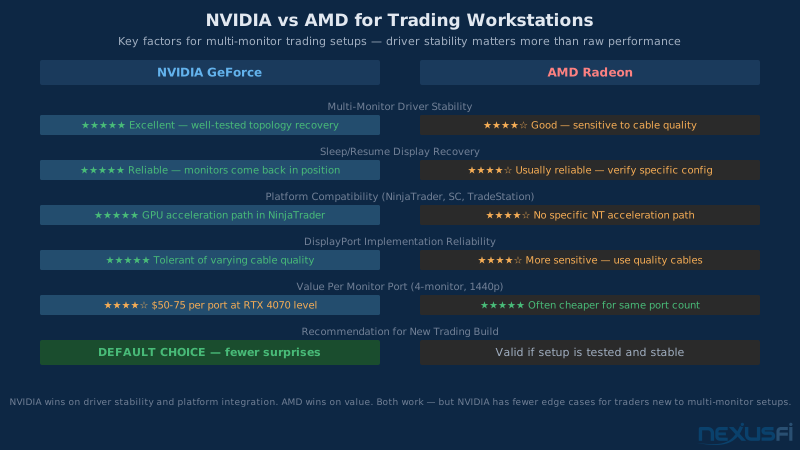
Both work. NVIDIA is the default for good reasons. AMD can be a smart choice in specific situations.
Why NVIDIA Is the Default
NVIDIA dominates trading workstation builds for a few concrete reasons:
Multi-monitor driver maturity. NVIDIA's Windows driver has been handling multi-monitor desktop environments for longer, and the edge cases — mixed DPI scaling across monitors, sleep/resume topology recovery, mixed refresh rate setups — are more thoroughly worked out. The "it just works" factor is higher.
Platform compatibility. Some trading platforms have specific GPU acceleration paths for NVIDIA. @quantera's NinjaTrader performance guide notes that forcing NT8 to use the NVIDIA GPU explicitly via the NVIDIA Control Panel's 3D settings produces noticeably better graphics performance — a specific integration that AMD doesn't offer in the same way.
DisplayPort implementation. NVIDIA's DP implementation is consistently reliable across cable quality tiers. AMD can be more sensitive to cable quality, especially with longer runs.
When AMD Makes Sense
AMD is a legitimate option when:
- You're already running a validated AMD setup that's stable -- don't change what works
- The specific card offers a port configuration NVIDIA doesn't at that price point
- You're budget-constrained and the AMD card delivers equivalent output count per dollar
@BKOp runs a dual-AMD setup (RX 7600 + RX 780) for a 9-monitor NinjaTrader rig. It works after tuning monitor-to-GPU assignments. The platform is what matters — if your AMD setup is tested and stable, don't switch. What to avoid: mixing AMD driver generations in a dual-GPU config, and AMD Eyefinity for multi-monitor layouts (documented instability issues going back to the HD 5870 era).
VRAM: How Much Do You Need #
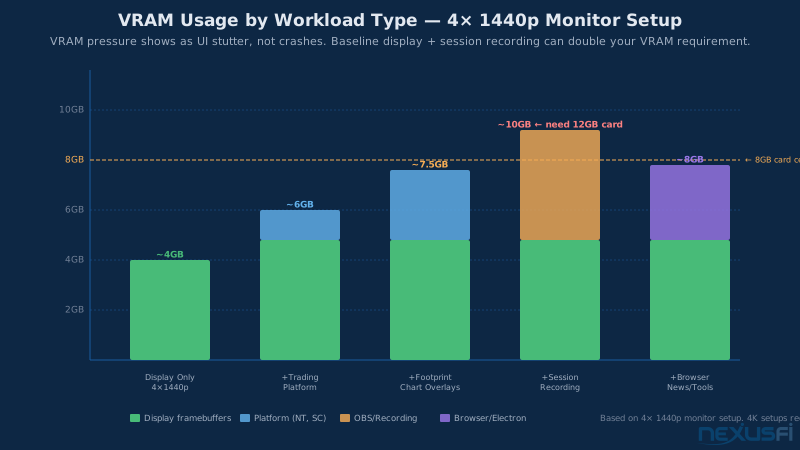
VRAM requirements for trading are modest compared to gaming or AI workloads. Trading platforms don't load high-resolution textures, 3D geometry, or machine learning models into GPU memory. What they do load: the frame buffers for your displays, UI elements, and the GPU compositor's working memory for all open windows.
VRAM Sizing by Setup
The practical VRAM floor for modern trading setups:
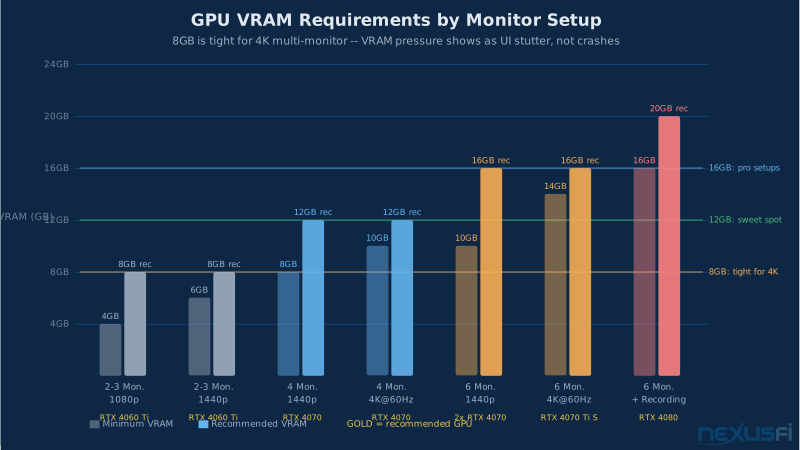
- 2-3 monitors at 1080p or 1440p: 8GB is comfortable, 4GB is marginal if you run other applications. @Fat Tails found 256MB of VRAM insufficient even for 4 monitors at 1920×1200 -- modern cards start at 8GB for good reason. [12]
- 4 monitors at 1440p or 4K@60Hz: 8GB minimum, 12GB recommended
- 5-6 monitors at 4K: 12GB minimum, 16GB for comfortable headroom
- Heavy overlays (footprint charts, DOM heatmaps, order flow): Add 4GB to whichever tier above applies
VRAM pressure manifests subtly. You won't see a crash or error — you'll see UI stutter during window moves, chart repaint pauses when the market is moving fast, and occasional brief freezes when switching workspaces. Traders often blame the platform when VRAM saturation is the real cause. @josh's "minimum spec" recommendation for a serious trading machine includes a GeForce RTX 2070 (8GB) with 4x 4K displays — and the explicit note that the high-powered GPU enables recording two 1080p screens simultaneously with no hit to trading software performance.
Where VRAM Actually Matters
Three scenarios where VRAM becomes more relevant than the baseline suggests:
Screen recording and streaming. If you record your sessions for review or stream via OBS, GPU-accelerated encoding pulls from VRAM simultaneously with display rendering. Add 4-6GB to your baseline requirement.
Browser-based tools running concurrently. Chrome and Electron apps use GPU-accelerated rendering. If you run a browser-based news feed or trading tool on a side monitor, it competes for VRAM with your charting software.
Large chart history loads. Some platforms load significant price history into GPU memory when initializing charts. Opening a full-day footprint chart on multiple instruments simultaneously can spike VRAM usage temporarily. More VRAM means shorter initialization times.
Recommended GPUs for Trading Workstations (2024-2025) #
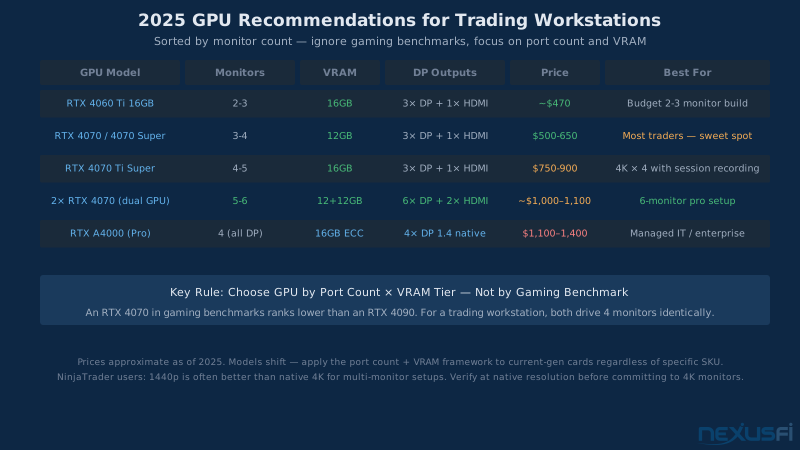
These recommendations are organized by monitor count and use case. Prices are approximate and change; use them for relative budgeting, not exact figures.
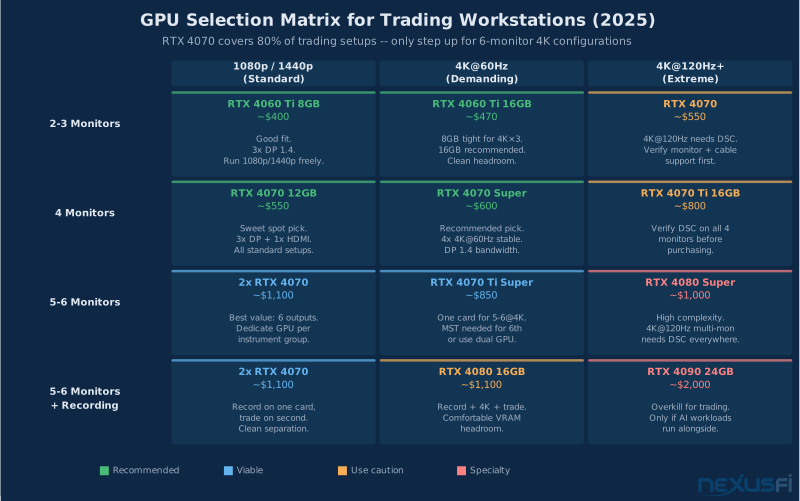
3-4 Monitors: NVIDIA GeForce RTX 4070 / 4070 Super
The RTX 4070 and 4070 Super are the sweet spot for most trading setups. Both cards offer:
- 12GB GDDR6X VRAM -- sufficient for 4x 4K@60Hz with room for overlays
- 3x DisplayPort 1.4a + 1x HDMI 2.1
- Power-efficient at 200W -- runs quietly with standard cooling
- Proven driver stability across Windows 10 and 11
- Street price: $500-600 (4070), $600-650 (4070 Super)
The 3-DisplayPort limitation is the main constraint. If you need 4 monitors all on DisplayPort (which is the cleanest configuration for 4K multi-monitor setups), you'll use the HDMI output for the fourth monitor, or step up to a card with 4 native DP outputs.
5-6 Monitors: NVIDIA GeForce RTX 4070 Ti Super / 4080 / 4080 Super
For 5-6 monitor setups, the 4070 Ti Super and 4080 offer more headroom:
- 16GB GDDR6X VRAM -- comfortable for 6 monitors at mixed resolutions
- 3x DisplayPort 1.4a + 1x HDMI 2.1 (most SKUs)
- Higher thermal envelope means more sustained performance in enclosed desk cabinets
- Street price: $750-900 (4070 Ti Super), $1000-1100 (4080)
For 5-6 monitors, the jump from one to two GPUs is often more practical than buying the most expensive single card. Two RTX 4070s at $500 each (6 total DP outputs) gives better multi-monitor capability than one RTX 4090 at $2000 for the same application.
Budget Option: NVIDIA GeForce RTX 4060 Ti
For 2-3 monitor setups at 1440p or 1080p, the RTX 4060 Ti (8GB or 16GB version) is sufficient:
- 8GB or 16GB GDDR6 -- the 16GB version is recommended if budget allows
- 3x DisplayPort 1.4a + 1x HDMI 2.1
- Street price: $400 (8GB), $470 (16GB)
The 8GB variant is tight for 4K multi-monitor use. If you're running 1440p or lower, it's fine. If you plan to add a fourth monitor or upgrade to 4K later, the 16GB version is worth the extra cost now.
Professional/Workstation: NVIDIA RTX A4000
Managed IT environments or traders who specifically want enterprise driver behavior: the RTX A4000 (16GB ECC, 4× native DP 1.4, single-slot option available, ~$1,100--1,400). Four native DisplayPort outputs with no HDMI compromise. The premium over a consumer card is significant — justified for corporate trading desks with IT-mandated certification requirements, not for independent traders.
The Cabling Question: Where Most Problems Actually Live #
Ask any experienced trader what caused their most frustrating "GPU issues" and the answer is usually cables. Cheap cables, wrong cables, or cables that worked at one resolution but not at another.
DisplayPort Cable Standards
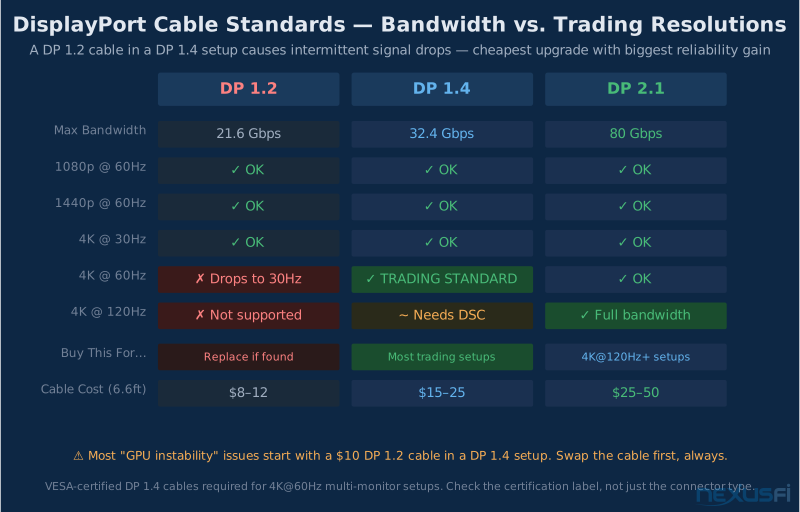
Not all DisplayPort cables are equal. VESA certifies cables at specific bandwidth tiers:
- DP 1.2 cable (HBR2): 21.6 Gbps -- supports 4K@30Hz or 1440p@75Hz
- DP 1.4 cable (HBR3): 32.4 Gbps -- supports 4K@60Hz or 1440p@165Hz
- DP 2.0/2.1 cable (UHBR): Up to 80 Gbps -- for 4K@144Hz and 8K setups
A DP 1.2 cable in a DP 1.4 setup will usually connect but may drop to a lower bandwidth negotiation — giving you 4K@30Hz instead of 4K@60Hz, or causing intermittent signal drops as the monitor and GPU renegotiate. Buy VESA-certified DP 1.4 cables for any 4K@60Hz setup. Use cables of the correct length — DisplayPort signal quality degrades with length, and most certified cables are available in 6.6ft (2m) and 10ft (3m) versions. Beyond 10ft, you need active cables or a fiber-optic solution.
The Adapter Trap
DisplayPort-to-HDMI adapters, USB-C-to-DisplayPort adapters, and MST hubs (multi-stream transport hubs that split one DP output to multiple monitors) all introduce additional failure points. They can work — but they add one more thing that can break after a driver update, Windows sleep cycle, or monitor power cycle.
MST hubs in particular are a source of frustration in trading setups. An MST hub takes one DP output and splits it to 2-3 monitors. In theory this expands your monitor count without buying another GPU. In practice, MST topology resets after system sleep, driver updates, or monitor power-offs are a common complaint. For trading monitors that need to come back in exactly the right position every morning, native GPU outputs are worth paying for over MST.
Cable Maintenance in Practice
Cables degrade. DP connections are more sensitive than HDMI to connector wear — a bent pin or oxidized contact causes intermittent signal drops that look like GPU instability. Rule: if a monitor starts flickering, swap the cable before investigating anything else. @Big Mike's chronic display flickering with Radeon Eyefinity cards turned out to be a cabling problem, not a GPU problem.
Thermal Management: The Overlooked Factor #
Trading rigs run for 8-14 hours continuously. A GPU that handles a 30-minute gaming session perfectly can behave differently during a 6-hour trading session in an enclosed desk cabinet.
Thermal Throttling and UI Stutter
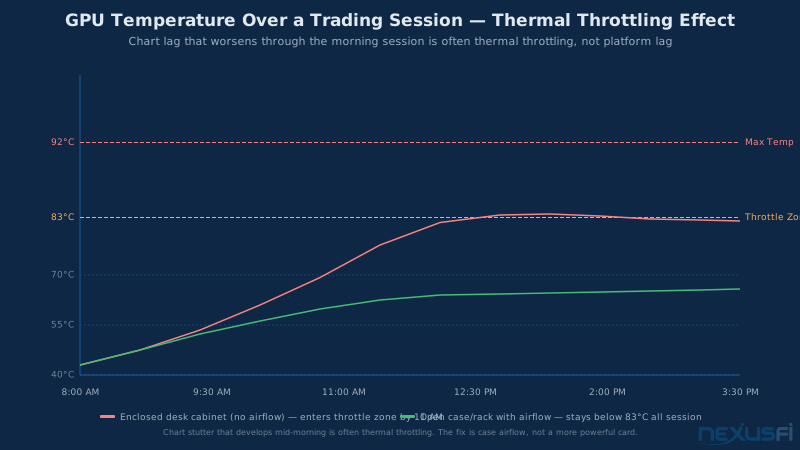
Modern GPUs automatically reduce their clock speed when they reach temperature limits — typically 83-90 degrees C depending on the card. This thermal throttling drops GPU performance to reduce heat output. For trading, where the GPU is doing 2D compositing rather than 3D rendering, thermal throttling usually means subtle UI stutter rather than severe performance loss. But subtle stutter during a fast market is exactly what you're trying to avoid.
Signs of thermal throttling in a trading context:
- Chart redraws that are smooth early in the morning but stuttery by midday
- Window drag lag that develops during long sessions
- GPU fan suddenly ramping to high RPM in the middle of a quiet market
The fix is airflow, not a more powerful card. A desk cabinet with the tower shoved in an enclosed space with no airflow will throttle a top-tier GPU. The same card in an open rack with good airflow runs cool all day.
Passive vs Active Cooling for Trading
Passive-cooled GPUs (no fan, rely on heatsink and case airflow) are attractive for trading setups because they're silent. Some professional cards like older Quadro NVS models used passive cooling by design for office environments. Consumer passive GPUs are rarer but exist in the form of NVIDIA's GT 710 and similar entry-level cards.
For most traders, a card with a good dual or triple fan cooler is preferable to passive cooling unless you've specifically designed the case airflow for it. Active coolers maintain more consistent temperatures across session length. The noise from a well-cooled card running at moderate temperatures is minimal — far less than a card that's thermal-throttling and ramping its fans periodically.
Common Mistakes Traders Make with GPU Selection #
These patterns show up repeatedly in NexusFi's tech support threads:
Mistake 1: Chasing Gaming Benchmarks
GPUs are primarily marketed for gaming. Benchmark sites measure gaming performance — frame rates in 3D games at specific resolutions. These numbers have almost no relationship to trading workstation performance. A card that ranks 20th in gaming benchmarks may be the perfect trading GPU because of its port configuration and driver stability. Ignore gaming benchmarks. Look at: native DP output count, simultaneous display support, VRAM, and verified driver stability.
Mistake 2: Using Integrated/Motherboard Graphics for Chart Monitors
Intel and AMD CPUs with integrated graphics can technically drive monitors via motherboard ports. For general desktop use, modern integrated graphics are reasonably capable. For NinjaTrader charts, they're not. @BKOp found his ninth monitor — connected to motherboard video — couldn't support NinjaTrader charts at any volume level without lag. The integrated graphics on his motherboard couldn't keep up with the rendering demands of a live footprint chart. Keep all chart monitors on dedicated GPU outputs.
Mistake 3: Running Native 4K When the Platform Doesn't Scale
4K monitors are affordable enough now that traders buy them expecting a big quality improvement. The experience varies by platform. As @erwinbeckers documented, NinjaTrader with 6x 4K monitors at native 4K resolution can produce severe platform lag even on high-spec hardware. The solution was dropping each monitor to 1080p — not the GPU's problem, not the cable's problem, just the platform renderer reaching its limit.
Before buying 4K monitors for NinjaTrader specifically, test at native resolution on your current setup. 1440p is often a better choice: sharper than 1080p, much less demanding than 4K, and NinjaTrader renders it well. Sierra Chart handles 4K better than NinjaTrader due to architectural differences in its rendering pipeline.
Mistake 4: Auto-Updating Drivers During Active Trading Periods
Lock your GPU driver version once your setup is stable. Disable automatic updates. Test new drivers on a non-trading day (weekend is best), and keep the rollback installer ready. NVIDIA makes all previous driver versions available through GeForce Experience and the NVIDIA website. A stable driver from three months ago is better than the latest release with unknown regressions.
GPU driver updates can change multi-monitor behavior, affect display handshake protocols, and occasionally introduce regressions in specific configurations. A driver update that breaks a 6-monitor setup at 7:45 AM on a trading day is a serious problem.
Lock your driver version once your setup is stable. Turn off automatic driver updates. Test new drivers on a non-trading day or weekend, and keep the rollback installer ready. NVIDIA makes previous driver versions available through GeForce Experience and the NVIDIA website. The "latest driver" is not always better for trading workstations — stability beats novelty.
Mistake 5: Leaving HDR Enabled on Trading Monitors
Windows HDR affects color format negotiation between the GPU and monitor, can change bandwidth requirements on the DisplayPort link, and often makes the desktop look washed out or over-saturated for standard content. Trading charts aren't HDR content — they're flat 2D graphics with high contrast. Disable HDR in Windows display settings for all trading monitors. The bandwidth savings (some configurations change from 10-bit HDR mode to 8-bit SDR, reducing link load) can actually improve stability in marginal cable situations.
Mistake 6: Pairing a High-End GPU with an Inadequate Power Supply
Modern GPUs have aggressive transient power draw — an RTX 4080 can spike well above its rated 320W TDP during load bursts. A power supply that's adequate on average but can't handle transient spikes will deliver unstable voltage to the GPU, causing random hangs or resets that look like driver or platform issues. For any RTX 4000 series card, use a PSU rated at least 200W above the GPU's TDP with a quality Cybenetics or 80 Plus Gold rating.
The Full Stack Perspective: GPU in Context #
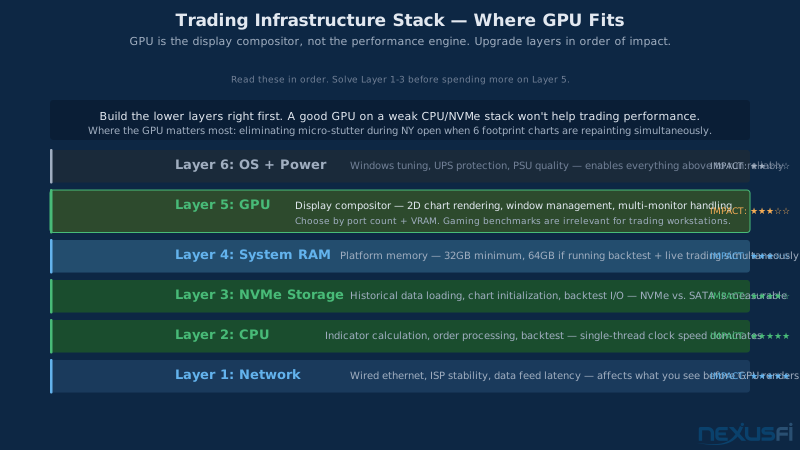
The GPU is one layer in a stack. Getting it right matters, but it won't fix problems that live elsewhere in the stack. Before attributing performance issues to the GPU, verify these other layers first:
CPU Comes First
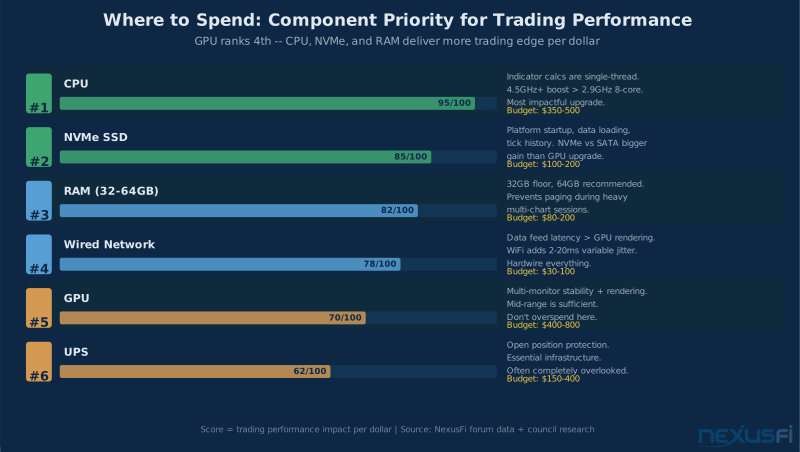
Trading platform performance is dominated by single-thread CPU speed. @quantera's data shows a 4.2 GHz quad-core outperforming a 2.9 GHz octa-core for NinjaTrader backtest and real-time performance. If you're choosing between a better CPU and a better GPU within the same budget, take the CPU. An Intel Core i7-12700K or i9-12900K (high single-thread boost clock) paired with a mid-range GPU will outperform a budget CPU paired with an RTX 4090 for trading workflows.
RAM and Storage
32GB is the floor for a serious trading setup; 64GB if you run backtest alongside live trading. @josh's build spec lists 32GB as "minimum for a high performance trading machine." [6] For storage, @quantera's tests showed NVMe M.2 over SATA SSD produced a larger improvement than any GPU upgrade — platform startup, chart initialization, and history loading all benefit. If budget requires a choice between NVMe and a GPU upgrade, take the NVMe.
Network Stability
Data feed latency affects what you see before the GPU renders it. A smooth chart repaint with 50ms delayed data is worse than a slightly stuttery chart with 1ms accurate data. Solve your network before optimizing your GPU — wired ethernet over WiFi, a quality router with QoS prioritization, stable ISP.
Building Your Display Stack: A Decision Framework #
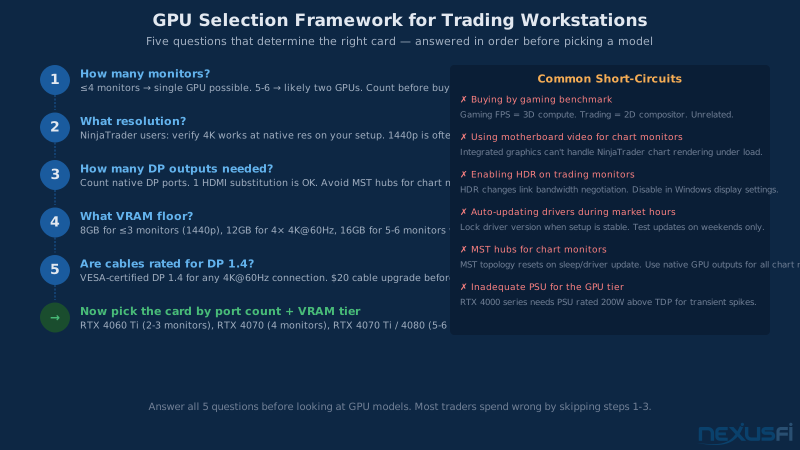
Before buying a GPU, work through this decision sequence:
Step 1: Count Monitors and Define Requirements
List each monitor you currently have or plan to run: resolution (1080p / 1440p / 4K), refresh rate (60Hz / 75Hz / 120Hz / 144Hz), connection type available (DisplayPort / HDMI), and HDR requirement (almost certainly: no). This list defines your bandwidth requirements. A 6-monitor setup of 1440p@60Hz monitors needs far less from a GPU than 6x 4K@120Hz — they're different problems requiring different solutions.
Step 2: Verify Platform Resolution Compatibility
For NinjaTrader: test at native 4K on your current machine before buying multiple 4K monitors. Consider 1440p as an alternative. Sierra Chart and TradeStation handle 4K better than NinjaTrader, but testing before committing is always worthwhile.
Step 3: Choose GPU by Port Count, Not by Benchmark
Count the native DisplayPort outputs you need. 3 DP + 1 HDMI is fine for 4 monitors. For 5-6 DP outputs from a single card, that doesn't exist — plan for two GPUs.
Step 4: Size VRAM with a Margin
Take your monitor count and resolution, add 4GB for OS and application overhead, and add 4GB if you record sessions or run browser tools on side monitors. That's your VRAM floor. Buy the next tier up.
Step 5: Allocate Cable Budget Before GPU Budget
Spend on cables before you upgrade the GPU. VESA-certified DP 1.4 cables run $15-25 each at 6.6ft lengths. A $20 cable replacement has fixed more "GPU problems" than any $500 card upgrade. Get good cables for every monitor before assuming hardware is the issue.
Practical Setup Examples #
These configurations represent real-world trading setups with verified stability:
3-Monitor Futures Trader (1440p)
- GPU: NVIDIA RTX 4060 Ti 16GB
- Monitors: 3x 1440p@75Hz via DisplayPort 1.4
- Use case: NinjaTrader with one instrument, footprint chart + DOM + time and sales + news feed
- Notes: 16GB variant recommended over 8GB for session recording headroom
4-Monitor Multi-Instrument Setup (Mixed 4K / 1440p)
- GPU: NVIDIA RTX 4070 12GB or 4070 Super 12GB
- Monitors: 2x 4K@60Hz (primary charts), 2x 1440p@75Hz (secondary data)
- Use case: NinjaTrader or Sierra Chart, 2-3 instruments, NQ/ES primary setup
- Notes: NinjaTrader users should consider 1440p for all monitors; Sierra Chart handles 4K better
6-Monitor Professional Setup
Two RTX 4070s (3× DP + 1× HDMI each) give 6 monitors total at 1440p@60Hz. Assign instruments by GPU as @BKOp documented — one instrument set per card eliminates cross-adapter drag. Use motherboard video only for non-chart monitors (news feeds, account data).
Summary: What to Buy in 2025 #
One rule: don't buy gaming performance for a charting job. A mid-range card with the right port count, 12-16GB VRAM, stable driver, and good cables will outperform a top-tier gaming card for trading — because it's optimized for what trading actually needs. Pair it with a fast CPU, NVMe storage, and wired ethernet, and the infrastructure layer disappears. Which is exactly what you want.
For related infrastructure topics, see the multi-monitor setup guide for display layout and resolution recommendations, the workstation hardware guide for CPU and RAM sizing, and Windows OS optimization for the software configuration that pairs with this hardware.
Knowledge Map
Prerequisites
Understand these firstGo Deeper
Build on this knowledgeReferences This Article
Articles that build on this topicCitations
- — 3 monitor setup on the cheap (but still effective) (2015) 👍 10“I'm now running a 6th gen Intel based system with NO graphics card and 3 monitors. It's running more smoothly than my 3 year old AMD setup with discrete graphics card, consumes less power, and is quieter.”
- — NinjaTrader 8 (NT8) Performance Improvements and Tweaks (2018) 👍 26“CPU/Ram Speed is more important than additional cores: a 4.2ghz 4Core outperforms a 2.9ghz 8Core rig. HD speed makes a huge difference: HD => SSD is obvious but moving from SSD => M.2 Nvme was huge as well.”
- — Battlestations: Show us your trading desks! (2012) 👍 6“I've had a Radeon HD 5870 Eyefinity 6, and a Radeon HD 7870 Eyefinity 6. I wouldn't buy again, because they have some sort of signaling problem that causes 'flickering'.”
- — 4K monitors for trading (2016) 👍 20“After a lot of research and a phone conversation with NVIDIA support, I went with the NVIDIA Quadro K1200. This one comes with 4 mini-DP ports each capable of supporting DP 1.2, 3840x2160 @ 60 Hz.”
- — Battlestations: Show us your trading desks! (2024) 👍 6“Assigning monitors to video cards makes a difference. I have found that how they are assigned to a GPU made a huge difference in reducing data lag. I have found this motherboard video will not support any NinjaTrader charts, all of which have lagged.”
- — New Computer Build (2020) 👍 9“GeForce RTX 2070 (by gigabyte), 32GB RAM. IMO this is the minimum spec for a high performance trading machine. With this I run 4 4k displays with no noticeable performance hit to the trading software itself.”
- — Custom PC for trading with 6 monitors (2018) 👍 1“NVIDIA GeForce GTX 1080 Ti 11GB GDDR5X. The video card supports up to four monitors, each can be 4K. Ninja Trader is so freaking fast!”
- — How bad is NT lag? (2022) 👍 7“He is using 6x 4k monitors and NinjaTrader can't seem to handle this. We changed the screen resolution for each monitor from 4k to 1920x1080 and boom Ninjatrader did not lag anymore.”
- TraderSpec GPU Mega Test — Graphics Cards For Trading Computers (Mega Test) (2024)
- Sierra Chart Support Board — Sierra Chart GPU Compatibility Thread (2024)
- — Battlestations: Show us your trading desks! (2024) 👍 5“Windows won't natively support or the nvidia tools as well that many monitors. They will connect but each reboot they will randomly be arranged. The proper way to do this is buy the professional level video cards but these are like $5000 each vs $500 each.”
- — nVidia Quadro NVS 440 with Windows 7 (2014) 👍 5“256 MB VRAM is too little for connecting 4 monitors. I use a passive Asus Direct CU Silent GT 640 adapter for connecting 3 monitors. The VRAM is 2 GByte (that is about 8 times more than your card) and performance is much better.”