



Keyboard, Mouse, and Peripherals for Trading Workstations: The Setup That Reduces Execution Errors and Survives 6-Hour Sessions
Overview #
Your keyboard, mouse, and peripherals are the last link between your decision and the market. On a slow day, a misfired click is an annoyance. In a fast-moving ES or NQ session, a wrong button triggers a position you didn't want, and you're managing the mistake instead of the trade.
Most traders pick peripherals the way they pick desk chairs — they use whatever came with the computer or grab something that looks reasonable online. The result is setups with no muscle memory discipline, hotkeys scattered across the keyboard in ways that make sense as a list but fail under stress, and mice with six programmable buttons that are only using two of them for something useful.
The hardware decisions covered here — keyboard type and layout, mouse configuration, Stream Deck setup, hotkey tier design, and ergonomic positioning — directly affect execution error rate. Not comfort alone. Error rate. The trader who can flatten a position in 300ms with a single button has a different risk profile than one who needs to work through to a menu.
For monitor selection and workstation hardware context, see Multi-Monitor Trading Setup and Trading Workstation Hardware. For desk layout and physical ergonomics beyond peripheral positioning, see Trading Desk Ergonomics.
Why Peripherals Matter More Than Traders Admit #
The trading community underinvests in input hardware and overinvests in indicators. A $200 mechanical keyboard with a well-designed hotkey map will make more difference to daily performance than the 14th indicator on your chart. That's not a knock on indicators — it's an observation about where execution friction actually lives.
Three mechanisms explain why peripherals affect performance beyond comfort:
Execution latency is real and asymmetric. The time between "I want to flatten" and "position is flat" includes human motor response, button recognition, software processing, and order routing. You can't control order routing latency, but you can control how fast your hands find the right control. A mouse button you've trained for 60 days responds faster than a menu you work through under pressure.
Mistakes cluster during fast markets. When spreads compress and DOM levels move quickly, your hands are making decisions your brain hasn't fully processed. That's when the gaming mouse with 12 side buttons becomes a liability — accidentally triggering the wrong one while trying to cancel an order is a real scenario @TRADERRON avoided by switching to a purpose-mapped 5-button setup: "I programmed [the buttons] so... when I'm done daytrading, I hit a mode button on the bottom of the mouse and then the mouse becomes a normal mouse." [1] The trading profile stays cleanly separated from everything else.
Fatigue degrades accuracy progressively. A 6-hour trading session is physical labor for your forearms and hands. An ergonomically poor setup doesn't just cause pain — it causes micro-tremors, slightly imprecise clicks, and slower response times in the afternoon compared to the morning. That asymmetry is invisible in backtests and real in live trading.
@chartmojo2, an NQ scalper using a Red Dragon M908, framed it this way: "Order execution is actually trading... and for me a gaming mouse is very helpful." [2] That's the right mental model. Execution isn't separate from trading strategy — it's part of it.
Keyboard Selection for Futures Traders #
Mechanical vs. Membrane: The Real Tradeoff #
The mechanical vs. membrane debate matters less than people think, but the answer still points toward mechanical. The reason isn't feel or clicky feedback — it's consistency. Mechanical switches actuate at a defined point with a defined force every single time. Membrane keyboards develop inconsistency over years of use that you won't notice until it causes a mispress.
For day trading specifically, consistent actuation matters because you're mapping muscle memory to keystrokes. If your keyboard sometimes registers a key and sometimes doesn't, you're building a reflex that sometimes works. That's not acceptable for a control that flattens a position.
Membrane keyboards are fine for general use. For a dedicated trading station that runs 6 hours a day, 5 days a week, mechanical keyboards are the better long-term choice.
Switch Types: What Works for Trading #
Switch selection is where most traders overthink the decision. The actual answer is simple:
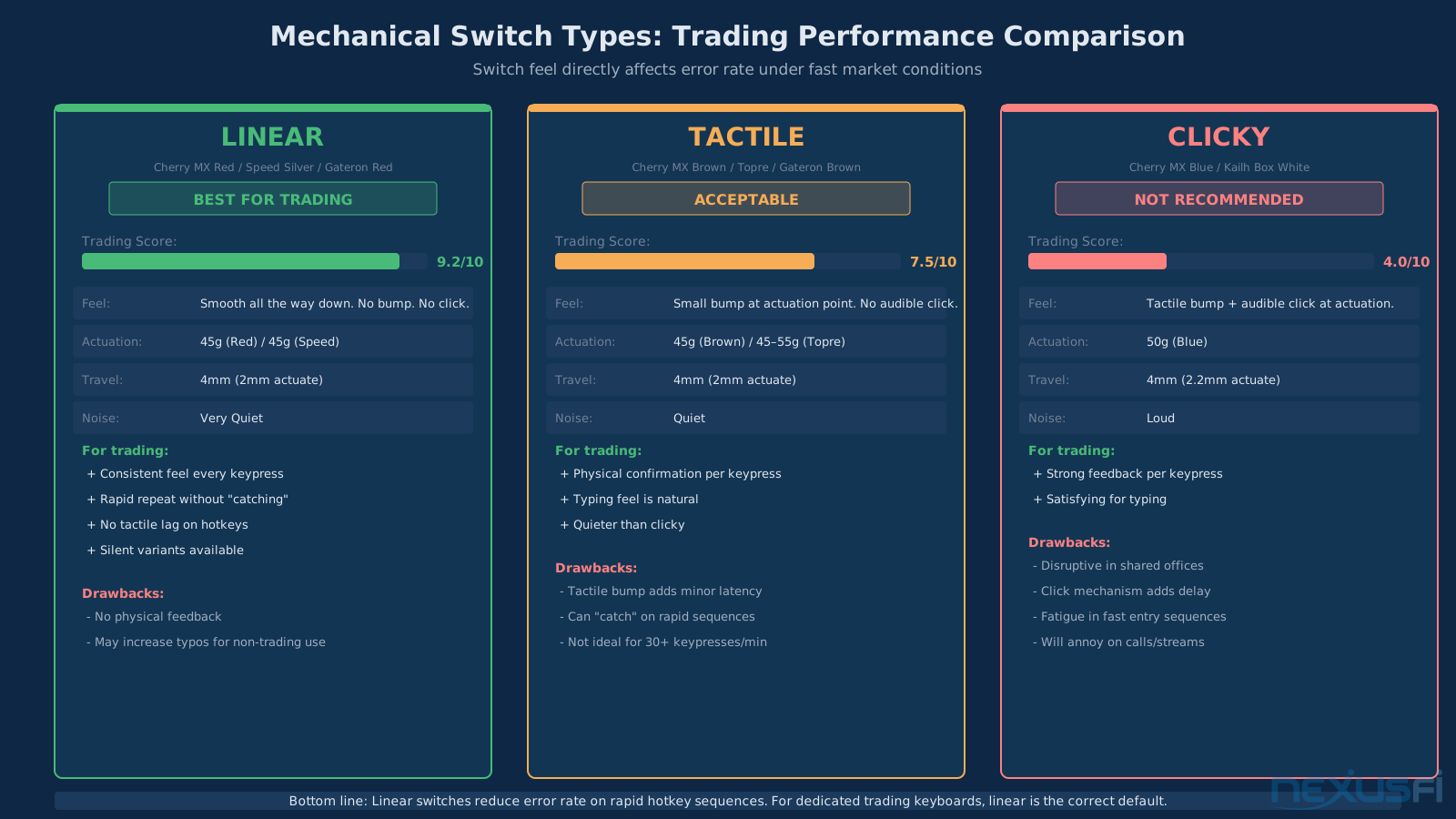
Linear switches work best for most trading hotkeys. Linear means the switch goes straight down to actuation with no tactile bump or click. This sounds counterintuitive — don't you want feedback? — but in practice, linear switches reduce the chance of "catching" a key halfway down or triggering an adjacent key by accident. For rapid sequences (cancel → flatten → re-enter), linear switches have less mechanical interference than tactile ones.
Tactile switches (Cherry MX Brown, Topre) work well if you want some physical confirmation for each keystroke. They're the middle ground option: more feedback than linear without the noise of clicky switches. Some traders prefer them for order-entry sequences where you want to feel each keypress.
Clicky switches (Cherry MX Blue, Gateron Blue) are the wrong choice for trading. They're loud and they're slower — the click mechanism adds a small delay in the feedback loop that doesn't matter for typing but adds up for 30 rapid keypresses during a volatile moment.
@dph1, who uses a Corsair Gaming K70 with MX Red (linear) switches on a 6-monitor trading rig, represents the most common choice among serious NexusFi traders. [3]
Layout: Full-Size vs. TKL vs. Compact #
This is the layout decision most traders get wrong. The common instinct is to buy a compact 60% keyboard because it "looks cleaner." For trading, compact keyboards create more problems than they solve.
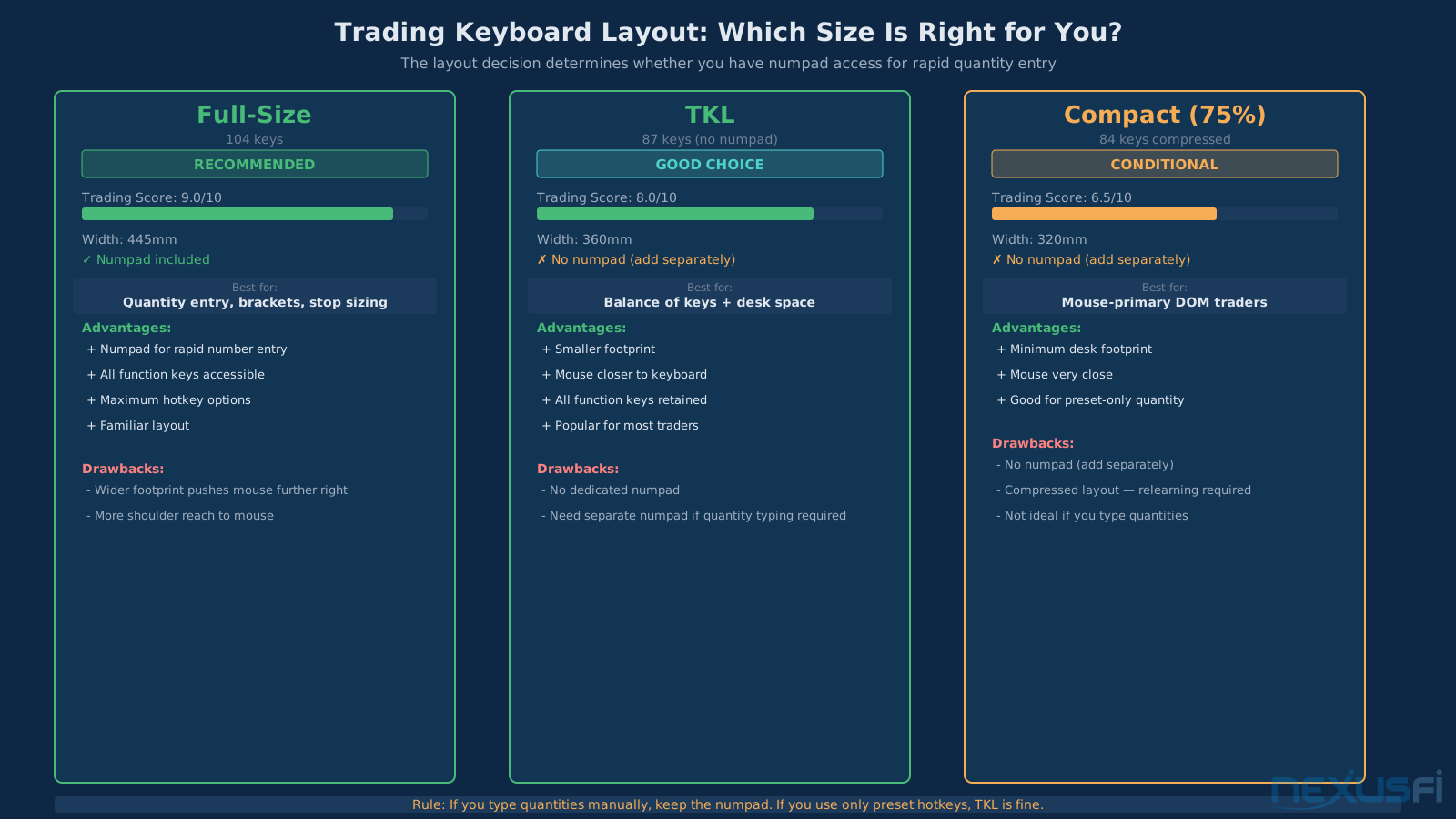
Full-size keyboards are the default recommendation for futures traders because they include a dedicated numpad. Quantity entry, price targeting, stop sizing — all of these benefit from numpad access during fast entry. If you're scaling in and out of positions and adjusting stops, the numpad workflow is faster than typing numbers across the top row.
TKL (Tenkeyless) keyboards work if you don't rely heavily on numpad entry, or if you add a separate numpad to the right of the mouse. TKL gives you the mechanical key benefits without the full footprint. @Leon of Pizza runs a Logitech (tenkeyless-style, lighted, hardwired) on a dedicated Dell workstation setup. [4]
Compact (60--75%) keyboards are appropriate only if you've mapped all your trading hotkeys to non-numeric keys and don't use numpad entry. They work fine for traders who manage positions primarily through mouse clicks and Stream Deck buttons and use the keyboard mostly for system navigation.
The rule: If you enter quantities by typing numbers, keep the numpad. If you use only preset lot sizes mapped to hotkeys, you can go TKL or compact.
Backlit Keyboards: Underrated for Trading #
Keyboard backlighting isn't a gaming luxury — for early morning and evening sessions in dimmed offices, it directly affects key accuracy. If you can't see which key you're pressing, you mispress. Traders who run screens with dim ambient lighting (reducing eye strain from multiple monitors) benefit from keyboard backlighting.
Look for keyboards with per-key backlighting controls so you can highlight your most critical trading hotkeys (flatten, cancel, buy/sell entries) in one color and dim everything else. @Brandenton uses a Perixx lighted keyboard specifically for this visibility in trading sessions. [5]
Recommended Keyboards for Futures Trading #
Keyboards that consistently appear in NexusFi trader setups and meet the technical requirements:
Corsair K70 / K95 RGB — Linear MX Red or tactile MX Brown available. N-key rollover, excellent macro key support (K95 has dedicated G-key macro row), solid software for hotkey programming. Full-size or TKL options. The K70 has been a consistent choice in NexusFi battlestation posts for years.
Logitech G series (G715, G213, G815) — Reliable software ecosystem with easy profile switching. GX mechanical switches in linear or tactile options. Good integration with Logitech G mice if you're building a matched setup.
Keychron Q5 Pro — Excellent build quality, hot-swappable switches, full-size with numpad. Works well for traders who want a quiet mechanical option and may want to experiment with switch types. No dedicated software beyond firmware-level remapping.
SteelSeries Apex Pro — Adjustable actuation force per key, which is interesting for traders who want to set lighter actuation on hotkeys and heavier on keys adjacent to them. Reduces accidental presses without adding tactile bump.
Programmable Mouse Configuration #
The Right Number of Buttons #
More mouse buttons is not better. The correct number of programmed mouse buttons is the number you can hit reliably under stress without looking at the mouse. For most traders, that's 3--6 programmable buttons beyond left/right click.
The failure mode of an overly-programmed mouse is a "buy 1 contract" button that's 2mm from "flatten all positions." That proximity is fine in calm markets. It's a disaster when your hand is moving fast and your attention is on the DOM.
@matthew28, who switched to a Razer DeathAdder V2 specifically for trading, runs a tight configuration: "I only use a couple of programmable buttons, a side one to cancel all orders, and the Hypershift button pressed at the same time as a right-click to act like a normal right-click for cancelling individual orders." [6] That's intentionally minimal — and deliberate about why. The standard right-click is disabled unless Hypershift is held, preventing the "double order" mistake that occurred with the previous mouse.
What to Map to Mouse Buttons #
The principle is: mouse buttons should handle actions you execute constantly and don't want to reach for keys to complete.
High-value mouse button assignments:
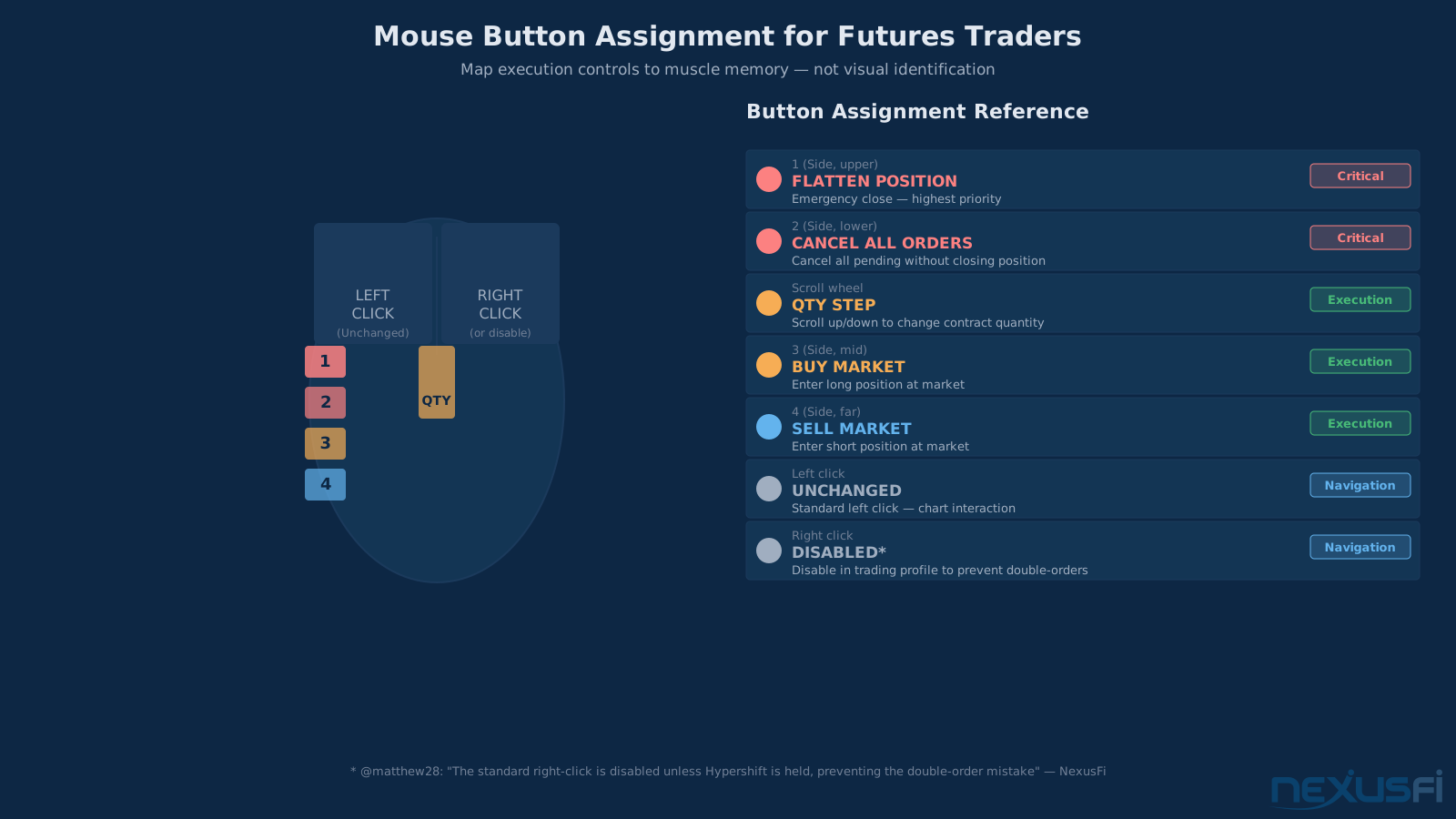
- Side button (thumb, lower): Flatten/close position — requires thumb muscle memory, separated from left/right click area
- Side button (thumb, upper): Cancel all orders — close to flatten but distinct enough to feel different
- Middle wheel press: Switch quantity level (e.g., 1 → 2 contracts)
- DPI step buttons: Quantity increment presets (1 contract, 2 contracts, 3 contracts)
@TRADERRON's configuration on a multi-button gaming mouse is worth examining in detail: fire button (flat position), middle button (cancel pending orders), forward button (buy at market), back button (sell at market), and DPI buttons for quantity 1/2/3/4. [7] The key insight is that the fire button — closest to the left click and hardest to miss — is the flat position. The most dangerous action is on the most accessible button, but it's also the most forgiving: pressing "flatten" when you meant to click the chart is a nuisance, not a disaster.
Actions to keep off mouse buttons:
- Order entry confirmation (too easy to trigger accidentally on chart click)
- Bracket/stop placement (requires intentionality)
- Platform navigation (keep this on keyboard — no stakes)
Wired vs. Wireless for Trading #
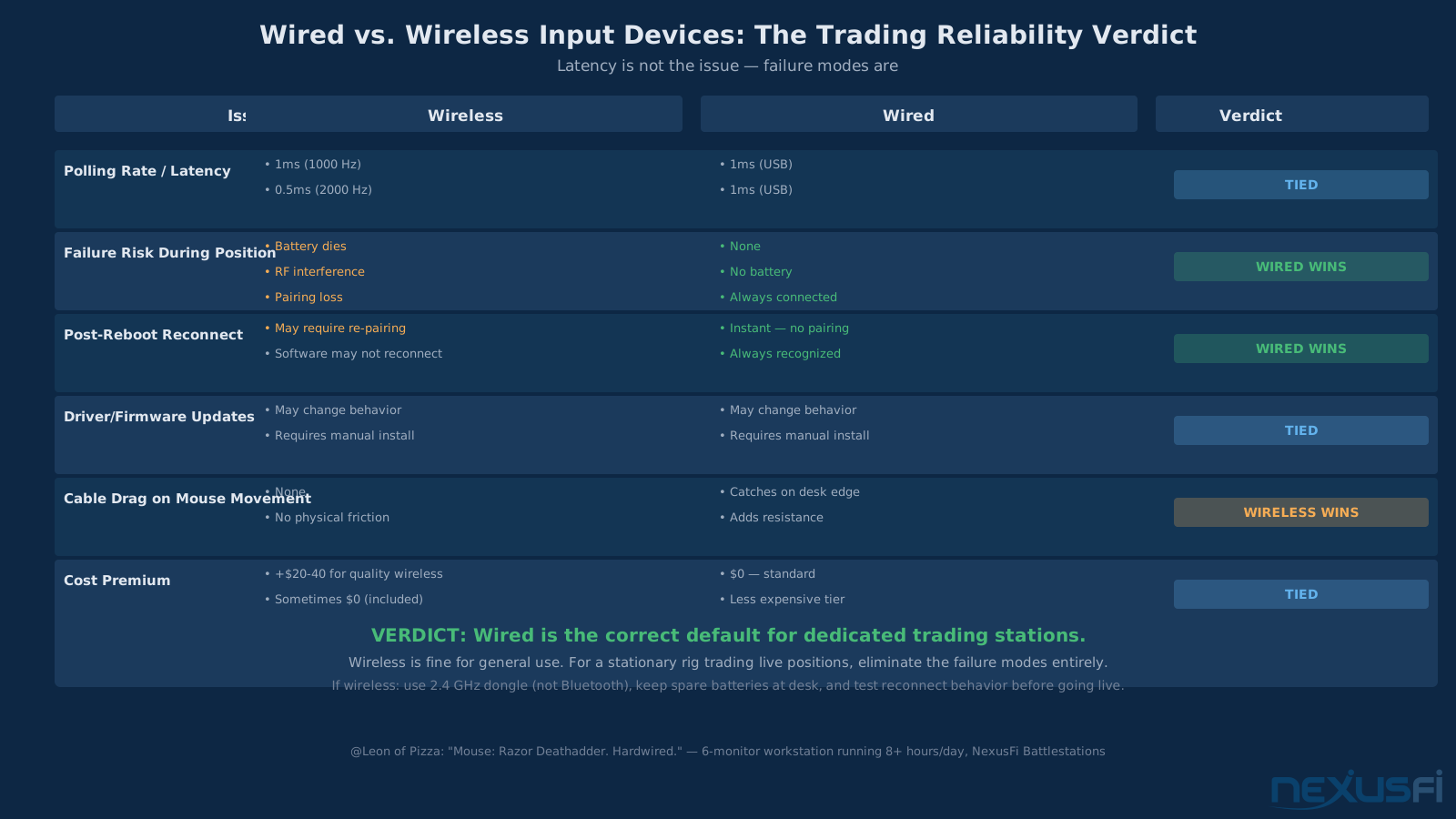
Wireless gaming mice have improved dramatically. 2.4 GHz dongle connections have polling rates of 1000 Hz or higher and latency below 1ms — functionally identical to wired for most trading applications.
However: for a dedicated trading workstation, wired is the correct default choice.
The reasons aren't latency. They're reliability and failure mode:
- No battery to die during a position
- No RF interference from adjacent equipment
- No software update that changes behavior
- No pairing problems after a reboot
@Leon of Pizza runs a Razer DeathAdder hardwired for exactly this reason. [8] Wireless is fine for mobility. For a stationary dedicated trading rig, wire it.
Recommended Mice for Futures Trading #
Razer DeathAdder V2 — Excellent ergonomics for right-handed palm grip, reliable optical sensor, two side buttons with good placement. Simple enough to configure properly. @matthew28's choice for scalping.
Logitech G502 / G602 — More programmable buttons (5--6 usable thumb/side), popular in the NexusFi community. @Brandenton runs a Logitech G602 with custom hotkeys specifically mapped for NinjaTrader. [9] The G502 adds adjustable weight and sniper button.
Razer Naga Trinity — 12 side button variant for traders who use many DOM modes or quantity presets. @glennts uses the Naga Trinity with custom keyboard hotkeys mapped to the 12-button panel. [10] Warning: the 12-button layout requires more configuration discipline to avoid mistakes.
Corsair M65 RGB — Right-handed, sniper button, 3 programmable side buttons. Popular in setups that use Corsair iCUE for unified keyboard/mouse macro management. @dph1's workstation includes the M65 as the matched pair to the K70 keyboard.
Stream Deck: When to Add One and How to Configure It #
What Problem Stream Deck Solves #
The Stream Deck is not a replacement for keyboard hotkeys. It's a complement that solves a specific problem: visual confirmation of current mode and state.
When you're deep in a position and your DOM is showing a live P&L moving against you, you don't want to be running through mental inventory of what key does what. The Stream Deck shows you labeled, color-coded buttons. Green = entry. Red = flatten/cancel. Yellow = toggle. You see the action before you press it.
@dph1 uses a Stream Deck XL (32 buttons) for NinjaTrader 8: "The second column of buttons are normal hotkeys in NinjaTrader 8. The up down arrows in the third column move the chart up or down... The 12 buttons on the right turn on and off 6 strategies I programmed in AutoHotkey." [11] The Stream Deck handles the complex workflow — strategy toggling — while the keyboard handles navigation.
@mmaker expanded this concept: "The whole idea behind this functionality is so I can focus on the price action and not worry if my cursor is hovering over the strategy enable/disable box which is slightly larger than 1/8 of an inch." [12] That sentence describes exactly what Stream Deck is for: offloading cognitive load from "am I in the right mode" to a visible button state.
When NOT to Add a Stream Deck #
Don't add a Stream Deck if:
- You're still building your trading process and hotkey map is still changing — wait until your workflow is stable
- You're primarily a chart-trader with 3--4 hotkeys — the complexity overhead isn't justified
- You'd place it somewhere that requires you to move your arm much to reach it
The Stream Deck adds a physical object to your desk that requires arm travel. If your setup doesn't have desk space within natural hand range without lifting your arm off the forearm rest, it creates more friction than it removes.
Stream Deck Configuration for Futures Traders #
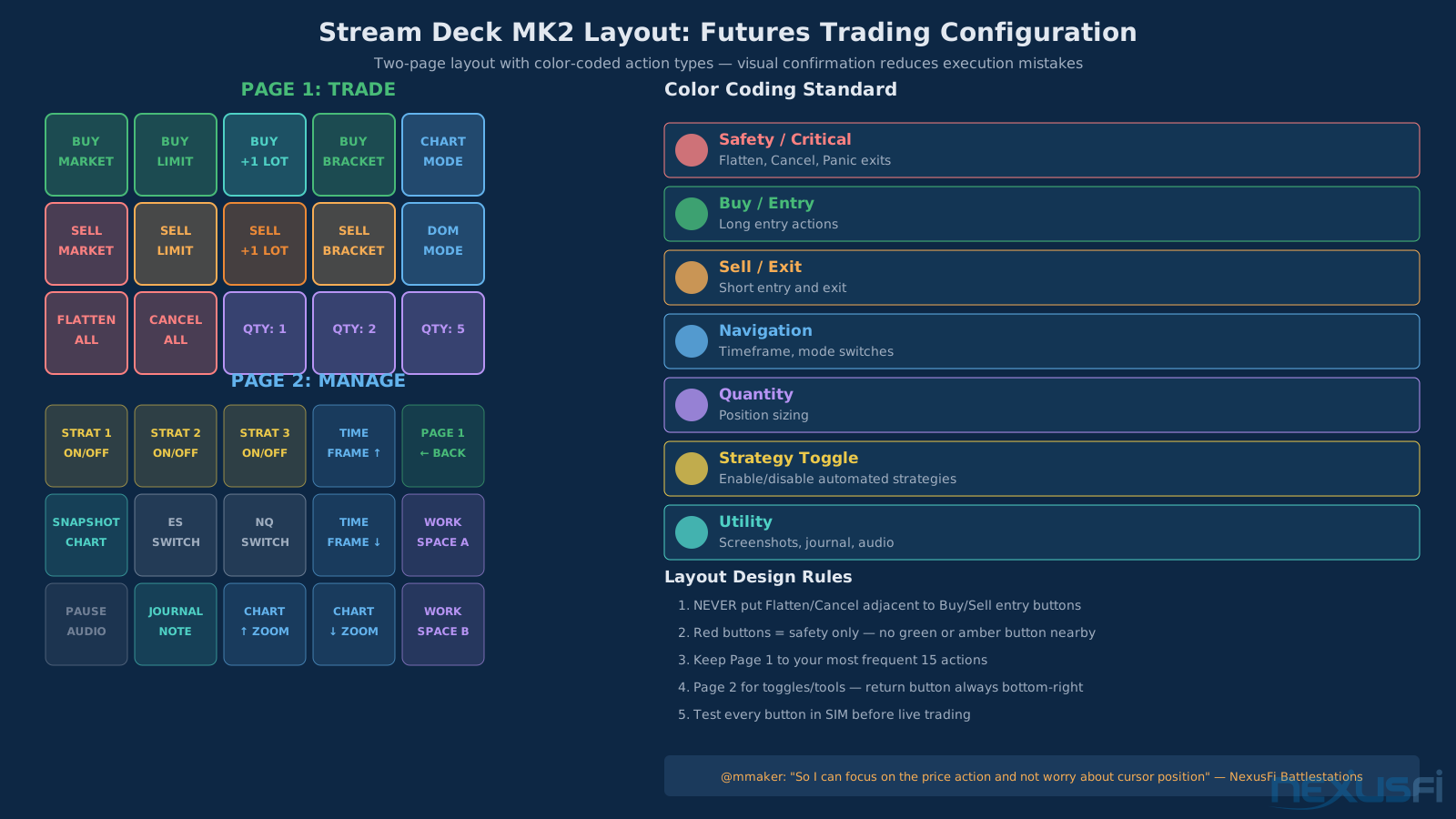
Page 1: Trade (primary actions)
- Rows 1--2: Order types (Market Buy, Market Sell, Limit Buy, Limit Sell) — green buttons
- Row 3: Quantity presets (1, 2, 3, 5, 10 contracts) — blue buttons
- Row 4: Safety (Cancel All Orders, Flatten Position) — red buttons, larger icon
- Row 5: Mode toggle (DOM / Chart trade mode) — yellow button
Page 2: Manage (secondary actions)
- Chart navigation (timeframe switches, instrument switches)
- Strategy enables/disables
- Workspace presets
- Screenshot/journal hotkey
- Return to Page 1 button
@mmaker's approach — a folder button that opens another 31-button profile — is useful for traders with complex multi-strategy workflows. Most traders don't need it. Keeping to 2 pages maximum reduces the cognitive load that the Stream Deck is supposed to eliminate.
Stream Deck Integration with NinjaTrader #
Stream Deck sends keyboard shortcuts to whatever application has focus. In NinjaTrader 8, hotkeys are platform-wide and don't depend on window focus (mostly). But some actions require the chart or DOM to have focus.
Critical setup steps:
- Map all Stream Deck buttons to keyboard shortcuts, not direct application commands
- Test every button in NinjaTrader SIM mode before live
- Verify behavior when DOM has focus vs. chart has focus vs. neither
- Use AutoHotkey to bridge any actions NinjaTrader doesn't expose as hotkeys
For Sierra Chart, the Stream Deck requires direct connection to the machine running Sierra Chart — it doesn't work reliably through a remote desktop or secondary PC relay. Trading Keyboard Shortcuts must be explicitly enabled in the Sierra Chart Trade menu for hotkeys to register correctly.
Hotkey Design: Building a Safe, Fast Map #
The Three-Tier Model #
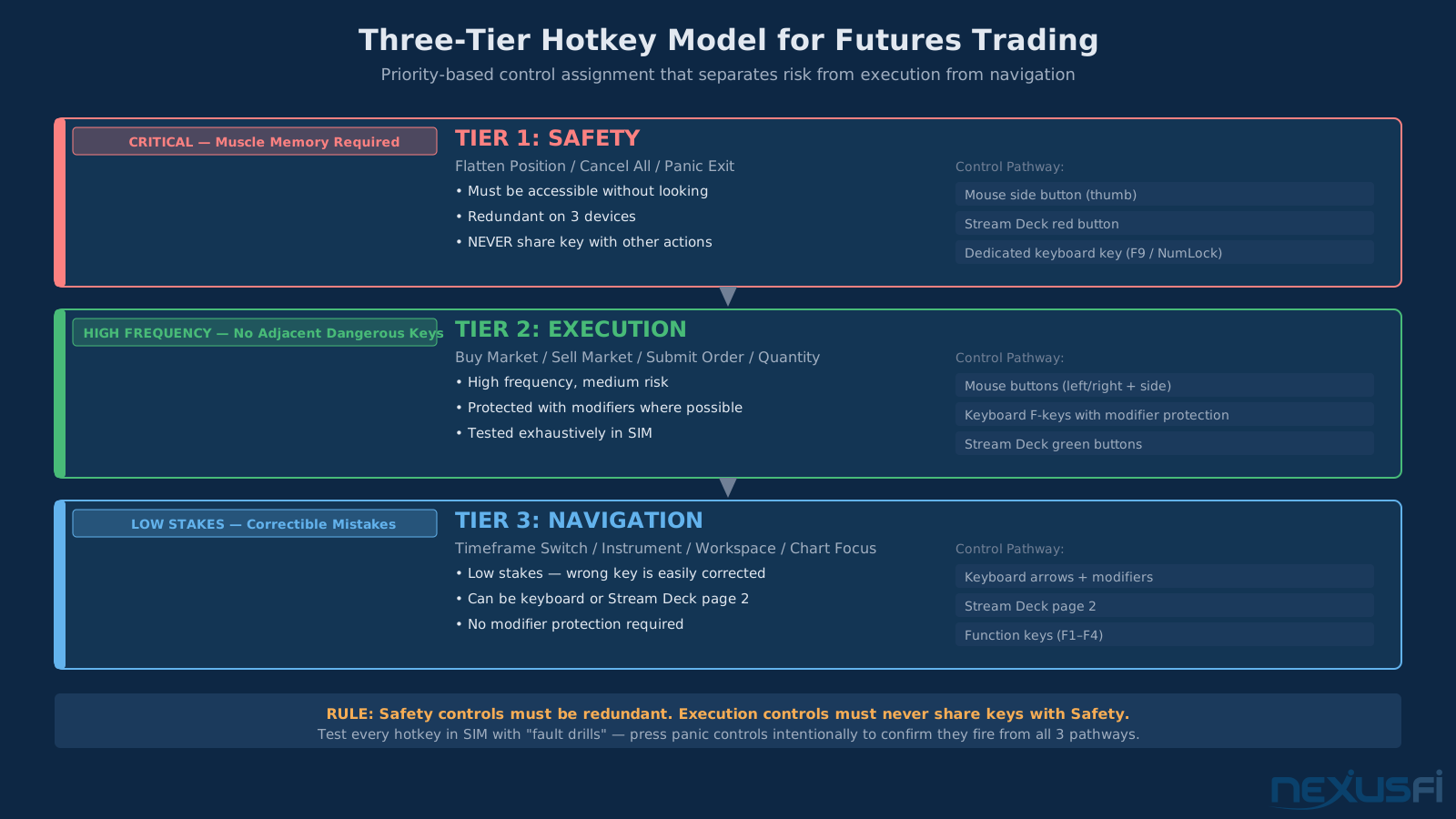
The biggest hotkey design mistake is treating all actions as equivalent and distributing them based on what keys are free. The right approach is to first categorize actions by risk level, then assign controls based on risk.
Tier 1: Safety (flat, cancel, reduce) These are your emergency controls. They must be:
- On dedicated controls not shared with anything else
- Immediately accessible without looking
- Redundant (two ways to get to them)
Assignment: Primary on mouse (side button), secondary on Stream Deck (red button), tertiary on keyboard (far right key cluster or function row). All three should do the same thing from different physical positions.
Tier 2: Execution (buy, sell, submit) These are high-frequency but medium-risk. A misfire costs you a fill at the wrong moment, not a runaway position.
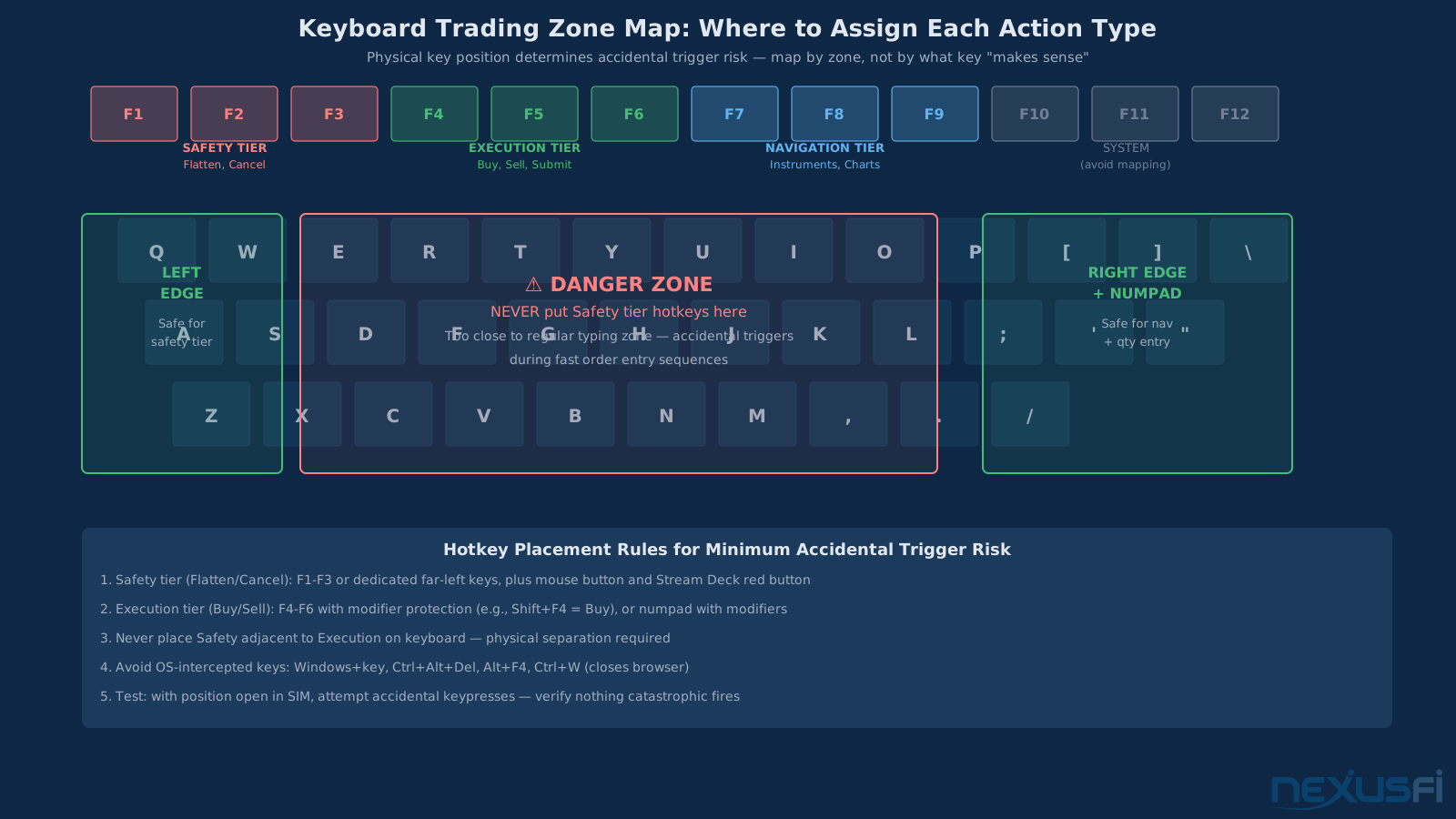
Assignment: Mouse buttons for most common (if you trade DOM), keyboard keys with modifier protection (e.g., F5 for Buy, F6 for Sell, not naked letters that could be typed accidentally), Stream Deck green buttons for confirmation.
Tier 3: Navigation (timeframe, instrument, workspace) Low stakes — wrong key switches your chart view, easy to fix.
Assignment: Keyboard (function keys, arrow keys with modifiers), Stream Deck page 2. Don't pollute Tier 1 and 2 controls with navigation hotkeys.
What to Avoid #
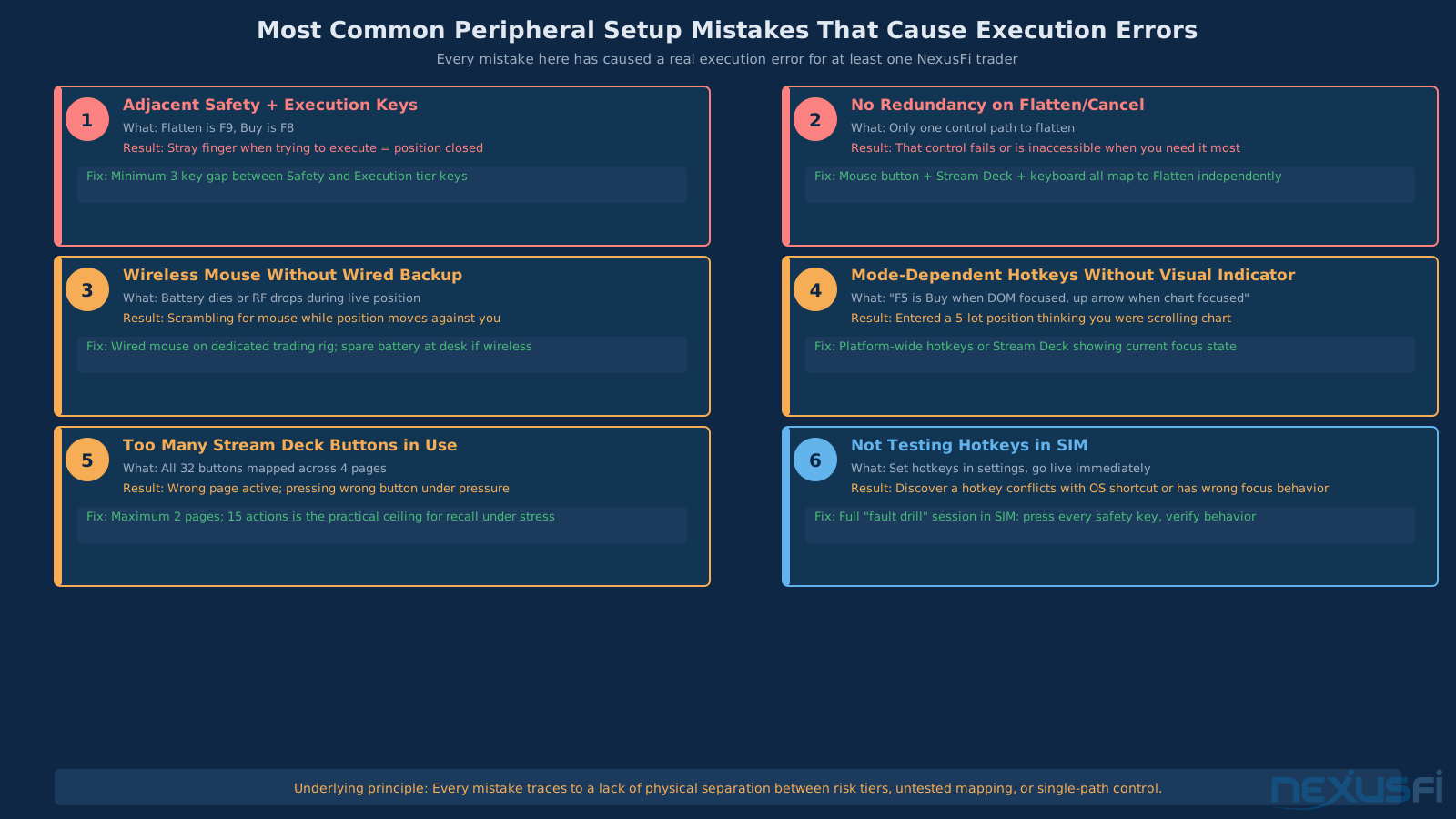
Keys that overlap with OS shortcuts: Ctrl+Alt+Del (task manager), Windows+D (show desktop), Alt+F4 (close window). Any of these triggered during position management is catastrophic.
Adjacent dangerous hotkeys: If "Buy 1 NQ" and "Flatten" are next to each other on the keyboard, you will eventually hit the wrong one. Put risk-critical controls on opposite sides of the keyboard or on separate devices.
Mode-dependent behavior without visual confirmation: If "F5" means "Buy" when the DOM has focus but "timeframe up" when the chart has focus, you're one misclick away from entering a position you didn't mean to enter. Prefer platform-wide hotkeys or add a Stream Deck indicator showing current focus state.
Testing Hotkeys Before Going Live #
Every hotkey change should be tested in SIM or Market Replay before live trading. The test sequence:
- Press each key slowly while confirming the expected action
- Press keys rapidly (5--10 per second) while watching for accidental triggers
- Perform "fault drills": with a live SIM position, deliberately hit Cancel and Flatten to confirm they work from all three control pathways
- Test with platform focus on DOM, then on chart, then on neither — confirm behavior is predictable in all three states
@mmaker's AutoHotkey setup required this validation precisely because the scripts moved the cursor to specific positions before clicking — timing-dependent behavior that needed careful testing. [12]
AutoHotkey for Trading: Extending What Hotkeys Can't Do #
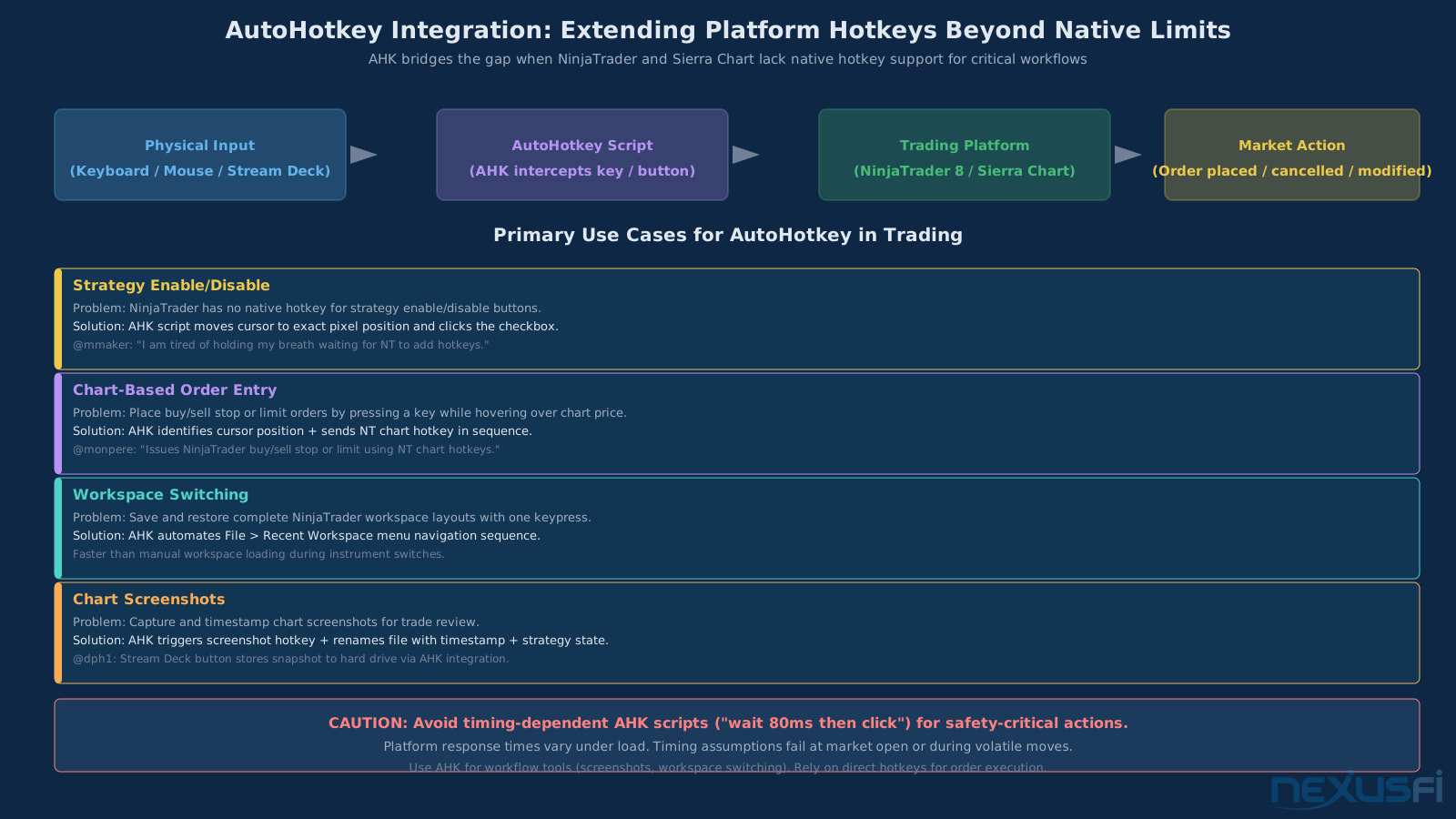
AutoHotkey is a Windows scripting tool that lets you trigger complex sequences — including mouse movements, clicks, and window focus changes — from a single keypress. Several NexusFi traders use it to extend what NinjaTrader's native hotkey system can't do.
@monpere posted one of the most-referenced AutoHotkey scripts in NexusFi's 15+ year history: a script that places buy/sell stop or limit orders directly on NinjaTrader charts via keyboard shortcut, automating the cursor movement and click sequence for faster chart-based order entry. [13]
The relevant use cases for AutoHotkey in modern trading setups:
- Strategy enable/disable in NinjaTrader (no native hotkey support, requires clicking a small checkbox)
- Workspace switching (saving and loading workspace layouts with a single key)
- Chart screenshot to a dated file (for trade review)
- Multi-step order sequences (e.g., "enter position + set bracket immediately" as one key)
Caution: AutoHotkey scripts that include timing assumptions (e.g., "wait 80ms, then click") can fail when the platform is under load and response times change. Build scripts with confirmation checks or avoid timing-dependent sequences for risk-critical actions.
Ergonomic Setup for All-Day Sessions #
The Wrist Angle Problem #
The single highest-impact ergonomic change most traders can make is correcting keyboard height relative to elbow position. Most traders have their keyboard on a standard desk at a height that requires wrist extension — the wrist bends up toward the keys. That position, maintained for 6 hours, causes forearm and wrist fatigue that degrades click accuracy by the afternoon.
Correct keyboard height: your elbows should be at approximately 90 degrees, and your wrists should be neutral (not bent up or down) when your fingertips rest on the home row. For most people, this requires the keyboard to be lower than a standard desk surface — either on a keyboard tray, an adjustable desk, or a lower secondary table.
If your keyboard forces you to raise your forearms to reach it, the keyboard is too high.
Mouse Placement and Shoulder Strain #
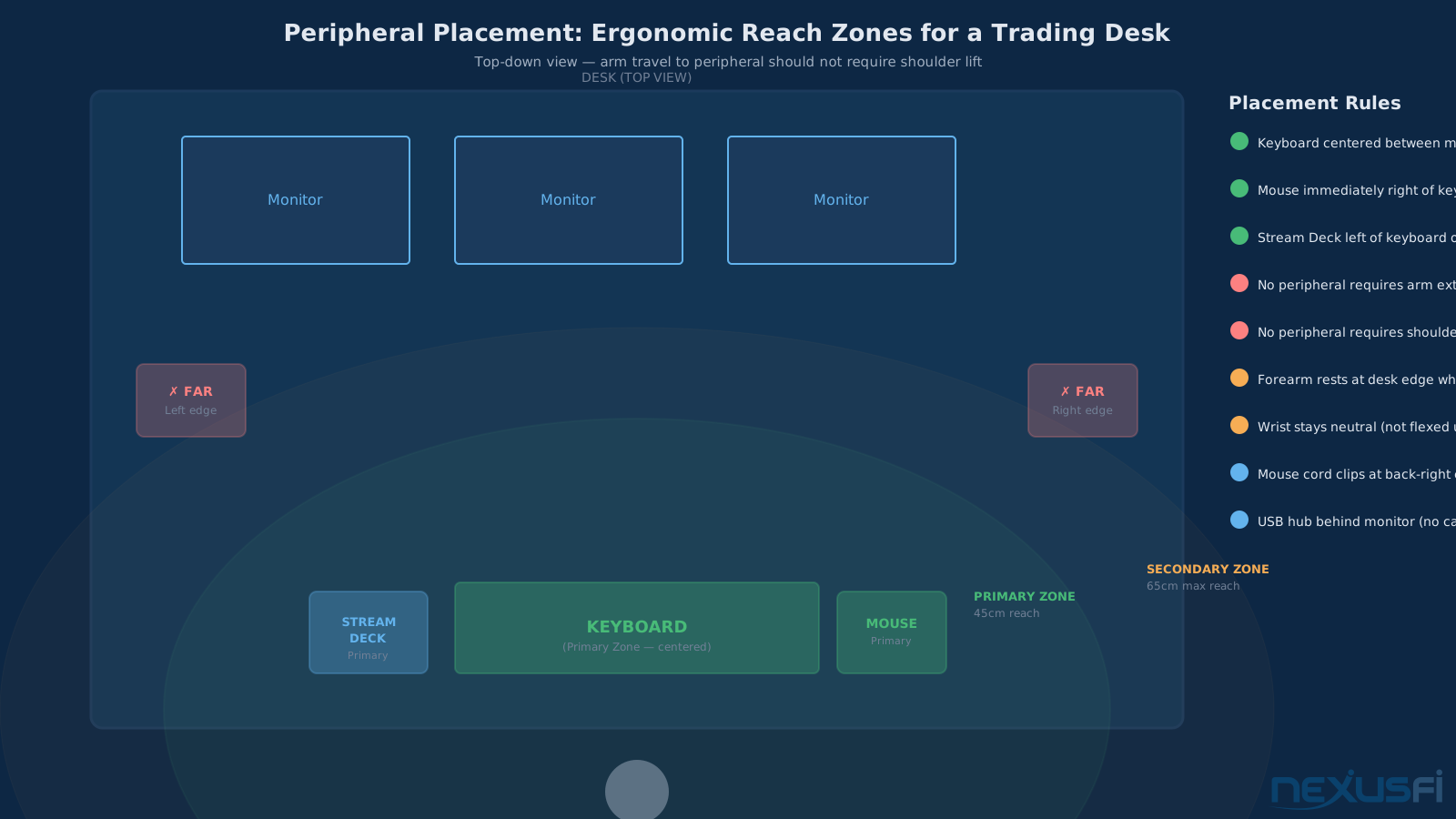
The mouse should be immediately adjacent to the keyboard, within the same natural arm arc. Every inch of lateral reach to the mouse creates cumulative shoulder strain across a trading session.
For multi-monitor setups with the keyboard centered between multiple screens, the mouse often ends up further to the right than it should be. The solution is either:
- A smaller keyboard (TKL removes the numpad to move the mouse closer)
- A keyboard tray that positions both keyboard and mouse within the natural arm zone
- A mouse with a vertical grip (vertical mice eliminate forearm rotation)
Wrist rests add comfort but should support the forearm, not press on the wrist. Pressing directly on the carpal tunnel area increases, not decreases, strain over time.
Stream Deck Placement #
Place the Stream Deck within the same natural reach as the mouse — ideally left of the keyboard if you're right-handed, so both hands have dedicated input devices within range without arm extension. The goal is to use Stream Deck buttons without lifting your arm off the desk.
Mounting the Stream Deck on a monitor stand or above the keyboard surface is a common mistake — it moves the device out of the natural hand zone and turns simple button presses into shoulder lifts.
Headset and Audio #
Market audio — level 2 audio alerts, news service alerts, Discord trade chat — can run through speakers or headsets. For focused sessions in a shared environment, a closed-back headset keeps alerts audible without room noise.
@MiniP uses Skull Candy headphones at the trading station: "Keep a pair of skull candy head phones on the desk, will be upgrading to noise canceling very soon." [14] For shared home offices, active noise canceling (Bose QuietComfort, Sony WH-1000XM series) eliminates the need for both speaker alerts and headset discomfort by cutting ambient noise instead of playing audio louder.
Cable Management and Reliability #
A trading workstation with six peripherals has significant cable management requirements. For reliability (not aesthetics), the priorities are:
No cable interference with mouse movement. A mouse cable that catches on the desk edge will generate a misclick at the wrong moment. Use a cable management clip mounted at the back corner of the desk to route the mouse cable up and behind, eliminating drag.
Dedicated USB hub with powered rail. Multiple USB peripherals (keyboard, mouse, Stream Deck, headset, USB hub) draw power from the motherboard's USB controller. A powered USB hub with a dedicated power supply prevents voltage drops that cause momentary device disconnects — including mouse disconnects during position management.
No Bluetooth for trading-critical peripherals. Bluetooth reconnect latency after sleep or interference from other devices in range is not acceptable for an execution device. Wired or 2.4 GHz dongle only for keyboard and mouse.
KVM switch if you run multiple computers. Some traders run a dedicated trading computer plus a research/communication computer. A KVM switch shares keyboard, mouse, and monitor(s) across both without cable swapping. Ensure the KVM you choose has full N-key rollover pass-through — some older KVMs strip modifier keys.
Setup Recommendations by Trading Style #
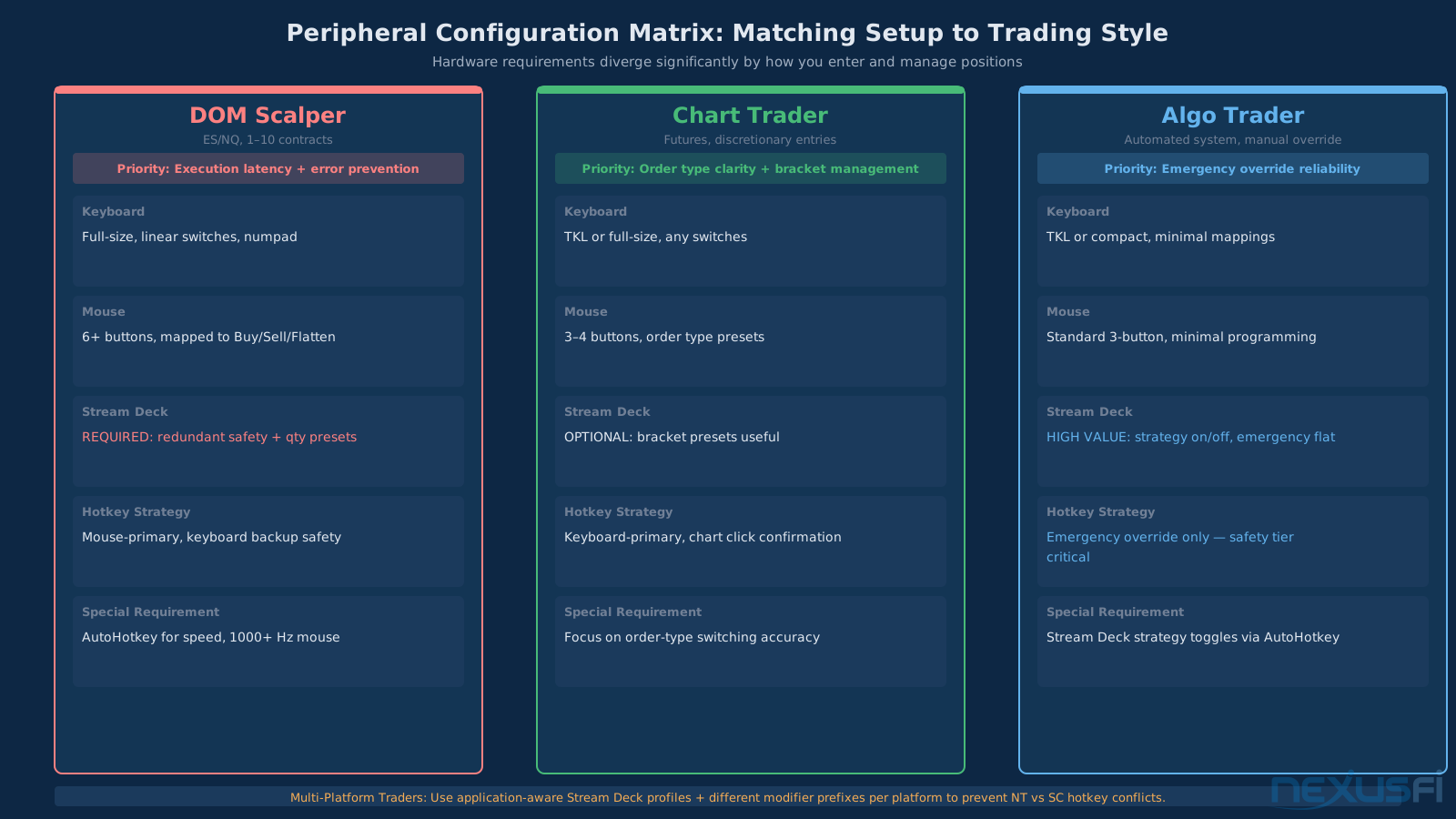
DOM Scalper (ES/NQ, 1--10 contracts) #
Priority: Lowest possible execution latency between decision and order submission. Maximum programmable mouse buttons. Stream Deck redundancy for flatten/cancel.
- Keyboard: Full-size mechanical, linear switches, heavy use of numpad for quantity
- Mouse: 6+ button mouse with side buttons mapped to buy/sell market, cancel, flatten
- Stream Deck: Stream Deck MK2 (15 buttons), 2 pages max
- Key hotkeys: Flatten on mouse side button + Stream Deck red + keyboard F key
Chart Trader (swing entries, discretionary) #
Priority: Reliable order-type switching, bracket entry, visual confirmation of current order mode.
- Keyboard: TKL or full-size, tactile or linear, mostly used for platform navigation
- Mouse: 3--4 button mouse, side buttons for order submission only
- Stream Deck: Optional; useful for order type presets (limit vs. stop, bracket toggle)
- Key hotkeys: Order type toggle on Stream Deck, execution on chart click
Algo Trader (automated strategies, manual override) #
Priority: Reliable emergency overrides. Most order flow is automated; manual controls are for intervention only.
- Keyboard: TKL or compact, minimal hotkeys
- Mouse: Standard 3-button, no special configuration
- Stream Deck: High value here — strategy enable/disable, manual override, emergency flatten
- Key hotkeys: Emergency flatten and cancel on dedicated keys, tested to fire even when strategies are running
Multi-Platform Trader (NinjaTrader + Sierra Chart simultaneously) #
Priority: Application-specific hotkey mapping that doesn't conflict across platforms.
- Keyboard: Full-size, per-profile macro support (Corsair K95 or similar)
- Mouse: Profile switching per active window
- Stream Deck: Application-aware profiles — Stream Deck software detects active application and switches button page automatically
- Key hotkeys: Different modifier prefixes for NT vs. SC to prevent cross-platform misfires
The Peripheral Upgrade Path #
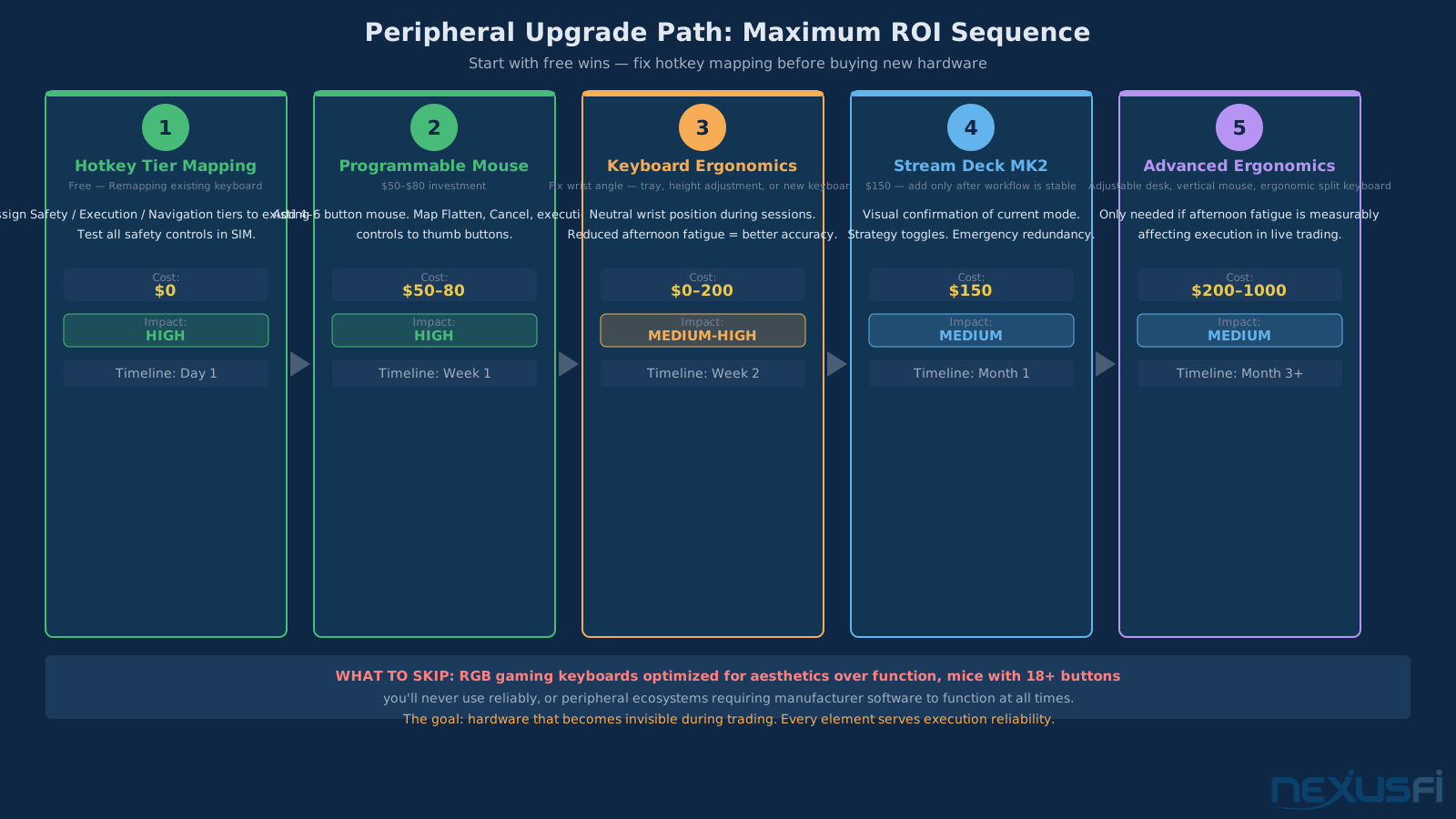
Most traders don't need to buy everything at once. The upgrade sequence that adds value fastest:
Step 1: Map your existing keyboard hotkeys to the three-tier model. This costs nothing and eliminates the most common execution mistakes.
Step 2: Add a programmable mouse with 4--6 buttons mapped to your most frequent execution actions. $50--$80. The biggest immediate ROI of any peripheral upgrade.
Step 3: Fix keyboard ergonomics — tray mount, height adjustment, or keyboard replacement to achieve neutral wrist position. Variable cost but high impact on afternoon session quality.
Step 4: Add a Stream Deck MK2 (15 buttons) once your workflow is stable and you have 10+ actions that benefit from visual confirmation. $150.
Step 5: Advanced ergonomics — adjustable desk, vertical mouse, ergonomic keyboard split — if long session fatigue is affecting afternoon performance.
What you don't need: a gaming keyboard with RGB lighting designed for aesthetics rather than function, a mouse with 18 buttons you'll never use reliably, or a peripheral ecosystem that requires manufacturer software running at all times to function.
The peripheral setup exists in service of that mastery. Every element — keyboard feel, mouse button placement, Stream Deck layout, hotkey tier design — should reduce the gap between decision and execution. Get that right and the hardware becomes invisible.
Knowledge Map
Prerequisites
Understand these firstGo Deeper
Build on this knowledgeReferences This Article
Articles that build on this topicCitations
- — My Gaming Mouse for Scalping on Jigsaw Daytradr (2021) 👍 10“I programmed it so when I am done daytrading, I hit a mode button on the bottom of the mouse and then the mouse becomes a normal mouse with all the buttons acting normally.”
- — Anyone using a gaming mouse for trading? (2022) 👍 2“Order execution mastery helps and is totally under-rated. Think of a tennis pro learning all about the game but never hitting the ball or becoming a master of the swing -- order execution is actually trading.”
- — Battlestations: Show us your trading desks! (2016) 👍 11“Corsair Gaming K70 MX Red - Red LED, Corsair Gaming M65 RGB Black”
- — Battlestations: Show us your trading desks! (2018) 👍 15“Keyboard: Logitech. lighted. Hardwired. Mouse: Razor Deathadder. Hardwired.”
- — Battlestations: Show us your trading desks! (2019) 👍 25“Logitech G602 mouse setup with hot keys for NinjaTrader, Perixx keyboard”
- — My Gaming Mouse for Scalping on Jigsaw Daytradr (2021) 👍 4“I only use a couple of programmable buttons, a side one to cancel all orders, and the Hypershift button pressed at the same time as a right-click to act like a normal right-click for cancelling individual orders.”
- — Stream Deck Elgato and NinjaTrader8 (2019) 👍 5“I got myself a Stream Deck for Christmas. I so far managed to link some NT8 hotkeys and pictures to the buttons.”
- — Stream Deck Elgato and NinjaTrader8 (2021) 👍 2“So I can focus on the price action and not worry if my cursor is hovering over the strategy enable/disable box which is slightly larger than 1/8 of an inch.”
- — AutoHotkey Scripts (2012) 👍 19“It basically issues NinjaTrader buy/sell stop or limit using the NT chart hotkeys.”
- — Battlestations: Show us your trading desks! (2019) 👍 26“Currently have a corsair gaming keyboard with a wired Corsair gaming mouse with 4 different levels of sensitivity. Keep a pair of skull candy head phones on the desk.”
- — Mouse click BuyStop + SellStop order from the chart (2020) 👍 1“With a gaming mouse like Razer Naga Trinity you can program keyboard hot key custom commands to any of 12 buttons on the side of the mouse.”