



Multi-Monitor Trading Setup for Futures Traders: Screens, Resolution, and Layout That Won't Cost You Money
Overview #
The "Battlestations" thread on NexusFi has been running since 2012 with over 1,200 replies. Traders post photos of their setups: everything from lean single-screen rigs to nine-monitor behemoths. Most newcomers see the nine-monitor wall and immediately think that's the target. It isn't.
What you actually need from a monitor setup is clean information separation — the ability to see your primary instrument, secondary instruments, order flow, and execution tools without constantly switching windows. That might mean two big monitors or eight smaller ones. The right number depends on what you trade, how many instruments you watch simultaneously, and whether you're making money yet.
This guide covers the actual decision framework: how many monitors, what resolution, which panel type, GPU requirements, layout strategy, and the ergonomic reality of sitting at a multi-monitor rig for six hours a day. It connects directly to the broader trading workstation hardware picture.
How Many Monitors Do You Actually Need? #
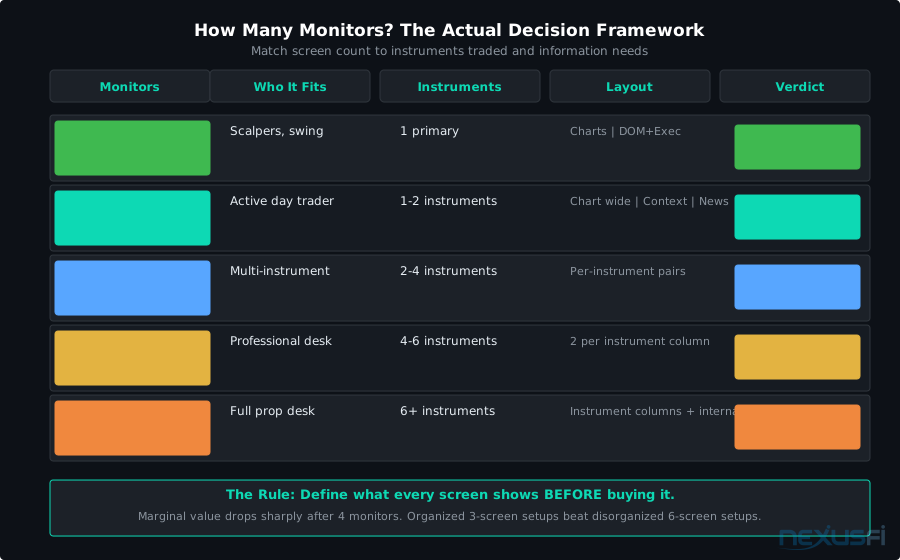
The most common mistake is adding screens before understanding why. Adding a fifth monitor when your trading strategy fits on two doesn't improve performance — it creates attention scatter. More screen real estate only helps when you have defined information that needs to live in specific places.
One monitor: Workable for swing traders checking positions once or twice a day. Not practical for active futures day trading where you need order flow, chart context, and DOM simultaneously.
Two monitors (1080p or 1440p): The minimum viable setup for serious day trading. You can run your primary instrument charts on one screen and order entry, DOM, and secondary context on the other. This is where most profitable traders start, and many never leave.
Three to four monitors: The sweet spot for most active futures traders. Three monitors gives you dedicated chart space per timeframe or instrument, and four lets you add a news/economic calendar panel without crowding your primary workspace.
Six to nine monitors: Appropriate when you're actively trading multiple instruments simultaneously. @djkiwi runs 8 monitors with each dedicated to a single instrument — 6E, ES, TF, FDAX, NQ, GC, CL, plus market internals.
That's a legitimate reason to run 8. If you're trading one instrument, it isn't.
The honest benchmark: if you can't immediately name which chart or tool would go on each additional monitor you're considering, don't add it yet.
Monitor Size and Resolution #
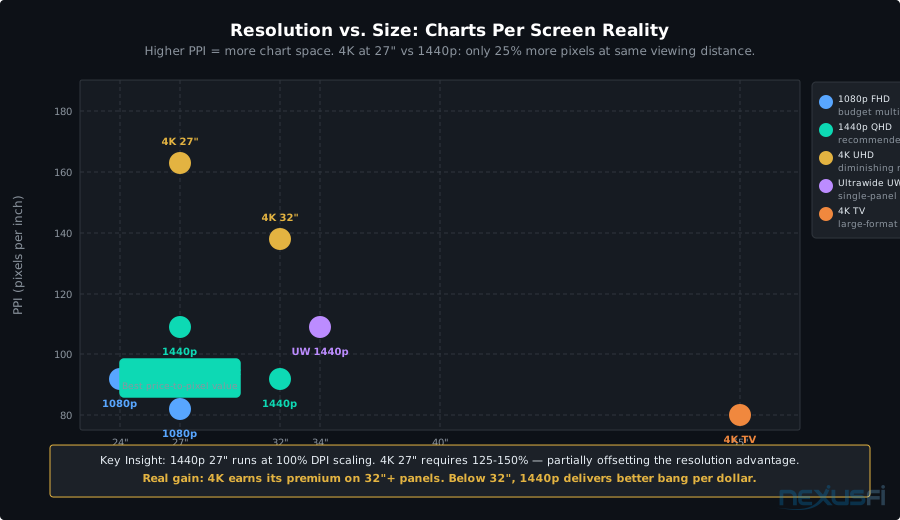
Resolution isn't about pixel count for its own sake — it's about how many charts you can fit on a screen at useful size without squinting. A 1080p 24-inch monitor can display two charts side by side at acceptable size. A 4K 27-inch monitor can display four. That difference compounds across your entire setup.
1080p (1920x1080) at 24 inches: Still the baseline for budget multi-monitor setups. You can run four or six of these off a decent GPU for reasonable cost. At 24 inches, 1080p gives you about 92 PPI, which is fine for chart viewing but starts showing its limits when you push to 27 inches (where it drops to 82 PPI and charts start looking soft). Works well for: traders who want maximum screen count on a budget, setups where monitors are 30+ inches away.
1440p (2560x1440) at 27 inches: The price-to-pixel sweet spot for trading monitors. At 109 PPI on a 27-inch panel, you get noticeably sharper text and chart lines compared to 1080p at the same size. Two or three 1440p 27-inch monitors gives most active futures traders everything they need. NinjaTrader 8's charting renders better at 1440p than 1080p for footprint and volumetric chart types. If you're running order flow analysis tools, the extra resolution is not cosmetic.
4K (3840x2160) at 27-32 inches: At 163 PPI on a 27-inch panel, 4K looks sharp regardless of chart type. The tradeoff is Windows DPI scaling — at 27 inches, Windows needs to run at 125% or 150% scaling to make UI elements readable, which partially offsets the resolution advantage. The practical difference between 1440p at 100% scaling and 4K at 125% scaling is narrower than the specs suggest. @khe91 reported going from a Dell 30" 2560x1600 (4 charts per screen) to a Mac Pro 4K display (9 charts per screen). That's real.
1440p Ultrawide (3440x1440 at 34 inches): Ultrawides sit at the intersection of the single-panel and multi-monitor approaches. The 34-inch form factor at 3440x1440 gives you roughly 2.4x the horizontal space of a standard 1440p monitor, which lets you run four or five charts side by side without bezel gaps.
The curved variant (Samsung G5, LG 34GN850) helps with eye strain during long sessions — the curve keeps every part of the screen at approximately the same distance from your eyes. @eziv runs four 34-inch curved ultrawides on Ergotron dual stacking arms with a sit/stand desk.
@FuturesTrader71 took this further with a Samsung 55" curved 4K TV as his primary display, split into 4 virtual monitors via DisplayFusion software.
Panel Type: IPS vs TN vs VA for Trading #
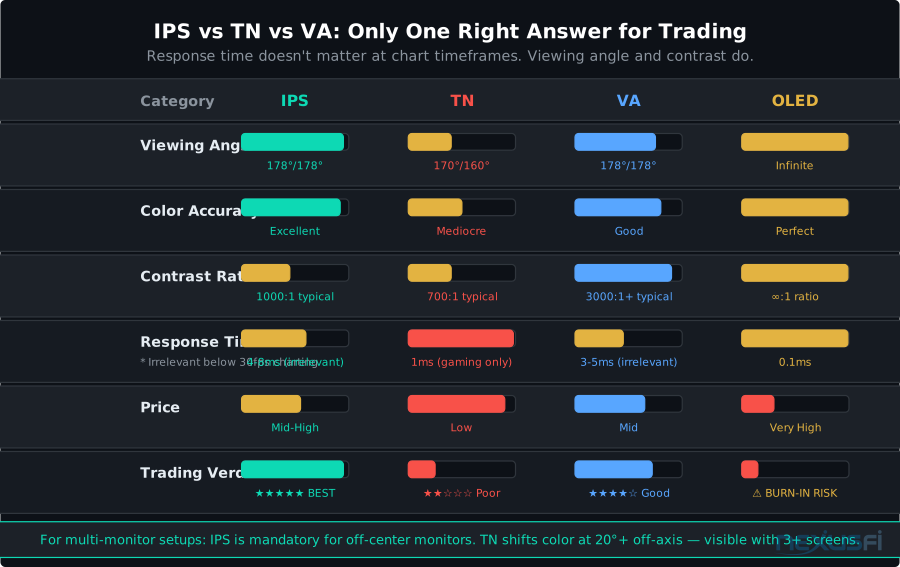
Trading doesn't require fast panel response times the way gaming does. You're watching candles form over 5-second to 30-minute intervals, not tracking a 100-fps shooter. Panel response time is a low-priority spec for traders — you can ignore gaming monitor marketing completely.
IPS (In-Plane Switching): Best color accuracy and widest viewing angles. Critical for multi-monitor setups where some screens sit at an angle to your sightline. If your leftmost monitor is 30 degrees off-axis, IPS panels maintain color accuracy across that angle while TN panels shift much. Most trading-focused monitors in the 27-inch range use IPS. Recommended.
TN (Twisted Nematic): Fastest response times, worst viewing angles. Made sense for gaming. For trading, the viewing angle issue means charts on off-angle monitors shift color and contrast as you move your head. Fine for a single central monitor; problematic in any multi-monitor array wider than 3 screens. Avoid in 2025 when IPS panels have come down to comparable price points.
VA (Vertical Alignment): High contrast ratios (3000:1 vs IPS's 1000:1 typical), which means darker blacks. Good for dark-themed trading interfaces. Viewing angles better than TN but worse than IPS. If your trading interface uses a dark theme heavily (which many platforms do), VA's contrast advantage is real.
OLED: Sharp, fast, excellent colors. Burn-in risk is real for trading because your DOM, price ladder, and account balance sit in fixed positions for hours every day. OLED burn-in appears within months under heavy static content. Not recommended for primary trading monitors.
For most futures traders: 27-inch IPS 1440p monitors with DisplayPort 1.4 outputs. Look at LG 27GP850, Dell U2722D, or AOC Q27P2Q as starting points.
GPU Selection: The Spec That Limits Everything Else #
Your GPU determines how many monitors you can drive and at what resolution. This is where multi-monitor setups get technically complicated.
Consumer GPUs (GeForce RTX, AMD Radeon RX): Support up to 4 monitors on most cards via a combination of HDMI and DisplayPort outputs. Running 6+ monitors requires either multiple GPUs or special hardware. @jkincap runs three cards (1x RTX 3080, 2x RTX 3070) to drive his multi-monitor wall.
His solution required a script that forces the video configuration on each boot — "Works great now. But took me weeks to setup." That's the honest cost of extreme multi-monitor configurations with consumer hardware.
Matrox and AMD FirePro multi-display cards: Cards like the Matrox C420 or AMD Radeon Pro WX series are designed specifically for multi-monitor productivity. They support 4-6 displays per card from a single slot, maintain stable display ordering across reboots, and run on low-power passive cooling. Professional-grade multi-head cards cost $400-800 for 4-head versions.
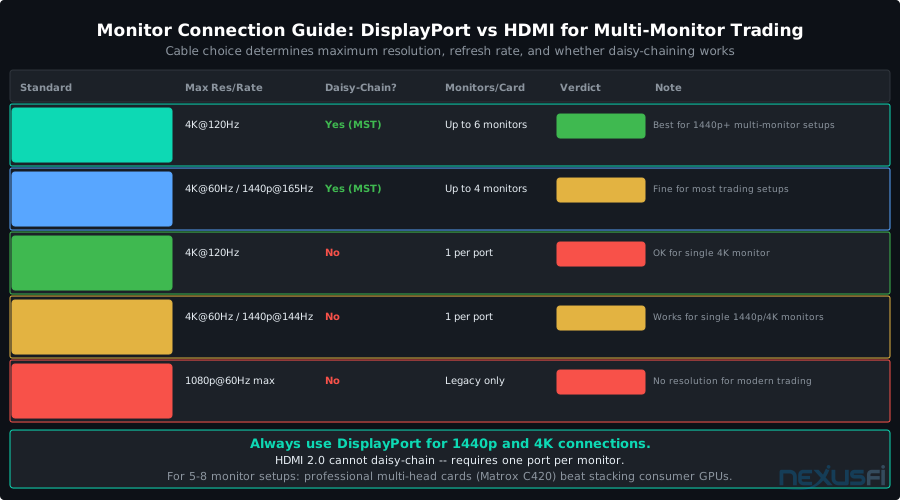
For 1-4 monitors: any mid-range GPU with sufficient outputs (RTX 3060/4060 or AMD RX 6700 XT). For 5-8 monitors: consider a Matrox C420 or Radeon Pro WX 5100 for stable multi-head support instead of stacking consumer GPUs.
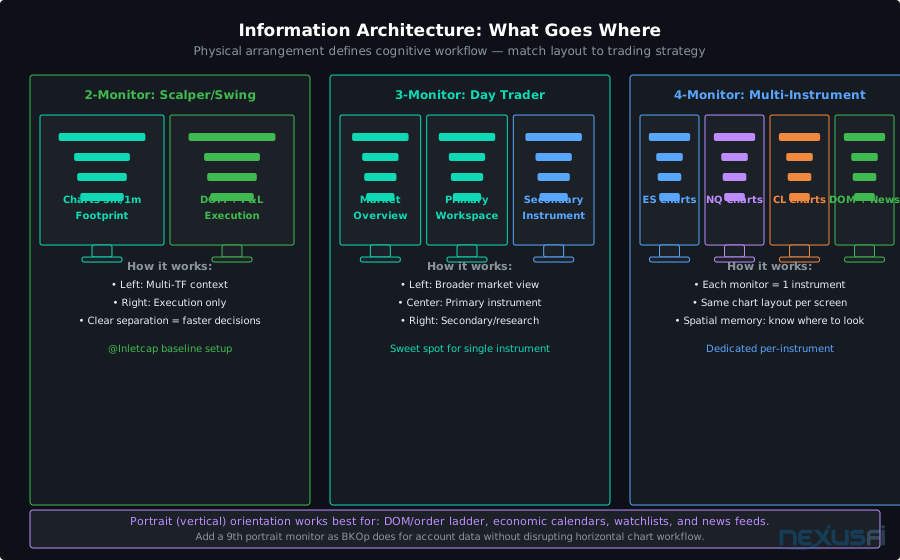
GPU assignment matters for performance: @BKOp discovered this the hard way after experiencing 3-5 minute data lag during NY open with 9 monitors.
He now routes all NQ charts to one GPU, ES charts to another, and CL to a separate card — noting that motherboard video "will not support any NinjaTrader charts." The takeaway: assign monitors by instrument, not by physical position, and keep each instrument's data flow on a single GPU.
Connection cables matter: Always use DisplayPort cables for 1440p and 4K connections. HDMI 2.0 maxes at 4K 60Hz and cannot be daisy-chained. DisplayPort 1.4 supports 4K 120Hz and Multi-Stream Transport (MST) for daisy-chaining monitors. @Hulk specifically called out DisplayPort and Accell-certified cables for reliability in 4K multi-monitor setups.
Monitor Layout and Information Architecture #
Physical layout and information organization are separate decisions. Most traders treat them as the same thing — they arrange charts wherever they fit, then live with the cognitive overhead.
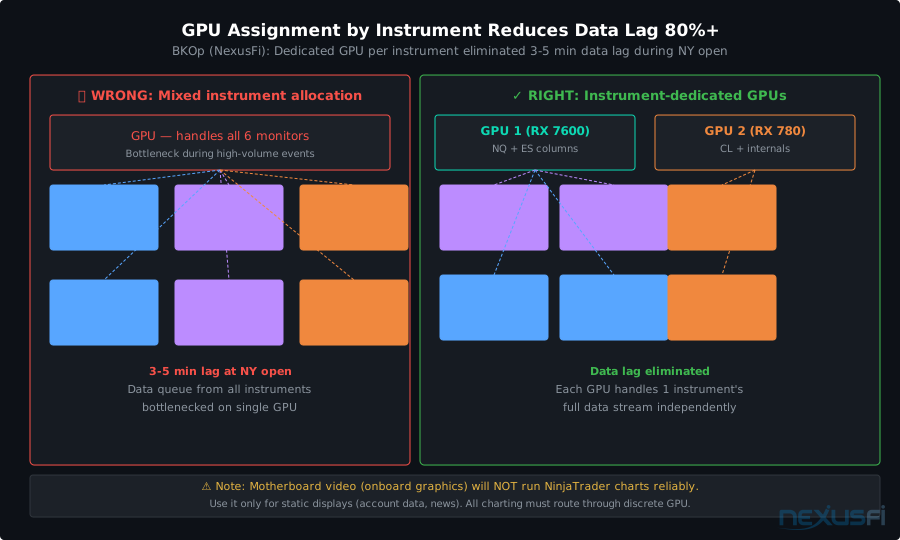
Instrument-based organization: @djkiwi dedicates each monitor to a single instrument with identical chart configurations. @BKOp runs a column-per-instrument system (2 columns for NQ, 3 for ES, 3 for CL). The advantage is spatial memory — you always know where your NQ footprint chart is without looking. Under market stress, spatial memory lets you act faster than explicit search.
Timeframe-based organization: @Inletcap organizes by market overview, primary instrument, and secondary context. Left monitor shows an overview for each market (tabbed), center monitor is the primary eMini workspace, right monitor handles secondary instruments or study charts.
Dedicated execution zone: Keep your DOM, order entry, and P&L on the monitor where your hand naturally rests on the mouse. Switching monitors to execute while tracking charts elsewhere costs you 1-2 seconds per trade — which at market open volatility can mean a very different fill.
Portrait monitors: A vertical 27-inch monitor is excellent for the DOM/order ladder, which is natively a vertical interface. @BKOp runs a 9th monitor in portrait orientation specifically for Apex account data. Portrait monitors also work well for economic calendars, watchlists, and news feeds where content scrolls vertically.
Monitor Arms and Ergonomics #
This is the section most multi-monitor guides skip, and traders notice the gap at hour three of a trading session.
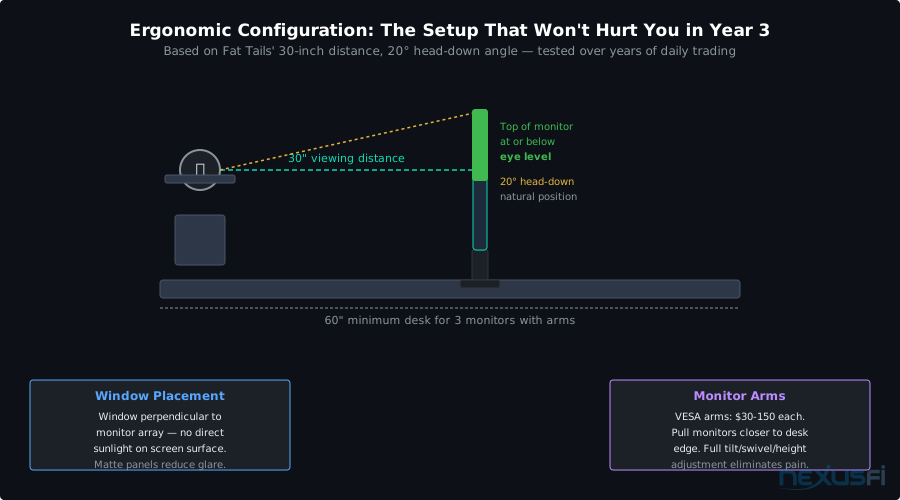
Viewing distance: @Fat Tails runs at 30 inches from face to monitor — a deliberate choice for a 60"x30" desk. Ergonomic guidelines suggest 20-40 inches for standard monitors, scaling up with monitor size. A 32-inch monitor should sit closer to 30-32 inches away; a 27-inch can go 24-28 inches. Get closer than that and you're constantly moving your head; farther and text gets hard to read without increasing font sizes.
Height: The top edge of your primary monitor should sit at or slightly below eye level. This keeps your neck in neutral position rather than tilted up, which matters considerably after a year of daily trading sessions. Most trading desks have monitors too high because traders prop them on stands without adjustment.
Monitor arms vs stands: VESA-compatible monitor arms (Ergotron LX, Amazon Basics, Fully Jarvis) allow full tilt/swivel/height adjustment and pull monitors closer to the desk edge, freeing up desk space. They cost $30-150 per arm. For 4+ monitors, dual-arm or quad-arm mounts from Ergotron (Hex 3 Over 3 or similar) consolidate the cabling and allow precise angular adjustment.
Lighting and glare: @Fat Tails keeps windows perpendicular to the monitor array, specifically to avoid reflections. Direct sunlight on a monitor reduces contrast and makes chart patterns harder to read. Matte panel coatings help; bias lighting (LED strips behind monitors) reduces eye strain in dark rooms by decreasing contrast ratio between monitor and surroundings.
Software Tools for Multi-Monitor Management #
Windows doesn't have great native multi-monitor management for power users. Third-party tools make a significant difference.
DisplayFusion ($29 one-time): The most capable multi-monitor manager. Lets you split large monitors into virtual displays, create taskbar segments per monitor, set per-monitor wallpapers, create window snapping zones beyond Windows' native system, and — critically — save and restore entire window layout profiles. If your 6-monitor setup gets scrambled after a Windows update or GPU driver change, a saved profile restores every window to its position in seconds. @FuturesTrader71 uses DisplayFusion to split his 55-inch 4K TV into 4 virtual monitors.
NVIDIA Control Panel / AMD Radeon Settings: Required for configuration when using multiple GPUs or professional graphics cards. Also necessary for configuring refresh rate and bit depth when monitors support different display standards.
NinjaTrader workspace management: NinjaTrader 8 has its own workspace system that's semi-independent of Windows window management. You can save chart layouts within NinjaTrader's workspace files, which means your chart configurations survive even if your monitor arrangement changes. Keep separate workspaces for different session types (pre-market, regular hours, off-hours review) rather than trying to maintain one universal layout.
The Large TV Alternative #
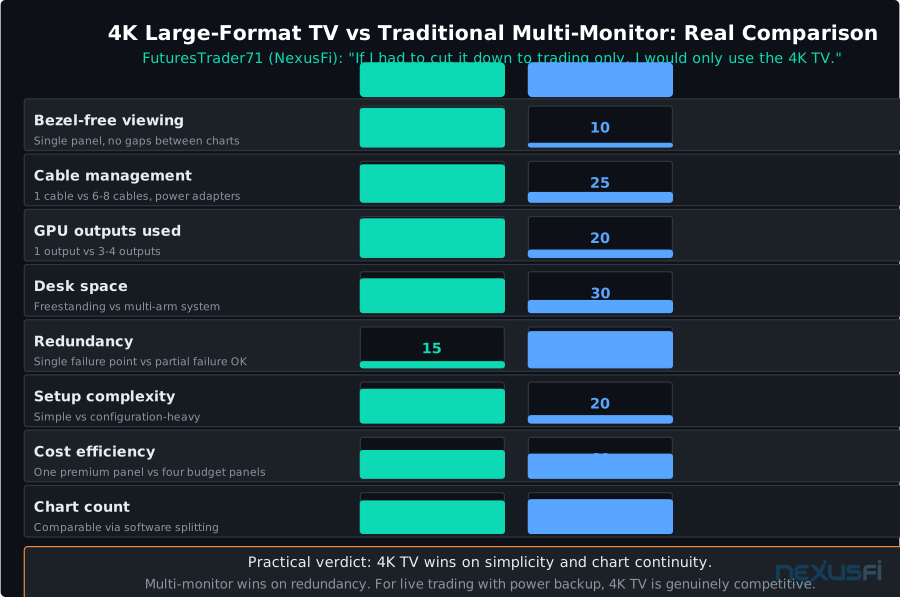
The 4K TV approach deserves its own section because it's genuinely underrated and widely misunderstood.
A 55-65 inch 4K TV as a primary trading display, positioned 4-5 feet away, delivers approximately the same viewing angle and pixel density as three 27-inch 1440p monitors arranged side by side — with no bezels, one cable, one GPU output, and no multi-monitor configuration headaches.
The requirements for this to work well: True 4K (3840x2160), DisplayPort or HDMI 2.1 for 60Hz signal, adjustable stand or wall mount to position at correct height and distance, and software splitting (DisplayFusion) to create defined window zones.
The counterargument is that a single large TV is a single point of failure — if it dies during trading hours, you're down completely. Two monitors means you can operate on one while replacing the other. This is a real operational risk that matters for traders who run overnight or during critical economic events. Combining a large TV with a backup internet connection and UPS power protection is the right approach.
Budget Framework: Where to Spend and Where to Save #
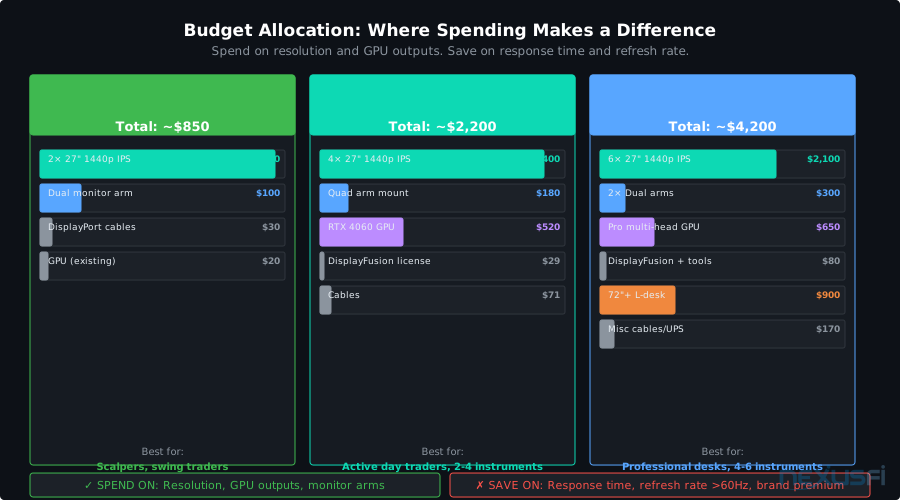
The monitor component of a trading setup ranges from $400 to over $5,000 depending on count and spec. Here's where the money actually makes a difference:
Spend on: Panel resolution and size (1440p beats 1080p; every inch beyond 24 adds real chart space), GPU outputs (make sure your GPU has enough DisplayPort connections before buying monitors), and monitor arms (the $100 investment in ergonomics saves you from physical pain that disrupts trading focus). IPS panel technology over TN for any off-center monitors.
Save on: Response time specs (1ms vs 4ms is invisible in trading), refresh rate beyond 60Hz (trading at 144fps matters for gaming, not charting), brand premium (LG, Dell UltraSharp, and AOC B/U series all deliver quality at different price points), and monitor speakers (always terrible).
Rough budget targets:
- 2-monitor basic: Two 27-inch 1440p IPS monitors ($300-400 each) + dual monitor arm ($80-120). Total: $700-900.
- 4-monitor intermediate: Four 27-inch 1440p IPS monitors + quad arm or two dual arms + mid-range GPU with 4 DisplayPort outputs (RTX 4060 or equivalent). Total: $1,800-2,500.
- 6+ monitor advanced: Requires planning GPU strategy (multiple cards or professional multi-head card). Add $400-800 for GPU upgrades. DisplayFusion license. Total: $3,000-5,000+ depending on panel spec.
One thing that rarely gets discussed: desk size limits your monitor count before GPU specs do. A standard 60-inch desk can comfortably fit three 27-inch monitors with monitor arms. Four requires a 72-inch or L-shaped desk. Six or more requires dedicated desk infrastructure. Plan desk space before buying monitors.
Common Mistakes That Cost Traders Money and Focus #
Buying monitors before defining the workflow: If you don't know what every screen will show, you don't need that many screens. Define your chart needs first. Count the windows you actually use during live trading, not what you think you should be watching.
Mixing resolutions across monitors: @dstrader noted that running four monitors of three different resolutions is "a total pain, each monitor has its own settings and controls and behave differently." Matching resolution across primary monitors isn't just aesthetic — it means consistent DPI scaling across your workspace, which affects how NinjaTrader and other platforms render at different window sizes.
Underspecifying the GPU: Buying four monitors then discovering your GPU can only reliably drive three is a common sequence. Check GPU outputs before purchasing monitors. Budget for a GPU upgrade as part of the monitor purchase, not separately.
Skipping the ergonomic setup: Many traders are "completely ignoring basic ergonomic requirements. The distance between the monitors and the eye should be somewhere between 20'' and 40''." The cost of bad ergonomics is chronic pain and cognitive fatigue — both degrade trading performance in ways that are hard to attribute directly to the cause.
Adding screens as a productivity substitute: More monitors feel productive. They create the sensation of working seriously without changing trading results. Many traders could trace their best periods to setups they found overwhelming at first — two or three focused screens — not the six-screen array they're running now.
Configuration by Trader Type #
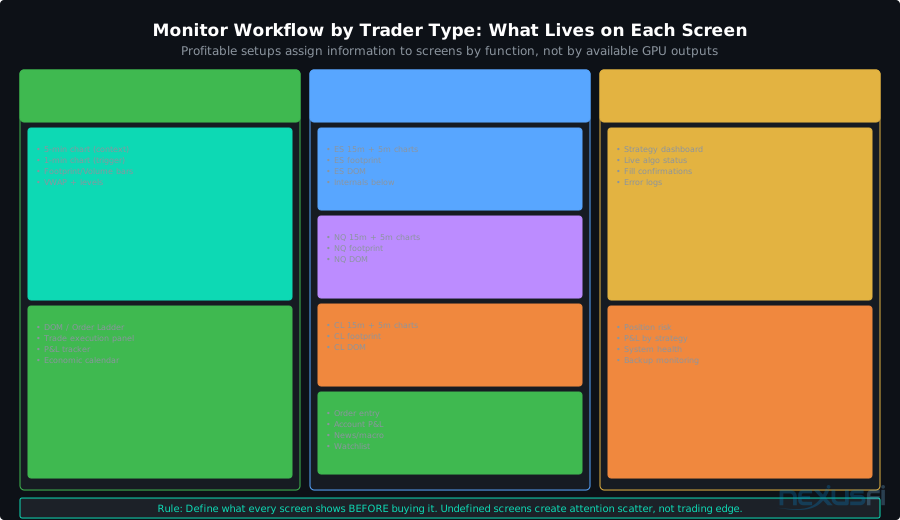
Single-instrument scalper: Two monitors. Primary: 5-min and 1-min charts plus footprint. Secondary: DOM, execution panel, P&L, news. This is @Inletcap's baseline setup before scaling up.
Multi-instrument futures trader (2-4 instruments): Four monitors. One per instrument showing 15-min and 5-min context charts plus DOM. Works for ES/NQ/CL/GC concurrent monitoring. Each monitor runs the same chart layout for that instrument — as @djkiwi describes it, "Each monitor is dedicated to a single instrument with exactly the same charts and indicators. This enables consistent evaluation on a relative basis."
Systematic/automated trader: Two to three monitors. Strategy performance, position monitor, and system health. Most of the work happens in software, not charts.
Research-heavy discretionary trader: Three to four monitors. Primary chart timeframes on two screens, reference charts on a third, research/news/economic data on a fourth.
The pattern: productive traders use monitors purposefully. Every screen has a defined role. When you sit down, you know exactly where to look for each piece of information you need.
Connecting to Your Broader Trading Infrastructure #
Your monitor configuration doesn't operate in isolation. Resolution choice affects GPU thermal load, which connects to your trading workstation hardware setup. The cable management and power requirements of a 6+ monitor system feed into power backup and UPS planning — a 6-monitor setup drawing 300W+ from wall power needs proper UPS sizing. Remote access solutions need to account for multi-monitor configuration. Running six screens remotely via VPS means understanding bandwidth requirements covered in trading VPS for NinjaTrader.
The infrastructure decisions compound. Getting your monitor setup right — matched to what you actually trade, spec'd to what your GPU can reliably drive, positioned to what your body can sustain — is one of those early decisions that either reinforces or undermines everything that comes after it.
What Most Guides Don't Tell You #
The marginal value of additional screens drops sharply after four. The gains from monitor one to monitor two are enormous — you eliminate window-switching entirely for your primary workflow. Monitor two to three is still significant — you add a dedicated space for order flow or secondary context. Monitor three to four is incremental. Monitor four to five requires a defined use case to justify. Monitor six and beyond is specialist territory.
Most of the improvement from a better monitor setup comes from organization, not count. Three focused monitors with clear information architecture outperforms six screens in disarray. The traders on NexusFi who run nine monitors have been trading their instruments for years and know exactly which chart they need where. They built to their workflow, not toward some abstract ideal of maximum screens.
Start with two good 1440p 27-inch IPS panels. Define what goes where. Add screens only when you can name the specific problem they solve. Your trading setup should clarify your view of the market, not signal commitment to it.
Knowledge Map
Prerequisites
Understand these firstGo Deeper
Build on this knowledgeReferences This Article
Articles that build on this topicCitations
- — Battlestations: Show us your trading desks! (2024) 👍 6“How they are assigned to a GPU made a huge difference in reducing data lag. I usually trade 3 instruments in NinjaTrader, and run 9 monitors in four columns.”
- — Hardware lust: trading PC with 6-monitors (2012) 👍 8“Each monitor is dedicated to a single instrument with exactly the same charts and indicators. Having dedicated screens like this enables the trader to perform the evaluation quickly without distraction.”
- — How many monitors do you have? (2021) 👍 11“I've been using a Samsung 55" Curved 4K TV that is software split into 4 monitors. If I had to cut it down to trading only, I would only use the 4K TV.”
- — Battlestations: Show us your trading desks! (2024) 👍 5“Windows won't natively support or the NVIDIA tools as well that many monitors. The proper way to do this is buy the professional level video cards but these are like $5000 each vs $500 each.”
- — Battlestations: Show us your trading desks! (2012) 👍 42“When I am sitting at my desk, the distance between my eyes and each of the monitors is 30 inches. My head is looking down at an angle of about 20 degrees.”
- — InletCap's Random Collections (2016) 👍 46“I have three 27-inch monitors side by side on my desk. Starting from the far left, I have an identical Overview desktop for each market I trade.”
- — Curved Monitors in trading (2015) 👍 3“My purpose is a lot of bars on screen, not indicators. So I can see multi time frame at the same screen. I can't do that with 2 big screens side by side.”
- — 4K monitors for trading (2016) 👍 20“I now have 2 machines connected to my 2 Philips 40-inch 4K monitors using both the DP and mini-DP ports. DisplayPort cables and Accell-certified cables for reliability.”
- — 4K monitors for trading (2015) 👍 4“Before had Dell 30-inch 2560x1600 showing 4 charts on each screen. Higher resolution means more screen space, more charts on each screen, less movement from screen to screen.”
- — Battlestations: Show us your trading desks! (2024) 👍 12“Running 4 34-inch curved ultrawide monitors, 1 vertical 27-inch monitor, 2 Ergotron dual stacking arms, sit/stand desk.”
- — 4K monitors for trading (2017) 👍 5“I have 4 monitors: 3 4K and 1 2560x1440. All different sizes. It's a total pain, each monitor has its own settings and controls and behave differently.”