



Monitor Selection for Futures Traders: Resolution, Panel Type, and the Display Setup That Won't Blind You Mid-Session
Overview #
Most traders spend more time researching their next trade than they did choosing the monitors they stare at for six hours a day. That's backwards. The wrong monitor setup costs you accuracy, speed, and comfort every single session for years. A bad entry costs you a few ticks. Bad monitors cost you compounding fatigue.
Monitor selection for futures trading isn't the same problem as monitor selection for gaming or design work. Traders need crisp DOM text at normal scaling, enough real estate to run chart plus order ticket side-by-side without cramping, consistent brightness that won't wash out color-coded alerts, and display quality that doesn't destroy your eyes by 2pm. None of those requirements map cleanly onto gaming or design specs.
This guide covers the actual trade-offs — resolution, panel technology, refresh rate, screen size, connectivity, and eye strain — with specific numbers and community experience from traders who've already gone through the upgrade cycle. This is part of the NexusFi hardware selection series: CPU, RAM, SSD, GPU, PSU, motherboard. Monitors are the last piece, and in many ways the most visible one.
Resolution: The Real Numbers #
Resolution determines how much information fits on screen at native scaling. The math is simple: more pixels per inch means sharper text and the ability to pack more windows into the same physical space. The complication is that "more pixels" only helps if you can read them at a comfortable viewing distance without Windows DPI scaling creating a mess.
Pixel density (PPI) is what counts, not the raw resolution number. A 27-inch 1440p panel runs at 108 PPI — the threshold where DOM text, order ticket fonts, and chart tick labels stay crisp at normal Windows scaling (100-125%). A 27-inch 1080p panel runs at 81 PPI — noticeably softer, and you'll end up running larger fonts to compensate.
How the main configurations stack up:
- 27-inch 1440p (108 PPI) — Sweet spot for most day traders. Crisp DOM text at 100-125% scaling. Runs on any mid-range GPU.
- 27-inch 4K (163 PPI) — Outstanding sharpness, but requires careful scaling setup and a capable GPU (RTX 3060 or better for 4K at 144Hz).
- 32-inch 4K (138 PPI) — Best single-monitor option for maximum real estate. 32-inch 1440p drops to 92 PPI — lower density than 27-inch 1440p, and noticeably softer.
- 27-inch 1080p (81 PPI) — Acceptable only as a secondary display.
@khe91 on NexusFi ran the experiment directly, moving from 30-inch Dell monitors (4 charts per screen) to 32-inch Asus 4K panels: "higher resolution -> more screen space -> more charts on each screen -> less movement from screen to screen -> easier trading." The jump from 4 charts to 9 charts per screen at the same viewing distance is the real argument for 4K. [1]
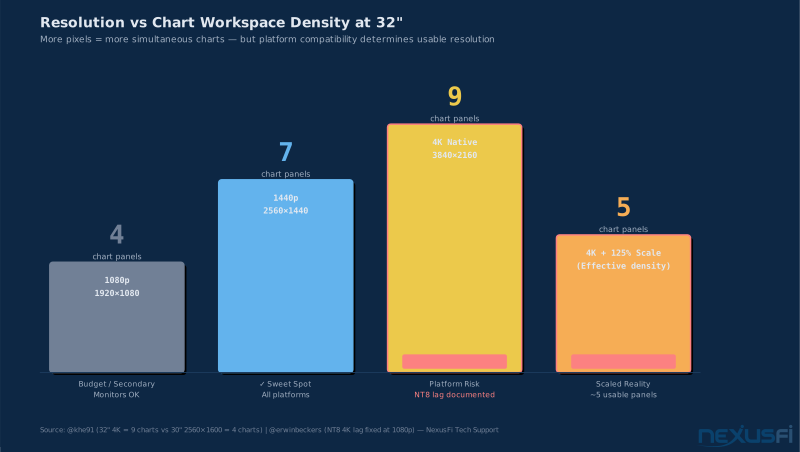
The 32-inch 1440p trap: 32-inch 1440p runs at 92 PPI — lower density than 27-inch 1440p. If you're buying a bigger screen, go 32-inch 4K (138 PPI) to get the sharpness the size demands. The size upgrade requires a resolution upgrade too.
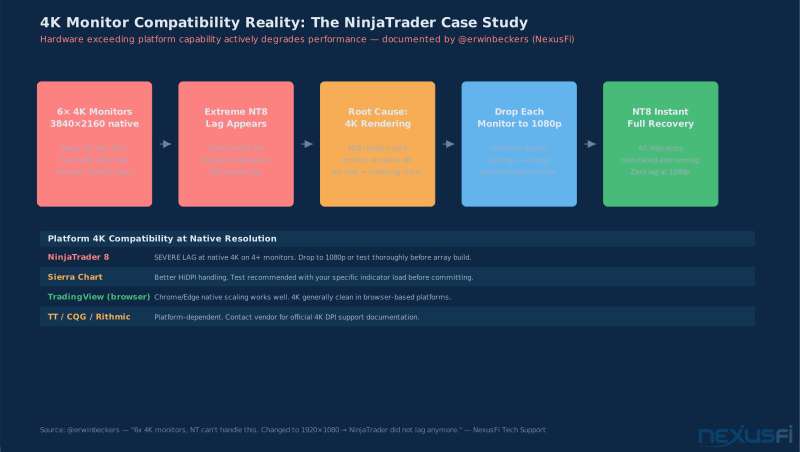
The 4K Scaling Problem: 4K is excellent when configured correctly. Verify your full trading platform stack — charts, DOM, order ticket, and custom add-ons — handles high-DPI correctly before committing. Modern NT8 and Sierra Chart builds handle 4K fine; older custom NinjaScript indicators may not declare DPI awareness.
Ultrawide (21:9): Useful for traders who want chart and DOM side-by-side without bezels. The trade-off is that NinjaTrader and Sierra Chart are designed for 16:9 proportions. Ultrawides work, but layout fine-tuning takes time that 16:9 setups don't require.
Big Mike's preference on aspect ratio: "I absolutely prefer 16:10 for trading. A typical 16:9 monitor would be 1920x1080, 16:10 would be 1920x1200 giving you more usable resolution height." The extra vertical space matters for chart patterns and indicator stacks. [2]
Panel Technology: IPS, TN, VA #
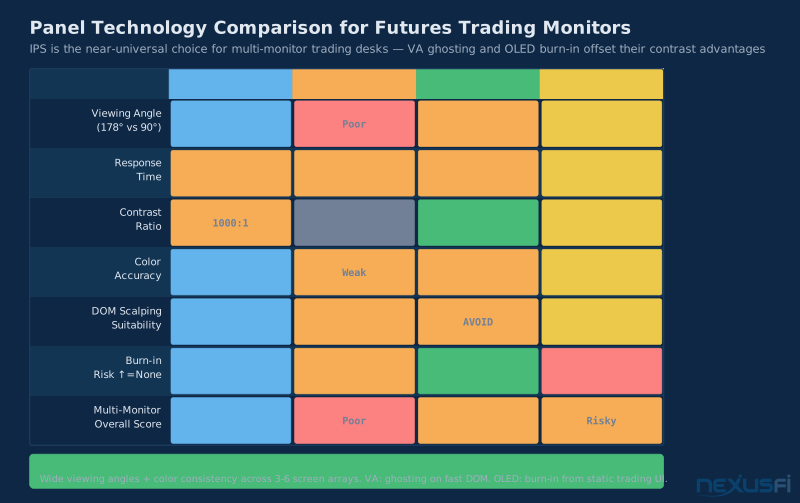
The panel technology determines viewing angle, color accuracy, contrast, and response characteristics. For trading, one technology wins by a wide margin: IPS.
IPS (In-Plane Switching) maintains color and brightness accuracy at wide viewing angles (178 degrees). This matters for multi-monitor setups where you're glancing at screens not directly in front of you. Color accuracy on IPS matters because chart color coding is how you parse information quickly — red candles, green candles, VWAP bands, volume profile gradients, DOM bid/ask coloring. IPS factory calibration (ΔE < 2) ensures these stay consistent.
VA (Vertical Alignment) panels offer the highest contrast ratios (3000:1 vs 350-500:1 for IPS). Deep blacks, vivid whites. In practice, VA panels have a ghosting problem: dark-to-dark transitions show a "smearing" artifact when UI elements move. Watch the DOM ladder on a VA panel during a fast market — bid and ask levels can leave visible ghosting. Gaming VA panels have improved much, but test specifically on trading software before buying.
TN (Twisted Nematic) panels are fast and cheap. The worst color accuracy and viewing angles of the three types. On a single-monitor setup, acceptable. On a multi-monitor desk where you're looking at screens at angles, color shift is a constant distraction. Avoid for primary trading displays.
That combination remains the baseline for a proper trading monitor. [3]
Refresh Rate for Trading #
Refresh rate determines how many times per second the monitor updates the displayed image. For trading, the visible benefit shows up in specific places and the diminishing returns kick in fast.
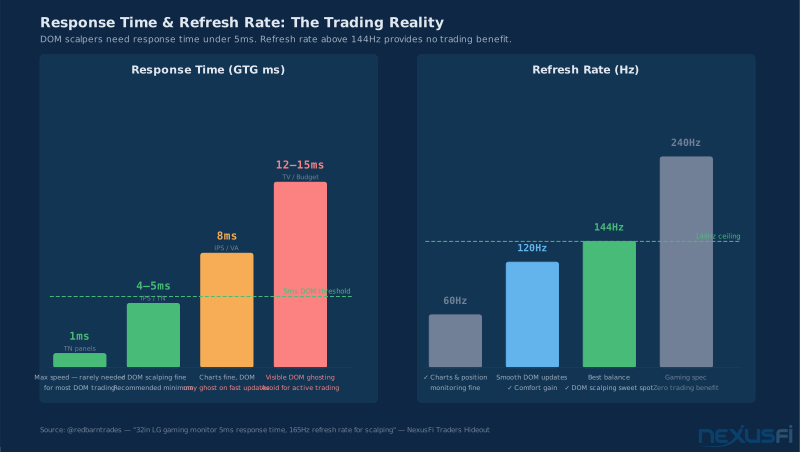
At 60Hz, each frame is on screen for 16.7ms. At 144Hz, it's 6.9ms. Where 144Hz helps:
- DOM ladder updates during fast markets — NFP, FOMC, unexpected news. Higher refresh makes bid/ask level movement feel smoother and reduces perceived "screen lag."
- Fast chart scrolling — Panning through historical price action is noticeably smoother.
- Precision order placement — Cursor tracking feels more accurate at 120Hz+, which matters for click-to-trade DOM trading.
What higher refresh doesn't give you: faster fills. Your execution quality is determined by broker, data feed, and network — not monitor refresh rate. A 240Hz monitor will not improve your fill speed. Don't conflate platform visual responsiveness with market access.
60Hz is acceptable for secondary displays running news feeds and P&L trackers. For primary chart and DOM displays, 120Hz is the minimum. 144Hz is worth the small premium over 120Hz at current prices. 240Hz is overkill — the visual difference in trading applications is negligible.
Response time marketing vs reality: Manufacturers quote "1ms" under specific test conditions that don't reflect trading UI content. High overdrive settings can introduce overshoot artifacts — a "halo" effect visible when dark DOM elements move against lighter backgrounds. Check independent reviews (RTings.com has consistent methodology) rather than spec sheets.
Screen Size and Multi-Monitor Strategy #
Screen size intersects with resolution, viewing distance, and desk depth. Strong defaults exist for each configuration.
Single-monitor: 32-inch 4K is the best option. Enough real estate for charts, DOM, order ticket, and news feed without window switching. Big Mike's take: "40 inch 4K is the sweet spot. It's perfect. Smaller than 40 and you need scaling. Bigger than 40 and you can't see the edges." For a desk with adequate depth, 40-43 inch 4K is worth considering for single-monitor setups. [4]
Dual 27-inch: The standard professional setup. Primary for charts, secondary for DOM. At 24-30 inches desk depth, 27-inch panels fill peripheral vision without requiring head movement. Total horizontal resolution (5120 pixels at 1440p per panel) handles multiple chart timeframes simultaneously.
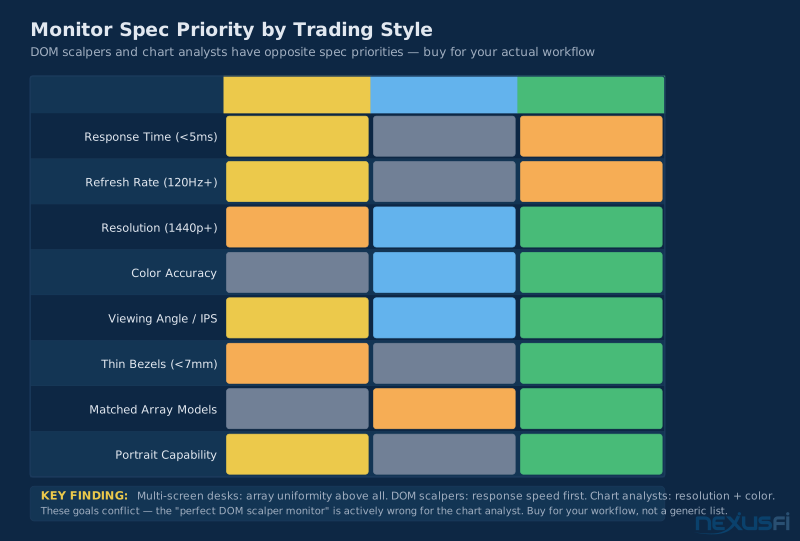
Matching monitors is non-negotiable. @dstrader runs four monitors and reports: "Never mix different resolutions and sizes of monitors. It's a total pain, each monitor has its own settings and controls and behave different as I move windows/charts from one monitor to another." Buy identical models. It simplifies configuration and means consistent color rendering when your eye moves between screens. [5]
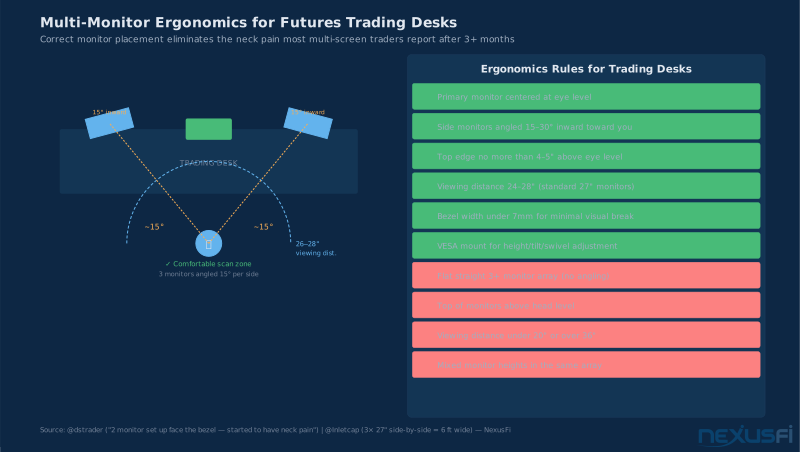
Three monitors and beyond: Flanking displays get viewed at an angle — IPS panels are non-negotiable here. TN panels on the flanks show obvious color shift at 45 degrees. For GPU output requirements with three+ monitors, see GPU Selection for Trading Workstations.
49-inch ultrawide: The Dell 49-inch 5120x1440 (5K2K) eliminates bezels and gives two 27-inch panels worth of horizontal workspace in one screen. @cpolk2013 runs two: "Each Dell 49in Monitor is equivalent to Two 27in Monitors side-by-side without any space between the monitors. The super high resolution makes a BIG DIFFERENCE." The 5120x1440 on 49 inches runs at 108 PPI — same density as 27-inch 1440p, but panoramic. [6]
Big Mike's setup progression is instructive: six 24-inch 1920x1200 monitors in Texas, then switching to three 30-inch monitors for Ecuador. His priority list: "Quality, if like me, you stare at them for 12 hours a day. Thin bezel important for multi-monitor. Get all matching." [7]
DisplayPort vs HDMI #
The cable connection determines what resolution and refresh rate combinations are actually achievable.
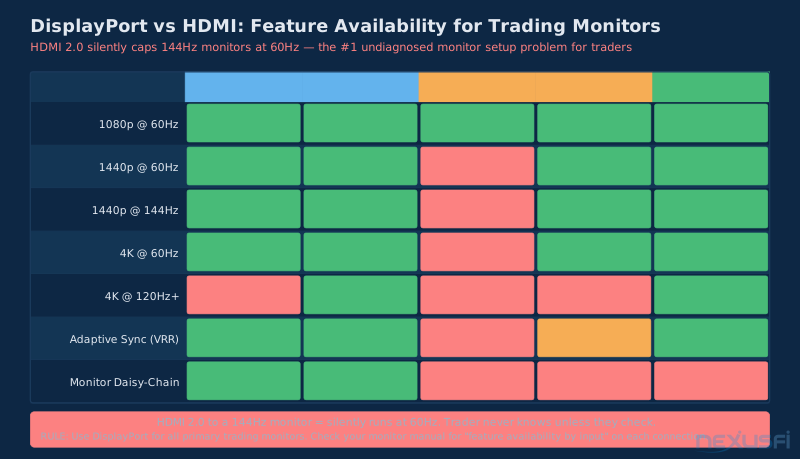
DisplayPort 1.4 carries 32.4 Gbps — enough for 4K at 144Hz (with DSC compression) or 5K2K at 120Hz. Supports adaptive sync (FreeSync/G-Sync) and handles high-refresh combinations reliably. Desktop trading PCs built in the last four years have multiple DP 1.4 outputs. Use them.
HDMI 2.0 caps at 4K/60Hz or 1440p/144Hz — fine for lower-refresh setups, limiting for 4K at high refresh. HDMI 2.1 supports 4K at 144Hz without DSC. If your monitor has HDMI 2.1 but your GPU only has HDMI 2.0, you're bottlenecked. Check both ends.
Cable quality matters. A cheap DisplayPort or HDMI cable causes signal drop, refresh rate throttling, or resolution downgrade. Use cables rated for the bandwidth you need. For DP 1.4, look for "DP 1.4 certified" on the cable. The $8 cable from an unknown brand is a false economy.
Anti-Glare, Brightness, and Eye Strain #
Trading sessions run long. Eye strain compounds across weeks and months. The monitor factors that most affect long-session comfort aren't the ones most reviews emphasize.
Anti-glare (matte) vs glossy: Glossy panels have higher perceived contrast and more vivid colors. They also reflect overhead lighting and windows directly back at you. In a trading environment with overhead lights or windows behind the desk, glossy panels make charts harder to read by 1pm. Anti-glare coatings diffuse ambient light and eliminate mirror-like reflections. Buy anti-glare for primary trading monitors unless you have full control over room lighting.
Flicker-free backlight: Traditional backlight dimming uses PWM (Pulse Width Modulation) — rapid on/off cycling your eyes perceive as steady but your brain registers as flicker, especially at lower brightness. Flicker-free (DC dimming) monitors use constant current. Look for "flicker-free" or "DC dimming" in specs. Most modern monitors from major brands are flicker-free, but verify. @iBurger specifically called out PWM as a purchase decision factor for serious trading monitors. [3]
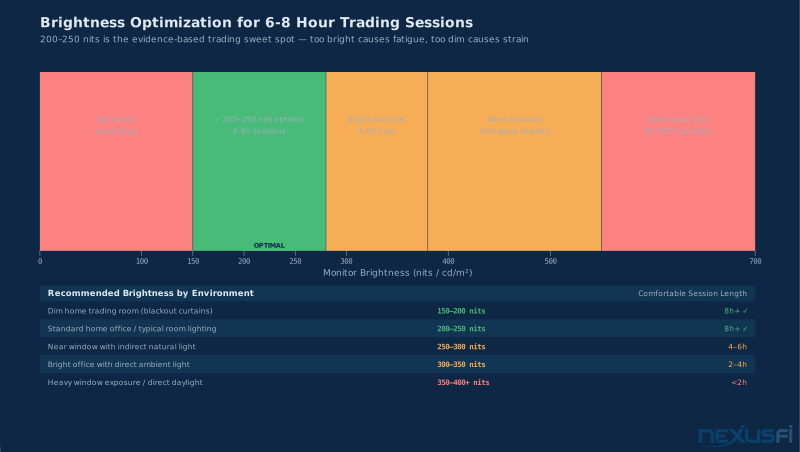
Brightness calibration: The most important long-session comfort adjustment. Running monitors at maximum brightness in a dimly lit room causes more eye fatigue than any other single factor. The rule: your monitor should be no brighter than the brightest element in your ambient environment.
Target settings:
- Bright office with windows: 300-350 nits
- Normal office lighting: 200-250 nits
- Dim room / evening trading: 100-150 nits
Pull up a white chart background and compare it to a sheet of white paper on your desk. They should be roughly the same brightness. If the monitor is dramatically brighter, turn it down.
Viewing distance and ergonomics: At 27 inches, comfortable viewing distance is 20-30 inches. At 32 inches or larger, 30-40 inches. Top of the monitor should be at or slightly below eye level — looking up forces neck extension that builds into real pain over months. A monitor arm ($50-80) makes precise height and distance adjustment easy and permanent.
Recommended Configurations #
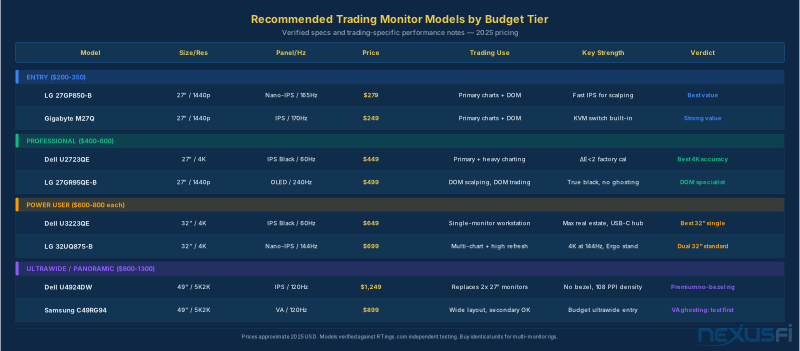
Three setups covering the realistic range for futures traders. All prices approximate 2025 USD.
Entry: $600-800 total
- Primary: 27-inch IPS, 1440p, 144Hz, DisplayPort, anti-glare — $250-350
- Secondary: 27-inch IPS, 1080p or 1440p, 60-75Hz — $150-250
- Dual-monitor arm: $60-100
Charts on primary, DOM and order management on secondary. Upgrade path is clear: swap secondary for a matching 1440p unit when budget allows.
Professional: $1,200-1,600
- Two matching 27-inch IPS, 1440p, 144Hz — $250-350 each
- Or: 27-inch IPS, 4K, 144Hz — $400-550 each with RTX 3060+
- Monitor arm with gas spring: $80-120
Matching resolution eliminates the visual discontinuity of mixed setups. This is the configuration @dstrader is moving toward: "I'm considering getting rid of all my monitors and ordering 3 4K of the same brand and 32 inch size." [5]
Power user: $1,800-2,500
- Dual 32-inch IPS 4K, 144Hz (Dell UltraSharp U3223QE, LG 32UQ875): $500-700 each, requires RTX 3060+
- Or: 49-inch IPS 5K2K (Dell U4924DW, Samsung 49CRG9) plus 27-inch 4K secondary: $1,100-1,400 total
- Or: Three 27-inch 1440p: higher total pixel count for the same budget, requires three-output GPU
Triple monitors running 1440p/144Hz draws significant GPU bandwidth. RTX 3060 handles it comfortably. RTX 4060 runs it effortlessly. Below GTX 1060 era, triple 1440p at high refresh may cause rendering issues. See GPU Selection for Trading Workstations.
NinjaTrader and Sierra Chart Notes #
NinjaTrader 8 at 4K: Current NT8 releases handle 4K at 125% and 150% Windows scaling cleanly for most UI elements. The exception: custom NinjaScript indicators written before 2022 may not declare DPI awareness, resulting in fuzzy rendering. Test your indicator library before buying 4K monitors if you run custom add-ons.
Sierra Chart at 4K: Sierra Chart has excellent DPI support across the board. The platform's customizable architecture extends to scaling — every UI element scales independently. 4K is well-supported. Sierra Chart users typically run 32-inch 4K as their primary because the platform takes full advantage of the additional real estate.
DOM ladder sizing: On higher-DPI displays, DOM ladder cell height (individual price level rows) looks smaller unless you explicitly adjust it. In NinjaTrader, SuperDOM row height is configurable. In Sierra Chart, DOM column sizing is independent of system DPI. Before your first live session on a new monitor, adjust DOM row height in the platform settings — not in Windows — until it feels right for click-to-trade accuracy.
Chart color rendering: IPS panels with good factory calibration (ΔE < 2) render chart color themes consistently. If you switch from a TN panel to IPS and your charts look "different," the IPS is more accurate — your old colors weren't what you thought they were. Give yourself a week before adjusting color themes on the new monitor.
Buying Checklist #
Before purchasing, confirm these specs:
- Panel type: IPS (or Nano-IPS, AH-IPS). Not TN for primary displays.
- Resolution: 1440p minimum on 27-inch. 4K for 32-inch or dense layouts.
- Refresh rate: 120Hz minimum, 144Hz preferred.
- Backlight: Flicker-free (DC dimming), not PWM.
- Coating: Anti-glare (matte), not glossy.
- Connectivity: DisplayPort 1.4 for anything above 1440p/60Hz.
- Ergonomics: VESA 100x100mm mount compatibility (for monitor arm).
- Calibration: Factory calibration with ΔE < 2 for professional-grade color consistency.
- Matching: If buying multiple monitors, buy identical models.
27-inch IPS 1440p at 144Hz is the right starting point for most futures traders. It handles DOM scalping, multi-chart analysis, and order management without the scaling complications of 4K or the layout constraints of ultrawide. The hardware selection series that got you here: Building vs Buying, Windows OS Optimization, and Multi-Monitor Setup for the software configuration side.
Knowledge Map
Prerequisites
Understand these firstGo Deeper
Build on this knowledgeReferences This Article
Articles that build on this topicCitations
- — 4K monitors for trading (2015) 👍 4“higher resolution -> more screen space -> more charts on each screen -> less movement from screen to screen -> easier trading”
- — How many monitors do you have? (2014) 👍 6“I absolutely prefer 16:10 for trading. A typical 16:9 monitor would be 1920x1080, 16:10 would be 1920x1200 giving you more usable resolution height, but not ideal for watching movies -- which I don't do on my monitors.”
- — 4K monitors for trading (2016) 👍 7“Ideally you want to have an IPS panel, with little input lag, 120HZ and no PWM, and probably not a glossy display.”
- — 4K monitors for trading (2015) 👍 5“Honestly, 40 inch 4K is the sweet spot. It's perfect. Smaller than 40 and you need scaling. Bigger than 40 and you can't see the edges.”
- — 4K monitors for trading (2017) 👍 5“Never mix different resolutions and sizes of monitors. I have 4 monitors: 3 4K and 1 2560x1440. All different sizes. It's a total pain.”
- — Battlestations: Show us your trading desks! (2019) 👍 5“Each Dell 49in Monitor is equivalent to Two 27in Monitors side-by-side without any space between the monitors. The super high resolution makes a BIG DIFFERENCE.”
- — Desirable Monitor Specs (2013) 👍 3“Quality, if like me, you stare at them for 12 hours a day or more some days. Thin bezel important for multi-monitor. Get all matching. Otherwise it is a distraction.”