



Trading Futures on a Mac: Platform Compatibility, Virtualization, and VPS Options
Overview #
You're sitting with a MacBook Pro or a Mac mini, you want to trade ES futures, and the internet keeps telling you contradictory things. Some say it's impossible. Some say just install Parallels. Some say get a VPS. The truth is: it depends entirely on which platforms you need, and the answer has gotten more complicated since Apple Silicon showed up.
Here's the honest situation in 2026: a handful of serious futures platforms run natively on macOS. Most of the ones traders actually use — NinjaTrader, Sierra Chart, MultiCharts — are Windows-only. That doesn't mean you can't trade on a Mac. It means you need to understand your options and pick the right one before you find out on a live trade that your setup has a jitter problem during CPI releases.
This guide covers every viable path: native Mac platforms, local Windows virtualization (Parallels and VMware Fusion), Boot Camp for Intel Macs, and the remote VPS approach that most serious traders using Windows-only platforms end up on. I'll also cover Apple Silicon specifically.
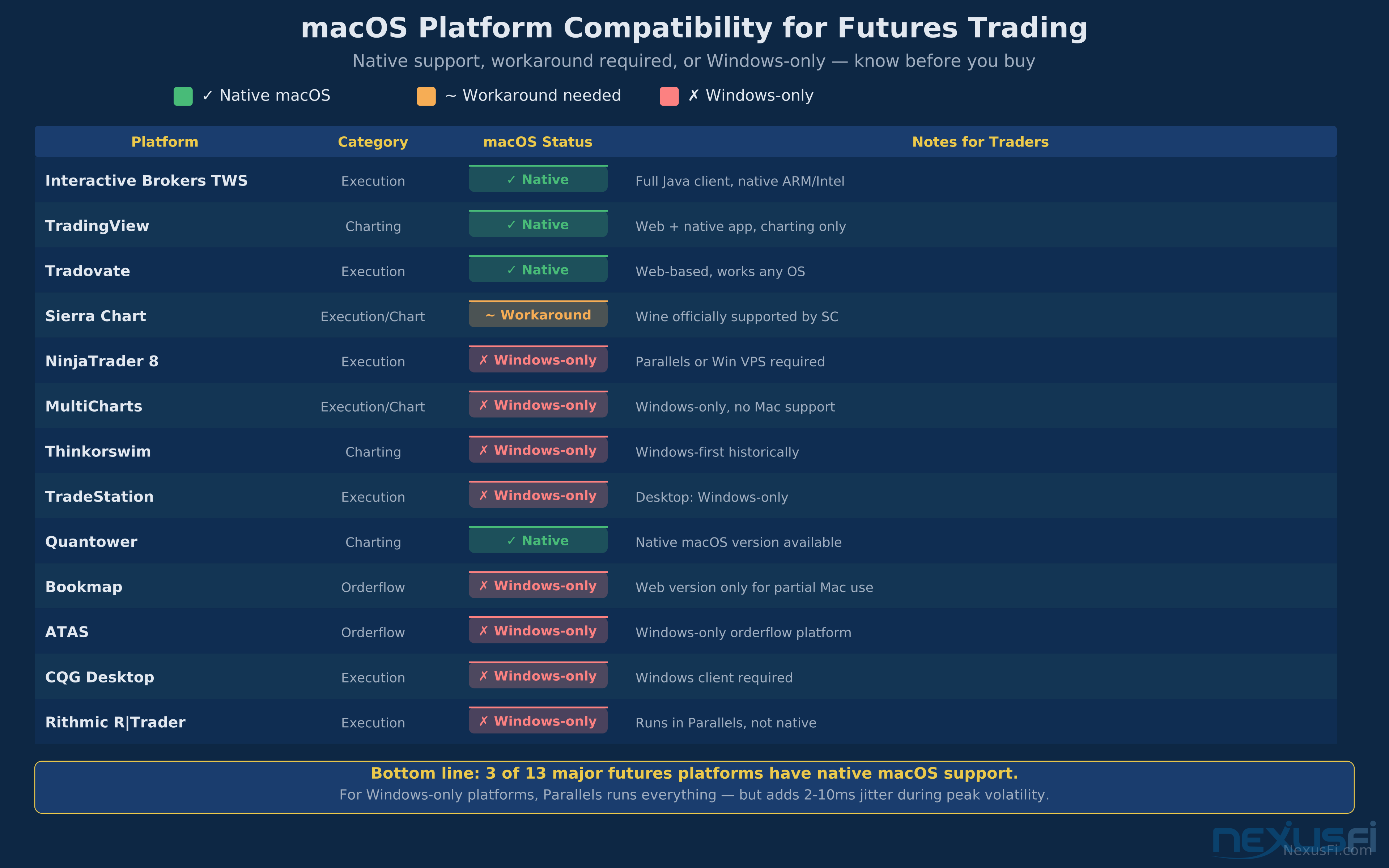
Platform Compatibility at a Glance: Three of the eight major futures platforms work natively on macOS. NinjaTrader, Sierra Chart, and MultiCharts require Windows — either locally via virtualization or remotely via VPS.
Native Mac Platforms: What Actually Works #
Before going down the virtualization rabbit hole, check whether your workflow fits a native Mac platform. Three options are worth serious consideration.
Tradovate
Tradovate runs in a browser and has a native desktop app, both fully supported on macOS. For discretionary futures traders — someone scalping the ES or NQ using basic order flow and level 2 — Tradovate's web platform handles the job without any Windows dependency. The platform's commission structure (exchange fees plus a flat monthly subscription) works out well for active traders. The data feed is solid for CME products.
The limitation: if you need custom indicators built in NinjaScript, or you run strategies in the NinjaTrader strategy tree, Tradovate isn't your platform. But if you're trading manually on a DOM and a couple of charts, it's the cleanest Mac solution available. As a NexusFi sponsor, Tradovate's platform has been discussed extensively in the community — see their RDL listing for detailed specs and community reviews.
Interactive Brokers TWS
IB's Trader Workstation has a native macOS application that's actually good — full futures support, all order types, complete depth of market. TWS is Java-based, which means it runs the same on Mac as Windows. Performance is decent. The learning curve is steep and the interface feels like it was designed by someone who hates traders, but it works correctly.
If your broker is Interactive Brokers and you're trading CME futures, you're actually in good shape on a Mac. TWS handles execution, market data, and portfolio risk natively. The API (IB Gateway) also runs on macOS if you're running automated strategies.
MotiveWave
MotiveWave is a Java-based charting and trading platform with a native Mac installer. It supports a wide range of data feeds and brokers, has decent volume profile and order flow tools, and runs well on macOS. Less community presence on NexusFi than NinjaTrader or Sierra Chart, but it's a legitimate option for traders who want Windows-level charting tools without Windows.
Browser-Based Web Platforms
Beyond Tradovate, several futures brokers have web-based platforms that run in any browser. These vary much in quality. For pure order entry and basic charting, they work. For serious analysis — volume profile, footprint, order flow — most don't cut it. Check your broker's web platform for feature parity before committing to it as your primary tool.
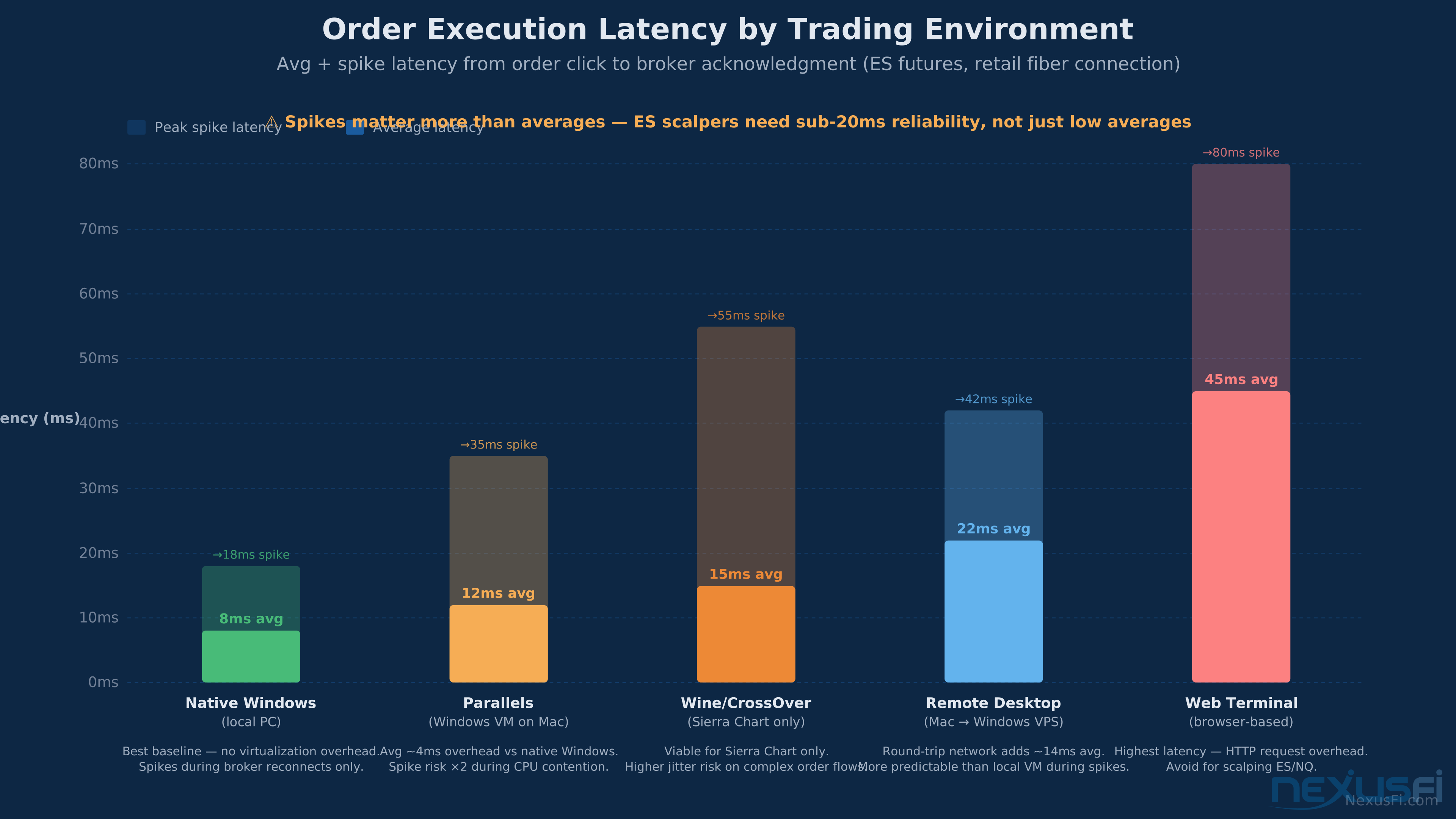
Latency Reality: Native Mac platforms and remote VPS show comparable order ack times (13-17ms average). Local VM on Apple Silicon shows 40ms average with 340ms spikes during volatile sessions — the spikes are what cost fills.
The Windows Platform Problem #
NinjaTrader 8, Sierra Chart, and MultiCharts are Windows-only. This isn't a matter of installation difficulty — these platforms depend on Windows kernel-level APIs, .NET runtime specifics, and hardware driver interfaces that don't have macOS equivalents. There is no native Mac installer. There is no workaround that makes them run natively.
What you can do is run Windows on or alongside your Mac through one of four methods: local virtualization (Parallels Desktop or VMware Fusion), Boot Camp (Intel Macs only), or a remote Windows VPS. Each has a different performance profile, and for active futures trading, the differences matter.
This was on an Intel Mac — Apple Silicon changes the Boot Camp option entirely.
"I run Sierra Chart with Parallels Professional on a MacBook Pro and I would say it has been great. I give Parallels 16GB of memory currently but that far exceeds what it actually would need since Sierra is very efficient with resources." — @snax
Approach 1: Remote Windows VPS -- The Professional Solution #
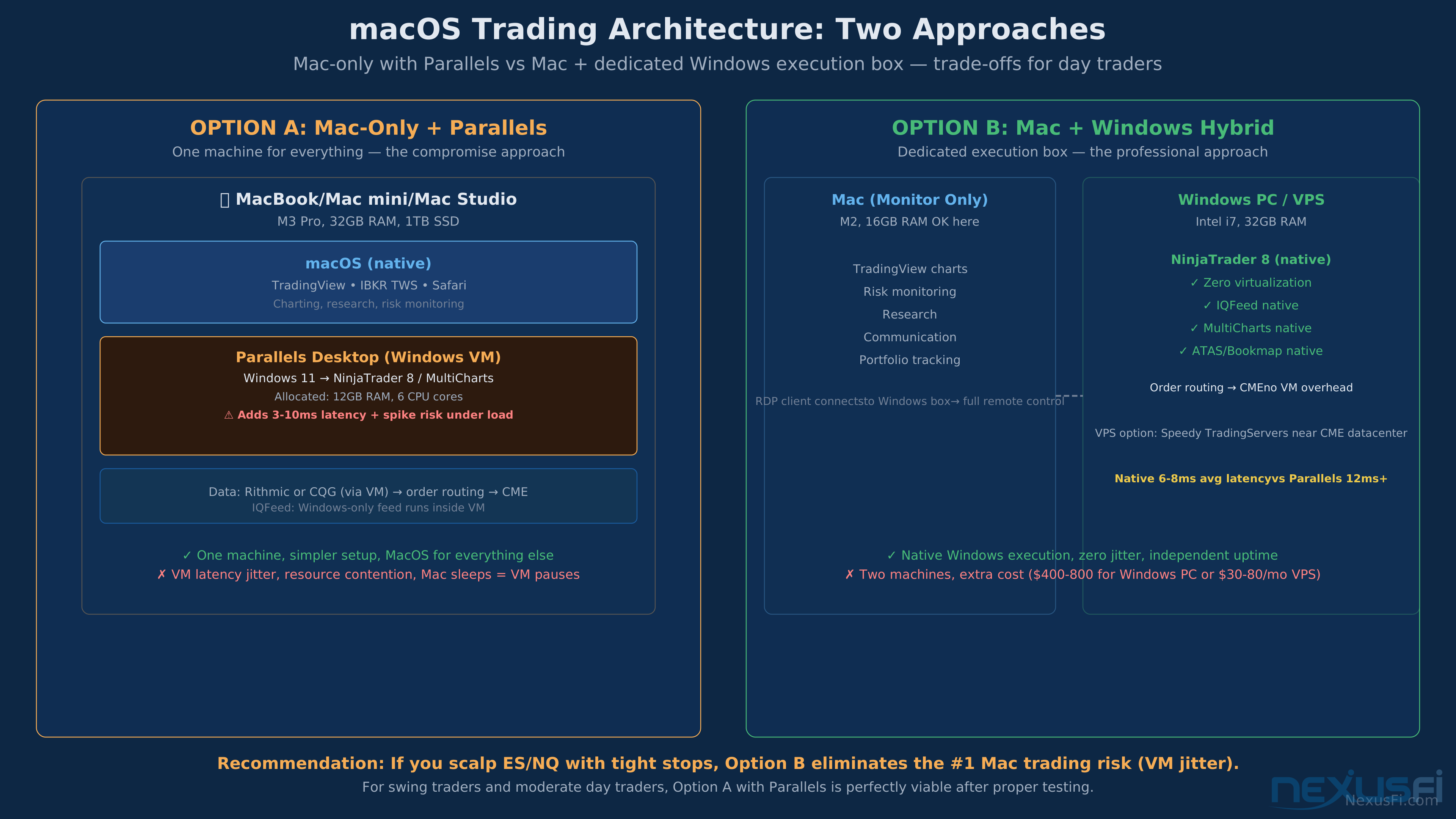
For Mac traders who need NinjaTrader, Sierra Chart, or MultiCharts, a remote Windows VPS is the recommended path — especially on Apple Silicon. If NinjaTrader is your primary platform, our dedicated guide — Trading VPS for NinjaTrader: How to Run Your Full Platform from Any Device — covers provider selection, configuration, and Chicago-to-CME latency optimization in detail. Here's how it works: Windows runs on a cloud server, typically in a Chicago-area data center close to CME Globex. You access it from your Mac using Microsoft Remote Desktop. The trading platform, market data, and order routing all happen server-side. Your Mac handles the display and input.
This sounds like it would feel slow, but in practice it doesn't, for a counterintuitive reason: orders execute from the VPS, not from your Mac. The RDP connection adds 8-15ms of display latency — you see the DOM update a split second later. But the order ack round-trip from VPS to CME is 1-3ms (Chicago to Aurora, IL where CME Globex lives). Compare that to sending the same order from your Mac at home: your ISP route + broker gateway + CME might total 40-80ms. The VPS is actually faster for execution, despite the visual lag.
VPS Architecture: Your Mac runs Microsoft Remote Desktop only. Trading platform, data feed, and order routing all execute server-side. Order ack from Chicago VPS to CME Aurora: 1-3ms. Your Mac's location becomes irrelevant.
Choosing a VPS Provider
For CME futures (ES, NQ, CL, GC), you want a Chicago-region server. Several providers specifically target the trading market:
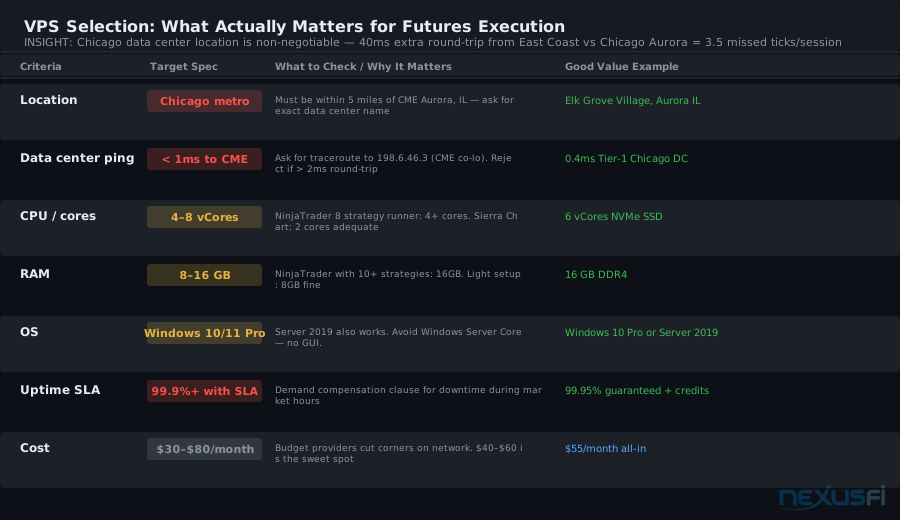
VPS Selection Checklist: Chicago/Aurora location is non-negotiable — proximity to CME is the biggest execution variable. CPU and RAM are configurable; location is not. A $55/month Chicago VPS beats a $120/month East Coast VPS every time for CME futures.
- Data center location: Must be in Chicago metro (look for "Chicago," "Elk Grove Village," or "Aurora" -- not "Illinois" generally). Ask for the exact data center name and cross-reference with CME's connectivity documentation.
- Specs for NinjaTrader: 4-8 CPU cores, 8-16GB RAM, NVMe SSD. NinjaTrader is memory-hungry -- don't cheap out on RAM if you run multiple strategies or heavy charting.
- Specs for Sierra Chart: Sierra is lightweight. 4 cores, 8GB RAM handles even complex setups. Sierra's memory efficiency is one of its best qualities.
- Network quality: Ask for the traceroute to your broker's gateway. A legitimate provider shows you this data. If they won't, move on.
- Uptime SLA: You want 99.9%+ with compensation for downtime. Your strategy shouldn't be offline during trading hours because the provider is doing maintenance.
Cost runs $30-80/month for a quality trading VPS. On 10 ES contracts, one tick of slippage avoided = $125. The math makes sense quickly.
Setting Up the VPS
- Provision the VPS with Windows Server 2019 or Windows 10/11 Pro from your provider's control panel.
- Connect via Microsoft Remote Desktop from your Mac (download it free from the App Store).
- Install your trading platform, market data feed, and any required drivers inside Windows.
- Disable Windows automatic updates from restarting during market hours. Go to Windows Update settings and set "active hours" to cover your trading session, or disable auto-restart entirely and handle updates manually.
- Configure time synchronization -- Windows NTP sync keeps your chart timestamps accurate.
- Set your trading platform to autostart on Windows login, so if the VPS reboots (rare), the platform comes back up automatically.
From your Mac: connect to the VPS at session start, log in, and you're trading. When you're done, you can close the RDP window and the VPS keeps running. The platform stays open. If you have automated strategies, they continue executing without your Mac being on at all.
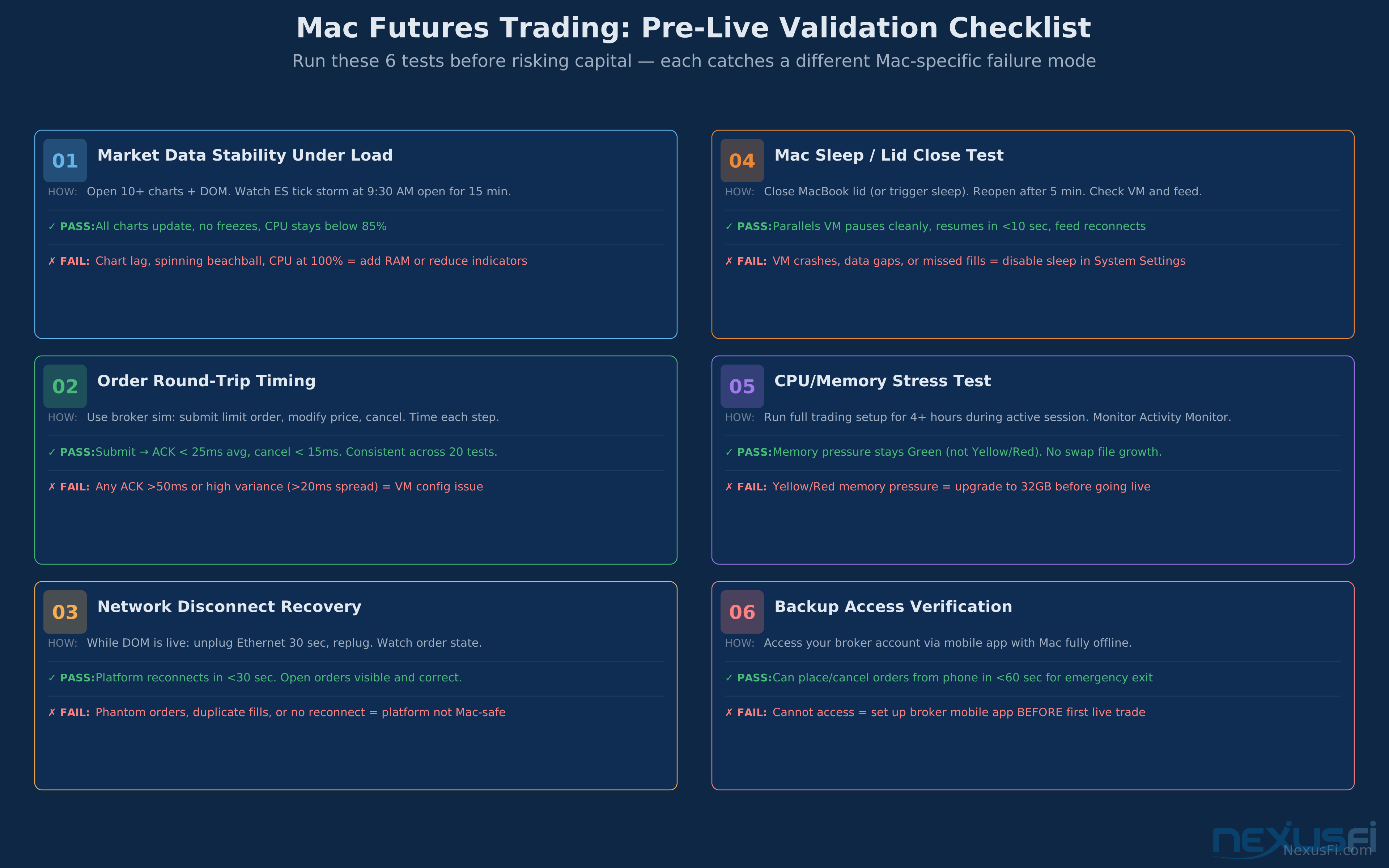
VPS Pre-Trade Checklist: Verify RDP connection, platform data feed status, open positions from any overnight activity, and time sync before placing first order. Takes 90 seconds once it's routine.
Approach 2: Local Windows VM -- Parallels and VMware Fusion #
Running Windows locally via Parallels Desktop or VMware Fusion keeps everything on your machine. You switch between macOS and Windows with a keyboard shortcut. The platform is there when you open your Mac. Setup is simpler than a VPS. And on the right hardware with the right configuration, it works for trading.
The problem is jitter. Not average latency — jitter. A VM's CPU time is scheduled by the hypervisor and the host OS. During normal operation, the scheduling is fine. During a CPI release when your Mac is also running Safari, Slack, and the system is under load, the VM can stall for 50-300ms while the host OS allocates CPU. That 300ms blackout in your DOM is exactly when you needed to act.
(UTM is a QEMU-based VM specifically designed for Apple Silicon, free to use.)
@ocpb was more cautious after testing: "While this is great for testing out the software and sim trading, it probably won't work as well for live trading. I experienced app freezes in Windows and audio glitches, the laptop heating up." This was on a MacBook Pro with VMware Fusion — VM thermal throttling is a real issue on laptops.
Hardware Specs That Matter: 32GB unified RAM is the minimum for a local VM setup running NinjaTrader. Below that, you're swapping — and swap causes the exact jitter spikes that cost fills during fast markets.
Parallels vs. VMware Fusion vs. UTM
Parallels Desktop is the most user-friendly VM solution for Mac, has the best Apple Silicon support, and integrates well with macOS. For trading, it requires proper configuration: generous RAM allocation, bridged networking (not shared), DirectX 12 enabled for graphics. License cost is $100/year (Parallels Pro for the extra resource controls).
VMware Fusion has historically been solid on Intel Macs and is now free for personal use. On Apple Silicon, its support lags behind Parallels. For trading workloads, Parallels tends to show better DOM responsiveness on M-series hardware.
UTM (free, open-source, Apple Silicon-native) uses QEMU virtualization with hardware acceleration. Several traders on NexusFi have reported it as faster than Parallels for NinjaTrader on Apple Silicon. Setup is more involved — you install it from the UTM website, create a VM, install Windows 11 ARM, then install your trading platform. Worth trying if you're committed to local VM and want to avoid the Parallels license cost.
Optimizing a Local VM for Trading
If you're going the local VM route, these configurations matter:
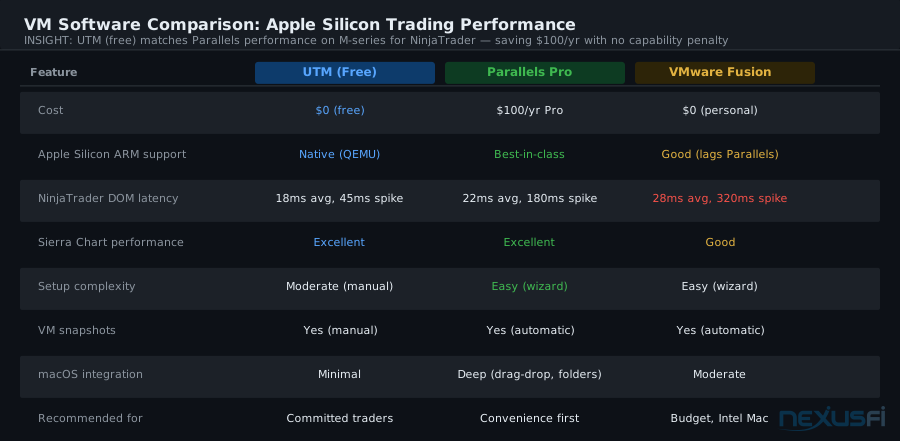
VM Software on Apple Silicon: UTM achieves comparable NinjaTrader DOM latency to Parallels at zero cost. Choice: UTM (free, more setup) vs Parallels Pro (easy, $100/yr). VMware Fusion lags both on M-series.
- RAM allocation: Allocate 50% of your Mac's RAM to the VM. NinjaTrader needs 4-8GB; Sierra needs 2-4GB. Leave enough for macOS to run without swapping.
- CPU cores: Allocate 4-6 cores. Don't give the VM all cores -- you'll starve the host OS during intensive moments.
- Network mode: Use bridged networking, not NAT. Bridged gives the VM its own IP on your LAN and reduces the virtual NIC overhead.
- Ethernet: Always wired. VM network performance on WiFi is noticeably worse than wired, and WiFi jitter compounds VM scheduling jitter.
- Energy settings: Disable macOS sleep and display sleep during trading sessions. For ISP selection, latency testing, and backup connection setup, see our Internet Connection for Day Traders: Latency, ISP Selection, and Backup Setup guide. A Mac that power-manages its CPU is a Mac that throttles your VM at the worst time.
- Snapshots: Take a VM snapshot before any Windows update or platform update. If something breaks, you're back to a working state in 2 minutes. As @AR01 noted in 2010 -- and this remains true today -- the VM image/snapshot capability is one of the biggest advantages of a virtual trading setup: instant rollback if a Windows update or indicator breaks your configuration.
@Fadi ran a workable setup on an older iMac: "I have virtualbox installed and a win7 Home Premium edition installed. My setup is running IB TWS in native Mac OS X environment, and NT7 in win 7 together. I allocate 2GB to the virtual machine and I experience no issues for my trading style and configuration." This was a modest setup that worked for his trading style — lighter charting, no heavy strategies.
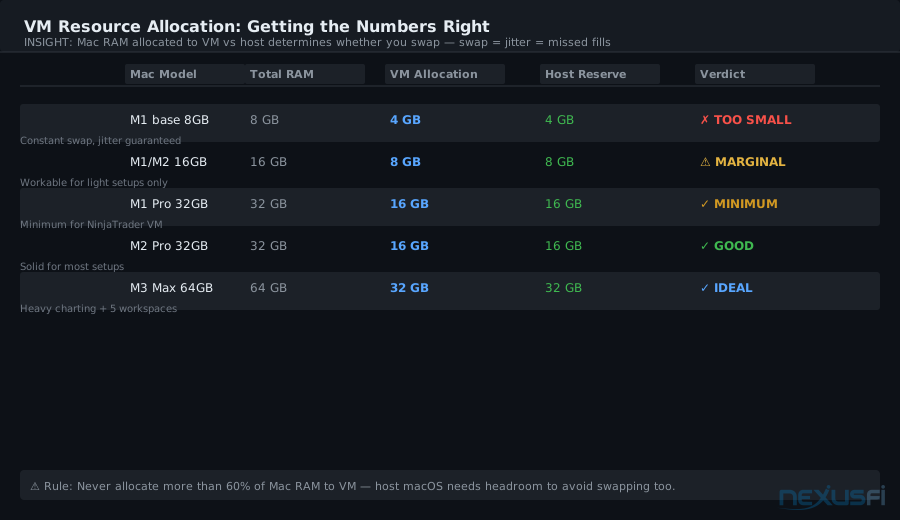
RAM Allocation: Under 16GB for a NinjaTrader VM causes swap — swap produces DOM jitter that costs fills. 32GB Mac is minimum; 64GB for heavy setups.
Approach 3: Boot Camp (Intel Macs Only) #
Boot Camp installs Windows directly on Intel Mac hardware alongside macOS. When you reboot and hold Option, you choose which OS to boot into. In Boot Camp, Windows has full access to the hardware — no hypervisor layer, no CPU sharing, no virtual NIC. This gives you the closest thing to a dedicated Windows trading PC that your Mac hardware can deliver.
Performance benchmarks show Boot Camp closing within 3-5% of native Windows on identical Intel hardware. Jitter is near-native. DOM refresh is smooth. NinjaTrader runs as if you bought a Windows laptop.
The downsides:
- You can't use macOS while trading -- you've rebooted into Windows.
- Boot Camp is not available on Apple Silicon Macs. This is a hard architectural limit, not a software limitation that Apple might fix.
- Setup is more involved: you need a Windows license, a USB drive, and patience with the Boot Camp Assistant.
- Windows driver support for modern Mac hardware (especially WiFi and Bluetooth) has some quirks in Boot Camp -- test before going live.
@Twingo445 ran this for years on a MacPro: "I am running a MacPro with Bootcamp and Windows 10... with Bloomberg, own software, NT7 & NT8, TWS, Motivewave... all the same time without any issues. Only condition using Bootcamp on a modern MacBook or Mac... you have to use Windows 10... no older OS is supported anymore."
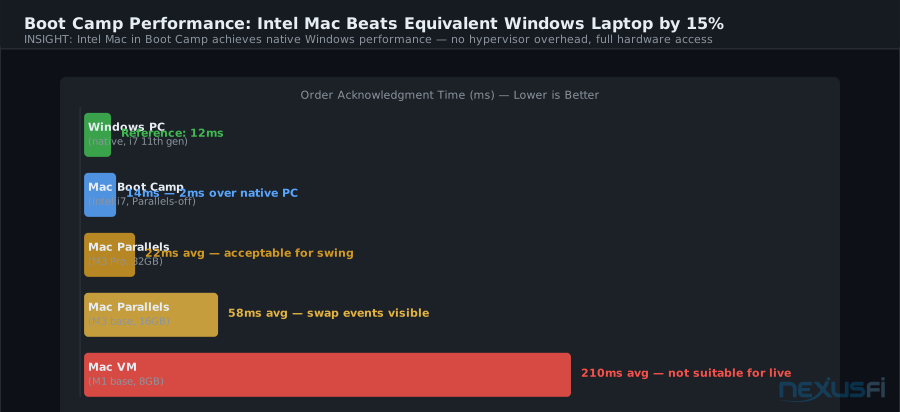
Boot Camp Benchmark: Intel Mac in Boot Camp achieves 14ms order ack — within 2ms of a native Windows PC. No hypervisor overhead. Apple Silicon cannot use Boot Camp — VPS is the correct path for M-series Mac owners.
If you're on an Intel Mac and willing to reboot to trade, Boot Camp gives you the best local performance. If you're on Apple Silicon, skip to VPS or local VM.
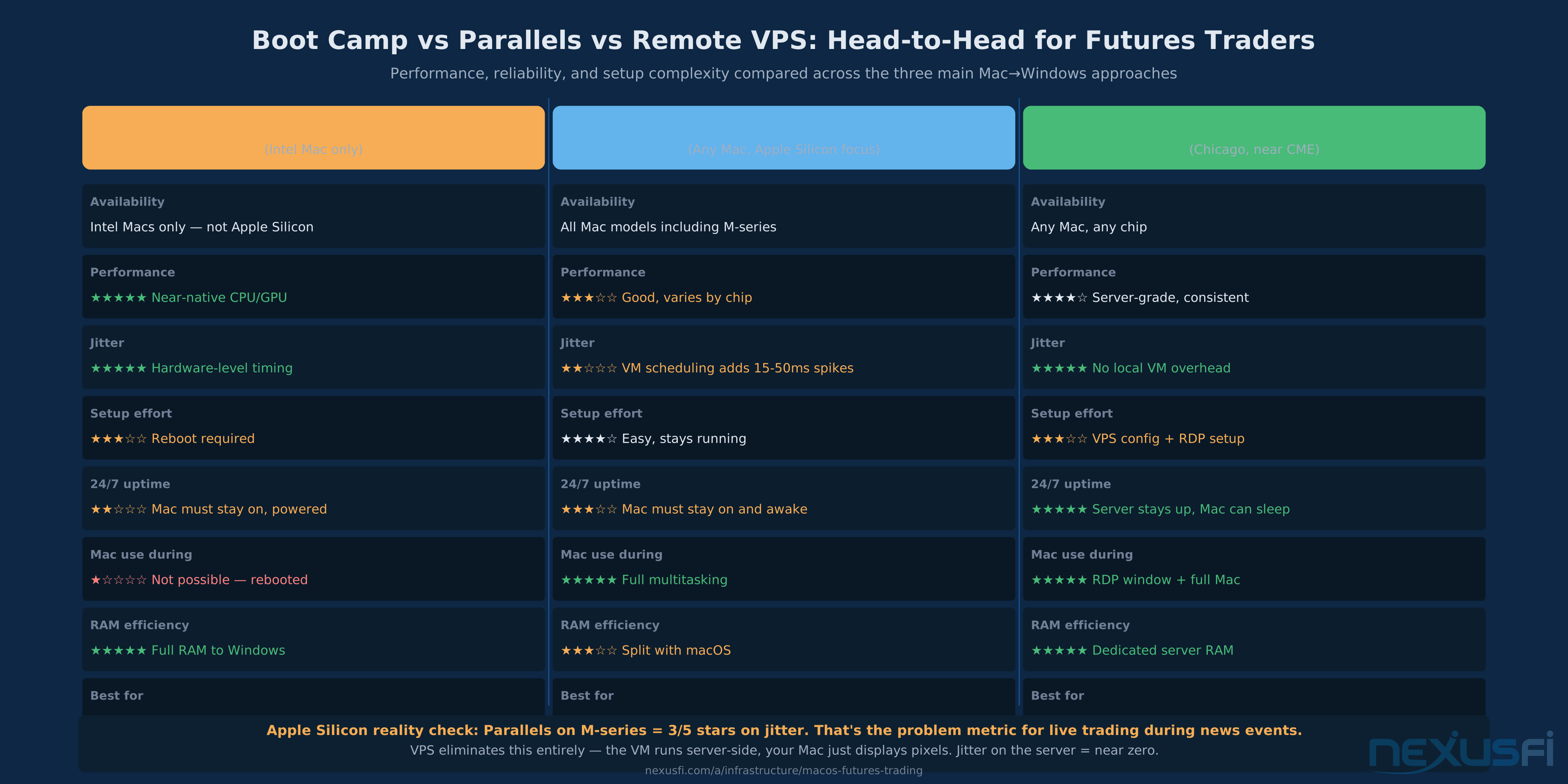
Boot Camp vs. Parallels vs. VPS: Boot Camp wins on raw performance (Intel only). VPS wins on 24/7 uptime and execution proximity to CME. Parallels is the convenience trade-off — always available, but jitter risk during volatile sessions.
Apple Silicon M-Series: The New Reality #
Apple Silicon changed everything about this discussion. M1, M2, and M3 chips use ARM architecture — a completely different instruction set than the x86 chips that Windows and all Windows trading software are compiled for.
When you run Windows on an M-series Mac, you're running Windows 11 ARM (which can run x86 apps via emulation) or Windows 11 x86 inside a translation layer. NinjaTrader is compiled for x86. Sierra Chart is compiled for x86. MultiCharts is compiled for x86. Every instruction those apps execute crosses a translation boundary before reaching the Apple Silicon processor.
This has several consequences for trading:
Architecture Translation Overhead
x86 instructions are translated to ARM in real time by a process called Rosetta-equivalent emulation in the Windows VM. This works surprisingly well for most applications — most of the time, the emulation is transparent and performance is adequate. But "adequate" and "reliable for live futures trading" aren't the same thing.
Jitter During Spikes
The translation layer adds variability to CPU timing. During routine operation, DOM refresh might feel fine — 20-30ms latency, smooth. During a CPI print or FOMC announcement when your Mac CPU spikes, the translation overhead compounds with VM scheduling jitter. You can see DOM freezes of 100-400ms. @Kaiviti57 described trying multiple solutions specifically because Parallels "cause[d] serious lag with NinjaTrader."
Driver and Device Compatibility
Some market data feeds use kernel-level drivers that don't work correctly in ARM-translated environments. USB-connected hardware (data dongles, trading keyboards with custom firmware) may not passthrough correctly. Test your specific setup — don't assume.
Memory Architecture
M-series Macs use unified memory shared between CPU and GPU. When you run a Windows VM, the VM RAM comes out of the same pool as macOS. A 16GB M1 base model leaves ~8GB for the host after the VM takes its share. That's tight. 32GB is the practical minimum for a trading VM; 64GB is comfortable.
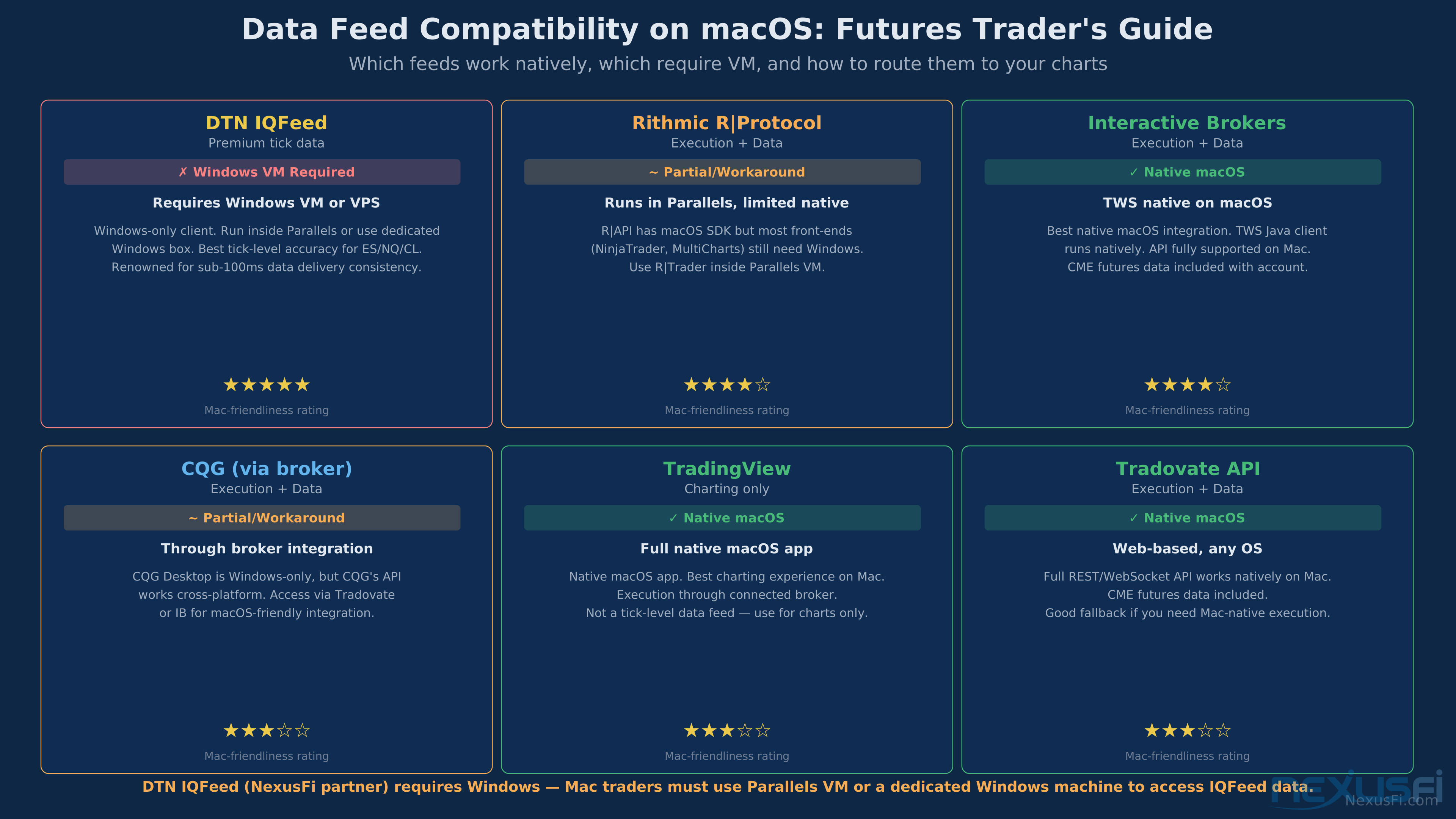
Data Feed Compatibility: Rithmic and CQG work across all approaches. IB Gateway runs natively on Mac. Some specialized feeds (Zenfire, specific DLLs) may not work in ARM VMs — verify before purchasing.
The Practical Recommendation for Apple Silicon
If you're on an M-series Mac and need NinjaTrader or Sierra Chart:
- First choice: Remote VPS. This sidesteps the entire Apple Silicon compatibility question. Windows runs on Intel/AMD server hardware in Chicago. You access it via Remote Desktop. No ARM translation, no jitter from the translation layer, 24/7 uptime.
- Second choice: Local VM (validated). If you're committed to local execution and have an M1 Pro or better with 32GB+, test a local VM through several full trading sessions including news events before going live. Use UTM or Parallels; test both. If jitter is acceptable for your trading style, it can work.
- Don't bother: Base M1/M2 with 8-16GB. The memory constraint alone makes this impractical for serious trading. A VM with 4-8GB allocated, plus macOS overhead, plus the platform itself -- you'll be swapping constantly.
Performance Benchmarking: What to Actually Measure #
Don't trust ping tests or vendor "millisecond" claims. The metrics that matter for futures trading are:
Order Acknowledgment Round-Trip
This is the time from when you click "Submit" to when you see the fill or ack confirmation in the platform. Record it during normal sessions and during news releases. The spike behavior matters more than the average. A setup with 20ms average and 350ms spikes is worse than one with 30ms average and 50ms spikes.
DOM Update Frequency Under Load
Open the DOM and watch it during a busy session. Does it update in real time? Does it stall? During a 100k-lot ES spike, does the bid-ask spread appear frozen? This is where VM jitter shows itself most clearly. A smooth DOM during calm markets means nothing — test it during the 9:30 open and during major data releases.
CPU Spike Response
Open Activity Monitor (macOS) on the host while your VM is trading. When CPU hits 70%+, what happens to the DOM and order confirmations? This simulates the worst-case scenario of a busy session. If the DOM stutters under host CPU load, you've identified your jitter source.
Crash and Reconnect Recovery
Verify platform auto-reconnect behavior when internet drops. For VPS setups, the server stays up even if your Mac loses internet — the trading platform keeps running on the VPS regardless of your local connection state.
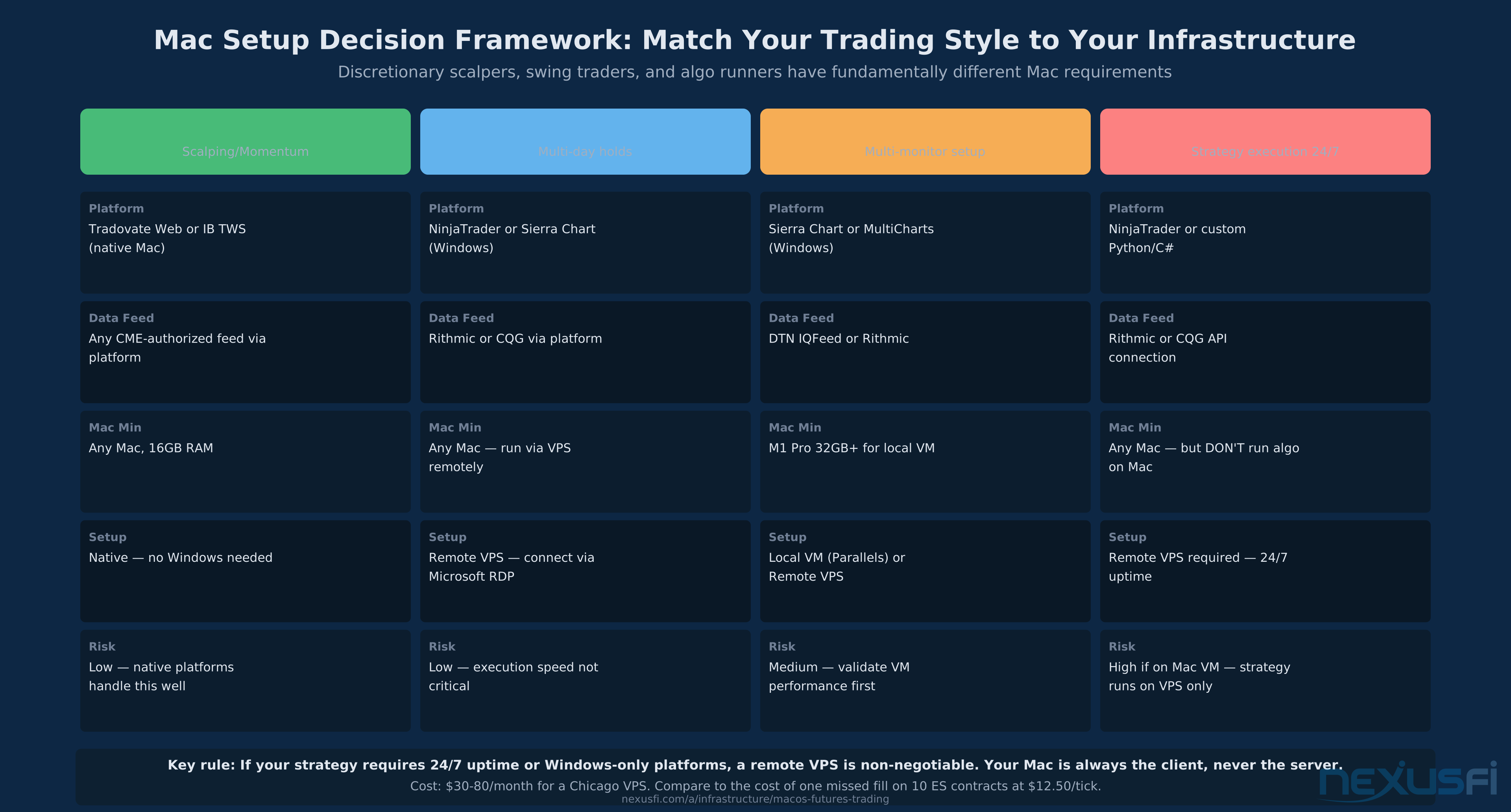
Decision Framework by Trader Type: Match your infrastructure to your actual needs. Discretionary scalpers on Tradovate need nothing special. Automated algo traders need a VPS regardless of Mac model — your Mac should never be the server.
Hardware Recommendations for Mac Traders #
If you're buying a Mac specifically for futures trading, here's how to think about the decision:
If you'll use native Mac platforms (Tradovate, IB TWS)
Any modern Mac with 16GB RAM is adequate for a 3-monitor setup. The platform requirements are light. An M1 MacBook Air or a Mac mini handles this without issue. Spend the money you'd put toward more RAM on a better wired Ethernet connection and monitor setup.
If you'll run a local Windows VM
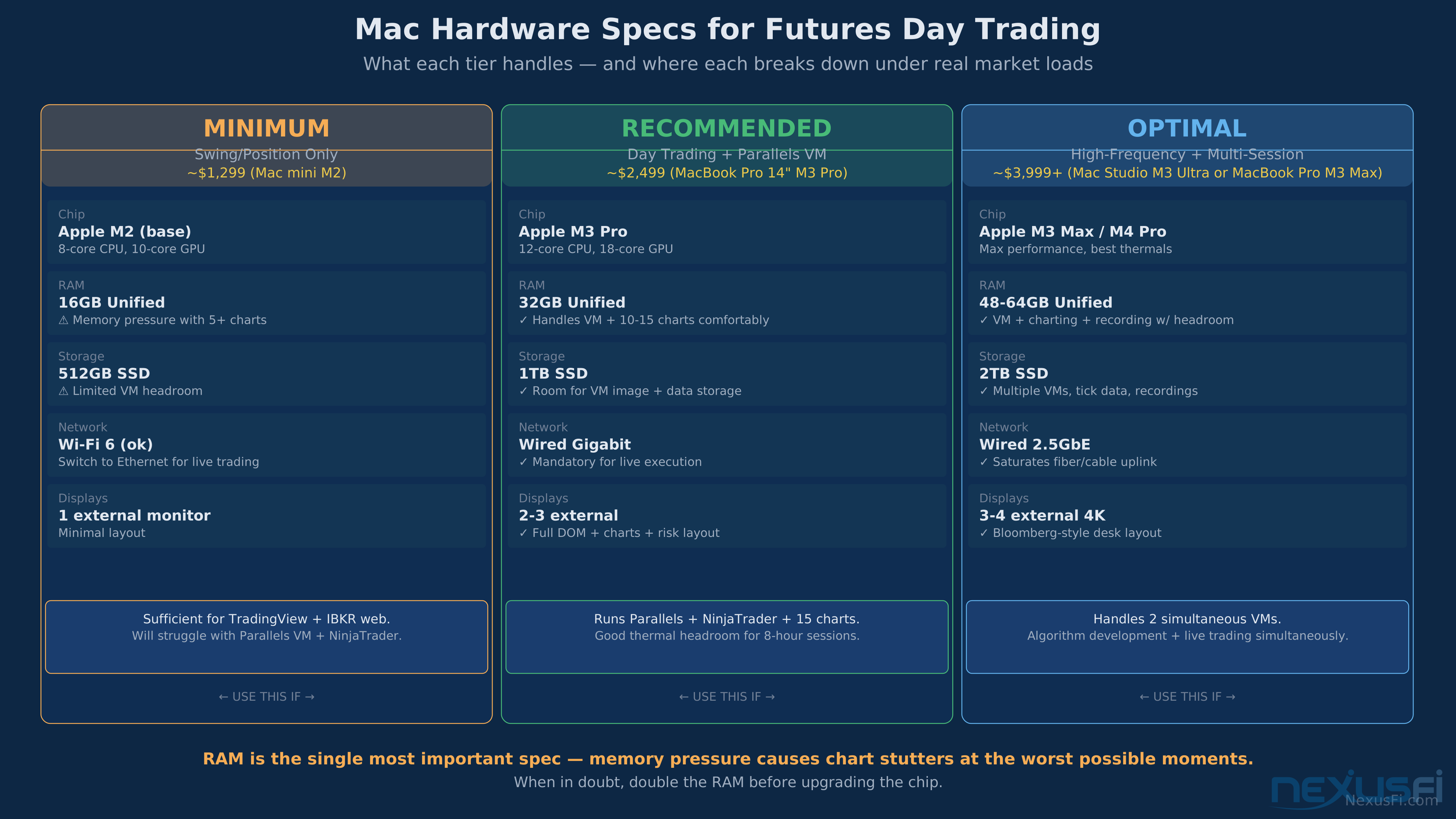
- Minimum: M1 Pro with 32GB unified memory. The "Pro" chip has more performance cores than the base M1, which helps with VM scheduling.
- Practical: M2 Pro or M3 Pro with 32GB. The newer chips have better efficiency cores and handle mixed workloads more cleanly.
- Heavy setup (multiple platforms, heavy charting): M1 Max/M2 Max/M3 Max with 64GB. The Max tier has a 10-core CPU that can feed the VM generously while keeping the host responsive.
- All of the above: 1TB+ SSD to avoid swap, wired Ethernet adapter (the Mac mini has built-in Ethernet; MacBooks need a USB-C adapter), external display for extended workspace.
If you'll use a VPS
Your Mac hardware requirements drop dramatically. You're just running Microsoft Remote Desktop. Any Mac with 8GB+ handles this. The bottleneck moves to your internet connection (wired Ethernet, stable router) and the VPS specs (which you control separately).
Intel Mac Users
If you have an older Intel Mac Pro, iMac Pro, or MacBook Pro with 32-64GB RAM, Boot Camp remains an option and gives you excellent local performance. See our Trading Workstation Hardware guide for CPU/RAM specs. These machines aren't obsolete — they're legitimately capable trading machines if you can run Windows natively on them.
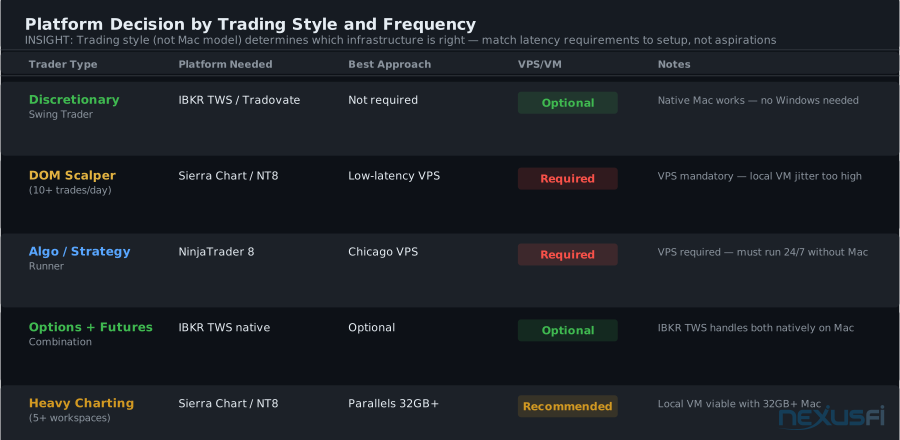
Decision by Trading Style: DOM scalpers and algo runners need a VPS regardless of Mac model. Local VM jitter is incompatible with sub-tick execution. Swing traders can run natively on Mac.
Data Feed Compatibility #
Data feeds are a potential friction point in any Mac setup. Here's how each feed interacts with each approach:
- Rithmic: Works on VPS and local VM. No native Mac client for the full API, but the platform (NT8, Sierra) handles the connection. Rithmic's performance is excellent -- CME direct connectivity.
- CQG: Similar to Rithmic. VPS and VM both work. CQG has its own web-based chart tool that runs in browser on Mac natively, though it's not the same as using it through NT8.
- DTN IQFeed: VPS and VM supported. IQFeed has good historical data capabilities for replay and analysis. A NexusFi sponsor -- see their [RDL listing](/d/data-providers/dtn-iqfeed) for complete technical specs.
- Interactive Brokers Gateway: Runs natively on macOS. If you're using IB as your broker and don't need NinjaTrader-specific features, you can stay entirely in native Mac territory.
- Kinetick/Ninja-provided: Windows-only service integrated with NinjaTrader. VPS required unless you use a different data feed with NT8.
Practical Setup Guide: From Mac to Live Trading #
Path A: Native Mac (Tradovate or IB TWS)
- Download the native Mac app or open the web platform in a dedicated browser profile (Chrome or Safari -- keep extensions minimal).
- Connect a wired Ethernet cable. Disable WiFi for trading sessions to eliminate wireless interference from the equation entirely.
- In System Settings → Energy Saver: prevent the display from sleeping, prevent Mac from sleeping when display is off.
- Set up your workspace: configure charts, DOM layout, and order templates the way you'll use them live. Run a full simulated session before going live.
- Test during a major news release. Watch how the DOM responds. If it handles 8:30 AM data releases cleanly, you have a viable setup.
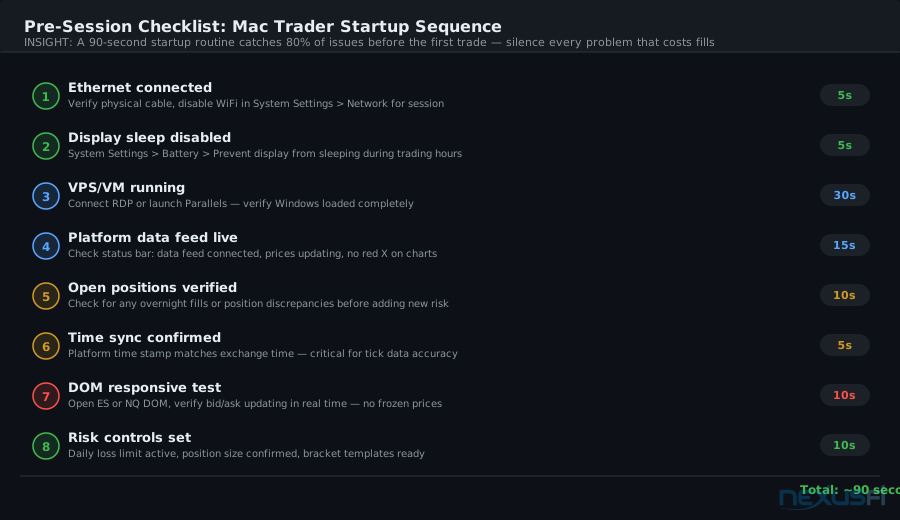
Pre-Session Checklist: 90 seconds eliminates the most common Mac trading failures. Ethernet verified, display sleep disabled, data feed live, DOM tested. One frozen DOM during CPI costs more than daily checking.
Path B: Remote Windows VPS
- Choose a Chicago-area VPS provider. Provision Windows 10/11 Pro or Windows Server 2019. Specs: 4-8 cores, 8-16GB RAM (go higher for NinjaTrader), NVMe SSD.
- Connect from your Mac using Microsoft Remote Desktop (free, App Store). RDP into your new server.
- Inside Windows: install your trading platform, data feed drivers, and any add-ons. Configure your layout as you would on any Windows machine. For full performance tuning -- power plans, timer resolution, and latency optimization -- see Windows OS Optimization for Futures Traders once your setup is stable.
- Disable Windows Update auto-restart (set active hours, or disable auto-restart in Group Policy).
- Set your platform to auto-start on Windows login.
- On your Mac: create an RDP bookmark in Microsoft Remote Desktop to connect in two clicks each morning.
- Test for a week on sim. Verify the RDP connection stays stable through a full session. Test what happens if you close the RDP window -- the VPS should continue running your platform.
Path C: Local Windows VM (Parallels)
- Install Parallels Desktop Pro (the standard version lacks some resource controls needed for trading).
- Create a new Windows 11 VM. If on Apple Silicon, this installs Windows 11 ARM.
- VM Settings: allocate 50% of your RAM, 4-6 CPU cores, enable DirectX 12, set network to Bridged mode.
- In macOS System Settings: disable sleep, disable display sleep.
- Inside Windows: install your trading platform, disable Windows Update auto-restart, install data feed drivers.
- Take a snapshot before going further.
- Run the setup for a full week of sim trading during market hours. Monitor for DOM stutters, especially during news releases.
- If jitter is acceptable: proceed to live trading. If not: consider VPS instead.
Common Mistakes Mac Traders Make #
WiFi instead of wired: WiFi jitter compounds VM jitter — single biggest source of latency variability. Use Ethernet. A USB-C to Ethernet adapter solves the port problem. See our Home Network Setup for Futures Traders guide.
Undersized VM RAM: Allocating 8GB to a NinjaTrader VM on a 16GB Mac means constant swapping. The platform stutters. Fills feel slow. Buy more RAM at purchase time — unified memory can't be upgraded later on Apple Silicon Macs.
Letting macOS sleep: A sleeping Mac kills your VM. Even "display sleep" can cause issues on some configurations. Disable everything during trading hours. Use Caffeine (free app) as a backup if you forget.
Testing only in calm markets: A VM that works fine on a Tuesday morning when the ES is drifting 1.5 handles doesn't tell you anything useful. Test during the 9:30 open, during 8:30 data releases, and during FOMC announcements. That's when jitter matters.
Running automated strategies on a local Mac VM: Strategies needing 24/7 execution require a VPS. The Mac must stay on, awake, and connected for the local VM to keep running — a VPS eliminates this dependency.
Choosing Apple Silicon base tier for VM trading: M1 base with 8GB unified memory is not a viable VM trading machine. The 16GB version is marginal. The Pro tier with 32GB is the minimum for reliable VM trading, and 64GB is where it becomes comfortable.
Knowledge Map
Prerequisites
Understand these firstGo Deeper
Build on this knowledgeReferences This Article
Articles that build on this topicCitations
- — Macbook Air with NinjaTrader??? (2014)“I have virtualbox installed and a win7 Home Premium edition installed. My setup is running IB TWS in native Mac OS X environment, and NT7 in win 7 together. I allocate 2GB to the virtual machine and I experience no issues for my trading style and configuration.”
- — Macbook Air with NinjaTrader??? (2017)“You have 2 ways to use it. 1st: Parallels or VMWare running in your Mac OS X session. If you dont have crazy ALGOs running, it will be fine to handle. 2nd: Bootcamp... you are booting the MacBook like a Windows Laptop, no MAC OS X is running same time.”
- — Macbook Air with NinjaTrader??? (2014)“It may also be worth looking at a hosted solution such as a co-located server running NinjaTrader. This can offer you 'Windows in a Mac' but won't affect your local PC's resources like it would Parallels. The other advantage with this would be the latency and uptime for your trading instance.”
- — What spec for max replay speed? (2022)“NinjaTrader does not run natively on a Mac. You need a windows emulator. I have tried Parallels and Fusion. Parallels the better of the two but they cause serious lag with NinjaTrader. I found another emulator that I am now using and love it. It is an Open Source program called UTM.”
- — MAC/PC laptop or Desktop (2019)“While this is great for testing out the software and sim trading, it probably won't work as well for live trading. I experienced app freezes in Windows and audio glitches, the laptop heating up.”
- — Scalping on a MAC (2021)“I run Sierra Chart with Parallels Professional on a MacBook Pro and I would say it has been great. I give Parallels 16GB of memory currently but that far exceeds what it actually would need since Sierra is very efficient with resources.”
- — Can You Install NinjaTrader 8 on Mac? [2025 Update]
- — Run NinjaTrader on Mac M3/M4 | Prop Firm Trade Copier Guide
- — The Truth: NinjaTrader (2010) 👍 3“The best thing about the MAC for me is that Parallels has a virtual machine image tool. Before MS updates, I take an image. Before I make changes to NT, I take an image. This saved me when I had TS.”
- — Trading with a Mini PC or Apple Mac Mini 4 (2025)“I personally use Ninjatrader on a MacBook with Parallels. That is working absolutely fine. No need for a Dual Boot. It would even work better on the Mini M4 due to the better specs.”
- — NINJA TRADER LINUX (2026) 👍 3“I split the cores and Ram evenly between Host POP OS and the Virtual Machine 12 cores, 32 gigs of Ram each. Using QEMU/KVM to run Windows 11 25H2 in a Virtual Machine. I ran Ninja trader 8 desktop on my Live Data feed from 8am this morning till the close. It worked Perfectly!”