



Audio Alerts and Sound Setup for Trading Workstations: The Complete Guide for Futures Traders
Overview #
Every futures trader has missed a fill. Not because the platform didn't fire the alert — because they were staring at the wrong chart when it happened. Audio alert systems exist to solve exactly this problem. They create a second monitoring channel that doesn't compete with your visual attention, letting you watch ES price action on one screen while your ears handle order status, risk thresholds, and session timing on your behalf.
The core idea is simple: your eyes and your ears process information through different pathways. When you're locked onto a 5-minute chart during a fast tape, your visual cortex is at capacity. A well-configured audio system routes critical events — fills, daily loss limits, session opens — through your auditory pathway instead. You don't miss the fill. You don't miss the risk threshold. You process both streams simultaneously.
Done right, audio alerts cut cognitive load during high-volatility sessions. Done wrong — too many sounds, poorly chosen tones, no arming logic — they create noise that drowns the signal and trains you to ignore alerts entirely. The difference between those two outcomes comes down to hardware selection, platform configuration, and disciplined taxonomy design.
This article covers all three. Hardware first, because the wrong audio device will introduce latency or reliability problems that undermine every other optimization. Platform configuration second, covering NinjaTrader 8, Sierra Chart, and TradeStation in practical detail. Alert taxonomy third, because what you choose to alert on matters more than any technical setting. And throughout, the latency and arming logic that separate professional setups from amateur ones.
Why Audio Alerts Matter for Futures Traders #
The case for audio alerts is most obvious in multi-screen setups. A trader running four monitors — charts, DOM, Time and Sales, news — can't maintain visual focus on all of them simultaneously. Audio fills the gap. But even single-monitor traders benefit. When you're deep in a trade management decision, your working memory is occupied. A fill confirmation sound frees you from having to poll the order panel with your eyes every few seconds.
The secondary benefit is discipline reinforcement. A distinct, immediate sound for daily loss limit hits creates a behavioral circuit breaker that pure visual monitoring doesn't. @FuturesTrader71, whose risk management frameworks have influenced thousands of NexusFi members, put it plainly in a post about daily loss limits: "Discipline with risk control is what improves our longevity in this business. Everyone must have a daily loss limit regardless of what they trade or how." Audio enforcement of that limit — a loud, distinct tone when you cross the threshold — makes the rule harder to unconsciously ignore than a flashing number on a screen. @bobwest confirmed the practical reality: Sierra Chart's built-in daily loss limit feature, which automatically closes positions and fires an alert, provides the "wake-up question of whether you really want to do this" that can break the reactive impulse chain.
The third benefit is session structure. Pro traders treat the trading day as a series of distinct phases — pre-market, opening range, midday consolidation, afternoon trends, close. Audio alerts for session opens, major news releases, and market close warnings build temporal awareness without requiring you to check a clock. You hear the morning transition. You're positioned before the opening bell rings.
And the fourth benefit is the one beginners underestimate: confirmation speed. When your stop-loss fires during a fast move, the question "did that actually fill?" costs you reaction time if you're visually hunting for the order status. A dedicated stop-fill sound answers that question in under 100 milliseconds. Your conscious attention stays on the next trade decision, not on verifying the previous one.
Key Concepts #
Alert taxonomy — the complete set of events you assign audio feedback to, organized by priority. A well-designed taxonomy has 6-10 categories maximum, each with a distinct sound and a clear arming rule. More categories than that create alert fatigue.
Alert fatigue — the condition where a trader begins ignoring alerts because there are too many, they fire too frequently, or the sounds have lost their distinctiveness. Alert fatigue is the primary failure mode of poorly designed audio systems. Once your brain starts filtering out alert sounds as background noise, the entire system is compromised.
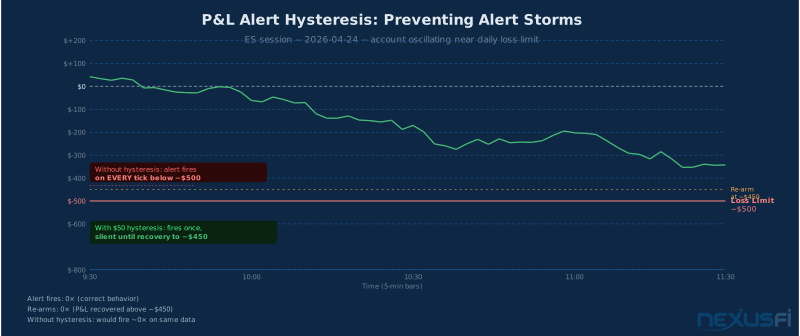
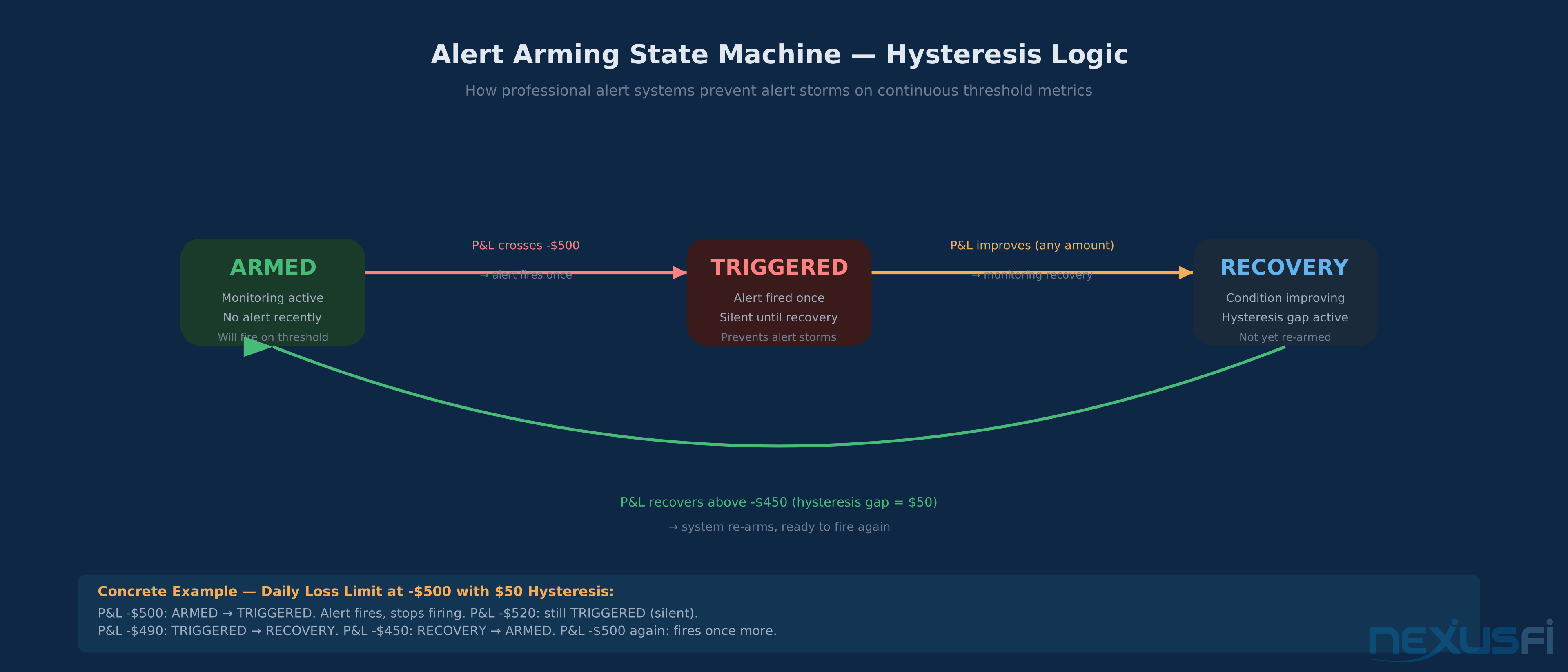
Arming logic — the rules that determine when an alert fires and when it stays silent after the triggering condition is met. Without arming logic, a P&L threshold alert will fire on every tick once the threshold is crossed, creating an alarm storm. With arming logic (hysteresis), the alert fires once, stays silent until the condition reverses meaningfully, then re-arms.
Hysteresis — the "dead zone" used to prevent repeated triggers at a threshold. Example: alert fires when P&L drops to -$500. Hysteresis of $50 means the alert won't fire again until P&L recovers above -$450, then drops back to -$500. Without hysteresis, tick-level price oscillation around a threshold creates an alarm storm.
WAV file — the audio format used by virtually all trading platforms for alert sounds. Most platforms accept WAV/PCM format. Some accept MP3 but WAV is the universal standard. Files should be short (under 2 seconds), PCM-encoded, and placed in the platform's designated sounds directory. @Fat Tails, who built dozens of the most-thanked NinjaTrader indicators on NexusFi, documented the standard path: "Copy your alert sound file to the directory Programs > NinjaTrader 7 > sounds."
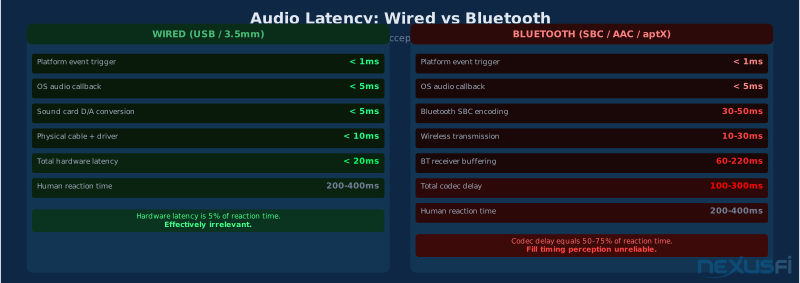
Audio latency — the delay between the software event trigger and the audible sound at your ears. On wired connections, this is under 50ms and functionally irrelevant compared to human reaction times of 200-400ms. The only latency that matters is Bluetooth — Bluetooth codecs introduce 100-300ms of compression delay, which is enough to make fill confirmations genuinely misleading.
USB DAC — a USB Digital-to-Analog Converter. A small external audio device that bypasses your motherboard's onboard audio chip and provides a clean, stable audio output path. Not necessary for most traders, but useful if your onboard audio has driver instability or if you want consistent device selection across Windows updates.
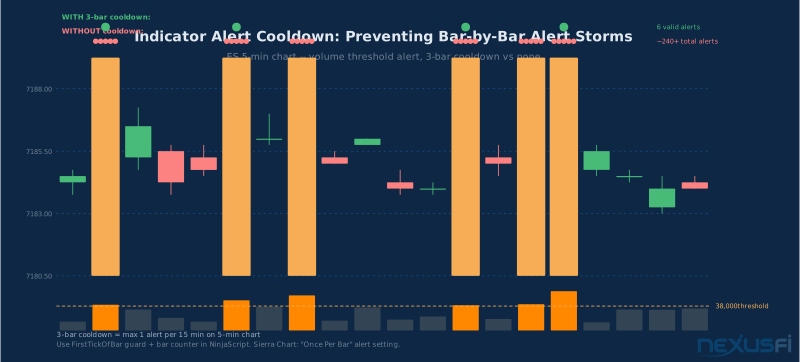
Cooldown period — the minimum time between repeat alerts for indicator-based triggers. A 1-bar cooldown ensures an indicator alert fires once per bar at most, preventing alert storms on indicators that remain in a triggered state for multiple bars. Distinct from hysteresis (which applies to continuous metrics like P&L) — cooldowns are time-based, hysteresis is value-based.
Hardware Selection: What counts #
The hardware side of trading audio is simple once you understand what matters and what doesn't. Most traders over-complicate this section. You don't need audiophile equipment. You need reliable, comfortable, wired audio with clean playback of short WAV files.
The One Non-Negotiable: No Bluetooth
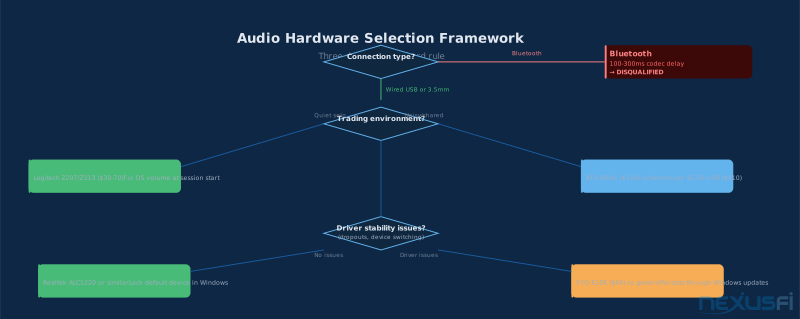
Bluetooth audio is not acceptable for trading alerts. Full stop. The Bluetooth audio stack — SBC, aptX, AAC — introduces compression delays of 100ms to 300ms. AAC over AirPods typically runs 150-200ms. SBC (the most common Bluetooth codec) runs 200ms or more. When you're confirming whether a stop-loss fired, that 200ms gap between the event and the sound isn't just annoying — it's potentially misleading. You make a mental note of the fill timing based on the sound, but the actual fill happened 200ms earlier. In a fast market, that matters.
Wired USB or 3.5mm connections deliver audio with under 20ms of hardware latency. That's the standard. Everything else is engineering theater.
The fastest way to validate your audio setup: Open NinjaTrader's simulation account, execute a simulated order, and verify the fill sound fires before you look at the order panel. If you're checking the panel first to confirm the fill happened, your audio system isn't doing its job. The sound should beat your eyes to the answer.
Headsets vs. Speakers
Closed-back wired headsets are the professional standard for active trading. The noise isolation keeps alerts clear even when you're in a noisy environment — family, office, or a TV running market commentary. The closed back means ambient sound doesn't bleed into your monitoring. For extended sessions, comfort matters as much as audio quality, so buy so.
The Audio-Technica ATH-M50x is the most commonly recommended closed-back option in the trading community — it's durable, comfortable for long sessions, and the wired USB or 3.5mm connection is rock-solid. The Sennheiser SC 60 USB is the business-grade choice if you also need a microphone for broker calls. Both are in the $100-200 range and will outlast several trading setups.
Speakers work fine in quiet solo offices and have the advantage of not requiring you to keep headphones on all day. The Logitech desktop speakers in the $50-100 range give you clean alert playback at a fixed volume you can set and leave. The risk with speakers: volume inconsistency (someone adjusts the OS volume, you miss an alert) and interference in shared spaces.
One NexusFi member in the "Battlestations" thread — @kickmic — runs an Asus Xonar STX sound card with AudioEngine A2+ powered speakers. That's a premium audio setup by any measure. But the STX is an audiophile sound card; the AudioEngine A2+ costs $270. For trading alerts, the marginal performance gain over a $50 USB headset is zero. The value is in the hardware reliability and driver stability, not the fidelity.
Gaming headsets are generally fine for this application, with one caveat: disable virtual surround sound (Dolby Atmos for Headphones, DTS Headphone:X, etc.) if your headset supports it. Virtual surround processing introduces additional buffering and can make short alert sounds sound slightly smeared. Stereo playback of clean WAV files is better.
Sound Cards: Skip It Unless You Have a Problem
A dedicated sound card is not necessary for trading alerts. Modern motherboard onboard audio (Realtek ALC1220 or similar) handles WAV file playback cleanly. The only reason to upgrade to a dedicated card or USB DAC is if your onboard audio has driver stability problems — random device switching, audio dropouts, or interference noise.
If you do have driver issues, a $30-50 USB DAC (like the FiiO E10K or a generic USB audio adapter) solves the problem without the cost of an internal sound card. It also persists through Windows audio driver updates, which is a real consideration if you've ever had Windows Update silently change your default audio device at 2am before a trading session.
The key behavior to configure regardless of hardware: lock your default audio device in Windows Sound Settings. Don't let Windows dynamically switch devices. When you plug in a monitor or headset and Windows decides to switch the default output, your next alert goes silent. Set the device explicitly, mark it as default, and don't change it without intention.
Platform Configuration: NinjaTrader, Sierra Chart, TradeStation #
NinjaTrader 8 Alert Configuration
NinjaTrader 8 has a strong, native alert system that covers the four alert categories most traders need: order events, price level triggers, indicator conditions, and session/calendar events. Configuration requires no scripting for basic setups.
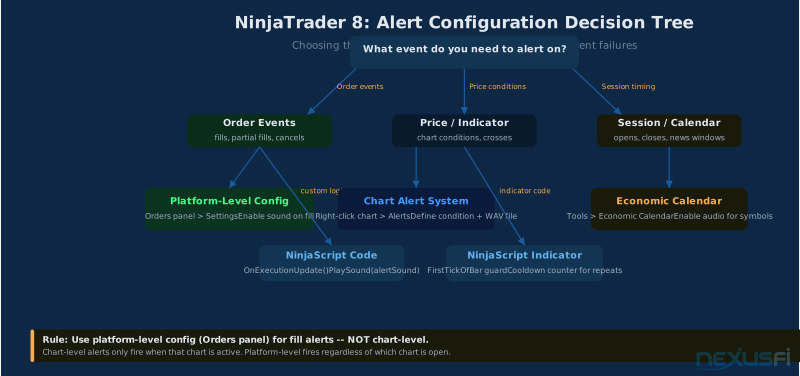
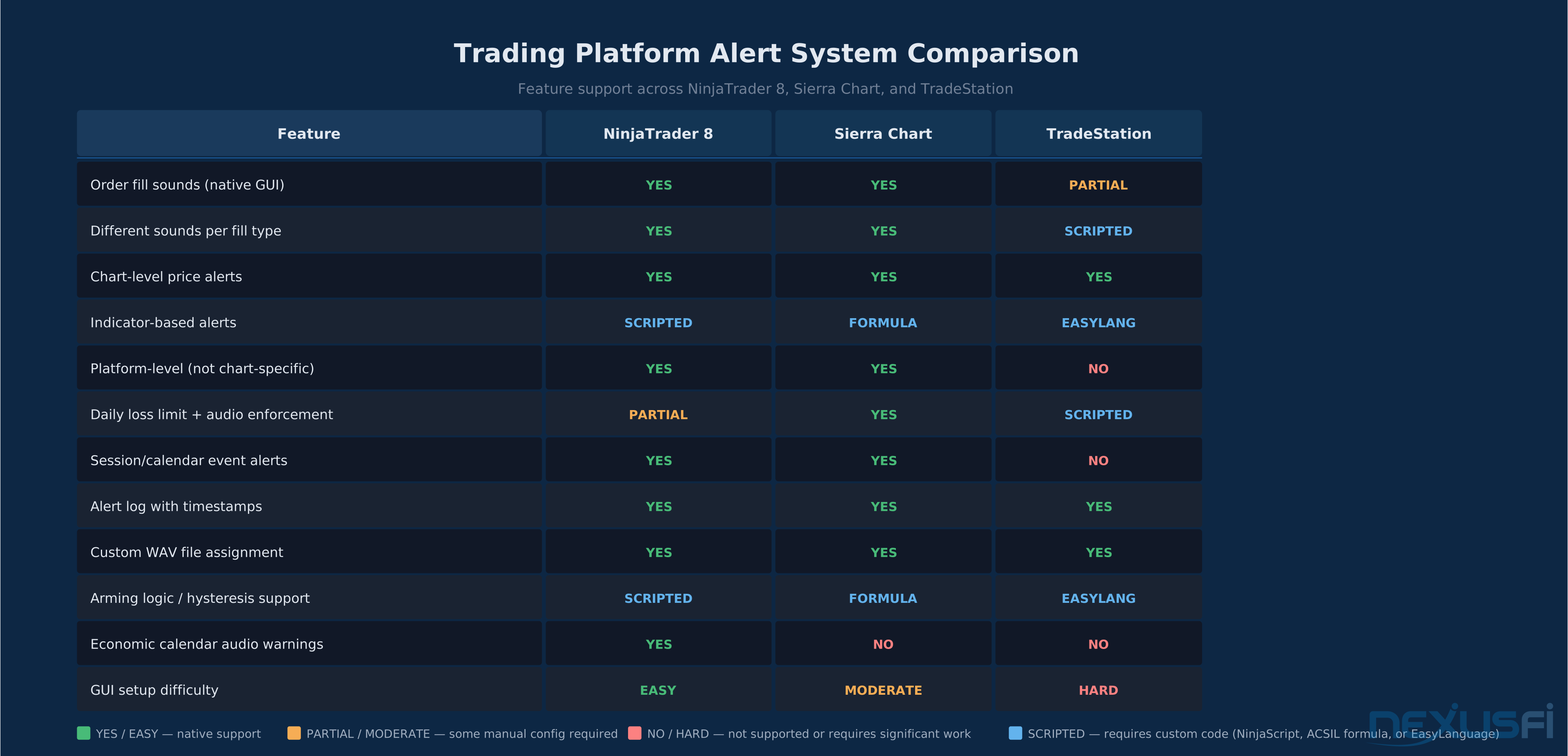
Order fill alerts — the most important category — are configured in two places. For immediate confirmation, set your order routing to play a sound on fill: right-click the Orders panel, go to "Settings," and enable sound playback for fill events. This is platform-level, not chart-level, so it fires regardless of which chart you're looking at. Assign different WAV files for entry fills, stop fills, and target fills.
For strategy-based alerts, NinjaScript's OnExecutionUpdate() method is the hook. @Saroj posted the canonical NinjaScript sound alert implementation on NexusFi — one of the most-thanked posts in the NinjaTrader forum with 24 thanks — covering the standard pattern for adding PlaySound() calls to indicator and strategy code: "If you don't want your sound to play every tick of the bar when condition is met you can use: if (Condition1 && soundOn && FirstTickOfBar) PlaySound(alert1Sound);" The FirstTickOfBar guard is the inline cooldown — it prevents the alert from firing on every tick when a condition persists.
Chart-based alerts (price level triggers, indicator crosses) use NinjaTrader's chart Alert system: right-click on any chart, select "Alerts," define the condition, check "Play sound," and assign a WAV file. These fire once per condition trigger by default. You don't need custom arming logic for price level alerts — they're triggered by a cross event, so they're naturally once-per-occurrence.
Economic Calendar integration gives you session and news alerts: Tools > Economic Calendar > enable audio notifications for events matching your traded symbols. This gives you a 5-minute warning before major releases (FOMC, CPI, NFP, EIA) without requiring custom code.
WAV files go in: C:\Program Files\NinjaTrader 8\sounds\ (or your specific installation path). Standard PCM WAV format.
Most community indicators include their own WAV files — @icedfrosty's ZombiePack indicators, for example, include a "whip.wav" file and configuration instructions that have the standard structure of specifying which sound file to assign to each alert type in the indicator parameters.
@MXASJ built a Session HiLo Audio Alerts indicator — designed for real-time awareness of when price hits session highs or lows — that uses a 1kHz beep for new session highs and a 440Hz beep for new session lows. The frequency difference encodes information: higher pitch for highs, lower pitch for lows. That's good alert design — the sound itself carries meaning, not just "something happened."
Sierra Chart Alert Configuration
Sierra Chart has the most granular alert system of any retail trading platform. Nearly any condition you can express as a Sierra Chart study formula can trigger an audio alert. The flexibility is higher than NinjaTrader, but the configuration requires more familiarity with Sierra's interface.
The alert architecture uses "Alert Sounds" — numbered slots (Alert 1, Alert 2, etc.) configured in Global Settings > General Settings, each mapped to a WAV file path. Studies and formulas reference alert numbers rather than file paths directly. @Nicolas11, in a detailed implementation post, described the Sierra Chart alert architecture for range-based momentum alerts: "When relevant, the study produces the sound associated with the chosen Alert sound number — this choice can be made in Global Settings / General Settings — and prints a line in the Alerts log." The Alert Log (Window > Show/Hide Alerts Log) is separate from the normal chart log and contains every triggered alert with timestamp, which is valuable for post-session review.
Sierra Chart's daily loss limit feature — which @bobwest referenced as the platform-native hard stop — uses the same alert infrastructure. @MmmDeion made the practical case directly after experiencing a significant drawdown: "In Sierra Chart I know there's an option to restrict trading after you've lost $x per day. Extra form of risk management when you're thinking irrationally and too emotionally." That behavioral dimension — the platform enforcing discipline when you can't enforce it yourself — is exactly what distinguishes a genuine risk circuit breaker from a notification. Set your daily loss limit under Trade > Auto Trade Protection > Daily Loss Limit. When the limit is hit, Sierra Chart closes open positions, prevents new orders, and fires an alert. This is more forceful than a pure audio notification — the trading is actually stopped — but the audio component is still valuable as an advance warning.
For order fill alerts, Sierra Chart's "Trade and Quote Spreadsheet" can be configured with alert conditions on position changes. Any cell that changes from "no position" to "long" or "short" can trigger an alert number. More direct: Sierra Chart's built-in "Confirm Orders" audio can be enabled under Global Settings > Trading, which plays a sound on order events without requiring custom study configuration.
TradeStation Alert Configuration
TradeStation's alert system is EasyLanguage-driven, meaning custom alert conditions require scripting. The built-in Alert Manager handles the sound assignment side — you define alert categories in the Alert Manager, assign WAV files to each, and then trigger them from EasyLanguage code using the Alert() function.
Order fill detection in TradeStation strategies uses the EntryPrice, ExitPrice, and MarketPosition built-in variables to detect position changes: If MarketPosition <> MarketPosition[1] Then Alert("Position Changed"); More precise tracking of fill type (entry vs exit, stop vs target) requires logic that examines the relationship between current MarketPosition and the prior bar's value.
For traders already invested in the TradeStation ecosystem, the alert system is fully capable. For traders evaluating platforms partly on alert functionality, Sierra Chart is more flexible and NinjaTrader 8 has a better GUI-driven alert setup for common use cases.
Building Your Alert Taxonomy #
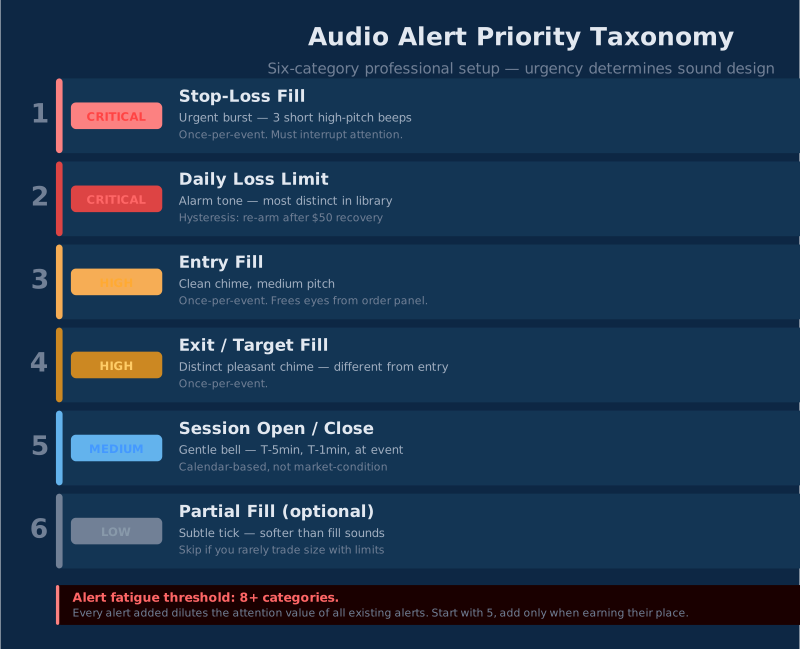
The taxonomy — what you alert on, in what priority order, with what sounds — is more important than any hardware or software configuration decision. The single biggest mistake traders make with audio alerts is alerting on too many things. Six categories maximum for most traders. Eight is the absolute ceiling before alert fatigue starts undermining the system.
The Six-Category Professional Setup
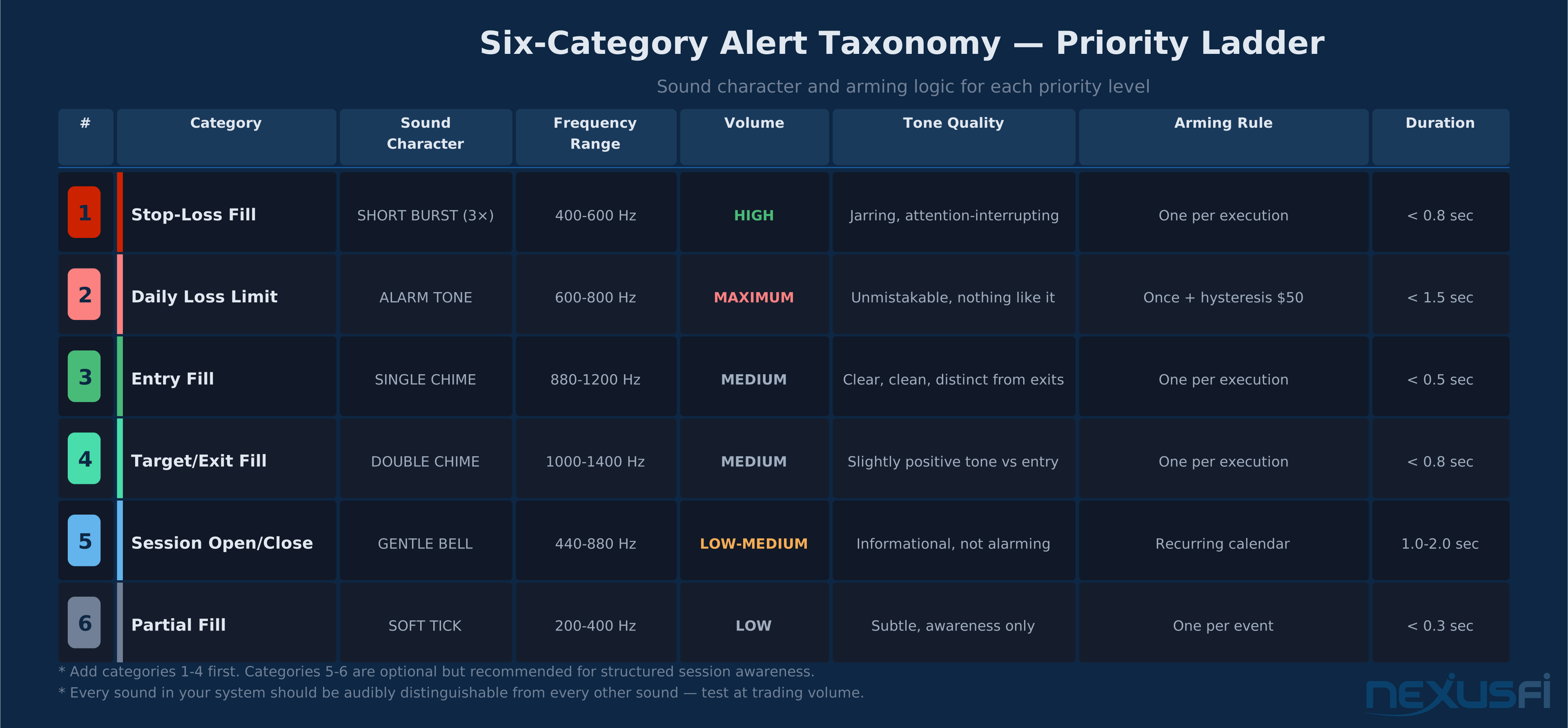
Start here. Every category below is present in professional trading setups. If you're running fewer, consider whether you're missing risk protection. If you're running more, consider whether you're adding noise.
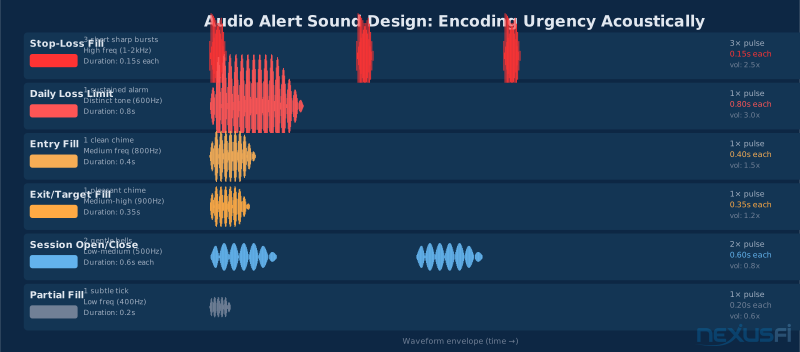
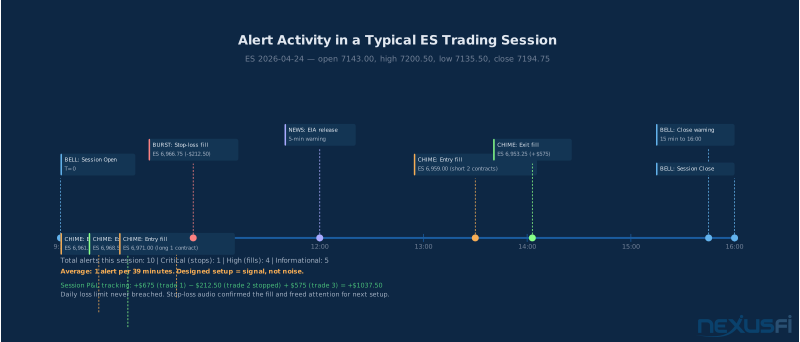
1. Stop-loss fill — urgent burst, high frequency. This is the most important alert in any setup. A stop-loss execution requires immediate attention: was it a planned stop, did it fill at the right price, do you need to adjust your position? The sound should be distinct, slightly jarring — you want it to interrupt your attention, not blend into the background. Three short high-pitched beeps is a common choice. Once-per-event arming: one alert, then silence until the next stop event.
2. Daily loss limit — alarm tone, mandatory. @FuturesTrader71's framework is right: this is the risk control that determines longevity. Set it. Alert it loudly. The sound for this should be the most distinctive in your library — nothing else should sound like it. Once-per-day arming with hysteresis: fire once when you cross the limit, don't fire again until you recover 10% of the loss and cross the threshold again. You don't want this firing on every tick if P&L oscillates around the limit.
3. Entry fill — clean chime, medium pitch. Confirms your entry executed. One short, clear chime. This lets you stop watching the order panel and start watching price action immediately after entry. Once-per-event arming.
4. Exit/target fill — distinct pleasant chime. Different from entry, slightly more positive-toned. You want to know immediately that your target hit so you can assess the next setup without being pulled back to "did it actually fill?" Once-per-event arming.
5. Session open/close — gentle bell. At T-5 minutes (preparation), T-1 minute (final positioning), and at the event itself. Three different sounds or three different numbers of the same sound. This is your session structure clock. Critical for traders who run positions into session opens or manage intraday risk relative to session phases. Set these as recurring calendar events, not market-condition triggers.
6. Partial fill — subtle tick, lower urgency. If you trade size or use limit orders in illiquid conditions, partial fills are a real event requiring attention. The sound should be noticeably softer and shorter than your full-fill sounds — you want awareness, not alarm. Once-per-event. If you don't routinely trade size with limit orders, this category can be skipped.
Sound Design Principles
The sounds themselves matter. Not audiophilically — pragmatically. A few rules that consistently improve alert system performance:
Short files, under 2 seconds each. Trading alerts are event notifications, not music. A 3-second sound that completes while you need to react is a problem. Beeps, chimes, and short tones fire and clear immediately.
Urgency should be audible without context. If someone heard your alert sounds without knowing the trading system, they should be able to rank them by urgency based on pitch, duration, and character alone. High-frequency sharp bursts read as urgent. Low-frequency gentle tones read as informational. Design so.
Minimum 3 distinct sounds. Your loss alerts and your gain alerts and your informational alerts should sound nothing alike. If you use variations of the same sound for multiple categories, you'll find yourself unable to distinguish them during fast markets when audio processing is degraded.
Test at trading volume. Configure your alert volume to the level you'll actually trade at, and test the sounds while running your charts. What sounds distinct in a quiet test environment sometimes blurs together during a live session with multiple data feeds running.
Arming Logic and Alert Storms #
Alert storms — where an alert fires dozens of times in rapid succession — are the fastest way to destroy an audio system's utility. Traders who've experienced a P&L alert firing 40 times in 30 seconds because their account oscillated around the threshold quickly learn to mute all alerts. Then the system is worthless.
Arming logic prevents this. There are two mechanisms:
Once-per-event arming for discrete events: Order fills, daily loss limit hits, session opens. These are events, not states — they happen once and don't recur until the event happens again. Proper event handling in your platform ensures the alert fires once per occurrence. In NinjaScript, this is enforced by tracking whether you've already alerted for the current execution: set a boolean flag on first alert, clear it when the event type changes. @Saroj's NinjaScript pattern handles this with the FirstTickOfBar check, which prevents the same condition from firing repeatedly within a single bar.
Hysteresis for continuous thresholds: P&L alerts, indicator level alerts. A P&L alert at -$500 with $50 hysteresis means: fire at -$500, then don't fire again until P&L recovers to -$450 and then drops back to -$500. This requires state tracking in your alert logic. Most platform indicator frameworks support this with a combination of a boolean "alerted" flag and a separate "recovery" condition check.
Cooldown timers for indicator triggers: When an indicator remains in a triggered state for multiple bars, you need a time-based cooldown to prevent per-bar alert firing. In NinjaTrader 8, this is commonly implemented with a bar counter: track the last bar on which the alert fired, and don't fire again for N bars. Three to five bars is typical for intraday charts. On a 5-minute chart, a 3-bar cooldown means maximum one alert per 15 minutes for that indicator — reasonable for most confluence signals.
The general principle: every alert in your taxonomy should have an explicit arming rule. Write it down before you implement it. "Fires when P&L crosses -$500, re-arms when P&L recovers to -$450 and crosses -$500 again" is an arming rule. "Fires when P&L is below -$500" is not — it's a state description that will cause alert storms.
Integrating Audio with Your Visual Setup #
Audio alerts work best when they're designed as a complement to your visual monitoring, not a parallel duplicate of it. The key design question is: what does audio need to cover because my eyes can't reliably cover it?
For most traders, that answer is: execution confirmation (fills, partial fills), risk threshold breaches (daily loss limit, P&L), and session transitions (opens, closes, news windows). Everything else — chart patterns, indicator readings, market structure analysis — stays in the visual domain. That's where your analytical attention belongs. Audio handles the monitoring layer so your visual attention can stay on the analytical layer.
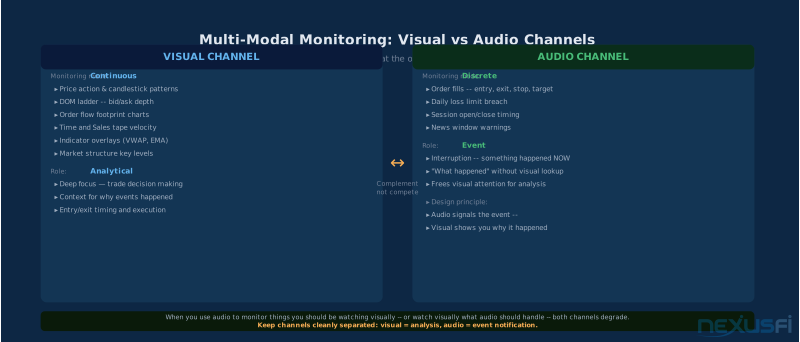
The multi-modal model: visual systems handle continuous monitoring (DOM, charts, Time and Sales, order flow). Audio handles discrete interruptions (something happened that requires your attention now). The fill sound says "your order executed" — your chart shows you where price is. The daily loss alert says "you've hit your limit" — your risk panel shows you the number. Audio signals the event, visual provides the context.
Where traders get this wrong: they start adding audio alerts for things they should be watching visually, and they start watching visually for things that should be audio. If you find yourself checking your alert log to see whether your fill happened — instead of just hearing it — your audio setup isn't doing its job. If you find yourself staring at the P&L number waiting for the loss limit alert — instead of watching price action — you've misconfigured your priority.
Latency and System Optimization #
Audio latency is not a trading-critical parameter. The bottleneck in any alert response chain is human reaction time: 200-400ms for most traders. Wired hardware delivers audio in under 50ms — a rounding error in that chain. Bluetooth introduces 100-300ms, which approaches the level where timing perception becomes meaningful. That's the only latency optimization that matters: use wired connections.
System-level optimizations that do matter for alert reliability (not latency):
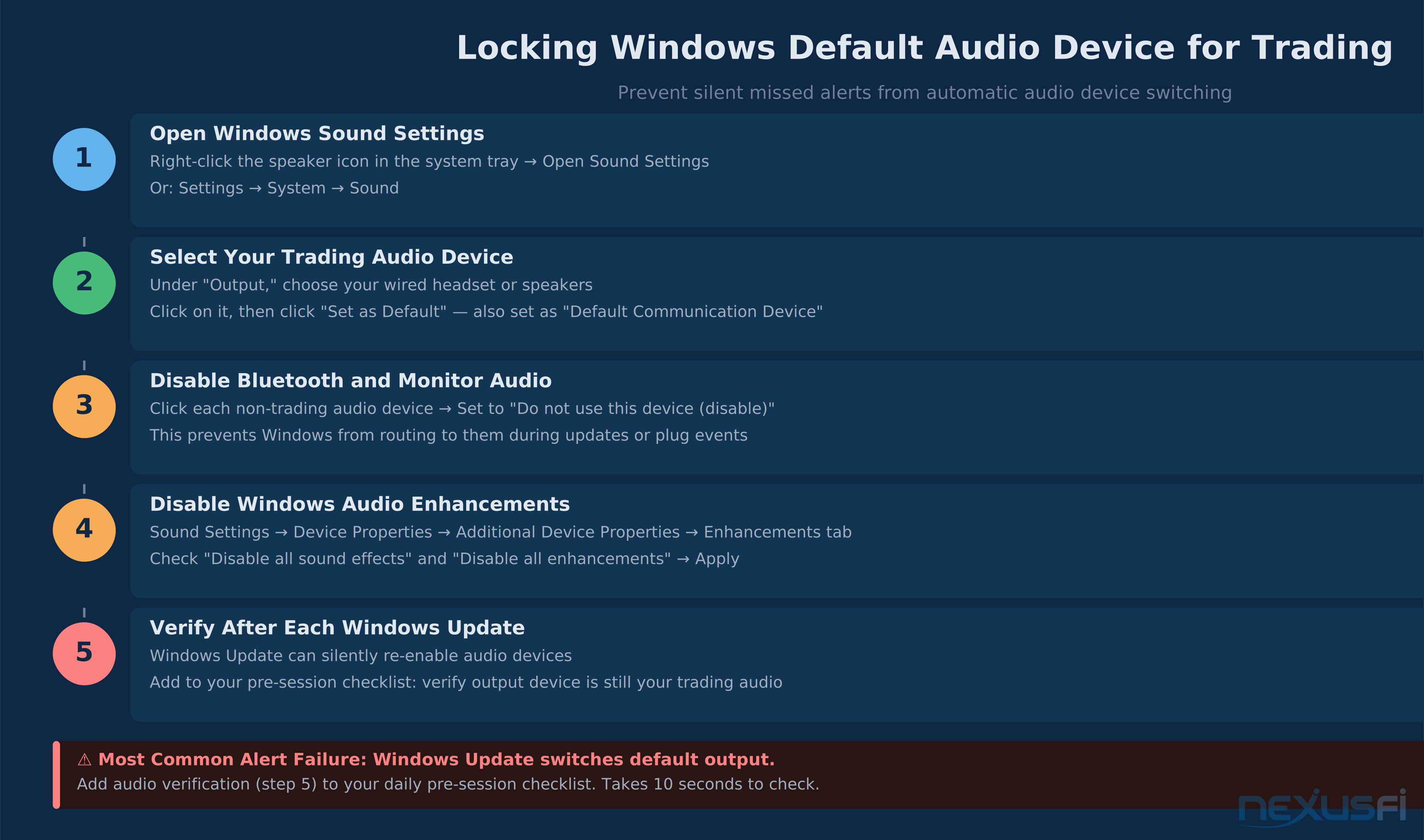
Lock your default audio device. Windows audio switching is the most common cause of missed trading alerts. A Windows Update, a new USB device, or a monitor with onboard audio — any of these can silently switch the default output device. Go to Settings > System > Sound > "Choose your output device" and fix it. Better yet, in advanced Sound Settings, disable audio playback on all devices except your primary trading audio device. Then there's nothing to switch to.
Disable Windows audio enhancements. Right-click your audio device in Sound > Properties > Enhancements tab > check "Disable all enhancements." Spatial sound (Dolby Atmos, Windows Sonic), exclusive mode processing, and various "enhancement" effects all add buffering. For trading alerts, stereo PCM playback with zero processing is optimal.
Avoid background audio applications. Applications that hold exclusive audio device control — some video conferencing apps, audio production software, certain media players — can prevent trading platform audio from playing. During market hours, close applications you don't need for trading. If you use video conferencing for trading room calls, verify the conferencing app releases audio device control between calls.
Practical Setup Checklist #
Work through this checklist once when setting up a new audio alert system. Then do a quarterly review to identify alerts that have stopped earning their place.
Hardware setup (one time):
- Choose wired headset or speakers -- closed-back for noise isolation, or desktop speakers if you're in a quiet solo office
- Connect via USB or 3.5mm -- never Bluetooth for trading audio
- Set as default Windows audio output and lock the selection
- Disable Windows audio enhancements on the device
- Close non-essential audio applications before market hours
WAV file preparation (one time):
- Create or source 5-8 distinct WAV files, each under 2 seconds
- Rank them by urgency and assign sounds to match: most urgent event gets most distinct/attention-grabbing sound
- Copy files to platform sounds directory (NinjaTrader:
Program Files\NinjaTrader 8\sounds\, Sierra Chart: configure via Global Settings) - Test each file plays cleanly at intended volume
Platform configuration (per platform):
- Enable order fill alerts at the platform level (not just chart level)
- Assign distinct sounds for entry fill, stop fill, target fill
- Configure daily loss limit with audio notification
- Set session open/close calendar alerts for your markets
- For any custom indicator alerts: implement arming logic (FirstTickOfBar, cooldown counter, or hysteresis logic)
Testing (before live trading):
- Run paper trading or simulation during simulated market hours
- Trigger each alert category intentionally: verify correct sound fires
- Verify stop-fill and daily-loss-limit alerts fire at the right conditions
- Verify indicator alerts don't storm (test with condition held for multiple bars)
- On VPS setups: verify audio redirection is working
Quarterly review: Every quarter, audit each alert category. Remove any alert you consistently ignore. Add any event category that has surprised you. Verify Windows default audio device hasn't changed due to updates.
Knowledge Map
Prerequisites
Understand these firstGo Deeper
Build on this knowledgeCitations
- — Daily Loss Limit (2014) 👍 3“Discipline with risk control is what improves our longevity in this business. Everyone must have a daily loss limit regardless of what they trade or how.”
- — Daily Loss Limit supervised by Broker/Software (2020) 👍 6“Sierra Chart lets you put in a daily loss limit and it closes any open positions if you hit it. There's the wake-up question of whether you really want to do this that can break the chain of reaction and impulse.”
- — Sierra Chart sound alert every x ticks (range) to gauge momentum (2012) 👍 2“The study produces the sound associated with the chosen Alert sound number -- this choice can be made in Global Settings / General Settings -- and prints a line in the Alerts log.”
- — How to code a sound alert (2009) 👍 24“If you dont want your sound to play every tick of the bar when condition is met you can use: if (Condition1 && soundOn && FirstTickOfBar) PlaySound(alert1Sound);”
- — Battlestations: Show us your trading desks! (2014) 👍 8“Asus xonar stx soundcard, audio engine a2 speakers”
- — Bar Timer with audio alert -- NT7 (2010) 👍 11“You need to copy your alert sound file to the directory -> Programs -> NinjaTrader 7 -> sounds. Then enter the name of your sound file and the alert leadtime via indicator dialogue.”
- — Better Volume Indicator with Sound Alerts (2011) 👍 91“The files need to be copied into the NinjaTrader sounds directory which can be found under C:/ -> programs -> NinjaTrader 7 -> sounds”
- — Session HiLo Audio Alerts Beta (2011) 👍 5“Wav files are 1KHz beep for a trade at new session highs and 440Hz for a trade at new session lows. Sessions are based on the selected session template.”
- — ZombiePack Indicators (2021) 👍 5“In ZombiePack 7, the Zombie7Trail indicator has Zombie setup alerts and the zip file includes a sound file called whip.wav. To configure on NT8...”
- — I finally blew up an account (2021) 👍 9“In Sierra Chart I know there's an option to restrict trading after you've lost $x per day. Extra form of risk management when you're thinking irrationally and too emotionally.”