



Trading Futures with Quantower and a CQG Broker: The DOM-First Stack That Active Traders Are Switching To
Overview #
Most futures traders land on NinjaTrader or Sierra Chart by default. The platforms have been around long enough that every broker supports them, every forum has a thread about them, and switching feels like admitting you made a mistake. But active DOM traders — the ones who live in the depth-of-market ladder, read tape in real time, and execute on order flow signals — have been moving to Quantower over the last few years, and the move is usually permanent.
Quantower is a multi-asset platform from DeskMarket that treats the DOM as the primary trading interface. Everything else — charts, footprints, volume profile, tape — is built to support the ladder, not the other way around. Pair it with a CQG-connected futures broker like MetroTrade, and you get a complete stack: exchange-quality data, direct order routing, competitive margin rates, and a platform built from scratch for the way modern DOM traders actually work.
This article covers what that pairing actually looks like. What Quantower does differently from the platforms you already know. Why the CQG connection matters for execution quality. How MetroTrade's cost structure fits the DOM trading model. And what you need to know before you make the switch.
"Quantower's DOM actually tells you something. Most platforms show you the numbers but the ladder doesn't respond the way the market responds. Here it does." — from the NexusFi Quantower discussion thread
Why the CQG Connection Changes Everything #
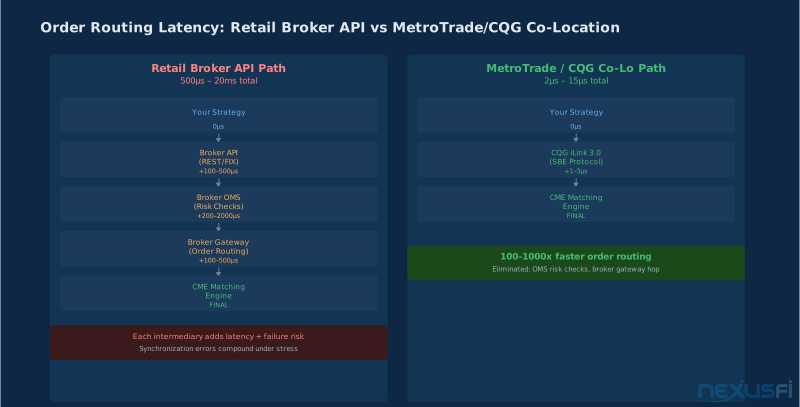
CQG is not just a data vendor. It's an integrated platform that provides both market data and order routing through a single connection, with servers co-located at CME Group in Chicago. When your broker uses CQG as their execution infrastructure, you're not going through a third-party data aggregator — you're pulling normalized exchange data directly from the source.
MetroTrade uses CQG as its primary execution infrastructure. That means Quantower users connecting to MetroTrade get:
Normalized exchange data. CQG cleans and normalizes market data from CME, CBOT, NYMEX, and COMEX before it reaches your platform. Tick increments are accurate. Time and sales records match exchange records. Depth of market updates at exchange speed, not aggregated intervals.
Direct order routing. MetroTrade orders placed through CQG route directly to the exchange. No intermediary fills, no internal matching — your order hits CME's matching engine. For limit orders in liquid instruments like ES or NQ, that means you're competing for queue position the same way institutional traders are.
Single-connection simplicity. Quantower connects to CQG once, and that connection handles both data and execution. You don't need to configure a separate data feed and a separate order management connection. The latency stack is shorter because there's less of it.
Historical tick data for replay. CQG's tick data archive is one of the cleanest available. Quantower's replay feature uses this data, which means when you're reviewing how a setup played out last Tuesday, you're seeing actual exchange ticks — not reconstructed 1-minute bars.
The alternative stack — third-party data vendor plus broker order management — introduces synchronization problems that compound under pressure. Your DOM is showing data from one source. Your fills are coming from another. For scalpers and DOM traders, that gap matters.

Quantower's Architecture for Futures Traders #
Quantower launched in 2015 without decades of legacy code to maintain. That shows in the workspace design.
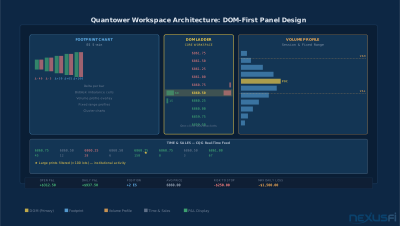
Panel architecture. Quantower organizes your screen into panels that can be linked. Link your DOM, footprint chart, and volume profile, and when you change the instrument in one panel, they all update. This sounds obvious, but most platforms implement it inconsistently. In Quantower it works reliably across panel types.
DOM-centric design. The ladder in Quantower isn't a pop-up window you open when you want to trade. It's the core workspace element. The default layout puts the DOM at center, with supporting panels arranged around it. Footprint charts, time and sales, and chart analysis are designed as DOM supplements, not the other way around.
Order management built in. Orders placed through the DOM update instantly in the positions panel. OCO brackets, trailing stops, and partial fills are all handled natively without needing add-ons. The risk management display — open P&L, daily loss, position risk — sits adjacent to the DOM where you can see it while you're executing.
Multi-connection support. Quantower can maintain simultaneous connections to multiple providers. A common setup for MetroTrade traders is CQG for live execution and a free data provider for longer-term charting. You can run both in the same workspace without conflicts.
Strategy automation via C#. For traders who want to automate entries without leaving the platform, Quantower's algo module uses C# — the same language as NinjaScript. The development environment is less mature than NinjaTrader's, but the language familiarity means the learning curve is manageable for existing NT strategy developers.
The thing traders notice first isn't the feature list. It's the responsiveness. Modern hardware plus a UI built in the last decade means panels update without the visual lag that becomes background noise on older platforms. When you're watching the tape and waiting for a setup, even small latency in the visual display affects decision quality.
DOM Execution: Where MetroTrade and Quantower Meet #
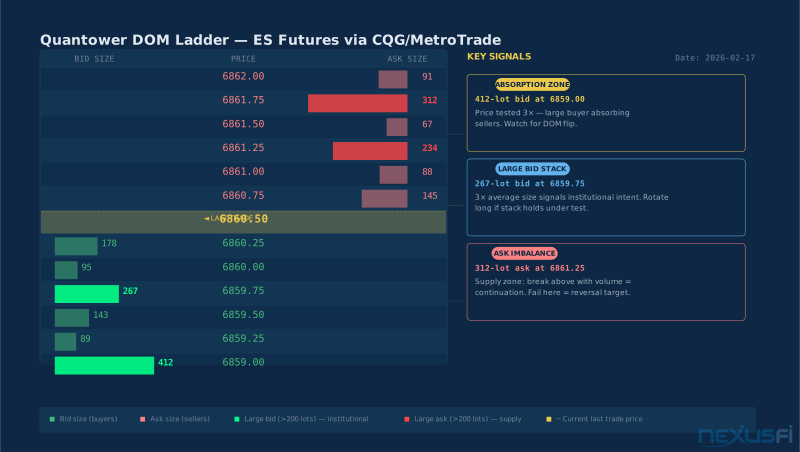
The DOM — depth of market — shows the limit order book on both sides of the current price. In theory, any platform can display this. In practice, the quality of the DOM experience varies enormously based on data quality, update frequency, and how the ladder handles rapid market movement.
Bid/Ask imbalance highlighting. Quantower's DOM can highlight cells where one side of the book much outweighs the other. A bid stack five times larger than the ask at a key level is a different trade than a balanced book at the same price. The platform shows you this difference in real time, color-coded by configurable thresholds.
Speed ladder. The speed of change in the order book tells you something about intent. Quantower's speed ladder mode shows not just current depth but how quickly the depth is changing — orders being placed and canceled faster than the price is moving often signal activity that isn't visible in the printed tape.
Tape analysis alongside the DOM. The time and sales window in Quantower can be configured to highlight large trades, sweep activity, and multi-lot prints. Running this alongside the DOM gives you the two primary inputs for DOM trading: what's in the order book, and what's actually trading through it.
One-click execution with auto-brackets. Configure your standard stop and target once, and every entry from the DOM automatically creates the bracket. This matters most for scalpers — you're not clicking through a position dialog after you're already in a trade.
The combination of MetroTrade's CQG routing with Quantower's DOM implementation means that what you see in the ladder is as close to real-time exchange data as retail traders can access, and what you execute routes to the exchange with a single hop.
The same principle applies to Quantower's DOM — everything you need for execution decisions in one view, without switching panels.
Order Flow Tools Inside Quantower #
Order flow analysis in Quantower goes beyond what most traders use from their default chart package. The tools are integrated — they share the same data source as the DOM and execute in the same workspace.
Footprint charts. Footprint charts decompose each candlestick into its component buys and sells. Instead of seeing a 5-minute bar close at a certain price, you see how volume was distributed across every price tick within that bar — and whether buyers or sellers were aggressive at each level.
Quantower's footprint implementation offers multiple display modes: delta (bid volume minus ask volume), volume profile per bar, bid/ask columns, and imbalance highlighting. Each mode answers a slightly different question about who was active and where.
Cluster charts. The cluster chart variant shows bid and ask volume side by side within each price increment. A large ask print at a support level followed by a print reversal is a different story than symmetrical volume at the same level. Cluster charts surface that distinction directly.
Volume profile integration. Volume profile and TPO (time-price-opportunity) profiles are built into Quantower without add-on licenses. You can overlay volume profile on footprint charts, compare session profiles across days, and anchor profiles to specific swing points.
Tape filter. Quantower's tape filter lets you set minimum trade sizes to display, filter by instrument, and separate buy-initiated versus sell-initiated trades. For instruments that trade in lot sizes (ZN, for example, where 1,000-lot prints from dealers are meaningful but 1-lot retail flow is noise), the filter makes the tape readable.
Heatmap mode. Quantower includes an order book heatmap — a time-series view of the depth of market where bid and ask density is shown as color intensity over time. This shows you where large orders have been sitting, where they pulled, and where they were actually hit. It's not as sophisticated as Bookmap's dedicated heatmap (covered in the companion article on MetroTrade and Bookmap), but for traders who want basic liquidity visualization without a separate subscription, it covers the fundamentals.
From the NexusFi forum on order flow visualization: "BookMap with many of the 'Add-On' offerings basically made all the other Retail Trader Indicators Obsolete IMHO. It's now an essential tool" — @jbmiguel. The same integrated approach is what Quantower brings to order flow within a single platform.
Footprint Charts and Volume Profile #
Footprint charts are where Quantower's order flow tools get specific. Understanding how to read them is prerequisite to using the DOM effectively — the footprint tells you what happened inside the bar so the DOM gives you context for what's happening now.
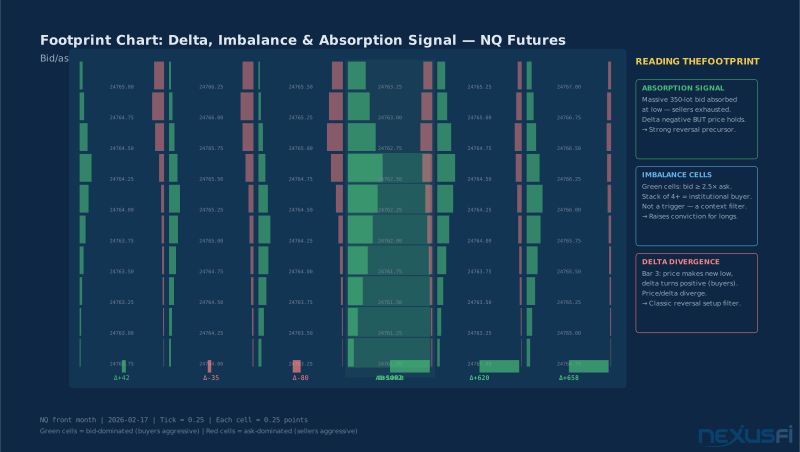
Delta interpretation. Delta is the net difference between aggressive buying and aggressive selling within a price range. A bar with high positive delta (buyers dominated) that closes below the prior bar's low is a story about trapped buyers. A bar with negative delta at support that reverses is an absorption signal — sellers tried to push through, buyers absorbed the aggression.
The common mistake with delta is trading it mechanically. High positive delta doesn't automatically mean bullish. Context matters: high delta at resistance is buying into supply. High delta breaking through a key level is a different signal from the same high delta failing at that level.
Imbalance cells. Quantower highlights footprint cells where the buy side is much larger than the sell side at the same price (or vice versa). These imbalances, especially when stacked across multiple price levels within a bar, indicate areas where aggressive participation was one-sided. Stacked bid imbalances in a sell-off often precede a reversal — not always, but frequently enough to warrant attention.
Volume profile placement. In Quantower, you can anchor a volume profile to any bar or price swing. This lets you see how current market activity relates to prior volume clusters. A market returning to a prior high-volume node is a different setup from a market pushing into a low-volume gap where price historically spends little time.
Fixed range profiles. Select a range of bars, right-click, and Quantower builds a volume profile for just that period. This is the tool DOM traders use to identify value area for the current session's opening range, for overnight inventory, and for the most recent directional leg. The value area — the price range where 70% of volume traded — becomes the reference frame for interpreting DOM behavior.
From the NexusFi discussion on DOM trading with @Silvester17: "from market delta: Trader | MarketDelta - Powerful, Easy, Fast, & Free Futures Trading Platform or if you want to go deep in details, the best product I can think of is auction dashboard."
The point stands across platforms: footprint and volume profile are the analytical layer that gives DOM trading its edge. Quantower integrates both without requiring separate software.
CQG Data Feed Quality and Latency #
Data quality is infrastructure. If your DOM is showing a price that's one tick behind the exchange, or if the depth of market is updating on a 500ms delay, your execution decisions are being made on stale data. For DOM traders, this is not a theoretical concern — it's the difference between entering a trade when you intended to and entering it one adverse tick later.
CQG's market data infrastructure. CQG operates co-location facilities at CME Group's primary data center in Aurora, Illinois. Market data flows directly from exchange matching engines to CQG's normalized feed servers. For MetroTrade clients connecting through CQG, the data path from exchange to platform has no additional intermediary.
Tick accuracy. CQG's normalized data passes exchange ticks through without rebundling at fixed intervals. This matters for tape reading — when you see a 500-lot print on the time and sales, it reflects what actually traded at the exchange, not what a data vendor reconstructed from 1-second bars.
DOM update frequency. The depth of market in Quantower via CQG updates on exchange timestamps. CME's MDP 3.0 protocol sends order book updates as they occur, not on a polling schedule. Your DOM in Quantower reflects exchange depth as quickly as your internet connection to CQG's servers will allow.
Historical data for replay and backtesting. CQG maintains tick-level historical data with exchange accuracy. Quantower's replay mode uses this data to recreate trading sessions tick by tick. For developing DOM reading skills, replay is the fastest learning environment available — you get live-market decision pressure with the ability to pause, rewind, and review.
Rithmic as an alternative. For traders who want to compare, Quantower also supports Rithmic connections. Rithmic is the other major direct-exchange provider, with similar co-location infrastructure to CQG. Some traders run CQG for their MetroTrade live account and Rithmic for a sim account simultaneously — Quantower supports both connections in the same workspace.
The data quality question is especially important for instruments with thin order books. In ES and NQ, data latency of 100-200ms is often absorbed by market depth — your DOM still shows meaningful information even if it's slightly stale. In NQ RTY or crude oil (CL), where the order book can move 5-10 ticks in a second on news, data quality becomes a hard competitive factor.
Setting Up Quantower with MetroTrade #
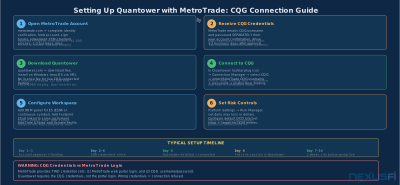
The technical setup for MetroTrade plus Quantower through CQG is straightforward. The most common friction points are credential management and instrument configuration, not the connection itself.
Account setup with MetroTrade. Open a futures account at metrotrade.com. MetroTrade's account opening process is standard for a registered FCM — identity verification, funding, and futures agreement execution. Once your account is approved and funded, MetroTrade provides CQG credentials separately from your main account login.
CQG credentials. CQG issues a separate username and password for market data and order routing. These are not your MetroTrade portal credentials. When MetroTrade says "connect through CQG," they mean: use the CQG username and password they send you to authenticate directly with CQG's servers.
Quantower connection setup. In Quantower:
- Open Connection Manager (the plug icon in the toolbar)
- Select CQG from the provider list
- Enter your MetroTrade-issued CQG username and password
- Check the Real Trading checkbox if you're connecting live (not simulation)
- Click Connect
Most traders are live in Quantower within 10-15 minutes of receiving their CQG credentials.
Instrument configuration. Quantower's symbol search for CQG-connected instruments uses CQG's symbology. ES futures is ESH6 for the March 2026 contract, ESM6 for June, and so on. The front-month continuous contract is typically available as ES with a continuous contract suffix depending on how your workspace is configured.
Workspace customization. Save your workspace configurations frequently. Quantower's workspace files are local to your machine — they don't sync automatically across installations. If you're trading from a primary workstation and a backup, export your workspace and keep it in sync manually.
Simulation mode. Quantower supports a paper trading mode through CQG's simulator. MetroTrade's CQG credentials may or may not include simulator access — confirm with their support team. Alternatively, a free CQG demo account from CQG.com provides simulator access independent of your MetroTrade connection.
From the NexusFi Quantower thread, a user note on CQG connectivity: "With the same User and password, you can have access to another CQG platform of your choice without any cost." This confirms that CQG credentials from MetroTrade work across multiple CQG-native platforms simultaneously, so traders can run Quantower alongside a legacy platform without additional subscription cost.
Commissions, Margins, and Cost Structure #
For active DOM traders, transaction costs are not background noise — they're a direct input to trade selection. A scalping strategy with two ticks of profit target and one tick of stop operates on a different cost tolerance than a swing setup with a 10-tick target.
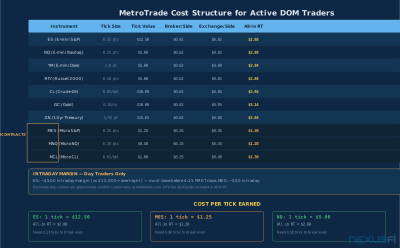
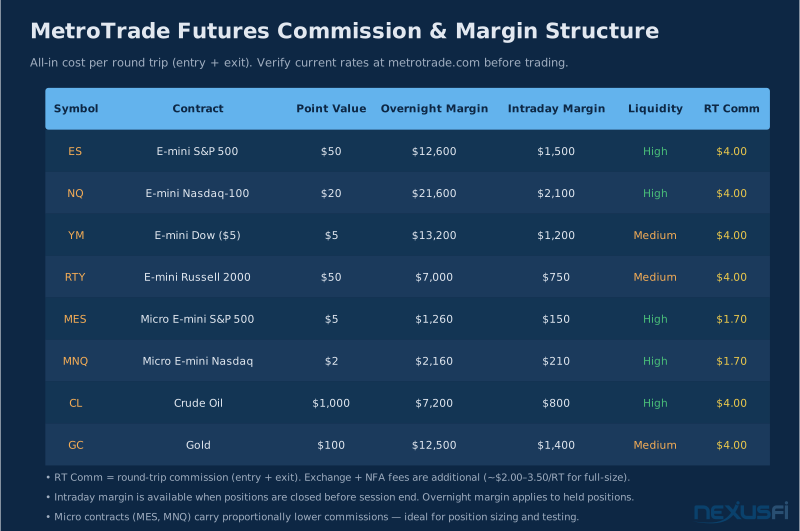
MetroTrade's commission structure. MetroTrade publishes current rates at metrotrade.com. As of the time this article was written, commissions for full-size futures contracts are competitive with other retail-focused FCMs, with per-side rates that fit the active trader model rather than the occasional trader model. Micro futures (MES, MNQ, MYM, M2K, MCL) carry proportionally lower commissions.
Exchange and regulatory fees. On top of broker commissions, every futures trade incurs exchange fees (charged by CME, CBOT, NYMEX) and NFA regulatory fees. These are fixed by the exchange and passed through at cost. MetroTrade does not mark up exchange fees. Understand these costs before calculating your break-even per trade.
Intraday margin. MetroTrade offers reduced intraday margin for traders who close positions before end-of-session. This is a standard offering at most retail FCMs and allows larger position sizing during the trading day. Overnight margin reverts to exchange minimum. The practical implication: if you're a day trader who never holds positions overnight, your effective capital requirement is lower than the overnight margin suggests.
Quantower subscription cost. Quantower itself is free for live trading with a CQG or Rithmic connection — the broker relationship covers the platform license. The free tier includes the DOM, charting, footprint charts, volume profile, and most of the tools covered in this article. Advanced add-ons like additional data providers or specialized analytics modules carry separate subscription fees. For most DOM traders using MetroTrade's CQG connection, the core Quantower feature set covers everything needed without additional cost.
All-in cost comparison. A useful comparison: Sierra Chart with an external data subscription may have similar total monthly costs to Quantower with MetroTrade CQG. NinjaTrader with a data subscription and lifetime license is front-loaded in cost. Quantower's model — free platform tied to broker relationship — is simpler to understand and easier to scale up or down as your trading activity changes.
As discussed in a NexusFi broker comparison thread, data costs matter: "Obviously Optimus offers the better deal on the platform but to have an informed view of the impact on your overall [trading costs]..." — @cordoba. The MetroTrade + Quantower combination eliminates separate data subscription costs for traders who don't need multi-provider setups.
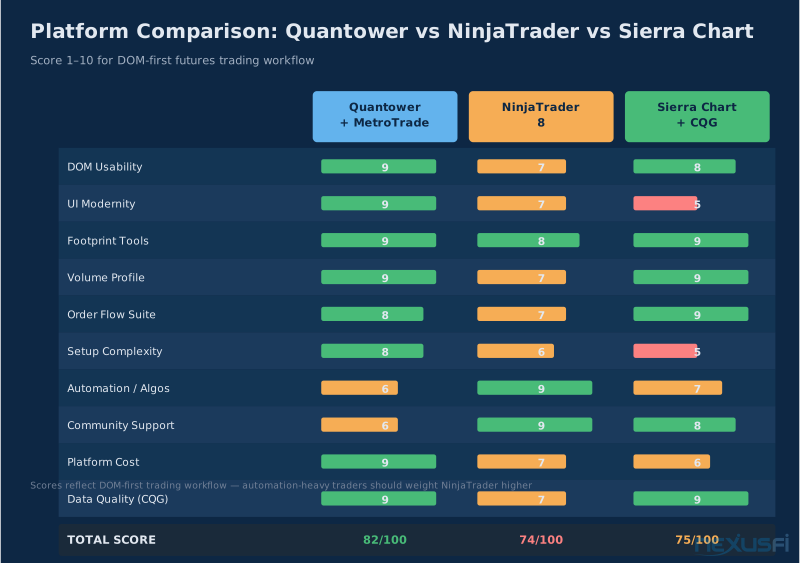
Quantower vs NinjaTrader vs Sierra Chart #
If you're evaluating Quantower against the two platforms that dominate the retail futures space, the comparison has clear lines.
Vs NinjaTrader:
NinjaTrader's strength is its ecosystem. Ten years of NinjaScript indicators, a large user community, and extensive educational resources make it the default choice for automated strategy traders. If your edge is a coded strategy that runs unattended, NinjaTrader's development environment is more mature than Quantower's.
Where Quantower wins: the DOM. NinjaTrader's SuperDOM is functional but not designed from scratch for order flow execution. The UI reflects compromises made across many years of development. Quantower's DOM was built to be the central workspace element from day one.
The practical decision point: if you spend most of your time in the DOM making discretionary execution decisions, Quantower's design philosophy fits the workflow better. If you spend most of your time building and testing automated strategies, NinjaTrader's ecosystem offers more.
Vs Sierra Chart:
Sierra Chart is the platform that experienced, technically proficient traders often end up on. Its configurability is unmatched — almost every display element can be customized, and its data connection options cover more providers than any other platform. The UI reflects its origins and has not kept pace with modern design standards, but users who've been on the platform for years have configured workspaces that work precisely the way they want.
Where Quantower wins: accessibility and visual clarity. For traders who don't want to spend weeks configuring a platform before they can trade on it, Quantower's default workspace setup is more immediately usable. Sierra Chart's depth of configurability is also its steepness of learning curve.
Where Sierra Chart wins: configurability, data connection breadth, and a user base that has battle-tested the platform across every market condition for two decades. For traders who value maximum control over every aspect of their setup, Sierra Chart has no equal.
For MetroTrade clients:
The CQG connection works cleanly with Quantower. MetroTrade clients who want to run Sierra Chart can do so via CQG as well — CQG provides a bridge protocol that Sierra Chart supports. NinjaTrader with a CQG connection requires NinjaTrader's CQG add-on, which is a separate license.
The choice is primarily about workflow, not about what MetroTrade's infrastructure supports. All three platforms connect to CQG. The question is which workspace design fits how you actually trade.
Common Strategies for DOM-First Futures Traders #
The traders who get the most out of the Quantower + MetroTrade setup are using specific execution patterns. These aren't black-box strategies — they're execution frameworks that translate DOM signals into defined trade actions.
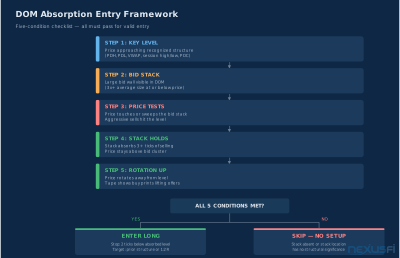
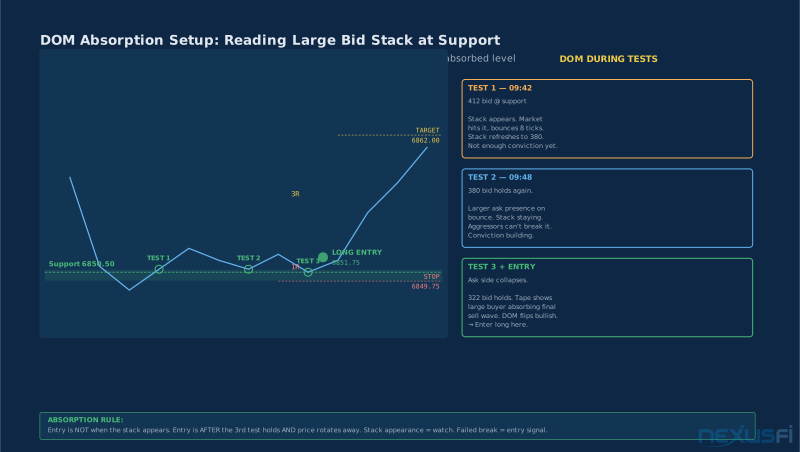
Absorption at key levels. When a large bid stack appears at a recognized support level and the market repeatedly tests it without breaking through, the stack is absorbing selling pressure. The entry signal is the price rotation away from that level after the test — not the appearance of the stack itself. Quantower's DOM color coding shows bid size by magnitude, making this pattern visually immediate.
DOM imbalance momentum. When the ask side of the book collapses dramatically while bids remain consistent — typically visible as a sudden one-sided imbalance across multiple price levels — it often precedes a rapid up-move. The setup requires speed: by the time the imbalance is pronounced, the move may already be underway. Quantower's speed ladder shows rate of change in the book, helping identify these setups earlier.
Footprint reversal signals. After an extended move in one direction, a footprint bar with a delta that is opposite to price direction — price made a new low but delta turned positive, indicating buyers absorbing the final sellers — is a common reversal precursor. This works better as a filter for other signals than as a standalone entry.
Opening range DOM behavior. The first 15-30 minutes of a CME session often have predictable DOM characteristics. Large institutional orders frequently work during this window as participants establish positions for the day. DOM patterns during the opening range reflect this activity in ways that mid-session tape doesn't. Traders who focus specifically on the opening range find that the Quantower DOM provides better real-time signal quality than lagging indicators applied to charts.
Tape-confirmed DOM entries. No DOM signal is complete without tape confirmation. If you're reading a large bid stack as absorption, the confirmation is aggressive selling hitting that stack and failing to push through — visible in the time and sales as large sell prints at a level that holds. Quantower's synchronized tape and DOM panels support this workflow without switching windows.
From a NexusFi thread on DOM trading,
This captures exactly the transition that DOM-first traders make: DOM trading uses a different language — order flow signals instead of price patterns.
Risk Management in Quantower #
Risk management in Quantower is built into the execution interface rather than separated into a post-trade reporting layer.
Position risk in the workspace. Quantower's positions panel shows open P&L, current exposure, and unrealized risk in real time, adjacent to the DOM where you can see it while making execution decisions. Most traders configure a daily loss limit in Quantower's risk settings so the platform auto-squares positions if the loss threshold is reached.
OCO brackets. Every entry placed through the DOM can automatically trigger an OCO (one-cancels-other) bracket — a limit order for profit target and a stop order, linked so that when one fills, the other cancels. Configure the default bracket size once, and it applies to every DOM entry without additional clicks.
Trailing stops. Quantower supports trailing stops natively. Once in profit by a specified amount, the stop moves in your direction by a defined increment. For momentum setups where the target is a move rather than a price level, trailing stops allow you to capture a trend without predetermining the exit.
Platform-level daily loss limit. In addition to stop orders on individual positions, Quantower allows you to set a session-level maximum loss. When the loss threshold is hit, the platform prompts you to stop trading or automatically cancels open orders. This is the safety net for the worst-case scenario: a series of stop orders failing to fill in a fast market.
MetroTrade's risk controls. MetroTrade, as a registered FCM, applies its own pre-trade risk controls at the order routing level through CQG. Orders that exceed defined position or loss limits are rejected before they reach the exchange. This works in parallel with Quantower's platform-level limits — both layers must pass for an order to be sent.
For scalpers running 20-50 trades a day through MetroTrade and Quantower, the risk management infrastructure has to work automatically. Manual stop placement on each trade is not viable at that frequency. Quantower's bracket automation and MetroTrade's account-level controls provide the framework.
Getting Started: A Practical Framework #
If you're evaluating MetroTrade and Quantower, a structured approach reduces the friction of getting started.
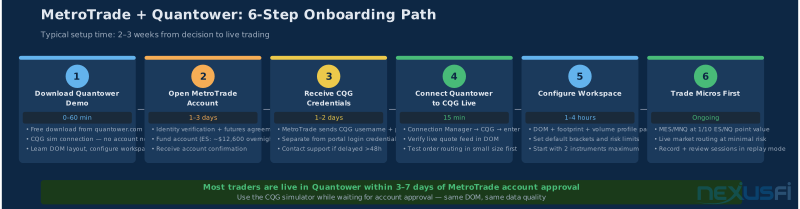
Step 1: Demo account first. Quantower is free to download and connects to CQG's simulator without a MetroTrade account. Run the simulator for at least two weeks before opening a live account. Learn the workspace, configure the DOM settings, and practice with the footprint and volume profile tools before real capital is at risk.
Step 2: Open MetroTrade account. Go to metrotrade.com and complete the account opening process. Fund the account at a level appropriate for your intended instruments — overnight margin for one ES contract requires approximately $12,000-15,000 at current CME minimums; intraday margin is lower.
Step 3: Request CQG credentials. After account approval, MetroTrade's team will provide CQG username and password. This is a separate communication from your account confirmation email. Allow 1-2 business days for this to be set up.
Step 4: Configure your workspace. Connect Quantower to MetroTrade via CQG using the steps in the Account Setup section above. Build your core workspace: DOM panel, time and sales, footprint chart, volume profile. Start with two instruments maximum — most DOM traders who try to monitor too many markets simultaneously end up executing worse in each one.
Step 5: Trade micro contracts first. MES and MNQ at one-tenth the point value of full-size ES and NQ allow you to learn Quantower's execution behavior with MetroTrade's live market routing at minimal risk. Many experienced DOM traders use micros for new setup testing even after years of live trading.
Step 6: Record and review. Quantower supports session recording. Record your trading sessions and review them in replay mode. Focus on DOM decisions you made correctly and incorrectly — not just whether the trade made money, but whether your reading of the order book was accurate. This is the fastest path to improving DOM execution skills.
MetroTrade maintains a NexusFi sponsor listing at nexusfi.com/d/brokers/metrotrade/ with current commission rates, margin requirements, and account information. For traders evaluating the combination, that's the right starting point for specific cost numbers.
The DOM-first stack — Quantower plus MetroTrade through CQG — is not for everyone. If your trading approach is primarily chart-based and you execute from price levels rather than order flow signals, a simpler setup may serve you better. But for traders who have spent time in the DOM and found existing platform implementations falling short, the combination delivers what that style of trading actually requires.
Related articles: Futures Broker Due Diligence | Futures Broker Evaluation Framework | Time and Sales Tape Reading | DOM Trading Basics
MetroTrade is a NexusFi sponsor. View their directory listing: nexusfi.com/d/brokers/metrotrade/
Knowledge Map
Go Deeper
Build on this knowledgeReferences This Article
Articles that build on this topicCitations
- — Quantower (2021) 👍 3
- — Data feed for quantower with AMP? (2022) 👍 4
- — Optimus Futures trading broker review (2020) 👍 7
- — Market Depth Historical Graph (2016) 👍 2
- — Volume Pace or Speed of Trades Indicator ? (2023) 👍 1
- — Trading the DOM (2016) 👍 7
- — For DOM based traders. (ES/NQ) (2025) 👍 6
- — CQG Trader -- Direct-Access Trading Platform
- — Quantower Trading Platform
- — The Scalper's Journey (2016) 👍 5