



Pine Script v5 Fundamentals: Writing Your First TradingView Indicator for Futures Trading
Pine Script is TradingView's built-in scripting language. It runs directly in the browser, generates charts instantly, and has a lower barrier to entry than any other trading platform's scripting environment. But for traders coming from NinjaTrader or ThinkScript, it operates differently in ways that matter — and misunderstanding those differences leads to bugs, repainting signals, and backtests that don't reflect reality.
This guide is written for futures traders who want to build or understand Pine Script indicators and strategies. It maps NinjaTrader and ThinkScript concepts directly to Pine equivalents, explains the execution model that trips up most beginners, and shows working code you can run immediately in TradingView.
Overview #
Pine Script v5 is TradingView's built-in scripting language, designed specifically for creating indicators, strategies, and alert conditions directly inside the TradingView charting environment. Unlike NinjaScript (C#) or ThinkScript (EasyLanguage), Pine Script runs in the browser — no installation required, no compile step, instant chart feedback.
For futures traders, Pine Script occupies a specific role in the development workflow: rapid prototyping and alert generation. It excels at building and testing indicator logic visually, setting price- and indicator-based alerts for ES, NQ, CL, and other futures contracts, and prototyping strategy concepts before implementing them in NinjaTrader for live execution.
This guide covers the core execution model, variable behavior, built-in functions, session filtering for futures RTH/Globex hours, the alert system, a complete working indicator, and an honest comparison with NinjaScript. Whether you're translating a ThinkScript indicator or building a new Pine Script indicator from scratch, understanding these foundations prevents the most common errors.
Prerequisites: Basic familiarity with trading indicators (moving averages, RSI, ATR) is helpful but not required. No programming background needed — Pine Script is one of the most beginner-accessible scripting environments available.
The Execution Model: What Actually Happens When Your Script Runs #
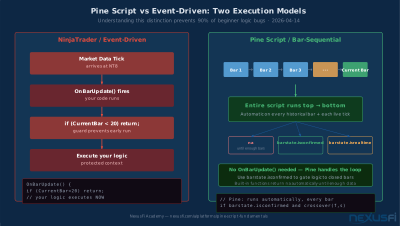
NinjaTrader calls OnBarUpdate() when something changes. ThinkScript does something similar. Both are event-driven: your code runs because something happened.
Pine Script works the opposite way. There is no event handler. No function you write gets "called." Instead, Pine Script runs your entire script, top to bottom, on every historical bar and on every tick of the current live bar.
The critical implication: in Pine, your code IS the update loop. You don't control when it runs. You write what to calculate and what to display, and Pine handles the timing.
Bar States: The Pine Equivalent of NT's IsFirstTickOfBar #
Pine does provide tools to gate logic to specific bar conditions:
barstate.isfirst      // true only on the first bar loaded
barstate.islast       // true only on the last (most recent) bar
barstate.isconfirmed  // true only when the current bar has CLOSED
barstate.isrealtime   // true during the live, unfinished bar
barstate.isnew        // true on the first tick of each bar
For most futures trading logic, barstate.isconfirmed is the one you'll use most. Signals based on a closed bar don't repaint. Signals based on intrabar data can and will change before the bar closes.
// Only act on CLOSED bars -- prevents repainting
if barstate.isconfirmed and ta.crossover(fast, slow)
    strategy.entry("Long", strategy.long)
This is the direct equivalent of NinjaTrader's Calculate = Calculate.OnBarClose setting.
Script Structure: The First Lines That Define Everything #
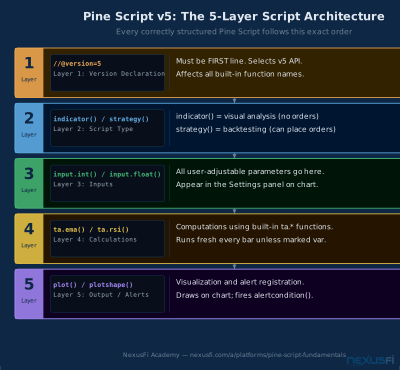
Every Pine Script starts with a version declaration and a type declaration.
//@version=5
indicator("My Indicator Name", overlay=true, precision=2)
indicator() vs strategy() is the most fundamental choice:
indicator()— for visual analysis tools that plot data. Cannot place orders.strategy()— for backtesting. Can place orders viastrategy.entry()andstrategy.exit().
Key indicator() parameters for futures traders:
overlay=true— draws on the price chartoverlay=false— draws in a separate pane belowprecision=2— decimal places shown (ES=2, ZB=5, NQ=2)max_bars_back=500— increases the historical lookback Pine can access
Variables: The Most Common Source of Bugs for NT Migrants #
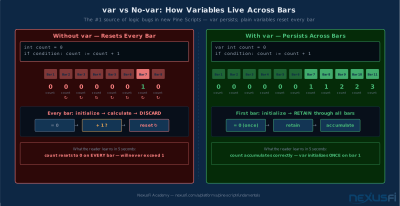
In NinjaTrader, variables persist automatically. In Pine Script, persistence is explicit — you have to tell Pine whether a variable survives across bars.
var: Variables That Persist Across Bars #
var float sessionHigh = na
var int tradeCount = 0

// These accumulate across bars
if high > sessionHigh or na(sessionHigh)
    sessionHigh := high
The var keyword initializes a variable ONCE (on the first bar) and then retains its value from bar to bar.
Without var: Variables That Reset Every Bar #
Without var, the variable is recalculated fresh on every bar.
The mistake that kills beginners: Forgetting var when tracking state.
// WRONG: tradeCount resets to 0 on every bar
int tradeCount = 0
if condition
    tradeCount := tradeCount + 1  // Will always be 1 or 0

// CORRECT: tradeCount accumulates
var int tradeCount = 0
if condition
    tradeCount := tradeCount + 1  // Properly increments
The := Assignment Operator #
Pine Script uses two different assignment operators:
=— declaration (first use of a variable):=— reassignment (changing a variable that already exists)
Historical References with [] #
close[0]   // Current bar close
close[1]   // Previous bar close
close[5]   // Close from 5 bars ago
high[1]    // Previous bar high
This replaces NinjaTrader's High[1], Close[1] notation — the syntax is identical.
Built-in Functions: The ta.* Namespace #
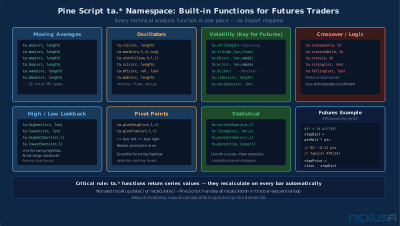
In Pine Script v5, all technical analysis functions live in the ta. namespace.
// Moving averages
smaValue = ta.sma(close, 20)
emaValue = ta.ema(close, 9)

// Oscillators
rsiValue = ta.rsi(close, 14)
[macdLine, signalLine, hist] = ta.macd(close, 12, 26, 9)

// Volatility
atrValue = ta.atr(14)

// Highest/lowest over N bars
periodHigh = ta.highest(high, 20)
periodLow = ta.lowest(low, 20)

// Crossovers
crossed = ta.crossover(fast, slow)
crossedUnder = ta.crossunder(fast, slow)
Futures-specific note: ta.atr(14) is particularly useful for stop placement — combined with inputs, it gives you a dynamic, volatility-adjusted stop distance.
Inputs: Creating User-Configurable Parameters #
Inputs create a settings panel that users can modify without editing code. This is the equivalent of NinjaTrader's [Parameter] attributes.
fastLen = input.int(9, "Fast MA Length", minval=1, maxval=200)
atrMult = input.float(1.5, "ATR Stop Multiple", step=0.1, minval=0.1)
showBands = input.bool(true, "Show Volatility Bands")
rthOnly   = input.bool(true, "RTH Session Only")
maType = input.string("EMA", "MA Type", options=["SMA", "EMA", "WMA"])
Futures trading inputs you should always consider:
- RTH session filter toggle — whether to restrict signals to regular trading hours
- ATR multiplier for stops — dynamic stop distance relative to volatility
- Lookback period — bars used for highest/lowest calculations
Plotting: The plot() Family #
plot() — Continuous Lines #
plot(ta.sma(close, 20), "20 SMA", color=color.blue, linewidth=2)

p1 = plot(ta.ema(close, 9), "Fast EMA", color.green, linewidth=2)
p2 = plot(ta.ema(close, 21), "Slow EMA", color.red, linewidth=2)
fill(p1, p2, color=color.new(color.purple, 85), title="EMA Fill")
plotshape() — Markers for Signals #
plotshape(buySignal, "Buy", shape.triangleup, location.belowbar, color.lime, size=size.small)
plotshape(sellSignal, "Sell", shape.triangledown, location.abovebar, color.red, size=size.small)
Performance Note on label.new() and line.new() #
Creating drawing objects unconditionally on every bar causes performance issues and can hit TradingView's 500-object limit:
// WRONG: creates a new label on every bar
label.new(bar_index, high, str.tostring(close))

// CORRECT: only create on the last bar
if barstate.islast
label.new(bar_index, high, str.tostring(close), style=label.style_label_down)Session Filtering for Futures #
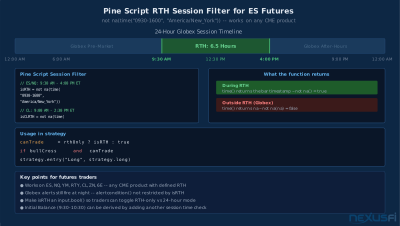
Futures traders working ES, NQ, CL, or other CME products often want to restrict signals to regular trading hours (RTH).
// Check if current bar is within RTH (9:30 AM - 4:00 PM ET)
isRTH = not na(time("0930-1600", "America/New_York"))

if isRTH and longCondition
    strategy.entry("Long", strategy.long)

// CL (Crude Oil) RTH: 9:00 AM - 2:30 PM ET
isCLRTH = not na(time("0900-1430", "America/New_York"))
As @bwolf noted in a NexusFi discussion about TradingView alerts, the platform's alert system works across sessions — you can set alerts for Globex levels that trigger overnight while you're asleep:
"I was looking for a way to have my phone call me with an alert for when a level is crossed during Globex, when I am asleep. Not a popup on my phone, but an actual phone call instead." [1]
Pine Script's alertcondition() function makes these Globex-aware alerts possible directly from your indicator code.
@HumbleTrader, a NexusFi Elite member who completed TradingView strategy coding after a steep learning curve, described how session filtering transformed his trading workflow:
"I managed to complete my tradingview strategy coding. The learning curve was steep but the final hurdle was much easier than I expected. I have more control over my entry and exit timing... I aim to trade the opening 2.5 hours only and will finish trading by EU close." [6]
This is exactly what Pine Script's session filtering enables — custom trading windows that match your schedule and market preference, not a fixed RTH template.
Alert System: From Pine Script to Your Phone #
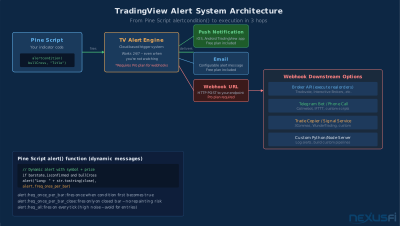
TradingView's alert system is one of its strongest features for futures traders.
Static Alert Conditions #
longSignal = ta.crossover(ta.ema(close, 9), ta.ema(close, 21))
shortSignal = ta.crossunder(ta.ema(close, 9), ta.ema(close, 21))

alertcondition(longSignal, "Long Signal", "EMA 9/21 Bullish Cross")
alertcondition(shortSignal, "Short Signal", "EMA 9/21 Bearish Cross")
Webhook Integration #
TradingView alerts can fire webhooks to any URL — this enables automated execution pipelines. Third-party services use these webhooks to route alerts to broker APIs, Telegram bots, or phone call services. The alert.freq_once_per_bar parameter prevents duplicate signals.
Writing Your First Futures Indicator: Step-by-Step #
Here's a complete, working Pine Script indicator for ES/NQ futures:
//@version=5
indicator("Futures MA Crossover + ATR Stops", overlay=true, precision=2)

// === INPUTS ===
fastLen  = input.int(9, "Fast EMA", minval=1)
slowLen  = input.int(21, "Slow EMA", minval=1)
atrLen   = input.int(14, "ATR Length")
showBands = input.bool(true, "Show ATR Bands")
rthOnly  = input.bool(false, "RTH Only")

// === SESSION ===
isRTH    = not na(time("0930-1600", "America/New_York"))
canTrade = rthOnly ? isRTH : true

// === CALCULATIONS ===
fastEMA  = ta.ema(close, fastLen)
slowEMA  = ta.ema(close, slowLen)
atrValue = ta.atr(atrLen)

// ATR-based stop bands
upperBand = slowEMA + atrValue
lowerBand = slowEMA - atrValue

// === SIGNALS (on closed bars only) ===
bullCross = barstate.isconfirmed and ta.crossover(fastEMA, slowEMA) and canTrade
bearCross = barstate.isconfirmed and ta.crossunder(fastEMA, slowEMA) and canTrade

// === PLOTS ===
p1 = plot(fastEMA, "Fast EMA", color.new(color.green, 30), linewidth=2)
p2 = plot(slowEMA, "Slow EMA", color.new(color.red, 30), linewidth=2)
fill(p1, p2, color=color.new(fastEMA > slowEMA ? color.green : color.red, 90))

plot(showBands ? upperBand : na, "Upper ATR Band",
     color.new(color.orange, 60), linewidth=1, style=plot.style_circles)
plot(showBands ? lowerBand : na, "Lower ATR Band",
     color.new(color.orange, 60), linewidth=1, style=plot.style_circles)

plotshape(bullCross, "Bull Cross", shape.triangleup,
          location.belowbar, color.lime, size=size.normal)
plotshape(bearCross, "Bear Cross", shape.triangledown,
          location.abovebar, color.red, size=size.normal)

// === ALERTS ===
alertcondition(bullCross, "Bullish EMA Cross", "EMA crossover -- potential long setup")
alertcondition(bearCross, "Bearish EMA Cross", "EMA crossunder -- potential short setup")
This indicator plots a fast and slow EMA with a colored fill, overlays optional ATR-based volatility bands, marks confirmed crossover signals (no repainting — barstate.isconfirmed), supports optional RTH filtering, and registers alerts you can activate with one click.
From Indicator to Strategy: Adding Order Execution #
Once your indicator logic is correct visually, converting to a strategy is straightforward:
//@version=5
strategy("Futures MA Crossover Strategy", overlay=true, initial_capital=100000,
         default_qty_type=strategy.fixed, default_qty_value=1,
         commission_type=strategy.commission.cash_per_contract, commission_value=2.5)

inLong  = strategy.position_size > 0
inShort = strategy.position_size < 0

if bullCross and not inLong
    strategy.entry("Long", strategy.long)
    strategy.exit("XL", "Long", stop=close - 2 * atrValue, limit=close + 3 * atrValue)

if bearCross and not inShort
    strategy.entry("Short", strategy.short)
    strategy.exit("XS", "Short", stop=close + 2 * atrValue, limit=close - 3 * atrValue)
Realistic strategy settings for futures: Use commission_value=2.5 for ES/NQ micros round-turn commissions, default_qty_value=1 for one contract per trade.
Pine Script vs NinjaScript: An Honest Comparison #
As @bobwest put it in the NexusFi "Pinescript VS NinjaScript" thread:
"Pinescript is tailored for one environment, the TradingView platform. It's simpler, and can only be used there... I find Pinescript is simple and quick to write in." [2]
And @AllSeeker, who has 5-6 years of Pine Script coding experience:
"Pine script is one of the easiest ones to learn out there. But... it's completely cloud based solution... for simple logic of reducing complications by having locally installed solution, I would choose NinjaScript." [3]
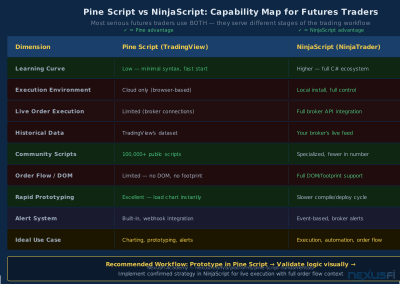
| Dimension | Pine Script | NinjaScript (C#) |
|---|---|---|
| Learning curve | Low — syntax is minimal | Higher — full C# ecosystem |
| Execution environment | Cloud only (TradingView) | Local installation |
| Live order execution | Limited (via broker connections) | Full broker API integration |
| Historical data depth | TradingView's dataset | Your broker's data feed |
| Community scripts | 100,000+ public scripts | Smaller but highly specialized |
| Order flow tools | Limited (no DOM, no footprint) | Full DOM/footprint via NinjaTrader |
| Ideal use case | Rapid prototyping, charting, alerts | Full algorithmic execution, order flow |
For futures traders: Pine Script is the right tool for idea prototyping, charting logic, and alert systems. NinjaScript is the right tool for execution, order flow analysis, and live automated trading. They serve different stages of the development workflow.
Many serious futures traders use TradingView for Pine Script charting and alerts, then implement confirmed strategies in NinjaTrader for execution.
Common Mistakes and How to Fix Them #
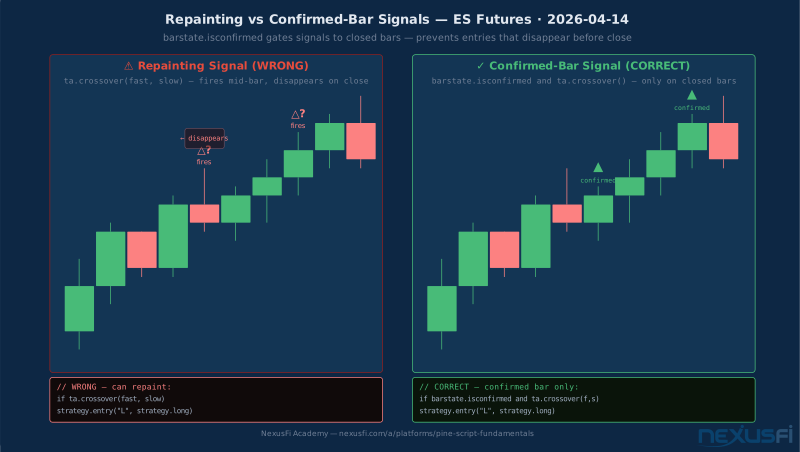
1. Repainting Signals #
Problem: Your signal looks great on historical charts but changes after the bar closes.
Cause: Using intrabar data in signal conditions — the signal fires mid-bar then disappears when the bar closes differently.
Fix: Gate all signals to barstate.isconfirmed:
// WRONG -- can repaint
if ta.crossover(fast, slow)
    strategy.entry("L", strategy.long)

// CORRECT -- waits for bar close
if barstate.isconfirmed and ta.crossover(fast, slow)
    strategy.entry("L", strategy.long)
2. Missing var on State Variables #
// WRONG -- resets to 0 every bar
int count = 0
if condition
    count := count + 1  // Always 0 or 1

// CORRECT
var int count = 0
if condition
    count := count + 1  // Accumulates properly
3. request.security() Lookahead Bias #
Never change lookahead to lookahead_on in strategies — it allows your script to see future bar data, making backtests look far better than live results.
4. Drawing Object Accumulation #
Use if barstate.islast for labels and lines — otherwise Pine hits the 500-object limit.
Getting Started: Your First 30 Minutes #
- Open TradingView and work through to any futures chart (ES1!, NQ1!, CL1!)
- Press Alt+P to open the Pine Script editor
- Replace the default script with the complete indicator example above
- Press "Add to chart" — the indicator loads immediately
- Open the settings (gear icon) to see your inputs panel
- Set an alert on one of the crossover conditions
For NinjaTrader conversions, the NexusFi community has a dedicated thread at nexusfi.com/showthread.php?t=1261. As @Fi noted when helping a trader migrate TradingView indicators:
"The NexusFi community has several experienced NT8 developers who frequently assist with conversions. Posting your TradingView script in the NinjaTrader Programming section often yields helpful responses." [4]
Pine Script is free and requires no installation. The fastest way to start is opening a TradingView chart, pressing Alt+P, and typing your first line of code.
Knowledge Map
Prerequisites
Understand these firstGo Deeper
Build on this knowledgeReferences This Article
Articles that build on this topicCitations
- — Tradingview Phone Call Alert (2023) 👍 5“I was looking for a way to have my phone call me with an alert for when a level is crossed during Globex, when I am asleep.”
- — Pinescript VS NinjaScript (2023) 👍 3“Pinescript is tailored for one environment, the TradingView platform. It's simpler, and can only be used there. I find Pinescript is simple and quick to write in.”
- — Pinescript VS NinjaScript (2023) 👍 3“Pine script is one of the easiest ones to learn out there. But it's completely cloud based solution.”
- — Tradingview or TOS to NT8 (2025) 👍 1“The NexusFi community has several experienced NT8 developers who frequently assist with conversions.”
- TradingView — Pine Script v5 Reference Manual (2024)
- — HumbleTrader's next chapter (2025) 👍 6“I managed to complete my tradingview strategy coding. The learning curve was steep but the final hurdle was much easier than I expected. I have more control over my entry and exit timing.”