



TradingView Alerts: Price, Indicator, Drawing, and Webhook Alerts for Futures Traders
Overview #
Most traders use TradingView alerts the same way they use phone alarms — one or two set at obvious price levels, ignored half the time, turned off when they get annoying. That's leaving a serious tool mostly unused.
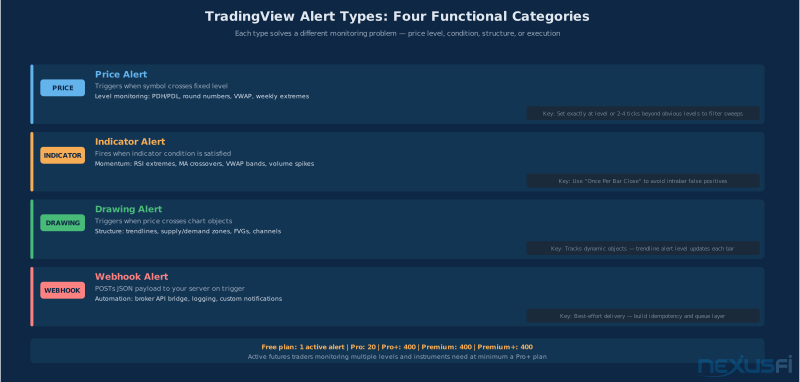
TradingView's alert system has four distinct types: price alerts, indicator alerts, drawing alerts, and webhook alerts. Each solves a different problem. Price alerts monitor fixed levels. Indicator alerts fire when technical conditions change. Drawing alerts track trendlines and structural zones. Webhook alerts bridge TradingView's analysis to external execution systems. Used together with intentional architecture, they become attention management infrastructure — a system that filters out noise and surfaces signals worth acting on.
This guide covers all four alert types in depth with a focus on futures traders. That means addressing the specific challenges of futures: session boundaries, rollover dates, liquidity sweeps at obvious levels, and the latency gap between TradingView's data feed and direct-market-access execution platforms. It also covers the most common way traders misuse alerts — treating them as decision-makers when they're attention directors — and how to build an alert architecture that prevents that mistake.
One framing note: member @GrayCrane documented connecting TradingView alerts to Interactive Brokers via a cloud API with queue-based order management, and identified the core problem: TradingView alerts are best-effort delivery, not exchange-level guarantees. Member @hyperscalper put the design challenge directly: "The hard part is deciding how not to get too many or too few such alerts. It's like crying wolf too many times." Both of those observations shape the architecture recommendations throughout this guide.
The Four Alert Types: What Each One Does #
TradingView splits alerts into four functional categories. Understanding what each type is designed to do — and what it cannot do — prevents the most common alert design mistakes.
Price alerts trigger when a symbol's price crosses or reaches a specified level. They're the simplest type and the most frequently set. You define a price point, TradingView watches the feed, and when price touches that level it fires. For futures traders, these work best at fixed structural levels: prior session highs and lows, overnight Globex extremes, previous week's high and low, round numbers with established liquidity, and VWAP levels at market open. Price alerts don't evaluate context — they fire whenever price reaches the level regardless of volume, momentum, or session conditions.
Indicator alerts trigger when an indicator's output satisfies a specified condition. RSI crosses above 70 or below 30. MACD line crosses the signal. EMA(9) crosses EMA(21). Custom Pine Script indicators reach a defined threshold. These are rules-based signal alerts. They're more sophisticated than price alerts because they evaluate conditions, not just levels. The tradeoff is complexity: indicator alerts can generate false positives if the underlying indicator has repainting behavior or if conditions are evaluated intrabar rather than on confirmed bar close.
Drawing alerts trigger when price interacts with chart objects you've drawn: trendlines, channels, horizontal lines, rectangles, or Fibonacci levels. These are especially useful for futures traders who use manual technical analysis — drawing supply/demand zones, trend channels, or structure lines directly on the chart. When price approaches a zone you drew, the alert fires. The limitation is maintenance: when you update or redraw objects, you need to verify the alerts are still pointing at the right objects.
Webhook alerts are a different category entirely. Instead of sending a notification to you, they send a JSON payload to an external URL you specify. Your server receives the payload, parses the alert data, and takes programmatic action — logging the signal, placing an order through a broker API, updating a spreadsheet, or sending a custom notification through your own messaging system. Webhooks transform TradingView from a charting platform into a signal source feeding downstream automation. This is the professional tier of the alert system, and it requires engineering discipline to use safely.
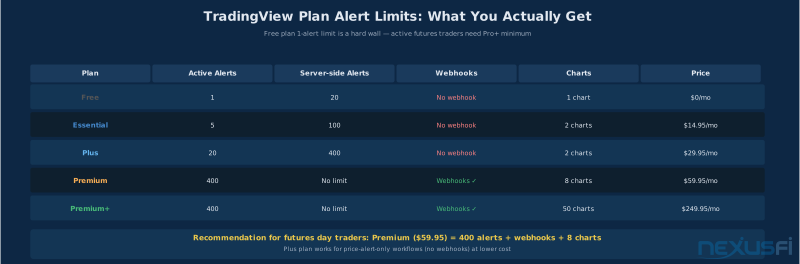
The free plan allows one active alert. Pro plans expand this much (400+ alerts on Pro+). For active futures traders monitoring multiple instruments and conditions, the alert limit is a legitimate factor in plan selection.
Pro+ starts at 400 active alerts — enough to monitor 10+ instruments across multiple timeframes simultaneously. If your watchlist exceeds five instruments, the Pro plan's alert limit becomes a real constraint before you've built a complete monitoring setup. SMS delivery requires the Premium plan.
Price Alerts: Setting Up Key Level Monitoring #
Price alerts are the foundation layer. Get them right and you can monitor 20+ levels across multiple instruments without watching a screen all morning.
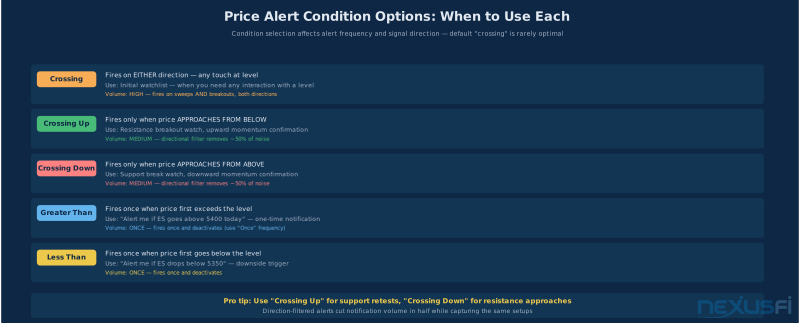
The alert creation dialog in TradingView is accessible three ways: right-clicking the chart and selecting "Add Alert," clicking the bell icon in the top toolbar, or clicking the alert line button on the right panel. The dialog asks for the condition (crossing, crossing up, crossing down, equal to, greater than, less than), the value, the notification method, a message, and an expiration time.
For futures traders, the condition matters more than it seems. "Crossing" fires on any touch. "Crossing up" only fires if price approaches from below. "Crossing down" only fires from above. Most traders default to "crossing" but for trending setups you often want directional — "crossing up" at a resistance level means you want to see a breakout, not a pullback touch. "Crossing down" at support means you're watching for a break, not a bounce.
The expiration field prevents alert clutter accumulation. Set an appropriate expiration based on the timeframe you're trading. A key level on the daily chart might need 90-day expiration. A session-specific level should expire at end of day. Unmanaged alerts stay active indefinitely on older plan types and degrade signal quality over time — you'll get alerts firing on levels that are no longer relevant.
For futures specifically, three calibration adjustments most traders don't make:
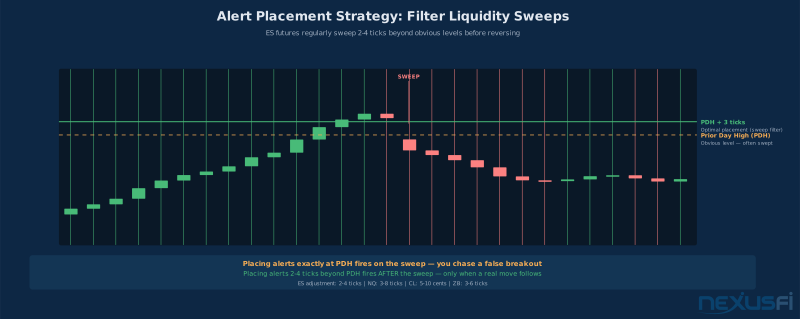
Placement outside liquidity nodes. Futures markets regularly sweep the obvious levels before reversing — prior session high by 2-4 ticks on ES, 3-8 ticks on NQ, 5-10 cents on CL. Setting alerts exactly at prior highs/lows fires on sweeps, not genuine breakouts. Place alerts 2-4 ticks beyond obvious levels to filter this noise and trigger when a real move is happening.
ATR-based distances for dynamic levels. A 10-point offset on ES means nothing on a 60-point range day and is significant on a 15-point day. ATR-based placement — 0.5x ATR above/below a level — self-adjusts to volatility. TradingView doesn't automate this, but checking the ATR reading each morning and adjusting level placement takes 2 minutes.
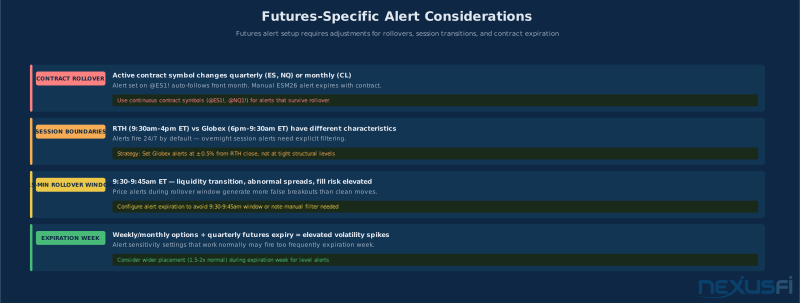
Session-aware level selection. The prior day's RTH high/low, the opening range high/low after the first 30 minutes, and the prior week's high/low generate consistent alert-worthy triggers because institutions actively reference these levels. The overnight Globex range establishes context for RTH but generates less reliable signals during low-liquidity overnight hours. Level placement during the 15-minute rollover window carries abnormal fill risk.
Indicator Alerts: Rules-Based Signal Triggers #
Indicator alerts are where most traders hit their first wall. The promise is clear: define a rules-based condition, let TradingView monitor it, get notified when it triggers. The reality is more complicated because of how indicator calculations work and when TradingView evaluates alert conditions.
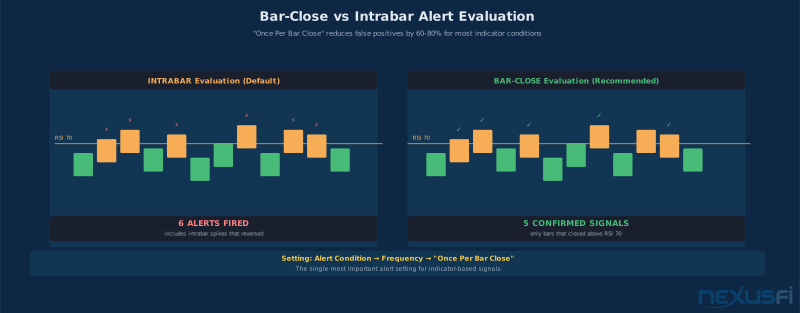
The fundamental concept to understand is bar confirmation. Most indicators update their values as each new tick arrives within a bar. An RSI reading of 71.3 at 2:00pm doesn't mean the RSI will close above 70 at the end of that 5-minute bar — late bar data can push it back below 70. If your alert condition is evaluated intrabar (which is the default for many setups), you'll get alerts that the indicator "crossed" a level, only to have the crossing reverse before the bar closes.
For the vast majority of futures trading setups, you want alert conditions evaluated on bar close. The TradingView alert dialog has an "Once Per Bar Close" option in the frequency settings — this is your default selection for indicator alerts. It checks the condition only after the bar closes and the indicator value is final. You'll get fewer alerts and they'll be more reliable.
The "Once Per Bar" option fires once while the condition is true within the bar — useful for some high-frequency monitoring scenarios but generally not for systematic trading signals. "Only Once" fires the first time the condition is true and then deactivates — appropriate for one-time structural events like a major breakout but not for recurring signals.
Common indicator alert setups for futures:
RSI extremes with confirmation. Alert when RSI(14) closes above 70 on the 1-hour chart for ES. This flags overbought conditions in the context of the hourly trend. The bar-close requirement means the RSI had to sustain above 70 for the full hour, reducing false positives from intrabar spikes.
Moving average crossovers. EMA(9) crossing above EMA(21) on the 15-minute chart. Set to bar close. This is a classic momentum trigger that generates manageable alert frequency — not too many signals per day, actionable when they occur.
VWAP deviation bands. When price closes more than 1.5 standard deviations above VWAP, alert fires. This flags stretched conditions that often mean-revert. Especially effective on NQ which has larger intraday swings.
Volume conditions. When relative volume (current bar volume / average bar volume) exceeds 2.0, alert fires. This flags unusual volume activity that often precedes significant price movement. Requires a Pine Script indicator since TradingView doesn't have a built-in relative volume indicator in the alert condition builder.
The repainting risk deserves explicit attention. Some indicators use future data in their calculations in ways that appear valid on historical charts but generate false signals in real-time. Any indicator using lookahead_on in Pine Script, or indicators that smooth values across multiple future bars, can "repaint" — their current bar value changes as new bars arrive. Before building alert setups around a custom indicator, verify it doesn't repaint by watching its value on the last bar in real-time over a full session. If the value changes after the bar closes, the indicator repaints and its alert signals are unreliable.
Drawing Alerts: Structure-Based Monitoring #
Drawing alerts are the most underused type in TradingView's system. They let you attach alerts directly to chart objects — trendlines, channels, price zones, and Fibonacci levels — and fire when price interacts with the drawn object. For traders who use manual technical analysis as their primary framework, this is a powerful capability.
To add an alert to a drawn object, right-click the object and select "Add Alert to..." The alert will reference the line or zone and trigger when price crosses it. The alert tracks the object dynamically — if you draw a rising trendline, the alert level updates as the line's price value changes with each bar.
The most effective drawing alert setups for futures:
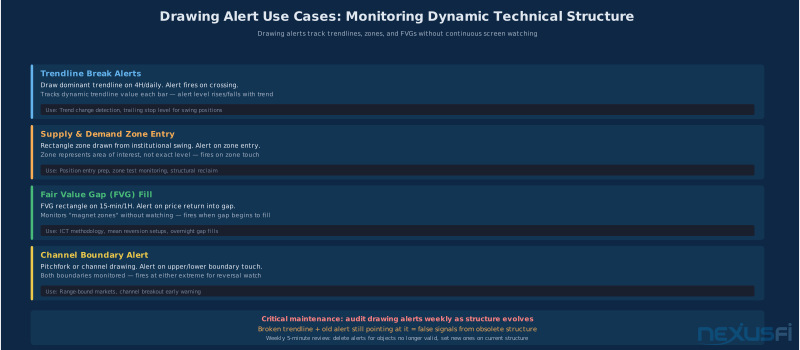
Trendline breaks. Draw the current dominant trendline on the 4-hour or daily chart. Set a "crossing" alert. When price crosses the trendline, you're flagged for a potential trend change regardless of what else you're monitoring. This is more responsive than waiting for a fixed price level because the alert level updates with the trendline.
Supply and demand zones. Draw a rectangle around a supply/demand zone from the daily chart. Set an alert to fire when price enters the zone. This prevents you from watching the zone all session — you go about your work and get notified when price becomes relevant.
Fair Value Gaps (FVGs). For ICT methodology traders, drawing a rectangle on each FVG and setting a drawing alert converts a manual monitoring task into an automated notification. When price returns to fill the gap, you're alerted regardless of what timeframe you're currently watching.
Channel boundaries. Pitchfork or channel drawings with alerts on the upper and lower boundaries. When price approaches the channel extremes where reversals historically occur, the alert fires.
The maintenance requirement is drawing alerts' main limitation. When market structure shifts — the trendline breaks and you draw a new one, the support zone fails and you identify a new level — you need to delete the old alert and set a new one on the updated object. If you don't, old alerts fire on obsolete objects. Building a weekly review habit where you audit drawing alerts against current chart structure prevents alert pollution.
Webhook Alerts: Connecting Analysis to Execution #
Webhooks are TradingView's most technically sophisticated alert type and the one that generates the most misuse when traders jump into automation without proper infrastructure.
In the alert dialog, select "Webhook URL" as the notification method and provide your endpoint URL. When the alert fires, TradingView sends an HTTP POST to that URL with the alert message as the body. Structure the message as a JSON string using TradingView's template variables — {{ticker}}, {{close}}, {{time}}, {{interval}}, and others — which get replaced with actual values at fire time. Pine Script indicators can expose additional values through the plot() function. A well-structured webhook message gives your receiving server everything needed to act without additional API calls.
What receives the webhook? That depends entirely on your implementation. Common architectures:
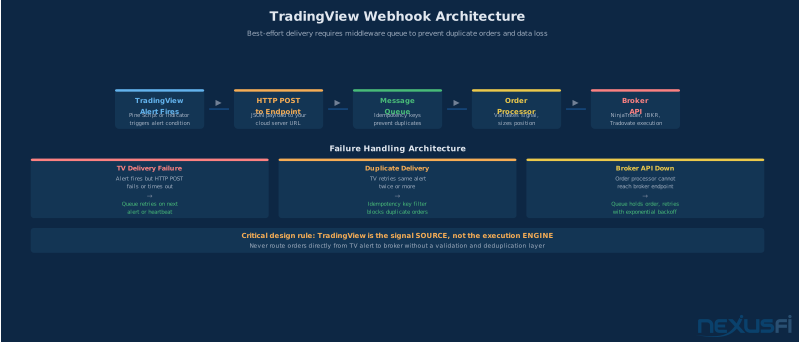
Cloud API with broker bridge. The approach documented by @GrayCrane: a cloud-hosted API (AWS Lambda, DigitalOcean, or similar) receives the webhook, validates it, places it in a message queue, and a separate process reads the queue and forwards orders to the broker API. The queue step is critical — it provides retry logic, deduplication, and prevents flooding the broker API with duplicate orders from repeated alert fires.
Notification router. A simpler pattern for traders who want custom notifications rather than automated execution. The webhook hits a personal server that reformats the alert data and routes it to SMS via Twilio, Discord, Slack, or a custom mobile push service. More reliable and flexible than TradingView's built-in notification channels.
Logging and analytics. Webhook to a database that records every alert with timestamp, symbol, conditions, and price at time of fire. Enables post-session analysis of signal quality, frequency, and accuracy. Builds a dataset for evaluating whether your alert logic is generating actionable signals or noise.
The reliability constraint is fundamental: TradingView webhook delivery is best-effort, not guaranteed. During high-traffic events (major economic releases, market open on high-volatility days), TradingView's servers can be under load and webhook delivery can be delayed or dropped. Any automation built on top of webhook alerts needs to handle this:
Idempotency keys. Every webhook payload should include a unique ID (alert timestamp + symbol + signal type hashed together works). Your receiving server tracks which IDs it has already processed. If a duplicate arrives due to TradingView retrying, it gets ignored instead of generating a second order.
Signal re-validation. Before placing any order based on a webhook signal, the receiving server should independently verify the signal is still valid: the price is still within a reasonable tolerance of the signal price, the bar that generated the signal has confirmed (closed), and risk parameters allow the trade.
Kill switches. Any automated system that can place real orders must have a hard stop mechanism that pulls all working orders from the exchange if something goes wrong. Whether you build a web dashboard, a command-line script, or a mobile SMS trigger, the kill switch needs to work independently of TradingView.
Alert Conditions: Bar-Close vs. Intrabar #
The bar-close vs. intrabar decision is the most consequential configuration choice in TradingView's alert system. Get it wrong and you generate a high rate of false positives that erode confidence in your entire alert architecture.
TradingView evaluates alert conditions at different points depending on your frequency setting. The critical options are:
"Once Per Bar Close" — Evaluates the condition once, after the bar closes and its final OHLCV data is set. The indicator reading is stable, the bar won't change. This is the default you should use for the majority of trading signal alerts. A condition that was "true" intrabar may not be true at bar close. A condition true at bar close reflects the actual completed period of price action.
"Once Per Bar" — Evaluates intrabar when the condition first becomes true within the bar. Fires once per bar. This generates more alerts than per-bar-close because the condition can become true, reverse, and you still got the alert mid-bar. Useful for: monitoring when price first enters a zone during a bar (you want to know as soon as it happens, not wait for the bar to close), or for high-frequency scenarios where bar-close delay is unacceptable.
"Every Time" — Fires every tick while the condition is true. Generates the highest volume of alerts. Almost never appropriate for trading signals — creates notification floods during trending conditions where the signal stays true for extended periods.
For futures day trading, the timeframe of your alert interacts with the frequency setting in important ways. On a 1-minute chart with "Once Per Bar Close," you'll get confirmations every minute. This is appropriate for scalping signals where you need rapid confirmation. On a 15-minute chart, bar-close confirmation means a 15-minute lag from when conditions first become true. That lag is the price of reliability — it filters the noise of intrabar fluctuations at the cost of some early signal detection.
The most defensible default for systematic futures trading: use bar-close confirmation on your primary decision timeframe, and use once-per-bar or intrabar alerts on lower timeframes only as secondary confirmation requests (flags to look at the chart, not signals to act on).
There's also the repainting concern at the indicator level. Some indicators that appear clean on historical charts recalculate their current bar value as new ticks arrive. Even with bar-close frequency selected, if the indicator uses lookahead logic in Pine Script, the "final" bar close value might have been computed using data that wasn't available at bar close time. The practical test: watch the indicator's live values on the last bar in real-time over an extended session. If values on already-closed bars change, the indicator repaints and its alerts are unreliable regardless of frequency setting.
Notification Delivery: Building a Triage System #
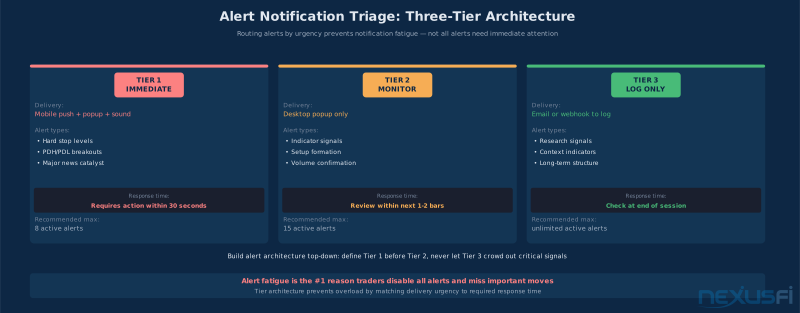
Getting the alert is only half the problem. Acting on the right alerts while ignoring the noise is the other half. Treating all alerts identically leads to alert fatigue — the condition where high-frequency firing trains you to dismiss notifications until you've habituated to ignoring even critical ones.
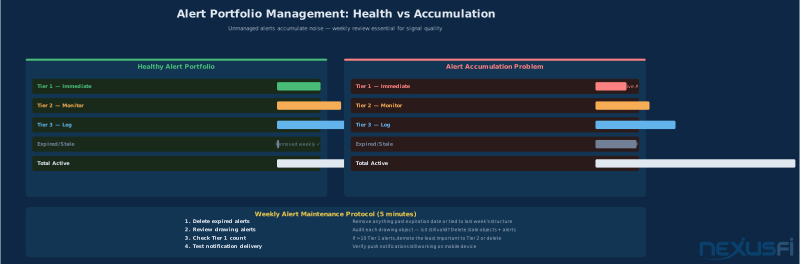
The fix is a tiered notification architecture where delivery method signals urgency:
Tier 1: Immediate action. SMS or mobile push with sound. Reserved for price approaching a level with an open position, critical structural breaks that change the session plan, and risk management alerts. Act on these within seconds.
Tier 2: Review when available. Email or silent push. Indicator condition changes on the watchlist, level touches that confirm a setup is developing, second-confirmation signals. Review at the next natural break — end of current trade, between setups, at lunch.
Tier 3: Log only. Webhook to a database with no real-time notification. High-frequency signal tracking for backtesting, exploratory setups you're evaluating, secondary context indicators. The data accumulates without interrupting your session.
In TradingView's alert dialog, notification methods are independent checkboxes: app notifications, email, SMS (paid feature), sound, and webhook. Build templates for each tier and apply them consistently. A key daily level gets Tier 1. An RSI cross on the 5-minute chart gets Tier 2. An exploratory volume condition gets Tier 3. SMS is worth the plan upgrade for active futures traders — one missed critical alert costs more than the annual plan cost difference.
Multi-Timeframe Alert Architecture #
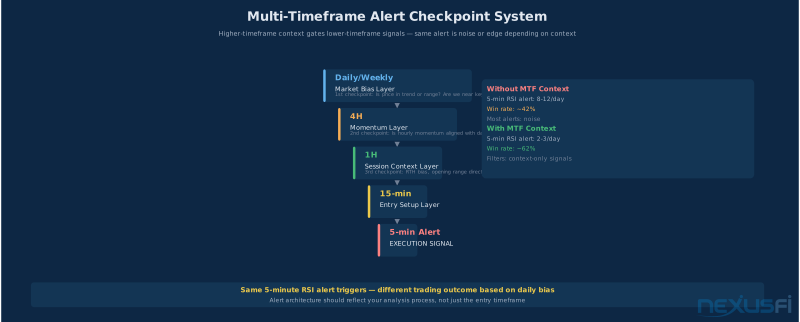
Professional futures traders use multiple timeframes as a framework: higher timeframes establish trend and context, lower timeframes identify entries and manage risk. Alerts should map to this framework rather than existing as isolated notifications.
The multi-timeframe alert architecture works as a checkpoint system:
Daily/weekly structure alerts (Tier 1). Prior week's high/low, the monthly open, major gap levels. When a daily structure alert fires, trading has entered a critical zone — shift to active monitoring. These are context-setting alerts. Until they fire, lower-timeframe activity is background noise.
Hourly trend alerts (Tier 2). EMA crossovers, RSI extremes, or VWAP deviations on the 1-hour chart. These establish the session's dominant direction. A fired hourly alert means check the chart and determine if lower-timeframe conditions support an entry — not take a trade directly.
15-minute confirmation alerts (Tier 2). Only relevant when daily structure and hourly trend alerts have fired in the same direction. A 15-minute bar close above a key level, momentum confirmation, or a test of the breakout level from below. Second confirmation before committing to execution.
5-minute entry triggers (Tier 1 when above conditions are met). A 5-minute EMA cross in isolation is noise. The same cross after the daily structure alert and hourly trend alert have aligned is actionable. The alert doesn't change — the context does. Adjust tier assignments at market open based on which structure alerts are active.
Pine Script Alert Conditions #
Pine Script gives you the ability to define custom alert conditions based on any indicator logic you can write. This is the most powerful and flexible way to use TradingView alerts, and it's more accessible than most traders assume.
The core Pine Script function for alerts is alertcondition(). It registers an alert condition that appears in the alert creation dialog when creating an alert from the chart. You define the condition (a boolean expression), a title that appears in the dropdown, and a message string that supports TradingView's template variables ({{ticker}}, {{close}}, {{time}}, etc.).
For bar-close confirmation, the ta.crossover() and ta.crossunder() functions in Pine Script only become true once per bar when the condition first becomes true — they don't remain true on subsequent bars. This means EMA cross alert conditions fire naturally once per cross event without triggering on every bar while one EMA remains above the other.
Multi-timeframe alert conditions require care. When you use request.security() to pull higher-timeframe values into a lower-timeframe script, always reference the previous bar's confirmed value using the [1] index and set barmerge.lookahead_off. This prevents lookahead contamination — using data from the current, still-forming higher-timeframe bar in your calculations, which makes historical results look better than live performance will be.
For webhook alerts, the message string becomes the JSON payload. Structure it to include everything your execution system needs: symbol, signal direction, bar time, entry price, ATR-derived stop distance, and a unique alert ID for idempotency. A well-designed webhook message means the receiving server can parse and act on the signal without making additional API calls to recalculate what TradingView already knew at the moment of the alert.
![Pine Script alertcondition() function with multi-timeframe request.security() and bar-close confirmation using [1] index](/a/images/tradingview-alerts-futures/tradingview-alerts-pine-script-conditions.svg)
Alert Management at Scale #
Managing 50+ alerts across multiple instruments and timeframes requires a systematic approach. Without one, alerts accumulate, conflict, and degrade into noise.
Alert organization in TradingView starts in the Alerts panel (the bell icon in the right toolbar). From here you can see all active alerts, their conditions, last trigger time, and expiration. Sort by "Last Triggered" to identify which alerts are firing most frequently — high-frequency alerts are candidates for tightening conditions or increasing the timeframe.
A practical naming convention for large alert sets: [INSTRUMENT]_[TIMEFRAME]_[TYPE]_[DIRECTION]. For example: ES_1D_PRICE_RES for a daily resistance price alert on ES, or NQ_1H_EMA_BULL for an hourly bullish EMA cross on NQ. Consistent naming lets you scan the alerts panel and understand your entire alert environment at a glance.
Expiration management is the most important maintenance task. Set reasonable expirations at creation time based on how long the alert's relevance period is. Day-specific levels expire end of day. Weekly levels expire end of week. Structural levels from the monthly chart can live for 30-90 days but should be manually reviewed and updated monthly. Alerts that fire and then become irrelevant because market structure has shifted should be deactivated immediately — leave them running and they'll fire in the future on obsolete context.
A weekly review process takes 10 minutes and prevents alert decay: open the Alerts panel, sort by Last Triggered, and audit each alert. For alerts that triggered this week, was it actionable? If not, tighten the condition or expiration. For alerts that haven't triggered in 30 days, is the level still structurally relevant? If not, deactivate. Review drawing alerts against current chart structure and delete alerts on obsolete drawings. Verify Tier 1 has fewer than 10 active alerts — if more, some should be demoted to Tier 2.
Futures-Specific Alert Considerations #
Futures contracts have characteristics that affect alert design beyond what equity or forex traders deal with.
Rollover dates. Quarterly futures contracts roll on the third Friday of March, June, September, and December for CME equity index futures. Price alerts set on the front-month symbol need to be reviewed and re-set on the new contract after rollover. TradingView's continuous contract symbols (like @ES# for ES) reduce this problem by tracking the front month automatically, but verify your alert symbols still function correctly after each quarterly roll.
Session boundaries. ES, NQ, and equity index futures trade nearly 24 hours on weekdays, but the RTH session (9:30am--4:00pm ET) carries the dominant volume. Alerts calibrated during RTH may fire during the overnight Globex session on much lower volume, where the same price behavior doesn't hold. Build time-of-day conditions into Pine Script alerts if your strategy is RTH-specific, or use TradingView's session-based chart settings to ensure levels are drawn from RTH data.
Data feed timing and automation risk. TradingView uses consolidated feeds, not direct market access. During FOMC decisions, CPI releases, and NFP, milliseconds-to-seconds discrepancies can exist between TradingView's displayed price and exchange execution prices. For webhook automation, your execution system must independently verify current price from your broker's API before placing any order — never act solely on the price in the webhook message.
Common Mistakes and How to Fix Them #
The most frequent alert mistakes in order of how often they cause problems:
Setting alerts on repaint-prone indicators. Most common with custom Pine Script indicators downloaded from TradingView's public library. Fix: before building an alert strategy around any indicator, watch its live values in real-time over a full session. If the values on closed bars change as new ticks arrive, the indicator repaints and its alert signals aren't reliable.
Using "Every Time" frequency on trending conditions. Condition stays true for extended periods during trending markets, generating hundreds of alerts. Fix: switch to "Once Per Bar Close" or add a state-change condition to the alert logic — fire only when the condition transitions from false to true, not while it remains true.
Setting alerts exactly at obvious levels. Triggers on sweeps, not genuine breakouts or reactions. Fix: place alerts 2-4 ticks beyond obvious levels on futures to filter sweep behavior. Test the offset on your specific instrument using prior session data.
Not managing alert expiration. Accumulation of obsolete alerts that fire on irrelevant levels. Fix: set explicit expiration dates at creation, schedule a weekly 10-minute review to deactivate stale alerts.
Building webhook automation without reliability infrastructure. Missing duplicate orders, missed orders during high-volume events, runaway automation scenarios. Fix: implement idempotency keys, signal re-validation, and kill switch mechanisms before using webhooks for any automated order placement.
Treating all alerts with equal urgency. Alert fatigue from undifferentiated notifications. Fix: implement the three-tier notification system — SMS/push for Tier 1, email/silent push for Tier 2, logging only for Tier 3. Match delivery urgency to action urgency.
TradingView alerts are attention management infrastructure. The measure of a well-designed system isn't how many alerts you have — it's whether the right alerts reach you at the right urgency level at the right time. Build that, and you've turned a basic notification feature into a genuine trading edge.
Further Reading #
For context on the technical analysis framework that determines which levels to alert on, see Volume Profile Trading and TradingView Watchlists for Futures Traders. For Pine Script development, Pine Script for Trading Automation covers indicator scripting in depth.
Knowledge Map
Go Deeper
Build on this knowledgeReferences This Article
Articles that build on this topicCitations
- — Automated trading integration Tradingview to Interactive Brokers (2023) 👍 2“TradingView will send a request to an API hosted in the cloud. The handler performs validations and enters a message in a queue -- the queue is processed and if all conditions are met, an order is sent to the broker. TradingView alerts are best-effort delivery, not exchange-level guarantees.”
- — Design a DayTrader Scalping Order Flow Indicator (2021) 👍 2“The hard part is deciding how not to get too many or too few such Alerts. It's like crying wolf too many times. And if you give the People Alerts, they will most likely not be responding to them; so, in the end, you're just doing work for no real gain.”
- — Watch list in tradingview (2023) 👍 4“The free version of TradingView allows you to create one watchlist. The paid for version allows you to create multiple watchlists and save them so one can easily swap between them. I just use the free version for one watchlist I look at before the market open.”
- — Tradingview Phone Call Alert (2023) 👍 5“I was looking for a way to have my phone call me with an alert for when a level is crossed during Globex, when I am asleep. Not a popup on my phone, but an actual phone call instead. Just right-click your chart where you normally set up the alerts, add a webhook for these guys, and get alert calls.”
- — Tradovate - Im trading Micro E-Mini Futures (2020) 👍 14“What I do is connect TradingView to Tradovate and I have 1 monitor for Tradovate and the 2nd monitor with TradingView. I like to have as much visual data as possible for making trades. The cool thing about linking TradingView and Tradovate is when I open a trade on Tradovate I can see the open trade on TradingView as well.”
- — Tradingview (2023)“As a charting platform, TradingView (desktop) is really, really good. Doesn't freeze even at the time of FOMC announcements. Clean interface, very user-friendly. I use it only for charting, nothing else. The broker interface is useless because you cannot store order presets.”
- — Tradingview (2024)“I use the Tradovate DOM for trading, TradingView for charts.”
- — Scalping NQ with 1 min chart. Should I use Tradingview or Quantower (2026) 👍 1“TradingView in my opinion, better for visuals and charting, Quantower better for execution and speed. If scalping, it would highly depend on the DOM as well.”
- TradingView — About alerts (2024)
- TradingView — Webhooks (2024)