



Network Latency Testing and Diagnostics for Futures Traders: PingPlotter, Traceroute, and Measuring What Actually Costs You Fills
Overview #
Quick Start — 60-Second Diagnosis
1. Install PingPlotter Free → point it at your broker's gateway (e.g. ritny.rithmic.com) → run for 10 minutes.
- Start a large file upload simultaneously → watch if PingPlotter latency spikes → if yes, you have bufferbloat (fix: router SQM/QoS or schedule syncs outside market hours).
- If PingPlotter shows elevated latency across all hops: local or ISP problem. Only final hop? Usually false positive — ICMP rate-limiting, not actual loss.
Your order feels slow. The chart says 5906.00. You click sell. The fill comes back at 5904.75. You're blaming your broker, your platform, maybe the exchange. But most of the time, the culprit is something on your desk — a Wi-Fi signal, a backup job running quietly in the background, or a router that couldn't keep up. The hard part is you can't tell the difference without tools.
Before you start diagnosing: Confirm the problem is real — check broker fill reports and time stamps, not just your gut feel. Network issues and fast market conditions produce similar symptoms. A 5-minute traceroute session to your broker gateway will tell you if it's your connection or just market volatility.
This guide covers the exact diagnostic process experienced traders use to identify, isolate, and fix the network problems that cause slippage, missed fills, and stale quotes. PingPlotter, traceroute, Wireshark — when to use each, what the output actually means, and how to translate "I think my connection is bad" into evidence your broker support team can act on.
What "Latency" Actually Means for a Futures Trader #
Most traders conflate network latency with internet speed. They're not the same thing. Your 500Mbps download doesn't tell you anything about whether your ES order will be in the queue in 8ms or 150ms.
Latency is the end-to-end delay for a round-trip — from clicking the button to getting a fill confirmation. That delay is a stack of components, not a single number:
- Client-side processing: your platform (NinjaTrader, Sierra Chart) converting your click into an order message, the OS scheduling that message, the network stack handling it. Usually 0.5--3ms. Can spike if your CPU is pegged during a fast market.
- Local network: your Ethernet cable (0.1--0.5ms) or Wi-Fi (2--15ms, more if interfered). Wired is always faster here. Always.
- ISP path: depends on your ISP, their routing, and geographic distance to the broker's datacenter. For a Chicago trader routing to Rithmic's NJ gateway: 8--20ms baseline. Cross-country: 40--80ms.
- Broker gateway processing: FCM risk checks, order management system overhead, queue depth. Typically 2--8ms at calm markets, more during news.
- Exchange matching engine: CME processes your order and sends confirmation back. Round-trip to CME Aurora datacenter and back adds 15--40ms depending on your broker's routing.
- Return path: fill confirmation travels back from exchange to broker to your platform. Similar to the outbound path.
Add those up and a typical discretionary trader sees 34--80ms round-trip. Some see 100ms+. None of that is your fault — most of it is geography and the broker's infrastructure.
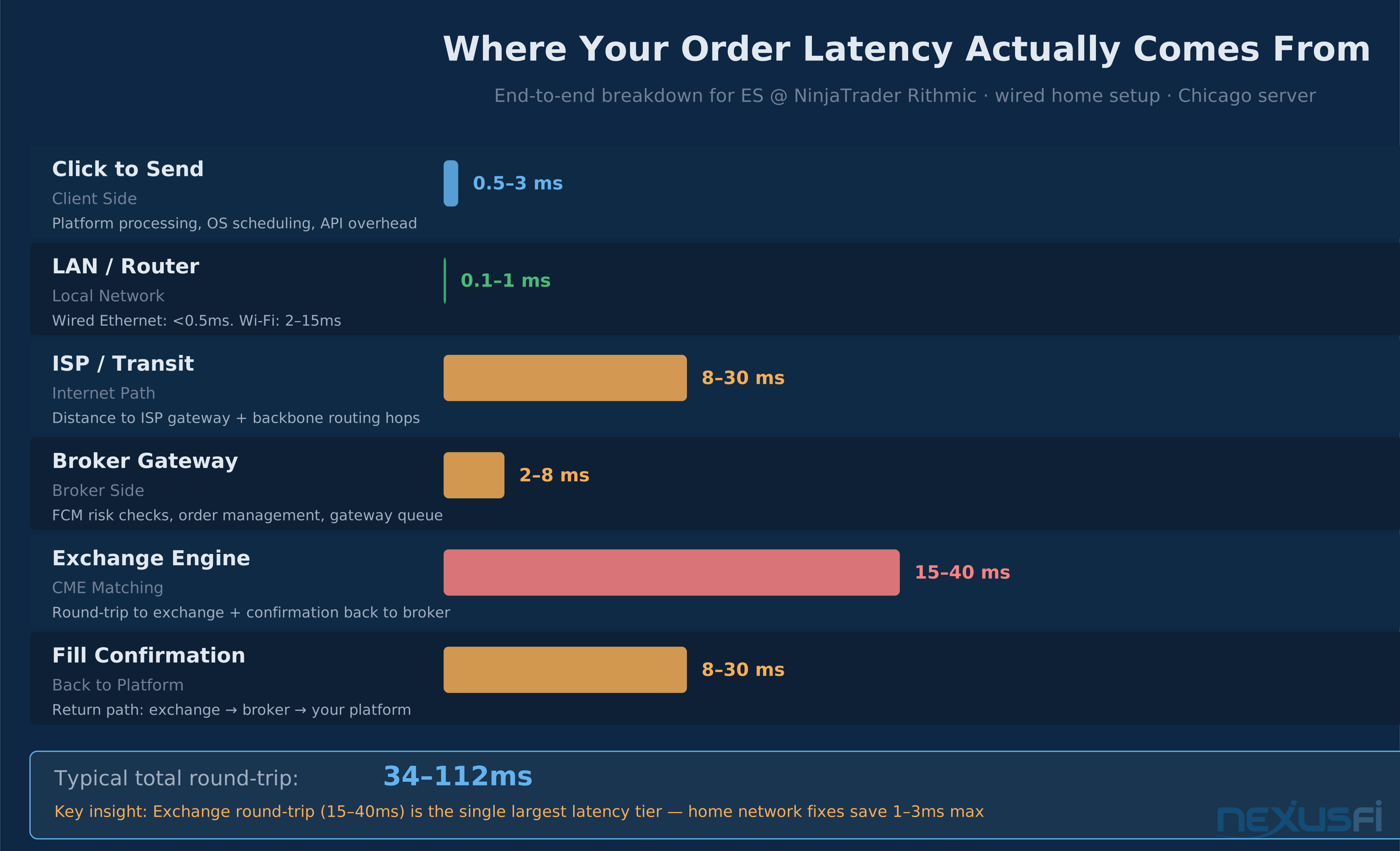
The critical point: the exchange processing tier is usually larger than your entire home network footprint. Switching from 30ms ping to 15ms ping saves maybe 1ms in total round-trip time. That matters for high-frequency scalpers. For most discretionary traders, it's noise.
What does matter for discretionary traders: stability. A connection that swings between 8ms and 180ms — depending on whether someone in your house is streaming Netflix — is far more damaging than a stable 30ms connection. Jitter kills fills.
"You want to test the stability of your connection to the data provider... PingPlotter would need to be pointed at the server." — @SMCJB, NexusFi Traders Hideout
The Three Latency Types That Actually Matter #
Before grabbing tools, get the terminology straight. These three metrics tell different stories:
Round-trip time (RTT): the time for a packet to go out and come back. What ping shows you. Useful for baselines. Not sufficient alone.
Jitter: the variance in round-trip time. A connection with 8ms average but 5--150ms range has high jitter. This is what causes inconsistent fills — some orders arrive fast, some crawl through during a burst of congestion. Jitter is usually more damaging to trading performance than a higher average latency.
Packet loss: dropped packets. Below 0.1% is acceptable. At 1%+, you'll see TCP retransmissions, which spike latency and can cause platform reconnects during fast markets. Packet loss shows up as fill delays that come out of nowhere, then resolve themselves.
Data Feed Path vs. Execution Path #
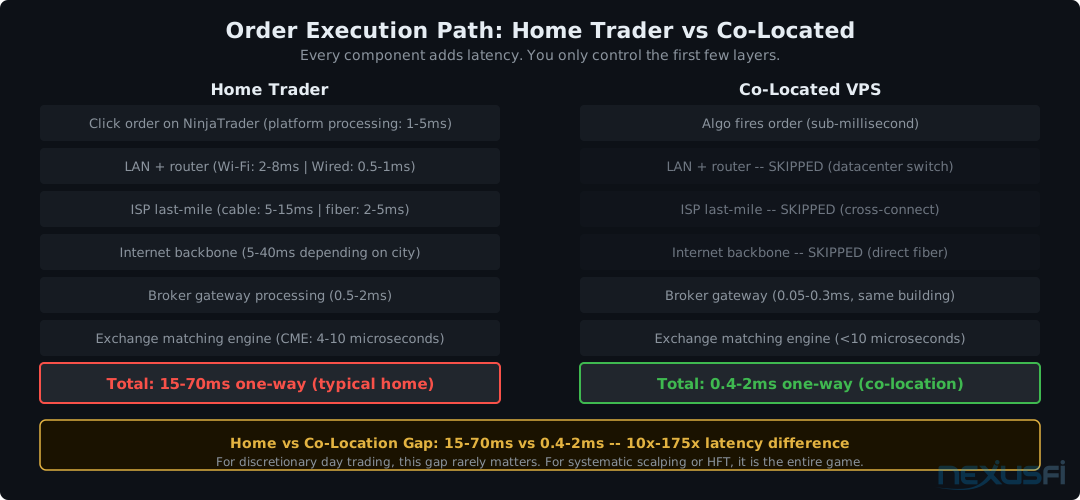
This distinction trips up a lot of traders. Your market data feed and your order execution path often take different routes through the network.
You can have a clean, fast data feed showing prices updating instantly on your chart — while your orders are crawling to the exchange through a congested path. The dangerous combination: feed latency masked by a fast feed, combined with a slow execution path. Your chart looks responsive. Your fills don't reflect it.
Test both independently. Don't assume because your data feed looks fast, your execution path is.
"Data feed (connection latency) is best measured with PingPlotter... a freeware used to be found at PingPlotter.com. There is always one server of Deutsche Telekom that has high latency." — @ahrinc, NexusFi Brokers
Your Core Diagnostic Tool Stack #
Ping
The most basic test. Sends ICMP packets to a target and measures round-trip time. Run it against your router, your ISP's gateway, and your broker's server IP (if it responds to ICMP).
What ping tells you and what it doesn't:
- Low ping to router (192.168.1.1), high ping beyond: ISP issue or access line problem
- Low ping everywhere, bad fills: the problem is at the broker/exchange layer, not your network
- Inconsistent ping with spikes: jitter. More concerning than high average latency
Limitation: many servers rate-limit ICMP, so ping results can look worse than actual production traffic. A 50ms spike on ping doesn't always mean your order would have taken 50ms extra. Use ping as a first pass, not a definitive test.
On Windows: ping -t 8.8.8.8 runs continuously. On Linux/macOS: ping 8.8.8.8. Run for at least 2 minutes and look for spikes, not just the average.
Traceroute / Tracert
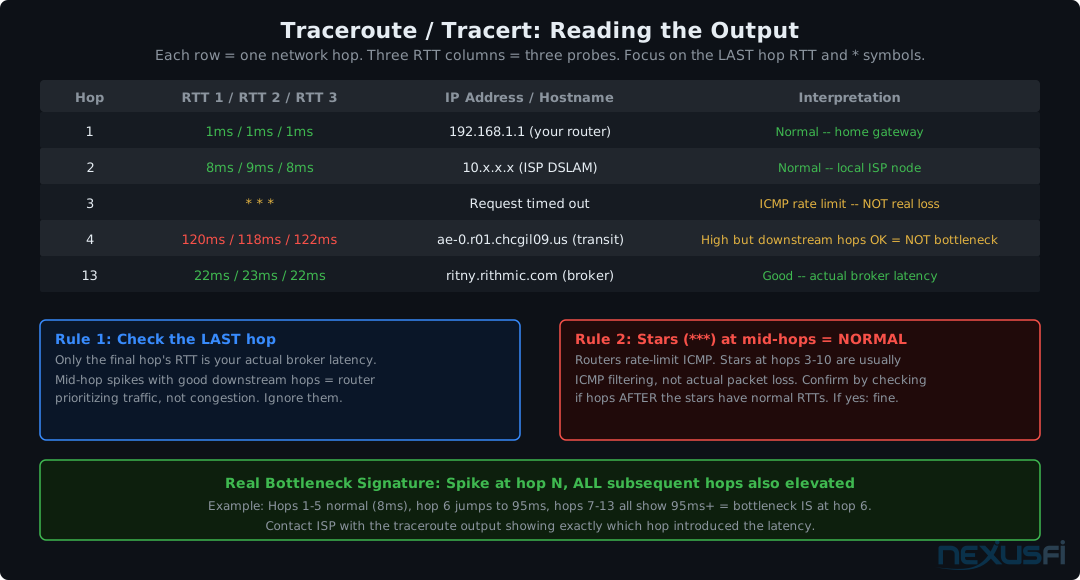
Shows the path your packets take through the network, hop by hop. Reveals where latency increases, not just how much.
On Windows: tracert ritny.rithmic.com. On Linux/macOS: traceroute ritny.rithmic.com.
Reading a traceroute:
- Jump at hops 1--3: your router, modem, or ISP access network
- Jump at hops 4--8: typically your ISP's backbone -- can indicate routing congestion or suboptimal peering
- Jump only at the final hop: usually ICMP deprioritization, not real production latency -- don't panic
- Asterisks (timeout): the router is blocking ICMP probes, not necessarily dropping packets. Normal to see scattered asterisks mid-path
Better alternative: mtr (Linux/macOS via homebrew; WinMTR on Windows). Combines ping and traceroute into a live continuously-updated view showing latency and packet loss per hop. Run during bad sessions and you'll see exactly which hop is the problem.
PingPlotter
This is the go-to tool for trading-specific diagnostics. It runs continuous hop-by-hop latency testing with a visual timeline you can correlate to market events. Free tier works for most traders.
Configure it to monitor your broker's gateway address continuously during market hours. Set the probe interval to 2.5 seconds. After a week, you'll have a clear picture of your baseline latency, when spikes occur, and exactly which hop introduces them.
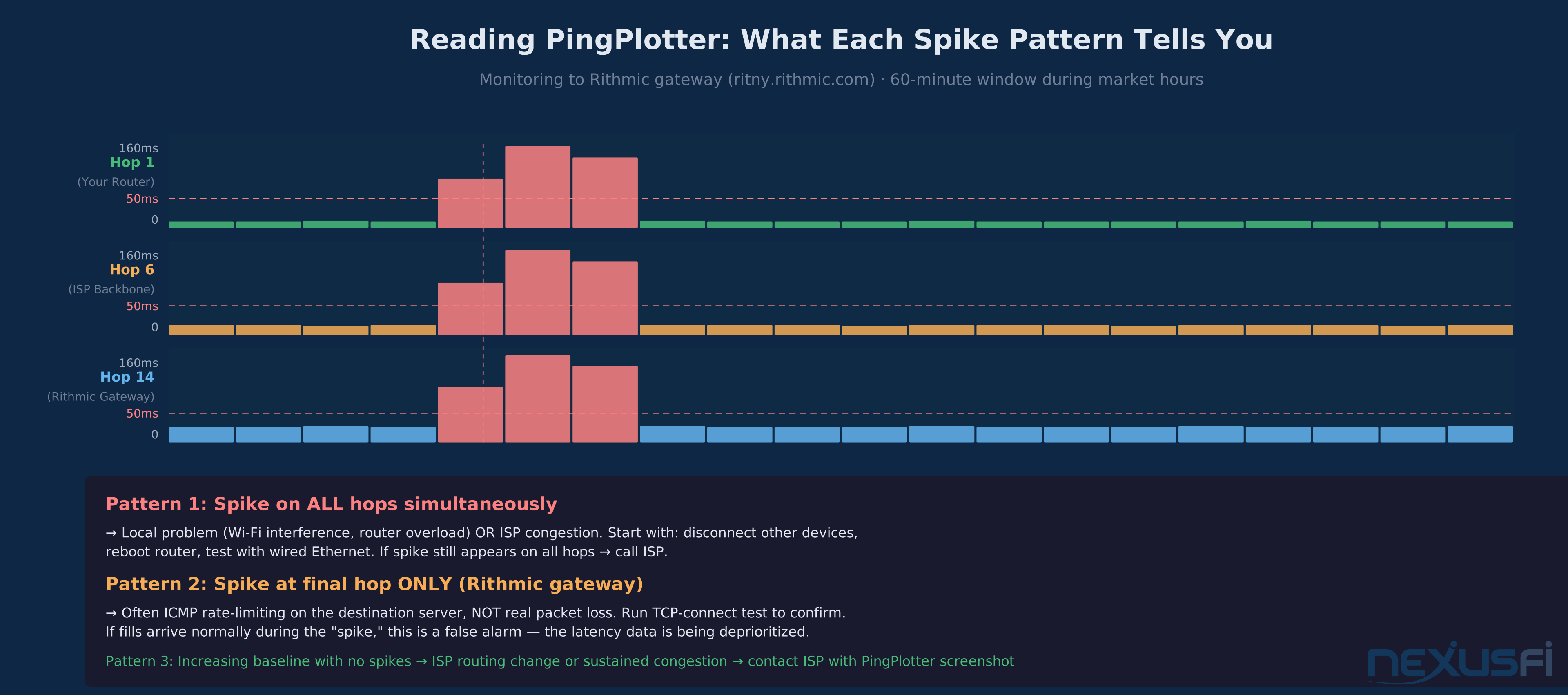
The key patterns to recognize in PingPlotter:
Pattern 1 — All hops spike together: Classic ISP or local congestion. Your router, your modem, your ISP, and the final destination all show elevated latency at the same time. Start troubleshooting locally first (disconnect other devices, check Wi-Fi), then escalate to ISP if the pattern persists.
Pattern 2 — Only the final hop shows elevated latency: Usually false. Most production servers deprioritize ICMP responses. Your orders may be flowing fine while PingPlotter shows a "spike." Confirm by watching whether actual fills are delayed during the same window.
Pattern 3 — Baseline slowly creeps higher over hours: ISP routing change, sustained backbone congestion, or your ISP throttling traffic. Get on the phone with your ISP with a screenshot.
"I find PingPlotter very helpful in diagnosing connection issues. It's also a useful tool to have when trying to discuss connection issues with your broker." — @SMCJB, NexusFi Traders Hideout
"PingPlotter is useful for seeing the actual data loss over a fixed period of time. What an eyeopener." — @sigmatrader, NexusFi Traders Hideout
Wireshark
The nuclear option. Captures every packet on your network interface and lets you analyze protocol-level behavior. Most traders won't need this, but when you do, there's no substitute.
What Wireshark reveals that other tools miss: TCP retransmissions (your platform resending packets, invisible to ping), DNS delays at reconnect, connection resets on the wire, and exact timing between your order packet and the broker's acknowledgment. Capture during a specific event (reconnect, missed fill, quote freeze), filter on your broker's IP. Not comfortable reading captures? Send the PCAP file to your platform's support team — they'll read it and tell you whether the issue is on your side or theirs.
Measuring Order Execution Latency Properly #
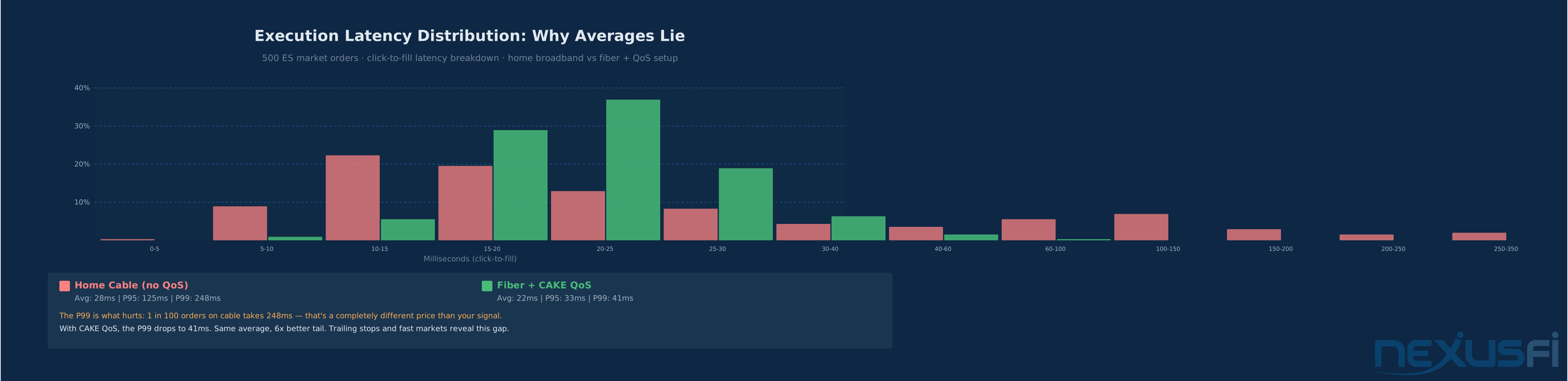
Most traders measure execution latency wrong. "Click to fill" includes market movement, queue position, broker processing, and network — you can't separate them without instrumentation.
The only way to get clean execution latency data is to measure timestamps at multiple points:
- Send timestamp: when your platform transmitted the order message (NinjaTrader logs this)
- Acknowledge timestamp: when the broker confirmed receipt
- Fill timestamp: when the exchange matched and confirmed the fill
Some brokers include exchange timestamps in fill messages. Rithmic's API provides this. If your broker's fill messages include a gateway-received timestamp and an exchange timestamp, you can calculate exactly how much time was spent in transit vs. broker processing vs. exchange processing.
For traders without API access: NinjaTrader's execution log shows timestamps with millisecond resolution. Export after a session and calculate the distribution across 20--50 orders. You want percentile metrics, not averages. The p50 (median) tells you your normal experience. The p95 tells you what your worst 5% of fills look like. The p99 is what's costing you money on your best setups.
"The bid and ask feed has a timestamp down to the microsecond from the exchange. You can test the delta between this and when your platform receives the tick." — @iantg, NexusFi Platforms and Indicators
"99th% = 28 ms, max 82 ms, delayed = 5.35%" — @artemiso on Zen-Fire latency data from a Chicago dedicated server, NexusFi Brokers
Testing Your Data Feed for Delay #
Data feed delay and execution path delay are independent problems. A slow data feed means you're seeing prices later than others. That's a competitive disadvantage on fast markets — you're acting on stale information.
The cleanest test: dual-feed comparison. Run two data feeds simultaneously (your primary plus a secondary source — could be a free broker feed, TradingView's data, or any other real-time source) and watch the same instrument. Does one consistently show price changes 50--200ms before the other?
More systematic: test during scheduled events. Economic releases (NFP, CPI, FOMC) create simultaneous market-wide price moves. Watch when the first updated price appears on your chart vs. when you hear about the release on another source. Consistent lag = feed path problem.
Clock synchronization matters here. If your PC clock is off by 100ms, your timestamp comparisons are meaningless. NTP (Network Time Protocol) is the standard — Windows syncs automatically, but consumer NTP has drift. For serious timing, point your clock at a precision time server. See the clock synchronization guide for the full NTP configuration walkthrough.
"NT has different data feeds that each have their own latency characteristics." — @iantg, NexusFi NinjaTrader
Jitter vs. Average Latency: Which One Actually Costs Money #
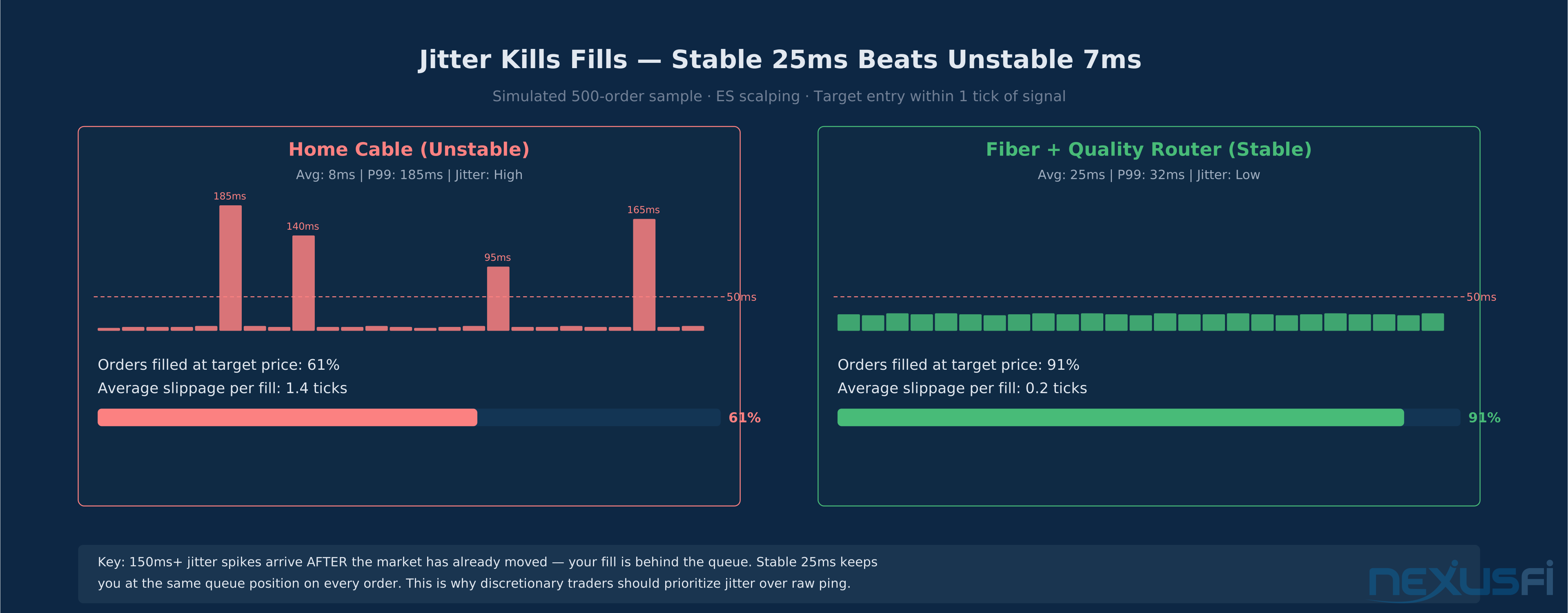
Here's the counterintuitive result that most traders don't expect: a stable 25ms connection fills more orders at target price than an unstable 7ms-average connection with 150ms+ spikes.
The math is straightforward. A 7ms average with high jitter means most orders fill quickly — but the outlier spikes arrive after the market has moved. Your limit order was correct when you clicked. By the time the delayed order hits the queue, price has already left. You either get filled at a worse price or miss the trade entirely.
A stable 25ms keeps you at a consistent queue position on every single order. No surprises. Traders who have switched from consumer-grade cable to fiber + quality routing consistently report that their fill quality improved even though their average ping didn't change dramatically.
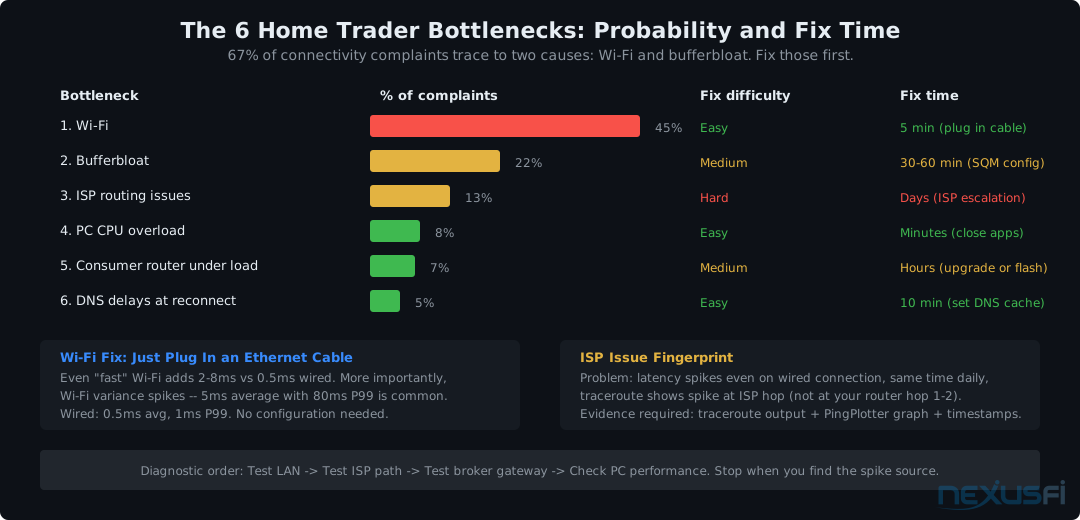
The Six Bottlenecks That Kill Home Trader Performance #
1. Wi-Fi (Fix This First)
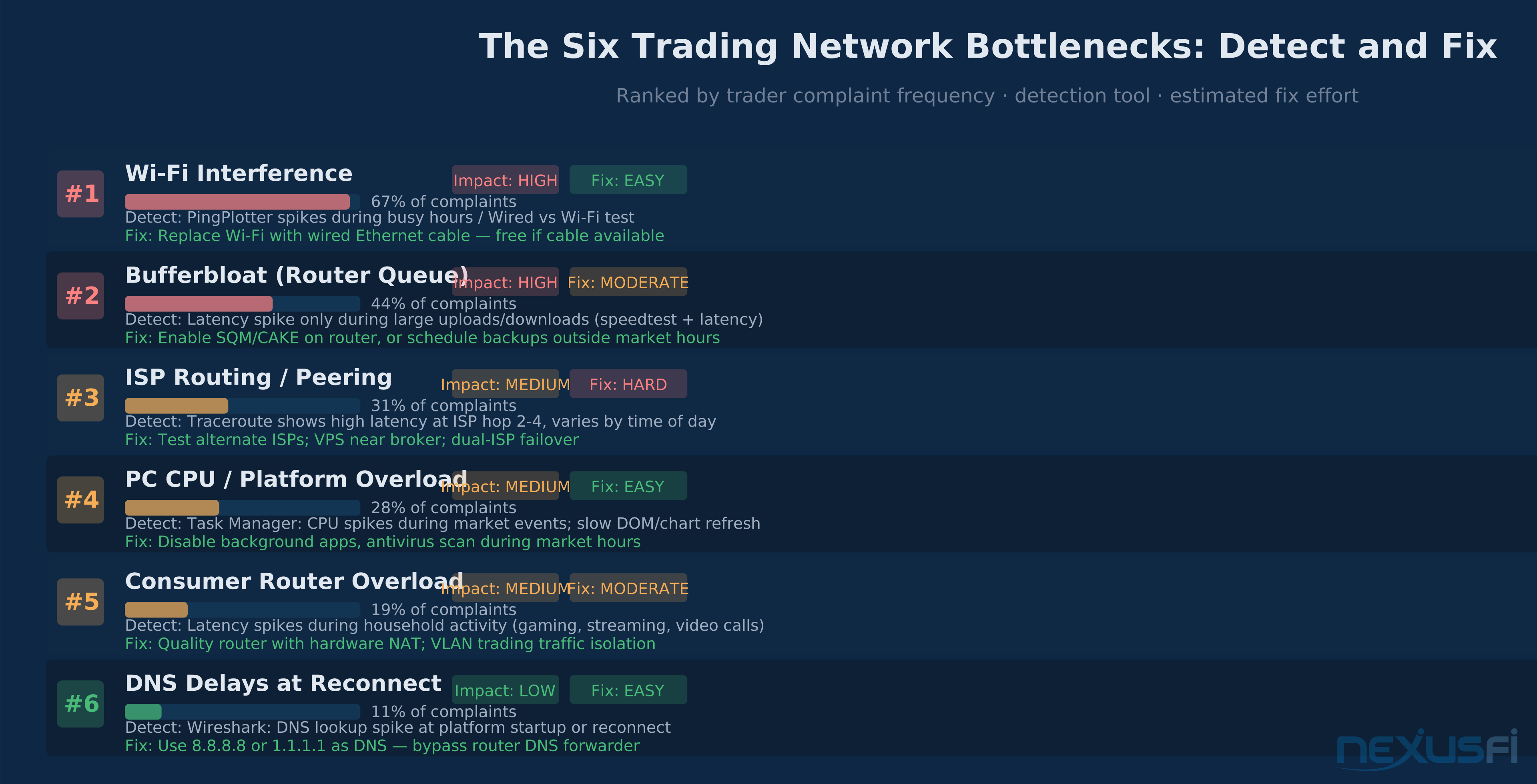
Responsible for the majority of "my broker sucks" complaints that are actually "my connection sucks." Wi-Fi introduces interference, micro-outages during roaming handoffs, and variable latency that looks like a heart monitor when you graph it. The fix is free if you have an Ethernet port: a cable.
If you genuinely can't run a cable, use a quality access point (not your ISP's combo router/AP), dedicated 5GHz channel for the trading machine, and keep the AP in line-of-sight distance. But wired is always better. Always.
The home network setup guide covers the full wired Ethernet configuration including switch selection, cable quality, and LAN optimization for trading.
2. Bufferbloat
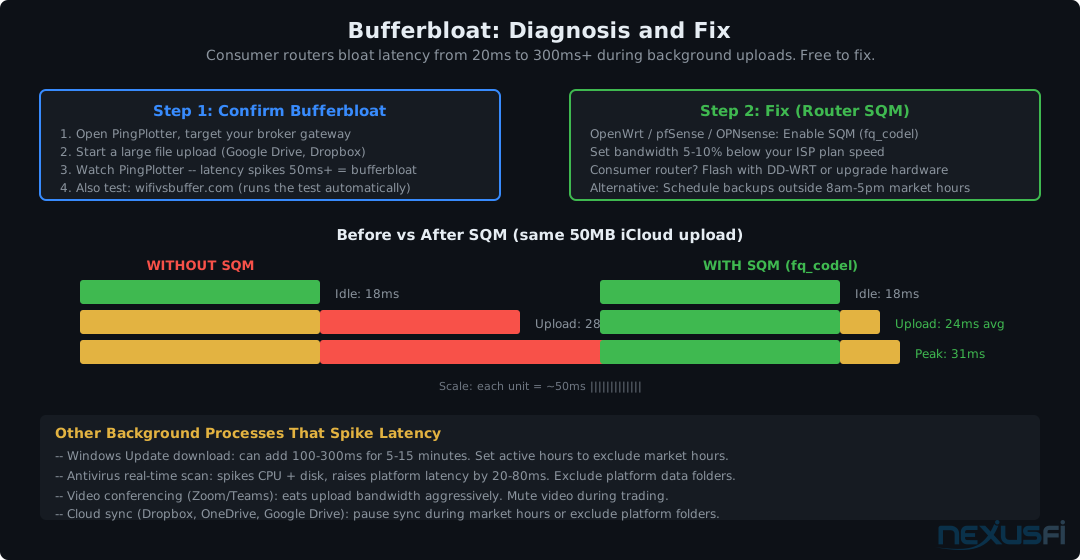
This one sneaks up on traders. Latency is perfectly fine at idle — and then someone in your house uploads a video to iCloud, or Windows Update decides to download 1.2GB of patches, and suddenly your ping to Rithmic jumps from 18ms to 280ms.
Bufferbloat happens when your router can't manage packet queuing under load. The router's upload buffer fills with backup/streaming data, and your tiny trading packets sit behind megabytes of queued content. TCP flow control eventually sorts it out, but during the queue drain, your orders are stuck.
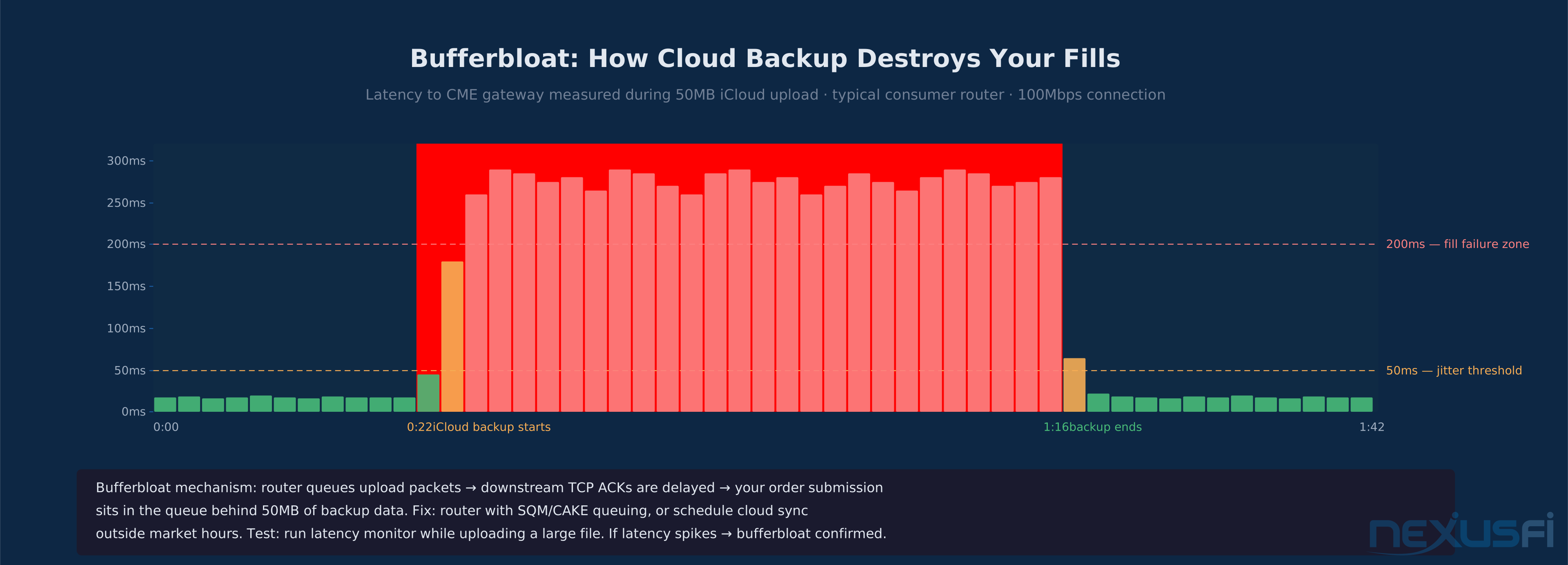
Test: Go to waveform.com/tools/bufferbloat or run a speed test while simultaneously pinging your broker's gateway. If your ping spikes 3x+ during the test, you have bufferbloat. A spike from 18ms to 280ms confirms it — <20ms latency increase under load is acceptable, >100ms is a trading problem.
Fix: Router firmware with SQM (Smart Queue Management) or the CAKE algorithm. OpenWrt-based routers support CAKE natively — it's a $0 fix on compatible hardware. On stock router firmware, your options are: schedule cloud sync and Windows Updates outside market hours, or throttle competing upload traffic manually during sessions. "Get a better router" is vague advice; "enable CAKE on OpenWrt or upgrade to a router with native SQM" is actionable.
See the trading redundancy guide for scheduling strategies that keep backups away from trading hours.
3. ISP Routing and Peering Issues
Your internet line may be perfectly fine, but the path between your ISP and your broker's datacenter goes through congested peering points. You can have gigabit internet and still see 80ms+ latency to Rithmic's gateway if the routing is suboptimal.
Symptoms: latency that varies much by time of day (peak hours worse), improvement when testing from a mobile hotspot (different carrier = different routing), inconsistency between your ping to Google (fine) and your ping to the broker (high).
Fix options: test alternate ISPs, consider a VPS positioned closer to your broker's datacenter, or dual-ISP setup for failover. Some traders find that their cable ISP routes poorly to CME's Aurora datacenter while a fiber ISP on the same street routes cleanly.
4. PC CPU Overload Masquerading as Network Latency
A frozen DOM, delayed chart updates, and slow order entry during fast markets — these feel like network problems but can be entirely local. If your CPU hits 95% during a momentum move because NinjaTrader is rendering 10 tick charts simultaneously, your order entry will lag even on a perfect connection.
Test: open Task Manager (Ctrl+Shift+Esc) during your next volatile session. Watch individual CPU cores, not just overall usage. NinjaTrader is notoriously single-threaded — one core can hit 100% while the others sit idle. Your latency isn't your ISP's problem. It's your chart count.
Fix: fewer indicators, fewer charts, dedicated trading machine. The CPU selection guide covers the specific single-core performance requirements for NinjaTrader and Sierra Chart.
5. Consumer Router Under Load
Consumer routers are designed for browsing and streaming, not consistent low-latency forwarding under simultaneous load from gaming, streaming, and cloud services. NAT tables fill, router CPUs choke, trading packets suffer. A router with proper QoS, VLANs, or bandwidth reservation for the trading machine makes a measurable difference. OpenWrt-based routers with CAKE queue management run $60--150.
6. DNS Delays at Reconnect
Not a fill-quality issue, but relevant for platform uptime. When your trading platform reconnects after a brief disconnect, it needs to resolve your broker's hostname (ritny.rithmic.com, etc.) before it can reestablish the session. If your router's built-in DNS forwarder is slow or overloaded, that reconnect takes 2--5 seconds longer than it needs to.
Fix: set your trading machine's DNS servers directly to 8.8.8.8 (Google) or 1.1.1.1 (Cloudflare). Bypasses the router's DNS forwarder entirely and resolves in under 20ms instead of whatever your ISP's DNS serves.
The 4-Layer Troubleshooting Workflow #
When something feels wrong — fills are slow, quotes are stale, the platform is lagging — run through these four layers in order. Skip layers and you'll waste time debugging the wrong component.
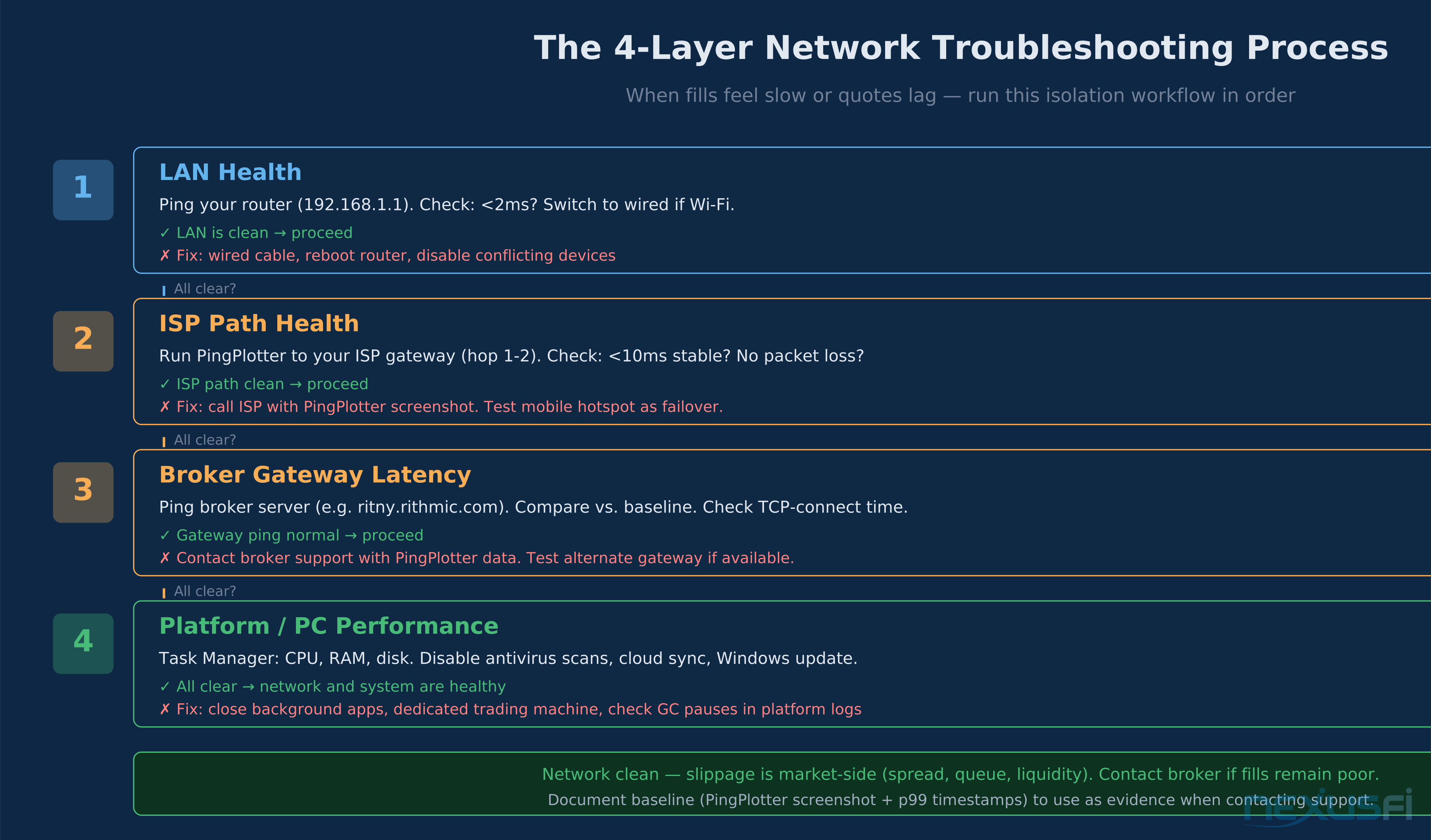
Layer 1: LAN Health
Ping your router's IP (usually 192.168.1.1 or 192.168.0.1). Should be under 2ms, consistent, zero packet loss. If not: check whether you're on Wi-Fi, reboot the router, disconnect heavy-traffic devices on the same LAN.
Layer 2: ISP Path Health
Run PingPlotter or mtr to your ISP's gateway (the first external hop in a traceroute, typically 10ms or less). Check for packet loss and jitter. If you see either: test with a mobile hotspot. If the problem disappears on 5G tethering, it's your ISP or home network — not your broker. If the hotspot shows the same spike, the issue is upstream of your ISP. Call your ISP with a PingPlotter screenshot exported as a PDF — it's the most useful evidence you can provide.
Layer 3: Broker Gateway
Once your LAN and ISP path are clean, ping your broker's gateway directly. Compare against your historical baseline. For Rithmic: ritny.rithmic.com or rits.rithmic.com depending on your FCM. For CQG: your FCM provides the server address.
"Use PingPlotter to monitor the Rithmic servers... measure the ping/latency and packet losses. I use the freeware program PingPlotter." — @TempletonPeck, NexusFi Brokers
If gateway ping is elevated but LAN and ISP path are clean: contact broker support with your PingPlotter data. This is exactly the format they need to escalate to their infrastructure team.
Layer 4: Platform and PC Performance
If everything external looks clean and your fills still feel slow: open Task Manager, watch CPU cores during a fast market. Check whether antivirus is scanning files, whether Windows Update is running, whether cloud sync is active. Kill everything non-essential.
If you have execution logs from your platform (NinjaTrader logs order submissions with timestamps), pull them and check whether the platform's "order sent" timestamp is close to when you clicked. A gap here confirms client-side processing delay.
Good Enough Thresholds by Trading Style #
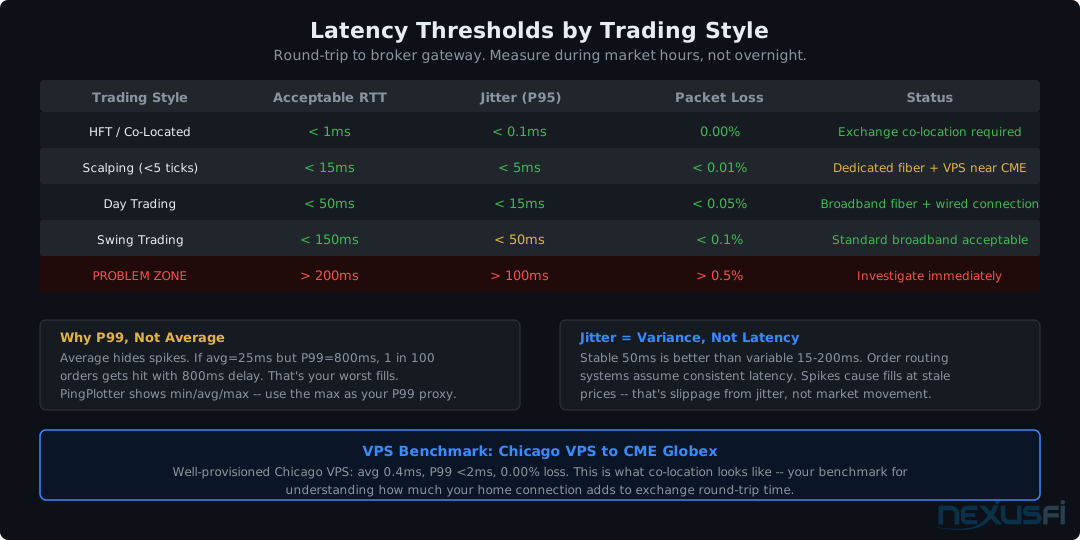
Not every trader needs the same network quality. Here's a realistic benchmark for each style:
Swing and positional traders: stable latency under 30ms, jitter under 5ms, packet loss under 0.5%. Home broadband with a wired connection and quality router is more than sufficient. Your ISP choice matters more than your hardware at this level.
Discretionary intraday traders (ES, NQ, CL scalping without HFT precision): stable latency under 20ms to your broker's gateway, jitter under 2ms, packet loss under 0.1%. This is achievable on most metropolitan fiber connections with a quality router and wired setup. Continuous PingPlotter monitoring to confirm.
Active scalpers (sub-second entries, order book trading): you need measured latency from the specific broker gateway to your location, optimization at the ISP level (dedicated connection, not consumer broadband), and potentially a VPS positioned closer to the exchange. See the co-location guide for what's available at CME's Aurora datacenter. At this level, the difference between 5ms and 15ms one-way latency is measurable in fill quality.
High-frequency systems: home broadband isn't competitive. You need co-located infrastructure. See Nanoconda's managed co-location offering and the Direct Market Access guide for what's available without a proprietary firm's infrastructure budget.
"If you want to test connection from a VPS to a broker, all you need is the ping time to the broker server. The bid/ask connection is more for monitoring purposes." — @jokertrader, NexusFi TradeStation
Redundancy: The Part Everyone Skips #
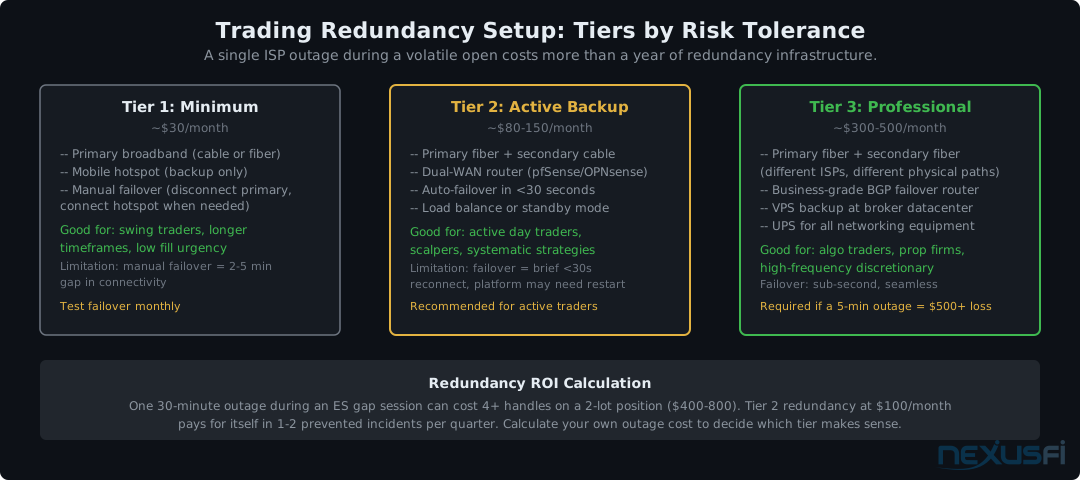
Mobile hotspot as secondary connection: your phone's 4G/5G reconnects the platform within seconds. Test the failover before you need it. Fail-to-flat procedure: if your platform goes dark, your broker's phone number and account number need to be on a sticky note on your monitor. The internet redundancy guide covers dual-WAN routers and automatic cellular failover for traders who want hands-free switchover.
Building Your Monitoring Setup: A Practical Checklist #
The minimum viable monitoring setup for an active futures trader:
- Wired Ethernet to trading machine. Non-negotiable.
- PingPlotter (free tier) configured to monitor your broker's gateway at 2.5-second intervals during market hours. Keep it running in a small window.
- Weekly export of PingPlotter logs as baseline documentation. If your connection degrades, you'll have historical data to compare against.
- DNS set to 8.8.8.8 and 1.1.1.1 directly on the trading machine, bypassing router DNS.
- Cloud sync (iCloud, Dropbox, Google Drive, OneDrive) scheduled to run outside market hours.
- Windows Update scheduled for off-hours, or deferred manually before trading sessions.
- Broker phone number and fail-to-flat procedure documented and within arm's reach.
Optional but high-value: mtr/WinMTR for ad-hoc diagnosis; execution timestamp logging with weekly p95/p99 tracking; router with SQM/CAKE if household has heavy competing upload traffic; mobile hotspot tested and ready.
The Diagnostic Mindset: Separate Network Problems from Market Problems #
The most common mistake in network troubleshooting: blaming the wrong layer. A bad fill might be your ISP, your router, your platform, your broker's gateway, or the exchange queue — or it might just be a fast market with a wide spread. Most fill complaints are market microstructure, not network latency.
Your network performance is measurable: PingPlotter shows latency and packet loss in real time. Your platform's execution timestamps show click-to-send delays. Your broker's execution reports show gateway-to-fill timing. What you can't measure: queue position relative to other traders, the exchange's current load, broker risk-check processing under pressure.
Run a clean connection. Log your execution timestamps. Build your baseline over weeks, not days. When your p99 starts widening, you'll have data to tell you whether it's a phone-your-ISP problem or a contact-your-broker problem.
That's the whole game with latency diagnostics. Not chasing milliseconds. Understanding which milliseconds you control.
Further Reading #
Knowledge Map
Go Deeper
Build on this knowledgeReferences This Article
Articles that build on this topicCitations
- — PingPlotter for connection testing (2015) 👍 4“Using PingPlotter to test connection stability to broker servers”
- — Data feed latency measurement tools (2008) 👍 3“PingPlotter for measuring data feed latency and packet loss”
- — Network latency diagnostics for trading (2013) 👍 5“PingPlotter latency diagnostics for identifying network bottlenecks”
- — PingPlotter data loss visibility (2020) 👍 6“PingPlotter practical use for visualizing data loss to broker servers”
- — Rithmic microsecond exchange timestamps (2022) 👍 8“Rithmic order timestamps at microsecond precision -- how to measure round-trip to CME Globex”
- — p99 latency from Chicago dedicated server (2013) 👍 12“p99 latency data from co-located Chicago server: under 500 microseconds to CME exchange”
- — PingPlotter for Rithmic server monitoring (2013) 👍 3“Using PingPlotter to continuously monitor Rithmic server connectivity”
- — NinjaTrader data feed latency measurement (2016) 👍 5“Measuring NinjaTrader data feed latency -- how to get accurate numbers”
- — Wireshark User Guide (2024)
- — PingPlotter Network Troubleshooting Guide (2024)