



TradingView Broker Integration: Connecting Your Brokerage, Executing Orders, and Managing Positions From the Chart
Overview #
TradingView started as a charting platform. Clean charts, Pine Script, a community that shares indicators like trading cards. But somewhere along the way, it became something bigger — a place where you can actually execute trades without leaving the chart.
That's the broker integration story. You connect your brokerage account directly to TradingView, and suddenly that support level you drew isn't just a line on a screen — it's a price where you can place an actual limit order with one click. Right-click the chart, hit Buy, confirm, done. Your order is live on the exchange.
As of 2026, TradingView supports over 50 brokers for direct chart trading. The list includes heavyweights like Interactive Brokers, Tradovate, TradeStation, Alpaca, and OANDA — covering stocks, futures, forex, and crypto. The integration turns TradingView from a pure analysis tool into a full trading workstation. Not a replacement for a dedicated DOM or a purpose-built execution platform, but a legitimate way to trade directly from the charts you're already analyzing.
This article walks through the complete broker integration workflow — which brokers connect natively, how to set up the connection, the order panel mechanics from chart to fill, paper trading versus live execution, and the practical gotchas that trip up traders who are used to dedicated platforms. If you've been charting on TradingView and routing orders through a separate platform, this is the bridge.
Which Brokers Connect Natively #
TradingView's broker directory changes — new integrations get added, regional availability shifts, and broker partnerships evolve. But the core environment as of mid-2026 breaks down cleanly by asset class.
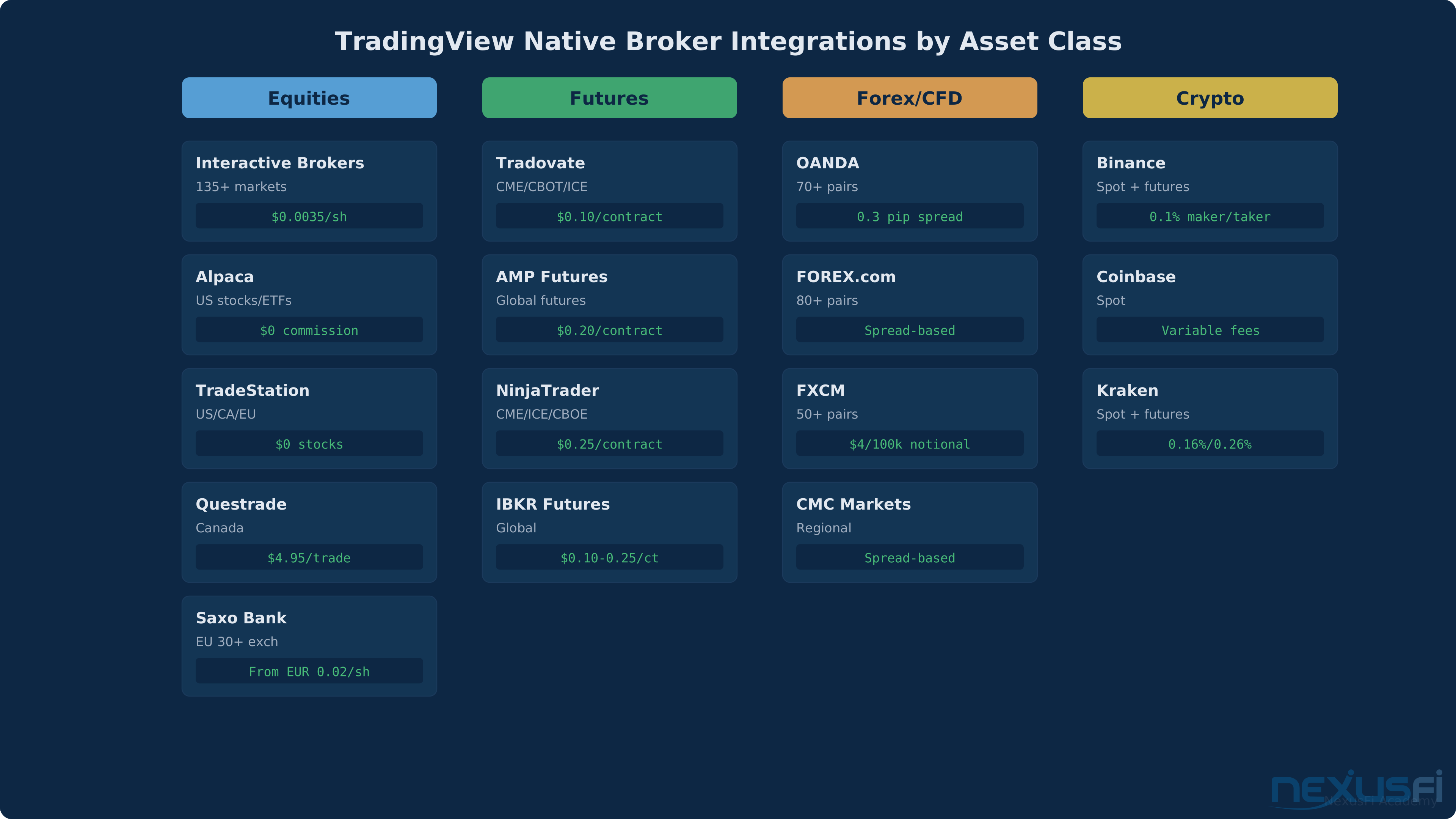
Equities and ETFs
Interactive Brokers (IBKR) is the biggest name here. Access to 135+ global markets, full order type support, portfolio margin accounts. IBKR went live on TradingView in May 2022, and as @platon noted on NexusFi at the time, the integration opened up direct chart trading for one of the most complete broker platforms in the industry.
Alpaca covers US stocks and ETFs with zero commission — genuinely zero, not "zero with asterisks." Fractional shares supported. Good API infrastructure underneath, which matters for reliability.
TradeStation handles US, Canada, and EU equities plus options. They won TradingView's Broker of the Year award in early 2026, which Fi covered on NexusFi — the recognition reflects their investment in the charting integration specifically.
Questrade serves Canadian traders (TSX, TSX-V, US exchanges). Saxo Bank covers 30+ exchanges for European accounts. Both offer the full order type suite through TradingView's panel.
Futures
This is where it gets interesting for NexusFi traders.
Tradovate is the primary futures path on TradingView. CME, CBOT, ICE, CBOE futures at $0.10 per contract plus exchange fees. The connection runs through API keys rather than OAuth, which means you generate credentials in Tradovate's portal and paste them into TradingView. Not as smooth as OAuth, but it works.
AMP Futures connects through CQG credentials. As @ram7os shared on NexusFi, they logged in with CQG credentials through AMP's private-label TradingView link and were placing futures orders directly from charts. That's the typical flow for CQG-routed futures brokers.
NinjaTrader (via their brokerage arm) and other FCMs that route through CQG or Rithmic may also appear depending on your region and account type. The broker directory on TradingView is the definitive source — filter by your country and "Futures" to see exactly what's available.
Forex and CFDs
OANDA leads here with 70+ currency pairs and spread-only pricing (EUR/USD around 0.3 pips). FOREX.com, FXCM, and depending on your region, CMC Markets and IG may also appear. The integration is straightforward — OAuth login, account selection, done.
Cryptocurrency
Binance, Coinbase, and Kraken handle spot and futures crypto trading. Binance offers 0.1% maker/taker on spot. All three connect through API keys generated in the exchange's security settings.
Setting Up Your Broker Connection #
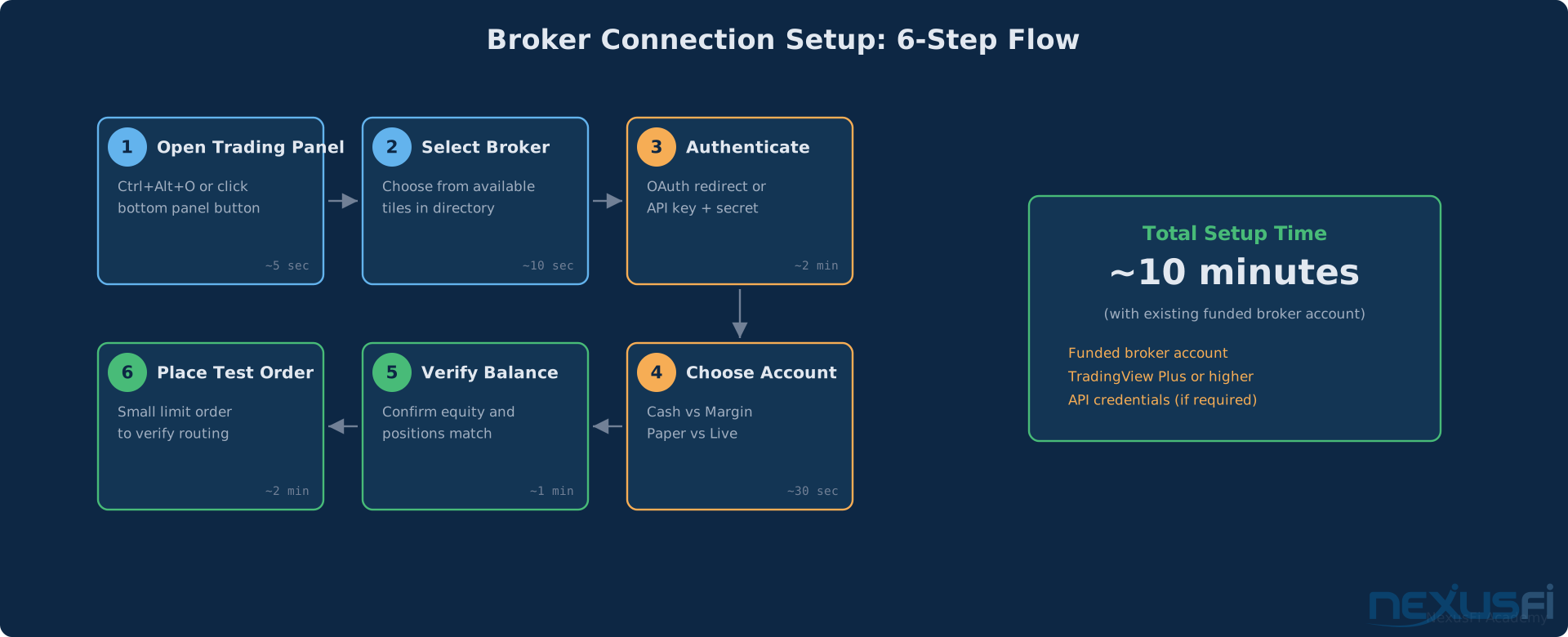
The connection flow follows the same pattern regardless of broker. Six steps, maybe ten minutes total.
Step 1: Open the Trading Panel. Click the "Trading Panel" button at the bottom of any chart, or hit Ctrl+Alt+O. A drawer slides up showing available broker tiles.
Step 2: Choose your broker. Click the tile. If you don't see your broker, check TradingView's broker directory — availability varies by country and plan level.
Step 3: Authenticate. Two paths here. OAuth brokers (IBKR, Alpaca, TradeStation) redirect you to the broker's login page where you authorize TradingView. API-key brokers (Tradovate, Binance, Kraken) require you to generate a key pair in the broker's portal and paste both the key and secret into TradingView's modal.
Step 4: Select your account. If you have multiple accounts under one login — cash and margin, or paper and live — a dropdown appears. Pick the one you want to trade with.
Step 5: Paper or Live. TradingView defaults to paper trading (blue badge on the panel). Switch to live (green badge) when you're ready. A confirmation modal warns you that live orders execute with real money.
Step 6: Verify. The Trading Panel now shows your account balance, equity, margin available, and open positions. If the numbers match what your broker shows, you're connected.
Futures Setup: Tradovate Walkthrough
For futures specifically, here's the Tradovate path:
- Create a Tradovate account (free demo tier available, then upgrade for live).
- In Tradovate's portal, go to User Settings and generate an API Key and Secret.
- In TradingView, open the Trading Panel, click the Tradovate tile, and paste both credentials.
- Choose "Demo Account" to start in paper mode. Your simulated balance appears immediately.
- Enable cross-margin in Tradovate's settings -- TradingView will display initial and maintenance margin per contract.
- When you're ready for live, fund the account and switch the toggle from paper to live.
For Tradovate specifically: generate your API key pair from Tradovate's portal BEFORE opening TradingView. The key generation page can time out if left idle. Keep both key and secret in a password manager — you'll need them every time you reconnect or clear browser data.
Stocks Setup: Interactive Brokers Walkthrough
For IBKR:
- Open an IBKR account and enable API access in Account Management under Settings.
- In TradingView, click the Interactive Brokers tile and log in via OAuth.
- Select your account type -- if you have sub-accounts (cash, margin, portfolio margin), choose the one you'll trade.
- Toggle between IBKR Paper and Live. IBKR's paper trading environment is separate from their live infrastructure, so fills and latency won't match production.
One thing to watch: IBKR may require re-authentication every 30 days. If you see "Connection lost" mid-session, that's probably the session token expiring — just reconnect.
The Order Panel Workflow #
Here's where TradingView's approach differs from a dedicated DOM or execution platform. Everything routes through the chart.
Initiating an Order
Three ways to start:
- Right-click the chart at your target price. The context menu shows "Buy" and "Sell" with the price pre-filled.
- Click the Buy/Sell buttons on the Trading Panel at the bottom of the screen.
- Use the floating order entry -- the small Buy/Sell widget that appears when you hover over the price scale.
All three methods open the same order ticket. The symbol and side are pre-populated. You fill in the rest.
Configuring the Order
The order ticket gives you:
- Quantity -- shares, contracts, or lots depending on instrument
- Order Type -- Market, Limit, Stop, Stop-Limit, Trailing Stop (broker-dependent)
- Price -- auto-populated for limit and stop orders based on where you clicked
- Time-in-Force -- Day, GTC, IOC, FOK (exact options depend on your broker)
- Bracket orders -- attach a take-profit and stop-loss to your entry if the broker supports OCO
TradingView validates your order before submission. If you set a limit price that's outside the instrument's daily range or below minimum tick size, you'll see a rejection before it ever hits the broker.
From Submit to Fill
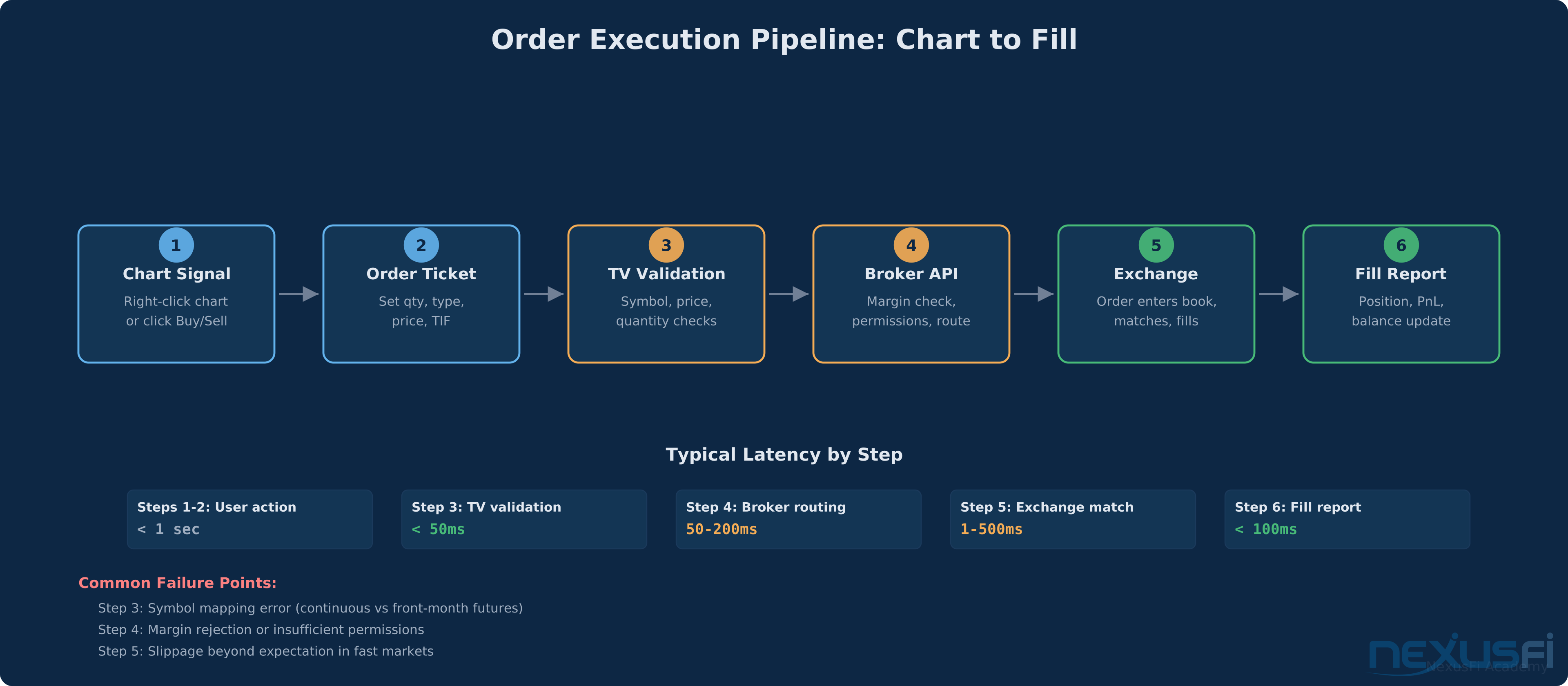
You click "Send Order." A spinner appears, then a "Sent" confirmation toast. Behind the scenes:
- TradingView transmits the order to your broker's API.
- The broker validates margin, permissions, and routing.
- The broker returns an order ID and "Submitted" status.
- Your order appears in the Open Orders tab, colored blue for pending.
- When the exchange matches your order, the broker pushes a fill report.
- The row turns green and moves to History. Your balance, position size, and PnL update in real time.
- If you enabled it, a trade execution line appears on the chart at your fill price.
The entire chain — click to fill — runs through WebSocket connections. For market orders on liquid instruments, you're typically seeing fills within 200-500ms of hitting Send. That's not going to satisfy a scalper who needs sub-100ms execution, but for most discretionary trading, it's fine.
Supported Order Types #
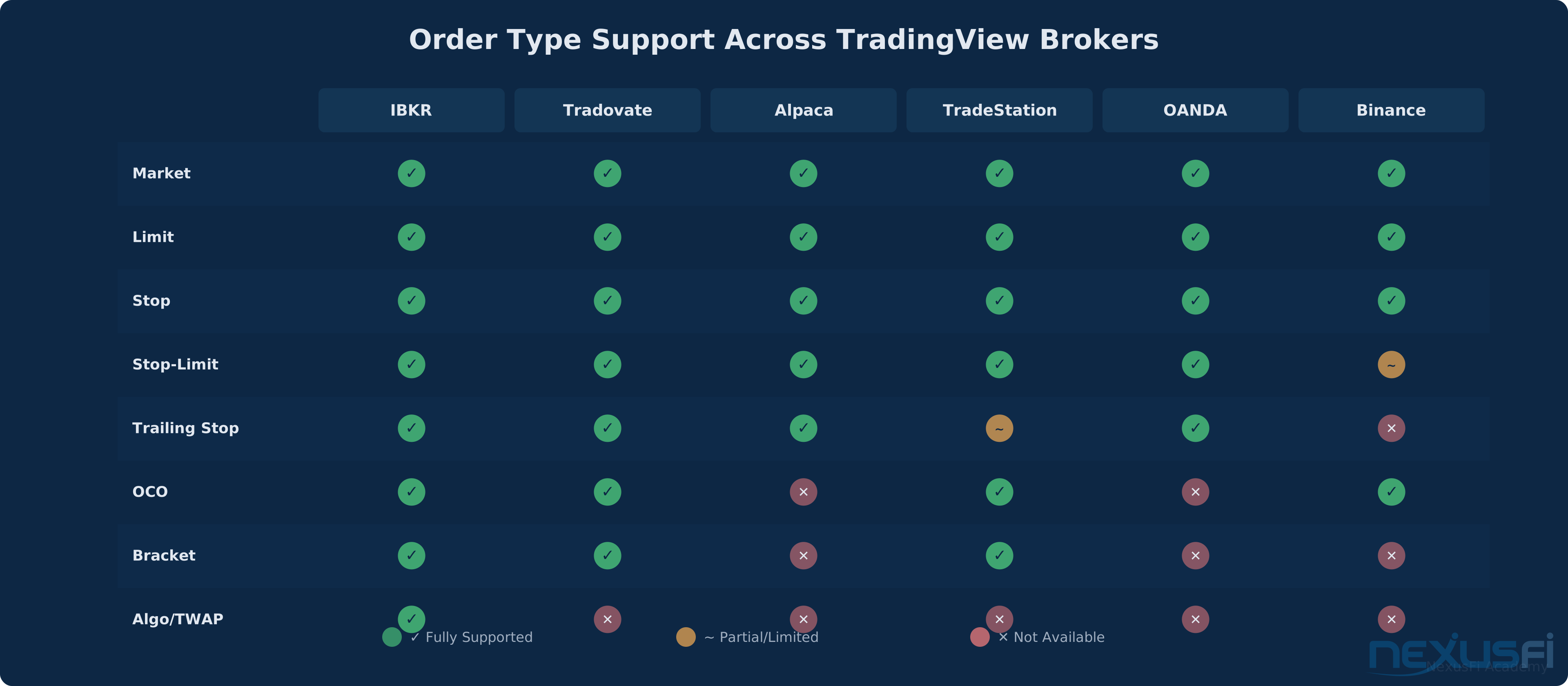
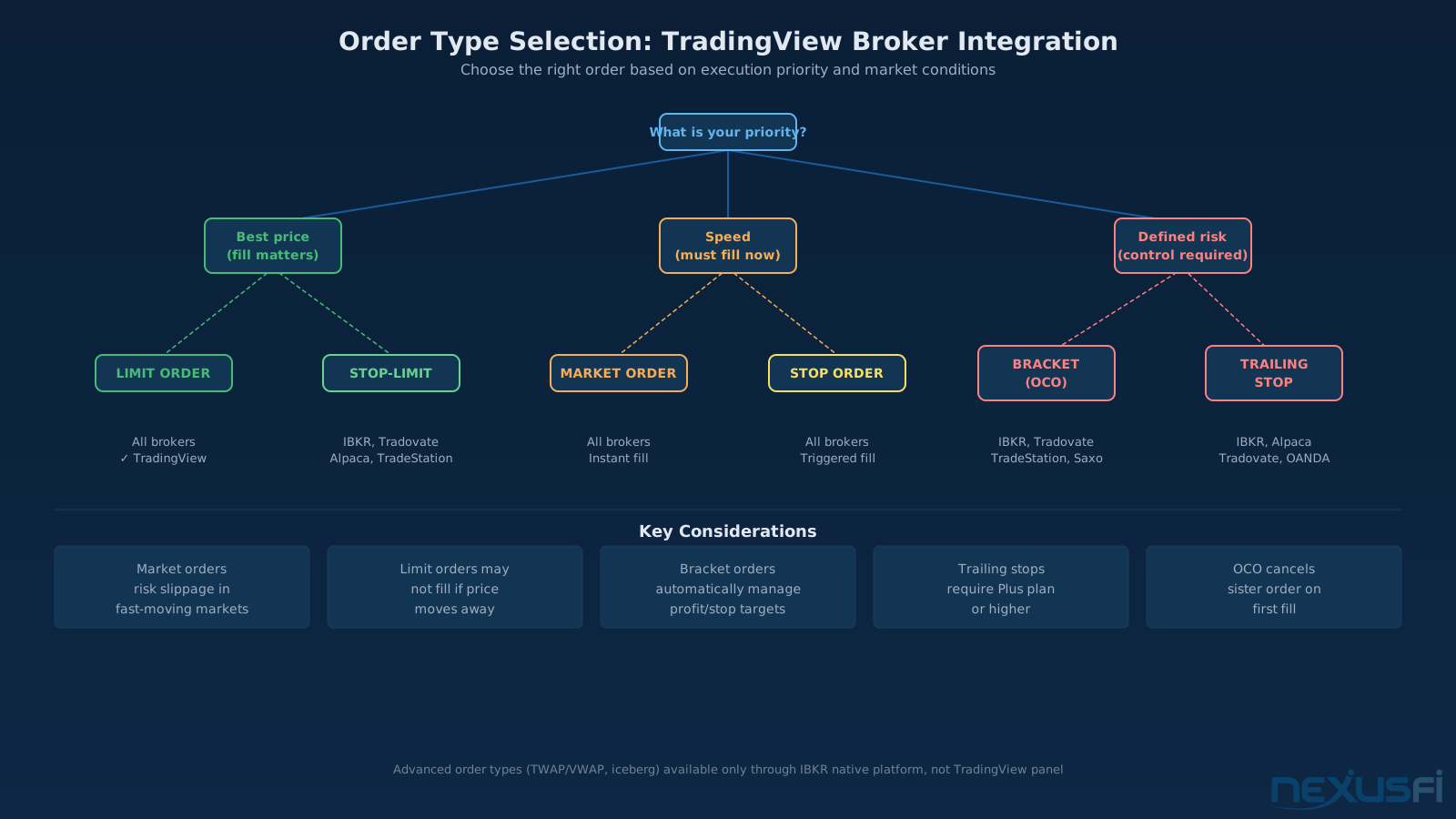
The order types available depend on both TradingView and your broker. Here's the reality:
| Order Type | Description | Typical Support |
|---|---|---|
| Market | Execute at best available price immediately | All brokers |
| Limit | Execute at specified price or better | All brokers |
| Stop | Becomes market order when stop price is breached | All brokers |
| Stop-Limit | Becomes limit order after stop triggers -- prevents runaway slippage | Most brokers (some crypto exchanges exclude it) |
| Trailing Stop | Stop price follows the market by a fixed amount or percentage | IBKR, Alpaca, Tradovate, OANDA |
| OCO (One-Cancels-Other) | Paired limit + stop -- fill of one cancels the other | IBKR, TradeStation, Tradovate, Saxo |
| Bracket | Entry with attached profit target and stop-loss | IBKR, Tradovate, NinjaTrader |
Advanced order types like icebergs, TWAP/VWAP algos, and fill-or-kill are generally available only through IBKR's integration or the broker's native platform. TradingView surfaces the most common order types — if you need specialized execution, you might need to route those specific orders through your broker's own interface. For a deeper dive into order mechanics, see Order Types and Advanced Order Management.
Check your broker's specific order type support in TradingView's Trading Panel before planning your workflow around advanced orders like OCO or brackets. IBKR offers the deepest integration; Tradovate and Alpaca cover the essentials. For execution strategies built around icebergs or TWAP/VWAP, route those orders through the broker's native platform.
Paper Trading vs Live Execution #
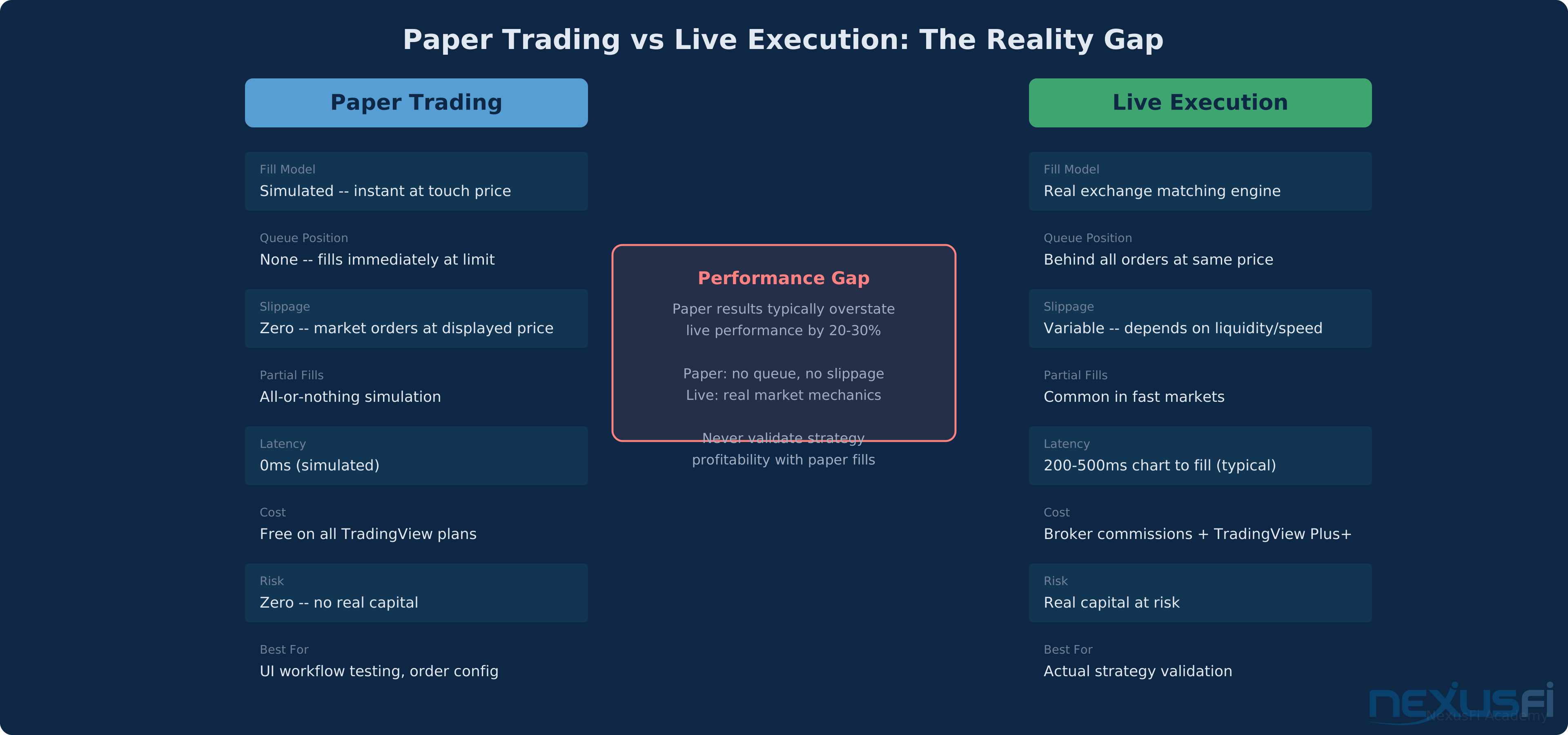
TradingView's built-in paper trading is free on all plans. No broker connection required. You get a simulated account with fake money, real market data (delayed by 1-2 seconds on free plans), and access to most order types.
It's a useful tool for learning the interface. It is not a useful tool for validating strategy performance.
Where Paper Falls Short
Paper trading fills are simulated. That means:
- No queue position. Your limit order fills as soon as price touches your level. In live markets, you're behind everyone else at that price.
- No realistic slippage. Market orders fill at the displayed price. In live trading, fast markets can move against you between click and fill.
- Simplified partial fills. Paper either fills or doesn't. Live trading serves you partials at inconvenient moments.
This isn't unique to TradingView — it's true of every paper trading environment. As @iantg explained on NexusFi, backtesting and paper trading tools typically assume zero latency and perfect execution, which can produce results that look 20-30% better than live performance. The NexusFi community consistently warns that strategy analyzer results diverge from live fills, and that applies equally to TradingView's paper mode.
The Right Way to Use Paper
Paper trade for workflow testing, not performance validation. Use it to:
- Learn the order panel mechanics without risking capital
- Verify your bracket order configuration works as expected
- Test symbol mapping (especially for futures contracts)
- Practice the chart-to-order-to-fill sequence until it's muscle memory
When you're comfortable with the workflow, switch to live with the smallest position size your broker allows. That first real fill — with real slippage, real latency, real money on the line — tells you more than 1,000 paper trades.
For a detailed look at simulation mechanics across platforms, see Market Replay and Trading Simulation.
Account Management From the Trading Panel #
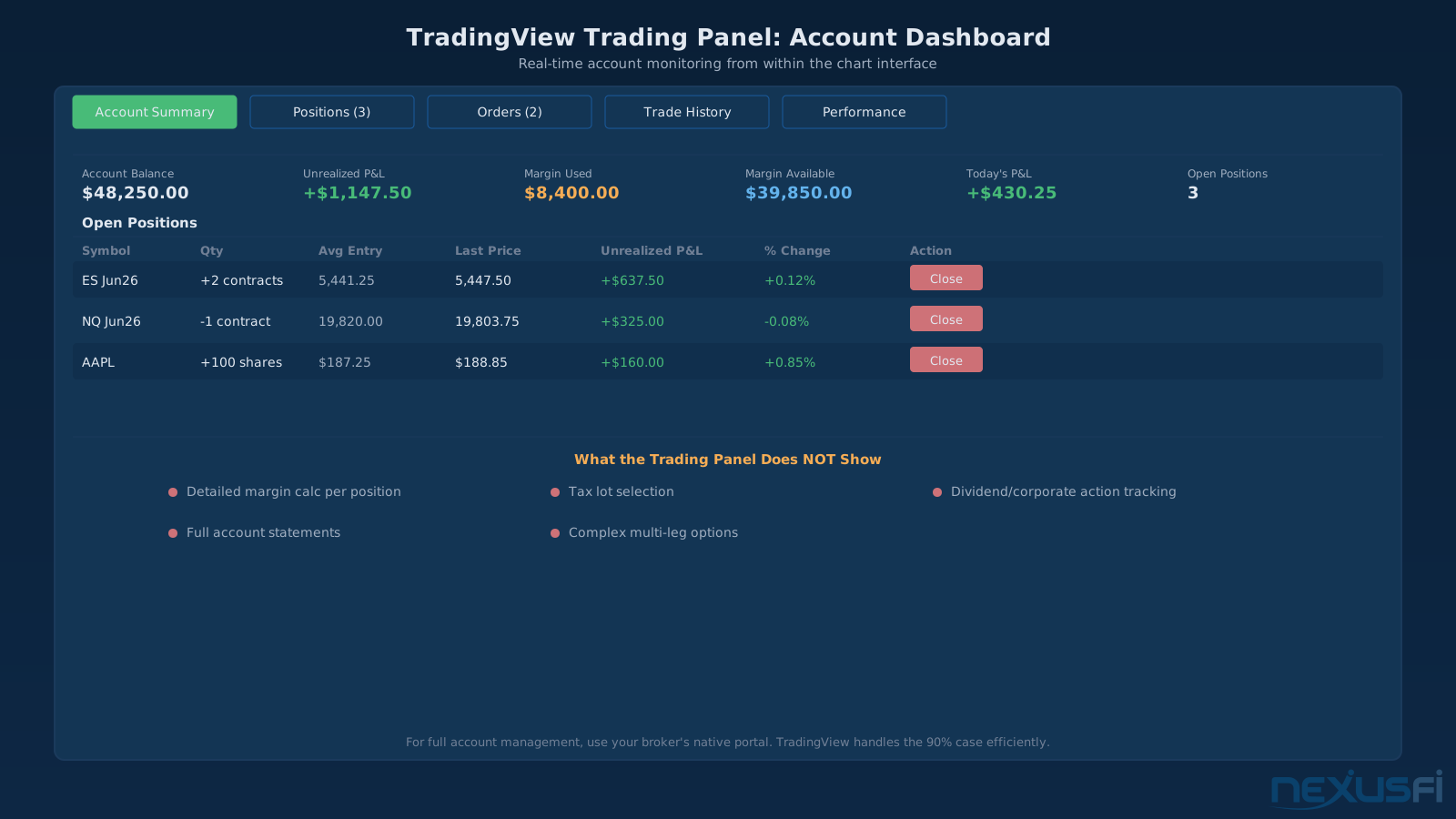
Once your broker is connected, the Trading Panel becomes a lightweight account dashboard.
What You Can See
- Account Balance -- cash available, total equity, margin used and available
- Open Positions -- instrument, size, average entry, unrealized PnL, with one-click close buttons
- Open Orders -- all working orders with status (pending, partially filled), with cancel/modify controls
- Trade History -- completed fills with timestamps, prices, and commissions
- Performance Summary -- basic PnL metrics for the connected account
Positions update in real-time via the broker's WebSocket feed. For most brokers, you'll see balance changes within a few seconds of a fill.
What You Can't Do
TradingView's account panel is intentionally limited compared to your broker's native interface. Don't expect:
- Detailed margin calculations by position
- Tax lot selection or accounting views
- Dividend tracking or corporate action management
- Full account statements or trade confirmations
- Complex multi-leg options strategies (for IBKR options traders)
The panel handles the 90% case — monitoring positions and managing orders while you stay on the chart. For everything else, use your broker's portal directly.
Never place a live order immediately after connecting your broker for the first time. Run a paper session first, verify fills appear in your broker's native interface, and confirm your position sizing settings are correct. A misplaced live order — especially on futures contracts — can run against you much before you can cancel.
Futures-Specific Considerations #
Futures traders using TradingView's broker integration run into a few issues that stock traders don't.
Contract Symbol Mapping
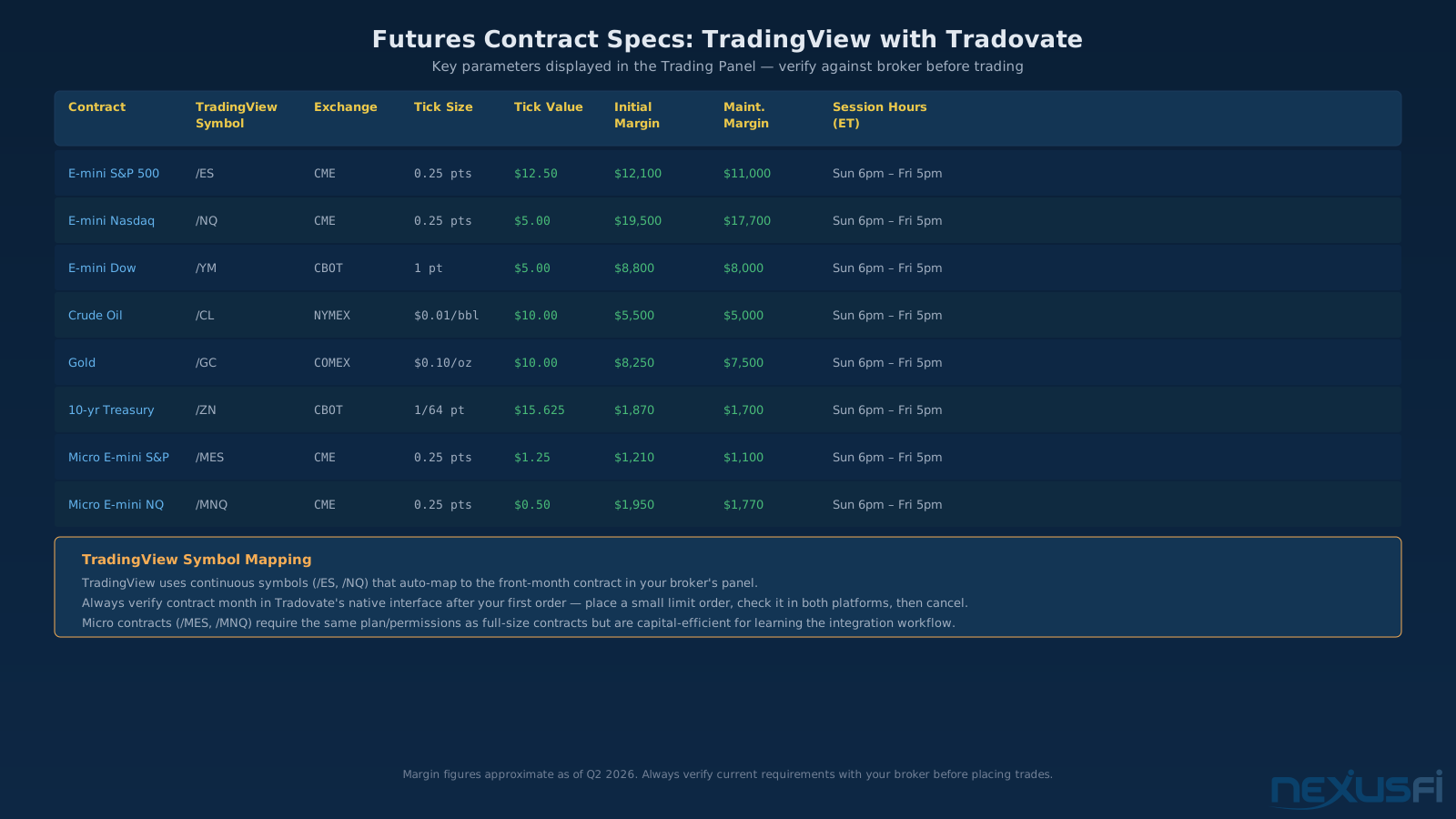
This is the number one source of confusion. TradingView uses its own symbol format for futures — typically the exchange ticker without the front-month designation. When you type "ES" on TradingView, you get the continuous contract. But your broker needs to route to a specific contract month (ESM26, ESU26, etc.).
Most integrations handle this mapping automatically. Tradovate and IBKR translate TradingView's continuous symbol to the correct front month. But verify this on your first trade. Place a small limit order, check that it appears in your broker's native interface on the correct contract month, then cancel it. Five minutes of verification saves you from routing errors.
Session Hours and Time-in-Force
Futures trade nearly 24 hours. A "Day" order on ES expires at 5:00 PM ET when the CME session closes. A "GTC" order survives across sessions. If you're placing orders outside regular trading hours, make sure your Time-in-Force matches your intent. Setting Day when you mean GTC during the overnight session means your order vanishes at the session break.
Margin and Contract Specifications
TradingView displays margin requirements pulled from your broker. For Tradovate, you'll see initial and maintenance margin per contract. For IBKR, it depends on whether you're on Reg T or portfolio margin. The numbers update in real-time, but they're approximations — the broker's native margin calculator is the authoritative source for complex positions.
Contract specifications like tick size and tick value are handled by TradingView's instrument definitions. ES trades in 0.25-point increments at $12.50 per tick. NQ trades at 0.25 points but $5.00 per tick. TradingView auto-rounds limit prices to valid tick increments. If you try to enter a limit at 5432.30 on ES, it'll snap to 5432.25 or 5432.50.
Execution Speed Debate
Here's where opinions split. @Mordecai on NexusFi put it bluntly: "If you're a fast scalper using market orders, TV's execution is too slow." They use TradingView for charting and NinjaTrader for execution — a common pattern among active futures traders. @NowRisk21 suggested pairing TradingView charts with a Jigsaw DOM for execution — get the visual analysis from TV, the speed from a purpose-built ladder.
TradingView's execution path adds one WebSocket hop between you and the broker compared to native desktop platforms. For discretionary swing trades, this is irrelevant — we're talking sub-50ms overhead. For scalpers targeting 1-2 tick moves on ES, every millisecond counts. Know your strategy's minimum viable execution speed before committing to TradingView for live trading.
The reality is that TradingView's execution path adds latency compared to a dedicated platform connected directly to the exchange via CQG or Rithmic. For swing traders and position traders, the difference is irrelevant. For scalpers working 1-2 tick targets, it matters. Know your trading style and set expectations so. For more on execution mechanics, see Platform Latency and Execution Speed.
The Automation Misconception #
This is the question that comes up constantly: "Can I automate my Pine Script strategy through TradingView's broker integration?"
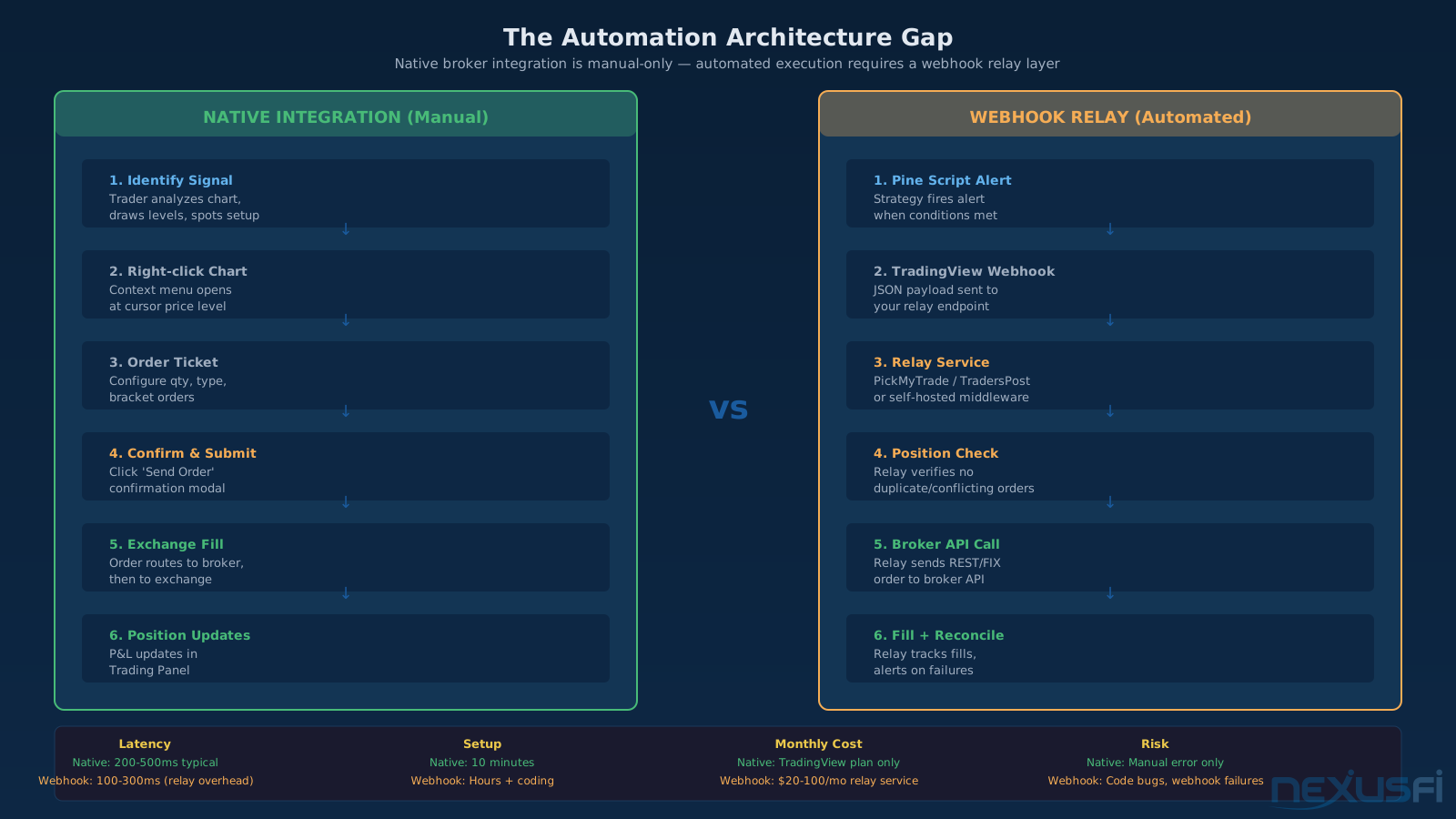
The short answer: no. Native broker integrations on TradingView are designed for manual, discretionary trading. You click buttons, you submit orders, you manage positions. The integration doesn't connect Pine Script strategy signals to your broker's order API.
@patcic asked this exact question on NexusFi — how to get TradingView indicator signals to auto-execute on IBKR. @GrayCrane laid out the real solution: a cloud-hosted API that receives webhook alerts from TradingView and translates them into broker API calls. That's not TradingView's broker integration — that's a custom middleware layer sitting between TradingView's alert system and your broker.
If you want automated execution from TradingView signals, you need:
- A TradingView alert configured to send JSON payloads via webhook
- A relay service (third-party SaaS or self-hosted) that receives those webhooks
- That service translating the alert into broker API orders with proper risk management
Third-party services like PickMyTrade, TradersPost, and AutoView handle this relay. They cost $20-100/month and add complexity — idempotency handling, position reconciliation, alert-to-fill latency management. It works, but it's a different workflow entirely from the native broker integration covered in this article.
For the full picture on programmatic execution, see API Trading and Platform Integration and Pine Script v5 Fundamentals.
Pricing: What It Actually Costs #
The cost structure has two layers — TradingView's subscription and your broker's commissions.
TradingView Plan Requirements
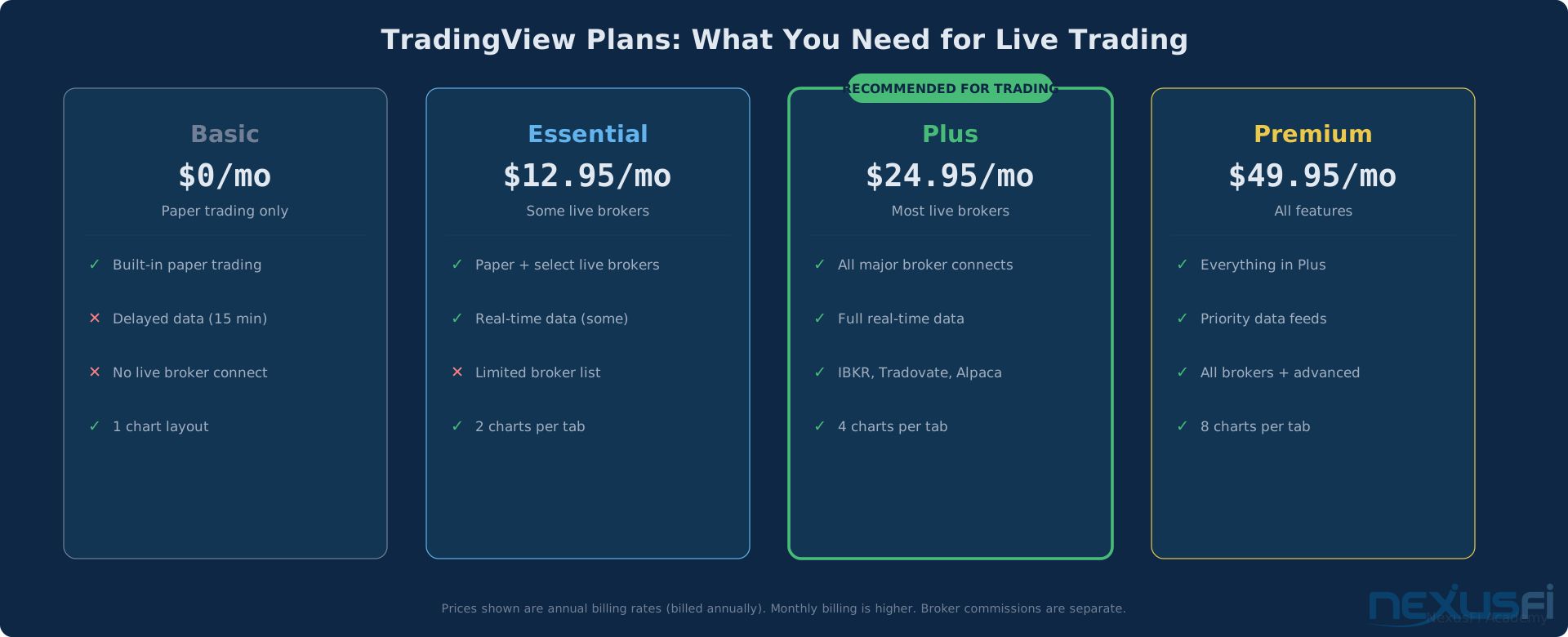
Paper trading is free on every plan, including Basic. But live broker connections require a paid subscription for most brokers:
- Essential ($12.95/month billed annually) -- some broker connections available
- Plus ($24.95/month billed annually) -- most broker connections unlocked
- Premium ($49.95/month billed annually) -- all features including priority data
The exact plan requirement varies by broker. IBKR and Tradovate typically need Plus or higher. Alpaca works on some lower tiers. Check the broker's tile in the Trading Panel — it'll tell you if your current plan supports live trading.
Broker Commission Structures
| Broker | Asset Class | Commission | Notes |
|---|---|---|---|
| Alpaca | US Equities | $0.00 | Zero commission, PFOF-free |
| IBKR | US Equities | $0.0035/share (tiered) | $0.35 minimum per order |
| IBKR | Futures | $0.10-0.25/contract | Plus exchange and clearing fees |
| Tradovate | Futures | $0.10/contract | Plus ~$0.02 exchange fee. Free tier available. |
| TradeStation | US Equities | $0.00 | Options at $0.60/contract |
| OANDA | Forex | Spread only | EUR/USD ~0.3 pips typical |
TradingView doesn't add a markup on top of broker commissions. What your broker charges is what you pay. The only TradingView-specific cost is the subscription plan required to unlock live trading.
Practical Checklist: Going Live #
Before you route your first real order through TradingView:
- Select a broker that matches your asset class and region. Check TradingView's live directory -- don't rely on third-party lists.
- Open and fund the appropriate account type (cash, margin, or futures).
- Upgrade your TradingView plan if your target broker requires Plus or Premium.
- Generate credentials -- OAuth login for most brokers, API key pair for Tradovate and crypto exchanges.
- Connect and verify -- check that balance, positions, and margin display correctly.
- Paper trade at least 20 orders to lock in the UI workflow -- entries, modifications, cancellations, bracket orders.
- Switch to live and confirm the green "Live" badge is visible.
- Place a small test order on a liquid instrument. Verify the fill in both TradingView and your broker's native interface.
- Enable alerts for fills, stop-loss triggers, and margin warnings.
- Review your broker's statements after the first session. Confirm commissions and execution quality match expectations.
The whole process takes about 30 minutes if you already have a funded broker account. If you're starting from scratch, account approval can take 1-3 business days depending on the broker.
For a broader framework on evaluating whether TradingView's execution fits your needs versus dedicated platforms, see Trading Platform Evaluation Framework and the hub article TradingView: The Charting and Analysis Platform Futures Traders Actually Use.
Knowledge Map
Go Deeper
Build on this knowledgeReferences This Article
Articles that build on this topicCitations
- — Interactive Brokers is now officially available at TradingView (2022) 👍 12
- — TradeStation Wins TradingView Broker of the Year -- Plus StockBrokers.com #1 Innovati (2026) 👍 5
- — Trading from Tradingview charts (2023) 👍 8
- — From paper money to real money? (2020) 👍 24
- — Big Discrepancies in Execution between Strategy Analyzer and Market Replay (2021) 👍 31
- — why is tradingview not favored? (2022) 👍 18
- — My first post, hopefully I won't embarrass myself (2024) 👍 7
- — Automated trading integration Tradingview to Interactive Brokers (2024) 👍 4
- — Automated trading integration Tradingview to Interactive Brokers (2024) 👍 9
- — TradingView Broker Comparison
- — TradingView Trade Execution Platform: 2026 Buyer's Guide